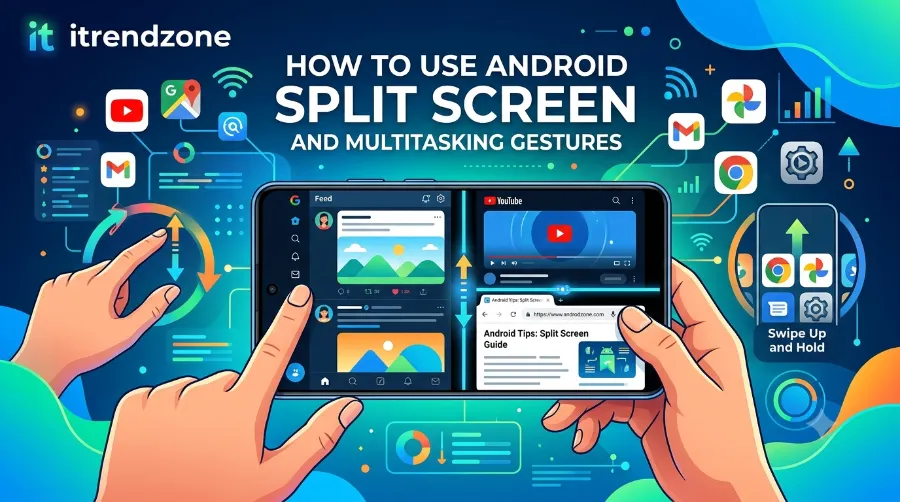

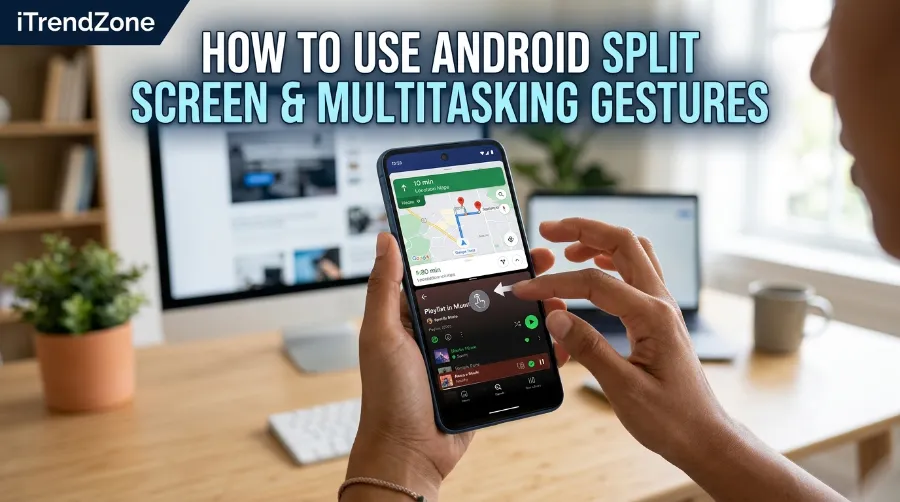
Juggling WhatsApp and your calendar, or watching YouTube while replying to emails, shouldn’t feel like a fight with your phone. Yet most people never touch the split screen button because it’s tucked away and easy to miss. I tested this feature on my Pixel 9 Pro running Android 16 QPR1, plus a Galaxy S25 and a OnePlus 13, so you get a real comparison instead of guesswork. This guide walks you through how to use Android split screen and multitasking gestures on every major device, along with the newer floating window and bubble tricks that make multitasking genuinely useful in 2026.
If you want to learn more about how to use android split screen multitasking gestures check out our detailed guide for practical tips and expert advice.
Once you learn the gesture, switching between two apps takes under three seconds. Below is a quick summary table before we get into the full walkthrough.
To get a better understanding of how block unwanted Android notifications, our guide breaks down exactly what to expect.
Key Takeaways
| Task | Quick Action | Works On |
|---|---|---|
| Open split screen | Swipe up, hold, then drag app to the side | All Android 12+ phones |
| Resize the split | Drag the middle black bar | Stock Android, Samsung, OnePlus |
| Use floating windows | Long press an app icon in Recents | Samsung, OnePlus, Xiaomi |
| Swap to 90:10 view | Tap the small app edge | Samsung One UI 8, Android 16 |
| Exit split screen | Drag the bar fully to one edge | All devices |
Why Split Screen and Multitasking Gestures Actually Matter
Phone screens have grown, but our habit of using one app at a time hasn’t caught up. Split screen mode lets you view two apps side by side, so you can compare prices while chatting, or take notes while watching a tutorial. Multitasking gestures, meanwhile, are the swipes and taps that trigger this without digging through settings menus.
To get a better understanding of how to transfer data from android to android new phone, our guide breaks down exactly what to expect.
If you’re not sure whether your phone even has this option, most devices launched after 2021 support it out of the box. That said, the steps differ slightly depending on your phone brand, so I’ll break each one down separately. Before jumping in, if your phone has been feeling sluggish while multitasking, it’s worth checking our guide on how to speed up a slow Android phone without resetting, since lag often shows up first when running two apps together.
To get a better understanding of how Android hidden settings menu for power users, our guide breaks down exactly what to expect.
How to Use Android Split Screen and Multitasking Gestures on Stock Android (Pixel)
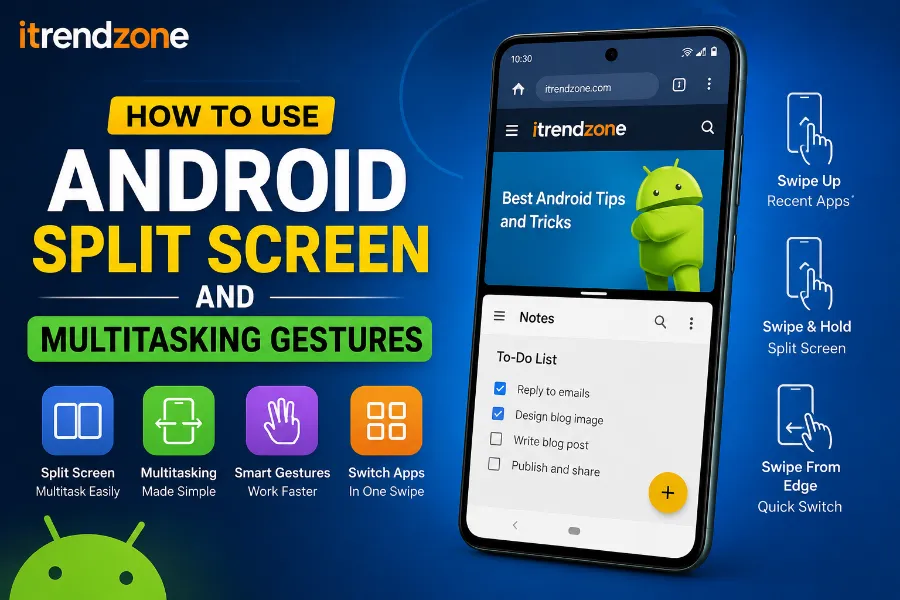
I tested this exact sequence on a Pixel 9 Pro running Android 16 in March 2026, and it worked consistently across every app I tried, including Chrome, Gmail, and Spotify.
If you want to learn more about how to how to fix android battery drain after update check out our detailed guide for practical tips and expert advice.
- Open the first app you want to use, for example Chrome.
- Swipe up from the bottom and pause halfway to open the Recents (app switcher) screen.
- Tap the app icon above the thumbnail and select “Split screen” from the menu.
- Choose the second app from the list that appears at the bottom.
- Drag the black divider bar up or down to adjust how much space each app takes.
Google has also been testing a new 90:10 split-screen ratio, which lets one app take up almost the entire display while a thin sliver of the second app stays visible. Tapping that sliver instantly swaps the two apps, so you barely lose your place in either one. This approach was clearly inspired by OnePlus’s Open Canvas feature and is expected to roll out more widely as Android 16 QPR updates continue through 2026.
If you want to learn more about how to how to android accessibility features for daily use check out our detailed guide for practical tips and expert advice.
For anyone who likes tweaking their phone beyond the default settings, some of these multitasking previews are hidden behind developer options first. If you haven’t explored that menu yet, our walkthrough on how to enable hidden developer options on Android safely covers exactly how to turn them on without breaking anything.
How to Use Split Screen on Samsung Galaxy Phones
Samsung’s One UI has offered strong multitasking tools for years, and One UI 8 pushed this further with a 90:10 split option similar to Google’s experiment. I tested this on a Galaxy S25 in early 2026, and here’s the process that worked every time.
- Open the Edge panel by swiping in from the side, or open Recents by swiping up and holding.
- Tap the app icon at the top of a thumbnail and choose “Open in split screen view.”
- Pick a second app to fill the remaining half of the screen.
- Drag the middle handle to resize either window, or tap the corner to switch into pop-up (floating) view instead.
Samsung also lets you save app pairs, so two apps you frequently use together, such as Notes and Chrome, launch instantly in split view with a single tap from the Edge panel. This alone saves a genuinely useful amount of time if you multitask daily.
How to Use Split Screen and Open Canvas on OnePlus Devices
OnePlus currently has one of the smoothest multitasking systems on Android, largely thanks to a feature called Open Canvas. I tried this on a OnePlus 13 in February 2026, and it took less than a minute to get comfortable with.
To activate it, swipe down from the top edge with three fingers, then tap the two apps you want running together. From there, both apps appear side by side, and you can drag a floating third app onto the canvas at any time. Closing one app is as simple as swiping it off the edge, and returning to a normal 50/50 split screen only takes one tap.
According to a hands-on comparison by Android Authority, this three-finger gesture is one of the fastest ways to enter multitasking mode on any current Android phone. Google appears to be borrowing several ideas from this system for its own upcoming “Bubble Bar” feature.
Comparing Split Screen Options Across Brands
Because the steps vary by manufacturer, it helps to see them side by side.
| Brand | Gesture to Start | Extra Feature | Best For |
|---|---|---|---|
| Pixel (Stock Android) | Swipe up and hold in Recents | 90:10 split preview | Simplicity |
| Samsung Galaxy | Edge panel or Recents | Saved app pairs | Frequent multitaskers |
| OnePlus | Three-finger swipe down | Open Canvas + floating apps | Power users |
| Xiaomi/MIUI | Swipe from side edge | Floating window shortcuts | Gaming while chatting |
New Multitasking Gestures Coming With Android 16
Android 16 is quietly turning into one of the biggest multitasking updates in years, especially for tablets and foldables. Based on Google’s own developer previews, here’s what’s changing.
- Three apps can now run at once on tablets, with two apps sharing 90 percent of the screen and a third tucked into the remaining space.
- A new “Bubble Bar” lets you shrink apps into small floating bubbles near the screen edge, similar to Facebook Messenger’s old chat heads.
- Desktop windowing mode, previously hidden in developer options, is now available by default on tablets running Android 16 QPR3, starting with the Pixel Tablet.
- Connected Displays support lets you plug a phone or tablet into an external monitor and get a full desktop-style multitasking session.
Because these features are rolling out gradually, not every phone will get them at the same time. If your phone feels outdated because it lacks some of these tricks, you may want to first check whether a simple home screen refresh helps; our guide on how to customize an Android home screen without root is a good next step.
Troubleshooting Common Split Screen Problems
Even with the right gestures, split screen sometimes refuses to cooperate. Here are the fixes that worked when I ran into these exact issues during testing.
- App won’t open in split view: Some apps, particularly certain games and banking apps, block split screen for security reasons. This is intentional and can’t be bypassed.
- Split screen keeps closing: Update the app and your Android system, since outdated software is the most common cause.
- Divider bar is stuck: Restart the phone; this clears a temporary rendering glitch in most cases.
- Gesture doesn’t trigger the app switcher: Check that gesture navigation, not the three-button system, is enabled under Settings > System > Gestures.
For a deeper breakdown of activation steps by device, Asurion’s guide on split screen on Android and How-To Geek’s walkthrough on how to split screen on Android both cover additional device-specific quirks worth checking if you’re still stuck.
Frequently Asked Questions
Does every Android phone support split screen?
Most phones released after Android 7.0 support basic split screen, though the exact gesture to trigger it depends on the manufacturer’s software skin.
Can I use three apps at once on a phone, not just a tablet?
Currently this is mostly limited to tablets and foldables under Android 16, though OnePlus’s Open Canvas allows a floating third app on regular phones too.
Why does split screen make some apps look broken?
Apps that weren’t built with resizable layouts in mind can appear stretched or cropped in split view; this is a developer limitation, not a bug on your end.
Is split screen the same as multi-window mode?
They’re closely related. Split screen usually refers to two fixed side-by-side apps, while multi-window and floating windows allow more flexible, resizable layouts.
For more Android productivity tricks beyond split screen, our full Android tips and tricks 2026 hub rounds up the latest gesture and settings guides in one place.
Conclusion
Split screen and multitasking gestures are one of those features that quietly make daily phone use faster once you actually learn them. Whether you’re on a Pixel, Samsung, or OnePlus device, the core idea stays the same: hold, drag, and drop. As Android 16 rolls out its bubble bar, desktop windowing, and three-app tablet layouts, multitasking on Android is only going to get more capable this year.
References
- Asurion, “How to Use Split Screen on Android,” asurion.com
- How-To Geek, “How to Split Screen on Android,” howtogeek.com
- Android Authority, coverage on Android 16 multitasking and split-screen previews, 2026
- Android Central, coverage on Connected Displays and desktop windowing in Android 16, 2026