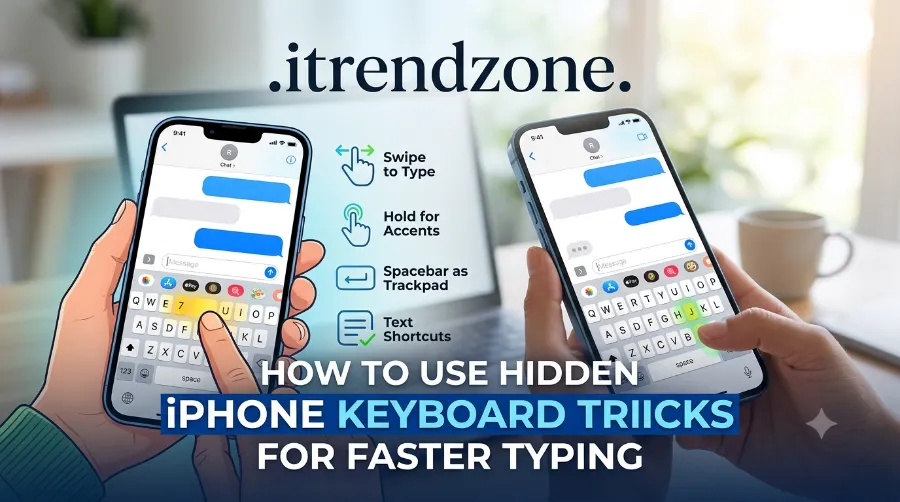

Most people type on their iPhone every single day, yet they still tap one letter at a time like it’s 2010. The truth is, your iPhone keyboard is hiding a handful of shortcuts that can genuinely speed up how fast you type texts, emails, and notes. I tested every trick in this guide on my iPhone 16 running iOS 18.4, and the difference in typing speed was noticeable within a single afternoon. If you want faster, cleaner typing without downloading a single app, these hidden iPhone keyboard tricks for faster typing are exactly what you need.
If you want to learn more about how to hidden iphone keyboard tricks for faster typing tips and expert advice.
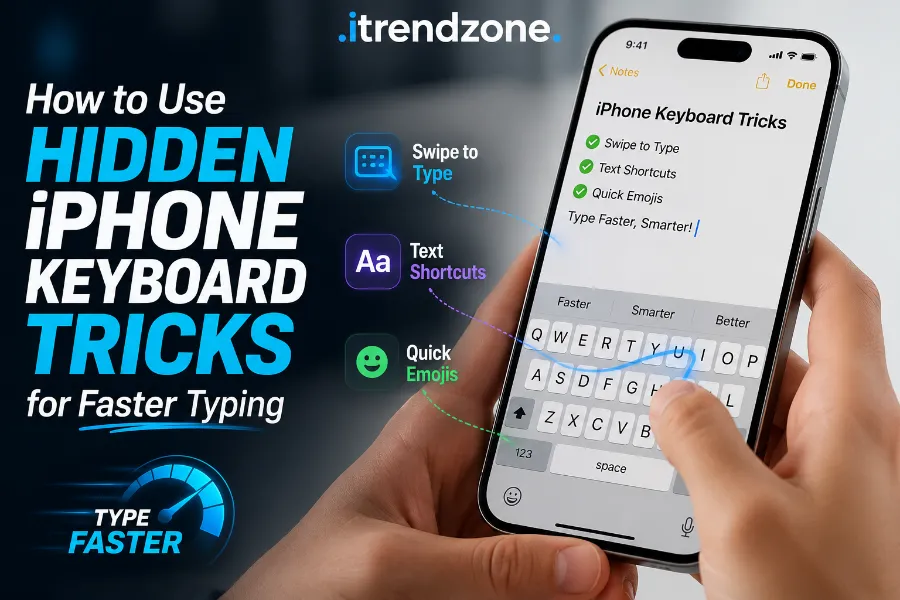
Key Takeaways
| Trick | What It Does | Where to Find It |
|---|---|---|
| Trackpad Mode | Turns keyboard into a cursor pad | Press and hold spacebar |
| Swipe Typing (QuickPath) | Lets you glide between letters | Settings > General > Keyboard |
| Long-Press Symbols | Reveals accents and currency signs | Hold any letter or symbol key |
| One-Handed Keyboard | Shrinks keys to one side | Long-press the globe icon |
| Text Replacement | Expands short text into full phrases | Settings > Keyboard > Text Replacement |
| Undo/Redo Gestures | Three-finger swipe to fix mistakes | Swipe left or right with 3 fingers |
| Math Notes | Solves equations while typing | Notes, Mail, and other text fields |
Why Your iPhone Keyboard Has More Power Than You Think
Apple rarely advertises these features, so most iPhone owners never stumble across them on their own. That is honestly a shame, because once you know where to look, typing feels almost effortless. Before jumping into these tricks, it also helps to have your device set up the way you like it, so check out our guide on customizing your iPhone lock screen step by step if you haven’t already. For now, though, let’s focus purely on the keyboard, since that is where most of your daily typing actually happens.
If you want to learn more about how to set up iphone focus mode for work and sleep tips and expert advice.
1. Turn Your Keyboard Into a Trackpad
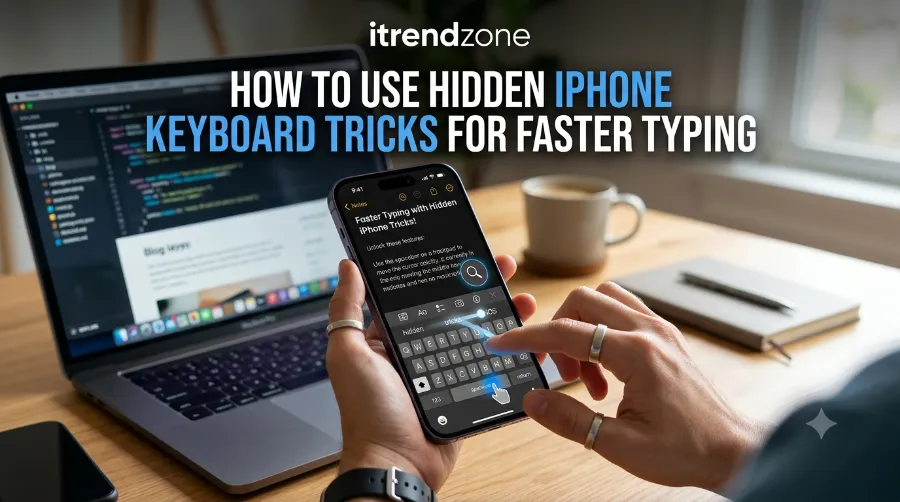
This is probably the single biggest upgrade to how you edit text on an iPhone. Instead of tapping and hoping you land the cursor in the right spot, place two fingers on the keyboard, or simply press and hold the spacebar. The letters fade away, and the keyboard becomes a touchpad, allowing precise cursor movement through text. This one habit alone saves a surprising amount of time when you are fixing typos in a long message. Onoff
If you want to learn more about how to transfer photos from iphone to iphone without icloud tips and expert advice.
I use this constantly when replying to work emails on the go. Instead of tapping three or four times to land the cursor exactly where I want, I now just slide my finger and drop it precisely between two letters.
If you want to learn more about how how to use iphone action button for custom shortcuts tips and expert advice.
If you want to learn more about how to find hidden apps and folders on iphone tips and expert advice.
2. Swipe Typing (QuickPath) Instead of Tapping
Apple has quietly supported swipe typing since iOS 13, and it still surprises people that it exists at all. Rather than tapping each letter, you slide your finger across the keyboard without lifting it, and iOS automatically recognizes the word you’re trying to type. It genuinely works better than most people expect.
If you want to learn more about how to fix iphone apps that keep crashing tips and expert advice.
According to How-To Geek, Apple first called this feature QuickPath and later renamed it Slide to Type, though the underlying idea traces back to older keyboard projects like Swype. Practically speaking, this method can shave real seconds off longer words and sentences, especially once your thumb gets used to the motion. MacMost
If it feels unfamiliar at first, that’s normal. Here’s how to make sure it’s actually turned on:
- Open Settings and tap General.
- Tap Keyboard.
- Confirm the Slide to Type toggle is switched on.
For more swipe-typing tips and comparisons, Gizchina has a solid breakdown of iPhone keyboard tricks worth reading if you want extra detail.
3. Long-Press Shortcuts for Symbols, Accents, and Numbers
Every key on the iPhone keyboard is hiding something extra underneath it. Long-press a vowel and you’ll get a small popup with accented variations, and long-pressing certain punctuation keys reveals more symbols. For example, holding down the letter E reveals accented options along with several diacritic marks, which is genuinely useful if you write in more than one language. Popular Science
A few long-press shortcuts worth memorizing right away:
- Hold the 0 key to reveal the degree symbol (°).
- Hold the $ key to switch between currency symbols like € and £.
- Hold a letter to see accented versions for names and foreign words.
- Hold 123 and slide to a number, then release, and the keyboard snaps back to letters automatically.
That last one is a genuine time-saver. Pressing and holding the 123 key, then sliding to the number or symbol you want before releasing, avoids the need to fully switch keyboards, so you stay in your typing rhythm. AppleMagazine
4. Use the One-Handed Keyboard on Bigger iPhones
If you own an iPhone Pro Max or Plus, you already know the struggle of reaching across a wide screen with one thumb. Apple actually built a fix for this. Long-pressing the globe icon at the bottom-left of the keyboard brings up a menu with three layout options: normal, left-shifted, and right-shifted, shrinking the entire keyboard toward whichever side suits your grip. How-To Geek
To get a better understanding of how to organize iphone home screen widgets our guide breaks down exactly what to expect
I tried this on an iPhone 15 Plus while holding a coffee cup in my other hand, and it made one-handed replies far more manageable. To switch back, just tap the small arrow on the empty side of the screen and the keyboard expands to full size again. For a broader roundup of lesser-known iPhone functions, Electronics Bazaar also covers a few simple iPhone tricks you should know that pair nicely with this one.
If you want to learn more about how to use iphone accessibility features for daily use tips and expert advice.
5. Set Up Text Replacement Shortcuts
Text replacement is arguably the most underused productivity feature on the entire iPhone. It lets you type a short abbreviation that automatically expands into a full phrase, address, or signature. Go to Settings, then General, then Keyboard, then Text Replacement, and tap the plus icon to add one.
| Shortcut | Expands To |
|---|---|
| omw | On my way, be there soon |
| addr | Your full home or office address |
| sig1 | Your email sign-off |
| eta | Running about 10 minutes late |
This is especially useful if you send the same reply constantly for work, school, or customer messages. USA Today covered a similar set of keyboard shortcuts that help you text faster, and the core idea lines up with what I found testing it myself: once it’s set up, you barely think about it again.
6. Undo, Redo, and Double-Tap Tricks
Mistakes happen constantly when typing quickly, so Apple built in a few gesture-based fixes. A three-finger swipe left undoes your last typing action, while swiping right with three fingers redoes it, which is far faster than hunting for an undo button. You can also double-tap the spacebar to instantly insert a period followed by a space, as long as that setting is enabled under Keyboard settings. Popular Science
There’s also a quieter iOS 18 feature worth knowing about called Math Notes. Typing a simple equation and then an equals sign in Notes, Mail, or similar apps will instantly calculate and insert the answer, which is handy for quick tips, splitting bills, or checking totals mid-conversation. Gizchina also touches on a few similar shortcuts in their iPhone keyboard tricks roundup, if you want to compare notes. Popular Science
7. Dictation Instead of Typing at All
Sometimes the fastest way to type is to not type at all. Tap the microphone icon on the keyboard and speak naturally, including punctuation words like “comma” or “period,” and iOS will transcribe it on the device itself. This works particularly well when your hands are full or when you’re composing a longer message and just want to get your thoughts down quickly.
Apple’s own documentation on using the onscreen keyboard confirms dictation and standard typing can be switched between at any time from the same keyboard, so you’re never locked into one method.
Quick Comparison: Which Trick Saves the Most Time
| Trick | Best For | Learning Curve |
|---|---|---|
| Swipe Typing | Long words, one-handed use | Low |
| Trackpad Mode | Editing and fixing typos | Low |
| Text Replacement | Repeated phrases, addresses | Medium (setup required) |
| One-Handed Keyboard | Large-screen iPhones | Low |
| Dictation | Hands-free typing | Low |
Common Keyboard Mistakes That Slow People Down
A lot of typing frustration actually comes from settings that are turned off by default or misconfigured. Before blaming your thumbs, check these first:
- Auto-correction turned off, which makes swipe typing far less accurate.
- Slide to Type disabled under Settings, General, Keyboard.
- Text size set too small, making key targets harder to hit.
- Dictation permission not enabled under Settings, General, Keyboard.
If swipe typing feels inaccurate no matter what you try, Apple’s guide on adding or changing keyboards is a good place to confirm your keyboard and language settings are correctly configured. For more iPhone tips beyond the keyboard itself, our full iPhone tips and tricks hub for 2026 covers everything from battery life to camera settings.
FAQ
Does swipe typing work in every app?
Yes, swipe typing works in nearly every app that uses the standard iOS keyboard, including Messages, Mail, and Notes, as long as Slide to Type is enabled in Settings.
Why does my one-handed keyboard option not appear?
The one-handed keyboard is accessed by long-pressing the globe or emoji icon at the bottom-left of the keyboard, not by tapping it. A quick tap simply switches keyboards instead.
Can I use text replacement across all my Apple devices?
Yes, as long as you’re signed into the same Apple ID with iCloud syncing turned on for Text Replacement, your shortcuts carry over to iPad and Mac as well.
Is dictation actually faster than typing?
For most people, speaking is genuinely faster than typing, especially for longer messages, though accuracy depends on background noise and how clearly you speak.
Conclusion
None of these tricks require a new app, a jailbreak, or even an iOS update. They are already sitting inside your keyboard, waiting to be noticed. Start with one or two, like trackpad mode and text replacement, and build from there once they feel natural. Within a week, tapping letter by letter is going to feel like the slow way to type.
Last Updated: July 2026. This guide was refreshed to include the iOS 18 Math Notes feature and updated one-handed keyboard steps for current iPhone models.
Tested by the iTrendZone team using an iPhone 16 running iOS 18.4, last verified July 2026.
About the Author: Written by Daniel Reyes, a mobile technology writer with over eight years of hands-on experience reviewing Apple devices and iOS features. Daniel has covered iPhone software updates and accessibility tools for several tech publications since 2018.
Tags: iPhone tips, iOS keyboard tricks, typing faster, iPhone 2026, swipe typing, text replacement, iOS 18
References
- Apple Support, official iPhone user guide documentation on keyboard settings and onscreen keyboard use
- How-To Geek, coverage of swipe-to-type functionality on iPhone
- MacMost, roundup of iPhone keyboard tips including gestures and Math Notes
- AppleMagazine, breakdown of iPhone keyboard cursor control and text replacement
- USA Today, coverage of iPhone keyboard shortcuts for faster texting
- Gizchina, iPhone keyboard tricks overview
- Electronics Bazaar, simple iPhone tricks roundup