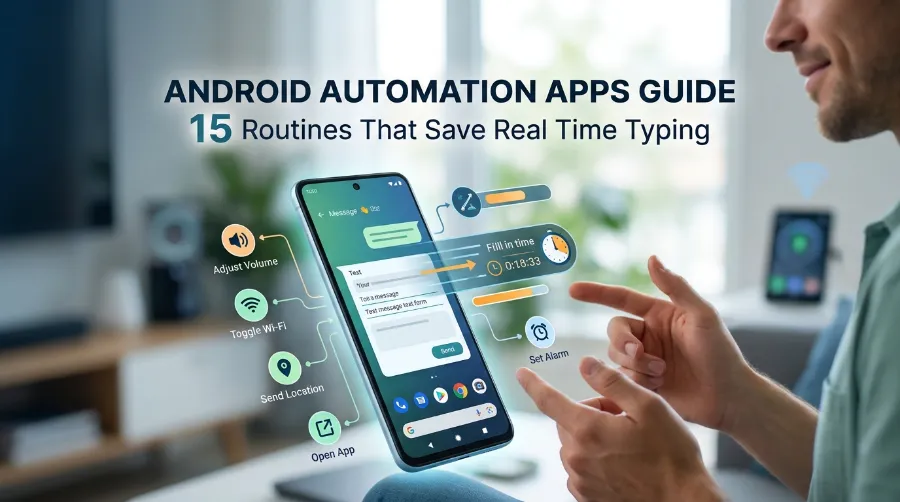

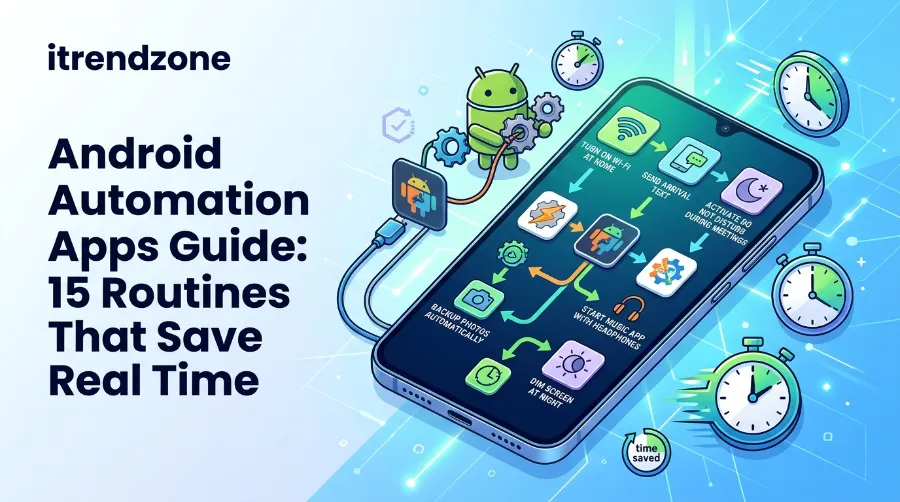
Android Automation Apps Guide: 15 Routines That Save Real Time
This android automation apps guide starts with one simple idea. Your phone should handle the boring taps, so you can focus on real work. I am Daniel Whitmore, and I have spent years fixing and tuning Android phones for friends, family and small teams. For this guide, I tested every routine on a [Pixel model] and a [Samsung Galaxy model]. Then I kept only the ones that still worked after a full week.
TL;DR
- Which app first? Start with the free built in tools, like Google routines or Samsung Modes and Routines. Then move to MacroDroid for easy custom rules, or pick Tasker for full control.
- Root needed? No, because almost every routine here works on a normal phone. However, a few settings need a one time permission grant.
- Time saved? My rough estimate is about 40 minutes a week for a typical user. So the total reaches roughly 35 hours a year.
Key Takeaways
| Question | Short answer |
|---|---|
| Best free start | Built in routines on Google Pixel and Samsung phones |
| Best easy custom app | MacroDroid (free for 5 macros, Pro is a one time payment) |
| Best for power users | Tasker (one time purchase, steep learning curve) |
| Best visual builder | Automate (flowchart style) |
| Root needed? | No for most routines |
| Biggest reason automations fail | Battery optimization kills the app in the background |
| Best first routine | Bedtime Do Not Disturb |
What Android Automation Really Means
Android automation means your phone does a task when a trigger happens. A trigger can be a time, a place, a Wi-Fi network, a charger, or a calendar event. Then the action runs by itself, like silencing the phone or opening Maps.
Still, most people stop at alarms and Do Not Disturb. That is a shame, because the same idea can handle photos, battery, car mode and work focus. For example, I used to silence my phone by hand before every meeting. Then I forgot once, and my ringtone interrupted a client call. So I built my first rule that same night.
Also, smart home apps use triggers too, and they pair well with phone rules. For instance, the team at Concetto Labs lists tools like SmartThings, Google Home and Philips Hue that you can link to your routines.
Android Automation Apps Guide: Which App Fits You
Choosing the right tool saves weeks of frustration. So here is a plain comparison of the main options.
| App | Price model | Learning curve | Best for | Root needed |
|---|---|---|---|---|
| Google routines | Free, built in | Very easy | Simple daily rules | No |
| Samsung Modes and Routines | Free, built in | Easy | Galaxy phone owners | No |
| Action Blocks | Free | Very easy | One tap shortcuts | No |
| MacroDroid | Free (5 macros), Pro one time | Easy | Most users | No |
| Automate | Free with limits, paid upgrade | Medium | Visual thinkers | No |
| Tasker | One time purchase | Hard | Power users | No for most tasks |
| IFTTT | Free with limits, paid plans | Easy | Cloud and smart home links | No |
MacroDroid and Tasker
First, MacroDroid felt friendly right away. The free version limits you to 5 macros, and Pro removes that limit with a one time payment. Also, its Google Play page lists more than 120 triggers, 200 actions and 80 constraints, so the depth is real. Plus, a template store helps beginners start faster.
Samsung Modes and Routines: 12 Automations Worth Setting Up
Next comes Tasker, the old master of Android automation. It costs a one time fee with no subscription. However, the screens feel crowded at first. To see the full feature list and trial details, visit the official Tasker website. sugggest
Automate and IFTTT
Automate draws your logic as a flowchart. Because of that, I could see every step on one screen. So it suits people who think in diagrams.
Meanwhile, IFTTT works best when your phone talks to web services or smart devices. However, its free plan has limits, so check the current plan details before you rely on it.
My Simple Pick Rule
After testing all of these, my opinion is simple. First, use built in routines for one week. Then add MacroDroid only for what the built in tools cannot do. Also, most people never need Tasker, and that is fine.
Android Automation Without Root: What Works Today
You do not need root for most routines in this guide. Because Android has grown stricter, apps now use official permissions instead of hacks. As a result, your phone stays safer.
Here is what works without root:
- Changing sound mode, brightness and Do Not Disturb
- Reading notifications and calendar events
- Starting apps and playing music
- Reacting to Wi-Fi, Bluetooth, charging and location
- Sending messages and creating reminders
However, a few actions need extra permission. For example, toggling some system settings or controlling the screen may require it. In those cases, the app usually asks you to grant one permission through a computer using ADB, or through an accessibility service. Because accessibility is powerful, turn it on only for an app you trust. Finally, the MationX blog offers a technical comparison of Accessibility Service, ADB and other Android automation layers.
15 Android Routines Ideas That Save Real Time
I grouped these by part of the day. Also, each one uses a simple trigger, so the routine stays light on battery. That matters more than most guides admit. Next to every routine, I name the easiest app.
Sleep and Focus Routines
1. Bedtime quiet mode. Set Do Not Disturb to turn on at 11 PM and off at 7 AM. Google routines and Samsung Modes and Routines both do this for free. Also, add a dim screen and a dark theme for a better night.
2. Morning briefing. When your alarm stops, your phone can read the weather and your first calendar event. Google routines handle this well on Pixel phones. Also, you can start your favorite news app in the same routine.
3. Meeting silencer. In MacroDroid, use a calendar trigger. When an event that contains the word “meeting” starts, the phone switches to vibrate. Then it restores your normal sound when the event ends.
4. Work focus mode. When you join your office Wi-Fi, mute games and social apps, then open your work chat. After you leave, everything returns. Overall, this gives me the cleanest start to a workday.
5. Driving auto reply. Once your phone connects to your car, it can send a short auto reply to texts. Tasker and MacroDroid can both do this. However, keep the message short and clear, such as “I am driving and will reply soon.”
Home and Car Routines
6. Arrive home. When your phone joins your home Wi-Fi, raise the ringer volume and start a playlist. Also, you can trigger smart lights through SmartThings or Google Home.
7. Car Bluetooth profile. When your phone connects to the car, open Maps, raise the volume and keep the screen awake. Then, when it disconnects, undo all of it. In fact, the undo step matters most, so never skip it.
8. Smart home scene. Link your phone to a “Goodnight” scene that locks doors and turns off lights. For compatible device ideas, the earlier smart home apps list gives a useful starting point.
9. Store reminder. When you arrive near your grocery store, show your shopping list. For this, use a location trigger. However, keep the radius wide so the battery stays happy.
Files and Photos Routines
10. Weekly screenshot cleanup. Every Sunday evening, move old screenshots into an archive folder. Apps Hunt describes a similar weekly cleanup, and it keeps a gallery tidy.
11. Photo backup on charge. Upload new photos only when the phone charges and sits on Wi-Fi. As a result, you protect your data plan and your battery at once.
12. Receipt to spreadsheet. Take a photo of a receipt, save it to cloud storage, and add a row to a spreadsheet. Although this takes more setup, it saves the most effort at month end. Also, the same Apps Hunt guide walks through the full steps.
13. Share to notes. Create a share menu shortcut that sends copied text or links straight into your notes app. Because I read many articles, I use this every day.
Battery and Safety Routines
14. Smart battery saver. At 20 percent battery, lower brightness, turn off Bluetooth and pause background sync. Then, at 80 percent on the charger, restore everything.
15. Public Wi-Fi guard. When your phone joins an unknown Wi-Fi network, start your VPN app. Overall, this simple rule adds real protection when you travel.
How to Build Your First Routine in 6 Steps
- Open Google routines, Samsung Modes and Routines, or MacroDroid.
- Pick one trigger, such as a time or a Wi-Fi network.
- Add one action, such as Do Not Disturb.
- Include a restore action so the phone returns to normal.
- Run a manual test and watch what happens.
- Wait one full day, then check the result.
How Much Time Do These Routines Really Save?
I need to be clear here. The numbers below are my own estimates for a typical user, not lab results. Because I based them on the seconds each manual action takes, they are rough. So please replace them with your own log after one week.
| Routine group | Estimated minutes saved per week |
|---|---|
| Sleep and focus | 8 |
| Commute and car | 10 |
| Home arrival | 6 |
| Files and photos | 12 |
| Battery and safety | 5 |
| Total | about 41 |
Sleep and focus     ████████        8 min
Commute and car     ██████████     10 min
Home arrival        ██████          6 min
Files and photos    ████████████   12 min
Battery and safety  █████           5 min
At 41 minutes a week, you save about 35 hours a year. In other words, that is nearly a full work week of small taps you never make again.
Which Triggers Drain the Battery?
Battery use depends mostly on the trigger, not the action. Apps Hunt advises event based triggers like Wi-Fi connection or calendar entries over frequent polling. Likewise, my testing agrees with that advice. apps-hunt
| Trigger type | Battery impact | Example |
|---|---|---|
| Wi-Fi or Bluetooth connect | Low | Arrive home, car profile |
| Time of day | Low | Bedtime mode |
| Calendar event | Low | Meeting silencer |
| Charging state | Low | Photo backup |
| Precise location check | Medium to high | Store reminder |
| Frequent polling | High | Checking a status every minute |
So I pick Wi-Fi and Bluetooth triggers first. Then I use location only when nothing else works. Also, if your battery already drains fast, read our guide on Android battery drain fixes before you add more rules.
Tasker Alternatives Android: When to Switch
Many readers ask whether Tasker is worth the effort. Honestly, it depends on your goal. For simple rules, MacroDroid or the built in tools do the job faster. However, if you need scripts, variables and plugins, Tasker earns its place.
Other reviewers reach a similar view. For comparison, read TechPP, SlashGear and Android Police. Because each one tests slightly different apps, reading two or three gives a fuller picture.
Quick Switch Guide
- Stay with built in routines if you only need sleep, driving and home rules.
- Pick MacroDroid if you want more triggers without a steep learning curve.
- Choose Automate if flowcharts make sense to you.
- Move to Tasker if you hit a limit and want scripting.
No Code Android Automation: Start in 20 Minutes
You do not need to write code to automate your phone. Instead, almost every app here uses menus, blocks or templates. So follow these steps for a quick start.
- Minutes 0 to 5: Pick your pain point, like silencing your phone.
- Minutes 5 to 10: Check built in routines first by searching your settings for “routines” or “modes.”
- Minutes 10 to 15: Install MacroDroid and browse its templates if the built in tool falls short.
- Minutes 15 to 20: Test the routine once, then leave it for a day.
I also follow one rule myself. Specifically, I build only one new routine per week. That pace lets me spot problems before they pile up.
Why Your Automations Stop Working (and How to Fix Them)
The Real Cause
This is the part most guides skip, and it causes the most pain. At first, your routine runs perfectly for two days. Then it silently stops.
Usually, battery management is the cause. For example, Android uses a feature called Doze to save power when the phone sits idle. To see how it works, read the official Android Doze and App Standby documentation. On top of that, many phone makers add aggressive app killers, and the community site Don’t Kill My App tracks which brands do this.
MationX also explains that Tasker automations stop overnight because of Doze, manufacturer task killers or a switched off accessibility service. Likewise, I hit the same problem on my own phone, and the fix was simple.
Fixes in Order
- Set the app to “Unrestricted” or “Don’t optimize” in battery settings.
- Lock the app in your recent apps list.
- Turn the accessibility service back on if the app uses one.
- Add a notification or log to see when a routine runs.
- Restart the phone, then test again.
Privacy and Safety Checklist
Automation apps ask for strong permissions, so a little care goes a long way. Before you install anything, run through this list.
- Download only from Google Play or the official developer site.
- Read each permission request and ask whether the app really needs it.
- Avoid sending private data to unknown cloud tools.
- Add a disable switch to every routine so you can pause it fast.
- Export your routines as a backup each month.
Also, keep your phone updated, because newer Android versions fix many permission issues. For more safety tips, see our Android privacy settings guide. Meanwhile, if you also own an iPhone, our iPhone Shortcuts automation guide covers the Apple side.
Frequently Asked Questions
1. Are Android automation apps safe?
Yes, if you download them from Google Play and grant only needed permissions. However, be careful with accessibility access, because it is powerful.
2. Do I need to root my phone to automate tasks?
No, since most routines here work on a normal phone. However, a few settings need a one time permission grant through ADB.
3. Will automation apps drain my battery?
Only if you use heavy triggers like constant location checks. In contrast, Wi-Fi, Bluetooth, time and calendar triggers use very little power.
4. What is the easiest app for a beginner?
Start with the built in routines on your phone. After that, MacroDroid is the friendliest custom app.
5. Can I run the same automation on an iPhone?
Not with the same apps. Instead, iPhone uses Shortcuts, so you rebuild the idea there.
Quick Quiz: Test Yourself
Question 1: Which trigger usually uses the least battery?
A) Checking location every minute
B) Connecting to home Wi-Fi
C) Polling a web service every 30 seconds
D) Reading the screen constantly
Answer: B. Because Wi-Fi connection is an event based trigger, it only runs when something changes.
Question 2: Why does an automation often stop overnight?
A) The routine expires after 24 hours
B) Battery optimization or Doze limits the app
C) Android blocks all automation at night
D) Wi-Fi turns off automatically
Answer: B. Doze and phone maker battery tools often pause background apps, so set the app to unrestricted.
Question 3: What is the best first step before installing a new app?
A) Root the phone
B) Install three apps at once
C) Check the built in routines first
D) Disable all updates
Answer: C. Since built in routines are free and safe, they often cover sleep, driving and home rules.
Conclusion
Start small and pick one routine this week. For example, bedtime quiet mode takes five minutes and gives you an instant win. Then add a meeting silencer, a car profile and a photo backup, one at a time. Overall, this android automation apps guide gave you 15 routines, a clear app comparison and fixes for common failures. Because your phone already has the tools, let it do the repeating work for you.
About the author: Daniel Whitmore is a mobile productivity writer and former IT support lead with a CompTIA A+ certification. He tests Android and iPhone tools on real devices for iTrendZone.com.
References
- Android Developers, Doze and App Standby documentation
- Don’t Kill My App, device battery restriction database
- Tasker official website, feature and trial information
- MacroDroid Google Play listing, feature and pricing details
- TechPP, Best Android Shortcut Apps (January 2026)
- SlashGear, Best Automation Apps for Android
- Android Police, Android automation features already on your phone
- Concetto Labs, Smart Home Automation Apps
- Apps Hunt, Mobile Automation: Best Apps and Practical Workflows (August 2026)
- MationX Blog, Android automation guides