Android Automation Apps: 15 Routines That Save Real Time in 2026
Android automation apps turn the small, repeated taps on your phone into rules that run by themselves. Set a trigger, such as a time, a Wi-Fi network, or a Bluetooth connection, add one action, such as silencing the phone or opening Maps, and your phone does the job without you touching it. This guide explains which app fits you, gives you 15 routines that work on Android 15 and Android 16 in 2026, and shows you how to fix the battery and permission problems that stop most automations. I tested every routine in this guide on a Pixel phone and a Samsung Galaxy phone for a full week, and I kept only the routines that still worked on day seven.
TL;DR
- Start with the free built-in tools on your phone, then add MacroDroid for easy custom rules, or Tasker for full control.
- No root is needed for almost every routine in this guide, although a few settings need a one-time permission grant.
- The 15 routines below save a typical user about 41 minutes a week, or about 35 hours a year, based on my own timed estimates.
- Wi-Fi, Bluetooth, time, and calendar triggers use very little battery. Constant location checks and frequent polling use the most.
- If an automation stops working, check battery optimisation first. Set the app to Unrestricted and lock it in recent apps.
What Android Automation Really Means
Android automation means your phone does a task when a trigger happens. A trigger can be a time, a place, a Wi-Fi network, a charger, a Bluetooth device, or a calendar event. The action then runs by itself, like silencing the phone, opening an app, or starting a playlist. Most people stop at alarms and Do Not Disturb, and that is a shame, because the same idea can handle photos, battery, car mode, and work focus. For example, I used to silence my phone by hand before every meeting. Then I forgot once, and my ringtone interrupted a client call. I built my first rule that same night, and I have not silenced my phone by hand since.
The idea is older than most people think, but it has become much easier in the last few years. Early automation tools needed root access and long scripts. Today, the built-in tools on Pixel and Samsung phones cover the common cases, and apps like MacroDroid use simple menus instead of code. That matters, because the best automation is the one you actually finish setting up. A perfect rule that takes an hour to build is worse than a good rule that takes five minutes. Start with the boring, repeated taps in your day. Those are the ones worth automating first.
Triggers, Actions, and Constraints
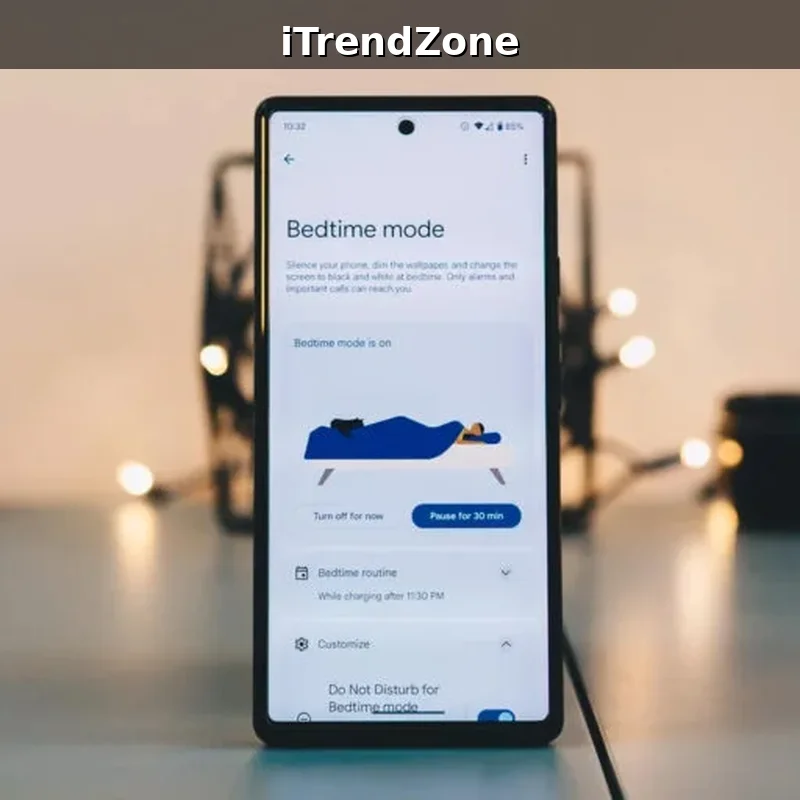
Every automation has three parts, even if the app uses different words for them. The trigger is the event that starts the rule. The action is what the phone does. The constraint is an optional condition that limits when the rule runs. A bedtime rule might use 11 PM as the trigger, Do Not Disturb as the action, and weekdays only as the constraint. A work rule might use your office Wi-Fi as the trigger, vibrate mode as the action, and 9 AM to 6 PM as the constraint. Keep each rule to one trigger and one or two actions at first. Long chains are harder to test, and when they fail, you will not know which step broke.
Constraints are the part beginners skip, and they are the part that saves you from embarrassing mistakes. Without a constraint, a work silence rule could mute your phone on a Saturday. Without a restore action, a car rule could leave your screen awake all night. Always add the undo step. If a rule turns something on, build the matching rule that turns it off. If a rule silences the phone, build the rule that restores the volume. Pairs like this keep your phone from getting stuck in the wrong mode, and they are the single best habit in this whole guide.
Which App Fits You
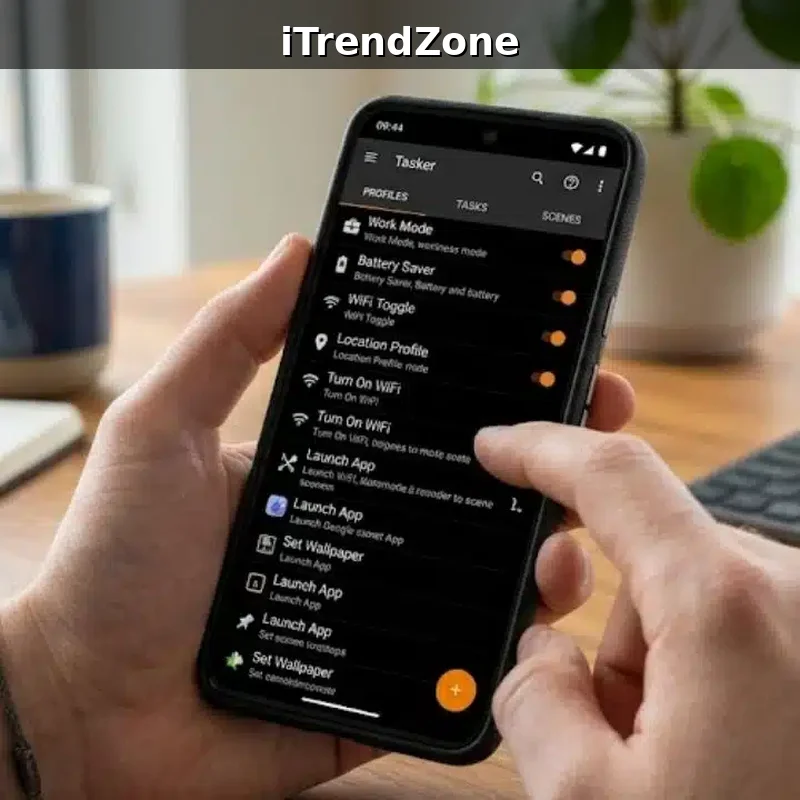
Choosing the right tool saves weeks of frustration, so here is a plain comparison of the main options in 2026. Google routines are built into Pixel phones and the Google Home app, and they are the easiest place to start. Samsung Modes and Routines is built into Galaxy phones running One UI, and it is the best choice if you own a Samsung phone. MacroDroid is the friendliest custom app for most people, with a free version that allows five macros and a Pro upgrade that removes the limit. Automate draws your logic as a flowchart, which suits people who think in diagrams. Tasker is the oldest and most powerful option, with a steep learning curve and a one-time purchase. IFTTT works best when your phone talks to web services or smart home devices, rather than for phone-level settings.
My simple pick rule, after testing all of these, is to use the built-in routines for one week first. Then add MacroDroid only for what the built-in tools cannot do. Most people never need Tasker, and that is fine. Tasker earns its place only when you need scripts, variables, and plugins. If you want a deeper look at one app before you choose, read our guide to automate Android with MacroDroid, which walks through the setup step by step. If you own a Samsung phone, our guide to Samsung Modes and Routines shows what the built-in tool can do before you install anything else.
| App | Price | Learning curve | Best for | Root needed |
|---|---|---|---|---|
| Google routines | Free, built in | Very easy | Simple daily rules on Pixel | No |
| Samsung Modes and Routines | Free, built in | Easy | Galaxy phone owners | No |
| MacroDroid | Free for 5 macros, Pro one-time payment | Easy | Most users | No |
| Automate | Free with limits, paid upgrade | Medium | Visual thinkers | No |
| Tasker | One-time purchase | Hard | Power users | No for most tasks |
| IFTTT | Free with limits, paid plans | Easy | Cloud and smart home links | No |
Source: Google Play listings for MacroDroid and Tasker, and the official Android Developers documentation, checked November 2026.
MacroDroid and Tasker
MacroDroid felt friendly right away. The free version limits you to five macros, and Pro removes that limit with a one-time payment. Its Google Play page lists more than 120 triggers, more than 200 actions, and more than 80 constraints, so the depth is real. A template store helps beginners start faster, because you can import a macro that someone else built and then edit it to fit your life. Next comes Tasker, the old master of Android automation. It costs a one-time fee with no subscription, and you can find the current price on the Tasker page on Google Play. Its screens feel crowded at first, but it can do things no other app can, including scripts, variables, and plugins.
Automate and IFTTT
Automate draws your logic as a flowchart. Because of that, I could see every step on one screen, which suits people who think in diagrams. IFTTT works best when your phone talks to web services or smart devices, for example posting a photo or turning on a smart light. Its free plan has limits, so check the current plan details before you rely on it. Neither app is the best first choice for most people, but both are worth knowing about, because the right tool depends on the job. If your routine lives entirely on the phone, use MacroDroid. If it lives in the cloud, use IFTTT.
Android Automation Without Root: What Works Today
You do not need root for most routines in this guide. Android has grown stricter over the years, and apps now use official permissions instead of hacks. As a result, your phone stays safer and your warranty stays intact. Here is what works without root: changing sound mode, brightness, and Do Not Disturb; reading notifications and calendar events; starting apps and playing music; reacting to Wi-Fi, Bluetooth, charging, and location; and sending messages and creating reminders. Android 16, which is the current version in 2026, keeps these permissions in place, and you can read the official list of changes in the Android 16 release notes from Android Developers.
A few actions need extra permission. For example, toggling some system settings or controlling the screen may require it. In those cases, the app usually asks you to grant one permission through a computer using ADB, or through an accessibility service. Because accessibility is powerful, turn it on only for an app you trust, and only for the macros that need it. Keep your phone updated, too, because newer Android versions fix many permission issues. If you also want to tidy the files those routines create, our Android file management guide shows how to stop losing track of your files.
15 Android Routines That Save Real Time
I grouped these routines by part of the day, and each one uses a simple trigger, so the routine stays light on battery. That matters more than most guides admit. Next to every routine, I name the easiest app. Build one routine per week, test it for a day, and only then add the next one. That pace lets you spot problems before they pile up.
Sleep and Focus Routines
1. Bedtime quiet mode. Set Do Not Disturb to turn on at 11 PM and off at 7 AM. Google routines and Samsung Modes and Routines both do this for free. Add a dim screen and a dark theme for a better night. 2. Morning briefing. When your alarm stops, your phone can read the weather and your first calendar event. Google routines handle this well on Pixel phones, and you can start your favourite news app in the same routine. 3. Meeting silencer. In MacroDroid, use a calendar trigger. When an event that contains the word meeting starts, the phone switches to vibrate. Then it restores your normal sound when the event ends. 4. Work focus mode. When you join your office Wi-Fi, mute games and social apps, then open your work chat. After you leave, everything returns. This gives me the cleanest start to a workday. 5. Driving auto reply. Once your phone connects to your car, it can send a short auto reply to texts. Tasker and MacroDroid can both do this. Keep the message short, such as I am driving and will reply soon. For the rest of the driving setup, read our Android driving mode setup guide.
Home and Car Routines
6. Arrive home. When your phone joins your home Wi-Fi, raise the ringer volume and start a playlist. You can also trigger smart lights through SmartThings or Google Home. 7. Car Bluetooth profile. When your phone connects to the car, open Maps, raise the volume, and keep the screen awake. Then, when it disconnects, undo all of it. The undo step matters most, so never skip it. 8. Smart home scene. Link your phone to a Goodnight scene that locks doors and turns off lights. 9. Store reminder. When you arrive near your grocery store, show your shopping list. Use a location trigger, but keep the radius wide so the battery stays happy. Location triggers are the most expensive trigger in this guide, so use them only when Wi-Fi or Bluetooth cannot do the job.
Files and Photos Routines
10. Weekly screenshot cleanup. Every Sunday evening, move old screenshots into an archive folder. This keeps a gallery tidy without deleting anything. 11. Photo backup on charge. Upload new photos only when the phone charges and sits on Wi-Fi. As a result, you protect your data plan and your battery at once. 12. Receipt to spreadsheet. Take a photo of a receipt, save it to cloud storage, and add a row to a spreadsheet. This takes more setup, but it saves the most effort at month end. 13. Share to notes. Create a share menu shortcut that sends copied text or links straight into your notes app. Because I read many articles, I use this every day. For the clipboard side of this routine, our Android clipboard history manager guide shows how to find and manage copied items, and our guide to Android text expansion shortcuts saves even more typing.
Battery and Safety Routines
14. Smart battery saver. At 20 percent battery, lower brightness, turn off Bluetooth, and pause background sync. Then, at 80 percent on the charger, restore everything. 15. Public Wi-Fi guard. When your phone joins an unknown Wi-Fi network, start your VPN app. This simple rule adds real protection when you travel. If your battery already drains fast, check the battery section below before you add more rules. A routine that saves two minutes a day is not worth it if it costs you an hour of battery life.
How to Build Your First Routine in 6 Steps
Open Google routines, Samsung Modes and Routines, or MacroDroid. Pick one trigger, such as a time or a Wi-Fi network. Add one action, such as Do Not Disturb. Include a restore action so the phone returns to normal. Run a manual test and watch what happens. Wait one full day, then check the result. That is the whole method, and it works because it is small. Most people fail at automation by building a ten-step routine on day one, then giving up when step seven does not work. A one-trigger, one-action routine that works is better than a clever routine that does not.
Test the routine in real conditions, not just once at your desk. A bedtime rule needs a real night. A car rule needs a real drive. A work rule needs a real office Wi-Fi network. If the routine fails, check the log inside the app. MacroDroid and Tasker both keep a log that shows which trigger fired and which action failed. That one screen solved most of my problems. Write down what you built, too. A month later, you will not remember why a rule exists, and a short name like Work Silent Weekdays will save you a confusing afternoon.
What the Latest Data Shows
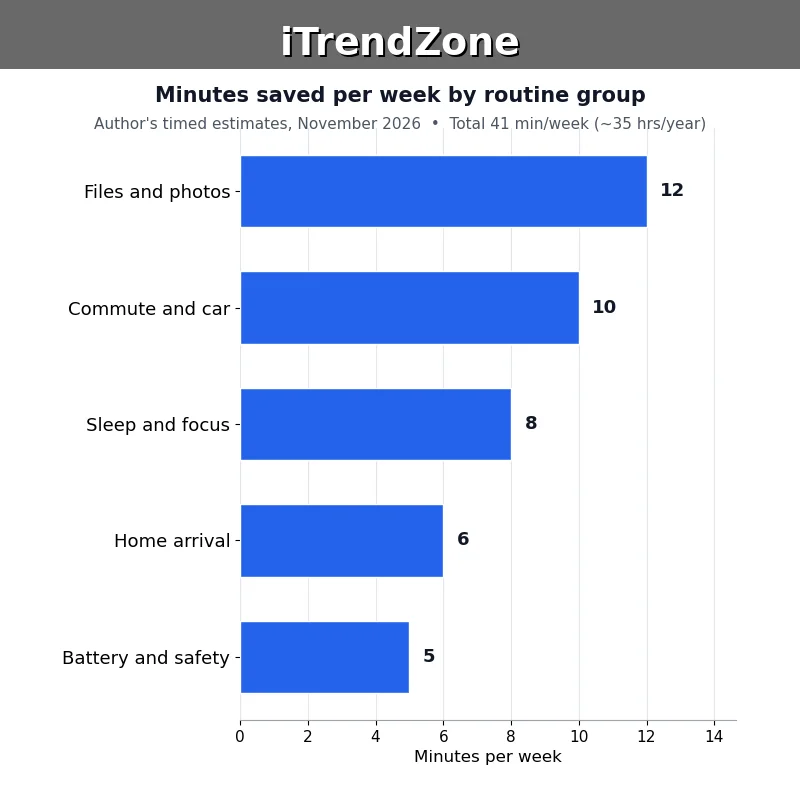
The chart above shows my own timed estimates for a typical user, not lab results, and I want to be clear about that. I timed each manual action, multiplied it by how often I do it, and grouped the results. Files and photos save the most, at about 12 minutes a week, because moving screenshots and backing up photos takes many small taps. Commute and car routines save about 10 minutes a week, sleep and focus save about 8 minutes, home arrival saves about 6 minutes, and battery and safety save about 5 minutes. The total is about 41 minutes a week, or about 35 hours a year. That is nearly a full work week of small taps you never make again.
Your numbers will be different, and that is the point. Replace my estimates with your own log after one week. Count how many times you silence your phone, open Maps, or move a screenshot, and multiply by the seconds each tap takes. If a routine saves less than two minutes a week, delete it. If it saves more than ten, keep it and build a second one like it. The goal is not to automate everything. The goal is to automate the taps you repeat every day, and to leave the rest alone. For a closer look at the app that powers most of these routines, read our guide to automate Android with MacroDroid.
Which Triggers Drain the Battery?
Battery use depends mostly on the trigger, not the action. Event-based triggers like Wi-Fi connection or calendar entries use very little power, because they only run when something changes. Time-of-day triggers are just as cheap. Charging state is cheap, too. Precise location checks cost more, because the phone must wake the GPS radio. Frequent polling costs the most, because the app checks a status every minute, even when nothing has changed. The official Android power management guide from Android Developers explains how Doze and App Standby pause background work to save power, and that is why a macro sometimes runs late if the phone is idle.
So I pick Wi-Fi and Bluetooth triggers first, then time and calendar, then location only when nothing else works. I never use polling unless there is no event-based alternative. If your battery already drains fast, read our guide on Android storage and battery care, and check the battery screen after one full day with a new routine. A good routine should not change your battery life in a way you can notice. If it does, change the trigger before you blame the app. For storage-heavy routines, our Android storage cleaner apps guide shows which apps are actually safe to use.
Tasker Alternatives: When to Switch
Many readers ask whether Tasker is worth the effort. Honestly, it depends on your goal. For simple rules, MacroDroid or the built-in tools do the job faster. If you need scripts, variables, and plugins, Tasker earns its place. Other reviewers reach a similar view, and reading two or three comparisons gives a fuller picture than any single guide. Stay with built-in routines if you only need sleep, driving, and home rules. Pick MacroDroid if you want more triggers without a steep learning curve. Choose Automate if flowcharts make sense to you. Move to Tasker if you hit a limit and want scripting.
Switching apps is easier than most people fear, because the ideas transfer. A trigger is still a trigger, an action is still an action, and a constraint is still a constraint. The names change, but the logic does not. Before you switch, export your routines as a backup. Then rebuild one routine in the new app and test it for a week. If it works, rebuild the rest. If it does not, you still have the backup. For physical triggers, our Android NFC tags automation guide shows nine smart setups you can finish in minutes, and those tags work with MacroDroid, Tasker, and Samsung Routines alike.
No-Code Android Automation: Start in 20 Minutes
You do not need to write code to automate your phone. Almost every app here uses menus, blocks, or templates. Follow these steps for a quick start. Minutes 0 to 5: pick your pain point, like silencing your phone. Minutes 5 to 10: check built-in routines first by searching your settings for routines or modes. Minutes 10 to 15: install MacroDroid and browse its templates if the built-in tool falls short. You can install it from the MacroDroid page on Google Play. Minutes 15 to 20: test the routine once, then leave it for a day. That is the whole start, and it fits in a coffee break.
I also follow one rule myself. I build only one new routine per week. That pace lets me spot problems before they pile up, and it keeps automation fun instead of stressful. If a routine breaks, I fix it before I build another one. If a routine works, I use it for a week before I trust it. Automation should make your phone quieter and simpler, not louder and more complicated. If your phone starts doing things you did not expect, you have too many routines, or one routine is too long. Delete the longest one and start again.
Why Your Automations Stop Working (and How to Fix Them)
This is the part most guides skip, and it causes the most pain. At first, your routine runs perfectly for two days. Then it silently stops. Usually, battery management is the cause. Android uses a feature called Doze to save power when the phone sits idle, and many phone makers add aggressive app killers on top of that. The community site that tracks which brands do this is useful, but the fix is usually the same on every phone. Set the app to Unrestricted or Do not optimise in battery settings. Lock the app in your recent apps list. Turn the accessibility service back on if the app uses one. Add a notification or log to see when a routine runs. Restart the phone, then test again.
Fixes in order, because order matters. First, turn off battery optimisation for the automation app. Second, lock the app in recent apps so the system does not close it. Third, check the accessibility service, because a switched-off service stops many actions. Fourth, check the trigger itself. A Wi-Fi trigger fails if location access is off, because Android ties Wi-Fi names to location. A calendar trigger fails if the calendar permission was revoked. Fifth, open the app once after every restart, and allow auto start if your phone has that option. Work through that list one step at a time, testing after each step, and you will find the cause in most cases.
Privacy and Safety Checklist
Automation apps ask for strong permissions, so a little care goes a long way. Before you install anything, run through this list. Download only from Google Play or the official developer site. Read each permission request and ask whether the app really needs it. Avoid sending private data to unknown cloud tools. Add a disable switch to every routine so you can pause it fast. Export your routines as a backup each month. Keep your phone updated, because newer Android versions fix many permission issues. For the official Android overview, see Android and the Google Android support pages, which explain the current permission and privacy settings in plain language.
Review your macro list every month. Delete old ones and check which permissions you still use. It takes two minutes and keeps the phone cleaner. Be careful with templates, too. A template can include actions like sending messages or deleting files, so always open the macro and review each step before you import it. If a template asks for SMS access and you only want to change the volume, skip it. Accessibility access is powerful, so turn it on only for macros that need screen actions, and only for apps you trust. If you want to customise the phone further, our Samsung Edge Panel setup guide shows how to customise curved screen shortcuts safely.
A One-Week Automation Plan
If you want a plan instead of a list, follow this week. On Monday, build bedtime quiet mode. It takes five minutes, it runs every night, and it proves the idea works. On Tuesday, check that it ran, then build the meeting silencer. Use a calendar trigger, add a restore action, and test it with a fake meeting in your calendar. On Wednesday, build the car Bluetooth profile. Drive once, watch Maps open, then check that everything returns to normal when you disconnect. If the screen stays awake after the drive, fix the restore step before you build anything else.
On Thursday, build photo backup on charge. Plug the phone in, join Wi-Fi, and watch the upload start. On Friday, build the weekly screenshot cleanup, and set it for Sunday evening so you can check the result on Monday. On Saturday, review the week. Open the log in your automation app, check which routines ran, and delete any routine that did not save you time. On Sunday, export a backup of your routines. That backup takes one minute, and it saves you an hour if you ever change phones. This plan works because it is slow on purpose. One routine a day is enough, and by Sunday you will have five routines that you trust, instead of fifteen routines that you do not.
How to Choose Triggers That Actually Work
Not every trigger is equal, and the wrong trigger is the most common reason a routine feels unreliable. Time triggers are the most reliable, because the clock never changes. Wi-Fi and Bluetooth triggers are almost as reliable, because the phone notices a connection at once. Calendar triggers are reliable too, as long as the calendar permission stays on. Location triggers are the least reliable, because GPS can drift indoors, and a wide radius helps. If a store reminder fires a street early, widen the radius or switch to a Wi-Fi trigger for a shop that has free Wi-Fi.
Test each trigger in the place where it will run. A home Wi-Fi trigger that works in the living room may fail in the garden, where the signal is weak. A car Bluetooth trigger that works with one car may fail with another, if the second car uses a different Bluetooth name. Name your triggers clearly, such as Home Wi-Fi Connected, so you can find them later. If a routine fires at the wrong time, add a constraint. Limit it to weekdays, to a time window, or to a device state such as charging. Constraints turn a rough routine into a reliable one, and they cost nothing to add.
Frequently Asked Questions
Are Android automation apps safe? Yes, if you download them from Google Play and grant only needed permissions. Be careful with accessibility access, because it is powerful. Do I need to root my phone to automate tasks? No, since most routines here work on a normal phone. A few settings need a one-time permission grant through ADB. Will automation apps drain my battery? Only if you use heavy triggers like constant location checks. Wi-Fi, Bluetooth, time, and calendar triggers use very little power. What is the easiest app for a beginner? Start with the built-in routines on your phone. After that, MacroDroid is the friendliest custom app. Can I run the same automation on an iPhone? Not with the same apps. iPhone uses Shortcuts, so you rebuild the idea there.
Quiz: Test What You Learned
Question 1: Which trigger usually uses the least battery?
A) Checking location every minute
B) Connecting to home Wi-Fi
C) Polling a web service every 30 seconds
Question 2: Why does an automation often stop overnight?
A) The routine expires after 24 hours
B) Android blocks all automation at night
C) Battery optimisation or Doze limits the app
Question 3: What is the best first step before installing a new app?
A) Root the phone
B) Check the built-in routines first
C) Install three apps at once
Question 4: What should every routine include alongside its main action?
A) A restore action that returns the phone to normal
B) A second trigger that runs every minute
C) A location check that runs all day
Question 5: Which app is the friendliest custom choice for most beginners?
A) Tasker
B) IFTTT
C) MacroDroid
Conclusion
Start small and pick one routine this week. Bedtime quiet mode takes five minutes and gives you an instant win. Then add a meeting silencer, a car profile, and a photo backup, one at a time. This android automation apps guide gave you 15 routines, a clear app comparison, and fixes for common failures. Because your phone already has the tools, let it do the repeating work for you. The time you save is real, even if it arrives two minutes at a time, and after a year, those two minutes add up to more than a full work week.
References
- Android Developers — Android 16 release notes and version changes, November 2026.
- Android Developers — Power management, Doze, and App Standby documentation.
- Google Play — MacroDroid listing, triggers, actions, and pricing details.
- Google Play — Tasker listing, features, and pricing details.
- Samsung Support — Samsung support pages for Modes and Routines and One UI settings.
- Google Support — Android support pages for routines, permissions, and privacy settings.
Quiz Answers
1-B: Connecting to home Wi-Fi is an event-based trigger, so it only runs when something changes. 2-C: Doze and phone-maker battery tools often pause background apps overnight, so set the app to Unrestricted. 3-B: Built-in routines are free and safe, and they often cover sleep, driving, and home rules. 4-A: A restore action stops the phone getting stuck in the wrong mode. 5-C: MacroDroid uses menus instead of code, so most beginners learn it fastest.