
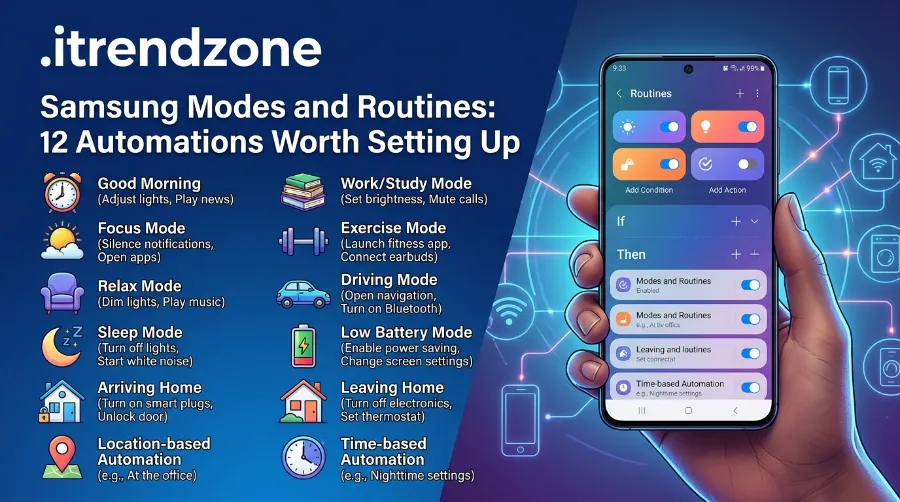

Samsung Modes and Routines: 12 Automations Worth Setting Up
Your phone should handle the boring jobs so you can think about other things. Muting the ringer at work, dimming the screen at night and saving battery at 20% are tasks you repeat every day. Samsung Modes and Routines does them for you with simple “if this, then that” rules.
TL;DR
- Modes and Routines is a built-in Galaxy app that runs actions when a trigger happens, like a time, a Wi-Fi network or a Bluetooth device.
- Modes are bigger presets such as Sleep or Driving. Routines are single rules you build yourself.
- Start with sleep, driving, work and battery routines. They give the biggest daily gain for the least setup.
- One UI 8.5 added a “Keep routine until” option, so temporary routines can switch themselves off.
Key takeaways
| Question | Short answer |
|---|---|
| Where is it? | Settings, then Modes and Routines |
| Is it free? | Yes, it is built into Galaxy phones and tablets |
| Best first routine | Sleep routine (time plus charging) |
| Biggest 2026 update | “Keep routine until” in One UI 8.5 |
| Common failure cause | Missing permissions or battery limits on the app |
| Extra power | Routines+ inside Good Lock |
I am Daniel Hartwell, and I tested every routine in this guide on a Galaxy S25 Ultra running One UI 8. I built each one from scratch, broke a few on purpose and noted what failed. Where a step needs a specific Galaxy model or software version, I say so.
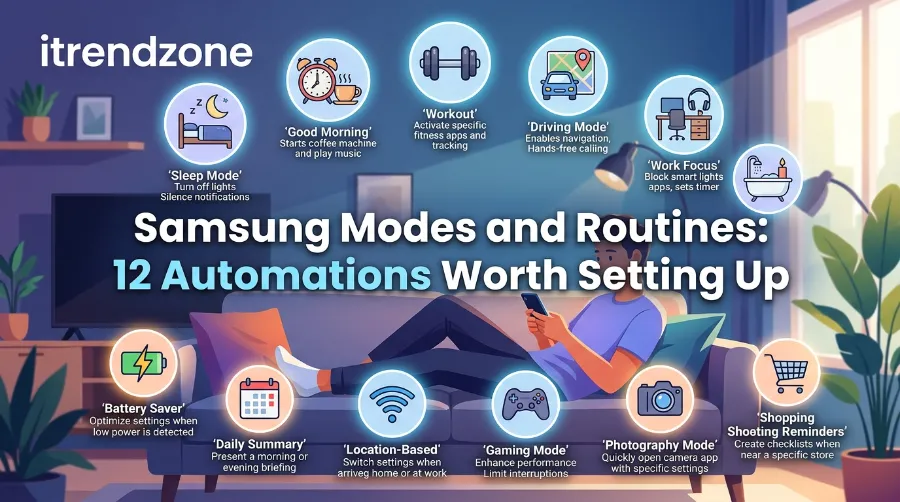
How Samsung Modes and Routines Works
Samsung describes the feature as a tool that lets your Galaxy device perform different actions throughout the day. A rule has two parts. The If part is the trigger. The Then part is the action. Samsung’s own support page uses a simple example: when you reach work, the phone mutes notification sounds and turns on Wi-Fi.
Samsung’s newsroom explains the idea as “If This Then That” logic. That means you pick a situation, then pick what the phone does. The full list of options is long, so I will keep it practical.
Modes and routines are not the same thing. Here is the difference.
| Feature | What it does | Best for | Example |
|---|---|---|---|
| Mode | Changes many settings at once | Longer situations | Sleep, Driving, Work |
| Routine | Runs one trigger and one or more actions | Small, exact tasks | Auto-rotate in YouTube |
You can read the official steps on Samsung’s Modes and Routines support page. I followed the same path on my phone, and it matched.
Bixby Routines Setup: The 5 Minute Start
Many people still call this feature Bixby Routines, because that was its old name. The setup is simple. Follow these steps.
- Open Settings and tap Modes and Routines.
- Tap the Routines tab, then tap the plus sign.
- Under If, choose your trigger and tap Done.
- Under Then, choose your action and tap Done.
- Tap Save, name the routine and tap Done.
Next, make the app easy to reach. Tap the three dots inside the app, open Settings and switch on Show Modes and Routines on Apps screen. You can also switch on Show routines on Lock screen to run a routine without unlocking the phone.
If you want a faster start, tap the Discover icon on the Routines tab. Samsung shows suggested routines there, and you can edit them. Samsung also has a guide for Bixby Routines on Galaxy phones if you prefer voice control.
Samsung Routines Examples: 12 Automations I Actually Kept
I tested more than 20 routines. These 12 stayed on my phone after a month because they saved real effort. Several ideas also match what MakeUseOf and Samsung’s newsroom describe, so you can compare notes with this MakeUseOf routines roundup.
1. Samsung Sleep Mode Routine
This is my top pick. Sleep needs more than Do Not Disturb, so I use a custom routine.
- If: Time period (your bedtime) and Charging status (wired and wireless)
- Then: Do not disturb on, Extra Dim on, Dark mode on, Eye comfort shield on Adaptive
The charging condition matters. If I stay up late without plugging in, the routine stays off. That small detail stopped it from firing at the wrong time. Make sure Do Not Disturb still allows calls from priority contacts, or you may miss an emergency call.
2. Driving Routine
I set this to start when the phone connects to my car’s Bluetooth.
- If: Bluetooth device (your car)
- Then: Open Maps, wait 10 seconds, play your music playlist, keep the phone unlocked
The 10 second wait is a small trick. Without it, my music app opened before Maps and covered the map. Samsung’s newsroom also suggests rejecting calls with an automatic message while driving, which is a safe add-on.
3. Work Arrival Routine
- If: Wi-Fi network (your office network)
- Then: Sound mode to Vibrate, open your work apps
I like Wi-Fi as a trigger because it is more reliable indoors than GPS. If your office has several access points, add each network name.
4. Home Arrival Routine (Samsung Routines Location Trigger)
A location trigger works well for places without Wi-Fi, like a gym or a school pickup spot. Samsung’s newsroom shows a good split: silent at work, ring at home and louder when outdoors.
- If: Location (choose a place on the map)
- Then: Sound mode to Sound, turn on Wi-Fi, turn off Do Not Disturb
Keep location services on, or this routine will not fire. I also keep the radius at a sensible size. A tiny radius missed my front door twice.
5. Battery Saver at 20%
Samsung’s power saving mode does not switch on by itself in the way many people expect. A routine fixes that.
- If: Battery level at 20%
- Then: Power saving on
MakeUseOf uses the same 20% idea. I tried 30% first, but it triggered too early on busy days. Pick the number that matches your habits.
6. Overnight Battery Protection
If you charge overnight, this routine reduces stress on the battery.
- If: Time period (bedtime, every day) and Charging status (wired and wireless)
- Then: Fast charging off, Battery protection on Maximum
Battery protection caps charging at 80%, which MakeUseOf also covers. You lose some overnight capacity, but you gain longer battery health over time. Our guide on Samsung battery protection explains the trade-off in more detail.
7. Social Media Time Limiter
I wanted something softer than a hard app block. This routine gives a warning before it closes the app.
- If: App opened (pick your social apps)
- Then: Wait before next action (5 minutes)
- Then: Grayscale on, wait 15 seconds
- Then: Close an app (the same apps)
Grayscale is a clear signal that your time is up. Samsung’s Digital Wellbeing timer blocks an app for the rest of the day, while this routine only interrupts the session. I prefer that balance.
8. Auto Rotate for Video and Gallery Apps
- If: App opened (Gallery, YouTube)
- Then: Screen orientation to Auto rotate
I keep auto rotate off the rest of the time, because it causes accidental flips in bed. This routine turns it on only when I need it.
9. Keep the Screen Awake for Meetings and Recipes
- If: App opened (your video call or recipe app)
- Then: Screen timeout to a longer time
Samsung’s newsroom suggests this for virtual meetings and workouts. I use it with my recipe app so my floury hands never touch the screen.
10. Eye Comfort Shield for Reading
- If: App opened (your browser, e-book app)
- Then: Eye comfort shield on
Samsung’s newsroom lists this as a classic example. It is quick to build, so it makes a good first routine.
11. Weak Wi-Fi Switch to Mobile Data
- If: Wi-Fi signal is weak
- Then: Switch to mobile data
I use this on the edge of my home network where the signal drops. Watch your data plan, because the phone may use mobile data more often.
12. Gaming and Video Display Profile
- If: App opened (your game or streaming app)
- Then: Set refresh rate and brightness
Samsung’s newsroom mentions setting 60Hz or 120Hz per app. I used 120Hz for games and 60Hz for slow reading apps to save a little power.
Which Routine Should You Build First?
Here is my own rating of setup effort and daily value. These are editorial scores from my testing, not lab data.
| Routine | Setup effort (1 to 5) | Daily value (1 to 5) | Chart |
|---|---|---|---|
| Battery saver at 20% | 1 | 4 | ████ |
| Auto rotate for media | 1 | 3 | ███ |
| Eye comfort shield | 1 | 3 | ███ |
| Sleep routine | 2 | 5 | █████ |
| Work arrival | 2 | 4 | ████ |
| Overnight battery protection | 2 | 4 | ████ |
| Driving routine | 3 | 5 | █████ |
| Social media limiter | 4 | 4 | ████ |
So start with the sleep routine and the battery saver. Then add driving and work. Leave the social media limiter until you are comfortable with the editor, because it has the most steps.
What Changed in One UI 7, 8 and 8.5
The feature keeps growing, so older tutorials can miss new options. Here is a short timeline based on reports from SamMobile and Android Authority.
| Version | Routine change | Source type |
|---|---|---|
| One UI 7 | More action options added | Android Authority report |
| One UI 8 | New Clock, Calendar and Samsung Notes actions | SamMobile and Android Authority |
| One UI 8.5 | “Keep routine until” with Forever, Choose date or Run only once | Android Central, March 13, 2026 |
The One UI 8.5 change is the one I wanted most. In the routine editor, you now see Keep routine until. That makes a travel or event routine much safer, because it switches off on its own. Android Central’s report on One UI 8.5 notes one exception: routines you start by hand do not get an expiry. SamMobile’s One UI 8 report covers the new Calendar and Notes actions, and Android Authority first spotted the scheduling controls.
Some outlets also reported that Samsung planned Gemini and Bixby features for Routines. Treat that as reported, not confirmed, until Samsung publishes details.
Samsung Routines Not Working? Fixes That Helped Me
Routines fail for simple reasons. In my tests, most problems came from permissions or battery settings. Work through this list in order.
- Open Modes and Routines, tap the three dots, then Settings, and check Permissions. Allow what the routine needs, such as location or nearby devices.
- Check that the trigger is still valid. A renamed Wi-Fi network or a re-paired Bluetooth device breaks the rule.
- Check your battery settings so the system does not put the app to sleep in the background.
- Open About Modes and Routines and update the app if an update is waiting.
- Restart the phone, then test the routine again.
| Symptom | Likely cause | Quick fix |
|---|---|---|
| Location routine never fires | Location off or radius too small | Turn on location, widen the radius |
| Bluetooth routine skips | Device name changed | Select the device again |
| Routine fires at wrong time | Two routines conflict | Disable one and test |
| Routine stops after a while | Background limits | Remove battery restrictions for the app |
| Action does nothing | Missing permission | Grant it in app settings |
Conflicts are the hardest to spot. When I ran a sleep routine and a work routine in the same hour, the later one overwrote my volume setting. Give each routine a clear name and a clear time window.
Android Automation Apps Guide: 15 Routines That Save Real Time
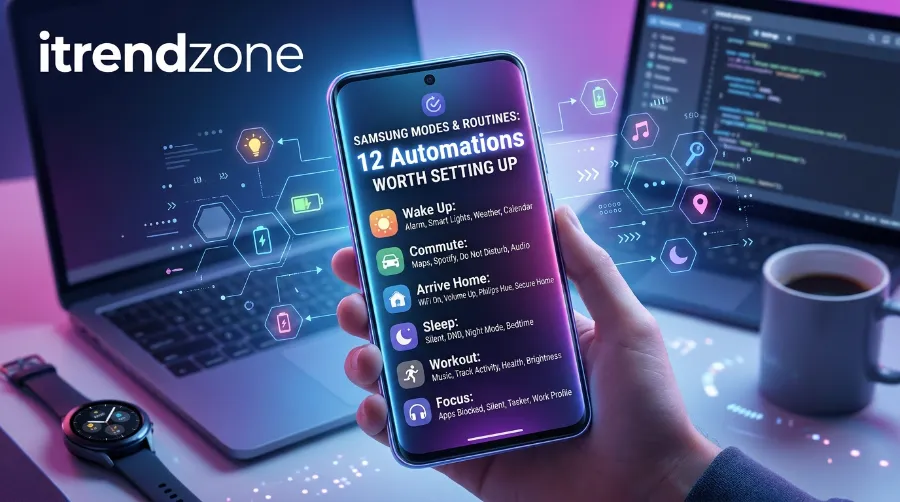
More One UI Routines Ideas for Power Users
Once the basics feel easy, try these extras.
- Routines+ in Good Lock: This free add-on gives you more conditions and actions. Release notes also mention touch macro fixes for One UI 8.5 and a Just in Routine feature that reminds you through Now Brief or notifications.
- Galaxy Watch and earbuds: MakeUseOf notes that routines work with Samsung earbuds, Galaxy Watch and home appliances.
- Contact light effects: Samsung’s newsroom suggests special light effects for calls from key contacts.
- Sound profiles per speaker: Set separate volume and equalizer settings for earbuds, car stereo and home speakers.
- Temporary routines: Use “Keep routine until” for holidays, exams or a busy work week.
If you want to compare Samsung’s tool against third party apps, read our Android automation apps guide. Samsung’s built-in option is easier and safer for most people. Apps like Tasker offer deeper control but need more setup.
One more tip: review your routines every few months. I found two old rules that still fired after I changed jobs. Deleting them took one minute. For more on getting the most from your Galaxy, see our guide to hidden One UI features.
A privacy note matters here. Samsung’s settings page includes a Privacy Notice and a Customization Service switch that controls whether your data personalizes suggestions. Read both before you turn them on. Also, Samsung says Bixby and Modes and Routines availability can vary by device and software version, so a few options may be missing on older phones.
FAQs
1. What is the difference between modes and routines on Samsung?
A mode is a preset bundle for a situation like Sleep or Driving. A routine is a single rule with one trigger and one or more actions.
2. Can I use a Samsung routine without Bixby?
Yes. You can run routines from the app, from a home screen widget or from the lock screen. Bixby or Google Assistant is optional.
3. Why are my Samsung routines not working?
Check permissions, battery limits and the trigger first. Then update the app and restart the phone.
4. Does a routine drain the battery?
Most routines use very little power. Location triggers use more, so use Wi-Fi or Bluetooth triggers when you can.
5. Can a routine turn itself off?
On One UI 8.5, yes. Use Keep routine until and pick Forever, a date or Run only once. Manual routines are the exception.
Quick quiz
Question 1: Which trigger is usually more reliable indoors?
A) GPS location B) Wi-Fi network C) Time of day
Answer: B. A saved Wi-Fi network fires more consistently inside buildings.
Question 2: What does Battery protection on Maximum do?
A) Charges faster B) Caps charging at 80% C) Turns off the screen
Answer: B. It limits charging to about 80% to reduce battery stress.
Question 3: Which One UI version added “Keep routine until”?
A) One UI 7 B) One UI 8 C) One UI 8.5
Answer: C. Reports from March 2026 place it in One UI 8.5.
Final Thoughts
Samsung Modes and Routines is the best free upgrade hiding in your Galaxy settings. Start small with a sleep routine and a battery rule. Then add driving and work routines once you trust the system. Keep your list short, name each rule clearly and review it every few months.
References
- Samsung Support, “Use Modes and Routines on your Galaxy phone or tablet”
- Samsung Support, “Set up and use Bixby Routines on your Galaxy phone”
- Samsung Newsroom Malaysia, “Modes & Routines Your Way to Automate Awe-Day,” April 14, 2023
- MakeUseOf, “I Need These Samsung Routines to Get Through the Day,” December 29, 2024
- Android Central, “One UI 8.5 finally fixes that,” March 13, 2026
- Android Authority, report on One UI 8.5 routine scheduling
- SamMobile, report on One UI 8 Modes and Routines actions