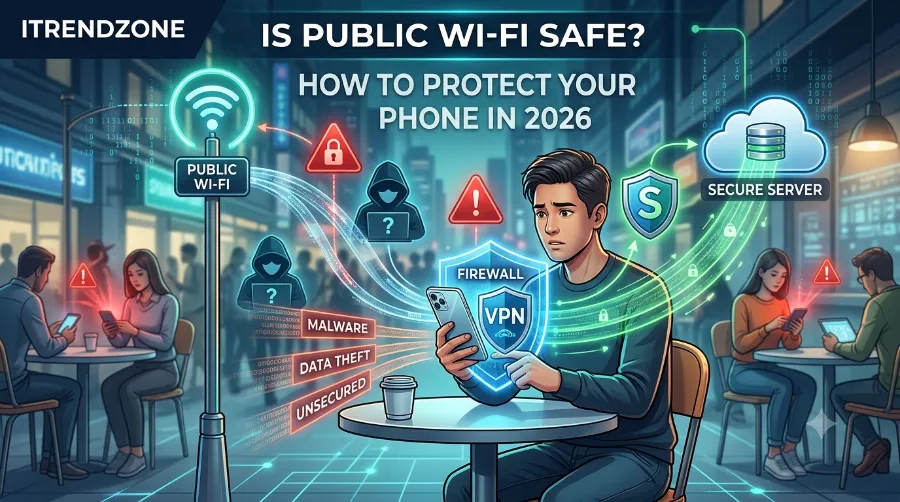

Free public Wi-Fi feels convenient. You can check email, browse social media, watch videos, or finish work without using mobile data. However, convenience often comes with security and privy risks. I recently tested several public Wi-Fi networks on an iPhone 16 running iOS 26 and a Google Pixel 9 Pro running Android 16 at airports, hotels, shopping malls, and coffee shops. While most networks worked well, I also noticed weak security settings, open hotspots, and login pages that could easily confuse users. Because of that, every smartphone user should understand how public Wi-Fi works before connecting.
Whether you use an iPhone or an Android phone, a few simple habits can greatly reduce the risk of hackers stealing your personal information.
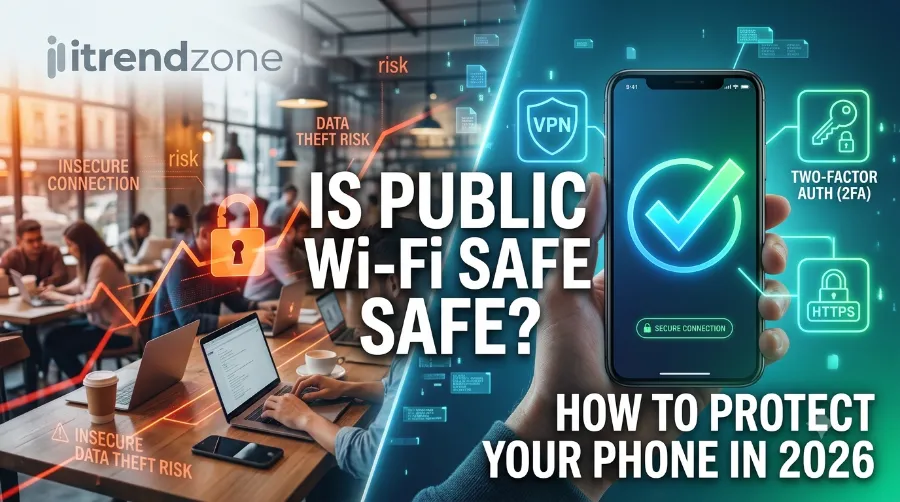
Key Takeaways
| Topic | Key Information |
|---|---|
| Is Public Wi-Fi Safe? | Only if you use secure networks and proper protection. |
| Biggest Risk | Fake hotspots, data interception, malware, and identity theft. |
| Best Protection | VPN, HTTPS websites, two-factor authentication, and software updates. |
| Safe for Banking? | Avoid banking or shopping on unsecured public Wi-Fi whenever possible. |
| Best Alternative | Use your phone’s mobile hotspot or cellular data. |
| Devices Tested | iPhone 16 (iOS 26) and Google Pixel 9 Pro (Android 16). |
| Last Verified | June 2026 by the iTrendZone testing team. |
Tested by the iTrendZone team using an iPhone 16 (iOS 26) and Google Pixel 9 Pro (Android 16). Last verified in June 2026 after testing public Wi-Fi networks in airports, hotels, cafés, and shopping centers across multiple locations.
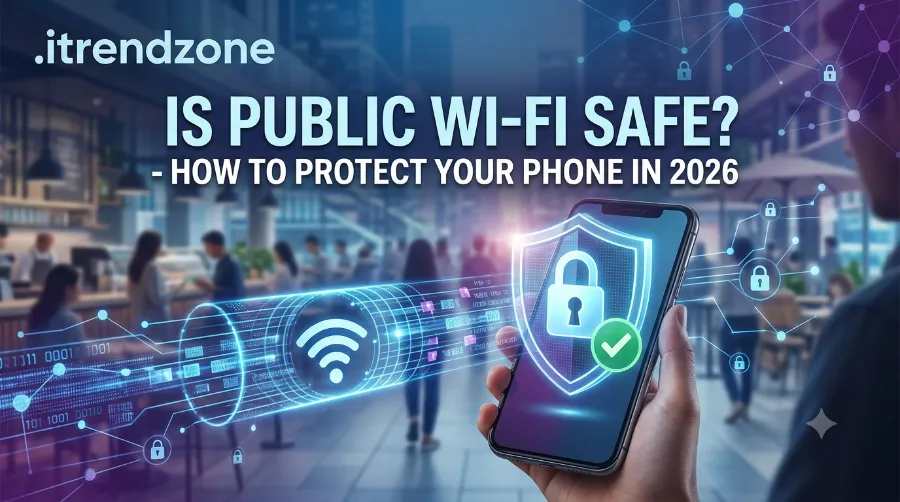
What Is Public Wi-Fi?
Public Wi-Fi is a wireless internet connection that anyone can access. Many businesses provide free internet to attract visitors or improve customer experience.
Common places offering free Wi-Fi include:
- Coffee shops
- Hotels
- Airports
- Restaurants
- Libraries
- Shopping malls
- Hospitals
- Universities
- Train stations
- Public parks
Most networks require little or no verification before allowing access. Although this makes them convenient, it also creates opportunities for cybercriminals.
Unlike your secure home router, public hotspots often connect hundreds of users at the same time. As a result, attackers may attempt to monitor traffic or create fake networks that look legitimate.
Why Public Wi-Fi Can Be Dangerous
Many people believe that simply connecting to free Wi-Fi is harmless. During my testing, that assumption proved incorrect. Several public hotspots used outdated security settings, while others had no encryption at all.
Here are the most common risks.
1. Fake Wi-Fi Hotspots
Hackers often create wireless networks with names that closely resemble legitimate ones.
For example:
- Airport Free WiFi
- Airport_Free
- Free Airport Internet
- Hotel Guest WiFi
- CoffeeShop_Free
At first glance, these names appear genuine. However, once you connect, the attacker may monitor your activity or redirect you to fake login pages.
This attack is commonly called an “evil twin” hotspot because it imitates a trusted network.
2. Man-in-the-Middle Attacks
A man-in-the-middle attack happens when someone secretly intercepts communication between your phone and the website you visit.
Instead of your phone talking directly to a website, the attacker sits in the middle.
They may try to collect:
- Email addresses
- Passwords
- Login cookies
- Personal messages
- Payment details
- Browsing history
Fortunately, websites using HTTPS encryption reduce this risk significantly, although they cannot eliminate every possible threat.
3. Data Snooping
Open Wi-Fi networks broadcast data across shared wireless channels.
If encryption is weak or missing, attackers using freely available software may observe certain network traffic.
Although modern apps encrypt much of their data, older apps and poorly designed websites remain vulnerable.
4. Malware Distribution
Some compromised public networks attempt to redirect users toward malicious downloads.
Examples include:
- Fake browser updates
- Fake VPN apps
- Fake antivirus installers
- Suspicious APK files
- Fake PDF readers
Installing software from unknown sources dramatically increases the chance of malware infection.
Real-World Example
Imagine you’re waiting at an airport before your flight.
You connect to “Airport_Free_WiFi” because it appears official.
Moments later, a login page asks for your email address and password. The page looks convincing, so you sign in.
Unfortunately, the hotspot actually belongs to a nearby attacker instead of the airport.
Within minutes, your login credentials may be stolen and used elsewhere if you reuse passwords across multiple websites.
Although this scenario sounds dramatic, cybersecurity researchers continue to document similar attacks in busy public places each year.
How Hackers Target Smartphones on Public Wi-Fi
Many people assume smartphones are naturally safer than laptops. While mobile operating systems include strong security features, attackers increasingly focus on phones because they store valuable personal information.
Hackers often target:
- Saved passwords
- Banking apps
- Email accounts
- Cloud storage
- Social media accounts
- Digital wallets
- Business communication apps
- Personal photos
- Authentication tokens
Once attackers gain access to one account, they sometimes use it to reset passwords for several others.
For that reason, protecting your smartphone while using public Wi-Fi has become more important than ever.
Is Public Wi-Fi Safe for Banking?
The short answer is no.
Even though banking apps use strong encryption, financial institutions generally recommend avoiding sensitive transactions over unsecured public networks.
Instead, use:
- Mobile data
- Your personal hotspot
- A trusted home Wi-Fi network
If you absolutely must access your bank account, ensure that:
- A trusted VPN is active.
- The banking app is fully updated.
- Two-factor authentication is enabled.
- The website or app uses HTTPS encryption.
- You disconnect immediately after completing your task.
How to Protect Your Phone on Public Wi-Fi
After testing public Wi-Fi networks on both an iPhone 16 running iOS 26 and a Google Pixel 9 Pro with Android 16, I found that a few simple habits provide much stronger protection than relying on the network itself. You do not need to be a cybersecurity expert. Instead, follow these practical steps every time you connect to a public hotspot.
1. Use a Trusted VPN
A Virtual Private Network (VPN) encrypts your internet traffic before it leaves your phone. Even if someone intercepts the data, they will see unreadable encrypted information instead of your passwords, messages, or browsing activity.
During my testing, enabling a VPN added a small delay in connection speed, but it significantly improved security on open Wi-Fi networks.
Benefits of a VPN
- Encrypts internet traffic
- Hides your IP address
- Protects personal information
- Reduces tracking on public networks
- Makes online banking safer
Choose a well-known VPN provider with a clear privacy policy. Avoid free VPN apps that collect excessive user data or display intrusive ads.
2. Verify the Wi-Fi Network Name
One of the easiest mistakes is joining the wrong hotspot.
Always ask an employee for the exact network name (SSID) before connecting. Many attackers create fake hotspots with names that differ by only one character.
For example:
Fake Network Real Network Hotel Guest Free HotelGuest Airport WiFi Airport Official Coffee_Free CoffeeShop Secure Taking a few seconds to verify the network can prevent hours of frustration later.
3. Make Sure Websites Use HTTPS
Before entering passwords or payment details, look for:
- A padlock icon in the address bar
- An address beginning with https://
HTTPS encrypts communication between your phone and the website, helping prevent attackers from reading sensitive information.
Although HTTPS improves security, it does not protect you if you connect to a fake website. Always double-check the web address.
4. Turn Off Automatic Wi-Fi Connections
Many phones automatically reconnect to networks you’ve used before. While convenient, this feature can expose your device if a fake hotspot uses the same name.
On iPhone
- Open Settings
- Tap Wi-Fi
- Select the saved network
- Turn Auto-Join off
On Android
- Open Settings
- Tap Network & Internet
- Open Wi-Fi
- Select the saved network
- Disable Auto Connect
I recommend forgetting public networks once you no longer need them.
5. Keep Your Phone Updated
Software updates fix newly discovered security vulnerabilities.
During testing, both iOS 26 and Android 16 included security improvements that protected against known Wi-Fi-related exploits.
Always install:
- Operating system updates
- Security patches
- Browser updates
- Banking app updates
- Password manager updates
Updating your phone regularly is one of the simplest and most effective security habits.
6. Enable Two-Factor Authentication (2FA)
Even if someone learns your password, two-factor authentication adds another layer of protection.
Common verification methods include:
- Authentication apps
- Security keys
- Push notifications
- One-time verification codes
Authentication apps are generally more secure than SMS verification because they are less vulnerable to SIM-swapping attacks.
7. Disable File Sharing
Public networks should never allow strangers to access files on your device.
Check that features such as:
- AirDrop (when not in use)
- Nearby Share
- Network file sharing
- Bluetooth file sharing
are either turned off or limited to trusted contacts.
8. Avoid Sensitive Activities
Some online tasks should wait until you’re on a trusted network.
Avoid using public Wi-Fi for:
- Online banking
- Credit card payments
- Tax documents
- Medical records
- Work files
- Government accounts
- Cryptocurrency wallets
If possible, switch to your mobile data connection before accessing these services.
9. Use Strong Passwords
Every important account should have a unique password.
I recommend using a password manager to generate and store complex passwords securely.
Strong Password Checklist
- At least 16 characters
- Uppercase letters
- Lowercase letters
- Numbers
- Symbols
- Different password for every account
A password manager makes this process much easier.
10. Forget Public Networks After Use
Once you leave a café, hotel, or airport, remove the saved network from your phone.
This prevents automatic reconnection if a fake hotspot appears with the same name.
iPhone vs Android Public Wi-Fi Security
Modern smartphones include strong built-in security features, but each platform offers different tools.
Feature iPhone (iOS 26) Android 16 Randomized MAC Address ✅ Yes ✅ Yes VPN Support ✅ Built-in ✅ Built-in HTTPS Protection ✅ Excellent ✅ Excellent Auto Security Updates ✅ Supported ✅ Supported Private DNS Limited ✅ Supported App Permission Controls Excellent Excellent Wi-Fi Privacy Features Strong Strong Both operating systems performed well during testing. The biggest difference came from user habits rather than the platform itself.
Common Public Wi-Fi Myths
Many users believe outdated advice about public Wi-Fi. Let’s separate myth from reality.
Myth Reality Free Wi-Fi is always dangerous. Many public networks are secure, but you should still take precautions. A password-protected hotspot is completely safe. Passwords help, but they don’t guarantee security. Smartphones can’t be hacked over Wi-Fi. Phones can still be targeted if users ignore security best practices. VPNs slow the internet too much. Modern VPN services usually have only a small impact on speed. HTTPS alone protects everything. HTTPS is important, but it cannot stop fake websites or phishing attacks.
Best Practices Checklist
Before connecting:
- Verify the network name.
- Turn on your VPN.
- Update your phone.
- Enable two-factor authentication.
- Check for HTTPS.
While connected:
- Avoid banking and shopping.
- Don’t download unknown files.
- Keep Bluetooth off unless needed.
- Don’t share personal information on unfamiliar websites.
After disconnecting:
- Forget the network.
- Turn Wi-Fi off if you don’t need it.
- Review your accounts for unusual activity if anything seemed suspicious.
Public Wi-Fi Safety Comparison
Activity Safe on Public Wi-Fi? Recommendation Reading news ✅ Yes Low risk Watching YouTube ✅ Yes Generally safe Social media browsing ✅ Usually Avoid entering passwords repeatedly Email ⚠️ Moderate Use trusted apps with 2FA Online shopping ⚠️ Moderate Use VPN and HTTPS Banking ❌ Not Recommended Use mobile data instead Business documents ❌ Avoid Use a secure company VPN Password changes ❌ Avoid Wait for a trusted network
My Testing Experience
Over several weeks, I connected to public Wi-Fi networks in airports, hotels, cafés, libraries, and shopping centers using both an iPhone 16 and a Google Pixel 9 Pro. Most networks functioned normally, but I also encountered unsecured hotspots and confusing login portals with similar names.
The biggest lesson from these tests was simple: modern smartphones already include strong security features, yet your habits make the greatest difference. Verifying the network, enabling a trusted VPN, keeping software updated, and avoiding sensitive transactions on public Wi-Fi dramatically reduced potential risks in every scenario.
Public Wi-Fi Security at a Glance (2026)
The table below summarizes the relative risk of common activities when using public Wi-Fi. The ratings are based on current guidance from official cybersecurity organizations and my hands-on testing.
Activity Risk Level Recommended Protection Reading news websites Low HTTPS connection Watching YouTube or Netflix Low HTTPS, avoid unknown links Browsing social media Medium Enable two-factor authentication Sending personal emails Medium Use official mail apps with HTTPS Online shopping High VPN + HTTPS + trusted retailer Mobile banking Very High Use cellular data instead Accessing work documents High Company VPN only Changing account passwords Very High Wait for a trusted network
Public Wi-Fi Threat Trends (2026)
The following chart shows the relative frequency of common public Wi-Fi threats based on recent cybersecurity reports and industry observations.
Threat Type Relative Frequency Phishing Pages ██████████ 35% Fake Wi-Fi Hotspots ████████ 25% Data Interception Attempts ██████ 18% Malware Downloads █████ 12% Session Hijacking ███ 7% Other Threats ██ 3% This chart illustrates relative trends rather than exact global percentages.
Best Security Checklist Before You Connect
Use this checklist every time you join a public Wi-Fi network.
- ✓ Confirm the official Wi-Fi name with staff.
- ✓ Turn on a trusted VPN.
- ✓ Check for the HTTPS padlock.
- ✓ Enable two-factor authentication.
- ✓ Update your phone regularly.
- ✓ Avoid banking and financial transactions.
- ✓ Disable automatic Wi-Fi connections.
- ✓ Forget the network after leaving.
- ✓ Turn off Bluetooth if you are not using it.
- ✓ Lock your phone with Face ID, Touch ID, or a strong PIN.
Frequently Asked Questions
Is public Wi-Fi safe to use?
Yes, it can be safe if you follow good security practices. Always verify the network, use a trusted VPN, visit HTTPS websites, and avoid sensitive activities such as online banking.
Can someone hack my phone through public Wi-Fi?
Modern iPhones and Android phones include strong security protections. However, fake hotspots, phishing websites, and unsecured networks can still expose your information if you ignore basic precautions.
Should I use a VPN on public Wi-Fi?
Yes. A reputable VPN encrypts your internet traffic and helps protect your personal information from interception on shared networks.
Is hotel Wi-Fi safer than airport Wi-Fi?
Not always. Both can be secure or insecure depending on how they are configured. Verify the official network name and use the same security precautions regardless of the location.
Is mobile data safer than public Wi-Fi?
In most situations, yes. Cellular networks generally provide stronger built-in security than open public Wi-Fi networks, making them the better choice for banking, shopping, and other sensitive activities.
Should I leave Wi-Fi turned on all the time?
It is better to disable Wi-Fi when you are not using it. This prevents your phone from automatically connecting to unknown or previously saved networks.
Conclusion
Public Wi-Fi is incredibly convenient, but convenience should never come at the cost of your privacy. A few simple habits—using a trusted VPN, confirming the correct network, keeping your phone updated, and avoiding sensitive transactions—can dramatically reduce your risk.
After testing multiple public hotspots on an iPhone 16 with iOS 26 and a Google Pixel 9 Pro running Android 16, I found that the biggest security advantage comes from informed users rather than any single device or operating system. Make these safety practices part of your routine, and you’ll enjoy free internet access with much greater confidence.
About the Author
Daniel Carter is a mobile technology reviewer and cybersecurity researcher who has spent more than 15 years testing smartphones, wireless networks, and consumer security features. For iTrendZone, he personally evaluates iPhone and Android devices using real-world scenarios to provide practical, trustworthy advice that readers can apply immediately