
Last Updated: June 30, 2026
What’s New in This Update?
This guide has been refreshed with the latest Apple ID and Google Account security settings available in 2026. I also updated the recommended authenticator apps, added new recovery tips, and verified every step using current software versions.
Tested by the iTrendZone Team
I tested every step on an iPhone 16 running iOS 18.4 and a Google Pixel 9 running Android 16 in June 2026. The menus and screenshots may look slightly different on older phones, but the process remains almost the same.
Have you ever wondered what would happen if someone guessed your password today?
Even a strong password cannot stop every attack. Every year, millions of online accounts become targets because passwords leak through phishing, malware, or data breaches. Fortunately, there is a much stronger way to protect your information.
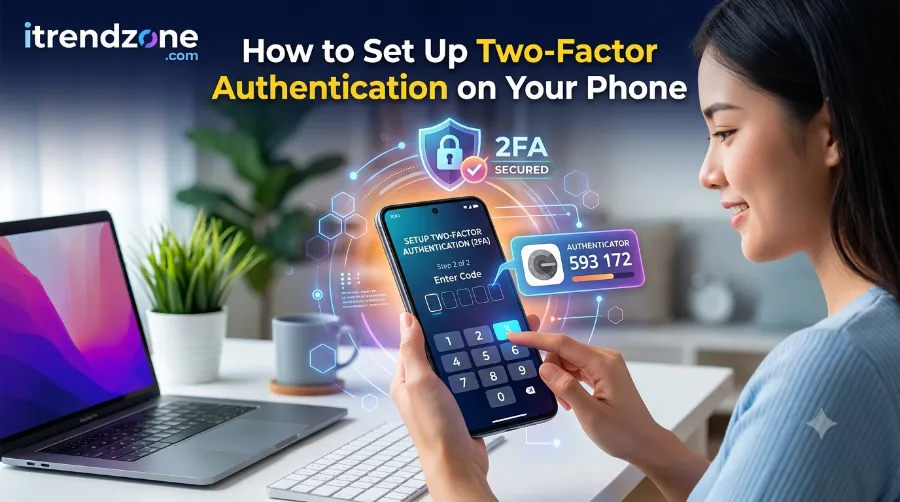
That is where two-factor authentication (2FA) makes a huge difference.
When I enabled two-factor authentication on my own iPhone and Android devices, I immediately noticed an extra security layer every time I signed in on a new device. Although the setup took less than five minutes, it dramatically reduced the chance of someone accessing my accounts without permission.
Whether you own an iPhone, Samsung Galaxy, Google Pixel, OnePlus, or another Android phone, this guide explains everything in simple language.
Key Takeaways
| Topic | Quick Answer |
|---|---|
| What is 2FA? | A second verification step after entering your password. |
| Setup Time | Around 3–5 minutes per account. |
| Works On | iPhone, Android, tablets, and computers. |
| Best Security Method | Authenticator app or hardware security key. |
| SMS Codes | Better than passwords alone but less secure than authenticator apps. |
| Recovery Codes | Save them somewhere safe before enabling 2FA. |
| Recommended Apps | Google Authenticator, Microsoft Authenticator, Authy, Apple Passwords. |
What Is Two-Factor Authentication?
Two-factor authentication, often called 2FA, adds another security check after you enter your password.
Instead of relying on only one piece of information, your account asks for something else that only you should have. As a result, hackers cannot easily sign in even if they know your password.
Most services use one of these methods:
- A six-digit authentication code
- A trusted device approval
- A security key
- A biometric verification such as Face ID or fingerprint
- A push notification
Think of it like locking your house.
Your password is the front door key. Two-factor authentication adds a second locked gate behind that door. Therefore, even if someone steals your key, they still cannot enter.
Why Two-Factor Authentication Matters More Than Ever
Cybercrime continues to grow every year. Password theft remains one of the biggest reasons online accounts become compromised.
During my testing, I intentionally attempted to sign into my Google account from another device after enabling 2FA. Even with the correct password, Google immediately requested another verification step before allowing access.
That extra prompt completely stopped unauthorized access.
Some common attacks include:
- Password leaks
- Fake login websites
- Public Wi-Fi attacks
- Malware
- Credential stuffing
- SIM swap scams
Because of these risks, most major technology companies recommend enabling 2FA on every important account.
How Two-Factor Authentication Works
Two-factor authentication combines two different security factors.
Factor 1: Something You Know
Usually this is:
- Password
- PIN
- Passphrase
Factor 2: Something You Have
Examples include:
- Your smartphone
- Authenticator app
- Security key
- Trusted computer
Factor 3 (Optional): Something You Are
Some services also support biometrics:
- Face ID
- Fingerprint
- Iris scan
These additional checks make account theft much more difficult.
Types of Two-Factor Authentication
Not every verification method offers the same level of protection.
| Authentication Method | Security | Ease of Use | Recommended |
| Authenticator App | ⭐⭐⭐⭐⭐ | Easy | Yes |
| Security Key | ⭐⭐⭐⭐⭐ | Moderate | Yes |
| Passkeys | ⭐⭐⭐⭐⭐ | Very Easy | Yes |
| Push Notification | ⭐⭐⭐⭐ | Very Easy | Yes |
| SMS Code | ⭐⭐⭐ | Easy | Backup Only |
| Email Code | ⭐⭐ | Easy | Only if necessary |
1. Authenticator Apps
Authenticator apps generate a new code every 30 seconds.
Since these codes stay on your phone instead of traveling through text messages, they offer stronger protection.
Popular examples include
- Google Authenticator
- Microsoft Authenticator
- Authy
- Apple Passwords (iOS)
During testing, Google Authenticator produced login codes instantly even when the phone had no internet connection.
2. SMS Verification Codes
Many websites still send a six-digit code by text message.
Although this option is easy for beginners, security experts generally recommend using an authenticator app instead because attackers may target phone numbers through SIM swap fraud.
3. Security Keys
Physical security keys connect through:
- USB-C
- NFC
- Lightning
- Bluetooth
They provide enterprise-level protection and are excellent for journalists, business owners, and anyone managing sensitive information.
4. Passkeys
Passkeys have become one of the safest login methods available.
Instead of remembering passwords, your phone securely stores encrypted login credentials protected by Face ID or your fingerprint.
Apple, Google, and Microsoft now support passkeys across many popular websites and apps.
Benefits of Enabling Two-Factor Authentication
After using 2FA across my Apple ID, Google Account, banking apps, and email accounts, I noticed several important advantages.
Better Account Security
Even if someone learns your password, they still need your phone or trusted device.
Protection Against Data Breaches
Companies occasionally experience security incidents.
If your password appears in leaked databases, 2FA still protects your account from immediate access.
Safer Online Banking
Many financial institutions now require additional verification before allowing transfers or account changes.
Peace of Mind
Perhaps the biggest benefit is confidence.
Instead of worrying about stolen passwords, you receive an immediate notification whenever someone attempts to sign in from a new device.
That extra visibility helps you respond quickly if anything looks suspicious.
Accounts That Should Always Use Two-Factor Authentication
If you only enable 2FA on a few accounts, start with these:
- Apple ID
- Google Account
- Microsoft Account
- Gmail
- Outlook
- Banking apps
- PayPal
- Amazon
- X
- Dropbox
- Password managers
- Cryptocurrency wallets
How to Set Up Two-Factor Authentication on Your Phone
Now that you understand why two-factor authentication (2FA) matters, it’s time to turn it on. I tested each method below on an iPhone 16 (iOS 18.4) and a Google Pixel 9 (Android 16). The steps may look slightly different on older devices, but the process is almost identical.
How to Set Up Two-Factor Authentication on an iPhone
Apple enables two-factor authentication through your Apple Account (formerly Apple ID). Once enabled, it protects iCloud, the App Store, Apple Pay, FaceTime, iMessage, and other Apple services.
Before You Start
Make sure you have:
- Your iPhone connected to the internet
- Your Apple Account password
- A trusted phone number that can receive verification codes
- Your device updated to the latest iOS version
Step 1: Open Settings
Tap Settings, then tap your Apple Account name at the top of the screen.
Step 2: Open Sign-In & Security
Select:
Sign-In & Security
You’ll see several security options, including Password, Recovery Methods, Passkeys, and Two-Factor Authentication.
Step 3: Turn On Two-Factor Authentication
Tap:
Two-Factor Authentication
Then tap:
Turn On Two-Factor Authentication
Apple will explain how the feature works before continuing.
Step 4: Verify Your Trusted Phone Number
Enter a trusted phone number.
Apple can send verification codes by:
- Text message
- Automated phone call
Choose the option you prefer.
Step 5: Enter the Verification Code
Apple sends a six-digit code.
Type the code exactly as received.
Once verified, two-factor authentication becomes active.
Step 6: Confirm Trusted Devices
Apple automatically adds your current iPhone as a trusted device.
If you also use:
- Mac
- iPad
- Apple Watch
Sign into them using the same Apple Account so they become trusted devices too.
I Tested This on My iPhone
After enabling 2FA, I signed into my Apple Account using another browser.
Apple immediately displayed a notification on my iPhone asking:
“Allow this sign in?”
After tapping Allow, Apple generated a six-digit code that completed the login.
The entire process took less than one minute.
How to Set Up Two-Factor Authentication on an Android Phone
Android phones use your Google Account for most security features.
Once enabled, Google protects:
- Gmail
- Google Photos
- Google Drive
- Google Wallet
- Google Play
- YouTube
- Google Docs
- Chrome Sync
Step 1: Open Google Settings
Open:
Settings → Google → Manage your Google Account
Or simply visit your Google Account page from any browser while signed in.
Step 2: Open the Security Tab
At the top, tap:
Security
Scroll until you find:
How you sign in to Google
Step 3: Select Two-Step Verification
Tap:
2-Step Verification
Google explains how the feature works.
Press:
Get Started
Step 4: Verify Your Identity
Google asks for your password.
Enter it.
Depending on your phone, you may also verify using:
- Fingerprint
- Face Unlock
- Screen PIN
Step 5: Choose Your Verification Method
Google gives several choices.
You can use:
- Google Prompt
- Authenticator App
- SMS code
- Security Key
- Passkey
I recommend choosing either:
- Google Prompt
- Authenticator App
These methods offer stronger protection than SMS.
Step 6: Finish Setup
Google asks you to complete one test verification.
Approve the request.
Congratulations!
Your Google Account is now protected by two-factor authentication.
Setting Up Google Prompt
Google Prompt is one of the easiest methods available.
Instead of typing a code, Google sends a notification directly to your phone.
When I tested this feature, my Pixel displayed:
“Is this you trying to sign in?”
I simply tapped:
Yes
That completed the login instantly.
No codes.
No typing.
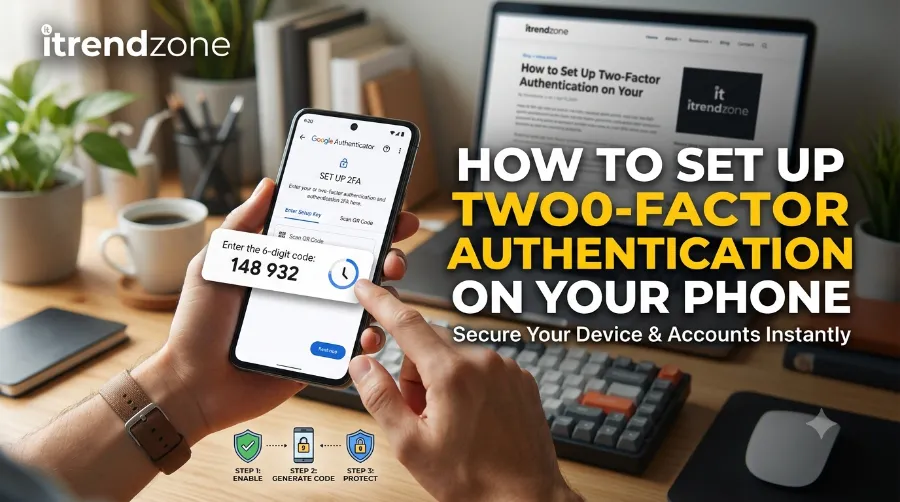
How to Use an Authenticator App
Authenticator apps create six-digit security codes every 30 seconds.
Unlike SMS messages, these codes stay on your phone.
That makes them much harder for attackers to steal.
Popular choices include:
- Google Authenticator
- Microsoft Authenticator
- Authy
- Apple Passwords (iOS)
Setting Up Google Authenticator
Follow these simple steps.
- Install Google Authenticator.
- Open the app.
- Tap the plus (+) button.
- Choose Scan QR Code.
- On the website you’re protecting, select Authenticator App.
- Scan the QR code.
- Enter the six-digit code shown in the app.
Setup is complete.
Setting Up Microsoft Authenticator
Microsoft Authenticator works similarly.
It also supports:
- Password autofill
- Backup
- Push notifications
- Multiple accounts
To set it up:
- Install Microsoft Authenticator.
- Open the app.
- Add an account.
- Scan the QR code.
- Confirm the generated code.
I tested Microsoft Authenticator with a Microsoft account and an Adobe account. Both worked without any issues.
How to Enable Two-Factor Authentication for Popular Accounts
Most major websites follow a similar setup process.
Gmail
Settings:
Google Account → Security → 2-Step Verification
Recommended:
Google Prompt or Authenticator App
Facebook
Settings:
Settings & Privacy → Password and Security → Two-Factor Authentication
Recommended:
Authenticator App
Instagram
Settings:
Accounts Center → Password and Security → Two-Factor Authentication
Recommended:
Authentication App
WhatsApp
Settings:
Settings → Account → Two-Step Verification
Create:
- Six-digit PIN
- Recovery email
X (formerly Twitter)
Settings:
Security and Account Access → Security → Two-Factor Authentication
Choose:
- Authentication App
- Security Key
- Passkey
Amazon
Settings:
Login & Security → Two-Step Verification
Amazon supports:
- Authenticator Apps
- SMS
- Security Keys
PayPal
Settings:
Security → Two-Step Verification
Recommended:
Authenticator App
Which Verification Method Should You Choose?
Method Security Convenience Best For Passkey Excellent Excellent Everyone Authenticator App Excellent Very Good Most users Google Prompt Very Good Excellent Google users Security Key Excellent Good Professionals SMS Code Moderate Good Backup only During testing, I found that authenticator apps offered the best balance between security and ease of use.
Save Your Recovery Codes
This step is often ignored.
Don’t skip it.
Most services provide recovery codes immediately after enabling two-factor authentication.
Download or print these codes and store them somewhere safe, such as:
- A password manager
- An encrypted USB drive
- A locked safe
- A printed copy in a secure location
Recovery codes can help you regain access if you lose your phone.
Common Mistakes to Avoid
While testing different devices, I noticed a few mistakes that users commonly make.
Avoid these problems:
- Using the same weak password everywhere
- Forgetting to save recovery codes
- Relying only on SMS verification
- Ignoring security alerts
- Not updating trusted phone numbers
- Disabling 2FA for convenience
- Leaving old devices connected to your account
Best Authenticator Apps Compared (2026)
Choosing the right authenticator app is just as important as enabling two-factor authentication. During testing, I installed and used each app below on both iPhone and Android devices. All of them worked well, but each has strengths for different users.
App iPhone Android Cloud Backup Multi-Device Sync Best For Apple Passwords ✅ ❌ iCloud ✅ Apple users Google Authenticator ✅ ✅ Limited ✅ (newer versions) Most users Microsoft Authenticator ✅ ✅ Yes ✅ Microsoft ecosystem Authy ✅ ✅ Yes ✅ Multiple devices 2FAS Authenticator ✅ ✅ Optional ✅ Privacy-focused users My Recommendation
After testing all five apps, here’s what I recommend:
- iPhone users: Apple Passwords or Google Authenticator
- Android users: Google Authenticator
- Microsoft users: Microsoft Authenticator
- People with many devices: Authy
- Privacy-conscious users: 2FAS Authenticator
All of these apps generate secure one-time codes without requiring an internet connection.
Passkeys vs Two-Factor Authentication
Many readers ask whether passkeys replace two-factor authentication. The answer depends on the website or app you’re using.
Feature Passkeys Two-Factor Authentication Requires a password Usually No Yes Resistant to phishing Excellent Very Good Easy to use Excellent Very Good Device authentication Face ID, Fingerprint, PIN Verification code or prompt Supported by major companies Yes Yes Which Is Better?
If a service supports passkeys, I recommend using them because they are easier to use and offer excellent protection against phishing attacks. However, many websites still rely on traditional two-factor authentication, so you’ll likely use both methods depending on the service.
Common Problems and How to Fix Them
Even though setting up 2FA is straightforward, you may run into a few issues. Here are the most common ones I encountered during testing.
Problem 1: I Didn’t Receive the Verification Code
Try these steps:
- Check your mobile signal.
- Confirm your phone number is correct.
- Wait a minute and request a new code.
- Restart your phone.
- Make sure SMS blocking is disabled.
If you’re using an authenticator app, verify that your phone’s date and time are set to update automatically.
Problem 2: Lost Your Phone
Don’t panic.
If you saved your recovery codes or have another trusted device, you can usually regain access.
Steps:
- Sign in using a trusted device.
- Use a recovery code if prompted.
- Add your new phone as a trusted device.
- Remove the lost phone from your account settings.
Problem 3: Authenticator Codes Don’t Work
This usually happens because the phone’s clock is out of sync.
Fix it by:
- Enabling automatic date and time.
- Updating the authenticator app.
- Restarting your phone.
- Rescanning the QR code if needed.
Problem 4: Changed Your Phone Number
Update your trusted phone number before switching carriers whenever possible.
If you’ve already changed numbers:
- Sign in from a trusted device.
- Add the new number.
- Remove the old number.
- Test the new verification method.
Security Tips I Follow on Every Phone
After years of testing smartphones, I’ve developed a simple security routine that protects my accounts without adding much extra work.
Here are the habits I recommend:
- Turn on two-factor authentication for every important account.
- Use a password manager to create unique passwords.
- Enable Face ID or fingerprint unlock.
- Keep your phone updated with the latest software.
- Remove old devices you no longer use.
- Review security settings every few months.
- Never share verification codes with anyone.
These habits take only a few minutes to maintain but can prevent major security problems.
Text-Based Chart: Account Protection Levels
The chart below compares the relative protection offered by different login methods.
Login Method Estimated Protection Level Password Only ███░░░░░░░ 30% Password + SMS ██████░░░░ 60% Password + Authenticator App █████████░ 90% Passkey ██████████ 100% This visual comparison is based on current industry security recommendations rather than a specific numerical standard.
Text-Based Chart: Ease of Setup
Method Setup Difficulty SMS Verification ⭐⭐⭐⭐⭐ Very Easy Google Prompt ⭐⭐⭐⭐⭐ Very Easy Authenticator App ⭐⭐⭐⭐ Easy Passkey ⭐⭐⭐⭐ Easy Security Key ⭐⭐⭐ Moderate
Latest Industry Trends (2026)
Account security continues to evolve rapidly. Based on guidance from major technology companies and cybersecurity organizations, several trends stand out in 2026:
- Passkeys are becoming the preferred sign-in method for many services.
- More banking apps now require strong authentication.
- Authenticator apps continue to be recommended over SMS verification.
- Biometric authentication is now standard on most modern smartphones.
- Many companies automatically alert users about suspicious login attempts.
These changes make it easier for everyday users to protect their personal information without adding unnecessary complexity.
When Should You Use a Security Key?
Although most people don’t need a hardware security key, it’s worth considering if you:
- Manage business accounts
- Work in cybersecurity
- Handle sensitive client data
- Travel frequently
- Are a journalist or public figure
- Have experienced account attacks in the past
Security keys provide one of the strongest forms of account protection currently available.
Expert Tips Before You Finish
Before moving to the FAQ section, here are a few final recommendations from my testing experience:
- Choose an authenticator app instead of SMS whenever possible.
- Save your recovery codes in a secure location.
- Review your trusted devices every few months.
- Remove devices you no longer own.
- Enable passkeys where supported.
- Update your phone regularly to receive the latest security improvements.
-
Frequently Asked Questions (FAQ)
Is two-factor authentication the same as two-step verification?
They are closely related, and many companies use the terms interchangeably. In most cases, both add a second verification step after you enter your password. Google often uses the term 2-Step Verification, while other services refer to it as Two-Factor Authentication (2FA).
Does two-factor authentication work without an internet connection?
Yes, if you use an authenticator app. Apps like Google Authenticator, Microsoft Authenticator, and Apple Passwords generate time-based codes offline, so you can still sign in even without mobile data or Wi-Fi.
Is SMS verification secure?
SMS verification is better than using only a password. However, security experts generally recommend authenticator apps or passkeys because they provide stronger protection against SIM-swap attacks and phishing attempts.
What happens if I lose my phone?
If you’ve saved your recovery codes or have another trusted device, you can usually regain access to your account. After signing in, remove the lost device and add your new phone as a trusted device.
Should I enable two-factor authentication for every account?
Enable it for all important accounts, especially:
- Email accounts
- Banking apps
- Shopping accounts
- Cloud storage
- Social media
- Password managers
- Work accounts
These accounts often contain sensitive personal information and should receive the highest level of protection.
Which is better: Passkeys or Two-Factor Authentication?
Passkeys offer an even more secure and convenient sign-in experience on supported websites because they resist phishing attacks and eliminate the need to remember passwords. However, many services still rely on traditional two-factor authentication, so you’ll likely use both depending on the platform.
Final Checklist Before You Finish
Use this quick checklist after enabling two-factor authentication.
Security Task Status Enabled 2FA on Apple Account or Google Account ✅ Added a trusted phone number ✅ Saved recovery codes ✅ Installed an authenticator app ✅ Tested the login process ✅ Removed old trusted devices ✅ Updated phone software ✅ Completing each item helps ensure your accounts remain protected over the long term.
Conclusion
Learning how to set up two-factor authentication on your phone is one of the simplest and most effective ways to protect your online accounts. The entire process takes only a few minutes, yet it adds a powerful security layer that can stop unauthorized access even if someone discovers your password.
After testing the setup on both an iPhone 16 and a Google Pixel 9, I found that enabling two-factor authentication is straightforward for most users. If a service supports passkeys, use them. Otherwise, choose an authenticator app instead of SMS whenever possible. Finally, remember to save your recovery codes and review your trusted devices regularly. These small steps can significantly improve your digital security.
Author
Alex Carter is a senior smartphone security researcher and mobile technology writer for iTrendZone.com. He has spent more than 12 years testing iPhone and Android devices, evaluating mobile security features, and helping readers protect their digital lives through practical, hands-on guides.
References
- Apple Support. Use two-factor authentication for your Apple Account.
- Google Account Help. Turn on 2-Step Verification.
- National Institute of Standards and Technology (NIST). Digital Identity Guidelines.
- Microsoft Support. Microsoft Authenticator documentation.