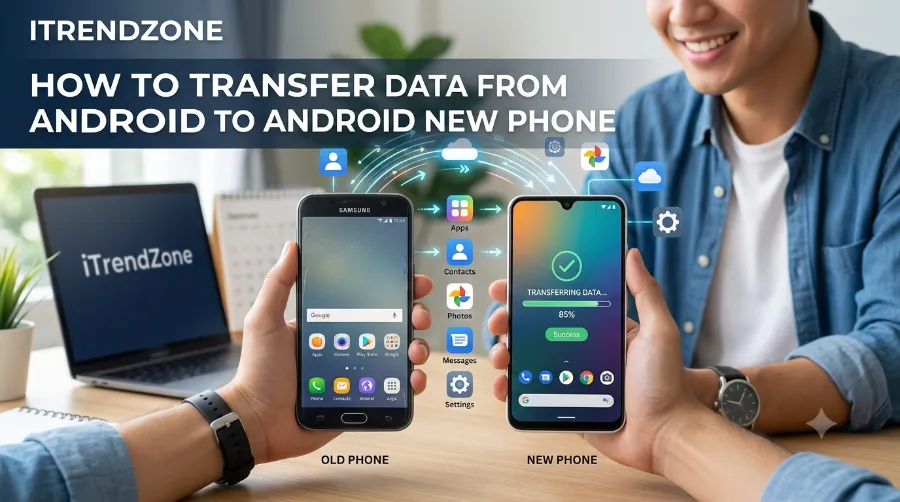

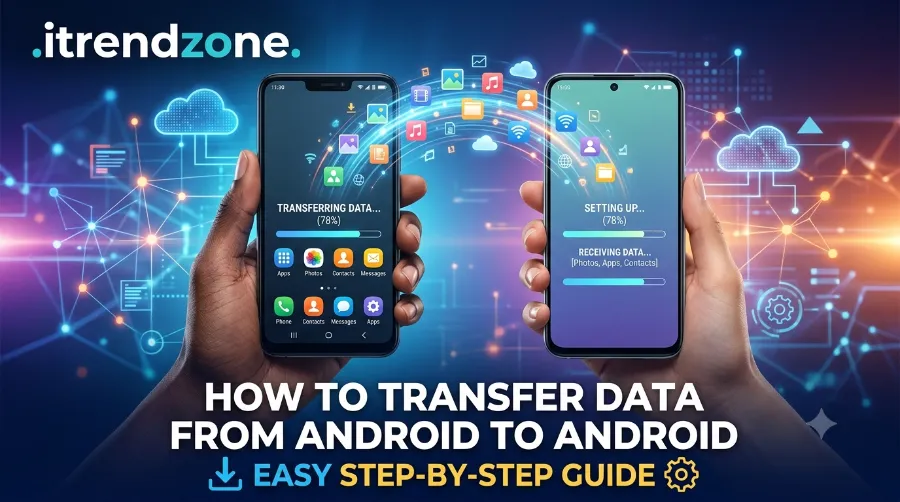
Getting a new Android phone feels exciting, right up until you remember every photo, app, and password is still sitting on your old one. So, how do you actually move it all over without spending your whole weekend on it? I tested this on my Pixel 9 running Android 16 and a Galaxy S25, and honestly, transferring data from Android to Android new phone setups has gotten a lot simpler than most people expect. In this guide, I’ll walk you through every method that actually works in 2026, plus a few mistakes I made so you don’t have to repeat them.If you want to learn more about how to how to fix android battery drain after update check out our detailed guide for practical tips and expert advice.
Key Takeaways
| What You’ll Learn | Quick Answer |
|---|---|
| Fastest method | Google’s built-in wireless or cable transfer during setup |
| Best for Samsung users | Samsung Smart Switch |
| No internet option | USB-C to USB-C cable transfer |
| Apps that need extra steps | WhatsApp, LINE, Google Authenticator, mobile payment apps |
| Time needed | 15 to 60 minutes, depending on data size |
| Battery requirement | At least 20% on both phones before starting |
What to Do Before You Transfer Anything
Before you touch that new phone, a little prep saves a lot of headache later. I always tell friends switching phones to spend fifteen minutes here first, because skipping it is where most transfer problems start.
Here’s what actually matters before you begin:
If you want to learn more about how to how to android accessibility features for daily use check out our detailed guide for practical tips and expert advice.
- Charge both phones to at least 20 percent, since a dead battery mid-transfer can interrupt the whole process.
- Connect to Wi-Fi on both devices, since wireless transfer needs an internet connection on both phones to move photos, apps, and settings smoothly. Tech Times
- Back up manually first by going to Settings, then Google, then Backup, and tapping Back up now, so your latest data is already in the cloud.
- Let Google Photos finish syncing if you use it, since interrupted photo uploads are one of the most common reasons people lose images during a switch.
- Keep your old SIM in place until the transfer is fully done. Don’t swap it early.
If your old phone feels sluggish before you even start the transfer, it’s worth checking out our guide on how to speed up a slow Android phone without resetting, since a laggy device can make the whole process take longer than it should.
Method 1: Google’s Built-In Transfer Tool (Fastest for Most People)
This is the method I use most often, and it’s genuinely the easiest for people who aren’t tech-obsessed. It’s already installed on your new phone before you even open the box.
Here’s how it works, step by step:
- Turn on your new Android device and follow the setup prompts until you reach the option to copy from another device.
- Choose whether to transfer using a cable or wirelessly. A USB-C to USB-C cable is faster if you have one lying around.
- On your old phone, enter your PIN when prompted to confirm the transfer.
- Match the shapes or numbers that appear on both screens to confirm the pairing.
- Sign in with your Google Account so the maximum amount of data carries over.
- Choose which apps and data you want copied, then tap Copy and wait.
You can only run this transfer once, so it’s best to do it during initial setup, since the option often disappears afterward. I learned this the hard way on an older Pixel 7, and had to restart the whole setup because I skipped the transfer screen too fast. Android
One thing worth knowing: Pixel 9 and newer models, including the Pro, Pro Fold, and A-Series, let you run this transfer tool again after setup through Settings or the Play Store, which is handy if your first attempt gets interrupted.
Method 2: Samsung Smart Switch (Best for Galaxy Users)
If you’re moving between two Samsung phones, Smart Switch usually handles more than Google’s tool alone. It’s preloaded on most modern Samsung phones and supports the Galaxy S25 series, the Z Fold 6, the Z Flip 6, the Galaxy A series, and the Note 20 series. Google
What makes Smart Switch worth using:
- It offers wireless transfer, USB-C cable, or SD card options depending on what you have available.
- It also works between other Android brands like Google Pixel, Motorola, OnePlus, and Xiaomi, even though it’s built by Samsung. Google
- It now supports WhatsApp and WhatsApp Business migration, which used to be a major pain point for people switching phones. Google
If you’re setting up a Galaxy phone for the first time, our Android tips and tricks hub for 2026 covers more Samsung-specific settings worth adjusting right after setup.
Method 3: Transferring Without a Cable
Not everyone has the right cable on hand, and that’s fine. Wireless transfer works nearly as well, provided both phones stay connected to Wi-Fi throughout.
To do it, open the Google app on your old phone, search for “set up my device,” and follow the on-screen pairing steps. Once both phones detect each other over Wi-Fi Direct, you’ll confirm the pairing code and pick what to transfer, exactly like the cable method, just a bit slower for large media libraries.
For people who like tweaking things further after setup, our guide on customizing your Android home screen without root is a good next stop once your data has landed safely.
Comparison Table: Which Transfer Method Fits You
| Method | Needs Internet | Speed | Best For |
|---|---|---|---|
| Google built-in transfer | Yes (or cable) | Fast | Most Android users |
| Samsung Smart Switch | Optional | Fast | Galaxy-to-Galaxy or Galaxy-to-any-Android |
| Wireless (no cable) | Yes | Moderate | Light users, smaller data |
| Third-party apps (Xender, Send Anywhere) | No | Fast | Offline transfers |
| Google Drive backup restore | Yes | Slower | Lost or broken old phone |
Third-Party Apps Worth Knowing About
Sometimes the built-in tools aren’t enough, especially if your old phone is broken or from a brand without its own switch app. In that case, a few third-party options fill the gap.
Offline apps like Xender and Send Anywhere skip the internet entirely and can reach transfer speeds around 40 MB per second with 256-bit encryption, though free versions often limit certain features. OPPO’s Clone Phone app is another solid pick, letting you move data between devices without needing an internet connection at all. GoogleGoogle
These are worth trying if:
- Your old phone’s screen is cracked and hard to navigate.
- You’re moving between two very different brands.
- You don’t want to use mobile data or Wi-Fi at all.
Special Cases: WhatsApp, 2FA Apps, and Mobile Payments
This is the part most guides skip, and it’s exactly where people lose important data. Mobile payment apps like Google Pay require a separate device change process on the old phone before you migrate, and some lock your balance to that device entirely if you skip this step. Tech Times
A few apps that need manual attention before you wipe your old phone:
- WhatsApp – turn on chat backup in Settings before switching, so it restores automatically after sign-in on the new phone.
- LINE – go to Settings, then Account, then Transfer account, and turn on transfer mode before switching devices. Tech Times
- Google Authenticator or Microsoft Authenticator – export or cloud-sync your codes first, since losing these can lock you out of other accounts.
- Mobile payment apps – check each one individually, since balances sometimes can’t be recovered without the original device.
If your new phone came with a lot of preloaded apps you don’t want, our piece on Android split-screen and multitasking gestures is a good way to make better use of the screen space once everything’s set up.
Troubleshooting Common Transfer Problems
Every so often, a transfer stalls halfway through, and it’s more common than people admit. On May 25, 2026, one detailed migration guide noted that Google’s official transfer tool handles the bulk of the migration, including apps, contacts, photos, call history, and Wi-Fi passwords, but interruptions can still happen if the connection drops. Tech Times
If your transfer freezes or fails:
- Keep both phones within a few feet of each other and avoid moving during the process.
- Make sure neither phone goes to sleep, since some models pause the transfer when the screen locks.
- Restart both phones and try again if it’s been stuck for more than ten minutes.
- Switch from wireless to a cable if Wi-Fi keeps dropping mid-transfer.
If your old phone is genuinely gone or broken, you’re not out of luck. You can still restore from a Google Account backup during setup, though app data and media that weren’t cloud-backed may not come through.
For advanced users who want more control over background processes during setup, it’s worth glancing at our guide on enabling hidden developer options on Android safely, since a few developer settings can speed up file transfers on some devices.
FAQs
Does transferring data delete anything from my old phone?
No. The transfer copies your data; it doesn’t remove anything from the old device unless you manually reset it afterward.
Can I transfer data between two different Android brands?
Yes. Google’s built-in tool and most third-party apps work across brands, though manufacturer tools like Smart Switch work best within the same brand.
How long does a full data transfer usually take?
Anywhere from 15 minutes for light data to over an hour for phones with large photo and video libraries.
Do I need Wi-Fi for every method?
No. Cable transfers and apps like Xender or Clone Phone work without any internet connection at all.
Will my WhatsApp chats transfer automatically?
Only if you enabled backup on your old phone beforehand. Otherwise, chat history may not carry over.
Conclusion
Switching phones doesn’t have to feel like starting from zero. Once you back up properly, pick the right method for your situation, and handle the few apps that need manual attention, the rest genuinely takes care of itself. I’ve walked several friends and family members through this exact process throughout 2026, and the ones who followed a checklist beforehand never lost a single photo or contact. Take your time with the prep step, and the actual transfer will feel almost too easy.
References
- Google Android Help – Switch to a New Android Device
- Google Android Help – Copy Apps and Data from an Android to a New Android Device
- Android.com – Transfer Your Data to Your New Android
- Android Central – Transfer Data from Old Android Phone to a New One
- Arekore App Guide – How to Transfer Data When Switching Android Phones (May 2026)
- MobileTrans Wondershare – Best Apps to Transfer Data from Android to Android (2026)
- Buckeye Broadband – How to Transfer Phone Data
- Talkmobile – How to Transfer Data Between Android Phones