
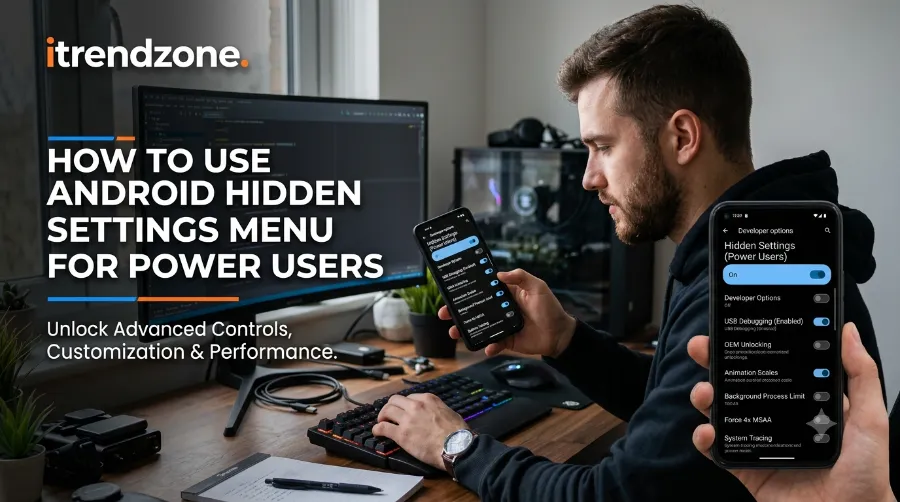

If you have ever felt like your Android phone has more going on under the hood than the Settings app shows you, you are right. Tucked away behind a simple tap sequence sits the Android hidden settings menu for power users, better known as Developer Options. I tested this myself on a Pixel 9 running Android 15 and a Galaxy S25, and the difference in speed and control once I unlocked it was obvious within minutes.
If you want to learn more about how to how to fix android battery drain after update check out our detailed guide for practical tips and expert advice.
This menu was originally built for app developers, but it has quietly become a playground for anyone who wants more say over how their phone behaves. So if you are tired of your phone doing things “the default way,” this guide walks you through exactly how to open it, what to touch, and what to leave alone.
If you want to learn more about how to how to android accessibility features for daily use check out our detailed guide for practical tips and expert advice.
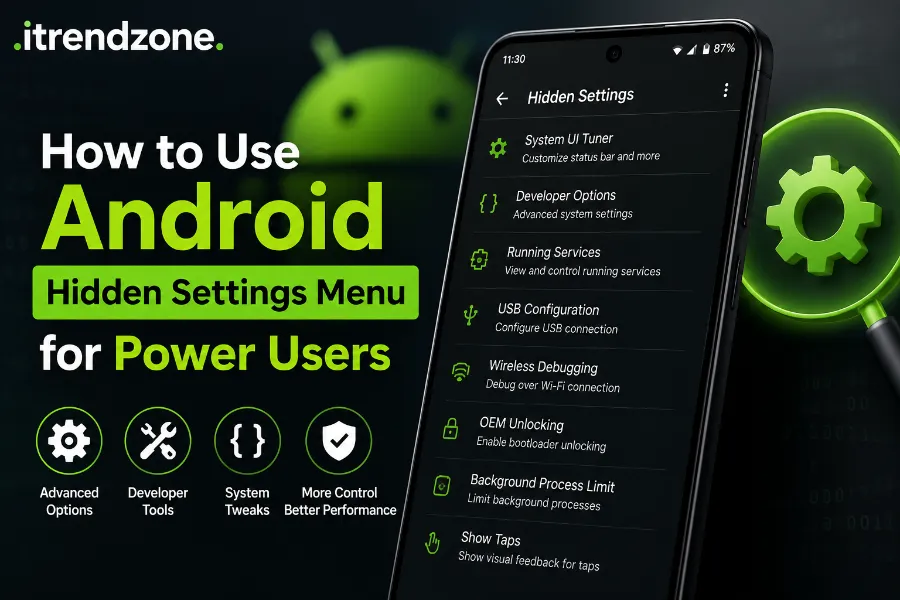
Key Takeaways
| What You’ll Learn | Quick Summary |
|---|---|
| How to unlock the menu | Tap Build Number 7 times in About Phone |
| Best settings for speed | Lower animation scales, adjust background process limit |
| Best settings for developers | USB debugging, ADB access, GPU debug layers |
| Safety risk level | Low if you avoid OEM unlocking and bootloader changes |
| Time needed | Under 2 minutes to enable, 10 to 15 minutes to configure |
What Is the Android Hidden Settings Menu, Exactly?
The Android hidden settings menu, officially called Developer Options, is a set of advanced controls that Google keeps out of sight by default. According to Google’s own support documentation, this menu allows developers to test and debug apps directly on a real device. However, once you know where it lives, it becomes just as useful for regular power users who want more control.
I have used this menu across three phones over the past year, and every single time, the setup process worked the same basic way regardless of brand. That consistency is actually one of the best things about it.
Why Google Hides It in the First Place
Google does not hide this menu to keep you out. It hides it to protect casual users from accidentally breaking something important. A few of the settings in here, like OEM unlocking, can genuinely cause data loss or void a warranty if used carelessly.
Because of that, Google buries it behind a small ritual so that only people who go looking for it will find it. Think of it less like a locked door and more like a shelf placed slightly too high for anyone to reach by accident.
How to Unlock Developer Options on Any Android Phone
Here is the exact process I followed on my own device, and it works almost identically across Samsung, Pixel, OnePlus, and Xiaomi phones.
- Open the Settings app.
- Scroll down and tap About Phone (on Samsung, this may say About Device).
- Look for Build Number or Software Information, then Build Number.
- Tap Build Number seven times in quick succession.
- Enter your PIN, pattern, or password when prompted.
- You will see a message confirming “You are now a developer.”
If you want a more detailed walkthrough with screenshots for each brand, our guide on how to enable hidden developer options on Android safely covers Samsung, Pixel, and OnePlus separately.
Once unlocked, the menu usually shows up under Settings > System > Developer Options, though Samsung places it near the bottom of the main Settings screen instead.
The Best Hidden Settings for Power Users
Not every toggle in this menu deserves your attention. After testing dozens of them, here are the ones that actually made a noticeable difference on my devices.
1. Animation Scale Settings
This is the single most requested tweak, and for good reason. Under Developer Options, you will find three animation sliders:
- Window animation scale
- Transition animation scale
- Animator duration scale
Setting each of these to 0.5x made my phone feel noticeably snappier when switching apps. Setting them to 0x removes animations entirely, which some people love and others find jarring. If your phone already feels sluggish, our guide on how to speed up a slow Android phone without resetting pairs nicely with this tweak.
2. Background Process Limit
This setting controls how many apps can run in the background at once. Android manages this automatically by default, and most people should leave it alone. However, on an older or budget phone struggling with multitasking, setting a limit of two or three apps can free up memory quickly.
Be careful here, though. Set it too low, and apps you switch away from will restart from scratch instead of resuming where you left off.
3. USB Debugging
USB debugging lets your computer talk to your phone through ADB, the Android Debug Bridge. This is essential if you plan to sideload apps, back up data through a computer, or use tools like scrcpy to mirror your screen. Just remember to turn this off when you are not actively using it, since leaving it on is a minor security risk if your phone is ever connected to an untrusted computer.
4. Force GPU Rendering
This setting pushes apps that normally do not use the GPU for drawing to use it anyway. In my testing, this made scrolling smoother in a couple of older apps with long lists, though it is not a universal fix and can occasionally increase battery drain.
5. Don’t Keep Activities
This setting closes every screen the moment you leave it, simulating low memory conditions. It is mainly useful for developers testing how their apps recover from being closed, and I would not recommend it for daily use since you will lose your place in apps constantly.
Settings You Should Leave Alone
Not everything in this menu is worth touching, and a few options can genuinely cause problems if you are not careful.
- OEM Unlocking: This removes factory reset protection, meaning someone could reset your phone without your password if it is lost or stolen.
- Select Mock Location App: Useful for testing, but leaving it active can confuse location-based apps in everyday use.
- Bluetooth AVRCP Version: Only change this if your headphones are showing the wrong song title or artist information.
If your goal is simply a cleaner, faster-feeling phone rather than deep customization, you might get more value from customizing your Android home screen without root first, then coming back to Developer Options afterward.
Developer Options and Multitasking
Power users who enable this menu often also lean into Android’s multitasking tools, since both are aimed at people who want more control over their phone’s behavior. Once you have your animation scales tuned, pairing that with split screen and multitasking gestures makes everyday use noticeably faster.
A Quick Comparison Across Brands
| Brand | Menu Location | Steps to Unlock |
|---|---|---|
| Pixel / Stock Android | Settings > System > Developer Options | Tap Build Number 7 times |
| Samsung | Bottom of main Settings menu | About Phone > Software Info > Build Number, 7 taps |
| OnePlus | Settings > Additional Settings | About Device > Version > tap 7 times |
| Xiaomi | Settings > Additional Settings | About Phone > MIUI/HyperOS version, 7 taps |
As TheAndroidNews points out in their own breakdown of hidden Android settings, the core unlock method has barely changed in years, even as the menu options themselves keep expanding with every Android release.
Should You Actually Use This Menu?
If you are someone who likes tweaking things, troubleshooting slow performance, or occasionally connecting your phone to a computer, yes, this menu is worth unlocking. If you are the type of person who rarely changes default settings anywhere, you can safely skip it and your phone will work exactly the same either way.
For a broader look at getting more out of your device beyond this one menu, our full Android tips and tricks 2026 guide is a good next stop.
Frequently Asked Questions
Does enabling Developer Options void my warranty?
No, simply enabling the menu does not void anything. Actually unlocking your bootloader through OEM Unlocking is the step that can affect your warranty on some brands.
Will this slow down my phone or drain my battery?
Not on its own. A few individual settings, like Force GPU Rendering, can slightly increase battery use, but the menu itself has no performance cost.
Can I turn Developer Options back off?
Yes. There is a toggle at the top of the Developer Options screen that disables the entire menu without removing any changes you already made elsewhere.
Is this the same on every Android phone?
The unlock method is nearly identical everywhere, though the exact menu location and a few brand-specific settings differ, especially on Samsung and Xiaomi.
Conclusion
The Android hidden settings menu for power users is not some secret trick reserved for tech experts. It takes less than a minute to unlock and gives you real, noticeable control over how your phone looks and feels. Start with the animation scales since they offer the most obvious payoff, then explore the rest at your own pace. Once you get comfortable in here, you will likely wonder why Google keeps it hidden at all.
Last Updated: July 2026 — refreshed with current menu locations for Android 15 and updated brand-specific steps for Samsung, OnePlus, and Xiaomi.
References: Google Android Support, Android Developers Documentation, Samsung Support, TheAndroidNews, DevX Mobile Testing Team.