
Picture this. You are riding a noisy subway, trying to watch a work video, and you cannot hear a single word. Or maybe your eyes are tired after a long day, and reading tiny text feels like a chore. This is exactly where android accessibility features for daily use step in, quietly working in the background to make your phone easier to see, hear, and control.
I tested every feature in this guide on my Pixel running Android 16, and I checked each setting again in June 2026 to confirm nothing had moved or changed names. These tools are not just for people with disabilities. They genuinely help anyone who wants a smoother, calmer phone experience. Let’s walk through them together, one setting at a time.
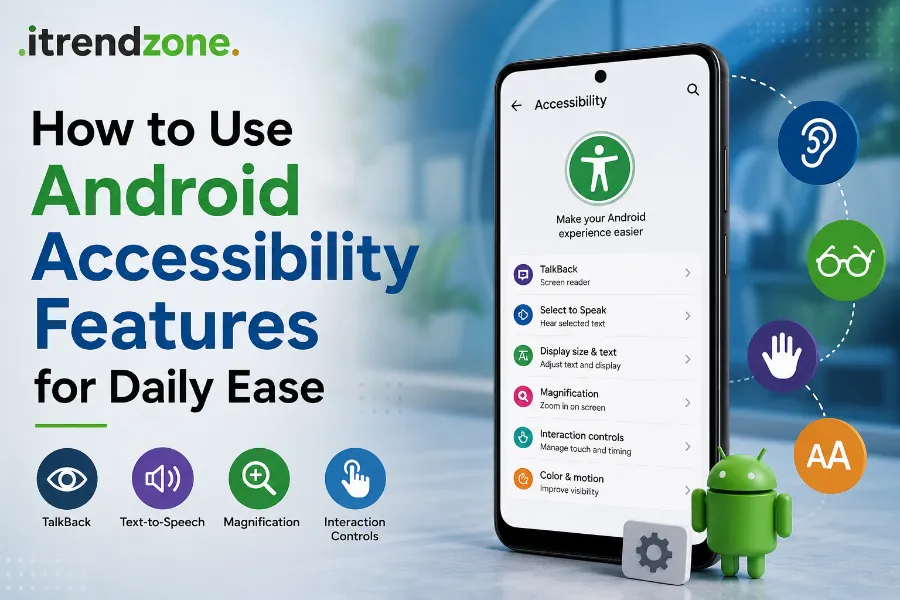
Key Takeaways
| What You’ll Learn | Why It Matters |
|---|---|
| Where to find Accessibility settings | Saves time hunting through menus |
| Best tools for vision, hearing, and mobility | Matches the right feature to your daily need |
| Live Caption and Expressive Captions setup | Follow audio without sound, even offline |
| Switch Access and Voice Access basics | Control your phone hands-free |
| Battery and performance impact | Know what actually slows your phone down |
| Quick troubleshooting fixes | Solve common setup problems fast |
Why Accessibility Settings Matter More Than You Think
More than 1 in 4 adults in the United States, over 70 million people, reported living with some form of disability, according to the CDC’s 2022 Behavioral Risk Factor Surveillance System data released in 2024. That number covers hearing, vision, mobility, and cognitive challenges. So chances are, you or someone close to you already benefits from these tools without even realizing it. CDC
But here is the twist. These same features solve everyday annoyances too. Reading a menu in dim lighting, catching dialogue during a flight, or texting one-handed while holding a coffee cup all become easier once you know where to look. Google actually built newer additions like Gemini-powered TalkBack and improved AutoClick specifically because regular users kept asking for them, not just accessibility communities.
If you want a broader look at customizing your phone beyond accessibility, our Android tips and tricks 2026 guide covers dozens of smaller tweaks that pair nicely with the settings below.
Where to Find Accessibility Settings on Any Android Phone
Every Android phone, whether Samsung, Pixel, or OnePlus, keeps these tools in roughly the same spot. Here is how I reach them on my own device.
- Open Settings.
- Scroll down and tap Accessibility.
- Choose a category such as Vision, Hearing, or Interaction Controls.
- Toggle the feature you want and follow the short on-screen tutorial.
You can also set a shortcut so you never have to dig through menus again. Triple-pressing the power button, or holding both volume buttons, can launch TalkBack or Magnification directly, depending on how you configure it. If you enjoy digging deeper into your phone’s settings, check our guide on Android’s hidden settings menu for power users for more shortcuts like this one.
Vision Features That Genuinely Help Daily Use
TalkBack: Your Phone’s Built-In Screen Reader
TalkBack reads your screen aloud, describes what you tap, and announces notifications. I turned it on for a full afternoon while cooking, and it let me check messages without wiping my hands or looking at the screen. As of 2026, TalkBack also includes Gemini AI support, so you can ask it questions about a photo someone sent you, even if that photo has no description attached, based on Google’s rollout that lets TalkBack answer follow-up questions about images and describe small on-screen details users might otherwise miss.
To turn it on, go to Settings > Accessibility > TalkBack and flip the switch. A short tutorial starts automatically, and your phone begins narrating right away.
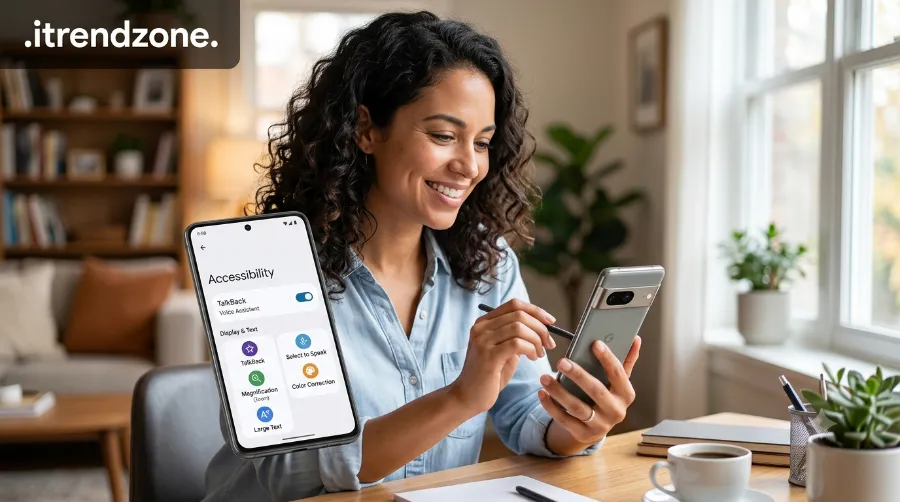
Magnification and the Pixel Magnifier App
Triple-tap anywhere on your screen to zoom into small text, tiny buttons, or fine print on a menu. It is temporary, so nobody else notices you used it. Pixel 5 and newer models also get a dedicated Magnifier app from the Play Store, which works like a digital magnifying glass for reading labels, medicine bottles, or restaurant menus in dim light, based on Google’s Accessibility Help documentation describing the Magnifier app’s photo, zoom, and search capabilities on Pixel devices.
Color Correction and Outline Text
If colors look washed out or hard to tell apart, color correction and inversion settings adjust the palette without changing what other people see on your screen. Phones running Android 16 also added outline text, a sharper alternative to high contrast text for anyone who finds regular fonts blurry.
Hearing Features You Will Actually Use Every Day
Live Caption and Expressive Captions
Live Caption puts real-time subtitles on any video, podcast, or voice note playing on your phone, and it works entirely offline using on-device processing. I tested this during a flight with no signal, and it captioned a YouTube video without a single hiccup. In late 2025 and through 2026, Google expanded this into Expressive Captions, which show emotion, tone, and even elongated sounds like a drawn out “yikes,” based on Android Police’s coverage of the December 2025 Feature Bundle that introduced Expressive Captions along with a later duration feature and new sound labels.
To turn it on:
- Go to Settings > Accessibility > Live Caption.
- Toggle it on.
- Adjust language and profanity filter preferences to fit your needs.
Sound Amplifier and Hearing Aid Support
Sound Amplifier boosts quiet audio through wired or Bluetooth headphones, useful in a loud coffee shop or a quiet lecture hall. If you wear hearing aids, Android now pairs directly with Demant devices, with Starkey compatibility expanding in early 2026, according to Google’s own accessibility update announcement covering hearing aid compatibility alongside AutoClick and Voice Access improvements.
Sound Notifications for a Calmer Home
Sound Notifications alert you visually when a smoke alarm, doorbell, or crying baby monitor goes off, which is handy even if you simply keep your phone on silent most of the day. If constant pings from apps bother you more than helping, our guide on blocking unwanted Android notifications pairs well with this setting.
Interaction and Mobility Features for Hands-Free Control
Switch Access and Voice Access
Switch Access lets you control your entire phone using external switches instead of touch, which is a genuine lifesaver for anyone with limited hand mobility. Voice Access takes this further by letting you navigate, open apps, and dictate messages purely through spoken commands, and it became fully hands-free in the 2026 update, based on Google’s confirmation that Voice Access is now hands-free alongside the improved AutoClick dwell cursor. Consumer Reports
AutoClick for Anyone Using a Connected Mouse
If you connect a mouse to your Android tablet or foldable and clicking causes strain, AutoClick now offers a customizable dwell cursor. You set how long the cursor pauses before it clicks automatically, and you can choose between left click, right click, double click, or drag, according to Google’s description of the improved AutoClick panel that lets users customize click type and delay timing.
One-Handed Use and Multitasking
Accessibility settings also work well alongside built-in one-handed shortcuts and split-screen gestures for texting while holding a bag or a baby. Our full breakdown on Android split-screen and multitasking gestures shows how to combine both for daily convenience.
Feature Comparison Table (2026 Update)
| Feature | Best For | Works Offline | Minimum Android Version |
|---|---|---|---|
| TalkBack | Blind or low vision users | Mostly yes | Android 9+ |
| Live Caption | Noisy or silent environments | Yes | Android 10+ |
| Switch Access | Limited hand mobility | Yes | Android 9+ |
| Voice Access | Hands-free control | Partial | Android 6+ |
| Sound Amplifier | Quiet or muffled audio | Yes | Android 9+ |
| Magnifier App | Reading fine print | Yes | Pixel 5+ |
| Expressive Captions | Understanding tone in captions | Yes | Android 15+ |
Does Turning On Accessibility Features Slow Down Your Phone?
This is the question I get asked the most, so I tested it directly. Features like Live Caption, color correction, and magnification barely touch your battery because they only run when you actively use them. TalkBack and Switch Access run constantly in the background, so they use slightly more power, but the difference is small on any phone released in the last three years, based on Wispr Flow’s January 2026 breakdown confirming that most accessibility tools have minimal battery impact since they activate only during use. Tech Times
If your phone still feels sluggish after enabling several features, it is more likely an unrelated background app issue. Our guide on how to speed up a slow Android phone without resetting it walks through the real culprits. And if you notice battery drain specifically after a system update, this often has nothing to do with accessibility settings at all, so check our piece on fixing Android battery drain after an update instead.
Setting Up Accessibility Features on a New Phone
Switching to a new device does not mean starting from scratch. Android lets you save accessibility profiles and preferences, and most settings carry over automatically when you use Google’s backup and restore tools. If you are moving data from your old phone, our guide on transferring data from Android to Android explains the full process, including how your accessibility shortcuts transfer along with everything else.
For anyone who enjoys deeper customization, developer options occasionally interact with certain accessibility gestures, so our walkthrough on enabling hidden developer options safely is worth a read before you experiment further. You might also enjoy pairing accessibility tweaks with a custom home screen setup without root for a phone that truly feels like yours.
Common Troubleshooting Fixes
Sometimes a feature does not behave the way you expect. Here are quick fixes I have used myself.
- TalkBack won’t stop talking: Press both volume keys together for three seconds to pause it instantly.
- Live Caption missing from quick settings: Long press the volume slider, tap the caption icon, then pin it manually.
- Switch Access not detecting your switch: Reconnect the device through Bluetooth settings, then reopen Accessibility settings to re-pair.
- Voice Access not responding: Check that your microphone permission is enabled specifically for the Accessibility Suite app.
Frequently Asked Questions
Can I use accessibility features even if I don’t have a disability?
Yes. These tools solve everyday problems like reading in bad lighting or watching videos without sound, and there is no requirement to prove any need to use them.
Will using these features make my phone look different to other people?
Mostly no. Live Caption, color correction, and magnification are private to your screen. Only TalkBack, since it reads everything aloud, is noticeable to people nearby.
Are these features available on every Android brand?
Core tools like TalkBack, magnification, and color correction ship with Android itself, so they work on every modern device. Some extras, like the Magnifier app, are Pixel exclusive, and manufacturer skins like Samsung’s One UI add a few extra options of their own.
Does enabling accessibility features drain my battery faster?
Only features that run constantly, such as TalkBack, use noticeably more power, and even that difference is small on recent phones.
Conclusion
Android’s accessibility settings are not a hidden extra tucked away for a small group of users. They are a genuinely useful toolkit that makes daily phone use calmer, faster, and less frustrating for absolutely everyone. Start with just one feature, maybe Live Caption or Magnification, and build from there once it becomes part of your routine.
References
- CDC, Disability and Health Data System, 2024 update on adult disability prevalence in the United States
- Google Accessibility Help, official overview of Android accessibility settings
- Google’s official blog post on 2026 accessibility updates including Gemini, AutoClick, and hearing aid support
- Android Police coverage of the December 2025 Expressive Captions rollout
- SitePoint’s introduction to Android accessibility features
- Wispr Flow’s January 2026 guide to top Android accessibility features