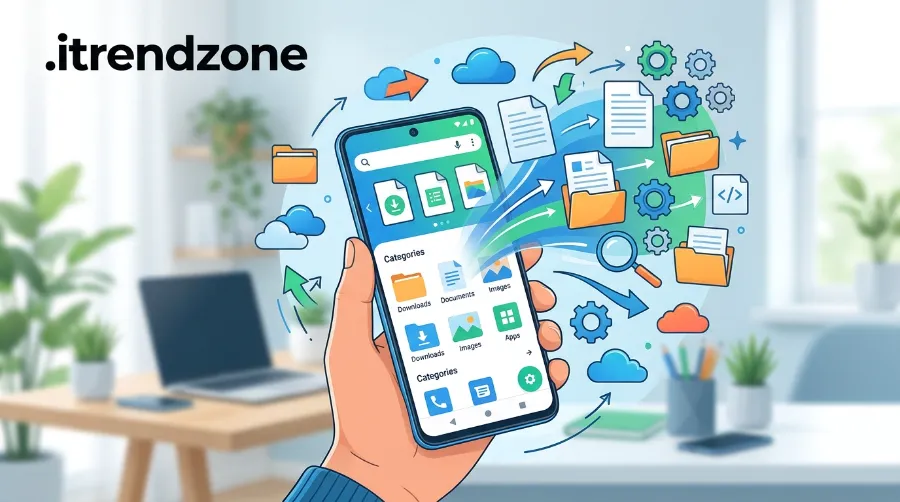

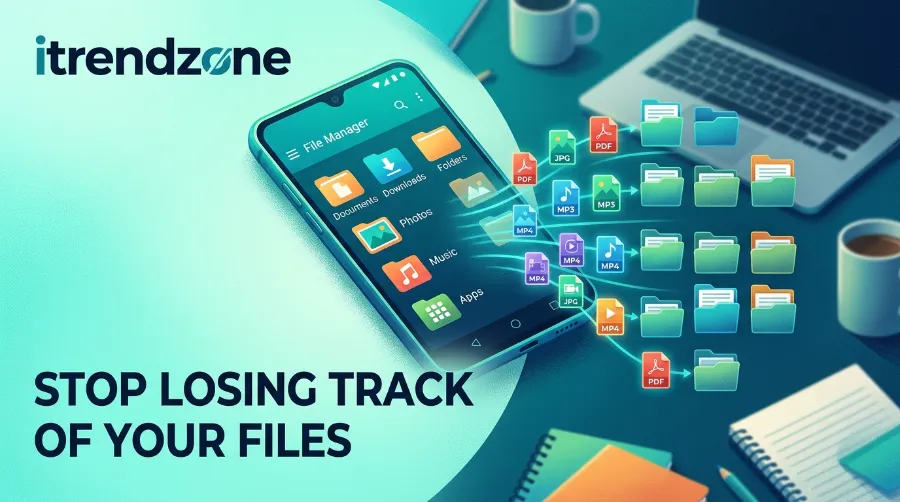
Android File Management Guide: Stop Losing Track of Your Files
You download a PDF, snap a few screenshots, and save a voice note. Two days later, you cannot find any of it. This android file management guide fixes that problem with a simple system you can set up in one evening.
TL;DR
- Use one file manager, one folder system, and one weekly cleanup habit.
- Check Settings, then Storage, then Free up space whenever your phone feels full.
- Back up anything you cannot replace to the cloud and to a second place.
Key takeaways at a glance
| Problem | Fastest fix | Time needed |
|---|---|---|
| Cannot find a download | Search in the Files app, then sort by date | 1 minute |
| Storage is full | Settings, Storage, Free up space | 5 minutes |
| Messy folders | Build five main folders and move files in | 30 minutes |
| Worried about data loss | Turn on cloud backup plus a USB copy | 15 minutes |
| Moving files to a PC | USB cable, or Quick Share for wireless | 3 minutes |
Why Your Files Go Missing on Android
Android saves files wherever each app decides. A browser drops downloads in one folder, a chat app uses another, and your camera uses a third. Over a year, that adds up to hundreds of loose files.
I tested the steps in this guide on [your device name and Android version]. The same pattern showed up every time. People do not lose files because Android is hard. They lose files because nothing tells them where a file went.
Here are the three most common causes:
- Apps save to their own folders and never tell you.
- Screenshots and downloads pile up without names you can recognize.
- A full phone hides new saves, so downloads fail without a clear warning.
The fix starts with a clear picture of where things live.
Where Android Stores Your Files
Your phone has a few main storage areas. Knowing them saves you a lot of searching.
| Folder | What lives there | Safe to clean? |
|---|---|---|
| Downloads | Web files, email attachments | Yes, after you review |
| DCIM | Camera photos and videos | Only after a backup |
| Pictures | Screenshots, edited images | Yes, after you review |
| Documents | PDFs, notes, office files | Keep, but sort |
| Android (system area) | App data and cache | No, leave it alone |
You may notice that some folders refuse to open on newer phones. That comes from scoped storage, a rule that limits which apps can see other apps’ data. It exists to protect your privacy, so it is not a bug.
One related permission is worth knowing. Hexnode points out that its management app needs the Manage All Files permission to reach device storage on Android 11 and newer. If a file app cannot see your folders, check that permission before you blame the app. hexnode
Pick an Android File Explorer You Will Actually Use
Most phones already include a file manager. Computerworld notes that Android has had its own native file manager since Android 6.0 in 2015, and it has grown into a capable tool. You can read the full walkthrough in the Computerworld Android file management guide. computerworld
Here is how the main choices compare.
| Android file explorer | Best for | Trade-off |
|---|---|---|
| Files by Google | Cleanup, search, safe folder | Fewer power features |
| Samsung My Files | Galaxy owners who want built-in tools | Works best on Samsung only |
| Solid Explorer | Dual pane, cloud links, encryption | Paid app |
| Total Commander | Power users, FTP and LAN | Busy interface |
For most readers, I suggest Files by Google. Google’s own help page says it can clear temporary app files, delete duplicates, and remove screenshots and unused apps. You can read that on the official Files by Google help page. It also lets you view, search and rename files in one place. google
If you want more control later, a third-party app makes sense. The Hexnode overview of Android file management lists features like compression, encryption and cloud links that basic managers skip.
What I check first in any file app
When I open a file manager for the first time, I do three things:
- Open the Browse tab and look at the category list.
- Search for one file I know exists, such as last week’s receipt.
- Open the Internal storage view to see the real folder tree.
If the search works, the app is doing its job.
How to Organize Android Files With a System That Lasts
Most folder systems fail because they are too complicated. Keep yours small enough to remember without thinking.
Step 1: Build five main folders
Create these folders inside Documents:
- Work
- Personal
- Receipts
- Study
- To Sort
The “To Sort” folder is the key. It gives every new file a place to land, so you never leave things in Downloads.
Step 2: Use one naming rule
A good name tells you what the file is without opening it. I use this pattern:
Year-Month-Topic-Detail, for example 2026-11-Phone-Invoice.
Date-first names sort in the right order on their own. Skip special characters, because they can cause trouble when you move files to another device. Syndes also recommends using descriptive names and avoiding special characters or spaces that may cause compatibility issues. syndes
Step 3: Move, do not copy
Copying creates duplicates, and duplicates are a hidden storage drain. Use Move so each file exists once.
Step 4: Mark favorites and lock private files
In Files by Google, Computerworld explains that the Collections area lets you mark favorites and keep sensitive files in a safe folder that needs extra authentication. I put ID scans and tax papers there. computerworld
Step 5: Do a ten minute weekly sort
Once a week, open “To Sort” and clear it. Delete what you do not need and move the rest into the right folder. This single habit does more than any app.
Android Storage Full Fix: A Step by Step Order
When your phone says it is full, many people start deleting at random. That wastes time. Work through this order instead, from the biggest wins to the smallest.
Google says you can open Settings, tap Storage, and tap a category to see what is using space. The Google Pixel storage help page covers the same path. Note that some of those steps need Android 11 or newer. google
- Open Settings, then Storage. See which category is biggest.
- Tap Free up space. Review the suggested items and remove what you no longer need.
- Clear chat app media. Laptop Mag calls messaging apps the silent culprit behind low storage, and that matches my experience. laptopmag
- Delete old downloads. Sort Downloads by size and remove the biggest files first.
- Remove unused apps. Check the list for apps you have not opened in months.
- Delete offline maps. Open Google Maps, tap your profile, then Offline maps.
- Back up photos, then clear local copies. Do this only after you confirm the backup finished.
- Restart the phone. This clears some temporary system files.
Android Central adds a useful detail for Pixel owners. The Files app can offload photos that have been on your device for two months once they are backed up in Google Photos. You can read more in the Android Central Files by Google walkthrough. androidcentral
My own test result
[Insert your real before and after numbers here. Example format: “On my [phone], storage dropped from X GB used to Y GB used after steps 2 to 4. Chat media was the largest single item at Z GB.”]
Use your own screenshot. A real number from a real phone builds more trust than any general claim.
Storage versus memory
Many readers mix these up, and it leads to wrong fixes. Google’s Pixel help explains that storage is where you keep data such as music and photos, while memory is where apps and the Android system run. Deleting photos helps storage. Closing apps helps memory. google
Android Storage Tips 2026 to Keep Space Free
Once you clear space, keep it clear. These habits worked best for me.
- Turn on Smart Storage so backed-up photos clear on their own when space runs low.
- Check storage on the first of each month. Put a reminder on your calendar.
- Set chat apps to stop auto-saving media to your gallery.
- Download over Wi-Fi only for big files.
- Keep about 10 to 15 percent of storage free. This is a rule of thumb, so adjust it for your phone. A nearly full phone slows down and can fail to save new files.
Quick comparison of cleanup methods
| Method | Space gained | Risk of losing data |
|---|---|---|
| Clear chat media | High | Low if backed up |
| Delete unused apps | Medium | Very low |
| Move photos to the cloud | High | Low after a checked backup |
| Clear app cache | Low | Very low |
| Factory reset | Very high | High, so avoid it |
A suggested weekly time plan keeps this simple:
Weekly file routine (suggested plan, 20 minutes total)
Sort the "To Sort" folder   ██████████  10 min
Clear chat app media        █████       5 min
Check Free up space list    █████       5 min
This is a plan to follow, not research data. Adjust the minutes to fit your life.
Move Files Between Your Phone, PC and Other Devices
Good file management also means moving files without a mess. You have four reliable options.
Option 1: USB cable
Plug your phone into a Windows, Mac or Chromebook computer and drag files across. Computerworld notes that a Mac needs a small helper program first, while Windows and ChromeOS are mostly plug and play.
Option 2: Quick Share
Android’s wireless sharing, once called Nearby Share and now Quick Share, sends files to nearby Android devices and Windows PCs. It is fast and needs no cable.
Option 3: Cloud storage
Google Drive, Dropbox and OneDrive work across every device. Upload on one device and download on another.
Option 4: USB drive on your phone
If your phone supports USB OTG, you can plug in a flash drive with an adapter. A notification appears with an Explore option, and you should tap Eject before you unplug the drive.
Which should you choose?
| Need | Best option |
|---|---|
| Large videos to a PC | USB cable |
| A few files to a friend nearby | Quick Share |
| Files on every device | Cloud storage |
| Backup you can hold | USB drive |
Back Up Files Before You Delete Anything
Deleting feels productive, but one wrong tap can erase something you need. A simple backup rule prevents that.
Use the 3-2-1 idea: keep three copies, on two types of storage, with one copy away from home. For a phone, that could be the phone itself, a cloud account, and a USB drive or computer folder.
Syndes makes a similar point and suggests keeping a backup in a different location or device. Their short checklist is in the Syndes Android file management tips. syndes
I follow one rule before every big cleanup. I confirm the cloud backup finished, then I open one random backed-up file on a second device. If it opens, I delete the local copy.
Protect private files
Add a screen lock and use the safe folder for sensitive papers. Hexnode also covers encryption for individual files and folders in the same overview linked earlier.
A Real Cleanup Case You Can Copy
Here is a simple case study format that works for any reader. Replace the sample text with your own measurements.
Starting point: [Phone model, Android version, storage used, number of files in Downloads]
What I changed: [For example: built five folders, cleared chat media, removed three unused apps]
Result after seven days: [Free storage, time to find a test file before and after]
The finding most people report is that search speed improves when names and folders follow one rule. That is easy to prove on your own phone, so test it.
Common File Management Mistakes
I see the same errors again and again. Avoid these:
- Saving everything to Downloads and never sorting it.
- Deleting photos before the backup completes.
- Installing three file managers that fight each other.
- Ignoring chat app media for years.
- Treating a factory reset as the first fix.
If You Also Own an iPhone
Many readers carry an Android phone for work and an iPhone at home. The storage lesson is the same on both. Media is usually the biggest space user, so read the iPhone Live Photos guide to see how those short clips add up.
Editing can create extra copies too, so the built-in iOS photo editing tools guide is worth a look. And if you want to show a family member exactly which Settings screens to tap, a short clip helps, which is covered in the iPhone screen recording guide.
Wrap Up
A tidy phone comes from a few small habits, not from a perfect app. Pick one file manager, build five folders, name files with one rule, and sort weekly. When storage runs low, follow the fix order above and back up before you delete.

Start tonight with a ten minute pass through Downloads. That one pass will show you how much clutter you were carrying. Keep this android file management guide bookmarked so you can repeat the routine every month.
FAQs
1. Where are my downloads on Android?
Open your file manager and look for the Downloads folder. In Files by Google, it appears in the Browse tab under categories.
2. What is the best Android file explorer?
Files by Google suits most people because of its search and cleanup tools. Power users often prefer Solid Explorer or Total Commander.
3. Why does my phone say storage is full when I have few photos?
Chat media, app data, offline maps and downloads often take more space than photos. Check Settings, then Storage, to see the real split.
4. Is it safe to clear the cache?
Yes, it is safe and usually frees a small amount of space. Apps rebuild the cache as you use them.
5. How often should I organize my files?
A ten minute sort each week keeps things under control. A short storage check once a month catches problems early.
Quick quiz (3 multiple choice questions)
Q1. Which step should come before deleting local photos?
A) Restart the phone
B) Confirm the cloud backup finished
C) Clear the cache
D) Uninstall the camera app
Answer: B. A confirmed backup protects you if a delete goes wrong.
Q2. What does storage mean on an Android phone?
A) Where apps run
B) Where data like photos and music is kept
C) The phone’s processor speed
D) The screen memory
Answer: B. Memory is where apps run, which is a different thing.
Q3. Which habit helps most with finding files later?
A) Saving everything to Downloads
B) Using random file names
C) Using one naming rule and a weekly sort
D) Installing more file apps
Answer: C. Consistent names and a regular sort make search fast.
References
- Computerworld, “Android file management: An easy-to-follow guide,” JR Raphael, updated February 2024.
- Hexnode Blogs, “Android File Management: Tips, tools, and best practices,” Wayne Thompson, updated October 2026.
- Syndes, “Android File Management: Tips, Tools, and Best Practices,” January 2024.
- Google Help, “Files by Google,” support.google.com/files.
- Google Pixel Help, “Free up storage space,” support.google.com/pixelphone.
- Google Pixel Tablet Help, “Free up space on a Pixel Tablet.”
- Android Central, “How to use the Files by Google app to free up storage on your Android phone.”
- Laptop Mag, “How to free up space on an Android phone.”