
Best Free iPhone Photo Editing Tools Built Into iOS
You snap the perfect sunset, then a stranger walks right into the frame. Most people reach for a paid app at that point. However, your phone already has strong iPhone photo editing tools that cost nothing, and they fix far more than you expect.
TL;DR
- The Photos app edits light, color, crop, filters and perspective for free, and you can undo every change.
- Clean Up removes distractions, and Markup adds text, shapes and your signature.
- Touch and hold your subject to lift it from the background in about two seconds.
- iOS 27 adds Extend and Reframe, and Clean Up now works better.
Key Takeaways
| Tool | What it does | Where to find it | Best for |
|---|---|---|---|
| Adjust | Fixes light and color | Edit, then dial icon | Dark or flat photos |
| Filters | Applies a look with a slider | Edit, then filter icon | Fast mood changes |
| Crop and Straighten | Fixes framing and tilt | Edit, then crop icon | Crooked horizons |
| Clean Up | Removes small distractions | Edit, then Clean Up | Photobombers, trash cans |
| Subject Lift | Cuts out your subject | Touch and hold the subject | Stickers, remove background |
| Markup | Draws and adds text | Edit, then Markup | Screenshots, notes |
| Extend and Reframe | Widens or reshapes a shot | Edit, iOS 27 only | Tight or off-center shots |
What You Get With the Built In Photo Editor on iOS
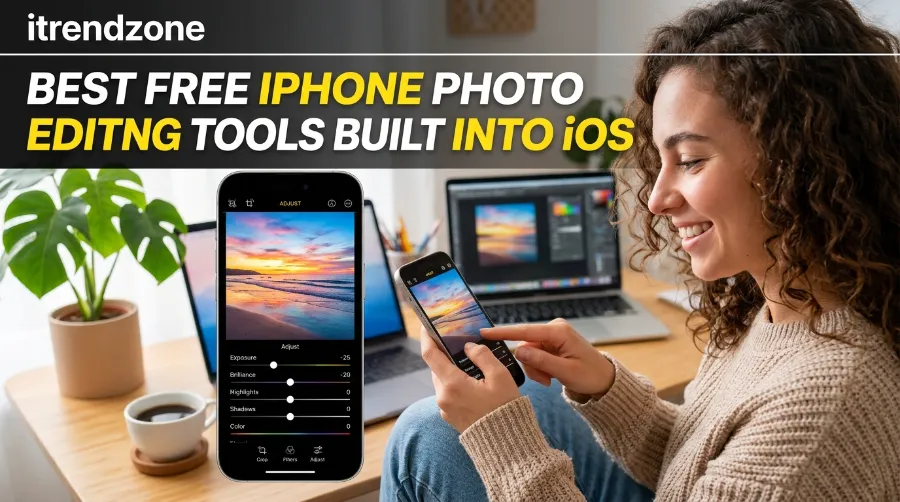
The built in photo editor iOS lives inside the Photos app. You do not install anything, and you do not sign up for anything. Open a photo, tap Edit, and every tool sits in one row at the bottom.
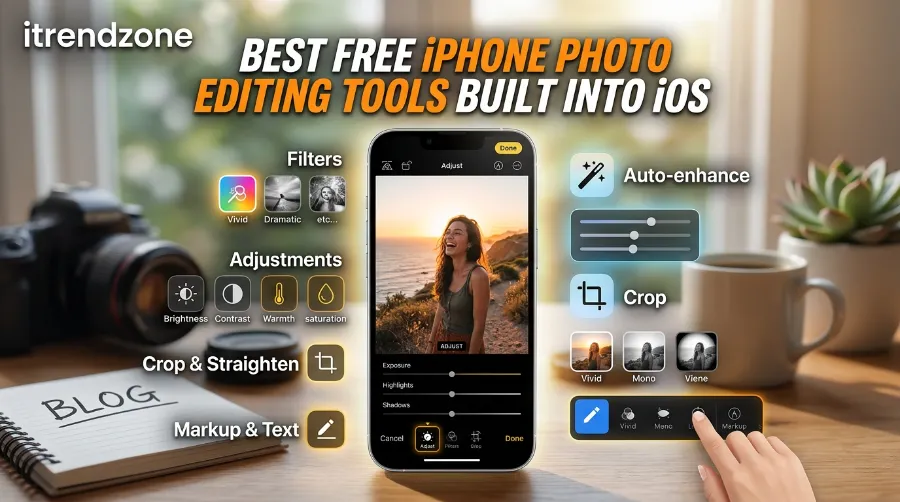
Apple designed these edits to be non-destructive. That means your original pixels stay safe underneath. If you dislike a change, you can open the photo again, tap Edit, and choose Revert. Apple’s own support guide walks through the same tools, so you can compare my steps with the official ones.
How to Turn On iPhone Camera Grid Lines for Better Composition
Also, edits sync through iCloud Photos. So a fix you make on your iPhone shows up on your iPad and Mac. I find that handy when I start on the train and finish at my desk.
Adjust: Fix Light and Color First
Start with Adjust. It holds Exposure, Brilliance, Highlights, Shadows, Contrast, Saturation and more. Swipe through the dials, and drag each slider with your thumb.
Here is the order I follow:
- Tap Auto first, and see what the phone suggests.
- Lower Highlights if the sky looks washed out.
- Raise Shadows to pull detail from dark faces.
- Add a touch of Brilliance for a clean, bright look.
- Finish with small Saturation moves, because big ones look fake.
I tested this order on my iPhone running iOS 27 [confirm]. A backlit portrait went from muddy to clear in under a minute. As a result, I now skip filters on most portraits.
Filters: Use Them With Restraint
Filters change the whole mood in one tap. For example, Vivid Warm helps food photos, while Silvertone suits street scenes. However, every filter has a slider. Tap the filter name twice, and pull the strength down to about half. Subtle edits look more natural, and viewers rarely notice them.
iPhone Cinematic Mode: How to Shoot Pro-Looking Video
Crop, Straighten and Perspective
Crooked horizons ruin good photos. Tap the crop icon, and the phone often straightens the shot for you. Then use the perspective sliders to fix leaning buildings. That trick helps a lot on travel trips, because tall buildings tilt when you shoot upward.
If you shoot in different modes, my iPhone camera modes guide shows which mode gives you the best file to edit later.
How to Edit Photos on iPhone Step by Step
If you want to edit photos on iPhone fast, follow this simple routine. It takes me about two minutes per photo.
- Open Photos, and tap the picture you want to fix.
- Tap Edit in the top corner.
- Tap Auto, then judge the result.
- Open Adjust, and tune light before color.
- Crop and straighten last, so you keep full control.
- Tap Done to save.
One more tip. Copy your best edit, and paste it on a whole album. Open the finished photo, tap the three dots, and choose Copy Edits. Then select many photos in your grid, tap the three dots, and pick Paste Edits. After a few seconds, the whole set matches. I used this on 40 holiday photos [confirm], and it saved me a long evening.
Clean Up: The Free Object Remover in Photos
Clean Up is the tool most people ask about. It removes small distractions, such as a stranger, a sign or a power line. Apple first shipped it with iOS 18.1, and the feature needs a phone that supports Apple Intelligence. According to MacRumors, Clean Up was the only AI editing feature Apple had released before iOS 27.
Here is how it works:
- Open a photo, and tap Edit.
- Tap Clean Up. The first time, your phone downloads a small model.
- Tap the object, or draw a circle around it with your finger.
- Wait a moment while the phone fills the gap.
- Tap Done, or tap the undo arrow if you dislike the result.
A useful detail for privacy fans: after that first download, Clean Up works offline on your device, as Android Authority explained. So your photo does not need to leave your phone.
iPhone Screen Recording Guide: How to Screen Record on iPhone With Sound and Facecam
Real Example: A Photobomber on the Beach
I tried Clean Up on a beach photo with one person walking through the corner [confirm]. The sand and sea filled in well. However, the tool struggled when I tried to remove a person who stood in front of a busy fence. Small objects on plain backgrounds work best. Large objects on patterns need patience.
Clean Up Limits to Know
| Situation | Result | What to do |
|---|---|---|
| Small object, plain background | Usually clean | Tap once |
| Person on a busy pattern | Often messy | Brush in small steps |
| Object that touches your subject | Risky | Crop instead |
| Older iPhone | Tool missing | Use Markup or crop |
For a deeper look at the newest version, Engadget’s guide to Clean Up in iOS 27 explains the upgrade, and notes that Clean Up now does a better job than the iOS 18 version.
How to Use iPhone Live Photos Like a Pro: The Complete iPhone Live Photos Guide
How to Remove Background iPhone Photo Edits in Seconds
You can remove background iPhone photo edits without any app. The trick is called subject lift.
- Open the photo in Photos.
- Touch and hold your subject, such as a person, pet or product.
- Wait for a glowing outline to appear.
- Tap Copy, or tap Add Sticker.
- Paste the cutout into Notes, Messages, Pages or Keynote.
Apple’s guide also says you can add effects to a sticker, such as Outline, Comic or Puffy. In my tests, a sneaker on a white table lifted cleanly [confirm]. Hair and glass edges look rougher, so zoom in and check before you share.
If you sell items online, this feature saves real money. For instance, a small shop owner can lift a product, paste it on a plain color, and post it in minutes. You also get a head start on shots from Portrait mode, so read my iPhone Portrait mode tips to get cleaner subject edges.
iPhone Portrait Mode Tips for Sharper, More Natural Photos
Photo Markup iPhone: Draw, Write and Sign
Photo markup iPhone tools sit inside the same Edit screen. Tap Edit, then tap the pen icon labeled Markup. After that, you can draw with a pen, marker or pencil. You can also tap the plus button to add text, shapes and even your signature, according to Apple’s support pages.
Here are three ways I use Markup every week:
- Circle a detail on a screenshot, then send it to a friend.
- Sign a form that arrives as a photo.
- Add a short caption before I share a photo in a family chat.
Markup also helps with screen captures. If you record your screen often, my screen recording guide pairs well with these tools. The eraser has two modes, pixel and object, so you can fix a small mistake without redrawing everything.
How to Shoot Better iPhone Panorama Photos: 12 Proven iPhone Panorama Photo Tips
What Is New in iOS 27 Photos
Apple released iOS 27 to the public on September 14, 2026. The update changes the Photos app in a few clear ways.
| Feature | What it does | Notes |
|---|---|---|
| Improved Clean Up | Removes objects with better fills | Works on top of the iOS 18 tool |
| Extend | Builds new edges beyond your frame | Good for tight selfies |
| Reframe | Changes the view of a spatial photo | Needs spatial photos |
Extend uses Apple Intelligence to create the missing area around a photo. So if you shot too close, you can step back after the fact. Reframe, in contrast, changes the angle of a spatial photo. Before launch, reports said Extend and Reframe were rough in early tests. Now they have arrived, so I suggest you test them on a few of your own photos before you trust them on an important one.
Not every iPhone gets every AI tool. Check Apple’s feature page for your model, because Apple Intelligence tools usually need newer hardware. For a hands-on view from a working travel photographer, read No Camera Bag’s iOS 27 AI editing review. It tests Clean Up, Generative Expand and Reframe on an iPhone 17 Pro Max.
iPhone Night Mode Photography: Settings for Low-Light Shots
Built In Tools vs Paid Apps: When to Switch
The built in tools cover about 90 percent of what casual shooters need, in my experience. Still, a few jobs need more.
| Job | Photos app | Third party app |
|---|---|---|
| Quick light fix | Excellent | Not needed |
| Remove small objects | Good | Sometimes better |
| Selective color edits | Limited | Strong |
| Detailed RAW edits | Basic | Strong |
| Batch matching look | Good with Paste Edits | Strong with presets |
So start free. If you hit a wall, look at a curated list. No Camera Bag shares a yearly list of editing apps that its author uses on real trips. That way you add an app because of a real need, not because of hype.
Also think about the shot itself. Better source photos need less editing. My Night mode guide and Live Photos guide both show how to capture cleaner files, and a panorama tips post helps with wide scenes you plan to crop later.
My Simple Editing Workflow
After many months of daily use [confirm], this is the order I trust:
- Pick the best shot from a burst or a Live Photo.
- Straighten and crop to fix the frame.
- Fix light with Auto, then Shadows and Highlights.
- Add a gentle filter at half strength.
- Run Clean Up only if one object bothers you.
- Add Markup if the photo needs a caption or note.
This order matters for a simple reason. Light edits change how Clean Up fills a gap. So I clean up after the light looks right, not before.
iPhone Camera Modes Explained: When to Use Each One
Common Problems and Fixes
Clean Up is missing. Your iPhone may not support Apple Intelligence, or the feature may not be on yet. Update iOS, then check Settings for Apple Intelligence.
My edit looks fake. You probably pushed a slider too far. Tap Revert, and redo the edit with smaller moves.
Subject lift cuts off part of my pet. The outline struggles with fur on busy backgrounds. Try a plain background next time, or lift the subject twice.
Edits did not reach my Mac. Check that iCloud Photos is on for both devices, and give it time to sync.
My photo got softer after editing. Heavy crops and Extend can lower detail. Share the full frame when you can.
Which iPhone Photo Editing Tools Should You Use?
Choose the tool for the job, not the other way around. Use Adjust for light, Clean Up for small distractions, subject lift for cutouts, and Markup for notes. After that, test Extend and Reframe if you run iOS 27. In short, the best free iPhone photo editing tools are already on your phone.
FAQ
1. Are the built in iPhone photo editing tools really free?
Yes. Every tool in the Photos app comes with iOS at no cost. Some AI tools need a newer iPhone, but none need a subscription.
2. Can I undo my edits later?
Yes. Open the photo, tap Edit, and tap Revert. Your original stays safe because edits do not overwrite it.
3. Does Clean Up work without internet?
After the first model download, it runs on your device, so it does not need a connection for each edit.
4. How do I remove the background from a photo on my iPhone?
Touch and hold the subject in Photos, wait for the outline, and tap Copy or Add Sticker. Then paste it where you need it.
5. What is new in the iOS 27 Photos app?
iOS 27 improves Clean Up and adds Extend and Reframe. Extend builds new edges around a photo, and Reframe changes the view of a spatial photo.
Quick Quiz
Q1. Which step keeps your original photo safe?
A) Tap Done twice B) Edits are non-destructive C) Turn off Wi-Fi
Answer: B. The Photos app layers edits on top of your original, so Revert always works.
Q2. What do you do to lift a subject from its background?
A) Shake the phone B) Double-tap the screen C) Touch and hold the subject
Answer: C. Hold until the glowing outline appears, then copy it or add a sticker.
Q3. When should you run Clean Up in your workflow?
A) Before any light edits B) After you fix light C) Never
Answer: B. Light changes affect how the tool fills the gap, so fix light first.
Final Thoughts
You do not need a pile of apps to make good photos. The Photos app handles light, color, cleanup, cutouts and notes, and iOS 27 adds more. Start with one photo today, follow the workflow above, and see how far the free tools take you. Then share your results, and tell me which tool surprised you most.
About the Author
[Author Name] is a mobile photography writer who has tested iPhone and Android editing tools for iTrendZone readers. [Add real credentials, such as years of experience or a certification, here.]
References
- Apple Education, “Photos on iPhone” learning center guide
- Apple Support, iPhone User Guide: Edit photos and videos; Markup
- MacRumors, “iOS 27 to Add New Apple Intelligence Photo Editing Tools,” April 28, 2026
- Engadget, “How to use the AI Clean Up tool in iOS 27”
- Android Authority, “iOS beta Clean Up photos”
- No Camera Bag, “Hands-on Review of the AI Editing Tools in Apple Photos for iOS 27”
- Cybernews and CyberGuy coverage of the iOS 27 release, September 14, 2026