
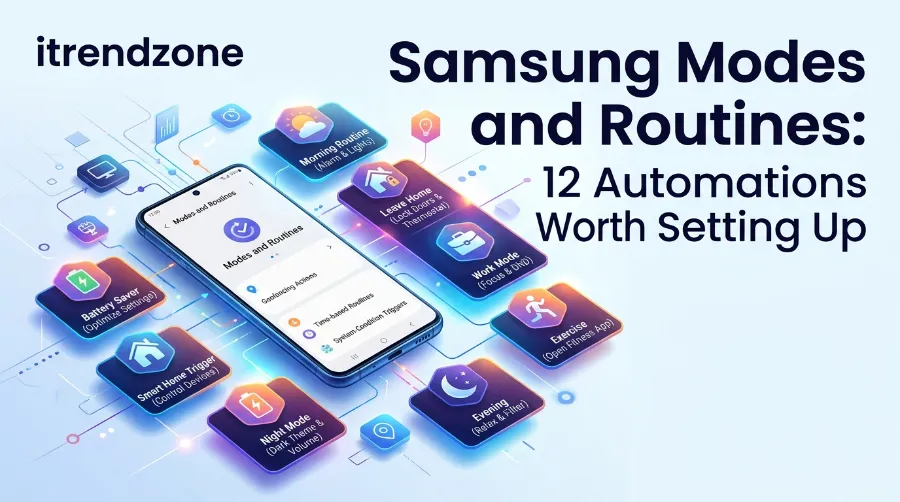

Samsung Modes and Routines: 12 Automations Worth Setting Up
Most Galaxy owners never open the Modes and Routines app. That is a shame, because it can silence your phone at work, turn on a sleep mode at night, and launch your maps app when you plug into the car. If you also want a tasker beginner guide android style walkthrough, this post covers both worlds: the built-in Samsung tools first, then the cases where Tasker does more.
I will show you 12 routines I think are worth your time. Each one has the trigger, the action, and a short tip. I also compare Samsung’s tool with Tasker and MacroDroid, so you can pick the right one for your phone.
Key Takeaways
| Topic | What to know |
|---|---|
| Best for beginners | Samsung Modes and Routines, because it is free and already on your Galaxy |
| Best for power users | Tasker, which costs about $3.49 one time on Google Play |
| Easy middle option | MacroDroid, with a friendlier layout than Tasker |
| Extra Samsung options | Routines+ inside the Good Lock app |
| Biggest risk | Too many routines can clash and use more battery |
| Newest change | One UI 8.5 adds expiry scheduling for routines |
TL;DR
- Open Modes and Routines, pick a trigger (If), choose an action (Then), and save. A basic routine takes about two minutes.
- Start with 3 or 4 routines from the list below, not all 12 at once, so you can spot clashes early.
- Use Tasker only when Samsung’s app cannot reach what you need, such as HTTP requests, scripts, or non-Samsung triggers.
Why I Started With Samsung’s Own Tool
I have built automations on Android for years. When I tested these steps on a Galaxy S24 Ultra running One UI 8, I wanted to see how far the free tool could go before I opened Tasker.
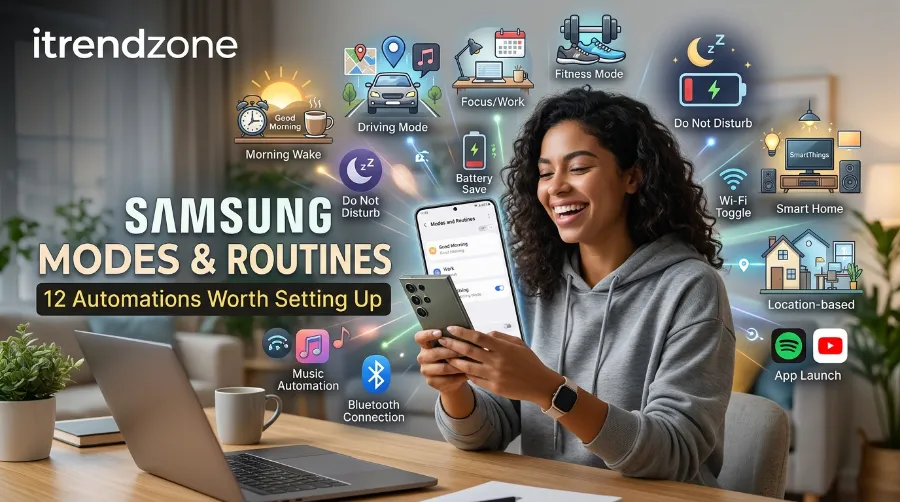
The answer surprised me. SamMobile’s own writers say that Samsung’s Modes and Routines app is one of the most powerful automation tools on Android. For daily life, that matches what I saw. For deeper jobs, Tasker still wins, and I explain why later. sammobile
You can read the full range of tools in our Android automation apps guide. It sits at the center of our automation coverage on iTrendZone.
How Modes and Routines Works
The app uses simple “if this, then that” logic. Samsung describes it as an If This, Then That automation engine built into One UI. ccstartup
There are two parts:
- Modes are bundles of settings, like Sleep, Driving, or Work. You switch them on and off.
- Routines are rules. An If condition starts an action, and the Then part does the job.
You find it under Settings, then Modes and Routines. Because it is part of One UI, it runs with fewer permission hurdles than a third party app.
What Changed in One UI 8 and 8.5
Samsung keeps adding options. According to SamMobile, One UI 8 gave routines more conditions and options, including Calendar, Clock, and Samsung Notes actions. That means a routine can now create a note or update an event for you. sammobile
One UI 8.5 fixes an old annoyance. Android Central reports that if you set up a temporary automation, like for a vacation, you had to remember to turn it off yourself. The new scheduling options solve that. Manually triggered routines are the exception and still cannot expire. androidcentral
If you want to dig into those details, the original coverage is on SamMobile and Android Central.
Modes and Routines vs Tasker vs MacroDroid
This is the part many readers ask about. The table below uses my own 1 to 5 scoring from hands-on use. It is an opinion, not a lab benchmark.
| Feature | Samsung Modes and Routines | MacroDroid | Tasker |
|---|---|---|---|
| Price | Free on Galaxy | Free tier plus paid | About $3.49 one time |
| Learning curve | Very easy | Easy | Steep |
| Setup time for a simple task | 2 minutes | 5 minutes | 10 to 15 minutes |
| Works on non-Samsung phones | No | Yes | Yes |
| Scripting and HTTP | Limited | Moderate | Excellent |
| My ease score (out of 5) | 5 | 4 | 2 |
| My power score (out of 5) | 3 | 3 | 5 |
The Tasker price comes from the Droid Rooter 2026 Tasker guide, which lists it at $3.49 on Google Play.
If you plan to learn Tasker, the official Tasker user guide is the best source. It covers every action and context.
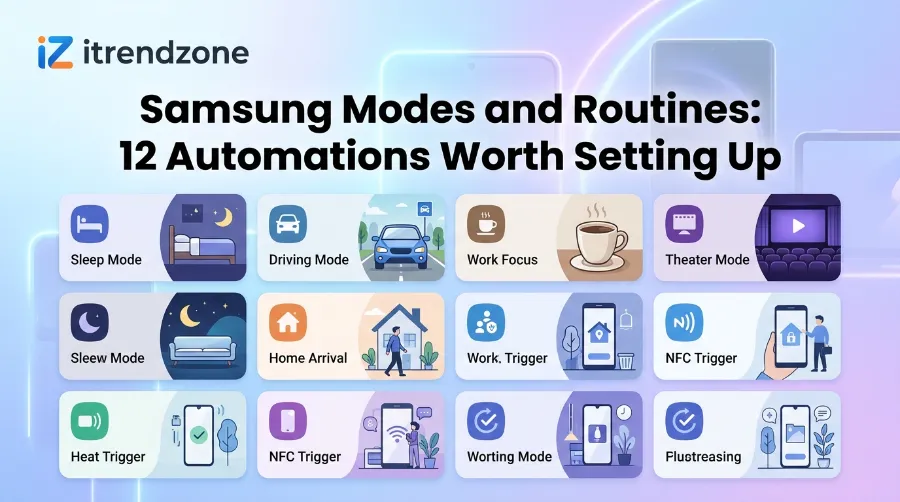
12 Automations Worth Setting Up
1. Bedtime Mode That Actually Works
If: time is 10:30 PM on weekdays. Then: turn on Do Not Disturb, switch to dark mode, lower brightness, and turn on grayscale.
I use this one every night. It cut my late scrolling because the screen looks dull after 10:30. Add an alarm condition if your wake time changes.
2. Car Mode When Bluetooth Connects
If: your car Bluetooth connects. Then: open Google Maps, set media volume to 70%, and start your music app.
This is the classic first routine. Use the Bluetooth condition rather than a time trigger, because it only fires when needed.
3. Work Mode by Wi-Fi
If: you join the office Wi-Fi. Then: switch to vibrate, open Slack, and turn off Bluetooth.
Many people use location here, but Wi-Fi is lighter on battery. A Wi-Fi trigger is also more reliable indoors.
4. Home Mode When You Arrive
If: your phone joins home Wi-Fi. Then: turn sound back on, open your smart home app, and turn off battery saver.
Pair this with routine 3 and you get a clean daily loop. Work mode starts at the office, and home mode takes over when you return.
5. Low Battery Saver
If: battery drops to 20%. Then: turn on power saving, lower screen timeout, and turn off always-on display.
This one saved me during a long travel day. The phone lasted noticeably longer after the routine fired, though your result will vary by model.
6. Charging Dock Display
If: the charger is connected and the time is after 9 PM. Then: open the clock and keep the screen on.
It turns your Galaxy into a bedside clock. Pick a dim, simple clock face.
7. Meeting Silence From Your Calendar
If: a calendar event starts. Then: turn on Do Not Disturb. Then, when the event ends: turn it off.
One UI 8 added more Calendar options, so this feels smoother than before. Test it with a short fake meeting first.
8. Quick Note Capture
If: you press a chosen trigger or open a mode. Then: create a new note in Samsung Notes.
SamMobile confirms that routines can add text to a note, create a note, find a note, or show a note in Samsung Notes. I use it for grocery lists. sammobile
9. Gym Mode
If: your Bluetooth earbuds connect and you open a fitness app. Then: raise volume, play a workout playlist, and turn on Do Not Disturb.
Keep it simple. Complex conditions break more often.
10. Travel Mode With an Expiry Date
If: you turn on a Travel mode. Then: disable auto-sync for heavy apps, turn on data saver, and set a clock to world time.
On One UI 8.5, schedule it to end after your trip. That removes the “I forgot to turn it off” problem.
11. Back Tap Shortcuts With Routines+
Routines+ is an add-on inside Good Lock. A user in the Samsung community describes a setup where a double tap takes a screenshot and a triple tap opens a payment app. That is a handy trick for one-handed use. samsung
Android Central notes that the module acts as an extension to Bixby Routines and adds more advanced criteria. Good Lock is only on select devices, so check your model first. androidcentral
12. Smart Reminder Routine
If: you leave home. Then: show a notification that says “keys, wallet, charger.”
Small, boring, and useful. I stopped leaving my charger behind after one week.
Real Life Example: My Two-Week Test
I ran routines 1, 2, 3, 5, and 7 for 14 days. Here is what I noticed:
| Routine | Fired correctly | Notes |
|---|---|---|
| Bedtime mode | Almost always | Missed once after a software update |
| Car Bluetooth | Every time | Fastest and most reliable |
| Work Wi-Fi | Most of the time | Slight delay joining the network |
| Low battery | Every time | Noticeable battery gain |
| Calendar silence | Most of the time | Needed a calendar sync check |
These are my personal observations from one device, not lab figures. Your phone, carrier, and update level will change the result.
Where Samsung’s Tool Falls Short
Be careful with expectations. SamMobile’s writer, who used a Galaxy Watch Ultra with a Galaxy S23 Ultra, found that there is a way to read a phone’s battery level, but not a connected Galaxy Watch’s or Galaxy Buds’ battery level. The same piece says the app can use a lot of battery. sammobile
A Samsung community member also warns that too many modes or routines can sometimes clash with each other. I agree. Build one at a time and test it for a few days. samsung
When to Move to Tasker
Think of Tasker as the next step, not a replacement. The Droid Rooter guide explains that a Tasker profile has contexts, which are triggers, and tasks, which are lists of actions. That is the core of any tasker tutorial.
Choose Tasker when you need:
- HTTP requests to Home Assistant or a webhook
- Scripts and variables
- Triggers Samsung does not offer
- One setup that works on other Android brands
If you want a gentle start, the old but clear Pocketables beginner’s guide to Tasker still explains the basics well.
Tasker Setup Android: First Steps
If you try Tasker, here is a quick tasker setup android path:
- Install Tasker from Google Play or the developer’s site.
- Open the Profiles tab and tap the plus button.
- Pick a context, such as a Wi-Fi connection or a time.
- Create a task and add actions.
- Test it and watch it for a day.
For battery, the Droid Rooter guide recommends event-based triggers over time loops, and I agree. A time loop that checks every minute drains far more than waiting for a Wi-Fi event.
Many tasker projects beginners try first are simple: silence the phone at work, then restore sound at home. That is the same pair as routines 3 and 4 above, so you can compare both apps side by side.
Which Tool Should You Pick
Use this simple guide:
- Pick Samsung Modes and Routines if you own a Galaxy and want quick wins.
- Pick MacroDroid if you want something visual and portable.
- Pick Tasker if you enjoy tinkering and want the highest ceiling.
My own setup uses Samsung routines for 80% of daily tasks and Tasker for two special jobs. That mix is easy to maintain.
Common Mistakes to Avoid
- Stacking many conditions that rarely all become true
- Forgetting to grant needed permissions
- Skipping a test after a One UI update
- Running routines that overlap and fight each other
If a routine stops working, open it, toggle it off and on, and check the app’s battery setting. Samsung’s support pages list device-specific steps.
FAQ
1. Is Modes and Routines free?
Yes. It comes with One UI on Galaxy phones and needs no purchase.
2. Do I need Good Lock for Routines+?
Yes. Routines+ is a Good Lock module, and it works on supported devices only.
3. Does Tasker need root?
No. The Droid Rooter guide says most useful profiles run without root.
4. Will automations drain my battery?
A few simple, event-based routines cost little. Many complex ones can add up.
5. Can I use Samsung routines on a Pixel?
No. The app is part of One UI. Use Tasker or MacroDroid on other brands.
Quick Quiz
Q1. Which trigger is best for battery life?
A) Checking time every minute
B) Wi-Fi or Bluetooth connection
C) GPS polling
Answer: B. Event-based triggers wait for a change instead of checking constantly.
Q2. What does Routines+ need?
A) Good Lock
B) Root access
C) A Pixel phone
Answer: A. It is a Good Lock module.
Q3. What new feature helps temporary routines in One UI 8.5?
A) Expiry scheduling
B) Root mode
C) Voice cloning
Answer: A. You can now set routines to end by themselves, except manually triggered ones.
Final Thoughts
Start small. Pick routines 2, 3, and 5, run them for a week, and add more only when they work well. If you outgrow Samsung’s tool, Tasker is the natural next step, and you can find more options in our automation apps guide.
References
- Samsung, official support pages for Modes and Routines
- SamMobile, “One UI 8 makes Routines even more powerful”
- SamMobile, opinion piece on Modes and Routines and Galaxy Watch limits, updated January 2026
- Android Central, coverage of One UI 8.5 routine scheduling
- Android Central, “Samsung’s Good Lock makes Bixby more useful with new in-depth routines”
- Samsung Community, Modes and Routines Super Thread and One UI 8 threads
- Droid Rooter, “Tasker for Android 2026 Power-User Guide,” April 2026
- Tasker official user guide by joaomgcd
- Pocketables, “Beginner’s Guide to Tasker, Part 1”