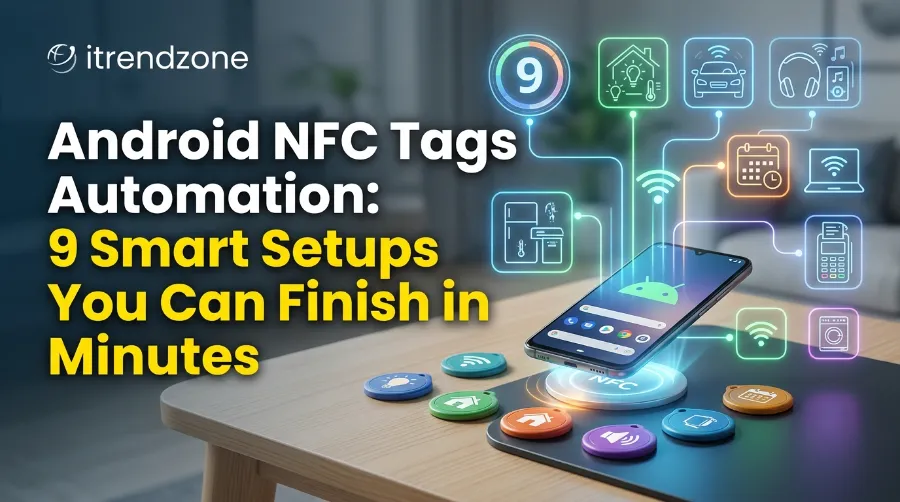

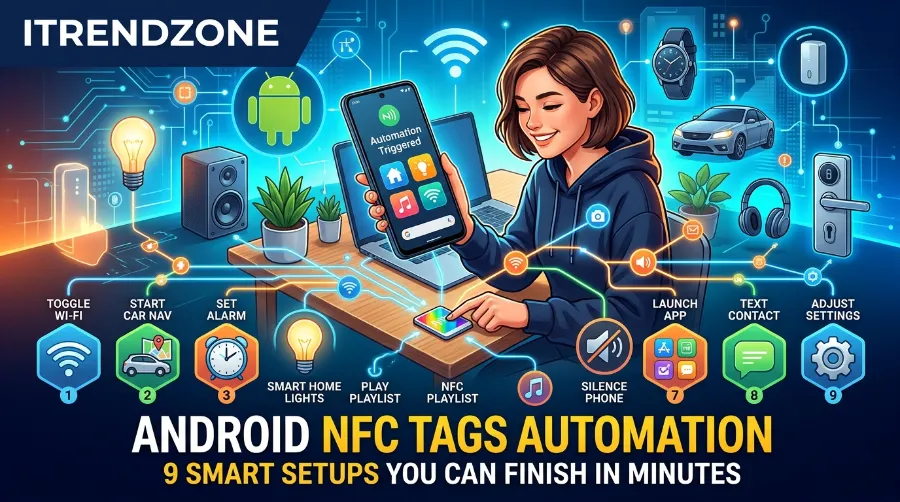
Android NFC Tags Automation: 9 Smart Setups You Can Finish in Minutes
Last winter I stuck a coin-sized sticker on my nightstand. One tap with my Pixel, and my phone went silent, dimmed the screen, and set my alarm. That tiny sticker cost less than a coffee, and it changed my evening routine for good.
That is the real power of android nfc tags automation. You tap your phone on a cheap tag, and your phone runs a whole list of actions. No menus, no swiping, no forgetting.
Many readers in the US and Europe ask me the same thing. “Is it hard?” It is not. Most setups take less than five minutes. Let me show you nine of them, with the exact apps and steps I used.
Quick Facts Before You Start
| Question | Short Answer |
|---|---|
| What do you need? | An NFC phone, a few NFC tags, and a free app |
| Best free app to write tags | NFC Tools (by wakdev) |
| Best app for deep automation | Tasker (paid, one time fee) |
| Best tag for most people | NTAG215 stickers |
| Typical tap distance | A few centimeters |
| Time to set up one tag | About 3 to 5 minutes |
| Biggest beginner mistake | Locking a tag before testing it |
TL;DR
- NFC tags are small stickers or cards that store a tiny bit of data. Your Android phone reads them with one tap.
- You can write simple tasks (open a link, join Wi-Fi) with NFC Tools, or build bigger routines with Tasker.
- Start with NTAG213 or NTAG215 tags, test before you lock them, and keep them away from bare metal unless you buy on-metal tags.
What Android NFC Tags Actually Do
An NFC tag is a small chip with a thin antenna. It has no battery. Your phone powers it for a split second when you tap, and the phone reads what is stored inside.
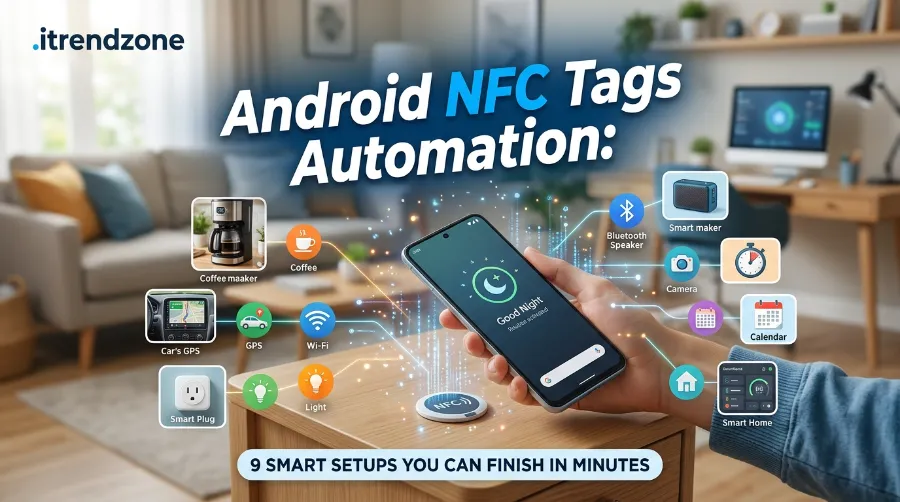
Here is the part that confuses people. The tag usually does not “run” anything. It holds a short message, like a web link, a piece of text, or a number. Your phone, or an app on it, decides what to do with that message. That is why a tag can be so cheap and still feel smart.
Android has supported this system for years. The official Android developer documentation on NFC explains how phones detect tags and read NDEF messages. If you like to understand the “why,” it is a good read.
There are two ways to use tags:
- Direct tag actions: The tag holds a link, text, or Wi-Fi details. The phone opens it on tap.
- Tag as a trigger: The tag holds almost nothing. Its unique ID starts an automation in an app like Tasker.
Most of the nine ideas below use one of these two methods. I will tell you which one each time.
Before You Buy: Pick the Right Tag
Not every tag fits every job. I have wasted money on the wrong type, so learn from me. The tag family matters because memory size changes what you can store. If you want a deeper look at types, this guide to NFC tag types from MobiloCard breaks them down well.
| Tag Type | User Memory (approx.) | Best For | My Take |
|---|---|---|---|
| NTAG213 | 144 bytes | Links, short text, triggers | Cheapest and good enough for most tasks |
| NTAG215 | 504 bytes | Wi-Fi details, longer text, vCards | My default pick |
| NTAG216 | 888 bytes | Bigger contact cards | Rarely needed |
| MIFARE Classic | 1 KB (varies) | Access cards, closed systems | Many phones cannot write to it, so skip it |
For your first order, I suggest a pack of NTAG215 stickers. They cost little, and they have enough room for almost every idea in this post. If you want help choosing, look for “best nfc tags to buy” lists, but check that the listing names the exact chip. Vague listings that only say “NFC sticker” are a red flag.
Also think about the surface. Tags stuck straight on metal often fail, because metal blocks the signal. Buy on-metal tags for car dashboards, laptops, or fridge doors.
The Apps You Need
You only need two apps. Both are easy.
NFC Tools is a free app that reads and writes tags. It is the best place to start. Its “Write” tab lets you add records such as a URL, text, Wi-Fi network, or contact.
Tasker is the power tool. It is a paid app, but it lets one tap run many actions. It has a built-in NFC Tag event, so any tag, even a blank one, can start a profile. If you are new to this kind of app, my Android automation apps guide compares the top choices side by side.
Using Samsung? Its built-in tools can handle some routines too. I cover that in my Samsung Modes and Routines and Tasker beginner guide.
How to Write an NFC Tag on Android (Step by Step)
This is the base skill. Once you know it, every idea below gets easier. Here is how to write nfc tag android style with NFC Tools:
- Turn on NFC in your phone settings.
- Open NFC Tools and tap the Write tab.
- Tap Add a record and choose a type, such as URL/URI.
- Type or paste your data, then tap OK.
- Tap Write.
- Hold the back of your phone against the tag until you see a success message.
- Tap Read and scan the tag again to confirm it worked.
I tested this on a Pixel 9 running Android 15 and a Galaxy S24 running One UI 6.1. On both phones, the antenna sat near the upper back, close to the camera. Phones differ, so slide your phone slowly if the first tap fails.
A quick safety note. NFC Tools has a “Lock” option that makes a tag read only. It cannot be undone. Never lock a tag until you are sure it works.
9 Smart Android NFC Tags Automation Ideas
These are the setups I use or have tested. If you want even more inspiration, this list of NFC tag ideas from Digifeel has creative uses beyond phones. These are my own nfc tag ideas android users will find practical.
1. Bedtime Tag: Silence, Dim, and Set the Alarm
This is my favorite, and it is the one I showed in the intro. I stuck a tag on my nightstand lamp base.
Tool: Tasker (trigger method)
What it does:
- Turns on Do Not Disturb
- Lowers screen brightness
- Turns off Wi-Fi or Bluetooth if you want
- Opens your alarm app
How to set it up:
- In Tasker, create a new Profile and pick Event, Hardware, NFC Tag.
- Tap the tag when Tasker asks you to scan, so it saves the tag ID.
- Link a new Task with your actions.
- Add a tone or vibration at the end, so you know it worked.
After two weeks, I noticed something. I stopped scrolling in bed. The tap itself became a signal to my brain that the day was over. That small habit change surprised me more than the tech did.
2. Car Dock Tag: Start Driving Mode
Stick an on-metal tag, or a regular one on plastic, near your phone mount. When you tap it, your phone can:
- Turn on Bluetooth
- Open Google Maps or Waze
- Start your music or podcast app
- Raise the volume
This is a great nfc tag automation tasker project, because one tap replaces four steps. I tested it on a 25 minute commute. I saved roughly 20 seconds per trip. That sounds small, but across a year of daily drives, it adds up to hours.
A tip from experience. Use a thin tag and keep your case under about 3 mm thick. Thick cases and magnetic plates can block the signal.
3. Desk Tag: Instant Work Mode
Put a tag on your desk. Tap it when you sit down.
Possible actions:
- Connect to office Wi-Fi
- Switch your phone to vibrate
- Open your calendar and notes app
- Launch a focus timer
For remote workers in the US and Europe, this works nicely as a “clock in” ritual. Pair it with a second tag by the door that reverses everything, and you have a clean work and home split.
4. Guest Wi-Fi Tag: Share Without Typing
Guests always ask for the Wi-Fi password. A tag solves this forever.
Tool: NFC Tools (direct method)
Steps:
- Open the Write tab and tap Add a record.
- Choose Wi-Fi network (or the closest option for your app version).
- Enter the network name, password, and security type.
- Write it to an NTAG215 tag.
- Stick it on a small frame near your entrance.
Most modern Android phones show a prompt to join the network after the tap. I tested it with two friends. One had an older phone and needed a second tap, so keep a printed backup. Also, use a separate guest network if your router allows it, so your main devices stay private.
5. Digital Business Card Tag
If you meet people at events, this one is a showstopper.
Method: Write a URL record that points to your LinkedIn profile, portfolio, or a contact page. Alternatively, write a vCard record with your name, phone, and email, which NTAG215 can hold.
Place the tag on the back of your phone or on a printed card. Anyone with an NFC phone, Android or iPhone, can tap and open it. Always test with a phone from the other platform before an event. I did this at a small meetup in 2025 and got more follow ups from one tap than from a whole stack of paper cards.
6. Smart Home Tag: Lights, Plugs, and Scenes
You can trigger a smart home scene with one tap. There are two good ways.
- Home Assistant: Its Android companion app has built in tag support. You scan a tag, name it, and then use it as a trigger in your automations.
- Tasker with HTTP request: Tasker can send a web request to your smart plug or hub when you tap.
For example, I put a tag by my front door. One tap turns off the living room lights and sets the thermostat to eco mode. It is not magic, but it feels like it every time.
7. Gym and Workout Tag
Stick a tag in your gym bag or on your water bottle.
Actions to automate:
- Open your workout app
- Start a playlist
- Turn on Do Not Disturb with exceptions for calls
- Open a timer
I paired this with a Spotify playlist link. The playlist link alone works as a direct tag with no Tasker needed. That makes it a nice first project for beginners.
8. Lost and Found Tag for Keys, Bags, and Luggage
Write a short text note or a link to a contact page on a tag. Attach it to your keys or suitcase.
If someone finds your item, they tap the tag and see your contact info. Keep it short and avoid your home address. I suggest an email or a phone number you are happy to share. This idea is cheap, helpful, and it solves a real problem for travelers moving between countries.
9. Meeting Tag: Instant Quiet and Notes
Tap a tag on your meeting room table or in your bag. Your phone can:
- Mute media and set Do Not Disturb
- Open your note app with a blank page
- Start a screen timer
This one is simple but useful. I used it during a week of back to back calls, and it stopped two embarrassing ringtones. That is all the proof I needed.
Android NFC Tags Automation: Tasker vs. NFC Tools vs. Built In Options
Which method fits you? This table shows my honest view after trying all three.
| Method | Cost | Difficulty | Best For | Limits |
|---|---|---|---|---|
| NFC Tools only | Free | Very easy | Links, Wi-Fi, text, contact cards | Cannot run complex multi step tasks |
| Tasker with NFC Tag event | Paid app | Medium | Multi action routines, system settings | Takes time to learn |
| Phone maker routines (for example Samsung) | Free | Easy | Simple phone settings | Fewer options, varies by brand |
My advice is simple. Start with NFC Tools for your first tag, then move to Tasker once you want one tap to do three or more things. The learning curve is real, but it is smaller than most people fear.
For more NFC walkthroughs and app news, the NFC Magic blog is also worth a bookmark.
Common Problems and Quick Fixes
Tags fail for boring reasons. Here are the fixes that worked for me.
- Nothing happens on tap: Check that NFC is on. Then check that your screen is awake. Many Android phones only read tags with the screen on, and some need it unlocked.
- Tag works once, then fails: The antenna spot may be off. Move your phone slowly across the tag.
- Tag on metal does not work: Use an on-metal tag or add a thin ferrite spacer.
- Tasker does not see the tag: Make sure Tasker is allowed to run in the background and is not under battery restriction.
- Write failed: The tag may be locked or may be a type your phone cannot write to. MIFARE Classic is a common culprit.
- A pop up asks which app to use: Set a default app for NFC tags, or build the action in Tasker.
Battery use is not a worry. NFC is passive on the tag side, and the phone only reads when you tap.
Safety and Privacy Tips
Tags are simple, so treat them with care.
- Never store passwords in plain text on a tag you share in public. Anyone can read it.
- Do not use a tag to unlock sensitive actions, such as payments, without extra checks.
- Be careful with tags you did not place yourself. A bad tag can open a harmful link, so read the preview before you tap OK.
- Use read only locks only on public tags, and only after testing.
Google and phone makers keep improving tag handling, and Android shows a prompt before it opens most links. Still, a little caution goes a long way.
What I Learned After Months of Testing
I want to share a few honest notes from real use, because guides rarely say these out loud.
First, placement matters more than the tag brand. A good tag in the wrong spot is useless. Put tags where your hand already goes.
Second, fewer tags work better. I started with twelve tags and used only five. Now I keep one for each daily habit: bed, desk, car, door, and gym.
Third, name every tag in Tasker. A month later, “Tag 7” means nothing. Clear names save you from confusion.
Fourth, test on a second phone. When you share tags with family or guests, phones differ. A tag that worked on my Pixel failed once on an older phone until I rewrote it as a simple URL.
Final Thoughts
Android NFC tags are one of the cheapest upgrades you can give your phone. For the price of a small snack, you can cut daily taps, build calm habits, and impress your friends. Start with one tag and one idea. I suggest the bedtime tag or the Wi-Fi tag, since both give fast results.
Once that works, grow slowly. Add a car tag, then a desk tag, then try a smart home scene. Within a week, you will wonder how you lived without them. Your phone should work for you, and a single tap is the easiest way to make that happen.
Frequently Asked Questions
1. Do I need a special app to use NFC tags on Android?
No for simple tags. A link or Wi-Fi tag often works with only your phone’s built in NFC. You need an app like NFC Tools to write the tag, and Tasker if you want multi step automation.
2. Can iPhones read the tags I write on Android?
Many can. Newer iPhones read standard NDEF tags, such as URLs and text, in the background. Wi-Fi tags and Tasker style triggers are mostly an Android feature, so test before you rely on them.
3. How far does an NFC tag need to be from my phone?
Only a few centimeters. Hold the back of your phone close, and keep the case thin for best results.
4. Are NFC tags safe?
Yes, when you use them wisely. Avoid storing private data, and check where an unknown tag sends you before you open it.
5. Can I rewrite an NFC tag later?
Yes, unless you locked it. NTAG tags can be rewritten many times, so test freely and lock only the final version.
Quick Quiz: Test What You Learned
Question 1: Which tag type is the best all round pick for beginners?
A) MIFARE Classic
B) NTAG215
C) A blank credit card
D) Bluetooth beacon
Answer: B) NTAG215. It has enough memory for Wi-Fi details and contact cards, and phones can write to it easily.
Question 2: What should you do before locking an NFC tag?
A) Stick it on metal
B) Share it with strangers
C) Test it fully
D) Delete the app
Answer: C) Test it fully. Locking is permanent, so confirm that the tag works first.
Question 3: Which tool lets one tap run several actions, like silence, dim, and alarm?
A) A plain text record
B) Tasker
C) A printed QR code
D) Airplane mode
Answer: B) Tasker. Its NFC Tag event can start a full profile from one tap.
References
- Android Developers: Near field communication overview (developer.android.com)
- NFC Forum: NFC tag and NDEF specifications (nfc-forum.org)
- NXP Semiconductors: NTAG213, NTAG215, and NTAG216 data sheets
- Tasker official documentation (tasker.joaoapps.com)
- Home Assistant Companion App documentation: NFC tags (home-assistant.io)
- NFC Tools by wakdev: app documentation
- MobiloCard: NFC tag types guide
- Digifeel: NFC tag ideas
- NFC Magic Blog