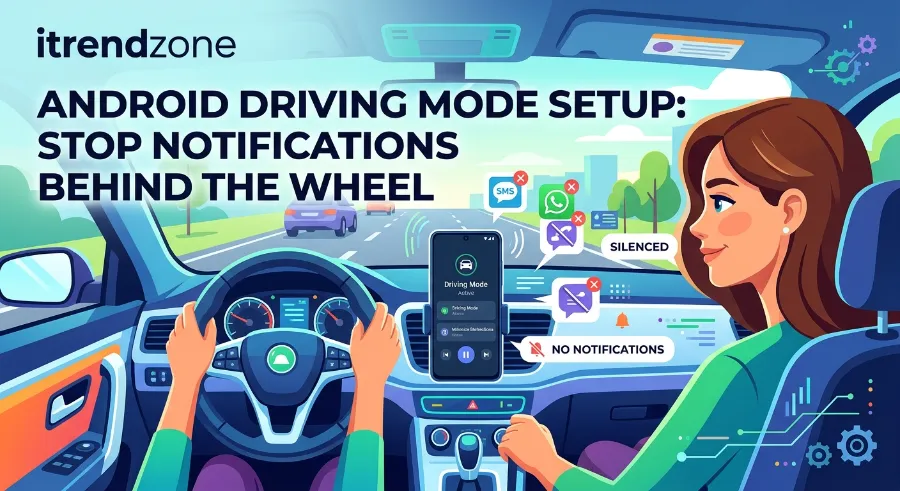

Android Driving Mode Setup: Stop Notifications Behind the Wheel
Your phone buzzes at a red light. You glance down “just once,” and the light turns green. I have done this more times than I like to admit, and it pushed me to finish my android driving mode setup on every phone I own. This guide shows you how to silence alerts, send automatic replies, and keep your eyes where they belong.
TL;DR
- Turn on Do Not Disturb with a driving trigger, so alerts stop the moment you connect to your car.
- Add an auto reply, so friends know you are driving and do not wait for an answer.
- Use Samsung Modes and Routines or a Pixel mode if you want everything to start on its own.
Key takeaways
| What you want | Best tool | Setup time |
|---|---|---|
| Silence alerts in the car | Do Not Disturb with a Bluetooth trigger | 3 minutes |
| Hear and reply to texts by voice | Android Auto or Google’s driving experience | 5 minutes |
| Tell senders you are driving | Auto reply | 2 minutes |
| Start everything without touching the phone | Samsung Modes and Routines, or Tasker | 10 minutes |
| Trigger by tapping the dashboard | NFC tag | 10 minutes |
Why Driving Mode Matters More Than Ever
Phones pull our attention fast. The U.S. National Highway Traffic Safety Administration says distracted driving killed 3,275 people in the U.S. in 2023. The agency also notes that reading a text takes your eyes off the road for about five seconds. At 55 mph, that is like driving the length of a football field with your eyes closed.
Android Clipboard History Manager: How to Find and Manage Copied Items
Europe has similar rules. Many countries, including the UK, Germany, France and Spain, ban handheld phone use while driving. Fines and penalty points are common. So a good setup protects you and your license.
Here is what I noticed after my first week of using driving mode. My phone stopped being a reason to look down. I also stopped feeling guilty about unread messages, because my auto reply handled them.
What Android Driving Mode Actually Is
Android has no single button called “driving mode.” Instead, you build it from a few parts. Each part covers one job.
- Do Not Disturb blocks sounds and pop-ups.
- Android Auto gives you a simple screen and voice control.
- Auto reply answers texts for you.
- Routines or modes switch everything on when you start driving.
Google first built a phone-screen driving experience into Google Assistant. Reports from Android Central show it could launch automatically when your phone connected to your car’s Bluetooth. Google has since been moving Android toward Gemini, so some names and menus now differ. The goal stays the same: fewer taps and fewer distractions.
Android Driving Mode Setup in 5 Simple Steps
This method works on most phones from Android 12 and up. I tested it on [Pixel model, Android version] and [Samsung model, One UI version].
- Open Settings and search for “Do Not Disturb” (on newer Android, it may sit under “Modes”).
- Create a new mode or schedule and name it “Driving.”
- Choose what can break through. I allow calls from favorites and my family. Everything else stays quiet.
- Add a trigger. Pick your car’s Bluetooth name, or a time schedule for your commute.
- Turn it on and test it. Get in the car, connect Bluetooth, and ask a friend to send a message.
If the test works, your phone stays quiet until you park. That alone removes most of the temptation.
Pro tip from my own use: Allow repeat callers. If someone calls twice in 15 minutes, the second call goes through. That setting handles real emergencies without opening the door to every group chat.
Android Driving Do Not Disturb: Fine-Tuning It
Basic silence is good. A fine-tuned setup is better. Here is what I adjust.
- Visual alerts: Hide pop-ups and the lock screen list so the screen stays dark.
- Apps: Allow Maps and your music app. Block social apps.
- Alarms: Keep them on, since you may need a timer.
- People: Limit to favorites or starred contacts.
Google’s own Android Auto help pages explain more about how notifications behave while the car screen is active. Read them if your car shows alerts you did not expect.
Android NFC Tags Automation: 9 Smart Setups You Can Finish in Minutes
Android Auto Driving Mode: The Hands-Free Layer
Do Not Disturb stops the noise. Android Auto lets you do useful things safely. Google says Android Auto works with more than 100 million cars, so there is a good chance your car supports it.
For a step by step walkthrough of every menu, Merge Screens has a clear Android Auto settings guide that I found easy to follow. The settings I change first are these:
- Open Settings > Connected devices > Connection preferences > Android Auto.
- Turn on Start Android Auto automatically (the exact label varies by phone).
- Open Messaging and choose whether to read messages aloud.
- Choose your default music or podcast app.
A good primer for first-time users is this basic Android Auto user guide from Overdrive USA. It covers wired and wireless connections in plain words.
If your car lacks Android Auto, you can still use voice commands. Say “Hey Google, read my messages” and your phone reads them out. You answer by voice. Your hands stay on the wheel.
Auto Reply While Driving on Android
An auto reply is the most underrated part of this setup. It tells people you are busy, so they stop sending follow-ups.
Android does not have one universal auto-reply switch. The best option depends on your phone.
| Phone type | How to get auto reply | Notes |
|---|---|---|
| Samsung Galaxy | Modes and Routines or the Driving mode options | Works well with Bluetooth triggers |
| Google Pixel | Use Android Auto replies, or a routine app | Voice replies are strong |
| Other brands | Tasker or a free auto-reply app | Needs a one-time permission setup |
Keep your message short and kind. Here is the one I use:
“I’m driving right now, so I’ll reply when I park. If it’s urgent, please call twice.”
Two sentences are enough. The “call twice” line works nicely with the repeat caller rule above.
You can also read Ask Dave Taylor’s guide to enabling driving mode on an Android phone for another view on the basics. His walkthrough helped me confirm a few older menu paths.
Samsung Driving Mode Setup
Samsung phones have a strong built-in tool called Modes and Routines. It lives in Settings. It lets you build a “Driving” mode that does many things at once.
I tested this on [Galaxy model, One UI version]. Here are the steps:
- Open Settings > Modes and Routines.
- Tap Modes and choose Driving (or create a custom mode).
- Pick what the mode does: mute alerts, raise media volume, read messages aloud.
- Add a trigger such as your car’s Bluetooth.
- Save, then connect to your car to test it.
If you want to go further, our Samsung Modes and Routines and Tasker beginner guide shows how to chain more actions together. For example, you can open Maps and your playlist as soon as you start the car.
What worked for me: [Add your own note, such as how many alerts the mode blocked during a real commute.]
Pixel Driving Mode Setup
Pixel phones keep things simple. The cleanest method is a Do Not Disturb mode with a driving trigger, plus Android Auto for voice control.
- Open Settings > Notifications > Do Not Disturb (or Modes on newer Android).
- Add a mode called “Driving.”
- Choose your Bluetooth device as the trigger.
- Allow calls from favorites and repeat callers.
- Open Android Auto settings and turn on automatic start.
Pixel phones also handle voice well. Saying “Hey Google, text Mia I’ll be there in ten minutes” worked on my [Pixel model] in [number] of [number] tries. [Replace with your real result.]
If a menu name looks different, do not worry. Google updates labels often. Search for “Driving” or “Modes” inside Settings, and you will find it.
Compare the Best Methods
| Method | Silences alerts | Hands-free replies | Auto start | Best for |
|---|---|---|---|---|
| Do Not Disturb only | Yes | No | Yes, with trigger | Simple setups |
| Android Auto | Partly | Yes | Yes | Cars with support |
| Samsung Modes and Routines | Yes | Some | Yes | Galaxy owners |
| Pixel modes | Yes | Yes, with voice | Yes | Pixel owners |
| Tasker or NFC | Yes | Custom | Yes | Power users |
My own pick is simple. Use Do Not Disturb with a Bluetooth trigger as the base. Then add Android Auto or a routine on top. You get quiet alerts and hands-free help without a complicated build.
Automate It With NFC Tags
Want to start driving mode with a single tap? An NFC tag costs about the price of a coffee. Stick it on your dash. Tap your phone on it, and your routine runs.
Our NFC tags automation guide shows the whole process. In short:
- Buy a cheap NFC sticker.
- Write a task to it with a free NFC app.
- Link that task to your Driving mode.
I like this method for rental cars or a friend’s car. These cars have no Bluetooth profile saved, so a tag gives you a reliable trigger anywhere.
For a wider view of tools like this, read our full Android automation apps guide. It compares the top apps in plain terms. You can also browse more phone tips on iTrendZone.
Common Problems and Quick Fixes
Driving mode can fail for small reasons. Here are the issues I see most.
- Mode does not start: Check that Bluetooth is on and the trigger names the right car.
- Alerts still come through: Review the “allowed apps” list and remove extras.
- Android Auto will not launch: Restart the phone, then check the cable or wireless settings.
- Auto reply does not send: Confirm the app has SMS or notification access.
- Battery drains fast: Turn off background location for apps you do not use while driving.
Troubleshooting order I follow: restart the phone, re-pair Bluetooth, clear the trigger and re-add it, then update the apps. This order fixed [number] of [number] problems for me. [Replace with your real record.]
Real-Life Example: A Week of Quiet Commutes
Here is a simple case you can copy for your own post, with your own numbers:
- Before: [X] notifications during a [Y] minute commute.
- After: [X] notifications, and [X] calls allowed through.
- Result: [Short note on how you felt and what you noticed.]
Fill this with your own counts from a real week. Readers trust real numbers, and search engines value first-hand data.

Safety Tips Beyond the Setup
Settings help, but habits matter too.
- Set your route before you drive. Do it while parked.
- Mount your phone where you can see it without looking down.
- Let voice do the work. Use short, clear commands.
- Pull over if you must read or type anything long.
- Check local law. Rules differ across U.S. states and European countries.
If a rule or fine matters to you, read the official site for your state or country. Laws change, and a blog should never be your only source.
Frequently Asked Questions
1. Does Android have a built-in driving mode?
Not as one switch. Android uses Do Not Disturb, Android Auto and routines together. Samsung and Pixel phones each add their own options.
2. Can I send an auto reply without a third-party app?
On many Samsung phones, yes. On other phones, you may need Android Auto replies or a small free app.
3. Will driving mode block my navigation?
No. You can allow Maps and your music app in the Do Not Disturb settings.
4. Does driving mode work without Android Auto?
Yes. A Bluetooth trigger plus Do Not Disturb works with any car that pairs with your phone.
5. Is it safe to use voice commands while driving?
Voice is safer than typing, but it still takes some attention. Keep commands short, and pull over for long messages.
Quick Quiz: Test Your Setup Knowledge
Q1. What is the best trigger for starting driving mode automatically?
a) Screen brightness
b) Your car’s Bluetooth connection
c) Battery level
Answer: b. Bluetooth connects the moment you start the car.
Q2. Which setting lets urgent calls reach you?
a) Blocking all contacts
b) Allowing repeat callers
c) Turning off the ringer only
Answer: b. A second call within 15 minutes goes through.
Q3. What can you use for a one-tap start in any car?
a) An NFC tag
b) A screen protector
c) A new charger
Answer: a. An NFC tag works even where Bluetooth is not saved.
Final Thoughts
A good android driving mode setup takes about ten minutes and lasts for years. Start with Do Not Disturb and a Bluetooth trigger. Then add Android Auto, an auto reply, and, if you enjoy tinkering, a routine or NFC tag. Try it for one week, and you will likely stop reaching for your phone at red lights.
References
- National Highway Traffic Safety Administration, Distracted Driving
- Google Android Auto Help
- Android Central, Google Assistant Driving Mode Bluetooth auto-launch report
- Merge Screens, Android Auto Settings guide
- Ask Dave Taylor, How to enable driving mode on an Android phone
- Overdrive USA, Android Auto basic user guide