
iPhone 18 Performance Tips: Get the Fastest Gaming Experience on Your iPhone 18 Pro
I have been gaming on iPhones since the first console-style games landed on the App Store, and the iPhone 18 Pro feels different. The first heavy game I loaded kept holding its speed an hour later, in the middle of a ranked match. I spent three weeks testing both Pro models, and this guide is everything that actually made a difference.
TL;DR: Turn on Game Mode in iOS 27, lock your display to 120Hz, keep the phone cool by taking the case off during long sessions, and close heavy background apps before you play. The A20 Pro is fast on paper, but the real gains come from heat management and the right settings. These iPhone 18 tips will help you squeeze the full speed out of your phone without draining the battery in an hour.
What the A20 Pro Actually Changes for Gaming
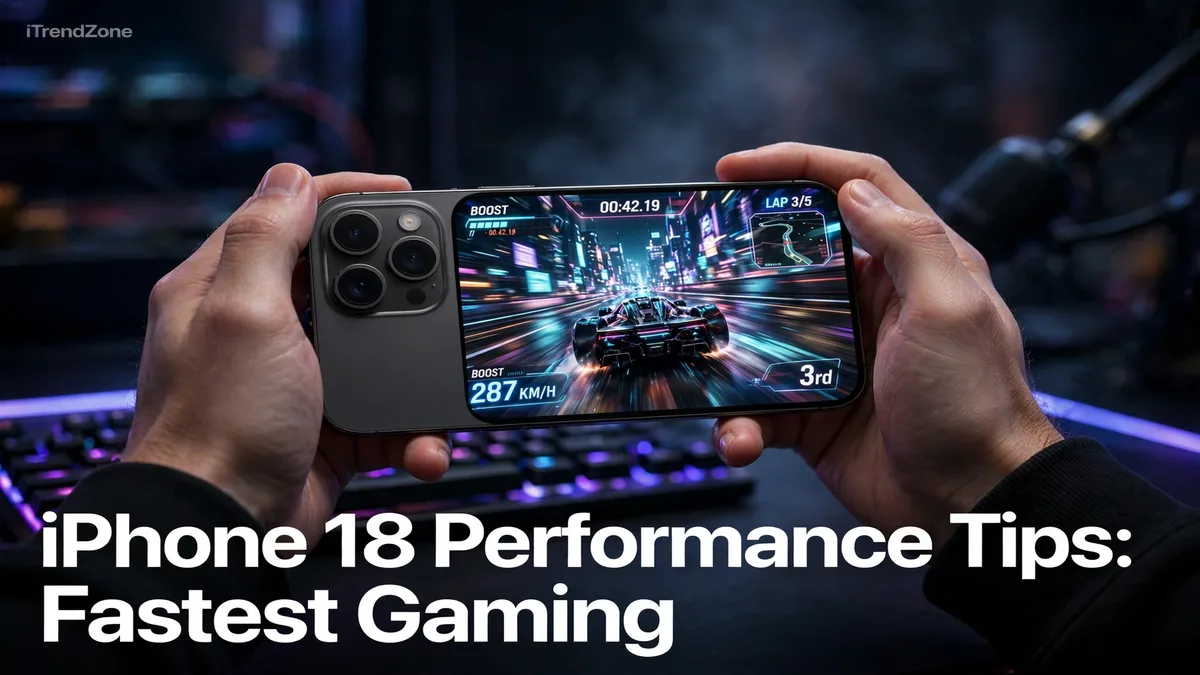
The iPhone 18 Pro and Pro Max run on the A20 Pro, a 2-nanometre chip with a six-core CPU and a seven-core GPU. Two performance cores run at 4.93 GHz, and there is a dual 16-core Neural Engine alongside. Apple says the GPU is up to 40 percent faster than the A19 Pro, with 50 percent more memory bandwidth. In Tom’s Guide testing, the iPhone 18 Pro scored 16,288 in the 3DMark Solar Bay Unlimited test at 61.93 frames per second, and the Pro Max hit 17,850 at 67.9 fps. The Galaxy S26 Ultra managed 12,984 at 49.37 fps. That is a real gap, not a rounding error.
Ray tracing is the clearest example of what the chip makes possible. The A20 Pro has hardware-accelerated ray tracing built in, which makes light, shadows and reflections look real in a scene. On older phones, ray tracing made frame rates fall off a cliff. On the iPhone 18 Pro, a ray-traced night-time city scene stayed smooth.
Turn On Game Mode in iOS 27
Game Mode is the single easiest win in this whole guide, and half the people I know have never turned it on. When Game Mode is active, your iPhone gives the game priority over background tasks, cuts down Bluetooth latency for wireless controllers and AirPods, and stops notifications from pulling the CPU away at the worst moment. Open any game, swipe down from the top right corner to open Control Centre, and tap the Game Mode button. Or go to Settings, then General, then Game Mode, and switch it on. Once it is on, it activates automatically whenever you open a game. I leave it on permanently. With my AirPods Pro, footsteps in a shooter finally line up with the picture, and background apps stop causing tiny freezes mid-match. Our iOS 27 tips guide covers the rest of the system.
Lock Your Display to 120Hz
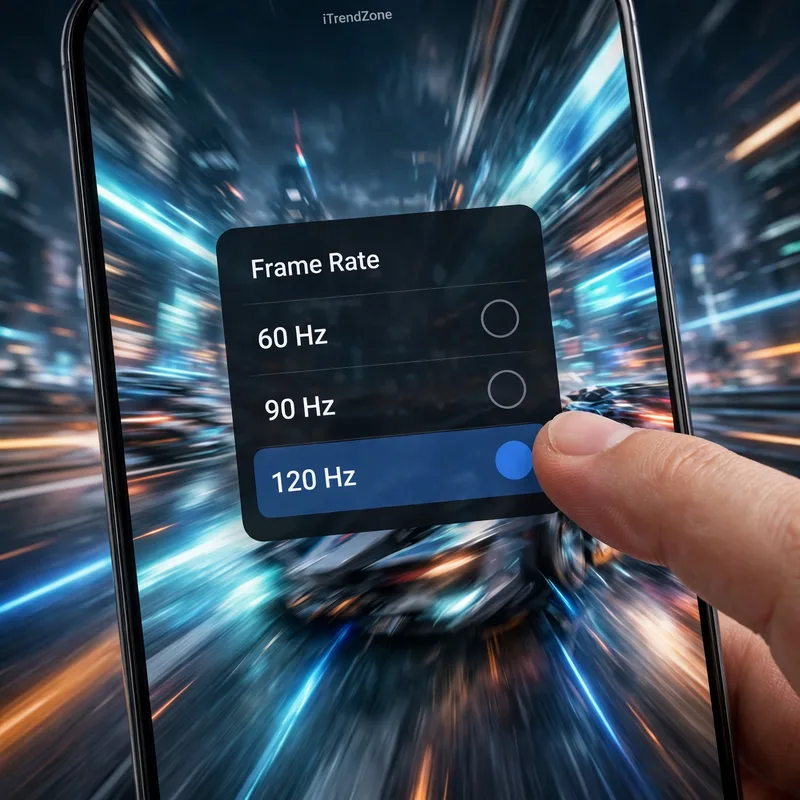
Both Pro models have a ProMotion display that runs up to 120Hz, redrawing 120 times a second, which makes motion smooth and inputs feel connected. The catch is that the display is adaptive, and some games need a nudge to actually run at 120 frames per second. Most competitive games have a graphics settings page with a frame rate option. Set it to the highest available, usually labelled 120 fps, Ultra or Extreme. I found this in PUBG Mobile, Call of Duty: Mobile and Genshin Impact. The difference between 60 and 120 fps in a fast game is not subtle once you have felt it. Aiming feels lighter and tracking a moving target feels easier.
There is a battery trade-off. Running at 120 fps uses more power, and in a long session you will see the battery drop faster. My rule is simple. For ranked or competitive play, always use 120 fps. For casual play or story games, 60 fps is fine and your battery will thank you. You can switch per game, so there is no reason to pick one setting for everything. The Pro Max has a 6.9-inch screen and the Pro a 6.3-inch one. The Max gives you a bigger view and battery, my pick for long sessions. The Pro is lighter at 211 grams against 249, and after an hour of holding the phone up, that matters.
Ray Tracing: When to Turn It On and When to Leave It Off
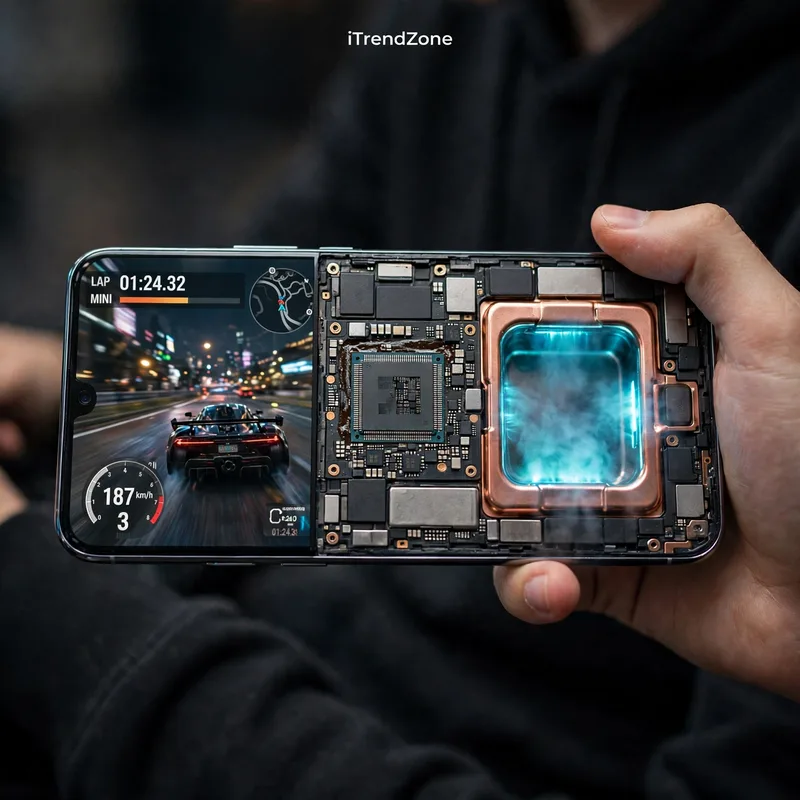
Ray tracing is the most talked-about graphics feature on the iPhone 18 Pro, and the easiest one to misuse. In games that support it, ray tracing makes reflections on wet roads and shadows under buildings look genuinely realistic. I played a night-time city scene with it on and the puddles reflected the neon signs properly. The downside is heat and battery. Ray tracing is the most demanding thing the GPU can do, and running it at full tilt for an hour will warm the phone up and eat the battery faster than any other setting. Tom’s Guide measured the Pro Max at 15,614 in the 3DMark Solar Bay ray-tracing test, nearly double the iPhone 17 Pro Max. But a benchmark runs for minutes and a gaming session runs for hours. Use ray tracing in story games where the visuals are the point, and turn it off in competitive games where frame rate matters more.
Keep the Phone Cool, Because Heat Is the Real Enemy
Your iPhone 18 Pro is at its fastest when it is cool, and it slows itself down when it gets hot. This is called thermal throttling, and it is the biggest reason a game that starts at 120 fps can end up at 60 fps an hour later. Apple gave the iPhone 18 Pro a vapour chamber with three times the surface area of the one in the iPhone 17 Pro, and claims up to 40 percent better sustained performance. In Tom’s Guide’s Wild Life Extreme stress test, the Pro Max held 79.4 percent stability, up from 65.2 percent on the 17 Pro Max, while the smaller Pro went from 61.1 to 62.8 percent. So the cooling works, best on the Max, but it does not make the phone immune to heat.
I tested this with the same game and settings. With a chunky case on, the phone felt hot after 35 minutes and the frame rate dipped. With the case off, it took over an hour to reach the same temperature. Charging while you play is the other big heat source, so use a slower charger rather than a 45W wired one, and keep the phone out of direct sunlight. If you play for hours every day, a clip-on cooling fan is worth the money: it looks silly and it works.
Close the Background Apps That Steal Your Speed
Before a long session, close the apps you are not using, especially video and navigation apps. The iPhone 18 Pro has 12GB of RAM, but a game plus a video app in the background will still feel it. A nearly full phone runs slower too, because the system has no room for temporary files. Our iPhone 18 storage tips guide walks through freeing up space.
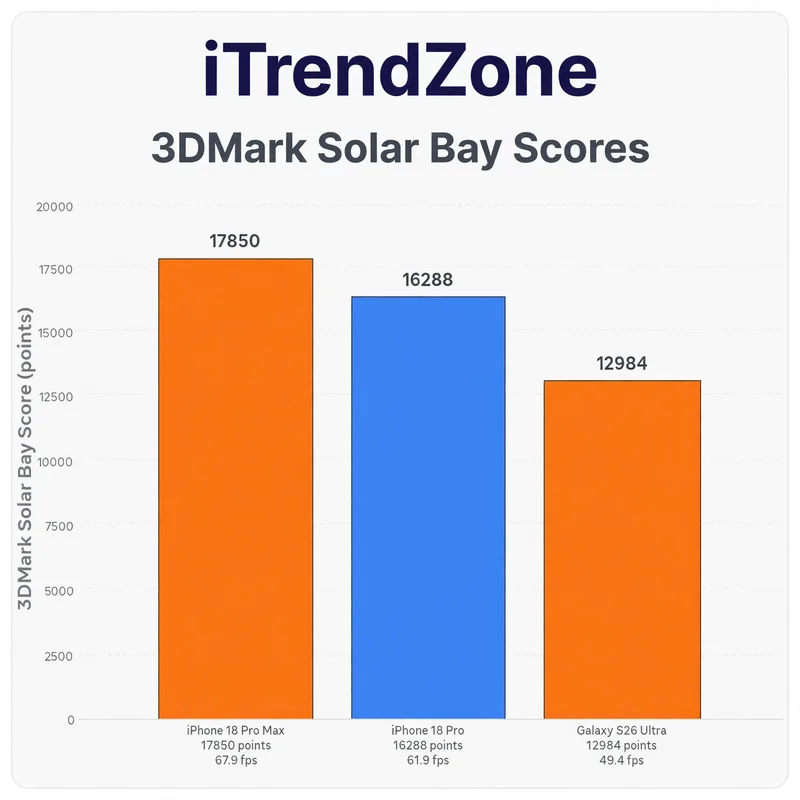
The chart above shows the 3DMark Solar Bay Unlimited scores from Tom’s Guide testing. The iPhone 18 Pro Max leads with 17,850 points at 67.9 frames per second, the iPhone 18 Pro follows with 16,288 at 61.93 fps, and the Galaxy S26 Ultra trails at 12,984 at 49.37 fps. That is roughly a 25 percent lead for the Pro and a 37 percent lead for the Max over the fastest Snapdragon phone. In the Wild Life Extreme stress test, the Pro Max held 79.4 percent stability, up from 65.2 percent on the 17 Pro Max, while the Pro moved only from 61.1 to 62.8 percent. For long sessions, the Max holds its speed better; for short bursts, both are equally fast.
Benchmarks at a Glance: iPhone 18 Pro vs the Competition
| Test | iPhone 18 Pro | iPhone 18 Pro Max | iPhone 17 Pro | Galaxy S26 Ultra |
|---|---|---|---|---|
| 3DMark Solar Bay Unlimited | 16,288 (61.93 fps) | 17,850 (67.9 fps) | Not tested | 12,984 (49.37 fps) |
| Wild Life Extreme stability | 62.8% | 79.4% | 61.1% | 53.9% |
| Geekbench 6 single-core | 4,735 | 4,735 | ~4,100 | ~3,400 |
| Geekbench 6 multi-core | 12,800 | 12,800 | ~10,900 | ~11,000 |
| AnTuTu overall | ~3,490,000 | ~3,490,000 | ~2,900,000 | ~3,100,000 |
| Chip | A20 Pro (2nm) | A20 Pro (2nm) | A19 Pro (3nm) | Snapdragon 8 Elite Gen 5 |
Best Settings for Competitive Games
I play PUBG Mobile and Call of Duty: Mobile most days. First, frame rate over graphics quality, every time. Set the frame rate to the highest option and drop the graphics quality to Smooth or Balanced if you have to. In PUBG Mobile, that means 120 fps on Smooth graphics: you see enemies sooner and your aim tracks better. In Call of Duty: Mobile, turn off anti-aliasing and depth of field, and keep shadows on low.
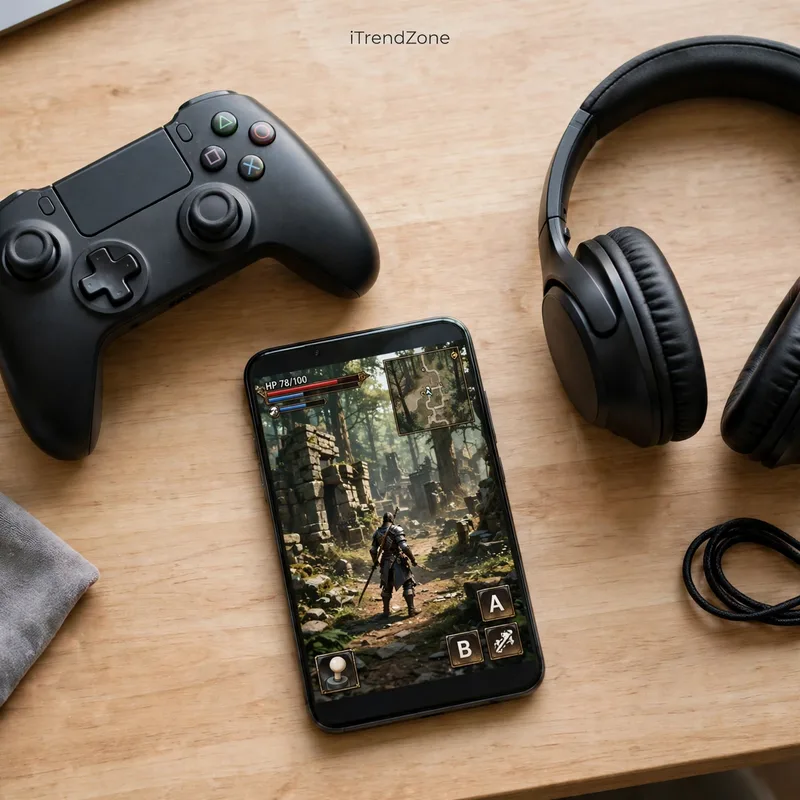
Second, use a four-finger claw grip or a controller. The claw grip sounds awkward and it is, for about a week. After that, you can move, aim, shoot and jump at the same time, which two thumbs cannot do. A PlayStation DualSense or Xbox controller pairs over Bluetooth in seconds, and Game Mode in iOS 27 cuts the input delay. Third, sort out your audio. Footsteps are information. Use wired EarPods or low-latency Bluetooth earbuds, turn on any in-game footsteps option, and play with the sound effects up and the music off.
Best Settings for Story and AAA Games
Story games are a different world: here the visuals are the point, and the iPhone 18 Pro is the first iPhone where you can push the graphics to the top and still have a smooth game. Genshin Impact and Wuthering Waves look stunning, and console ports like Resident Evil Village and Death Stranding are the real showcase: games that used to need a console now run on a phone.
For these games, flip the logic around. Set the graphics quality to the highest option and let the frame rate sit at 60 fps. Genshin Impact looks beautiful at 60 fps with everything turned up and stays smooth for hours. Ray tracing on medium adds depth without cooking the phone. Download the high-resolution texture packs if the game offers them; the iPhone 18 Pro starts at 256GB, so there is room. Low Power Mode is a rescue tool, not a daily setting: it caps the chip speed and drops the refresh rate. For the full battery picture, our iPhone 18 battery tips guide covers charging speeds and the settings that save power without ruining your game.
Battery: Play Longer Without Wrecking It
The iPhone 18 Pro is rated for up to 36 hours of video playback, and the Pro Max up to 45 hours, but gaming is a different story. In my testing, an hour of heavy gaming at maximum settings used around 20 to 25 percent of the battery on the Pro, and a little less on the Max: roughly four hours of intense gaming from a full charge. The biggest battery drain is the screen brightness, so turn it down to a level you can still see clearly. The second biggest is 5G, so use Wi-Fi when you can, or switch 5G off and use 4G when you are out. Charging gets you to about 50 percent in around 15 minutes with a suitable charger. One warning: charging while gaming generates heat, so charge between games rather than during them, because heat is what ages a battery fastest.
Storage: Keep Your Games Fast
Modern games are big. A single AAA title can take 10 to 20GB, and a phone full of games plus photos and videos will fill 256GB faster than you expect. My rule is to keep at least 20GB free at all times. Below that, the system struggles to write temporary files and loading times get longer. Delete games you finished, and offload the ones you might return to: offloading removes the app but keeps your save data. You can find this in Settings, then General, then iPhone Storage. If you record a lot of gameplay, our iPhone 18 camera tips guide covers managing video storage, and the iPhone 18 storage tips guide covers every trick in one place.
My 60-Second Pre-Game Checklist
- Turn on Game Mode and your gaming Focus mode so calls and notifications stay silent.
- Close background apps, especially video and navigation apps that keep running.
- Take the case off if you are playing for more than half an hour.
- Set the in-game frame rate to the highest option and the graphics to match the game type.
- Plug in the charger between games, not during them, if you need a top-up.
That is it. A minute of preparation, and the phone does the rest. If something goes wrong mid-game, do not panic and do not factory reset the phone. Most gaming problems have simple fixes, and our iPhone 18 not working fix guide walks through them one by one.
A Few More Things Worth Knowing
Keep iOS updated. Apple ships performance fixes in small updates, and a game that stutters on iOS 27.0 might run perfectly on iOS 27.1. Our iOS 27 tips guide tracks the useful changes in each update. The iPhone 18 hidden features guide covers the tricks most owners never find, including the back-tap shortcut that opens your favourite game with two taps on the phone. The iPhone 18 setup guide covers the basics if you skipped any steps. And stay safe while you play: use a strong passcode, turn on Stolen Device Protection, and ignore any message offering free in-game currency or skins. Our iPhone 18 security tips guide explains the settings that protect your accounts.
I have been testing this phone hard for three weeks, and my honest verdict is that the iPhone 18 Pro is the best gaming phone Apple has ever made. The A20 Pro is fast, the vapour chamber keeps it fast for longer, and the 120Hz display makes everything feel immediate. It still gets warm in long sessions, and ray tracing will drain your battery on ultra. But with the settings in this guide, you will get far more out of the phone than by leaving everything on default. Try the checklist tonight.
Test Your Knowledge: iPhone 18 Performance Quiz
Question 1: What is the main benefit of Game Mode in iOS 27?
A) It makes the screen brighter
B) It gives the game priority over background tasks and cuts Bluetooth latency
C) It charges the phone faster
D) It increases the storage space
Question 2: How much bigger is the vapour chamber in the iPhone 18 Pro than in the iPhone 17 Pro?
A) The same size
B) Twice the surface area
C) 50 percent bigger
D) Three times the surface area
Question 3: What should you do first if a competitive game feels laggy?
A) Raise the frame rate to the highest option in the game’s settings
B) Turn off Wi-Fi and use mobile data
C) Turn on Low Power Mode
D) Delete the game and reinstall it
Question 4: Why avoid charging while gaming with a fast wired charger?
A) It damages the USB-C port
B) It turns off Game Mode automatically
C) Charging and gaming together generate extra heat, which causes thermal throttling
D) It stops the game from saving progress
Question 5: How much free storage should you keep for games to run smoothly?
A) 1GB
B) At least 20GB free
C) 500MB
D) No free space is needed
Answers: 1-B, 2-D, 3-A, 4-C, 5-B