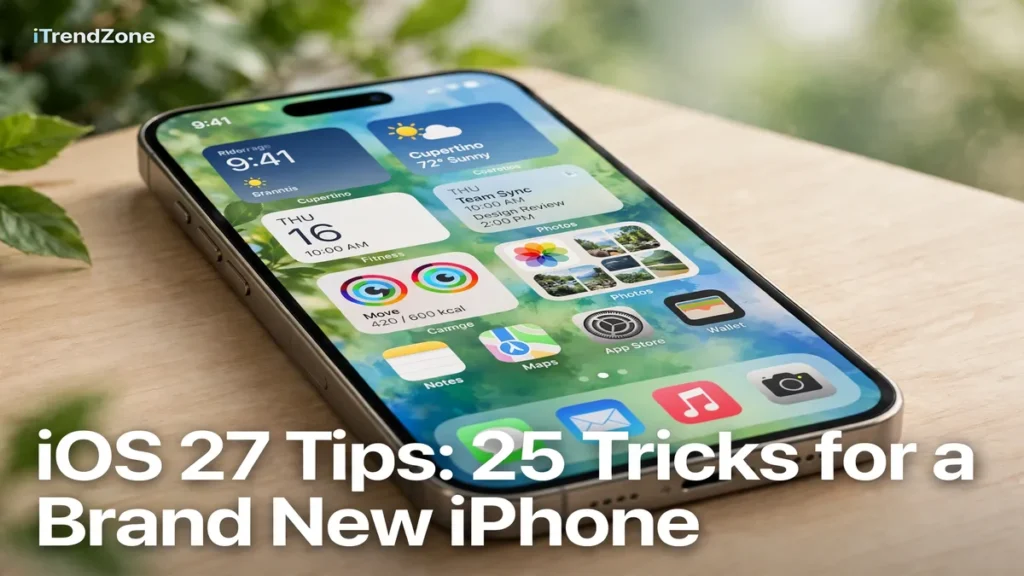

iOS 27 Tips: 25 Tricks That Make Your iPhone Feel Brand New
I installed iOS 27 on my iPhone 18 Pro the morning it came out, September 14, and spent three weeks poking at every corner of it. These are the settings worth changing and the traps worth avoiding, from three weeks of daily use.
TL;DR: iOS 27 runs on every iPhone from the iPhone 11 onwards, but the Siri AI features need an iPhone 15 Pro or newer. Turn on Write with Siri and Smart Reply in Messages, try natural-language events in Calendar, set an independent alarm volume, and check the two-iPhones-one-number setting if you own a second iPhone. If your phone feels slow after the update, give it 48 hours to finish indexing before you panic.

First, Check If Your iPhone Can Run iOS 27
The good news: Apple did not drop a single model. If your iPhone ran iOS 26, it runs iOS 27, so the iPhone 11 from 2019 still gets the update. My old backup iPhone 12 installed it in about twenty minutes.
There is one catch. Siri AI only works on iPhone 15 Pro and newer, and the same goes for the rest of Apple Intelligence. If you are on an iPhone 11, 12, 13, 14, or a regular iPhone 15, you still get iOS 27 — just without the AI tools and the new Siri.
For the full list, the iOS 27 compatibility list on MacRumors lays it out cleanly.
| iPhone model | Runs iOS 27 | Gets Siri AI and Apple Intelligence |
|---|---|---|
| iPhone 18 Pro / Pro Max, iPhone Duo | Yes | Yes |
| iPhone 17 series, iPhone Air, iPhone 17e | Yes | Yes |
| iPhone 16 series, iPhone 16e | Yes | Yes |
| iPhone 15 Pro / Pro Max | Yes | Yes |
| iPhone 15 / 15 Plus | Yes | No |
| iPhone 14 series | Yes | No |
| iPhone 13 series, iPhone SE (3rd gen) | Yes | No |
| iPhone 12 series, iPhone 11 series, iPhone SE (2nd gen) | Yes | No |
| iPhone X, XR, XS, iPhone 8 and older | No | No |
Before you update, free up space first. The installer needs several gigabytes, and a full phone is the most common reason updates fail. I keep at least 8GB free. If you are short, our iPhone 18 storage tips show the fastest ways to clear space, and our iPhone 18 setup guide covers the first settings for a new phone.
1. Siri AI and Write With Siri Are the Headline Act
Siri AI is the feature Apple talked about most. The old Siri felt like a voice remote. This one feels like a helper that knows what is on your phone — ask it to find a photo, pull a code out of an email, or draft a reply, and it does the work. It needs an iPhone 15 Pro or newer.
Let Siri Draft Replies in Your Own Voice
The part I use most is Write with Siri, the small button above the keyboard in Messages and Mail. Tap it and Siri can write a draft from scratch, clean up something you typed, or give feedback on tone. It copies the way I write surprisingly well — it picks up the phrases you use with each person, so a reply to my sister sounds nothing like a reply to my boss. My tip: do not accept the first draft blindly. Siri sometimes overdoes the politeness. I edit a word or two and send it — the draft saves me the blank-screen moment.
Ask Siri What Your Camera Sees
Open the Camera app and you will find a Siri mode that uses Visual Intelligence. Point the phone at a menu and ask about a dish, or at a receipt and ask it to split the bill. I tried it on a plate of food at lunch and got a rough nutritional breakdown in seconds. On the iPhone 18 Pro it runs fast because the A20 Pro chip handles it on-device — the camera side is covered in our iPhone 18 camera tips.
Describe a Shortcut Instead of Building One
The Shortcuts app got a quiet upgrade I wish more people knew about. Tap New Shortcut and you get a “Describe a Shortcut” box — type what you want in plain words and it builds the whole thing. I typed “set tomorrow’s alarm based on my first calendar event and turn on Sleep Focus” and it worked. If Shortcuts ever felt like programming, this is your way back in.
2. Messages Got Smarter in Ways You Will Actually Notice
Smart Reply That Sounds Like You
Smart Reply now learns your writing style. The suggested replies read like things you would actually say — short and casual where you are casual, more formal where you are formal. I tap them far more than the old generic suggestions. While you type, Messages offers the right photo when a friend asks for one.
Inline Replies Finally Work With Android Friends
This one is long overdue. You can now long-press a message from an Android user — the green bubble kind — and reply to that specific message inline. Before iOS 27, inline replies only worked between iPhones. In group chats with Android friends, conversations are far easier to follow, and reaction emoji now show up on images and videos too.
Failed Messages Retry Themselves
If a message fails to send, your iPhone now retries automatically instead of leaving a red exclamation mark for you to find later. It also keeps sending photos, videos, and texts continuously instead of stalling on one stuck item. You can also swap the audio button for dictation, or remove it, in Settings, under Messages, then Show in Text Field. The full rundown is in the MacRumors guide to Messages in iOS 27.

3. Calendar and Reminders Understand Plain English Now
The Calendar app got two upgrades I genuinely needed. The first is natural-language event creation: just type or say “Lunch with Sara next Tuesday at 1 pm” and the app pulls out the time, the person, and the place. Tap to confirm and the event is set.
The second upgrade is less flashy but just as useful: you can modify multiple Calendar events at once, and scrolling and event details are cleaner. Reminders got the same natural-language treatment, so “remind me to call the dentist tomorrow at 9” just works. The full iOS 27 feature list on 9to5Mac has the rest of the small Calendar changes.
4. Who Gets the Full iOS 27 Experience
Apple supports more than 30 iPhone models with iOS 27, from the iPhone 11 to the iPhone 18 Pro Max and Duo. But they split into two groups: about 15 of them — the iPhone 15 Pro and everything newer — get the full experience with Siri AI and Apple Intelligence, while the other 19 or so get iOS 27 itself but none of the AI features.

The chart above shows that split. Roughly 44 percent of the supported models get Apple Intelligence, while the other 56 percent get the standard iOS 27 experience. The practical takeaway is simple. If you own an iPhone 15 Pro, 16, 17, 18 Pro, or Duo, you get everything in this guide. If you own anything older, you still get most of it, just skip the sections about Siri AI and Write with Siri. And if you are shopping for a used iPhone this year, that split is worth real money. An iPhone 15 Pro costs more than a regular iPhone 15, but it is the cheapest phone that unlocks the AI side of iOS 27, and that gap will only grow with iOS 28.
That is why the iPhone 18 Pro feels like the natural home for iOS 27. It ships with the update, the A20 Pro chip runs the AI features on-device, and 12GB of RAM keeps everything smooth. Our iPhone 18 tips complete guide covers the phone itself.
5. Lock Screen and Photos: Small Changes, Big Difference
iOS 27 can stretch a photo to fill your Lock Screen properly. The new wallpaper extension uses Apple Intelligence to expand a picture beyond its edges, so a photo that left awkward bars now fills the screen. It works best on portraits and wide shots, and needs Apple Intelligence — iPhone 15 Pro and newer only.
Photos got better in the iOS 27.2 update as well. Searching actually finds things now — type “beach sunset” and you get beach sunsets, not a random mix. For more on the camera itself, see our iPhone 18 camera tips, and for the tricks Apple does not advertise, the iPhone 18 hidden features guide.
6. Wallet, Car Keys, and Apple Pay
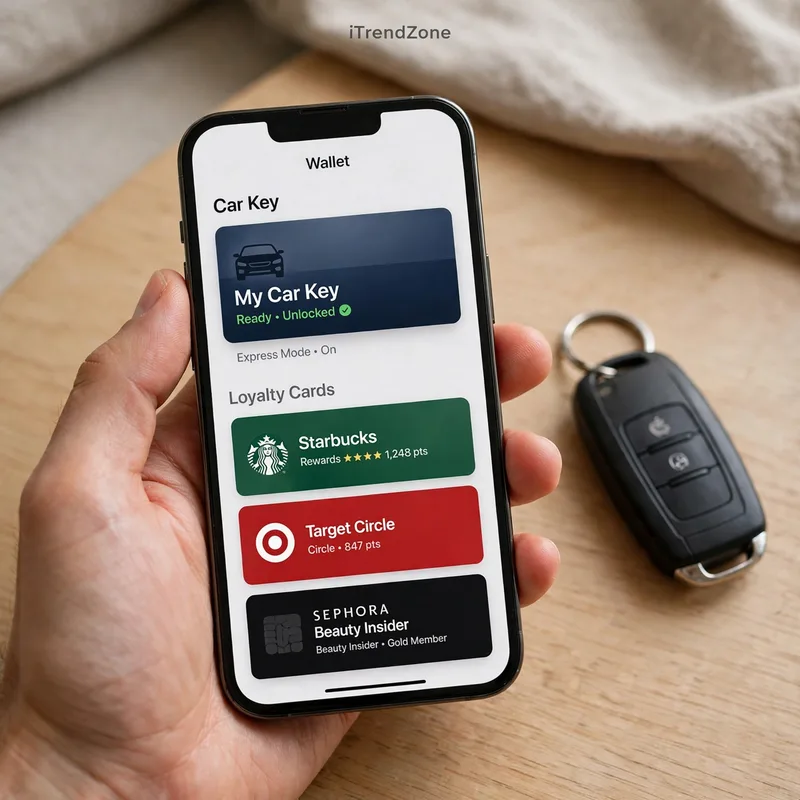
The Wallet app redesign reaches more pass types in iOS 27. Membership, gift, loyalty, and rewards cards now get the same polished layout boarding passes got last year.
Car keys are the bigger story. Apple Wallet car keys are expanding to GM vehicles across Cadillac, Chevrolet, and GMC, and iOS 27 adds proactive car key setup for first-time pairing. If you drive a recent GM car, check your Wallet app after updating.
Apple Pay also got easier card selection. With several cards, switching the default before a purchase takes fewer taps now. Keep your cards safe by turning on the protections in our iPhone 18 security tips, especially Stolen Device Protection.
7. Two iPhones, One Phone Number
If you own two iPhones, iOS 27 has a feature just for you. You can now keep the same phone number on both phones through iPhone Handoff, so calls and messages reach you on either device. Set it up in Settings, then Phone. Both need the same Apple ID and iOS 27.
It took me about five minutes to set up between my 18 Pro and my backup iPhone 12. The one thing to watch is that both phones ring at once — that is the point, but it can surprise you the first time.
8. The Small Settings I Changed on Day One
Independent Alarm Volume
This is the one I waited years for. In iOS 27, your alarm has its own volume setting, separate from your ringer and media volume. Before this, turning your ringer down for the night could leave your morning alarm whisper-quiet. Go to Settings, then Sounds and Haptics, and set it where you want it.
AirPods Custom EQ and Adaptive Audio
For AirPods, iOS 27 adds a custom EQ setting and an Adaptive Audio toggle in Control Center. The EQ lets you shape the sound to your taste and the toggle means you can switch Adaptive Audio on and off without digging through Settings.
Turn Off What You Do Not Need
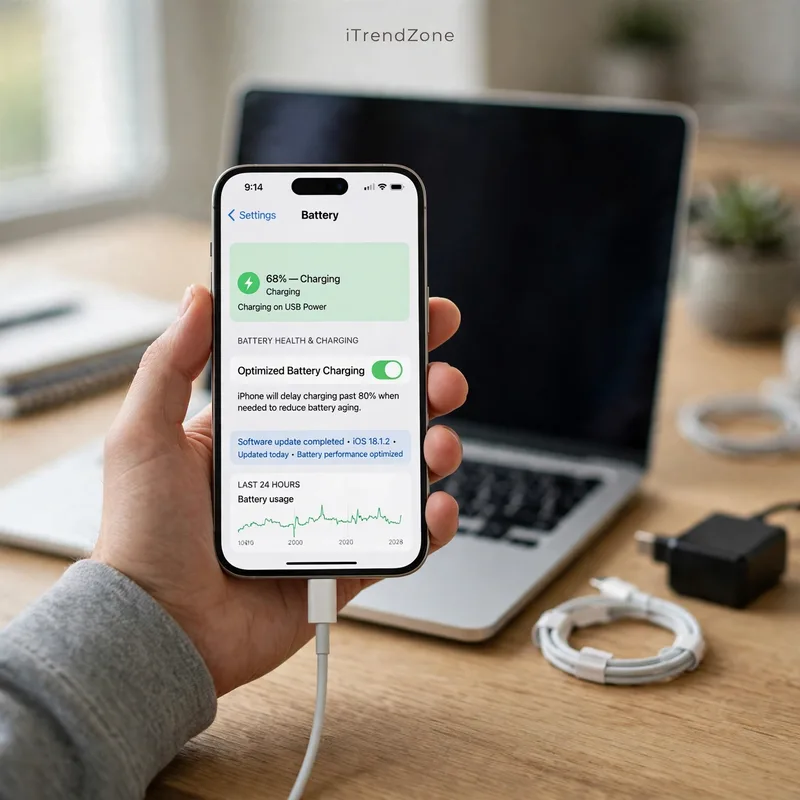
After any big update, I spend ten minutes in Settings turning off the things I will never use: notifications I do not need, location access for apps that should not have it, background refresh for apps I rarely open. iOS 27 also improved battery insights, so check Settings, then Battery, after a few days. If something looks wrong, our iPhone 18 battery tips explain what to do, and the iPhone 18 performance tips cover the settings that keep the phone fast.
9. After the Update: What to Do If Something Feels Off
Every year, the same thing happens. Someone updates, the phone feels warm, the battery drops fast, and they decide the update ruined their phone. In almost every case, it is just the phone finishing its homework: After a major update, iOS re-indexes your photos, rebuilds search, and re-downloads app parts in the background. That takes a day or two. Wait 48 hours before judging the update, keep it on Wi-Fi overnight and plugged in.
If things still feel wrong after two days, work through the basics. Restart the phone. Check for a follow-up update — Apple shipped iOS 27.0.1 quickly to fix early bugs. Check your storage, since a nearly full phone slows everything down, and check battery drain in Settings, then Battery. If you need the full walkthrough, the iPhone 18 not working fix guide covers force restarts and Safe Mode checks step by step.
If the update itself will not install, the usual culprits are weak Wi-Fi, not enough free space, or a phone that is too hot. Move closer to the router, free up a few gigabytes, and let the phone cool down.
10. What Is Coming Next: iOS 27.3 and Beyond
iOS 27 is not finished. Apple is already testing iOS 27.3, which adds new features across six built-in apps, including Calendar design updates. The headline item is Face Unlock for the iPhone Duo, Apple’s first foldable, which shipped with Touch ID only. If you are choosing between the two phones, our iPhone 18 tips complete guide will help.
The base iPhone 18, the non-Pro model, is expected in March 2027, so it is not on sale yet. When it arrives, it will ship with iOS 27, and everything here will apply to it too. Until then, the iPhone 18 Pro and Pro Max are the only iPhone 18 models you can buy. For the latest on Apple’s own announcements, check Apple’s website and the GSMArena news page, and for hands-on takes, Tom’s Guide.
My honest verdict after three weeks: iOS 27 is not a flashy update, and that is a compliment. The best parts quietly remove friction — Messages replies that sound like you, a Calendar that understands a sentence, an alarm that rings at the volume you set. Update, give it two days, and change the settings in this guide.
Frequently Asked Questions About iOS 27
Is iOS 27 free?
Yes. It is a free update for every supported iPhone, from the iPhone 11 onwards. Go to Settings, then General, then Software Update. You need Wi-Fi and a charger nearby, and back up first.
Will iOS 27 slow down my old iPhone?
On an iPhone 11 or 12, the first day or two can feel slow while the phone re-indexes everything. After that, it runs about the same as iOS 26. The AI features simply do not appear on older phones, so they cost you nothing.
Can I go back to iOS 26 if I do not like iOS 27?
Apple usually stops signing the old version within a week or two of a new release, which closes the easy way back. Treat the update as one-way. Before updating, make sure your must-have apps are updated too — very old apps are the most common source of trouble after a big release.
Does iOS 27 work on the iPhone Duo?
Yes. The iPhone Duo ships with iOS 27.1 and gets the full Apple Intelligence set, including Siri AI. Face Unlock is coming in the iOS 27.3 beta, since the phone launched with Touch ID in the side button only.
Test Yourself: iOS 27 Quiz
Q1. Which is the oldest iPhone that can run iOS 27?
A) iPhone X
B) iPhone 11
C) iPhone 8
D) iPhone SE (1st generation)
Q2. Which iPhones get Siri AI in iOS 27?
A) Every iPhone that runs iOS 27
B) iPhone 12 and newer
C) iPhone 15 Pro and newer
D) iPhone 18 Pro only
Q3. What does Write with Siri do in Messages?
A) It deletes old messages automatically
B) It drafts replies in your own writing style
C) It translates messages into other languages
D) It blocks spam messages
Q4. Which new feature lets you use two iPhones with the same phone number?
A) iPhone Handoff
B) AirDrop
C) Family Sharing
D) iCloud Keychain
Q5. Which car brands are getting Apple Wallet car key support in iOS 27?
A) Ford, Toyota, and Honda
B) Cadillac, Chevrolet, and GMC
C) BMW, Audi, and Mercedes
D) Tesla, Rivian, and Lucid
Answers: Q1 — B, Q2 — C, Q3 — B, Q4 — A, Q5 — B