
iPhone 18 Hidden Features: 25+ Tricks You Probably Missed on Your New iPhone
I picked up my iPhone 18 Pro on launch week, and for the first two days I thought I knew what I had bought. Then a friend showed me one setting buried three menus deep, and suddenly I was finding something new every evening for a week. Apple talked about the headline stuff on stage, but the features that change how you use the phone every day are the quiet ones nobody mentioned. If you want the full overview first, start with our iPhone 18 tips guide, then come back here for the hidden stuff.
TL;DR: The iPhone 18 Pro hides a variable aperture camera with real manual controls, a Dynamic Island that tracks three Live Activities at once, separate volume sliders for ringtones and alarms, a charge limit that protects your battery, Siri AI, AirPods Custom EQ, and dozens of small iOS 27 tricks in Photos, Safari, Messages and the Lock Screen. Most of them take under a minute to turn on.
1. The Camera Tricks Nobody Told You About
The camera is where the iPhone 18 Pro hides its best secrets. The main camera is a 48MP Fusion sensor with a variable aperture, which means the lens can physically open and close. No iPhone before this one could do that. Pick f/1.48 for soft, blurry backgrounds, or stop down to f/4.0 for a wide shot that stays sharp front to back. In the Camera app, tap Camera Controls, then Lens Aperture, and you get four stops to play with. One catch: the camera forgets your aperture choice when you close the app, so switch on Lens Aperture in Settings, Camera, Preserve Settings, and it stays put.
Then there are the manual Pro controls. Tap Camera Controls and you will see Shutter Speed, White Balance and a live Histogram. Locking the shutter speed when my kid is running around the garden changed my photos overnight. The histogram shows you live whether your highlights are blown out before you press the shutter. Photographic Styles got an upgrade too: you can now add texture and grain for a film-like feel straight out of the camera. I settled on a warm style with a little grain, and my photos look more like mine now.
The strangest camera feature is Apple Reference Image. The Main camera sensor can sign the pixels it captures, and the optional Reference mode turns that signed data into an unalterable reference image — Apple’s answer to the question of whether a photo is real. Set it up in Settings, Camera, Reference Image, Add Reference Mode. It is opt-in, and capture is not available in the EU at first. For the full camera walkthrough, our iPhone 18 camera tips guide covers every setting in detail.
2. The Smaller Dynamic Island Does More Than Before
The smaller Dynamic Island is one of the most talked-about changes in 9to5Mac’s iPhone 18 Pro coverage, and for good reason. The new Island can show three Live Activities at the same time. I had a timer running, a food delivery on its way, and a football score all sitting up there at once last Saturday, and I could glance at any of them without unlocking the phone. Long-press the Island to expand whatever is live, and swipe between activities to switch. It works with timers, navigation, music, deliveries and rideshares.

3. Battery Secrets: Charge Limits and 15-Minute Top-Ups
Battery life on this phone is genuinely good. Apple rates the iPhone 18 Pro at up to 36 hours of video playback, and the full spec sheet on GSMArena backs up the numbers. The one I turned on first is the charge limit. Go to Settings, then Battery, then Charging, and you can set a limit anywhere from 80% to 100% in 5% steps. I set mine to 85%. If you charge overnight every night, stopping at 85% instead of sitting at 100% for six hours slows down how fast the battery ages. There is a lot more on this in our iPhone 18 battery tips guide.
Charging speed is the other surprise. To get the fastest wired charging, you need a USB-C adapter that supports USB Power Delivery 3.1 with AVS and is rated 60W or more. With the right adapter, Apple says the iPhone 18 Pro reaches 50% in about 15 minutes.
4. Siri AI Is Finally Useful
Siri has been the butt of jokes for years, and I was the first person making them. iOS 27 changes the story. Siri AI is built into the iPhone 18 Pro, and it can handle the kind of open-ended questions that used to make Siri shrug. Go to Settings, then Siri, to set it up. It needs English for now and is not available in the EU yet.
The trick most people miss is that Siri can now work with what is on your screen and in your apps. Ask it to summarize a long article you are reading in Safari, and it will. The iOS 27 tips guide has a full rundown of what Siri AI can and cannot do yet. One thing to know: the page-awareness feature, where Siri reads a whole webpage and pulls out things like packing lists, is in the iOS 27.3 beta right now. MacRumors has a full list of the 50 new things iOS 27 can do, and the beta features are tracked there as they roll out.
5. Every Hidden Feature at a Glance
Here is the whole list in one place.
| Hidden Feature | Where to Find It | What It Does |
|---|---|---|
| Variable aperture camera | Camera app, Camera Controls, Lens Aperture | Choose f/1.48 to f/4.0 for blur or sharpness |
| Apple Reference Image | Settings, Camera, Reference Image | Creates a signed, verifiable photo |
| Three Live Activities | Dynamic Island, long-press | Timer, delivery and score at once |
| Charge limit | Settings, Battery, Charging | Stops charging at 80% to 100% to protect battery health |
| Separate volume sliders | Settings, Sounds and Haptics | Ringtone, alarm and alerts at different volumes |
| AirPods Custom EQ | Settings, AirPods, Custom EQ | Adjust lows, mids and highs yourself |
| Extract video frames | Photos app, video, more options | Save a still frame from any video |
| Safari tab topics | Safari, Tab View, Automatically Create Topics | Groups open tabs by topic automatically |
| On-device recovery | Hold Power button from switched-off state | Recovery Assistant, Diagnostics and Software Update |
| Custom Wallet passes | Wallet app, add pass | Design passes for memberships and loyalty cards |

The chart above shows how the 25 hidden features in this guide break down by category. Camera features lead the pack with six, because the variable aperture, Reference Image, manual controls, Photographic Styles, Audio Zoom and Camera Control customisation are all new on this phone. iOS 27 system tweaks come next with seven, covering volume sliders, Safari tab topics, the new recovery menu, natural language reminders, smarter copy and paste, full-page widgets and faster app launches. Photos and Lock Screen features add five between them, Messages and Wallet add four, and the remaining three are the Dynamic Island upgrade, AirPods Custom EQ and the Action Button. In plain terms, about a quarter of the hidden value on this phone sits in the camera, another quarter sits in iOS 27 itself, and the rest is spread across the apps you already use every day. If you only have ten minutes, start with the camera and the volume sliders. Those two groups give you the biggest change for the least effort.
6. Lock Screen and Control Center Tweaks
The Lock Screen on iOS 27 looks the same at first glance, but it bends a lot more than it used to. You can now shrink the clock to a smaller size for a cleaner look, and you can dismiss the media player entirely so your wallpaper is not covered up. I have a photo of my daughter as my wallpaper. One swipe and the media player is gone now.
Control Center has a redesigned timer that I use every single day. It is a rotating wheel now, and you can set anything from one minute to two hours with a swipe. When you rotate the phone sideways, Control Center rearranges itself into a cleaner horizontal layout. That sideways layout is part of the iOS 27.3 beta, so if you do not see it yet, it is on its way.
7. Separate Volume Sliders Finally Fix the Alarm Problem
This one is my favourite, and it is also the one that made me angriest that it took so long. Since the first iPhone, ringtones, alerts and alarms all shared one volume. Turn your ringer down at night so texts do not wake you, and your morning alarm got quieter too. iOS 27 finally splits them into three independent levels: one for ringtones, one for alarms and timers, and one for alerts and system sounds.
Go to Settings, then Sounds and Haptics. You will see a Match Ringtone Volume toggle above each category. Switch it off and a dedicated slider appears. I set my alarm to full volume, my ringtones to about half, and my system sounds low. If you only change one setting from this whole guide, make it this one.
8. Photos App Tricks Worth Learning
The Photos app in iOS 27 has two tools I wish I had years ago. The first is Extract Video Frames. Open any video, tap the more options button, and you can pull a still frame straight out of it. My son scored a goal last month and my photo was blurry, but the video caught it perfectly. One frame extraction later, I had the photo I wanted.
Shared Albums got a quiet upgrade as well. iCloud Shared Albums now share photos and videos in full resolution with no quality loss. Before iOS 27, shared albums compressed everything, which meant the photos your family saw were never as good as the ones on your phone. If your shared albums are eating your storage, our iPhone 18 storage tips guide has the full cleanup plan.
9. Safari Got Smarter in Ways You Will Actually Notice
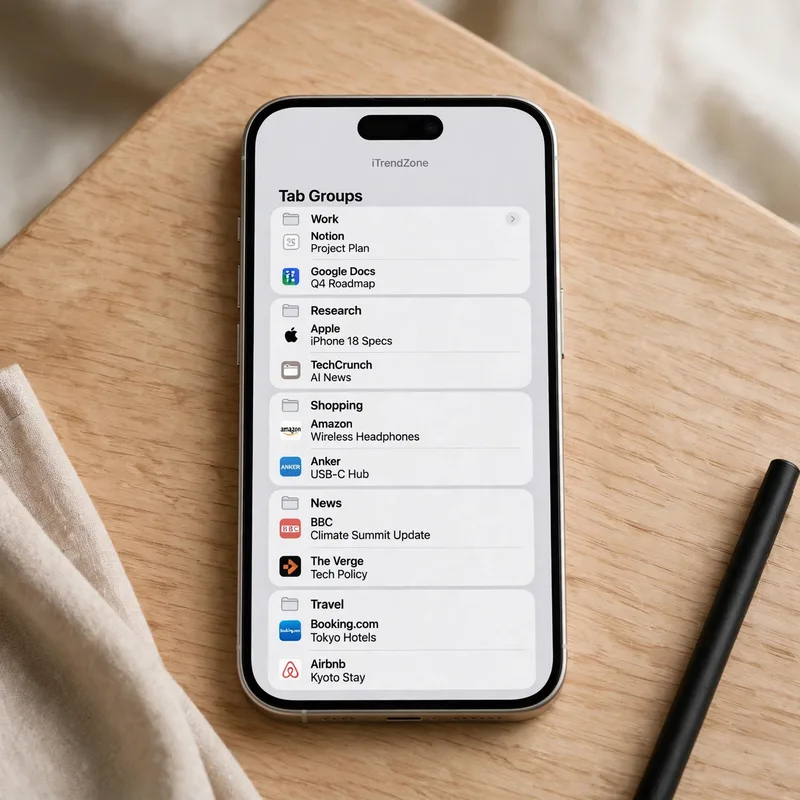
Safari’s new trick is tab topics. If you are like me, you end up with thirty tabs open and no idea what half of them are. Open Tab View, tap the three-line icon in the top right, and turn on Automatically Create Topics. Safari uses Apple Intelligence to group your tabs by topic, so your shopping tabs sit together, your holiday planning sits together, and your news sits together.
There is also a Notify Me option that lets Safari tell you when a specific website changes. If you are waiting for a ticket page or a price drop, turn it on for that site and stop checking it yourself.
10. Messages and Wallet Small Wins
Messages has a handful of changes that add up. The one I use most is inline replies to Android users. You can now long-press a message from an Android user, the green bubble kind, and reply to that specific message. Until iOS 27, inline replies only worked with blue iMessage bubbles. In my family group chat, half the people are on Android.
Voice messages got playback speed controls. When someone sends you a three-minute voice note, you can now play it at 1.25x, 1.5x or 2x. I listen to most voice notes at 1.5x now, and I get the same information in two-thirds of the time.
Wallet got custom passes. You can now design your own passes for memberships, gift cards, loyalty cards and rewards, with a background image, a logo, custom header and footer fields and a barcode. My gym card lives in Wallet now instead of in a drawer at home.
11. AirPods Custom EQ and the Action Button
If you own AirPods Pro 3, AirPods 4 or AirPods Max 2, iOS 27 gives you something AirPods have never had: a real equalizer. Open Settings while your AirPods are connected and you will find Custom EQ at the top of the Settings app. You can drag the lows, mids and highs yourself, preview the change, and go back to Apple’s default tuning with one tap. I bumped the lows up for music and pulled the mids down for podcasts, and the difference is obvious.
The Action Button deserves a second look too. Most people set it to silent mode on day one and never touch it again. Open Settings, then Action Button, and swipe through the options: Camera, Visual Intelligence, Flashlight, Voice Memo, Translate, Magnifier, Controls, Shortcut or Accessibility. I set mine to Visual Intelligence, which means one press lets me point the camera at something and get information about it. The button is only useful if you give it a job that matches your life, so spend a minute picking on purpose instead of leaving it on silent.
12. The Quiet System Tricks
A few of the best hidden features are not in any app at all. They are in the system itself. The first is on-device recovery. If your iPhone ever refuses to start properly, you can press and hold the Power button from the switched-off state to bring up a Recovery menu. It has Recovery Assistant, Software Update, Diagnostics Mode and a full erase option. It is the kind of thing you hope you never need, but it turns a dead phone into a ten-minute fix instead of a trip to the store. If your phone is already misbehaving, our iPhone 18 not working fix guide walks through every step in order.
Speed got better across the board. Apple says app launches are up to 30% faster and Lock Screen switching is up to 30% faster too. The keyboard got smarter too: iOS 27 surfaces your recent screenshot or copied text as a suggestion, so pasting takes one tap instead of a long-press and a menu.
One last thing about staying safe while you explore. Features like Reference Image exist because fake photos are getting harder to spot, and the same care applies to your account. Face ID, Stolen Device Protection and app permissions are all worth five minutes of your time, and our iPhone 18 security tips guide covers them step by step. If you are still setting the phone up, the iPhone 18 setup guide has the order I recommend. For gaming, the A20 Pro chip and vapour chamber cooling make this the best iPhone for games yet, and our iPhone 18 performance tips guide shows how to get the most out of it.
Start With Three, Then Explore the Rest
You do not need to turn on all 25 of these today. Start with the separate volume sliders, the charge limit and the variable aperture camera. Those three will change your daily experience more than anything else in this guide. If you want a second opinion on which tricks matter most, Tom’s Guide has a solid roundup of iPhone 18 Pro tips as well. Then, when you have a quiet evening, work through the Photos and Safari sections.
Test Yourself: iPhone 18 Hidden Features Quiz
Question 1: What aperture range does the iPhone 18 Pro variable aperture camera offer?
A) f/1.2 to f/2.8
B) f/1.48 to f/4.0
C) f/2.0 to f/5.6
D) f/1.8 to f/3.2
Question 2: How many Live Activities can the iPhone 18 Pro Dynamic Island show at the same time?
A) One
B) Two
C) Three
D) Five
Question 3: Where do you set a battery charge limit on the iPhone 18 Pro?
A) Settings, General, About
B) Settings, Privacy and Security
C) Settings, Display and Brightness
D) Settings, Battery, Charging
Question 4: Which iPhone feature creates a signed, verifiable photo?
A) Apple Reference Image
B) Night Mode
C) Live Photos
D) Photographic Styles
Question 5: What does the Custom EQ feature in iOS 27 let you adjust on supported AirPods?
A) Only the volume
B) Lows, mids and highs
C) Only the bass
D) The microphone sensitivity
Answers: 1-B, 2-C, 3-D, 4-A, 5-B