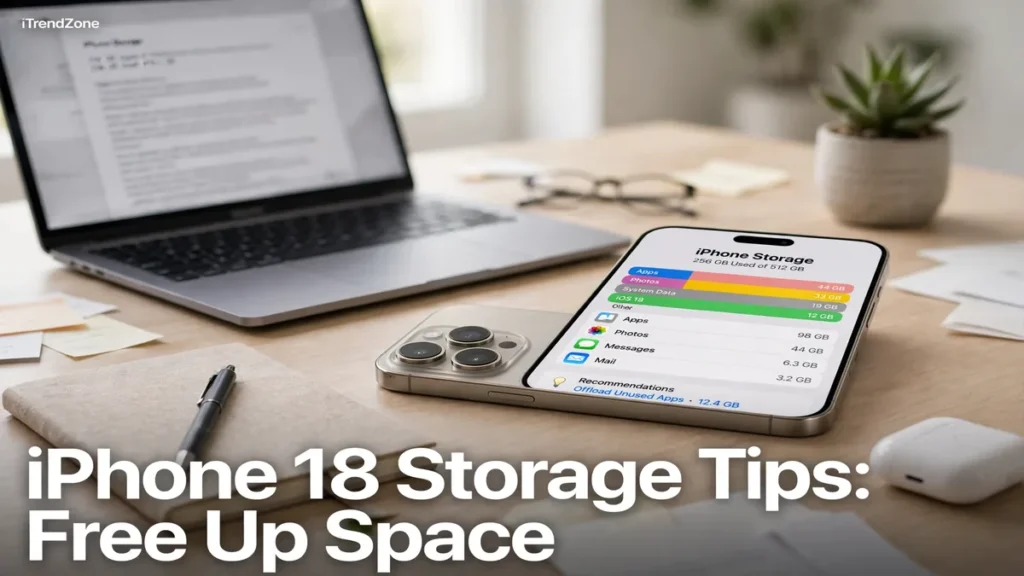

iPhone 18 Storage Tips: Free Up Space and Pick the Right Size
I bought the iPhone 18 Pro with 256GB in September, the week it went on sale, and I told myself 256GB would be plenty. Six weeks later I was trying to record my kid scoring a goal when the phone flashed “iPhone Storage Full” at me. The video never recorded. That was the day I stopped guessing and learned how storage actually works on this phone,
TL;DR: A 256GB iPhone 18 Pro only gives you around 232–244GB of usable space after iOS 27 and system files. Photos and video eat storage fastest — one 48MP ProRAW shot is about 75MB and one minute of ProRes 4K is about 6GB. Turn on Optimize iPhone Storage, shoot everyday photos in HEIC instead of ProRAW, record 4K at 30fps instead of 60fps, and clear Recently Deleted and old message attachments. Most people free 20–40GB in under half an hour, and 512GB is the safest size to buy if you shoot a lot of video.
First, the honest math: what 256GB actually means
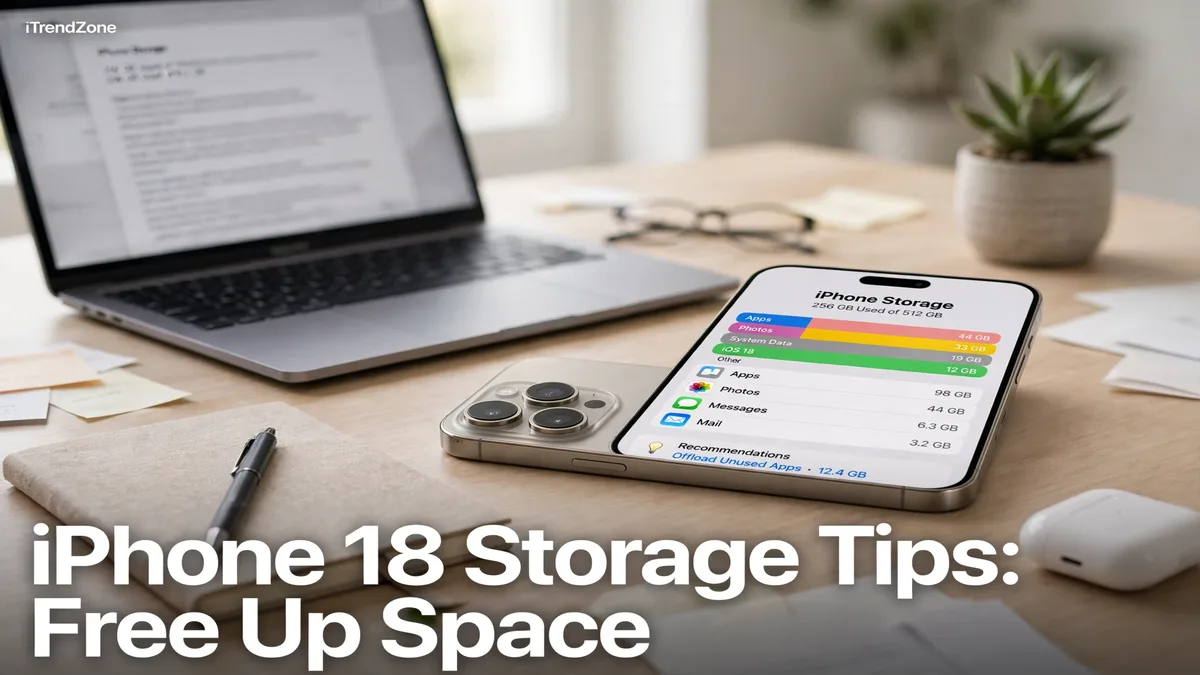
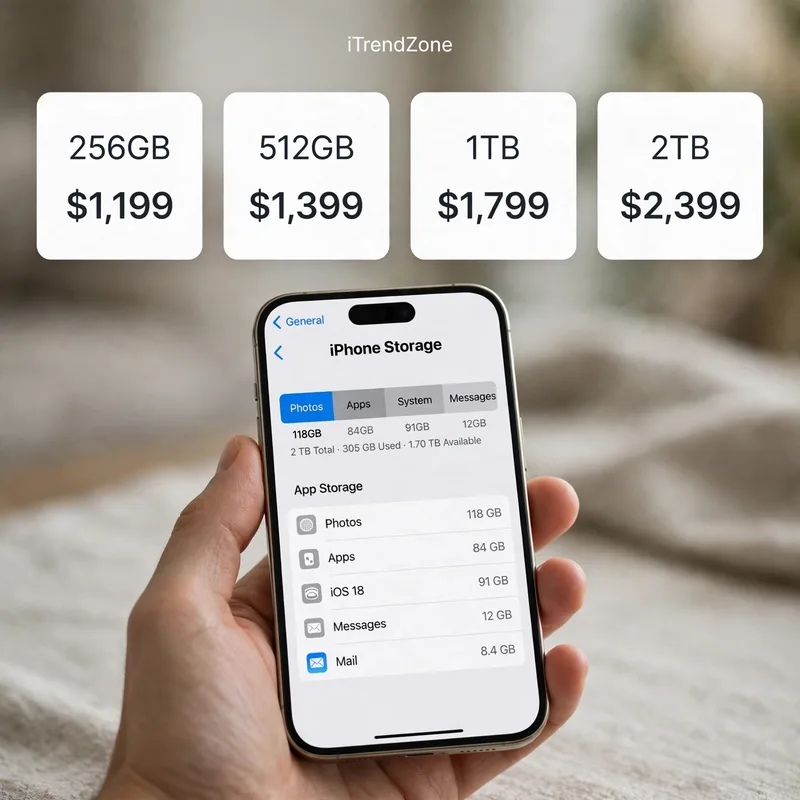
The number on the box is not the number you get, and it matters more on the iPhone 18 Pro than on older phones because iOS 27 is bigger and Apple Intelligence takes its own chunk too. According to Apple’s own tech specs, a standard setup uses about 12GB to 24GB for iOS 27 and Apple’s built-in apps before you install a single thing of your own, and the on-device Apple Intelligence models take roughly another 7GB. So when you unbox a 256GB iPhone 18 Pro, you are really starting with something like 232GB to 244GB of free space. If you have not bought yet, read the iPhone 18 tips complete guide first, because picking the right storage tier is one of the biggest decisions in the whole buying process.
| Storage size | Price (iPhone 18 Pro) | Roughly free after setup | Best for |
|---|---|---|---|
| 256GB | $1,199 | About 232–244GB | Everyday users who use iCloud Photos |
| 512GB | $1,399 | About 488–500GB | Most people — the safe default for 4–5 years |
| 1TB | $1,799 | About 976–988GB | Heavy 4K video shooters and big game libraries |
| 2TB | $2,399 | About 1,976–1,988GB | ProRes video work and keeping everything offline |
The iPhone 18 Pro Max starts at $1,299 for 256GB and follows the same four sizes, topping out at 2TB for $2,499. You can check the full specs on Apple’s website before you buy. The base iPhone 18, the non-Pro model, is expected in March 2027 and is not on sale yet, so if someone offers you a “cheap iPhone 18” today, walk away.
Where your gigabytes actually go
Before you delete anything, look at the numbers. Open Settings, then General, then iPhone Storage, and wait a few seconds while it calculates. You will see a coloured bar and a list, biggest first. On almost every phone I have checked, the top three are always the same: Photos, Apps, and System Data, with Messages sneaking up on people who never think about it. Storage problems are almost never one big thing. They are five or six medium things that add up quietly until the phone taps you on the shoulder at the worst possible moment.
Photos and video are the real storage hogs
The iPhone 18 Pro has a 48MP main camera, and a full-resolution photo is a much bigger file than the 12MP shots my old phone took. In HEIC, the default format, a 48MP photo runs around 25MB. Switch to ProRAW, though, and the same photo is about 75MB, because ProRAW keeps all the raw sensor data for editing. Video is worse, and it is not close. Standard 4K video at 30 frames per second uses about 170MB per minute. Bump that to 4K at 60 frames per second and you are at roughly 400MB per minute, so a ten-minute clip of a football game in 4K60 is 4GB. Then there is ProRes, Apple’s professional video format, at about 6GB per minute in 4K. Ten minutes of ProRes 4K is 60GB, a quarter of a base iPhone 18 Pro.

The camera settings that save the most space
Open Settings, then Camera, then Formats. If you shoot in ProRAW all the time, change it. Use High Efficiency (HEIC) for everyday photos and switch to ProRAW only when you are shooting something you plan to edit seriously. That one change cut my photo storage growth by two thirds overnight. Next, look at Record Video. If it is set to 4K at 60fps, ask yourself whether you actually watch your videos back at 60fps. Most people cannot tell the difference on a phone screen, and 4K at 30fps uses less than half the space. The iPhone 18 camera tips guide goes deeper into which settings are worth the space and which ones you can safely turn off.
What the chart shows: how fast each format fills your phone
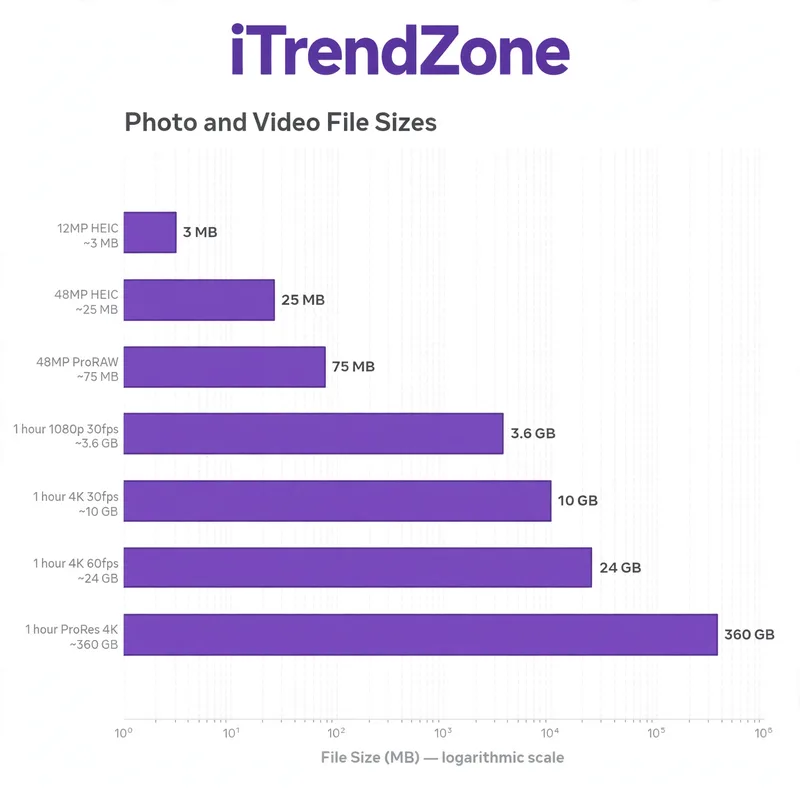
The chart above lays out the real cost of every format, and the numbers explain almost every “storage full” warning. A 12MP HEIC photo is only about 3MB, so a thousand of them take just 3GB. A 48MP HEIC photo is about 25MB, so a thousand take 25GB. A 48MP ProRAW photo is about 75MB, so a thousand take 75GB — twenty-five times the space of the same number of 12MP shots. Video follows the same pattern. One hour of 1080p video at 30fps is about 3.6GB. One hour of 4K at 30fps is about 10GB. One hour of 4K at 60fps is about 24GB. And one hour of ProRes 4K is about 360GB, which is more than the entire storage of a base iPhone 18 Pro.
iCloud Photos and Optimize iPhone Storage: the setting that matters most
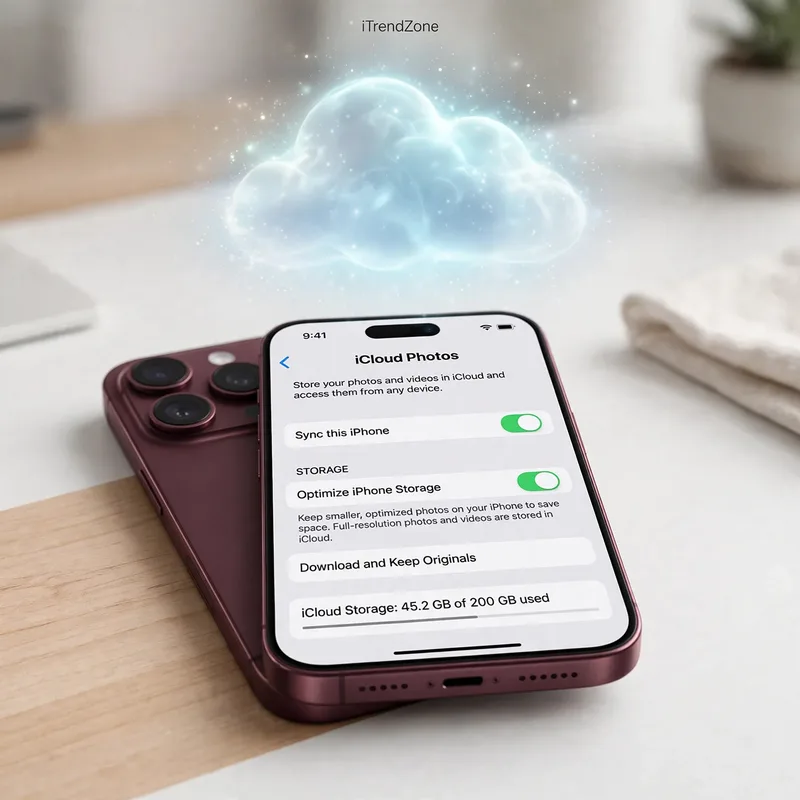
If you change one thing after reading this article, make it this one. Open Settings, tap your name at the top, tap iCloud, then Photos, and turn on Sync this iPhone. Then make sure Optimize iPhone Storage is selected instead of Download and Keep Originals. Your full-resolution photos and videos live in iCloud, and your phone keeps smaller versions that look identical on screen.
The catch is that this only works if you have enough iCloud space, and the free 5GB plan will not cut it. You need a paid iCloud+ plan, which I will cover in a minute, and a decent internet connection when you want to see a full-resolution original. If you want a real backup as well, the iPhone 18 setup guide covers backup options step by step.
The 15-minute cleanup that freed 38GB on my phone
After turning on Optimize iPhone Storage, I did a proper cleanup, and the order matters. Start in Photos. Open Albums, scroll down to Recently Deleted, and empty it. Then go to Albums, then Duplicates — iOS 27 finds exact duplicate photos and lets you merge them in one tap.
Next, sort your videos by size. In Photos, search for “video” and look at the longest ones. I found a 22-minute 4K video of a school play that I had already watched twice and would never watch again. It was 8GB on its own. If a video matters, back it up to your computer or an external drive first, then delete it from the phone. Then go back to Settings, General, iPhone Storage, and scroll the app list. Tap any app that is bigger than you expect. Inside, you will often find a Documents & Data section that is bigger than the app itself.
Apps: offload them, don’t delete them
There is a difference between offloading an app and deleting it, and it is one of the most useful features on the iPhone. Offloading removes the app itself but keeps all of its documents and data on the phone. When you reinstall it later, everything is exactly where you left it. Deleting removes everything. For apps you use once every few months, offloading is the obvious choice, and iOS can even do it for you automatically. Turn on Offload Unused Apps in Settings, then App Store, and iOS 27 will quietly offload apps you have not opened in a while whenever space gets tight. Games are the biggest win here. A single modern game can be 4GB or more, and most of us have two or three we have not opened in months. Offload them. Your save data stays, and reinstalling takes a couple of minutes on Wi-Fi.
Messages and WhatsApp quietly hoard gigabytes
This is the one that shocks everyone. Open Settings, General, iPhone Storage, tap Messages, and look at the Top Conversations list. Every photo, video, GIF, and voice note anyone has ever sent you lives in there, and group chats are the worst offenders. A family group chat with two years of birthday videos and memes can easily hold 5GB or more. The fix is simple. In the Messages storage screen, tap a conversation, then Review Large Attachments, and delete the big videos you do not need. You can also set messages to delete themselves after 30 days or a year instead of forever: Settings, then Messages, then Keep Messages. I set mine to one year. WhatsApp has the same problem. Open WhatsApp, go to Settings, then Storage and Data, then Manage Storage, and you will see exactly how much space each chat is using. The iPhone 18 security tips guide also covers which message settings are worth changing for privacy, and a few of them help with storage too.
iCloud+: when paying $0.99 a month actually makes sense
Let us talk about the money, because this is where people get stuck. iCloud+ starts at $0.99 a month for 50GB. The next step is 200GB for $2.99 a month, and the 2TB plan is $9.99 a month. The 50GB plan is almost never enough for an iPhone 18 Pro owner, because a single year of 48MP photos will eat it. The 200GB plan is the sweet spot for most people, and the 2TB plan is for families sharing one plan or for anyone shooting serious video. Do the comparison properly, though. Jumping from 256GB to 512GB on the iPhone 18 Pro costs $200 once. Two years of the 200GB iCloud+ plan costs about $72. If you use iCloud Photos with Optimize iPhone Storage, that $72 buys you more practical room than the $200 upgrade in many cases, because your photos live in the cloud and your phone stays light. My view is simple: if you take a lot of photos and video, pay for the 200GB plan and keep Optimize on. If you shoot ProRes or you want everything offline, buy the bigger phone. And if you are still deciding which phone to buy, the iPhone 18 battery tips guide and the iPhone 18 performance tips guide will help you weigh the rest of the decision.
Picking the right tier before you buy
If you have not bought your iPhone 18 Pro yet, here is the method I wish someone had given me. First, look at your current phone. Open Settings, General, iPhone Storage, and write down how much you are using right now. Then do the cleanup in this article — empty Recently Deleted, merge duplicates, delete old downloads — and look again. That second number is your honest number. Now add about 20GB for iOS 27 and Apple Intelligence, and add a third on top for growth, If your honest number is under 120GB, 256GB will serve you well for years. If it is between 120GB and 300GB, buy 512GB and stop worrying. If it is over 300GB, or you shoot ProRes, go 1TB. The 2TB model is for professionals and for people who genuinely want their entire life on the device with no cloud involved. There is one more thing to weigh: you cannot change your mind later. The storage you buy is the storage you keep for the life of the phone. If you are torn between two sizes, buy the bigger one. The iOS 27 tips guide is worth reading alongside this one, because iOS 27 changed a few storage menus and added new cleanup tools. You can also compare the iPhone 18 Pro with other phones on GSMArena if you are still weighing your options.
External drives, backups, and keeping your stuff safe
The iPhone 18 Pro has a USB-C port, and that changes the storage game completely. You can plug in an external SSD and move photos and videos straight onto it from the Files app, no computer needed. But here is the rule that sits above all the others: never delete anything from your phone until you are sure it exists somewhere else. Back up first. Plug the phone into your computer and back it up, or make sure iCloud Backup has run recently, and then delete. Check your backup before you clean, every single time. And if your phone starts acting strangely while you are managing storage — apps crashing, the storage screen freezing, numbers that make no sense — the iPhone 18 not working fix guide walks through the troubleshooting steps that actually help. For the latest iPhone news and rumours while you decide, MacRumors is a good place to keep an eye on.
When the “iPhone Storage Full” warning pops up
If you are reading this because the warning is already on your screen, do not panic, and do not start deleting photos at random. Do the quick triage. First, empty Recently Deleted in Photos. Second, check Settings, General, iPhone Storage, and offload the three biggest apps you have not used this month. Third, delete downloaded movies and podcasts you have already finished. That usually buys back 10–20GB in five minutes, which is enough to get your phone working normally again, install the update you have been putting off, and take the photos you need today. Then come back and do the full cleanup properly when you have half an hour. And if you are setting up a new phone and want to avoid this whole mess from day one, the iPhone 18 hidden features guide has a few storage-related tricks buried in it that most people never find, including a faster way to see exactly what is eating your space.
Test your knowledge: 5 questions
Try these before you go. They cover the numbers and settings from this guide.
- How much usable space does a 256GB iPhone 18 Pro roughly have after iOS 27 and system files?
A) The full 256GB
B) About 232–244GB
C) About 180GB
D) About 200GB - How big is a single 48MP ProRAW photo?
A) About 3MB
B) About 10MB
C) About 25MB
D) About 75MB - What does Optimize iPhone Storage do?
A) It deletes your oldest photos permanently
B) It compresses your videos so they lose quality forever
C) It keeps full-resolution photos in iCloud and smaller versions on your phone
D) It turns off iCloud Photos completely - How much space does one minute of ProRes 4K video use?
A) About 170MB
B) About 400MB
C) About 1.7GB
D) About 6GB - Which of these is true about iPhone storage?
A) You can add a memory card later if you run out
B) You cannot add storage after you buy the phone, so choose the size carefully
C) Deleting a photo on your phone keeps it safe in iCloud forever
D) Offloading an app deletes all of its data
Answers: 1 – B, 2 – D, 3 – C, 4 – D, 5 – B