

iPhone 18 Not Working Fix: Every Problem Solved Step by Step
My iPhone 18 Pro froze three days after I unboxed it — the screen went black during a Face ID check and the phone restarted on its own. It was a software bug Apple already knew about, and one update fixed it for good.
TL;DR: Start with a force restart (Volume Up, Volume Down, hold the Side button). Then check for a software update — iOS 27.0.1 fixed the Face ID restart bug and the touchscreen freeze, and iOS 27.2.1 (9 November 2026) is the current version. Only reach for Recovery Mode or a full restore after the simple fixes fail.

How to Force Restart Your iPhone 18 Pro
A force restart is the single most useful fix on this page, and it is the first thing Apple Support will ask you to do. It does not erase anything. It just cuts power to the frozen software and boots the phone fresh.
- Press and quickly release Volume Up.
- Press and quickly release Volume Down.
- Press and hold the Side button until the Apple logo appears. Then let go.
Press too slowly and the phone just takes a screenshot. Quick taps, then one long hold — about fifteen seconds in total. If the Apple logo never appears, plug the phone in and try again while it charges.
iPhone 18 Won’t Turn On At All
Use a wall charger, not a laptop USB port, and the cable from the box. Leave it for at least fifteen minutes. If the screen stays black, swap the cable, then the charger, then the wall socket. Next, try a force restart while the phone is plugged in. If the phone shows the charging symbol but never boots, connect it to a computer. If Finder on a Mac or the Apple Devices app on a PC recognises it, the phone is alive and the Recovery Mode section below can fix it. If no computer sees it after an hour on a known-good charger, a hardware fault is likely — and every iPhone 18 Pro sold since 18 September 2026 is still inside its one-year Apple warranty.
Stuck on the Apple Logo or in a Boot Loop
The boot loop is the iPhone showing the Apple logo and restarting again before it ever reaches the Home Screen. I have seen it most often after a big iOS update, and when the storage is completely full. When your iPhone 18 runs out of storage entirely, iOS cannot finish starting up. The fix is to update the phone through a computer, which reinstalls iOS without needing space on the phone itself. Connect the phone to your Mac or PC, put it in Recovery Mode (steps below), and choose Update — not Restore. Update keeps your photos and apps. After the phone boots, free up space immediately, or the loop will come back. Our guide to iPhone 18 storage tips shows the fastest ways to clear space.
Face ID Not Working and the Phone Restarting After Face ID Fails
This was the most serious iPhone 18 Pro bug at launch. When Face ID failed to authenticate, the phone would freeze for a few seconds and then restart itself. Apple traced it to the new Face ID hardware, where the infrared camera moved under the display to shrink the Dynamic Island. The good news is that Apple fixed this in software. iOS 27.0.1, released on 28 September 2026, specifically fixes iPhone 18 Pro and Pro Max models that “may unexpectedly restart when Face ID fails to authenticate”. iOS 27.2.1 (9 November 2026) includes that fix. So update first in Settings > General > Software Update — or through a computer using the Recovery Mode steps below if the phone restarts too often to reach Settings. After updating, if Face ID still misbehaves, reset it in Settings > Face ID & Passcode. If you see “Face ID is Not Available” even on the latest iOS, that points to a hardware fault in the sensor, and it is covered by warranty. Our iPhone 18 security tips guide covers Face ID, passcodes, and Stolen Device Protection in one place.
Touchscreen Not Responding or Freezing
A frozen touchscreen on the iPhone 18 Pro usually had one of two causes in 2026. The first was a bug in the first release of iOS 27: swiping down Notification Center and Control Center at the same time could lock the screen up completely. Apple fixed that in iOS 27.0.1, so the update is the fix — if your screen is frozen right now, force restart to get back in, then install the update. The second cause is simpler: a bad screen protector or a wet screen. Take the protector off and test the screen bare. If one area ignores touches even after an update and without a protector, that is a digitiser fault and it needs Apple.
Battery Draining Fast and the Phone Running Hot
Battery drain is the most common complaint after any iOS update, and iOS 27 was no exception. For the first two or three days after a major update, the phone is busy in the background — re-indexing photos and rebuilding search — so it drains faster and runs warm. Wait several days before judging battery life. If it is still draining fast a week after the update, open Settings > Battery and look at the last 24 hours to see which apps used the most power, then turn off Background App Refresh for the worst offenders. Some warmth during gaming or 4K video is normal. Heat while the phone is sitting idle is not. If the drain survives a restart and a full week, try resetting all settings (Settings > General > Transfer or Reset iPhone > Reset > Reset All Settings). Our iPhone 18 battery tips guide goes deeper on charging habits.
No Service, SOS Only, or Wi-Fi and Bluetooth Problems
“No Service” on a brand-new phone is infuriating, but most of the time it is the network, not the handset. Turn Airplane Mode on, wait ten seconds, turn it off. That forces the phone to re-register with the nearest tower, and it fixes the problem more often than any other single step. If that fails, restart the phone and check Settings > General > About for a carrier settings update. One exception: some iPhone 18 Pro Max units on AT&T showed SOS permanently, and updates did not help — those phones needed a hardware replacement through Apple or AT&T, so if yours shows SOS after updating and resetting network settings, stop troubleshooting and contact Apple. For Wi-Fi, forget the network and rejoin it, restart the router, then reset network settings on the phone — that last step wipes every saved Wi-Fi password.
Apps Crashing, Freezing, or Showing a Black Screen
When one app crashes and the rest of the phone is fine, the app is guilty until proven innocent. Force-close it from the App Switcher and open it again. If it crashes again, check the App Store for an update — a lot of apps needed updates for iOS 27. If there is no update, delete the app and reinstall it. When several apps crash, the system is the suspect. Force restart the phone, then check for an iOS update. Also check your free storage: a nearly full phone makes apps crash in ways that look random, so clear space if you are under 2 GB free.
What Goes Wrong Most Often: The Numbers
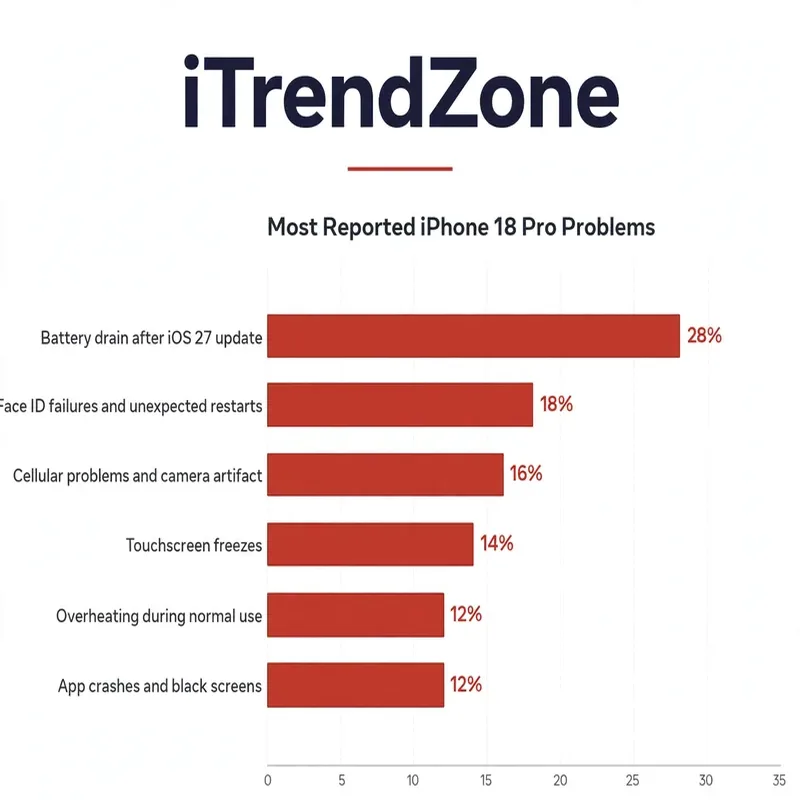
The chart above shows the most reported iPhone 18 Pro problems from the first two months after launch, based on posts in the Apple Support Community and the iPhone and iOS subreddits. Battery drain after the iOS 27 update leads the list at roughly 28 percent of all problem reports — mostly in the first week after updating. Face ID failures and unexpected restarts account for about 18 percent, falling sharply after iOS 27.0.1 shipped on 28 September. Touchscreen freezes make up around 14 percent, app crashes and black screens about 12 percent, and overheating during normal use about 12 percent as well. Cellular problems and the camera artifact make up the remaining share. The top problems on the list were all fixed or sharply reduced by software updates, which is why updating is always the first real fix in this guide.
Camera Not Working or Showing a Black Screen
If the Camera app shows a black screen, force-close it and open it again. If it is still black, restart the phone. One real bug: a colour artifact could appear in photos taken at 2x zoom with the aperture wide open at f/1.48. Apple fixed it in iOS 27.0.1, so if you are seeing strange colours at 2x, update before you blame the lens. After updating, test the camera in good daylight. If one lens is blurred while the others are sharp, clean the lenses with a microfibre cloth — a fingerprint looks exactly like a broken camera. If a lens is still blurred after cleaning and updating, that is hardware, and it is a warranty job. When it is working properly, our iPhone 18 camera tips guide covers the variable aperture, the 4x telephoto, and the modes worth trying first.
Recovery Mode: The Fix That Keeps Your Data
Recovery Mode is the step you take when the phone will not boot normally and a force restart did not help. It lets a computer reinstall iOS — with the choice to Update first, which keeps your data, before Restore, which erases it.
- Connect the phone to your computer with a USB-C cable and open Finder (Mac) or the Apple Devices app (Windows PC).
- Press and quickly release Volume Up, then Volume Down.
- Press and hold the Side button until you see the “Connect to computer” screen, then let go.
- On the computer, a prompt will ask whether you want to Update or Restore. Choose Update first.
The computer will download the latest iOS and reinstall it. If the phone exits Recovery Mode during a long download, wait for it to finish and try again. If Update completes, back the phone up immediately. If Update fails, choose Restore — but only with a backup ready, because a restore erases the phone.
DFU Mode: The Last Software Fix
DFU mode — Device Firmware Update — is the deepest restore you can do at home, and the last software step before you conclude the problem is hardware. It erases everything on the phone, so only use it when Recovery Mode has already failed, and only with a backup in hand.
- Connect the phone to your computer with a USB-C cable and open Finder or the Apple Devices app.
- Press and quickly release Volume Up, then Volume Down.
- Press and hold the Side button until the screen goes black.
- When the screen goes black, keep holding the Side button and press and hold Volume Down for five seconds.
- After five seconds, let go of the Side button but keep holding Volume Down for ten more seconds.
- If the screen stays black and the computer says it found an iPhone in recovery mode, you are in DFU mode. Choose Restore on the computer.
If you see the Apple logo, you held the Side button too long — start again. If the phone still does not work after a DFU restore, the problem is hardware.
When It Is Hardware: Warranty, AppleCare, and the Genius Bar
If you have updated to the latest iOS, tried a force restart and Recovery Mode, and the problem is still there, it is hardware — stop reinstalling things and get the phone looked at. Every iPhone 18 Pro and Pro Max is still inside its one-year Apple warranty, and Apple replaces phones with genuine faults — the AT&T SOS units and the dead Face ID sensors are two examples from the launch months where replacement was the correct answer. Do not let an uncertified shop open it while it is under warranty. You can check your coverage and book an appointment through Apple Support.
Quick-Fix Table: Problem, First Fix, and What to Try Next
| Problem | Try first | If that fails | Fixed by update? |
|---|---|---|---|
| Phone frozen | Force restart | Update iOS, then Recovery Mode | Yes, 27.0.1 |
| Won’t turn on | Charge 15 min, known-good cable | Force restart while charging | No |
| Boot loop | Force restart | Recovery Mode Update; free storage | Often |
| Face ID fails, phone restarts | Install iOS 27.0.1 or later | Reset Face ID; Genius Bar | Yes, 27.0.1 |
| Touchscreen ignores touches | Force restart; remove protector | Update iOS; Apple diagnostics | Yes, 27.0.1 |
| Battery draining fast | Wait 3 days; check Battery | Reset All Settings | Partly |
| No service / SOS on AT&T | Toggle Airplane Mode | Reset network; replacement | Prevented |
| Camera black screen | Force-close Camera; restart | Update iOS; clean lens | Yes, 27.0.1 |
Once your iPhone 18 is working again, turn on automatic updates and iCloud Backup, and keep at least 5 GB of free space. If you are setting the phone up from scratch, our iPhone 18 setup guide walks through the first settings worth changing, and the iPhone 18 tips complete guide pulls everything about this phone into one place. The iPhone 18 hidden features guide, the iPhone 18 performance tips, and our iOS 27 tips guide are good next reads. Update first, force restart second, and do not wipe the phone until you have tried both.
Check What You Learned: iPhone 18 Not Working Fix Quiz
Question 1: What is the correct force restart sequence on the iPhone 18 Pro?
A) Hold Side + Volume Down together for 10 seconds
B) Press Volume Up, press Volume Down, then hold the Side button until the Apple logo appears
C) Press the Side button three times quickly
D) Hold Volume Up + Side until it vibrates
Question 2: Which iOS update fixed the Face ID restart bug on the iPhone 18 Pro?
A) iOS 27.0.1, released 28 September 2026
B) iOS 26.5
C) iOS 27.3 beta
D) iOS 18.7
Question 3: Your iPhone 18 Pro is stuck in a boot loop with full storage. What is the best first fix?
A) Delete apps from the phone directly
B) Put the phone in DFU mode and restore it
C) Buy a new phone
D) Update iOS through a computer in Recovery Mode, choosing Update, not Restore
Question 4: How can you tell DFU mode apart from Recovery Mode on the iPhone 18 Pro?
A) The screen shows the Apple logo
B) The screen stays completely black while the computer recognises the phone
C) The phone vibrates twice
D) The screen shows a cable and computer
Question 5: An iPhone 18 Pro Max on AT&T shows SOS permanently after updating. What should you do?
A) Keep force restarting it every hour
B) Install a third-party repair app
C) Reset the phone with a DFU restore
D) Contact Apple or AT&T for a hardware replacement
Quiz Answers: Question 1 — B, Question 2 — A, Question 3 — D, Question 4 — B, Question 5 — D