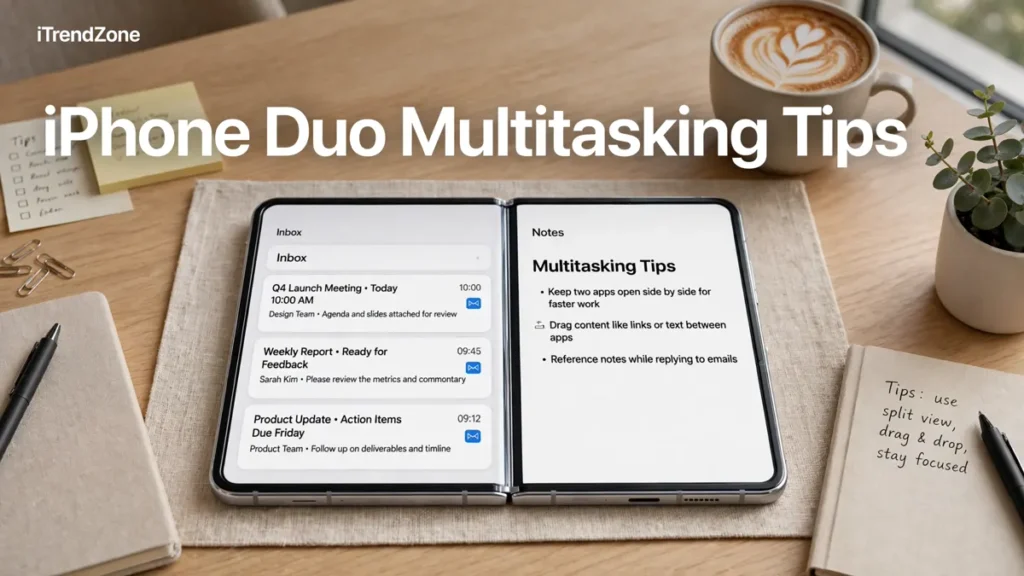

iPhone Duo Multitasking Tips Guide
iPhone Duo multitasking is the whole reason this phone exists. The real point is that you can finally do two things at once on an iPhone without fighting the screen. The Duo changes that, because its 7.6-inch inner display is genuinely big enough for two apps to sit side by side and both stay readable.
TL;DR: Open the iPhone Duo, put two apps side by side on the 7.6-inch inner display, and let the outer 5.4-inch screen handle quick jobs when the phone is folded. Learn drag and drop, keep a floating video window for calls and shows, and save the app pairs you use every day. Below: the pairs that work best, battery-smart habits, and the mistakes to avoid.
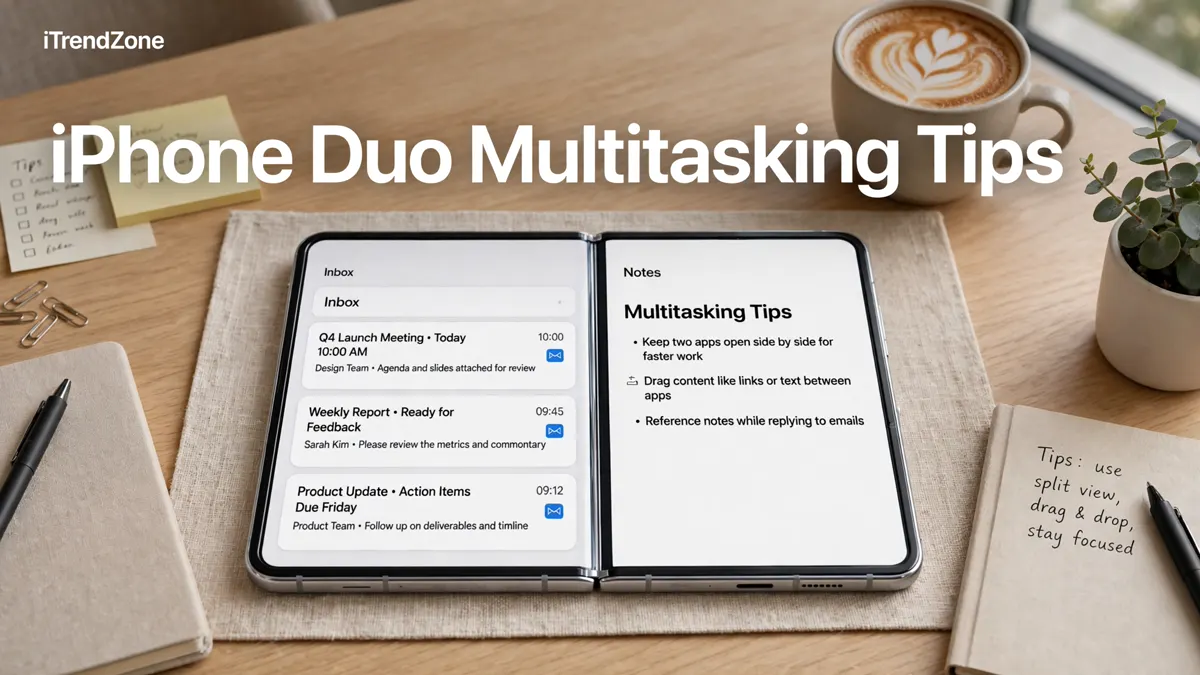
First, what we are working with. The iPhone Duo is Apple’s first foldable iPhone, a book-style phone that opens like a small notebook. It was announced on September 9, 2026, pre-orders opened on October 16, 2026, and it went on sale on October 23, 2026 in more than 70 countries. It starts at $1,999 for 256GB, with 512GB at $2,199, 1TB at $2,599, and 2TB at $3,199 — or $83.29 a month for 24 months. T-Mobile ran a Black Friday offer of up to $1,200 off with a trade-in. Inside is the A20 Pro chip (2nm), with a 6-core CPU, a 7-core GPU, a dual 16-core Neural Engine, and a dedicated display engine for both screens.
One honest note up front: this is a first-generation foldable, and it behaves like one. An XDA review scored it 7 out of 10, praising the hardware while pointing out that Touch ID can be slow and third-party app support is still improving. Some shipments were even pushed to early 2027. The tips here stick to what works reliably right now.
Why iPhone Duo Multitasking Feels Different
Every iPhone can switch between apps. That is not multitasking, that is queuing. Real multitasking means seeing both things at once, and that needs space. The Duo gives you that space in a way no slab phone can. Unfolded, the inner display measures 7.6 inches, with a 1878 by 2670 Super Retina XDR OLED panel, ProMotion at 120Hz, and up to 3,000 nits of peak brightness. Folded, the outer display is 5.4 inches, 1398 by 2034, also OLED, also 120Hz, also 3,000 nits. The inner panel also has an anti-glare nano-texture finish for working near windows.
The other half of the story is iOS 27, which was designed with foldable multitasking in mind. Apps hand over gracefully when you unfold the phone, and keep their place when you fold it back up. Start reading an email on the outer screen while walking, then open the phone at your desk and keep reading with your notes beside it. When it works, it feels less like a phone and more like a very small, very fast laptop that fits in your pocket.
It is also worth saying what the Duo is not. It is not the iPhone 18 Pro. That phone has a 6.3-inch OLED display, a triple 48MP camera system, Face ID, and a $1,199 price tag. The Duo is a different device: Touch ID in the power button, no Face ID at all, eSIM-only with no physical SIM slot, and 254 grams. Our complete guide to the iPhone Duo covers the full picture.
Start With Split Screen: Two Apps, One Screen
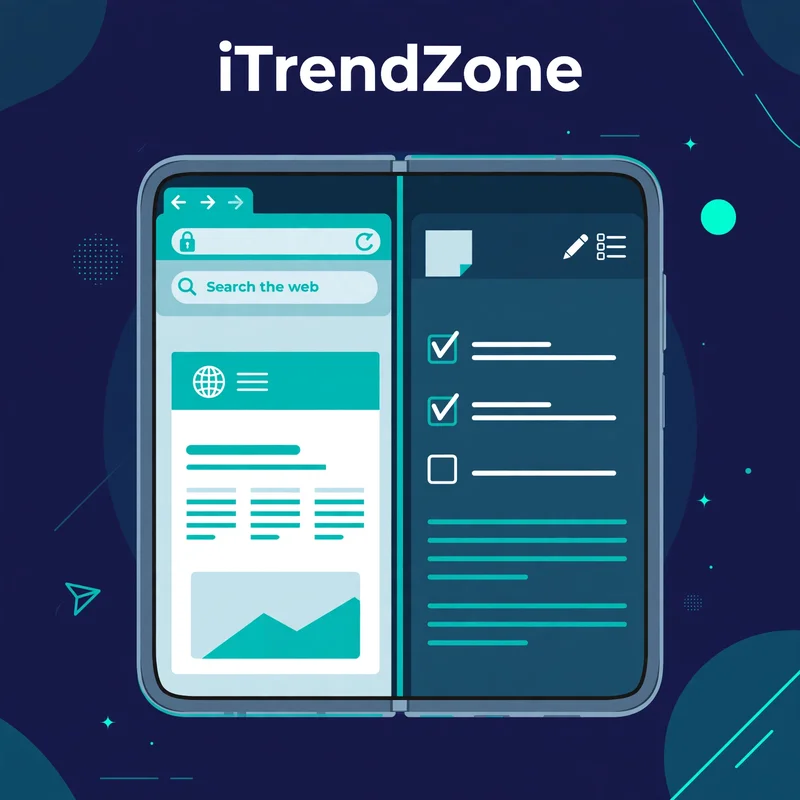
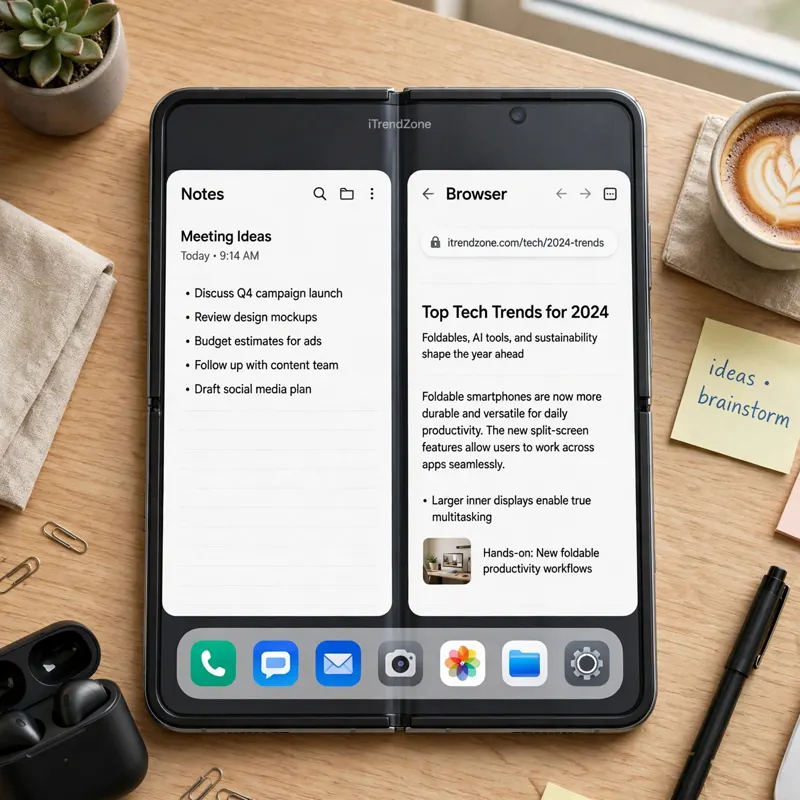
Split screen is the move you will use most, so get comfortable with it first. Open the phone, put one app on the left half of the inner display and another on the right, and work across both without switching. Email on one side, calendar on the other. A web page on one side, notes on the other.
The best first pair is email and calendar, because it solves a problem everyone actually has. You get a meeting invite, you need to check what else is on that day, and normally that means leaving the email, opening the calendar, and going back to accept. With both open at once, you just look across. Same with messages and maps: an address beside the chat means you can check the route without losing the conversation.
Pick Pairs That Actually Belong Together
Not every pair deserves to share a screen. The good ones have a job to do together. One app holds the thing you are looking at, the other holds the thing you are doing with it. Browser and notes. Photos and messages. A document and a chat with the person you are writing it for. If the two apps have nothing to say to each other, split screen just gives you two distractions instead of one. Think about your own day: what do you switch between most? For most people it is the same three or four swaps, over and over. Those are your pairs — two or three you use every day until they feel automatic.
Give Each App the Right Amount of Room
The two halves do not have to be equal. A document you are reading wants the wide half. A chat you are glancing at can live in the narrow half. A map wants room to breathe, while a music player barely needs any. Drag the divider until the split feels right for what you are doing, not what looks neat in a screenshot. If you keep resizing the same pair, it is probably the wrong pair — or one app belongs in a floating window.
Drag and Drop: The Trick That Saves the Most Time
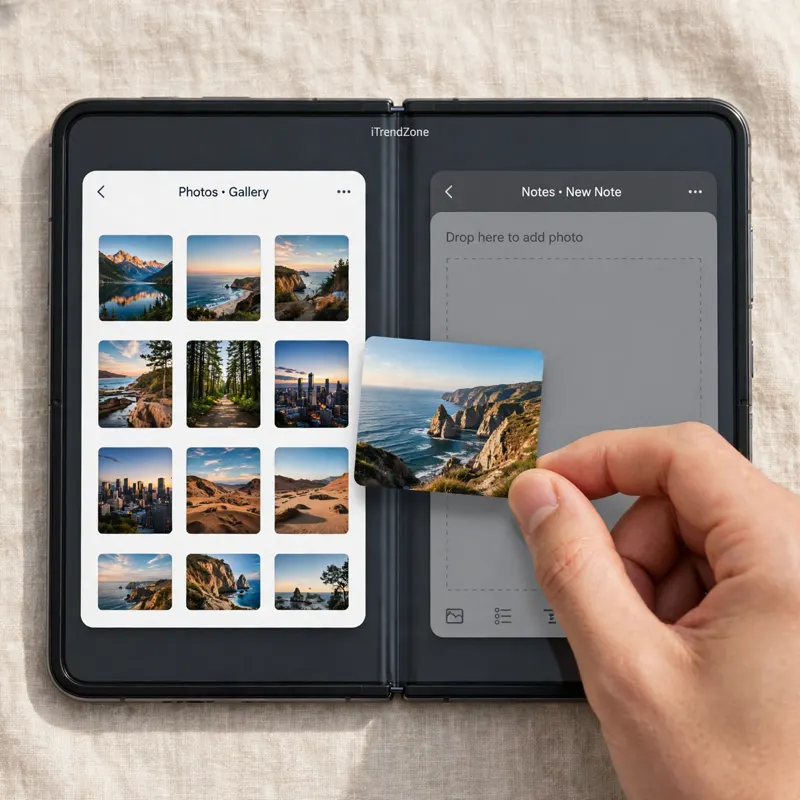
If split screen is the headline act, drag and drop is the quiet workhorse. Once two apps are open side by side, you can pick something up in one and drop it in the other. A photo from your gallery into a message. A link from the browser into a note. A chunk of text from an email into a document. Every time you do it, you skip three or four taps and a round trip through the share sheet, and you never lose your place in either app.
Be deliberate about it. Long-press the thing you want to move until it lifts, then drag it across the fold and let go over the other app. If you rush it, you will drop it in the wrong place. Slow down for the first few tries — dragging across the middle of the display feels odd at first, but your hands learn it fast. Photos are the best place to practise, then a link into Notes, then text — the one people forget, and the most useful of the lot. Our hidden features guide for the iPhone Duo has more of these small gestures that are easy to miss on day one.
Floating Windows: Keep Video and Calls on Top
Some things do not deserve half your screen. A video call. A show you are half-watching while you work. A timer. For those, a floating window is better than split screen. It sits on top of whatever you are doing, small enough to stay out of the way and big enough to actually see. Video calls are the best example: keep the call floating in a corner while a document takes the full inner display, still seeing the other person through the under-display FaceTime camera with Center Stage.
The same goes for watching something while you work — a match, a tutorial, a video essay. Park it in a floating window and glance over when it matters. Keep the window small and tucked into a corner, not floating in the middle like a poster on your desk. And when you are done, close it properly instead of leaving it hovering there all afternoon. A floating window you forgot about is just clutter with a play button.
The Dock and Your Daily App Pairs
Here is where multitasking goes from a feature you try to a habit you keep: the dock. The strip of apps along the bottom of the inner display is your launchpad, and it is worth setting up properly. Put the apps you actually pair together within easy reach — email, calendar, notes, browser, messages — not the ones with the prettiest icons. If an app lives three swipes away, you will not use it in split screen, no matter how good your intentions are.
Then save the pairs you use most. Once you have a pair open that works — say, browser and notes for research — save it so you can open both with one tap tomorrow. This is the single biggest time saver in this guide: setting up split screen from scratch takes ten seconds, and ten seconds is enough friction that most people will not bother. One tap removes it. Check our iPhone Duo setup guide if you have not arranged your home screen and dock yet.
Outer Screen or Inner Screen? Choose on Purpose
The Duo has two screens, and half of good multitasking is knowing which one to use. The outer 5.4-inch display is for quick jobs: check a message, glance at the time, reply to a text, scan a notification. The inner 7.6-inch display is for real work — two apps at once, reading a long document, comparing things, planning something. Serious multitasking on the outer screen leaves you cramped; quick checks on the inner screen mean unfolding the phone forty times a day. Rule of thumb: folded for quick, unfolded for deep.
Multitasking Without Killing the Battery
The Duo has a 4,883mAh dual-battery setup, one cell on each side of the fold. Apple rates it at up to 44 hours of video playback on the outer display, 31 hours on the inner display, and 24 hours of typical use. What those numbers really tell you is that the inner screen costs you battery, and two apps at 120Hz cost you more. That is not a flaw — it is physics. So spend that power where it earns its keep. Close what you are not using: two apps open is multitasking, six in the background is waste. Turn brightness down indoors — you do not need all 3,000 nits in your living room. And if you are just watching a video, use the outer screen: 44 hours versus 31 is a real gap. See our iPhone Duo battery tips guide for more.
Charging is fast enough that a top-up is a genuine option, not a chore. The Duo reaches 50 percent in about 20 minutes with a 60W or higher charger, and 50 percent in 30 minutes with 35W or higher MagSafe. If you have a heavy multitasking afternoon ahead, a twenty-minute charge over lunch puts you back in a comfortable place. Keep a decent charger at your desk and you will stop checking percentages altogether.
| iPhone Duo detail | What you get | Why it matters for multitasking |
|---|---|---|
| Inner display | 7.6-inch OLED, 1878 by 2670, 120Hz, 3,000 nits | Two apps fit side by side and stay readable |
| Outer display | 5.4-inch OLED, 1398 by 2034, 120Hz, 3,000 nits | Quick jobs without unfolding the phone |
| Chip | A20 Pro, 6-core CPU, 7-core GPU | Keeps two apps smooth at 120Hz |
| Battery | 4,883mAh dual-battery | Up to 31 hours of video on the inner display |
| Unlock | Touch ID in the power button | No Face ID, so keep a finger ready when switching apps |
| Price | From $1,999 for 256GB | A premium price, so the multitasking has to earn it |
How the Battery Holds Up Across the Two Screens
Video playback, outer display: 44 hours
Video playback, inner display: 31 hours
Typical mixed use: 24 hours
Mistakes That Make Multitasking Worse
Most people do not fail at multitasking for lack of features. They fail because they try to do too much at once. Three apps, a floating video, a timer going off, and a group chat buzzing — that is not productivity, that is noise. Two apps is the sweet spot on the Duo: two things you can actually hold in your head at the same time. The moment you add a third, you are juggling, and sooner or later something gets dropped. The second mistake is leaving everything open — old pairs from this morning, a video you paused at lunch, a document you finished hours ago. Close a pair when the job is done.
The third mistake is using split screen for the wrong jobs. Writing something that needs real thought, or reading a long article you actually want to absorb, is better done full screen — splitting it just gives you a narrow column of text beside a distraction. And one more: the Duo unlocks with Touch ID, not Face ID. The XDA review noted Touch ID can be slow, so register more than one finger — both thumbs, at least — and keep them dry. Our iPhone Duo security and privacy guide covers Touch ID setup and the eSIM-only setup in more detail.
A Daily Multitasking Workflow You Can Steal
Here is a full day, start to finish. Morning: unfolded, email and calendar side by side, clear the inbox and plan the day. Mid-morning: browser and notes, research something properly and save what matters. Lunch: folded, outer screen only, catch up on messages and watch a video while you eat. Afternoon: back to split screen for the real work, with a floating window for any calls. Evening: photos and messages side by side, share the day’s pictures while you can still see the conversation.
Foldables are still new, and app support will keep getting better through 2027 as developers update their apps — some Duo shipments were already pushed to early 2027. To see how others are getting on with the phone, check the reviews on Tom’s Guide and TechRadar, the official details on Apple, and the productivity angle on TechRepublic.
Test Yourself: iPhone Duo Multitasking Quiz
Five quick questions to check what stuck. No peeking — the answers are at the end.
1. What is the size of the iPhone Duo inner display?
A) 5.4 inches
B) 7.6 inches
C) 6.3 inches
D) 6.9 inches
2. How long does video playback last on the outer display?
A) 24 hours
B) 31 hours
C) 20 hours
D) 44 hours
3. Which unlock method does the iPhone Duo use?
A) Touch ID in the power button
B) Face ID
C) A passcode only
D) An under-display fingerprint sensor
4. What is the starting price of the iPhone Duo with 256GB?
A) $1,199
B) $2,199
C) $1,999
D) $2,599
5. How long does it take to reach 50 percent charge with a 60W or higher charger?
A) 30 minutes
B) About 20 minutes
C) 45 minutes
D) One hour
Quiz Answers
1. B — The inner display is 7.6 inches. 2. D — Video playback lasts up to 44 hours on the outer display. 3. A — The Duo uses Touch ID in the power button; there is no Face ID. 4. C — The Duo starts at $1,999 for 256GB. 5. B — About 20 minutes with a 60W or higher charger.
The Bottom Line
iPhone Duo multitasking is not about using every feature at once. It is about two apps, side by side, doing a job together — and doing it so smoothly that you forget you ever used to switch back and forth. Start with one pair, save it, use it every day, and add a second pair when the first one feels natural. Keep the dock tidy and close what you are done with. Do that for a week and the Duo stops feeling like a $1,999 experiment. Still deciding? Our iPhone Duo display tips guide and iPhone Duo camera tips guide will help you judge the rest of the phone.