

iPhone Duo Not Working Fix: 6 Problems Solved at Home
Your iPhone Duo cost $1,999. It is Apple’s first foldable iPhone, a book-style phone with two screens, two batteries, and a hinge in the middle — and when something goes wrong with it, the panic hits differently. A normal iPhone that freezes is annoying. A $1,999 foldable whose inner screen stays black feels like a disaster. Take a breath. Most Duo problems are software hiccups, a tired battery, or one badly behaved app, and most can be fixed on your sofa in under ten minutes. This guide covers the six problems Duo owners run into most, in the order you should try them.
TL;DR: iPhone Duo not working is usually fixed by a force restart, a proper charge with a 60W or stronger charger, re-adding your Touch ID fingerprint, or updating iOS 27 and the misbehaving app. If the inner screen stays dark, check the hinge for dirt and restart with the phone open. If the battery drains fast, the big inner display is almost always the reason — use the outer screen for quick tasks. Book a repair only when the phone will not turn on after charging, the hinge feels loose or gritty, or the same fault returns within a day of a full reset.
Why the iPhone Duo Acts Up More Than a Regular iPhone
The Duo is not just an iPhone that bends. It has a 5.4-inch outer display and a 7.6-inch foldable inner display, both running at 120Hz, both driven by the same A20 Pro chip. There are two battery cells, one in each half, adding up to 4,883mAh. And instead of Face ID, the Duo unlocks with Touch ID built into the power button. The Duo went on sale on October 23, 2026, after being announced on September 9, and early reviews have been honest about the rough edges. One well-known review scored it 7 out of 10, calling out slow Touch ID and third-party apps that still have not caught up with the foldable screen.
Before Anything Else: The 60-Second Checks
Half of all “my phone is dead” moments end here. First, plug the Duo into a charger you trust and leave it alone for at least fifteen minutes. A flat foldable can take a while to show any sign of life, because it has to wake up two battery cells, not one. Use a charger rated 60W or higher if you have one — with that, the Duo reaches about 50% in roughly 20 minutes. With a 35W or stronger MagSafe charger it takes about 30 minutes.
Second, check the hinge. Look along the fold and blow out any dust or pocket lint. A grain of grit will not break the phone, but it can stop the sensor from registering that the phone is open, and then the inner screen never wakes up. Third, check your storage in Settings, then General, then iPhone Storage. If you are down to your last gigabyte or two, iOS 27 cannot do its background housekeeping, apps crash, and the whole phone slows down.

Fix 1: iPhone Duo Frozen or Not Turning On
This is the one that makes people’s stomachs drop. The screen is black, nothing responds, and the phone feels like an expensive paperweight. The fix is a force restart. Press and quickly release the volume up button, press and quickly release the volume down button, then press and hold the power button. Keep holding it until the Apple logo appears, which can take a good twenty seconds. If nothing happens, the phone may simply be out of charge. Plug it into a 60W or stronger charger and wait a full fifteen minutes before you try again.
If the phone turns on but freezes again within minutes, something is loading at startup and crashing the system. Think about the last app you opened before the freeze. Delete it, or at least update it — an app never built for a folding display can lock up iOS 27 when it tries to stretch across the inner screen. If the freezing keeps coming back and you cannot pin it on one app, back up your data and reset all settings. It clears out corrupted settings without deleting your photos or apps, and it fixes more stubborn freezes than any other single step.
Fix 2: Touch ID Slow or Not Responding
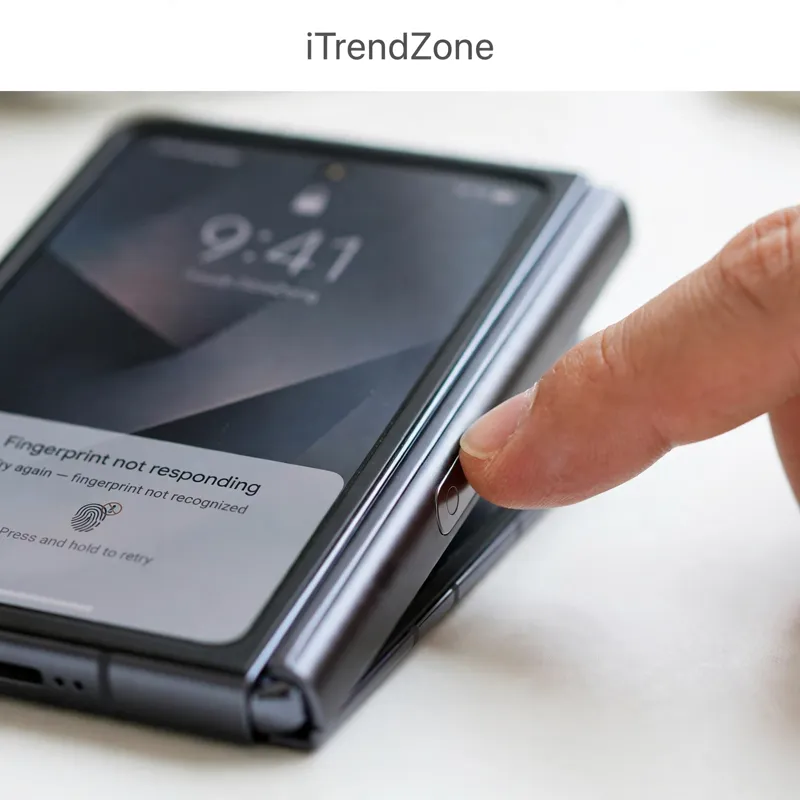
The Duo has no Face ID. Unlocking is done by Touch ID in the power button, and this is the phone’s most complained-about feature. The sensor can be slow, it can miss, and it can feel like a step backwards after years of glancing at your phone to unlock it. Start with the obvious: wash and dry your hands, and wipe the power button with a soft, dry cloth. A greasy or damp finger on a small sensor is the most common reason Touch ID fails.
Next, re-add your fingerprints. Go to Settings, then Touch ID and Passcode, delete the finger you use most, and add it again slowly, from a few different angles. Then add the same finger a second time as a separate entry. It sounds like a trick, and it is, but it works: the phone gets two chances to recognise the same finger. If Touch ID is still slow after that, turn off the features that make it work hardest — a long list of apps set to unlock with Touch ID means the sensor is being asked to do more, more often. For the full rundown on the Duo’s unlock system, our iPhone Duo security and privacy tips walk through the passcode and fingerprint setup in more detail.
Fix 3: Inner Screen Stays Dark When You Unfold the Phone
This one is unique to a foldable, and it is the fault that worries Duo owners most. You open the phone, the outer screen was working fine a second ago, and the big 7.6-inch inner display stays black. Before you assume the screen is broken, check the simple things. Open the phone all the way until it sits flat. The Duo is designed to be used fully open at 164.6mm wide, and if you hold it half-open, some apps and system screens will not switch over.
If the inner screen still will not light up, close the phone and open it again, firmly but gently. Then force restart with the phone open: volume up, volume down, then hold the power button until the Apple logo shows on whichever screen wakes first. If the inner display comes back after a restart but the problem returns, look for a pattern. Does it only happen with one app? That app probably has not been updated for the Duo’s inner display yet, and it is crashing the display handover — update it, or use it on the outer screen until the developer catches up. And if the inner screen shows lines, flickering, or a bright patch along the crease, stop troubleshooting. That is a hardware problem with the folding panel, and no amount of restarting will fix it. Back up your phone and book a repair. Our iPhone Duo display tips explain how to get the most out of both screens without stressing the fold.
Fix 4: Battery Draining Too Fast
Fast battery drain on the Duo almost always has the same cause: the inner screen. That 7.6-inch folding display is gorgeous, and it is thirsty. Apple rates the Duo at up to 44 hours of video playback on the outer display, 31 hours on the inner display, and 24 hours of typical use — and the gap between those first two numbers tells you everything. Every hour on the big screen costs noticeably more battery than the same hour on the small one. So the first fix is a habit, not a setting. Use the 5.4-inch outer display for quick jobs — checking a message, skipping a song, glancing at the time — and save the inner display for reading, video, and work that actually needs the space.
Then check what is actually eating the charge. Go to Settings, then Battery, and look at the last 24 hours. The culprit is usually one app, often a social or video app running in the background, or an app that keeps the screen awake. Turn off background refresh for the worst offenders, and turn the brightness down a notch — both screens go up to 3,000 nits, which is bright enough to read in direct sunlight and far brighter than you need indoors. If the drain started suddenly after an update or a new app, that is your suspect. Our iPhone Duo battery tips go deeper on stretching the 4,883mAh dual battery through a full day.

Fix 5: Apps Crashing on the Foldable Display
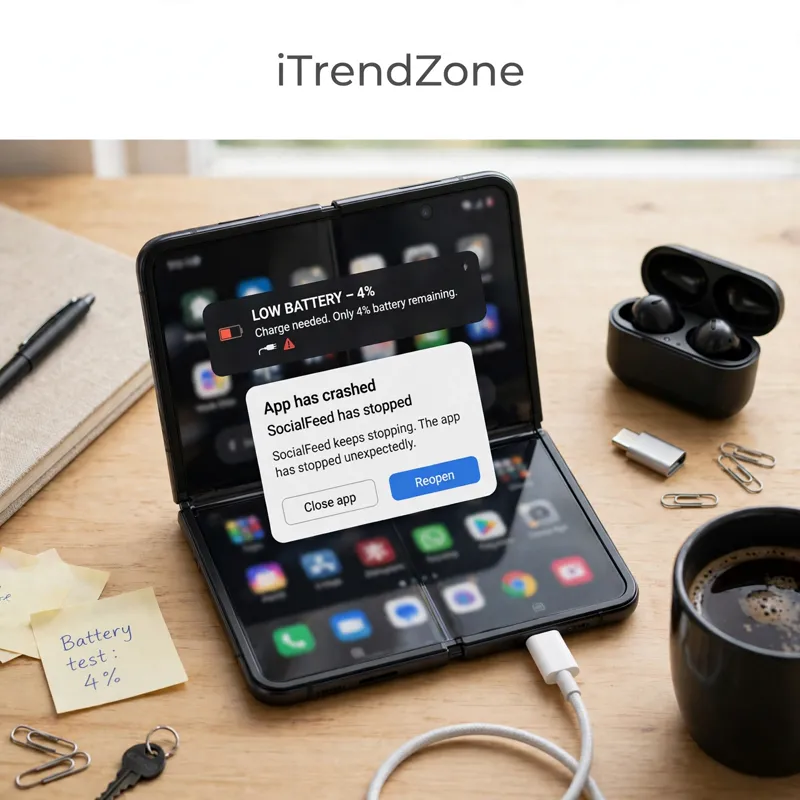
An app that crashes every time you unfold the phone is not necessarily a bad app. It is usually an app built for a normal rectangular screen that has never been taught what to do when that screen suddenly doubles in size. The fix starts with the App Store: update the app, and update iOS 27 while you are at it. Apple and developers have been patching foldable support steadily since the October launch, and the version that crashed in November may be perfectly fine now. If the app is already up to date, delete it and install it fresh — a clean install clears out corrupted data that an update leaves behind.
If it still crashes, try it on the outer screen only. Open the app while the phone is closed and leave the phone closed. If it runs fine there, the problem is the display switch, not the app itself, and the workaround is to keep using it folded until the developer ships a fix. Our iPhone Duo multitasking tips show which layouts are safest for older apps.
Fix 6: Charging Problems and Overheating
If the Duo charges slowly, or not at all, work through the chain one link at a time. Try a different cable, then a different charger, then a different wall socket. Clean the charging port gently with a wooden toothpick — pocket lint packs into it over weeks, and a plug that cannot seat properly will charge at a crawl. Use a 60W or stronger wired charger for the fastest top-up, or a 35W or stronger MagSafe charger if you prefer wireless. If the phone gets hot while charging, take the case off and move it out of direct sunlight. A foldable traps heat between its two halves, and iOS will slow charging down on purpose when the phone is warm. If it will not charge from any cable or charger, and the port is clean, that is a repair job.
Quick Diagnosis Table
| Problem | Most likely cause | Try first | Get help if |
|---|---|---|---|
| Phone frozen or will not turn on | Software crash or flat battery | Force restart, then charge 15 minutes on a 60W charger | Still dead after charging |
| Touch ID slow or failing | Dirty sensor or poor fingerprint scan | Clean the button and re-add your fingerprint | Sensor does not respond at all after a restart |
| Inner screen stays dark | Display handover or hinge dirt | Open fully, restart with the phone open | Lines, flickering, or a bright patch on the crease |
| Battery draining fast | Heavy inner-screen use or one rogue app | Use the outer screen more, check Battery settings | Drain continues with a cool phone and no apps running |
| App crashes when unfolding | App not built for the foldable display | Update the app and iOS 27, reinstall the app | Every app crashes, not just one |
How Battery Life Compares Across the Two Screens
The chart below shows Apple’s rated battery life for the Duo. The outer display wins by a wide margin, which is why it matters so much for day-to-day use.
When to Stop Fixing and Get Help
Some problems are not yours to solve, and knowing where that line sits will save you time and money. Book a repair if the phone will not turn on after a full charge and a force restart, if the hinge feels loose, gritty, or will not sit flat, if the inner screen shows lines or flickering, or if Touch ID is completely dead after a restart. Apple’s official support pages list the nearest repair options, and review sites such as Tom’s Guide and TechRadar keep track of the Duo’s known issues as new software updates land. If you are still setting the phone up and things are going wrong from the start, our iPhone Duo setup guide is worth a read before you reset anything, and the iPhone Duo complete guide covers the basics of both screens in one place.
Quiz: Test What You Learned
Question 1: What should you try first when your iPhone Duo is frozen or will not turn on?
A) Take the phone apart to check the hinge
B) Force restart, then charge it for 15 minutes on a 60W or stronger charger
C) Put the phone in the freezer to cool it down
D) Delete all your photos to free up space
Question 2: Why does the iPhone Duo use Touch ID instead of Face ID?
A) Face ID was removed to make the phone cheaper
B) The Duo has no front camera at all
C) Apple forgot to include it
D) The Duo unlocks with Touch ID built into the power button and has no Face ID
Question 3: What is the most likely reason the inner screen stays dark when you unfold the phone?
A) The display handover failed or dirt is stopping the hinge sensor
B) The outer screen is broken
C) The battery is too large for the phone
D) The phone needs a physical SIM card
Question 4: How long does the Duo take to reach about 50% charge with a 60W or stronger charger?
A) About 5 minutes
B) About 2 hours
C) About 20 minutes
D) About 45 minutes
Question 5: What is the best first step when the battery drains too fast?
A) Buy a second phone
B) Use the outer display for quick tasks and check Battery settings for a rogue app
C) Turn the brightness up to maximum
D) Leave every app running in the background
Quiz Answers: Question 1 — B, Question 2 — D, Question 3 — A, Question 4 — C, Question 5 — B.
Final Word
The iPhone Duo is a first-generation foldable, and it shows — in the slow Touch ID, in the apps that still need to learn the big screen, and in the little faults that a normal iPhone grew out of years ago. But most of the problems in this guide are fixed with a restart, a charge, a clean sensor, or an update, and none of them means you bought a bad phone. Follow those steps, and the Duo goes back to being what it was meant to be: a phone and a small tablet in the same pocket.