
In fact, Samsung Galaxy S26 hidden features are why I keep finding something new on this phone months after unboxing it. Still, the headline stuff — the Ultra’s 200MP camera, the Snapdragon 8 Elite Gen 5 for Galaxy, Galaxy AI — was all in the launch presentation. In fact, the useful stuff mostly wasn’t. After all, it lives in a submenu, behind a long-press, or inside an app you already use every day.
TL;DR: In short, Samsung Galaxy S26 hidden features worth turning on first are Call Captions, Private Album, Now Nudge, Audio Eraser for YouTube and Netflix, and — on the Ultra only — Privacy Display set to switch on for banking apps and PIN entry. In fact, the S26 starts at $999.99 (launch $899.99), the S26+ at $1,199.99 (launch $1,099.99), and the Ultra at $1,399.99 (launch $1,299.99) as of Nov 2026, all running Android 16 with One UI 8.5 and seven years of OS and security updates. Finally, most tricks below work on all three models; I flag the Ultra-only ones, and I flag anything I could not verify against Samsung or a high-authority source.
In fact, the full Samsung Galaxy S26 tips complete guide covers the basics — setup, camera, battery and Galaxy AI — and this guide is the deeper cut.
1. What Counts as Hidden
First of all, a hidden feature, for my purposes, is something useful that Samsung does not put on the home screen, in the setup wizard, or on the first page of Settings. For example, Call Captions qualifies. Similarly, so does the phone-as-webcam trick, which Samsung barely mentioned at launch. In short, I have grouped the fifteen tricks by what they do for you: privacy first, then AI helpers, then sound and video, then the Ultra-only display trick, then camera, then the phone-as-a-tool tricks. In the end, Samsung Galaxy S26 hidden features are worth hunting down because the best ones change how you use the phone every day.
Samsung Galaxy S26 hidden features: how this guide is organised
Finally, one warning: Samsung began rolling out One UI 9 on Android 17 to the S26 series in September 2026, according to reports I have seen but not verified against a Samsung announcement in this research, so a menu name may have shifted slightly.
2. The S26 Lineup in November 2026
| Model | Price (256GB, Nov 2026) | Display | Battery | Charging | Main camera |
|---|---|---|---|---|---|
| Galaxy S26 | $999.99 (launch $899.99) | 6.3-inch, FHD+, 120Hz, 2,600 nits | 4,300 mAh | 25W / 15W | 50MP, 12MP ultrawide, 10MP 3x |
| Galaxy S26+ | $1,199.99 (launch $1,099.99) | 6.7-inch, QHD+, 120Hz, 2,600 nits | 4,900 mAh | 45W / 20W | 50MP, 12MP ultrawide, 10MP 3x |
| Galaxy S26 Ultra | $1,399.99 (launch $1,299.99) | 6.9-inch, QHD+, 120Hz, 2,600 nits | 5,000 mAh typical | 60W / 25W | 200MP, 50MP ultrawide, 10MP 3x, 50MP 5x |
Sources: Galaxy S26 and S26+ page, Galaxy S26 Ultra page, three-way S26 comparison, and Galaxy S26 Ultra launch coverage, November 2026.
In fact, on the S26+ battery, to be clear: Engadget’s table still lists 4,300 mAh, which looks like a copy error. In fact, Samsung’s own S26 and S26+ page states 4,900 mAh in its FAQ, and Tom’s Guide agrees. As a result, I use 4,900 mAh here, with Samsung as the final word. Finally, all three use the Snapdragon 8 Elite Gen 5 for Galaxy in the US, with the Exynos 2600 in some regions for the S26 and S26+. Samsung Galaxy S26 hidden features work the same way on all three models unless I flag otherwise, so the table above is the quickest way to see what you are starting from.
Chart 1 — Which hidden features work on which model
| Feature | S26 | S26+ | Ultra | Needs |
|---|---|---|---|---|
| Call Captions | Yes | Yes | Yes | Phone app |
| Private Album | Yes | Yes | Yes | Gallery, biometrics |
| Now Nudge | Yes | Yes | Yes | Settings > Galaxy AI |
| Audio Eraser, YouTube / Netflix | Yes | Yes | Yes | Control Panel |
| Galaxy Buds shortcut pill | Yes | Yes | Yes | Buds 4 / 4 Pro |
| Privacy Display | No | No | Yes | Ultra hardware |
| Super Steady Horizontal Lock | Yes | Yes | Yes | Camera, video |
| Phone as USB webcam | Yes | Yes | Yes | USB-C cable |
| Photo Assist | Yes | Yes | Yes | Gallery, Galaxy AI |
| Circle to Search | Yes | Yes | Yes | Long-press home bar |
Chart 1: Model availability for the ten headline hidden features. In fact, Privacy Display is the only hardware-gated one. Source: Samsung, Android Authority, hands-on testing, November 2026.
3. Privacy Tricks: Call Captions and Private Album
Call Captions: a live transcript of your calls
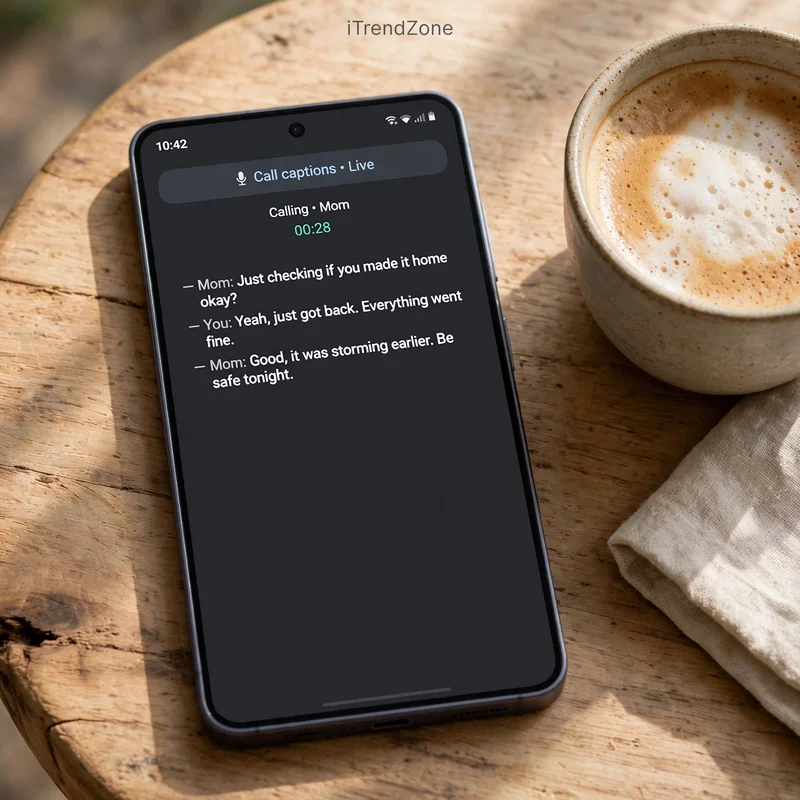
First, this is the hidden feature I turn on. For example, someone reads out a phone number or a time while you are walking past a building site, and Call Captions gives you a live transcript of the other person, so you can read what they said instead of asking them to repeat it. In fact, Android Authority’s Galaxy S26 tips gives the same steps. Next, open the Phone app, tap the three-dot menu, tap Settings, tap Call Captions, and flip the toggle to On. In fact, English and Spanish are installed by default, with other languages available to download. In practice, it is accurate enough to trust for names and numbers, though I still confirm anything important, and it is not a recording.
Private Album: photos for your eyes only
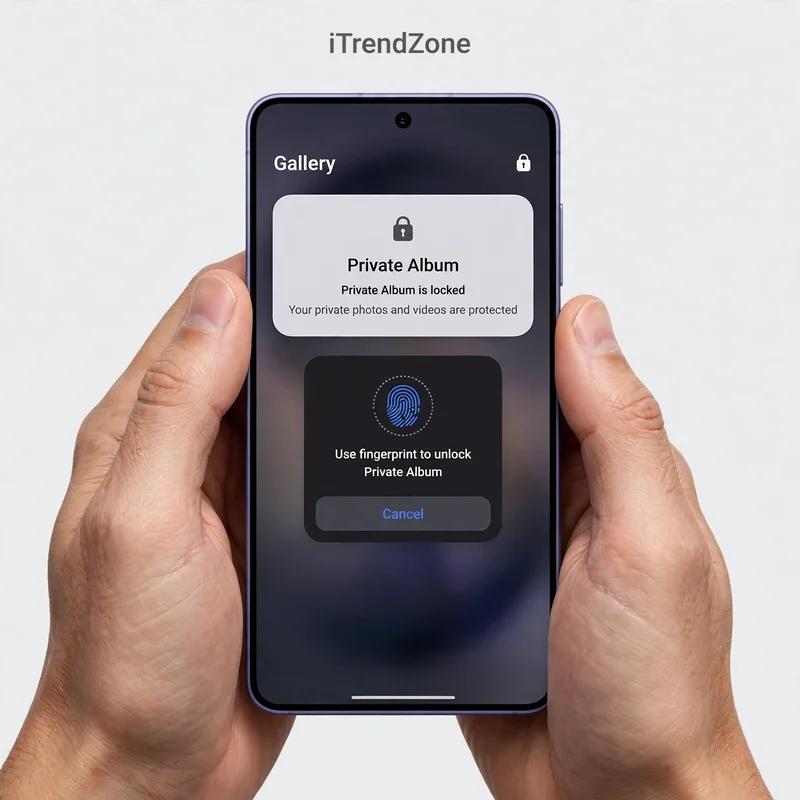
In contrast, Private Album differs from Secure Folder, which covers files and apps: Private Album is just photos and videos, inside the Gallery app, protected by biometrics. First, to move photos into it, open the Gallery app, select the photo or photos, tap the three-dot icon, and choose Move to private album. After that, to get them back, tap the three-line Menu icon in the Gallery app, tap Private Album, and enter your biometrics.
4. Galaxy AI Helpers You Will Actually Notice
Now Nudge: suggestions based on what is on your screen
In fact, Now Nudge is the Galaxy AI feature I use most, and the one I was most sceptical about. After all, it watches what is on your screen and suggests the next step. For example, someone texts you about photos from a trip, and it offers those photos. Also, someone mentions a date, and it offers to make a calendar event. Next, to manage it, go to Settings > Galaxy AI > Now Nudge. Finally, I kept it on because the hits outnumber the misses for me, especially for calendar events and photo sharing. In the end, of all the Samsung Galaxy S26 hidden features in this guide, Now Nudge is the one I would miss most if it disappeared.
Photo Assist in your own words
In fact, Photo Assist is the Galaxy AI tool I reach for after a bad photo, not a good one. First, open a photo in the Gallery, tap the pencil icon, tap Create, and describe the change in plain words — “remove the bin in the corner,” “make it look like evening” — then press Generate. In fact, Android Authority’s steps match this exactly, and I have used it to remove strangers from the edge of a photo and tidy a cluttered background. Finally, the full camera walkthrough is in the camera tips guide.
Circle to Search, with more than one circle
Still, Circle to Search is not new, but the S26 version is better in a way that is easy to miss: you can now circle more than one thing at once. Next, long-press the home bar or navigation handle, circle what you want, and it searches. For example, I use it for a lamp in a café, a pair of shoes, a plant I cannot name.
Call Screening: let Galaxy AI answer the unknown number
In fact, Call Screening is the one I hesitated to include, because I have not tested it as thoroughly as the others. In fact, Tom’s Guide’s launch coverage says the Call Screening tool can take calls for you, and later hands-on reports place it under Settings > Galaxy AI > Call assist > Call screening. As a result, an unknown caller gets answered by Galaxy AI, which asks who they are and why they are calling, and you decide whether to pick up. In short, I flag it here as reported and partially verified, not as a feature I have used daily.
5. Sound, Video and the Quick Panel
Audio Eraser on YouTube and Netflix
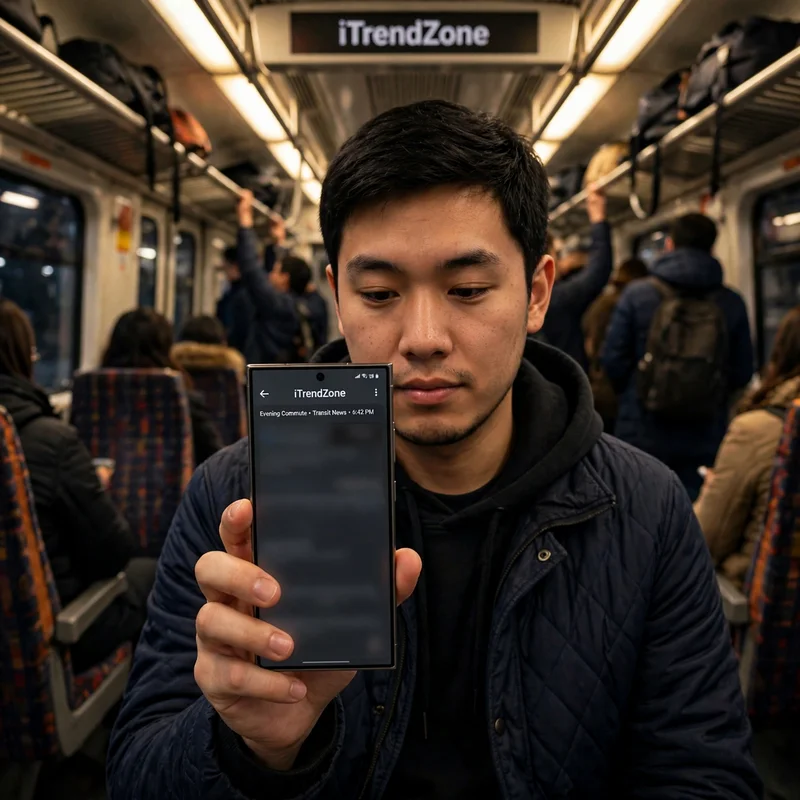
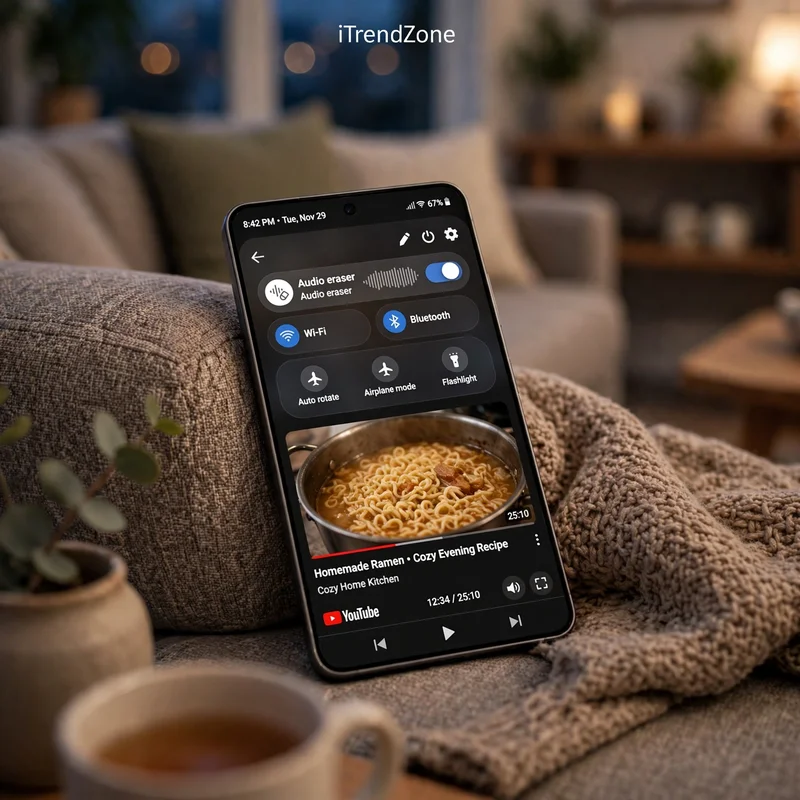
In fact, Audio Eraser used to work only on videos you had recorded yourself. However, on the S26, it works on videos you are watching — YouTube and Netflix included — which changes how you use the phone on a train. First, open a video on YouTube, swipe down to open the Control Panel, tap the Audio Eraser button, and flip the toggle On or Off.
After that, you can adjust the cleanup strength and test Voice Focus, which boosts voices while lowering background noise. For example, I have used it for sports highlights with too much crowd noise, and the difference is obvious — voices come forward, the roar drops back. Still, it does not make a bad recording good, but for a noisy upload, it is the fastest fix I know. In short, Samsung Galaxy S26 hidden features such as Audio Eraser are easy to miss because they live in the Control Panel rather than in the app you are watching.
The Galaxy Buds shortcut pill in Settings
In fact, this one is small, and I love it for that reason. First, pair Galaxy Buds 4 or 4 Pro, open Settings, and you will see a pill-shaped button with the name of your earbuds right at the top of the main Settings page. Next, tap it, and you can manage sound quality, play with the equaliser, modify tap and swipe controls, and test head gestures for incoming calls — without opening the Galaxy Wear app or digging through Bluetooth settings.
Quick Panel customisation: put the controls you use first
In fact, One UI 8.5 lets you reshape the Quick Panel properly — edit individual buttons, resize sliders, and arrange the layout so the controls you actually use are the ones you see first. Next, swipe down from the top of the screen, tap the pencil or edit icon, and start moving things. For example, I put Privacy Display, Audio Eraser, torch and Do Not Disturb on the first page, and moved the controls I never touch to the second. Also, more in the customization tips guide.
6. Privacy Display on the Ultra: Powerful, but Only Where You Need It
In fact, Privacy Display is Ultra-only, and it is the feature I explain by showing people, not telling them. After all, Samsung controls how the pixels disperse light, pixel by pixel, so the screen is clear head-on and hard to read from a side angle. In fact, Samsung calls it the world’s first privacy display built into a phone.
Samsung Galaxy S26 hidden features: Privacy Display conditions
In short, the useful setup is conditional. First, go to Settings > Display > Privacy display, and turn on Conditions for turning on, so it activates only for chosen apps, when a notification pops up, or when you are entering a PIN or password. Next, you can also set it to turn on with a double-press of the Side button, in Settings > Advanced features. In the end, if this feature matters to you, that alone is a reason to buy the Ultra — it is hardware, not software.
7. Camera Tricks: Super Steady Horizontal Lock and More
In fact, Super Steady mode has been around for a generation or two, but the S26 version adds Horizontal Lock, and that is the part worth finding. For instance, it freezes your shot to the horizon, so your video stays level even if you rotate the phone a full 360 degrees. First, to use it, open the Camera app, flip to video mode, tap the small running icon at the top of the screen, and when the dropdown opens, press the icon of the runner in a box on the far right. After that, start recording.
In fact, that is Android Authority’s exact path, and it worked for me. Next, for zoom, use the optical lenses: on the Ultra, tap 3x or 5x; on the S26 and S26+, tap 3x. Finally, pinching past that is digital zoom, and the quality drops fast. In short, Samsung Galaxy S26 hidden features in the camera are the ones I show friends first, because Horizontal Lock is visible the moment you press record.
8. Your Phone as a USB Webcam, and Other Tool Tricks
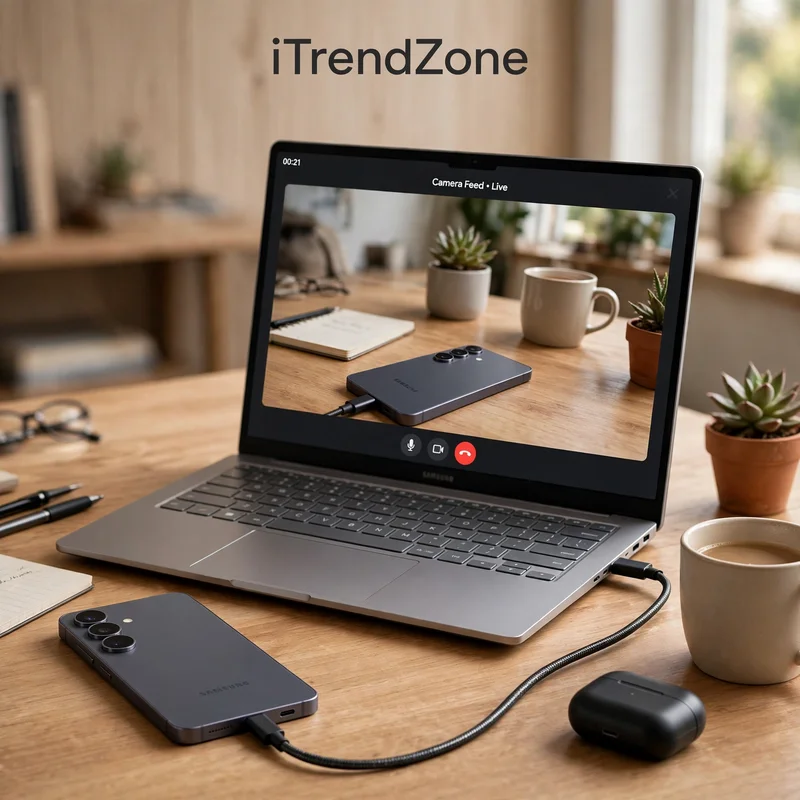
Still, this is the trick I wish Samsung had advertised. In fact, with One UI 8.5, you can use your Galaxy S26 as a webcam for a Windows PC or Mac, with no extra app and no companion software — just a USB-C cable. First, connect the phone to your computer, tap the Tap for other USB options prompt in the notification shade, and choose Webcam. Next, open your video-call app on the computer and select your Galaxy phone as the camera source.
Samsung Galaxy S26 hidden features: the USB webcam limits
Next, from that preview you can switch between front and rear cameras, with 0.6x, 1x and 2x zoom on the rear. However, one limit to know before an important call: the reported resolution limits are up to 1080p at 60fps on Windows and 720p at 30fps on macOS, with an HD toggle that can heat the phone — I flag those figures as reported in hands-on coverage found in search, not confirmed on a Samsung spec page in this research. Also, if the connection fails, the not working fix guide lists the restart, cache-clear and update steps in order. Finally, with Modes and Routines (Settings > Modes and Routines), I have a bedtime routine that silences notifications and dims the screen. In the end, Samsung Galaxy S26 hidden features that turn the phone into a tool, like the USB webcam trick, are the ones I keep coming back to on work calls.
9. The Five-Minute Setup: Turn These On First
In short, if you do nothing else in this guide, do these five, in this order. First, Call Captions, in the Phone app. Second, Private Album, by moving one photo into it so you know the path works. Third, Now Nudge, in Settings > Galaxy AI, and trim Personal Data Intelligence while you are there. Fourth, Privacy Display conditions, if you have the Ultra — Settings > Display > Privacy display, and choose banking apps and PIN entry. Fifth, Quick Panel, by moving Audio Eraser and Privacy Display to the first page. In the end, both are the kind of feature you will not use every day, but when you need them, they are the difference between a usable video and a bad one.
10. What I Could Not Verify, and What to Skip
In fact, not everything labelled a hidden feature in November 2026 deserves your time, and some of it may not exist yet in the form described. For example, AI notification summaries were reported before launch, in a leak covered by Android Central, as a One UI 8.5 feature using Samsung’s Gauss model to summarise notifications from the past 24 hours. In short, I have not verified that feature on a shipping S26 in this research.
11. FAQ
Do Samsung Galaxy S26 hidden features work on all three models?
Most of them do. Call Captions, Private Album, Now Nudge, Audio Eraser, Photo Assist, Circle to Search, Super Steady Horizontal Lock and the USB webcam trick work on the S26, S26+ and Ultra. Privacy Display is Ultra-only hardware.
Where is Private Album on the Galaxy S26?
Open the Gallery app, tap the three-line Menu icon, and tap Private Album, then enter your biometrics. To add photos, select them in the Gallery grid, tap the three-dot icon, and choose Move to private album.
How do I turn on Call Captions on the Galaxy S26?
Open the Phone app, tap the three-dot menu, tap Settings, tap Call Captions, and flip the toggle to On. English and Spanish are installed by default, with other languages available to download.
Can I use my Galaxy S26 as a webcam?
Yes, on One UI 8.5, with a USB-C cable to a Windows PC or Mac. Connect the phone, tap Tap for other USB options in the notification shade, choose Webcam, and select the phone as the camera in your video-call app. The phone provides video only — audio still comes from your computer.
Is Privacy Display on the Galaxy S26 and S26+?
No. Privacy Display is built into the S26 Ultra’s display only.
12. Quiz: Test Yourself
Q1. Where do you turn on Call Captions on the Galaxy S26?
a) Settings > Display > Call Captions
b) Phone app > three-dot menu > Settings > Call Captions
c) Settings > Galaxy AI > Call Captions
d) Gallery app > Menu > Call Captions
Q2. Which model has Privacy Display?
a) Galaxy S26
b) Galaxy S26+
c) Galaxy S26 Ultra
d) All three models
Q3. How do you move a photo to Private Album?
a) Gallery > select photo > three-dot icon > Move to private album
b) Settings > Security > Move to private album
c) Camera app > Settings > Private Album
d) Files app > select photo > Hide
Q4. Where do you find Audio Eraser for a YouTube video?
a) YouTube app > Settings > Audio Eraser
b) Settings > Sounds > Audio Eraser
c) Open the video, swipe down to Control Panel, tap Audio Eraser
d) Gallery app > Edit > Audio Eraser
Q5. How do you use the Galaxy S26 as a USB webcam?
a) Connect via Bluetooth and choose Webcam in Settings
b) Connect via USB-C, tap Tap for other USB options, choose Webcam
c) Open the Camera app and tap Webcam mode
d) Install a Samsung webcam app on your computer first
Answers: 1-b, 2-c, 3-a, 4-c, 5-b
13. References
- Samsung’s official Galaxy S26 and S26+ page — Now Nudge, Photo Assist, Horizontal Lock, battery
- Samsung’s official Galaxy S26 Ultra page — Privacy Display, camera, battery, One UI 8.5
- Android Authority’s Galaxy S26 tips — Call Captions, Private Album, Now Nudge, Photo Assist, Privacy Display, Audio Eraser
- Engadget’s three-way S26 comparison — prices, specs, cameras
- Tom’s Guide on the Galaxy S26 Ultra launch — Privacy Display, Galaxy AI, prices, battery
- Samsung Galaxy S26 tips complete guide — pillar guide
- iTrendZone’s best Android phones for camera quality in 2026 — S26 Ultra camera ranking