
Samsung Galaxy S26 Galaxy AI features are the main reason this phone feels different from the S25, and also the main reason it can feel noisy. I spent week one turning things on, and week two turning half of them back off. The phone did not get dumber — it got quieter, and what was left actually got used.
TL;DR: Samsung Galaxy S26 Galaxy AI features worth keeping are Now Nudge, multi-object Circle to Search, Photo Assist, Call Screening, Live Translate and the real-time Audio Eraser. Trim Now Brief’s sources first. Bixby, Gemini and Perplexity do not talk to each other, so pick one default. Basic features are free; several need a Samsung account.
The S26, S26+ and S26 Ultra all get the same Galaxy AI set. In fact, the $999.99 S26, $1,199.99 S26+ and $1,399.99 Ultra (Nov 2026; launch $899.99 / $1,099.99 / $1,299.99) all run Android 16 with One UI 8.5, use the Snapdragon 8 Elite Gen 5 for Galaxy in the US, and get seven years of updates. In short, the differences are hardware, not Galaxy AI. The complete S26 tips guide covers the model trade-off, and the setup guide covers first-hour settings.
1. What Galaxy AI Is on the S26 — and What Is Actually New
Galaxy AI is not one app. It is a label for features scattered across the Phone, Gallery, Notes, Keyboard, Browser and Recorder apps. Most live under Settings > Galaxy AI — open that first, because the list there reflects your model, region and software version, not a launch slide. Samsung Galaxy S26 Galaxy AI features are easy to overlook because they are scattered across so many apps.
Four things are genuinely new on the S26, per Samsung: Now Nudge, an upgraded Photo Assist, Creative Studio, and Call Screening, plus a real-time Audio Eraser for third-party apps. By contrast, the rest — Live Translate, Interpreter, Note Assist, Writing Assist, Transcript Assist, Circle to Search — existed before; One UI 8.5 makes them more proactive. Naturally, several need a Samsung account, and availability varies by region and language.
2. Galaxy AI in November 2026: Language Support at a Glance
Samsung does not use one language list for everything, and the numbers moved during 2026. In practice, this table uses Samsung’s July 2026 figures, updated by its October 14, 2026 announcement.
| Galaxy AI feature group | Languages supported, Nov 2026 | What that means in practice |
|---|---|---|
| Photo Assist, Creative Studio, Writing Assist | 41 | Widest language support |
| Call Assist, Note Assist, Interpreter, Transcript Assist | 24 | Up from 22 in October 2026 |
| Now Brief (recalled data) | 13 | Briefings from messages |
| Now Nudge | 16 in Samsung’s July 2026 FAQ; later reports say 24 — unconfirmed | On-screen suggestions; check your phone |
| Call Screening | 13 | Fewer than Live Translate |
Sources: Samsung’s Galaxy AI overview (July 2026) and October 14, 2026 announcement.
3. Now Brief and Now Nudge: the Proactive Pair
Now Brief: a morning summary that needs pruning
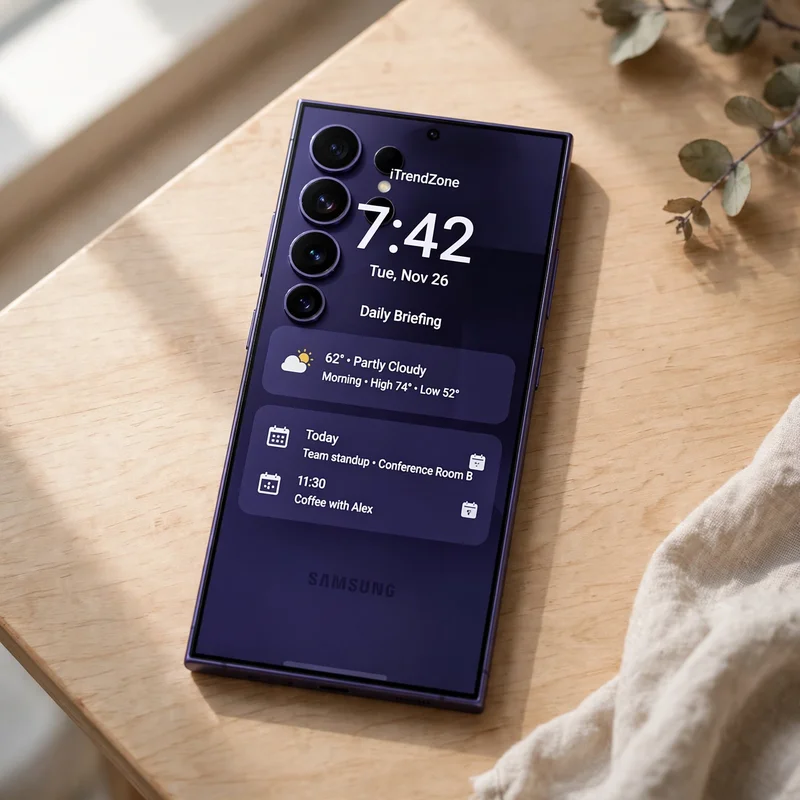
Now Brief surfaces your schedule, reminders, reservations and travel updates. In fact, on the S26 it picks up details from your messages and notification history, including ones you never added to your calendar. At first, it told me things I already knew, in too many words. After that, I fixed it by trimming its sources — Settings > Galaxy AI > Now Brief — keeping calendar, reminders and travel. Overall, keep it if you like a morning summary; turn it off if you live in your calendar app.
Now Nudge: the best new Galaxy AI feature, with a catch
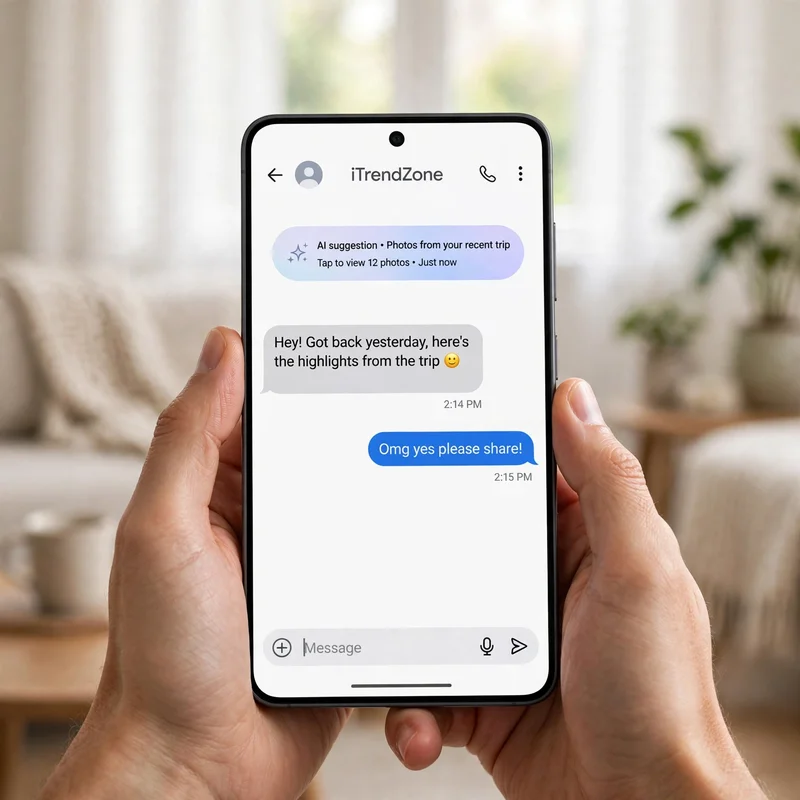
Now Nudge is the new one, and the feature I actually use. In practice, it watches what is on your screen and suggests the next step: a friend asks for trip photos and it suggests them from the Gallery; someone mentions a time and it offers the Calendar. However, it requires a Samsung account, works in supported apps only, and Samsung says accuracy is not guaranteed. In other words, it needs to read on-screen context — the more it sees, the more useful it is. Finally, turn it off at Settings > Galaxy AI > Now Nudge if that bothers you. Of all the Samsung Galaxy S26 Galaxy AI features, Now Nudge is the one I would miss most if it disappeared.
4. Pick Your Agent: Bixby, Gemini or Perplexity
Most phones give you one assistant. In contrast, Samsung gives you three — Bixby, Google Gemini and Perplexity — selectable in Settings, one assignable to the side button. Importantly, they do not talk to each other.
Bixby: the device controller, rebuilt
The rebuilt Bixby is a conversational device agent: ask it to change a setting in plain language and it navigates there for you. In fact, Perplexity’s Sonar API powers its web searches. In short, use Bixby when the job is the phone itself, not for a researched answer.
Gemini: the one that does things in other apps
Gemini is Google’s agent, and the one with the agentic trick: ask it to book a ride home or reorder your last meal, and it carries out the multi-step task in the background, in a virtual window, while you keep using the phone. Initially, it was a beta, only for US and Korea users, and only for select food, grocery and rideshare apps — DoorDash and Grubhub were named. In practice, I use Gemini most days.
Perplexity: the research agent, with two flags
Perplexity gives straight, sourced answers — better than Gemini for research rather than tasks. In addition, Samsung baked its Sonar API into the system, so it works with native apps like Notes, Calendar, Gallery, Clock and Reminders, and powers Bixby’s searches. Finally, summon it with “Hey, Plex” or the side button.
Two flags. First, Perplexity is not preloaded on every unit — some owners had to download it from the Galaxy Store. Second, “Hey, Plex” was reported as rescinded or changed after launch; I could not verify a final wake phrase from Samsung as of November 2026. In fact, a free year of Perplexity Pro was widely reported, but unconfirmed on Samsung’s newsroom announcement. In short, my setup is Gemini on the side button, Bixby for settings, and Perplexity for sourced answers.
5. Circle to Search: Now Multi-Object, and Still the Fastest Way to Search
Circle to Search is the Galaxy AI feature I use most often, and the S26 upgrade is real. Next, long-press the home bar or navigation handle, circle what you want, and Google searches it without you leaving the app. In fact, on the S26 it recognises multiple objects in one image at once — circle an outfit and it identifies the jacket, shoes and the rest of the look. Samsung Galaxy S26 Galaxy AI features like Circle to Search are the reason I rarely open a search app now.
Samsung Galaxy S26 Galaxy AI features: Circle to Search in practice
I use it for plants, a café lamp, shoes on the street. However, it once told me a chair was a dog bed, so I treat its first result as a suggestion, not a fact. In practice, it works across apps, including Camera, and is on by default. If it fails, check Settings > Display > Navigation bar > Circle to Search, and make sure “Analyse on-screen images” is on under Settings > Apps > Choose default apps. Finally, it needs an internet connection and does not work in apps that block screen capture.

6. Photo Assist and Creative Studio: the Camera’s AI Brain
Photo Assist is where Galaxy AI earns its keep, overhauled on the S26 from object removal into four tools: AI Eraser, Move, Create and Style. In addition, the full camera tips guide covers Pro mode, RAW and Nightography. Samsung Galaxy S26 Galaxy AI features turn the Gallery into an editing desk.
Photo Assist: describe the edit in words
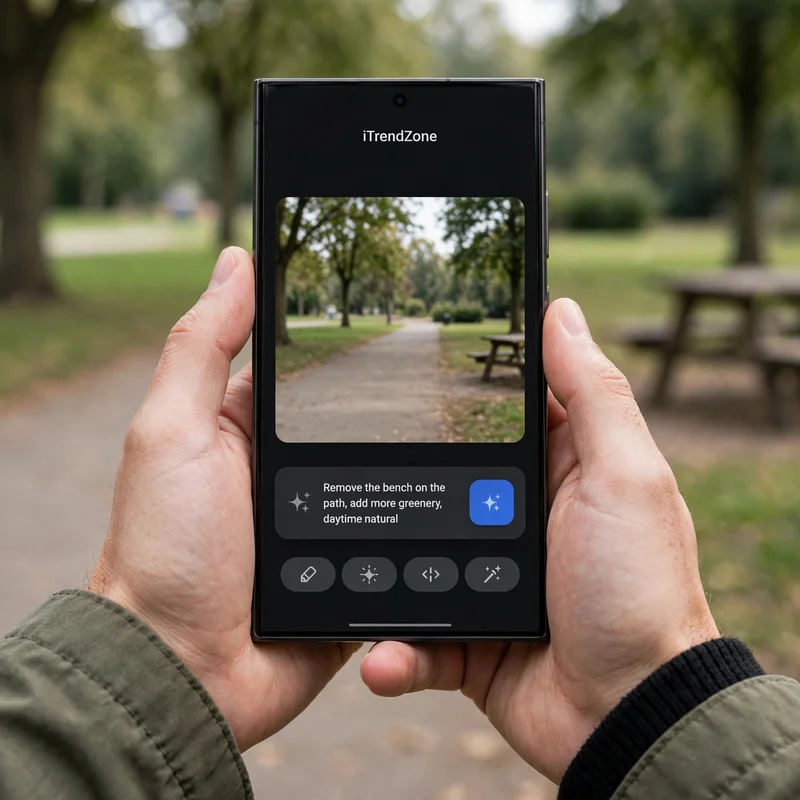
Open a photo in the Gallery, tap the Galaxy AI button, and describe the change in plain words — “remove the bin in the corner,” “make it look like evening.” For example, Samsung says you can add objects, restore missing elements, and clean up a stain. In addition, edits can be reviewed step by step and undone.
Always save a copy, not over the original, and check the result at full zoom before sharing. In practice, generative fill is good at backgrounds and bad at hands and faces. For instance, if the edit touches a person, zoom in; if it touches a wall, trust it.
Creative Studio: stickers, wallpapers and invitations
Creative Studio is the playful side of the same engine, a standalone space rather than a Gallery submenu. For example, from a sketch, photo or text prompt it generates stickers, greeting cards, invitations and wallpapers. In fact, I made a sticker set from a rough sketch in about a minute. Finally, it supports the same 41 languages.
7. Calls and Language: Live Translate, Interpreter, Call Screening and Call Captions
Live Translate translates phone calls in real time, in both directions, inside the Phone app. By contrast, Interpreter is the face-to-face version: a split-screen mode, with translation in your ear via Galaxy Buds.
Live Translate and Interpreter
Live Translate is part of Call Assist and now covers 24 languages after the October 2026 update. For example, I used Interpreter in a restaurant abroad and it worked well enough to order food and ask about allergens. However, it is not perfect, but it beats pointing at a menu. In addition, both may need a language pack, a Samsung account and a network connection. Finally, check the list before you travel. Samsung Galaxy S26 Galaxy AI features make the Phone app more useful abroad than any phrasebook.
Call Screening: let the phone answer first
Call Screening is new on the S26, and the call feature I would turn on first. In practice, when an unknown number calls, the AI assistant answers, asks who is calling and why, and shows the conversation on screen in real time, with a text preview and a recording to review later. After that, you decide whether to pick up; for spam, it can end the call. Next, find it at Settings > Galaxy AI > Call assist > Call screening. Overall, it supports 13 languages.
I turned it on for unknown numbers only — screening everyone means screening your dentist and the delivery driver too. However, one caution: a legitimate caller can be confused by an AI voice and hang up.
Call Captions: the quiet hero
Call Captions is not new, but it is the feature I mention to everyone. Next, open the Phone app, tap the three dots, Settings, Call Captions, and turn it on. In practice, it transcribes the other person live, so you can catch a phone number without asking them to repeat it three times. In short, it is useful on noisy calls. Finally, the security and privacy guide has more on stored call data.
8. Notes, Writing and Transcripts: the Productivity Set
Note Assist, Writing Assist, Chat Assist, Transcript Assist and Document Scan are the quiet productivity tools. For example, in Samsung Notes, tap the Galaxy AI icon to summarise a long note, format it, translate it, or correct spelling and grammar. Similarly, Writing Assist does the same across the phone: select text to proofread, reformat, change tone or summarise it. In addition, Chat Assist does tone and translation inside messages.
Transcript Assist is the one I use for meetings and lectures: record in Voice Recorder, and it converts audio into text, then lets you summarise or translate it with a tap. In fact, speaker labels help. Finally, Document Scan, in the Camera or Notes, cleans up scans and can combine images into a single PDF.
In short, Note Assist, Interpreter, Transcript Assist and Live Translate share the 24-language group; Writing Assist supports 41.
For voice input, use Live Translate and Interpreter in Section 7 — both Samsung Galaxy AI features on One UI 8.5. In addition, Transcript Assist in Voice Recorder turns speech into searchable text. However, Samsung’s own voice-input cleanup appeared only in leaked One UI 9.5 code and beta reports in November 2026, with no official release date.
9. Audio Eraser: Now Live, in YouTube and Netflix
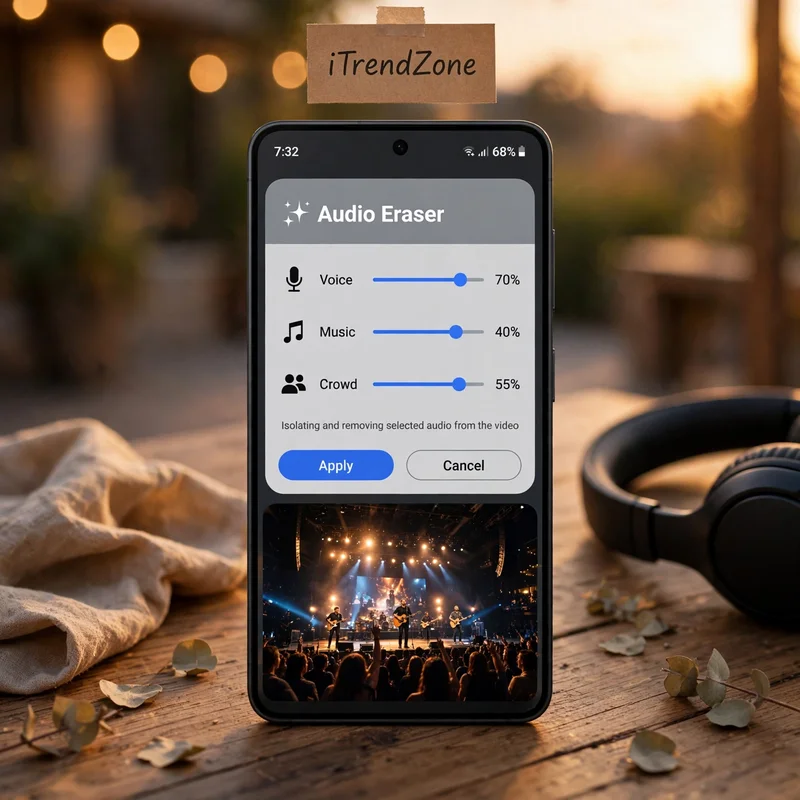
Audio Eraser used to work only on videos you had recorded yourself. In contrast, on the S26 it works in real time while you watch videos in supported third-party apps, including YouTube, Netflix and Instagram: an AI sound engine separates sound into six layers — voice, music, wind, nature, crowd and other noises — and lets you mix them live. Next, in the Quick Panel, tap Audio Eraser while a video is playing, adjust Strength, and enable Voice Focus. Samsung Galaxy S26 Galaxy AI features like Audio Eraser show what the faster NPU is actually for.
Samsung Galaxy S26 Galaxy AI features: Audio Eraser in streaming apps
My test was a concert video on YouTube, crowd noise drowning the singer. For example, keeping Music and Voice and lowering Crowd made the song listenable. However, push Strength too far and voices go thin and robotic. Finally, the battery tips guide is worth a look for long streaming, and the performance tips guide explains why the Snapdragon 8 Elite Gen 5’s faster NPU matters here.
10. Privacy, Cost and Control: What Galaxy AI Does With Your Data
Samsung’s privacy story rests on three pieces: the Personal Data Engine, KEEP and Knox Vault. In fact, the Personal Data Engine processes your personal data on the device, then encrypts it and stores it in Knox Vault, a hardware-based secure store. In addition, KEEP encrypts each app’s data. Finally, Samsung says Galaxy AI data is not stored long term or used for training.
Samsung Galaxy S26 Galaxy AI features: the privacy controls
First, in Settings > Galaxy AI, turn on “Process data only on device” to stop all cloud processing: on-device features like translation keep working; cloud features like Generative Edit stop until you switch it off. Second, Personal Data Intelligence is the other control — turn it off, and Samsung says the analysed data is deleted.
Basic Galaxy AI features are free, per Samsung; future enhanced features may be paid. However, a paid Galaxy AI Premium tier was reported in testing in November 2026, but Samsung had not launched it.
| Feature | My setting after a month | Why |
|---|---|---|
| Now Nudge | On | Best new feature |
| Now Brief | On, trimmed sources | Useful once trimmed |
| Circle to Search | On | Fastest search on the phone |
| Photo Assist | On | Best photo tool; save a copy |
| Call Screening | On, unknown numbers only | Cuts spam |
| Call Captions | On | No downside I found |
| Live Translate / Interpreter | On | Essential for travel |
| Audio Eraser | On | Live mixing in streaming apps |
| Notification Highlights | On, noisy groups only | Summaries for noisy groups |
| Process data only on device | Off, but I know where it is | I use cloud features |
Chart 1: My keep / turn-off list after a month on the S26 Ultra. Source: hands-on testing, November 2026.
If you only change one thing, make it the audit. Next, open Settings > Galaxy AI and ask of each feature: did I use this in the last week, and do I understand what it reads? Similarly, the customization tips guide and hidden features guide touch on the same habit, and the not working fix guide is where to go if one stops responding.
11. The Verdict: Galaxy AI Is Worth It, Once You Curate It
Galaxy AI is not a reason to buy the phone on its own. In fact, it is a reason to keep it, once set up properly — the difference is about twenty minutes in Settings. In short, my shortlist is to keep Now Nudge, Circle to Search, Photo Assist, Call Screening, Call Captions and Audio Eraser. Next, trim Now Brief. Then, pick one agent as your default. Above all, check the language list for the feature you need — 41 languages in one place does not mean 41 everywhere. Finally, for camera AI, our best Android phones for camera quality in 2026 shows where the Ultra ranks, and our best Android phones for business and productivity covers Note Assist and Transcript Assist at work.
12. FAQ
Is Galaxy AI free on the Galaxy S26?
Basic Galaxy AI features provided by Samsung are free, per Samsung. However, future enhanced features may be paid. In fact, a paid Premium tier was reported as being tested in November 2026, but not launched.
Do all three S26 models get the same Galaxy AI features?
Yes. In fact, all three run One UI 8.5 and get the same Galaxy AI set, including Now Nudge, Photo Assist, Creative Studio and Call Screening. In short, the differences are hardware, not Galaxy AI.
Which AI agent should I choose: Bixby, Gemini or Perplexity?
Use Bixby for device settings, Gemini for multi-step tasks, and Perplexity for sourced answers. Finally, pick one as your side-button default.
Does Galaxy AI work offline?
Some of it does. For example, on-device features like Live Translate keep working with “Process data only on device” on. In contrast, cloud features like Generative Edit stop without a connection.
How do I turn off Galaxy AI features I do not want?
Go to Settings > Galaxy AI and turn off individual features. Next, to stop all cloud processing, turn on “Process data only on device”. Finally, to stop Now Brief and Now Nudge using your personal context, turn off Personal Data Intelligence.
13. Quiz: Test Yourself
Q1. Which Galaxy AI feature suggests the next step based on what is on your screen?
a) Now Brief
b) Now Nudge
c) Circle to Search
d) Audio Eraser
Q2. How many languages did Call Assist, Note Assist, Interpreter and Transcript Assist support after the October 2026 update?
a) 13
b) 16
c) 22
d) 24
Q3. Which agent is Samsung’s conversational device agent for changing settings in plain language?
a) Gemini
b) Perplexity
c) Bixby
d) Google Assistant
Q4. Where do you turn on real-time Audio Eraser while watching a video in YouTube or Netflix?
a) Settings > Sound
b) The Quick Panel
c) Settings > Galaxy AI > Audio Eraser
d) The Gallery app
Q5. What does turning on “Process data only on device” do?
a) It deletes all your photos
b) It stops all cloud processing for Galaxy AI
c) It turns off the internet
d) It signs you out of your Samsung account
Answers: 1-b, 2-d, 3-c, 4-b, 5-b
14. References
- Samsung’s Galaxy S26 series announcement
- Samsung’s Galaxy AI overview
- Samsung on the enhanced Audio Eraser
- Android Authority on the S26’s AI agents
- Engadget’s three-way S26 comparison
- Tom’s Guide on the Galaxy S26 Ultra launch
- iTrendZone’s complete S26 tips guide
- iTrendZone’s best Android phones for camera quality in 2026
- iTrendZone’s best Android phones for business and productivity