
Samsung Galaxy S26 security privacy tips sound dull until you leave your phone on a café table and realise how much of your life is in it: banking apps, photos, work email. For example, I spent my first week with the S26 Ultra treating security like a chore, and changed my mind. In fact, most of the protection is already built in — the trick is switching on the parts Samsung leaves off by default.
TL;DR: First, Samsung Galaxy S26 security privacy tips start with the lock screen: a six-digit PIN, fingerprint and face unlock, and hidden lock-screen notifications. Next, turn on Auto Blocker, audit permissions, set up Secure Folder, and switch on Samsung Find. Then, on the Ultra, Privacy Display hides your screen from side angles and can switch on automatically for banking apps and PIN entry. Finally, the range gets seven years of OS and security updates, so install the monthly patch when it arrives.
Overall, the S26 range — the $999.99 S26, the $1,199.99 S26+ and the $1,399.99 Ultra, all 256GB as of Nov 2026 (launch $899.99 / $1,099.99 / $1,299.99) — runs Android 16 with One UI 8.5, and in the US all three use the Snapdragon 8 Elite Gen 5 for Galaxy (some regions get the Exynos 2600 instead). In fact, what matters more than the chip is the update promise: seven OS generations and seven years of security updates. Finally, the full Samsung Galaxy S26 tips complete guide covers the rest of the phone.
1. Start With the Lock Screen
First, if your lock is a four-digit PIN your friends could guess, fix that first — it takes two minutes, and it is the one setting a thief actually meets.
Pick a PIN you can live with, then add biometrics
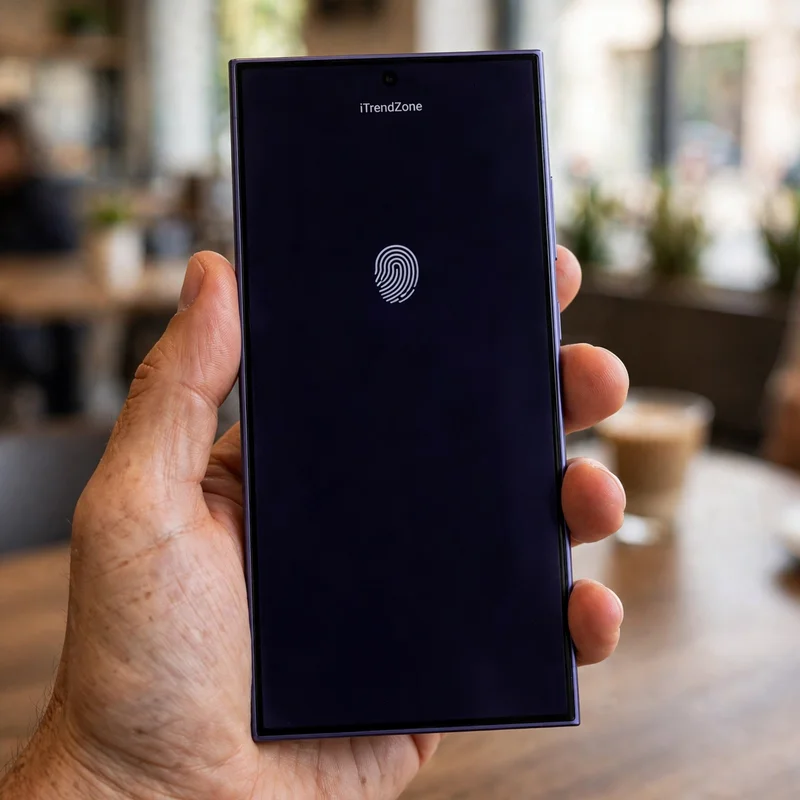
First, go to Settings > Security and privacy > Screen lock, and set a PIN of at least six digits — not your birth year, not 123456. In fact, six digits is my sweet spot: awkward to guess, easy to type fifty times a day. Next, register two fingerprints: your main thumb, plus the index finger of your other hand. Finally, face unlock is a backup, not your only lock.
Hide what the lock screen gives away
First, your lock screen is a shop window: by default it shows the first line of messages, bank alerts and two-factor codes. Next, I turned that off on day one: Settings > Lock screen and notifications, and hide sensitive content. Also, block the Quick Panel from switching off Wi-Fi, Bluetooth or mobile data without unlocking — a thief’s first move is often to kill the connection. Finally, set the screen to lock immediately when you press the Side button. Overall, these Samsung Galaxy S26 security privacy tips start at the lock screen, because the lock is the one setting a thief actually meets.
2. Knox, Knox Vault and KEEP
First, Knox is the part of Samsung security nobody photographs, because there is nothing to see. Next, it is built into the phone from the chip up: secure boot checks the software at startup, and real-time monitoring watches for suspicious activity. In fact, Knox works from the first boot — just do not undermine it by rooting.
Also, Knox Vault is the concrete piece: a physically separate part of the phone with its own processor and storage. For example, your PINs, passwords, biometric data and encryption keys live there, verified on-device. Still, KEEP — Knox Enhanced Encrypted Protection — adds encrypted, app-specific storage, so each app can access only its own information; Samsung built it to protect the Personal Data Engine behind Galaxy AI features like Now Brief. For the detail, see Samsung’s own announcement of its mobile security updates for One UI 8. However, one caveat: Samsung notes KEEP requires a valid Samsung Knox account.
3. Privacy Display on the Ultra
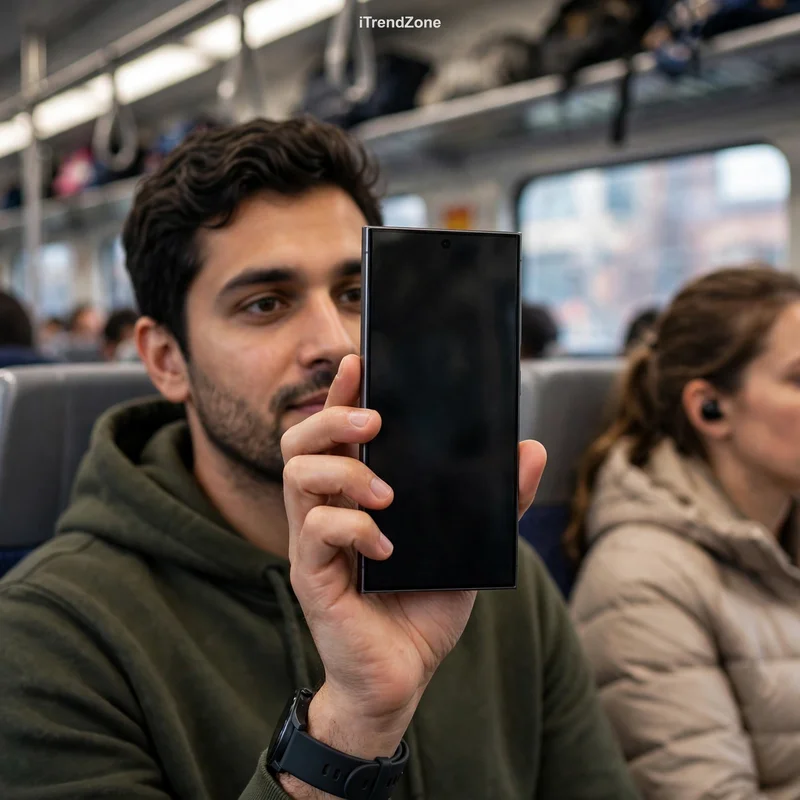
First, Privacy Display is the only S26 security feature you can demonstrate to a stranger in five seconds, and it is Ultra-only. Next, it is hardware, built into the 6.9-inch display: narrow pixels emit light straight ahead, wide pixels spread it to the sides. Then, turn it on and the wide pixels dim to almost nothing, so the screen stays clear head-on and turns murky from a side angle. For example, see Android Authority’s deep dive into Privacy Display for the pixel-level mechanics.
Next, switch it on from the Quick Panel, or with a double-press of the Side button. In fact, the clever part is the conditions, under Settings > Display > Privacy Display: activate it for specific apps, for PIN, pattern and password entry, or for notification pop-ups only. Still, Maximum Privacy Protection pushes the effect further, but colours wash out and independent testing puts the brightness cost at roughly half the peak output. Finally, if you own the S26 or S26+, no software update will add it: it needs the Ultra’s display hardware. In short, these Samsung Galaxy S26 security privacy tips treat Privacy Display as a habit, not a party trick.
4. Permissions: the Audit That Takes Ten Minutes
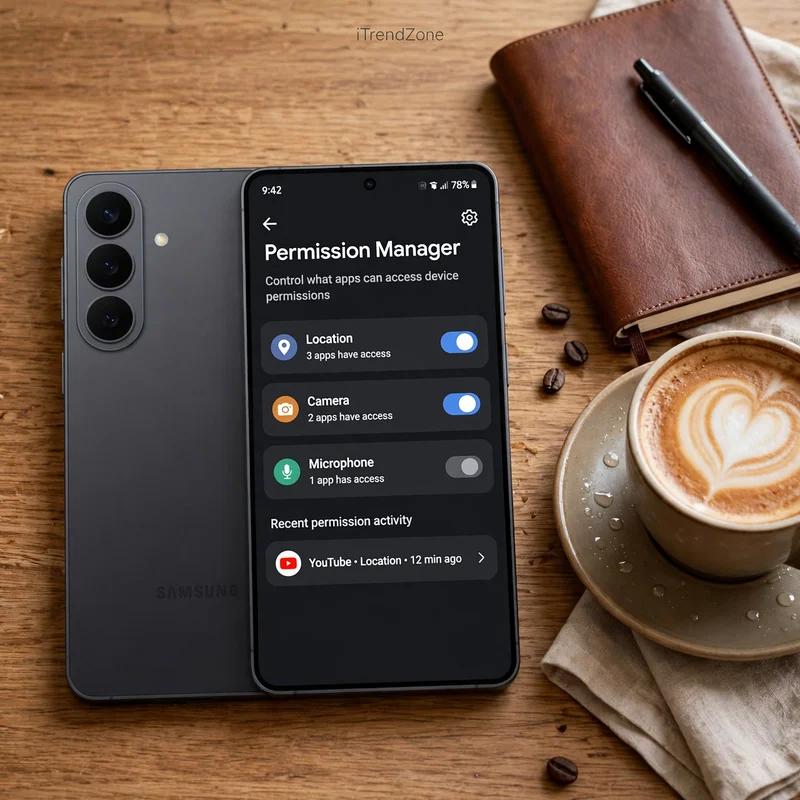
First, if the lock screen is the front door, app permissions are the windows you left open. Next, most apps ask for more access than they need, and most of us grant it while thinking about something else. Finally, the S26 gives you a proper audit tool, and it is worth ten unglamorous minutes.
Walk Permission Manager
First, start at Settings > Security and privacy > Privacy > Permission manager, with location, camera and microphone first. Next, for each app, ask: all the time, only while using it, or never? For example, maps needs location while in use. Still, weather does not need it in the background. Also, a game does not need your microphone. Finally, a torch app does not need your contacts.
Samsung Galaxy S26 security privacy tips: what the Privacy Dashboard shows
Next, the Privacy Dashboard, in the same menu, shows which apps accessed location, camera and microphone recently. In fact, I check it once a month. Also, watch the small indicator at the top of the screen when an app uses your camera, microphone or location — if it appears while you are not recording or on a call, check the Quick Panel.
5. Secure Folder vs Private Album
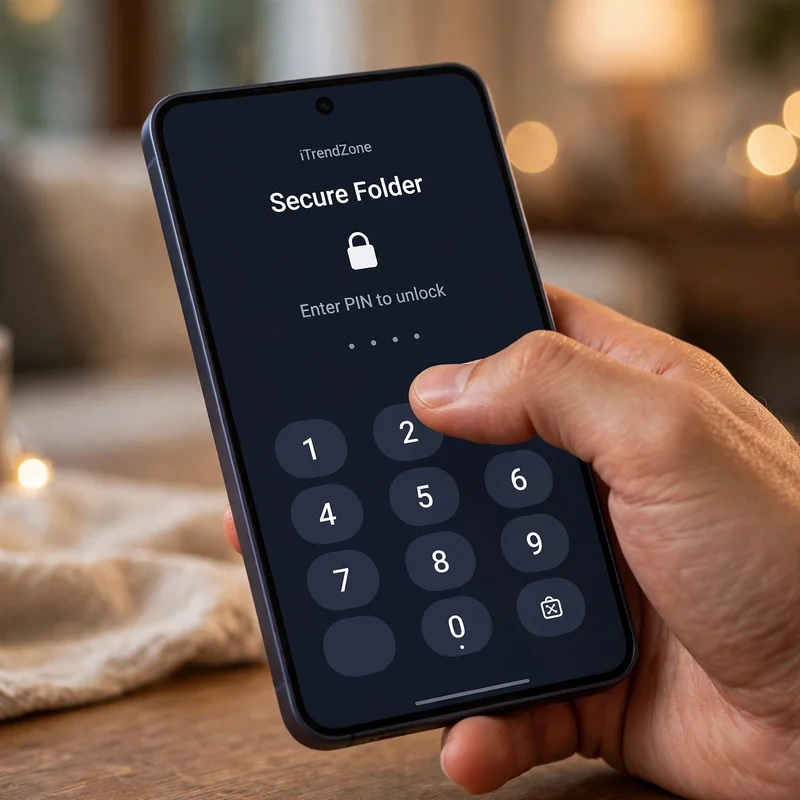
First, Samsung gives you two places to hide things, and people constantly pick the wrong one. Next, Secure Folder is a separate, encrypted space, protected by its own PIN, password or fingerprint. Then, set it up at Settings > Security and privacy > More security settings > Secure Folder, with a lock different from your main screen lock. Still, if the two locks match, the folder is no safer than the phone. Finally, put banking apps, work documents and ID photos in there.
Next, Private Album is the lighter option, built into Gallery with One UI 8.5. First, open Gallery > Menu > Private album, then move photos into it. In fact, it unlocks with your fingerprint or phone screen lock, and Samsung blocks screenshots inside it — but anyone who knows your phone PIN can open it. Overall, use it for photos you do not want in the main gallery, not for things needing real isolation. Finally, our camera tips guide covers the Gallery side.
6. Auto Blocker and App Safety
First, most Android malware walks in through the front door — an app from outside the official store, or a link in a message. Next, Auto Blocker is Samsung’s answer, and it is off by default.
Turn Auto Blocker on
First, Settings > Security and privacy > Auto Blocker — toggle it on. Next, once on, it blocks app installs from unauthorised sources, harmful USB commands, and malicious images in messages. In fact, Maximum Restrictions, in the same menu, goes further: it blocks device admin apps, stops attachments auto-downloading, blocks link previews in messages, and strips location data from shared photos. Still, it adds small friction — links stop previewing, attachments need a manual tap — but I barely notice it after the first week. Finally, if you sideload apps regularly, standard Auto Blocker may be enough. Overall, these Samsung Galaxy S26 security privacy tips start with Auto Blocker switched on.
The app-install rules I actually follow
First, Auto Blocker handles the system side. Next, the human side: only install apps from the Play Store or Galaxy Store. In fact, be suspicious of any app that asks for accessibility access, device admin rights, or permission to draw over other apps. For example, those three let an app watch your screen, click things for you, or stop you uninstalling it. Finally, if an app starts behaving strangely, uninstall it, then check the not working fix guide.
7. If the Phone Is Lost or Stolen
First, this section takes five minutes — do it before any other in this guide.
Samsung Find and Identity Check
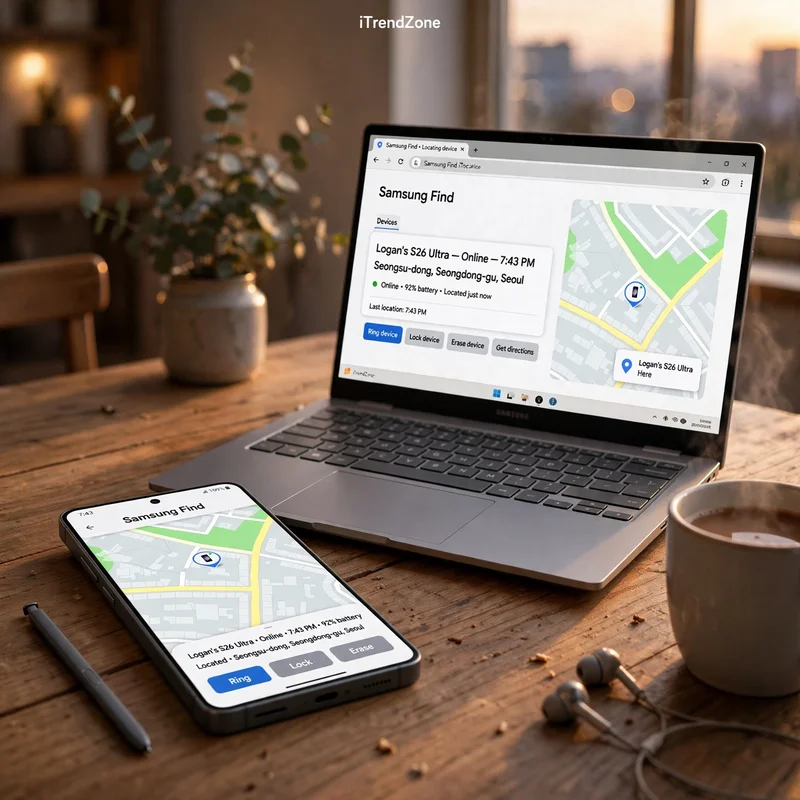
First, start in Settings > Security and privacy > Lost device protection. Next, turn on “Allow this phone to be found”, “Send last location” and “Offline finding”. In fact, offline finding lets nearby Galaxy devices relay your phone’s location even with no connection. Then, if the phone goes missing, sign in at Samsung Find from another device to locate, ring, lock or erase it. Also, switch on Theft Detection Lock, which locks the screen if it detects a snatching motion. Finally, look for Identity Check. For example, outside your safe places — home, work — it requires biometrics for sensitive changes, and some changes face a security delay of about an hour. Still, menu names have varied between One UI versions and regions, so if a path above does not match your phone, search Settings for “theft protection” or “Identity Check”.
Samsung Galaxy S26 security privacy tips: Lockdown mode
Next, Lockdown mode is worth three seconds to learn: hold the Side button and Volume Down together, choose Lockdown, and only your PIN or password will open the phone next time.
8. Accounts, Passwords and Samsung Pass
First, perfect on-device security with a weak account password is a locked house with the key under the mat. Next, your Samsung and Google accounts matter most, because they control Find, backups, purchases and password recovery. Then, turn on two-factor authentication for both, with an authenticator app rather than SMS — SMS codes can be intercepted. In fact, use a different, strong password for each account, stored in a password manager — not in a notes app or a Gallery screenshot. Also, Samsung Pass can autofill passwords behind your biometrics if you do not use a separate manager — just do not reuse one password everywhere.
Still, while you are there, remove devices you no longer own — I always find one I had forgotten. Finally, for work use, our best Android phones for business and productivity covers Knox in more depth. Overall, these Samsung Galaxy S26 security privacy tips start with the accounts, because the phone is only as safe as the accounts behind it.
9. Networks, Wi-Fi and Bluetooth
First, public Wi-Fi is the most overrated risk in phone security. Next, the real danger is joining a network called “Free_Airport_WiFi” that is not the airport’s at all, then signing into your bank. In fact, never bank or enter passwords on a network you do not trust, turn off auto-join for open networks, and forget one-off holiday networks.
Samsung Galaxy S26 security privacy tips: Secure Wi-Fi on untrusted networks
Also, Samsung’s Secure Wi-Fi adds an encrypted tunnel on untrusted networks. Finally, turn Bluetooth off when you are not using it, and be wary of pairing requests from devices you do not recognise.
10. Galaxy AI and Your Data
First, Galaxy AI is the reason many people bought the S26, and the feature most likely to worry privacy-conscious owners, because Now Brief and Now Nudge read your calendar, messages and routines. Next, the reassuring part: the Personal Data Engine behind them runs on-device, protected by KEEP and Knox Vault, and Samsung says those insights stay on the phone. However, “on-device” does not mean “no settings to check.” Then, open Settings > Galaxy AI and look at what each feature can see. For example, Now Brief lets you trim its sources; I cut it to calendar, weather and reminders, and it got shorter and more useful. Finally, the Galaxy AI features guide has the detail. In short, these Samsung Galaxy S26 security privacy tips ask you to check what Galaxy AI can see, then trim it.
11. The Monthly Patch
First, install the security patch. Next, the S26 range gets monthly updates for five years and quarterly updates for the last two, running to 2033. In fact, patches close real holes, and only protect you if installed. Then, Settings > Software update > Download and install, with auto-download over Wi-Fi switched on. Also, the November 2026 patch shows why the habit matters. For example, it rolled out to the S26 series first in mid-November 2026, as a security-only release with no new features. Still, the count is disputed: Samsung’s bulletin was reported as roughly 179 fixes, other coverage put it above 200, and a One UI 9.0 listing cited 223. Finally, those numbers describe different builds, so no single one is definitive — but every report agrees the patch was large and arrived first on the S26 range. In short, install it.
| Item | What happened | When | Source |
|---|---|---|---|
| November 2026 security patch | Rolled out to the S26 series first (US builds BZK4); security-only | Mid-Nov 2026 | Droid Life, 16 Nov 2026; Samsung bulletin, 3 Nov 2026 |
| Vulnerabilities closed | ~179 fixes (155 Android + 24 Samsung) per Samsung’s bulletin; other coverage reported 200+; a One UI 9.0 listing cited 223 | Nov 2026 | Samsung bulletin via SamMobile; Droid Life; SamFW |
| One UI 9.5 beta | Android 17-based beta reported late Nov 2026; not stable — beta features are not on your phone yet | Late Nov 2026 | Beta coverage, Nov 2026 |
Caption: Recent-data table, November 2026. Patch counts conflict because they describe different builds; the safe reading is “a large monthly patch, S26 first.”
12. Which Security Features Live on Which Model
First, not every S26 is equally private, and the difference is almost entirely the display. Next, everything else here is shared across the range.
| Feature | Galaxy S26 ($999.99) | Galaxy S26+ ($1,199.99) | Galaxy S26 Ultra ($1,399.99) |
|---|---|---|---|
| Knox / Knox Vault / KEEP | Yes | Yes | Yes |
| Auto Blocker | Yes | Yes | Yes |
| Secure Folder / Private Album | Yes | Yes | Yes |
| Samsung Find and theft protection | Yes | Yes | Yes |
| Privacy Display | No — hardware exclusive | No — hardware exclusive | Yes |
| Maximum Privacy mode | No | No | Yes |
| Privacy Display auto-activation | No | No | Yes |
Caption: Chart: security features by S26 model, November 2026. The Ultra’s only exclusive security feature is Privacy Display; every other protection here works on the $999.99 base model (Nov 2026). Source: Samsung’s official Galaxy S26 Ultra page, Engadget’s three-way S26 comparison.
First, the S26+ battery is 4,900 mAh, confirmed by Samsung’s US FAQ; Engadget’s 4,300 mAh listing looks like a copy error. Next, the battery tips guide has the charging detail, and the performance tips guide explains why a clean phone runs faster. Finally, these Samsung Galaxy S26 security privacy tips work on every model — only Privacy Display stays Ultra-only.
13. The Five-Minute Monthly Routine
First, security that needs an afternoon will not happen. Next, security that needs five minutes, once a month, might — I do mine on the first Sunday of the month. Then, install any pending update. Also, check the Privacy Dashboard for what accessed location, camera and microphone. In fact, demote anything in Permission Manager that crept back up to “allow all the time.” Finally, check Samsung Find is still on. Overall, five checks, five minutes. Finally, the setup guide, customization tips guide and hidden features guide cover the rest.
14. FAQ
Is the Galaxy S26 secure out of the box?
Mostly — Knox, Knox Vault, secure boot and Google Play Protect are active from the first boot. But Auto Blocker is off by default, and theft protection needs you to switch on Samsung Find and Identity Check yourself.
Which Galaxy S26 has Privacy Display?
Only the Galaxy S26 Ultra. It is a hardware feature of the Ultra’s 6.9-inch display, not software Samsung can add to the S26 or S26+ later. If screen privacy matters daily, that alone may justify the Ultra’s $1,399.99 price (Nov 2026).
Is Secure Folder really safe if someone knows my PIN?
Secure Folder has its own lock, and it is only as strong as that lock is different. If your Secure Folder PIN matches your screen PIN, anyone who sees you unlock the phone can open the folder too. Use a different PIN.
Should I turn on Maximum Restrictions in Auto Blocker?
For most people, yes — it blocks device admin apps, stops attachments auto-downloading, blocks link previews and strips location data from shared photos. If you sideload apps regularly, run standard Auto Blocker instead.
How long will my Galaxy S26 get security updates?
Seven years from the global launch date: monthly patches for five years, then quarterly for the last two, through to 2033. That promise only helps if you install the updates.
15. Quiz: Test Yourself
Q1. Which feature is off by default and should be switched on first?
a) Knox Vault
b) Auto Blocker
c) Google Play Protect
d) Secure boot
Q2. Where do your fingerprint and face data live on the Galaxy S26?
a) In your Samsung account in the cloud
b) In the Gallery app
c) In Knox Vault, verified entirely on-device
d) In Google Play Protect
Q3. Which model is the only one with Privacy Display?
a) Galaxy S26
b) Galaxy S26+
c) Galaxy S26 Ultra
d) All three models
Q4. What does Maximum Restrictions in Auto Blocker do?
a) It makes the screen brighter
b) It blocks device admin apps and auto-downloading attachments
c) It deletes Secure Folder
d) It turns off all notifications
Q5. How long are security updates promised for the S26 range?
a) 3 years
b) 5 years
c) 7 years, monthly for the first five and quarterly for the last two
d) 4 years
Answers: 1-b, 2-c, 3-c, 4-b, 5-c
16. References
- Samsung’s official Galaxy S26 Ultra page — Privacy Display, Knox
- Samsung’s mobile security announcement for One UI 8 — KEEP, Knox Matrix, Secure Wi-Fi
- Engadget’s three-way S26 comparison — prices, specs, cameras
- Android Authority’s Privacy Display deep dive — Privacy Display mechanics
- Samsung’s Auto Blocker support page — Auto Blocker
- Samsung Galaxy S26 tips complete guide
- iTrendZone’s best Android phones for camera quality in 2026
- iTrendZone’s best Android phones for business and productivity