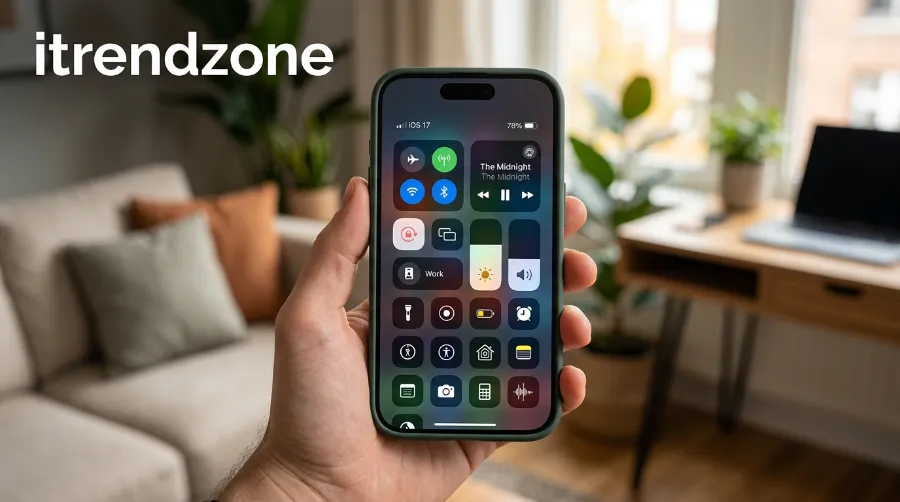

Most iPhone owners use maybe six or seven Control Center buttons out of the dozens Apple actually offers, and never touch the rest. If you’ve ever swiped down, hunted for the flashlight, and given up, that’s the problem this guide fixes. Learning how to customize iPhone Control Center properly turns that cluttered panel into a shortcut bar built around what you actually do all day, not what Apple assumed you’d want back in 2019.
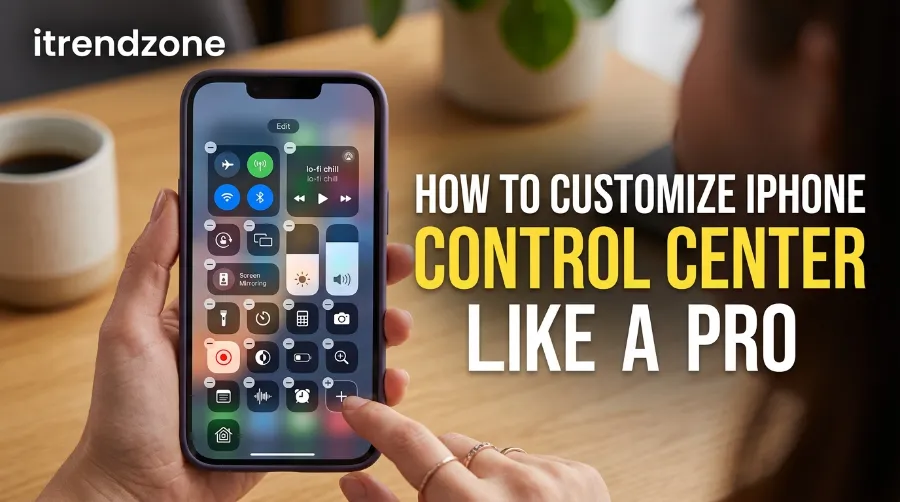
This isn’t a five-minute settings toggle. Done right, it changes how fast you get through routine tasks turning on the flashlight, starting a screen recording, flipping into Low Power Mode before a long commute. I’ve rebuilt my own Control Center layout more times than I’d like to admit while testing different phones and iOS versions, and the difference between a default layout and a personalized one is bigger than most people expect.
Key Takeaways
| What You’ll Learn | Why It Matters |
|---|---|
| How to add, remove, and reorder controls | Faster access to daily tools, fewer wasted swipes |
| Best controls to add for most people | Avoids trial-and-error guessing |
| How multi-page Control Center works in iOS 26/27 | Newer iPhones spread controls across pages, not one screen |
| How to restrict Control Center on the Lock Screen | Closes a common privacy gap |
| iPhone vs Android quick settings comparison | Useful if you’re switching platforms or managing both |
TL;DR
- Open Control Center, tap the + icon (or press and hold empty space), then tap Add a Control to build your own layout.
- Apple’s Control Center now spans multiple pages with resizable, circular buttons — so prioritize your top 6-8 controls on page one.
- Go to Settings > Control Center to control whether it’s accessible from the Lock Screen or inside other apps.
Why Bother Customizing Control Center at All
Apple ships every iPhone with a Control Center that’s supposed to work for a general audience. That means it includes things like Screen Mirroring and Apple TV Remote, which plenty of people never touch, while burying Screen Recording or Accessibility Shortcuts behind a second swipe or a search through Settings.
How to Set Up iPhone Notification Center the Smart Way
Control Center customization iOS matters most for two kinds of people: those who rely on one or two controls constantly (parents using Low Power Mode daily, remote workers toggling Focus modes between meetings) and those juggling accessibility needs, where quick access to Magnifier or Color Filters isn’t a nice-to-have. Apple’s own documentation confirms Control Center exists specifically to put frequently used controls within easy reach, which only works if the controls it shows are the ones you actually reach for. apple
How to Add Controls to iPhone Control Center
Here’s the process as it works on iOS 18 through the current iOS 26/27 release. The steps line up with Apple’s own support documentation, and I’ve walked through this same flow on a few different iPhone generations to confirm nothing’s changed in spirit, just in visual polish.
- Open Settings, then tap Control Center.
- Alternatively, swipe into Control Center directly and tap the + button in the top-left corner, or press and hold an empty part of the panel.
- Tap Add a Control.
- Scroll or search the list — everything from Notes to Home controls to third-party app shortcuts (if the app supports it) shows up here.
- Tap the control you want. It drops straight into your layout.
- Tap the red minus icon next to any control you don’t use, then confirm Remove.
- Use the three-line “handle” on the right of each control to drag and reorder, or to resize a control if it supports different sizes.
This matches how Cult of Mac’s most recent walkthrough describes the process — tapping the plus button or holding an empty part of the screen starts editing, then tapping Add a Control brings up new options. It’s a small UI, but once you know where the plus icon lives, you won’t forget it. Cult of Mac
Hidden iPhone Settings Guide: 20+ Features Most Users Never Find
Controls Worth Adding First
Not every control deserves a spot. Based on how people actually use their phones day to day, these tend to earn their place fastest:
- Screen Recording — buried by default but genuinely useful for tutorials, bug reports, or capturing a glitch to show support.
- Low Power Mode — a one-tap toggle beats digging through Battery settings when your phone hits 15%.
- Accessibility Shortcuts — even if you don’t need accessibility features personally, this gives instant access to Zoom, Magnifier, or Reduce Motion for a family member borrowing your phone.
- Notes — launches straight into a new note, skipping the home screen search entirely.
- Wallet — if you tap for Apple Pay several times a day, moving it to page one saves real time at checkout.
- Focus — quick toggling between Work, Personal, or Do Not Disturb without opening Settings.
Controls Most People Can Remove
- Apple TV Remote, unless you actually own an Apple TV.
- Home, if you don’t have HomeKit-connected devices.
- Music Recognition (Shazam), if you rarely identify songs on the fly.
Understanding Control Center’s Multi-Page Layout
If you’ve updated recently and noticed Control Center feels different, that’s not your imagination. Apple redesigned it starting with iOS 18 and refined it further in iOS 26 and 27, moving from a single crowded screen to multiple swipeable pages with larger, circular buttons inspired by the visionOS interface. As one recent breakdown put it, Control Center icons are now circular with design cues borrowed from Apple Vision Pro, and Control Center itself spans multiple pages rather than one single screen. iDownloadBlog
Practically, this means you get more room to work with, but it also means placement matters more. Whatever you put on the first page is what you’ll see immediately after swiping down — save that real estate for your five or six most-used controls, and push situational ones (like Cellular Data toggles or Screen Mirroring) to page two or three.
If you’d rather keep the older, single-screen feel, some versions let you consolidate controls into one page again through the customization menu — check the Add a Control screen for a “one-page” or compact layout option, since Apple has adjusted exactly where this toggle lives between updates.
iPhone Control Center Shortcuts for Faster Access
Beyond simply adding controls, a few lesser-known tricks make Control Center genuinely fast to use:
- 3D Touch / long-press for sub-menus: Pressing and holding most controls (Wi-Fi, Brightness, Camera) opens an expanded menu with more options, instead of a single on/off toggle.
- Drag brightness or volume sliders directly from Control Center without opening an app.
- Long-press the Camera icon to jump straight into a specific mode (Selfie, Video, Portrait) instead of the default photo mode.
- Add Shortcuts app automations as custom Control Center buttons, so a single tap can trigger a multi-step routine, like muting notifications and turning on Do Not Disturb together.
These aren’t hidden Easter eggs; they’re just easy to miss because Control Center design doesn’t advertise them. Once you know the long-press gesture applies almost everywhere, you stop treating Control Center as a flat list of switches.
How to Restrict Control Center From the Lock Screen or Inside Apps
This is the part of Control Center customization that gets overlooked, and it matters for privacy and security more than convenience. By default, anyone who picks up your locked iPhone can swipe into Control Center and access certain controls without your passcode.
To adjust this:
- Go to Settings > Control Center.
- Toggle Access Within Apps off if you don’t want Control Center popping up while you’re inside other apps by swiping down.
- Go to Settings > Face ID & Passcode (or Touch ID & Passcode), scroll to Allow Access When Locked, and toggle Control Center off if you want it fully blocked on a locked screen.
This second setting is worth doing if your phone is ever left on a desk, handed to a child, or used in a public setting. It won’t block emergency features like the flashlight from the Lock Screen itself, but it does stop someone from adjusting settings or opening apps through Control Center without unlocking first.
iPhone Control Center vs Android Quick Settings
If you split time between iOS and Android — or you’re helping someone switch platforms — the philosophies differ more than the feature lists suggest.
| Feature | iPhone Control Center | Android Quick Settings |
|---|---|---|
| Access gesture | Swipe down from top-right (Face ID models) | Swipe down twice from the top of any screen |
| Customization depth | Add/remove/resize/reorder individual controls | Add/remove/reorder tiles, some brands allow custom tiles |
| Multi-page support | Yes, as of iOS 18+ | Varies by manufacturer (Samsung, Pixel differ) |
| Third-party app controls | Limited, app must support it | Broader support via custom Quick Settings tiles |
| Lock Screen restriction | Toggle in Settings | Varies, generally restricted by default |
Android’s quick settings panel has historically allowed more third-party tile customization, since manufacturers like Samsung opened that door earlier. Apple has closed some of that gap with each iOS release, but if you’re coming from Android and expected the same level of third-party control depth, you’ll notice iPhone is still slightly more locked down — a tradeoff for the tighter privacy model iOS is known for.
Troubleshooting Common Control Center Problems
Control Center won’t open. Usually a software glitch. Restart the iPhone first; if that doesn’t fix it, check Settings > Control Center > Access Within Apps to confirm it hasn’t been accidentally disabled for the app you’re in.
Added controls disappeared after an update. iOS updates occasionally reset Control Center layouts, especially major version jumps like iOS 17 to 18. Reopen Settings > Control Center and re-add anything missing; it usually takes under two minutes.
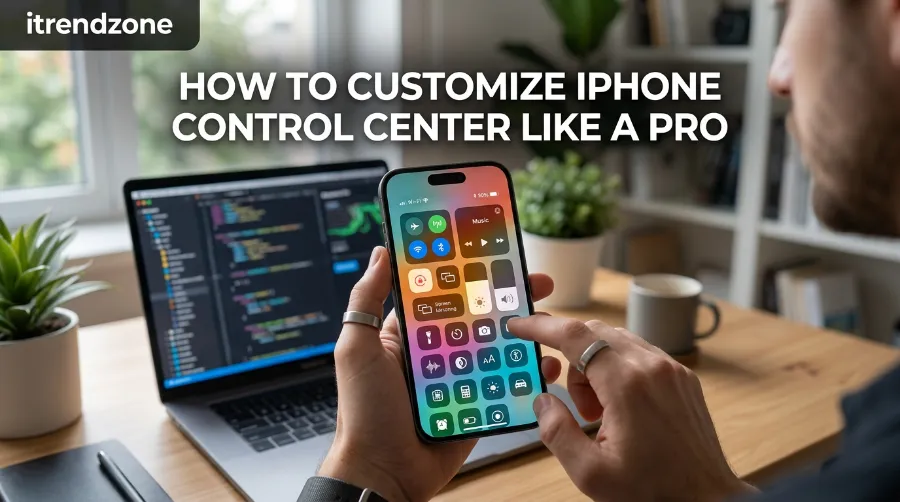
A control shows but does nothing when tapped. This tends to happen with third-party app controls if the app hasn’t been opened since installation, or if it needs a permissions refresh. Open the app directly once, then return to Control Center.
Frequently Asked Questions
1. Can I customize Control Center differently for the Lock Screen versus the unlocked screen?
No. iOS uses one Control Center layout across both states. What you can control separately is whether Control Center is accessible at all from the Lock Screen, through Settings > Face ID & Passcode.
2. Why did my Control Center layout change after updating iOS?
Apple occasionally adjusts default groupings or resets custom layouts during major iOS version updates. It’s not a bug, just a side effect of how the update applies new interface changes.
3. Can third-party apps add their own controls to Control Center?
Some can, if the developer has built support for it using Apple’s ControlKit framework introduced in iOS 18. Not every app supports this yet, so availability depends on how recently the app was updated.
4. Is there a limit to how many controls I can add?
There’s no strict published cap, but practically, Control Center now spans multiple pages, so you can add far more than the older single-page version allowed. Past a certain point, it stops being useful.
5. Does customizing Control Center affect battery life?
No. Adding or removing controls is purely an interface change and has no measurable impact on battery performance.
Quick-fire round:
Q: Does customizing Control Center work the same on iPad?
A: Mostly yes, though iPad’s layout has more room and slightly different default controls, since it supports features like Stage Manager.
Q: Can I reset Control Center back to Apple’s default layout?
A: Yes, most versions include a Reset option inside the Control Center customization screen under Settings.
Q: Will removing a control delete the related feature from my phone?
A: No. Removing a control from Control Center just removes the shortcut. The underlying feature or app is unaffected.
Conclusion
A default Control Center is built for the average user, and you’re not average — you have a specific set of apps and toggles you reach for daily. Spending ten minutes rearranging it pays off every single time you swipe down afterward. Start with the controls listed above, push anything you rarely use to a later page, and lock it down from the Lock Screen if privacy matters to you. For more ways to unlock features Apple doesn’t spotlight, our hidden iPhone settings guide covers a dozen more overlooked options worth checking, and you can browse the rest of our iOS tips at iTrendZone.
References
- Apple Support Use and customize Control Center on iPhone
- Cult of Mac How to customize your iPhone’s Control Center
- The Sweet Setup How to customize Control Center on iOS