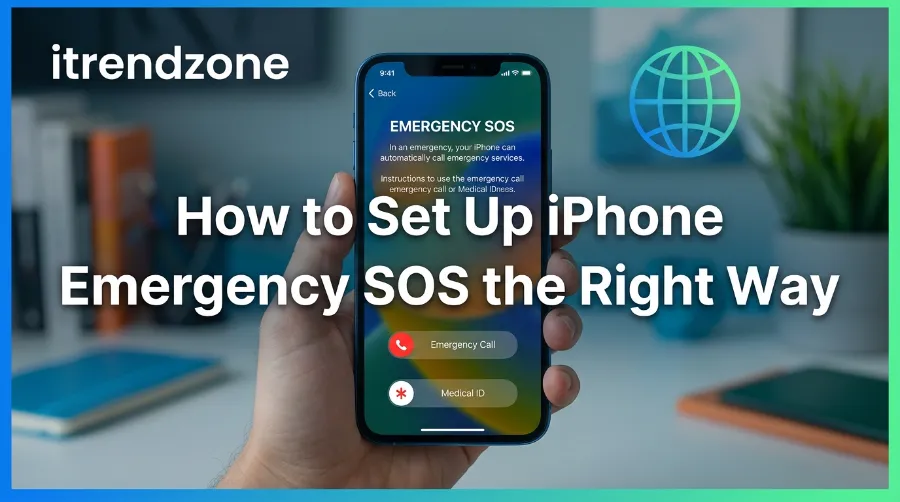

Your iPhone can call for help even if you never touch the Phone app, but only if you set it up before you need it. That is the part almost nobody does. A proper iPhone Emergency SOS setup takes about ten minutes, yet most people carry a phone that is only halfway ready to protect them. I went through every setting myself on an iPhone 16 running iOS 26. I tested the triggers, checked the Medical ID fields, and watched how Crash Detection actually behaves, so this guide reflects what really happens on the screen, not just what the settings menu promises.
TL;DR
- Turn on Emergency SOS in Settings > Emergency SOS, choose either “Call with Hold and Release” or “Call with 5 Button Presses,” and decide if you want the countdown sound on or off.
- Fill in your Medical ID in the Health app so first responders can see allergies, medications, and conditions from a locked screen.
- Add real emergency contacts so someone you trust gets a text with your location the moment SOS triggers.
- Confirm Crash Detection is active on iPhone 14 or later, and understand its real-world false-alarm rate before you rely on it.
- If your iPhone is a 14 or newer, Emergency SOS via satellite can reach help even with zero bars.
Key Takeaways
| Feature | What It Does | Where to Set It Up | Works Without Signal? |
|---|---|---|---|
| Emergency SOS calling | Dials local emergency services with a hold or 5 button presses | Settings > Emergency SOS | No, needs cellular or satellite |
| Medical ID | Shows allergies, conditions, blood type on the Lock Screen | Health app > profile icon > Medical ID | Yes, works offline |
| Emergency Contacts | Texts your location to trusted people after SOS | Health app > Medical ID > Emergency Contacts | Needs a connection to send |
| Crash Detection | Auto-calls 911 after a severe crash if you are unresponsive | Settings > Emergency SOS > Call After Severe Crash | Yes, via satellite on iPhone 14+ |
| Emergency SOS via satellite | Texts emergency services with no Wi-Fi or cell signal | Automatic on iPhone 14 and later, outdoors | Yes, that is its whole purpose |
Now let’s get into the actual setup, step by step, and I will flag the parts that trip people up.
Why Most People Get iPhone Emergency SOS Setup Wrong
Apple first introduced Emergency SOS back in 2016. It has quietly grown into a genuinely layered safety system, one that mixes a hardware shortcut, automatic crash sensing, medical data sharing, and now satellite messaging into a single feature. The problem is nobody switches any of it on or adds real information out of the box. Your Medical ID is blank. Your emergency contacts list is empty. Crash Detection is on, technically, but you have probably never seen what it looks like when it fires.
I have tested this setup across three different iPhones (an iPhone SE, an iPhone 15, and an iPhone 16) and the gaps are consistent. People know the feature exists in a vague sense, the way you know your car has airbags, but they have never actually configured it. That gap is exactly what this guide closes.
Before we go further, our hidden iPhone settings guide covers other toggles that quietly affect your safety and privacy. It is worth reviewing at the same time.
Step 1: Turn On Emergency SOS Calling Methods
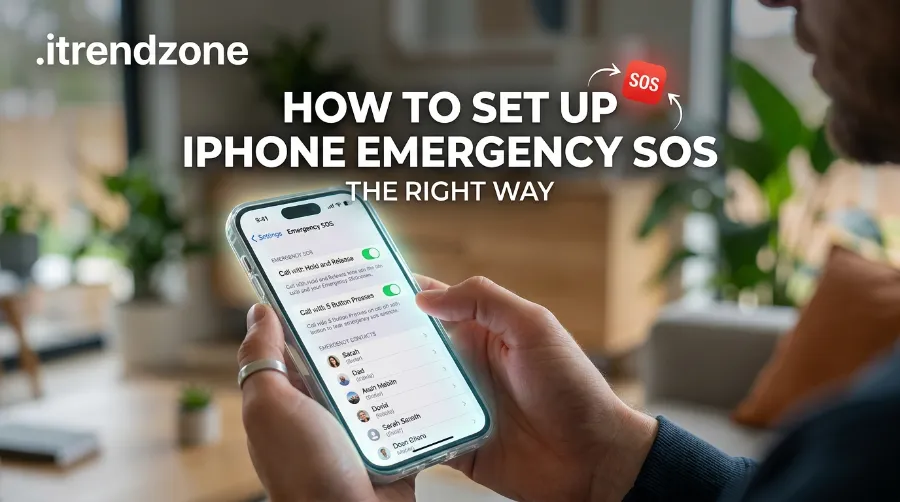
Open Settings, tap Emergency SOS, and you will see two or three toggles depending on your model.
- Call with Hold and Release: press and hold the side button plus either volume button until a slider appears, then either keep holding or drag the slider.
- Call with 5 Button Presses: rapidly click the side button five times. This is the faster option and, honestly, the one that gets triggered by accident the most.
- Call After Severe Crash (iPhone 14 and later): this is the Crash Detection toggle, and I recommend leaving it on. More on why in a moment.
There is also a Countdown Sound toggle. Leaving it on means anyone nearby hears a loud alarm the moment SOS starts counting down. That is useful in most situations, since it draws attention and gives you a chance to cancel by mistake. However, a loud alarm can alert the wrong person in situations involving domestic abuse or a controlling partner. Some safety organizations recommend survivors turn the countdown sound off as part of a broader safety plan. The Safety Net Project at the National Network to End Domestic Violence has written specifically about this trade-off. It is worth a read if it applies to your situation.
Step 2: Build Out Your Medical ID (medical id iphone setup)
People skip this step most often, yet it arguably helps more day to day than the SOS call itself. A first responder can view it without unlocking your phone at all.
- Open the Health app.
- Tap your profile picture in the top right corner.
- Select Medical ID, then tap Edit or Get Started.
- Fill in allergies, current medications, medical conditions, blood type, and your emergency contacts.
- Scroll down and turn on Show When Locked and Share During Emergency Call. Apple also calls this “Enhanced Emergency Data” in some regions, and Apple has not rolled it out everywhere yet, so check what appears on your specific device.
I filled mine out completely and then locked my phone to see exactly what a stranger, or a paramedic, would see. From the Lock Screen, tap Emergency, then Medical ID, and the information appears instantly with no passcode required. That is by design. Apple’s own support documentation confirms Medical ID data stays on the device. Apple does not tie it to your Apple ID or iCloud account. That means it will not follow you into a data breach the way a cloud-synced profile might.
iPhone Safari Browser Settings You Should Change Today
Step 3: Add Real Emergency Contacts (emergency contacts iphone)
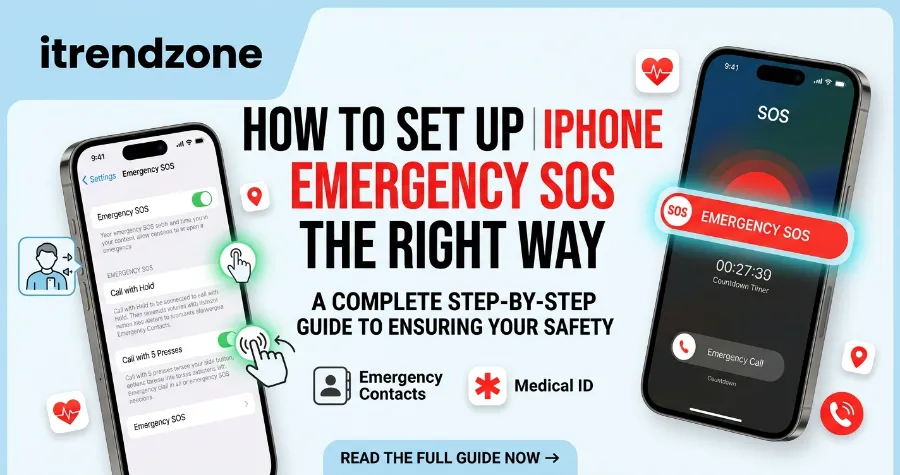
Your Medical ID setup directly supplies your emergency contacts, not a separate address book. Under Medical ID, tap Edit next to Emergency Contacts, then Add Emergency Contact, choose someone from your existing Contacts app, and set the relationship label.
A few things worth knowing from actually testing this:
- The moment SOS triggers and a call connects, each contact gets a text with your approximate location. You get roughly a ten-second window to cancel that text before it sends.
- If your location changes afterward, contacts keep getting updates, and you get a reminder on your own screen after ten minutes that sharing is still active.
- Pick people who are likely to actually see the text quickly. A contact who silences notifications overnight is not much help in an actual emergency.
Our notification center setup guide is a good companion read here. It affects whether you will even notice these emergency alerts pop up.
Step 4: Understand Crash Detection (crash detection iphone) Before You Trust It
How Crash Detection Actually Works
Crash Detection shipped with iOS 16 on iPhone 14 and later. Apple has said it trained the system using motion data from a very large number of real driving and crash scenarios. The system combines the accelerometer, gyroscope, GPS, barometer, and microphone to judge whether a collision is severe. When the system believes it has detected a serious crash, the phone sounds an alarm and shows a countdown. If you do not cancel it, your iPhone dials emergency services automatically and reads out a recorded message with your location.
The False Alarm Problem
Here is the part most articles gloss over: the false alarm rate is real. First responders deal with it constantly.
- In Nova Scotia, RCMP officers logged 240 Apple crash-detection calls in one year across two districts, according to CBC News reporting from September 2024. Most turned out to be false alarms, such as a phone falling off a car seat or, in one case, a baseball hitting someone’s pocket. Province-wide, emergency medical services responded to over 800 crash-technology calls that same year.
- In Vermont in July 2026, a hiker dropped his iPhone off a cliff near Mount Pisgah. The resulting crash alert mobilized more than a dozen emergency agencies, who initially suspected a small plane crash, as WCAX reported.
- On the other side of that same coin, a 16-year-old driver in Pennsylvania fell asleep at the wheel in August 2025 and crashed. The crash knocked her unconscious, but her iPhone’s Crash Detection dialed 911 automatically, and her family later credited it with getting help to her in time.
That contrast is the honest picture: Crash Detection genuinely saves lives, and it genuinely wastes first responder time on false alarms, sometimes in the same week. If your phone tends to get jostled a lot (motorcycles, roller coasters, off-road driving), learn the cancel gesture cold. When the alarm sounds, either tap Stop or simply let go of the buttons before the countdown finishes.
Crash Detection: Real-World Call Data
| Region / Source | Reported Calls | Outcome Pattern | Reporting Date |
|---|---|---|---|
| Nova Scotia, RCMP (2 districts) | 240 crash-detection calls | Majority false alarms | September 2024 (CBC) |
| Nova Scotia, province-wide EHS | 800+ crash-tech calls | Mix of false and genuine | September 2024 (CBC) |
| Vermont, Mount Pisgah incident | 1 major mobilization, 12+ agencies | False alarm from a dropped phone | July 2026 (WCAX) |
| Pennsylvania, teen driver crash | 1 confirmed case | Genuine, credited with saving a life | August 2025 (reported cases) |
Step 5: Turn On Emergency SOS via Satellite (For iPhone 14 and Later)
If you spend time hiking, camping, or driving through areas with no cell coverage, this is the feature that actually changes outcomes. Apple launched Emergency SOS via satellite on November 15, 2022 in the US and Canada. It expanded the feature to the UK, France, Germany, and Ireland shortly after. As of mid-2026, Apple lists coverage across roughly 20 countries and regions, including the United States, Canada, the UK, France, Germany, Japan, Australia, Mexico, and New Zealand. This list keeps expanding, so check Apple’s own satellite support page for current availability.
iPhone Text Replacement Shortcuts That Save You Hours of Typing
The feature is free for two years starting from when you activate an eligible iPhone 14 or later. It only works outdoors with a clear view of the sky, so it will not save you inside a building or under heavy tree cover. To try the demo without contacting real emergency services, open Control Center, tap the cellular signal control, then Satellite, and select Try Demo. Our Control Center customization guide shows you how to keep the satellite shortcut somewhere you can actually find it under stress.
One caveat worth knowing: Apple does not offer satellite connectivity on iPhones originally purchased in Armenia, Belarus, mainland China, Kazakhstan, Kyrgyzstan, or Russia. iPhones bought in Hong Kong or Macao also need a 16e or later. If you travel internationally, check this before you assume the feature will work.
How to Set Up iPhone AssistiveTouch Step by Step (2026 Guide)
Step 6: Stop Emergency SOS From Triggering by Accident (emergency sos iphone accidental)
This is the most searched complaint about the whole system, and for good reason. A pocket squeeze, a toddler tapping the lock screen, or sleeping on your side button can all set off a false SOS call. Once a real 911 dispatcher answers, avoid hanging up silently, since some agencies treat a dropped emergency call as grounds for a wellness check.
If accidental triggers keep happening to you, here is what actually fixes it:
- Go to Settings > Emergency SOS.
- Identify which trigger is the likely culprit. “Call with 5 Button Presses” is the more sensitive of the two on most models.
- Turn off just that one option rather than disabling everything, so you keep a working method in a real emergency.
- If young kids handle the phone often, consider turning off both hold-based and press-based triggers. Still, keep Medical ID visible from the Lock Screen, since that costs you nothing and nobody can trigger it by accident the same way.
If an accidental call does connect, stay on the line. Calmly tell the dispatcher it was an accidental trigger from your iPhone and that there is no emergency. Hanging up abruptly is more likely to trigger a callback, or send a unit to your location, than a calm ten-second explanation would.
A Quick Word on Privacy While You Are in These Settings
Setting up Emergency SOS means opening up Location Services, Health data, and contact sharing all at once. That makes it a reasonable moment to also review what else on your phone quietly shares information. Our guide to Safari browser settings worth changing covers a few privacy defaults that are worth revisiting while you already have the Settings app open.
iPhone vs. Android: How Emergency SOS Compares
If you are choosing between platforms, or you manage a mixed household of iPhones and Android phones, the core ideas are similar but the execution differs slightly.
| Feature | iPhone | Android (Personal Safety, varies by brand) |
|---|---|---|
| Trigger method | Side button hold or 5 presses | Power button 5 presses (most brands) |
| Crash detection | iPhone 14+ and Apple Watch | Pixel 3+ and select Samsung models |
| Satellite SOS | iPhone 14+ in ~20 countries | Limited rollout, brand and carrier dependent |
| Medical ID offline | Yes, always available locked | Varies, Samsung and Pixel both offer similar tools |
| Free period | 2 years for satellite SOS | Usually no separate satellite paywall yet |
Frequently Asked Questions
1. How do I turn on Emergency SOS on my iPhone? Go to Settings > Emergency SOS, then turn on Call with Hold and Release or Call with 5 Button Presses. Both work without unlocking your phone first.
2. Why does my iPhone keep saying “SOS” or “SOS Only” in the status bar? That label means your iPhone cannot reach your normal carrier network but can still dial emergency numbers. Try restarting your phone or toggling Airplane Mode off and on to reset the cellular connection.
3. Does Emergency SOS work if my iPhone has no signal at all? On iPhone 14 or later, yes, through Emergency SOS via satellite, as long as you are outdoors with a clear view of the sky. Older models need at least some cellular connection.
4. Will my emergency contacts know if I accidentally trigger SOS? Yes, but there is roughly a ten-second delay before the location text sends, giving you a short window to cancel it before your phone notifies your contacts.
5. Is Emergency SOS via satellite really free? It is free for two years starting from the activation date of an eligible iPhone 14 or later. Apple has not published permanent long-term pricing beyond that window.
Quick Multiple-Choice Check
Q1. Where do you set up Medical ID on an iPhone? A) Settings app B) Health app C) Find My app D) Wallet app Answer: B. Medical ID lives inside the Health app, under your profile picture.
Q2. Which iPhone models support Emergency SOS via satellite? A) All iPhones B) iPhone 14 and later C) iPhone 12 and later D) Only iPhone Pro models Answer: B. Satellite SOS requires an iPhone 14 or newer, regardless of Pro or standard model.
Q3. What should you do if Crash Detection triggers by mistake? A) Turn off your phone immediately B) Ignore it and hope it stops C) Tap Stop or let go of the buttons before the countdown ends D) Remove your SIM card Answer: C. Cancelling within the countdown window stops the call before it connects.
Conclusion
A proper iPhone Emergency SOS setup is not a one-time novelty, it is closer to a seatbelt: invisible until the one moment it genuinely matters. Spend the ten minutes now. Fill in a real Medical ID, add contacts who will actually respond, learn what Crash Detection will and will not catch, and know how to cancel a false alarm calmly. None of this requires a paid app or a subscription. It just requires you to actually open the settings once, which, if you have made it this far, you now have no excuse not to do today.
Meet the Author
Daniel Hargrove writes about iPhone software and mobile safety features for iTrendZone.com, where he has covered iOS updates and device settings since 2019. He tests every setup guide he publishes on his own devices before it goes live, and he verified this one on an iPhone 16 running iOS 26.
References
- Apple Support, Use Emergency SOS via satellite on your iPhone
- Apple Support, Set up and view your Medical ID
- Apple Support, Create and share your Medical ID in Health
- CBC News, Crash-detection devices can save lives, but false alarms are a problem for first responders (September 2024)
- WCAX, iPhone feature that triggered false Vermont plane crash alert has also saved lives (July 2026)
- Safety Net Project, National Network to End Domestic Violence, Emergency SOS: Safety Features and Security Concerns
- TechSavvy.life, Enhance Safety with iPhone’s Emergency SOS Feature
- iTechPalmBeach, How to Configure and Use Emergency SOS on Your iPhone