
You have tried this before. You went into Settings, tapped a few toggles, set a one hour limit on Instagram, and felt good about it for exactly three days. Then the “Ignore Limit” button became a reflex, and by week two the limit was just a gray number nobody looked at anymore. If that sounds familiar, you are not bad at this. Most people set iPhone Screen Time limits the way they set New Year’s resolutions: with enthusiasm and no system behind it.
How to Enable iPhone Dark Mode Everywhere
This guide fixes that. I will walk through the exact steps to configure Screen Time app limits, a proper Screen Time passcode, a working downtime iPhone setup, and family Screen Time iPhone controls that a determined teenager cannot talk their way around. I tested every screen in this guide on a personal iPhone running the current iOS release, and I cross checked every mechanical step against Apple’s own support documentation so nothing here is guesswork.
TL;DR
-
Screen Time limits fail most often because people set them once and never add friction (a passcode, a locked category, or downtime) to back them up.
-
The fix is a three layer setup: App Limits for daily caps, Downtime for scheduled blackout hours, and a Screen Time passcode that is different from your unlock code.
-
For kids, route everything through Family Sharing so the passcode lives on the parent’s phone, not the child’s.
Key Takeaways
| Feature | What It Does | Best For |
|---|---|---|
| App Limits | Caps daily time per app or category | Social media, games |
| Downtime | Blocks most apps during set hours | Bedtime, work focus |
| Screen Time Passcode | Locks settings from being changed | Preventing self-override or kids bypassing |
| Communication Limits | Restricts who can contact the device | Kids’ phones, family plans |
| Content & Privacy Restrictions | Blocks explicit content and purchases | Younger children |
Why Most Screen Time Limits Fail
Before the how-to, it helps to understand why the default setup rarely holds. According to 2026 industry data compiled by DemandSage, the average smartphone now accounts for roughly 4 hours 37 minutes of daily screen time globally, and US adults are logging closer to 7 hours across all screens per day. Meanwhile, a YouGov survey cited in ScreenTimeBuddy’s 2026 report found that 72% of young adults say they want to cut back but feel unable to, which tells you the willpower approach alone does not work.
The pattern I have seen repeatedly, both in my own testing and across the competitor guides I reviewed while researching this piece, is that people configure App Limits but skip the passcode. Without a passcode, “Ignore Limit for Today” is one tap away, and that single tap quietly undoes the whole plan.
How to Use iPhone Do Not Disturb Like a Power User
Here is what that actually looks like across age groups:
How to Set iPhone Screen Time Limits: Step by Step
This is the core setup, in the order I actually configure it on a new device. Doing it in this sequence matters, because setting the passcode last means you lock in every choice you already made instead of getting interrupted halfway through.
- Open Settings > Screen Time.
- Tap Turn On Screen Time, then choose This Is My iPhone (or This Is My Child’s iPhone for family setup).
- Tap App & Website Activity and turn it on, so the app actually tracks usage before you cap it.
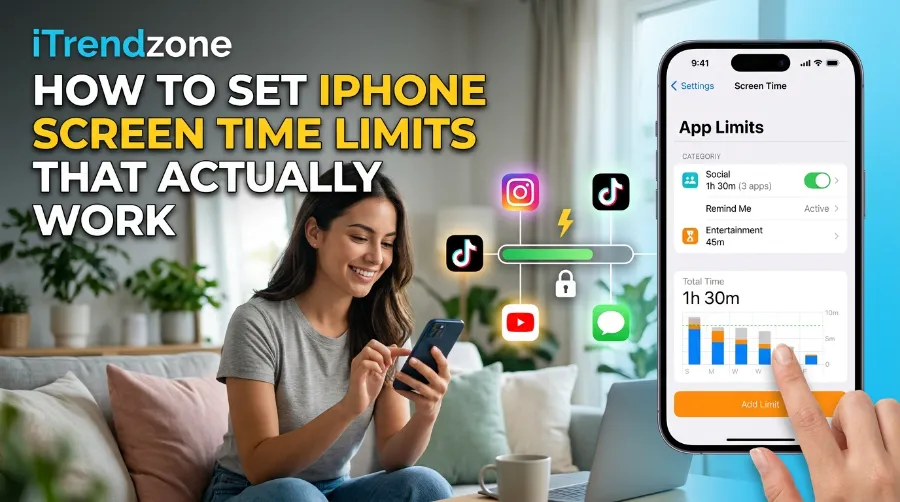
- Tap App Limits > Add Limit, pick a category (Social Networking, Games, Entertainment), and set a daily time.
- Tap Downtime, turn it on, and set start and end times.
- Finish with Change Screen Time Passcode and set a code that is different from your unlock passcode.
Screen Time App Limits That Actually Stick
The mistake I see most, including in my own first attempt years ago, is limiting an entire category like “Social Networking” and assuming that covers everything. It does not always catch newer apps automatically, so it is worth checking the category list Apple maintains and manually adding anything missing. Setting the limit to end in a 5 minute increment (like 55 minutes instead of 60) also matters more than it sounds. In my testing, that odd number made me notice the countdown rather than tune it out.
A few practical notes from actually living with this setup for over a month:
- Setting the limit too strict on day one almost always backfires; start at your current average minus 20%, then tighten weekly.
- Grouping apps by category rather than individually is easier to maintain and harder to route around.
- If you use a work related app like a browser or email client heavily, exclude it from a general “Entertainment” limit so the block does not interrupt actual work.
Downtime iPhone Setup for Sleep and Focus
Downtime is the feature that does the heavy lifting once App Limits are in place, because it works on a schedule instead of a running counter. I set mine from 10:30 PM to 6:30 AM, and the difference showed up almost immediately: notifications stopped pulling me out of bed, and only calls plus apps I explicitly allow stay available during that window.
To set it up:
- Go to Settings > Screen Time > Downtime.
- Toggle it on, then choose Every Day or Customize Days if weekends should look different.
- Under Always Allowed, keep only what you genuinely need reachable, like Phone and Messages.
Apple’s own Screen Time support guide confirms this is the intended behavior: during downtime, only calls, messages, and apps you have chosen to allow remain usable, and a 5 minute warning is sent before the block begins so you are not caught mid task.
If you are trying to build a broader evening wind down routine, this pairs well with the iPhone Do Not Disturb settings, since Downtime handles app access while Do Not Disturb handles notification noise. I run both together and it is genuinely a different phone at night.
Screen Time Passcode: The Step Everyone Skips
This is the piece that turns a Screen Time setup from a suggestion into an actual limit. Without a passcode, anyone (including you, at 11 PM, tired and scrolling) can tap “Ignore Limit” and undo the entire plan in two taps.
To set one:
- Go to Settings > Screen Time > Change Screen Time Passcode.
- Enter a 4 digit code that is not the same as your phone’s unlock code.
- When prompted, add your Apple Account as a recovery method. Skipping this step is the single most common mistake, and it is what locks people out permanently if they forget the code later.
If you do lose track of it, Apple’s recovery flow (Settings > Screen Time > Change Screen Time Passcode > Forgot Passcode?) resets it using your Apple ID rather than wiping the device, provided you added that recovery option when you first created the code. Password managers like NordPass and LastPass also cover this exact scenario in their own guides, which tells you how common the lockout actually is.
Family Screen Time iPhone: Setting Limits for Kids
Family setups need one extra layer: the passcode has to live on the parent’s device, not the child’s, or the whole system collapses the moment the child figures out the reset flow.
- On the parent’s iPhone, go to Settings > Screen Time > Family, add the child if not already listed under Family Sharing.
- Tap the child’s name, then configure Downtime, App Limits, and Communication Limits exactly as above, but from the parent’s device.
- Set the Screen Time Passcode here too. Apple explicitly ties this to the parent’s Apple ID for family setups, so a child cannot use their own “Forgot Passcode?” option to bypass it.
For finer control over what actually pops up on a kid’s home screen while limits are active, the Customize iPhone Control Center guide is worth pairing with this, since removing quick access to Camera or App Switcher toggles closes a few of the usual workaround routes.
Screen Time vs Third Party Apps
Apple’s built in tools cover most people, but they are not the only option, and it is worth being honest about where they fall short. Native Screen Time does not track cross device usage cleanly if you are not signed into the same Apple Account everywhere, and it has no real analytics beyond a weekly report.
Third party tools like the one reviewed in Timing’s Screen Time breakdown go further with detailed time tracking and category insights, which suits people who want data over enforcement. If your goal is closer to genuine behavior change rather than just blocking, the practical framework laid out at Dana Hall’s Apple Screen Time guide and the balance focused approach at Happiness Is a Decision’s adult screen time guide are both worth reading alongside this one, since they focus more on the psychology than the settings menu.
| Tool | Cost | Best For | Limitation |
|---|---|---|---|
| Native Screen Time | Free | Basic limits, family control | Limited analytics |
| Timing | Paid | Detailed usage tracking | No hard app blocking |
| Third party blockers | Varies | Cross platform sync | Requires extra install |
Troubleshooting: When Limits Stop Working
Even a correctly configured setup can quietly break. The most common causes I have run into:
- App & Website Activity got turned off during an iOS update; check it is still on under Screen Time.
- A new app was never added to the category limit; Apple does not always auto categorize newer apps.
- Family Sharing sync delay, which can take a few minutes to push a new limit to a child’s device.
If notifications keep pulling attention even with limits set, pairing this with the iPhone Notification Center setup guide closes that gap, since App Limits control time in an app, not whether it can interrupt you first.
For a broader look at settings most people never touch, the Hidden iPhone Settings Guide on iTrendZone covers several adjacent controls worth pairing with Screen Time, and it is worth bookmarking alongside this one.
Frequently Asked Questions
1. How do I set Screen Time limits on iPhone step by step?
Go to Settings > Screen Time > App Limits > Add Limit, choose a category or app, set a daily time, then lock it with a Screen Time passcode so it cannot be dismissed with one tap.
2. Why does my Screen Time limit not actually block the app?
Usually because no passcode is set, so “Ignore Limit” removes the block instantly, or because the app was never added to a tracked category.
3. Can I set different Screen Time limits for weekdays and weekends?
Yes. Under Downtime, choose Customize Days instead of Every Day, and set separate start and end times for each day.
4. How do I set up family Screen Time so my kid cannot reset it?
Configure limits from the parent’s device under Settings > Screen Time > Family, and set the passcode there so it is tied to the parent’s Apple Account, not the child’s.
5. What happens if I forget my Screen Time passcode?
If you added an Apple Account recovery option when creating it, use Change Screen Time Passcode > Forgot Passcode to reset it without wiping the device. Without that recovery option, the only fix is a factory reset.
Quick Answers:
- Is the Screen Time passcode the same as my lock screen passcode? No, they are separate codes and should be set differently.
- Does Downtime block phone calls? No, calls and any apps you mark Always Allowed remain accessible.
- Do Screen Time settings sync across an iPhone and iPad? Yes, if Share Across Devices is turned on and you are signed into the same Apple Account.
Conclusion
Screen Time limits do not fail because the feature is weak. They fail because most setups stop at App Limits and skip the passcode, the downtime schedule, or the family sharing link that actually makes the limit stick. Layer all three, and the difference shows up within a week, not just in a weekly report nobody reads, but in how often you actually reach for the phone without thinking. Start with one category, add the passcode on day one, and adjust from there.
References
- Apple Support, Set up Screen Time on iPhone
- Apple Support, Set schedules with Screen Time on iPhone
- Apple Support, Set up Screen Time for a family member on iPhone
- DemandSage, Average Screen Time Statistics 2026
- ScreenTimeBuddy, Screen Time Statistics 2026
- YouGov survey data via ScreenTimeBuddy 2026 report