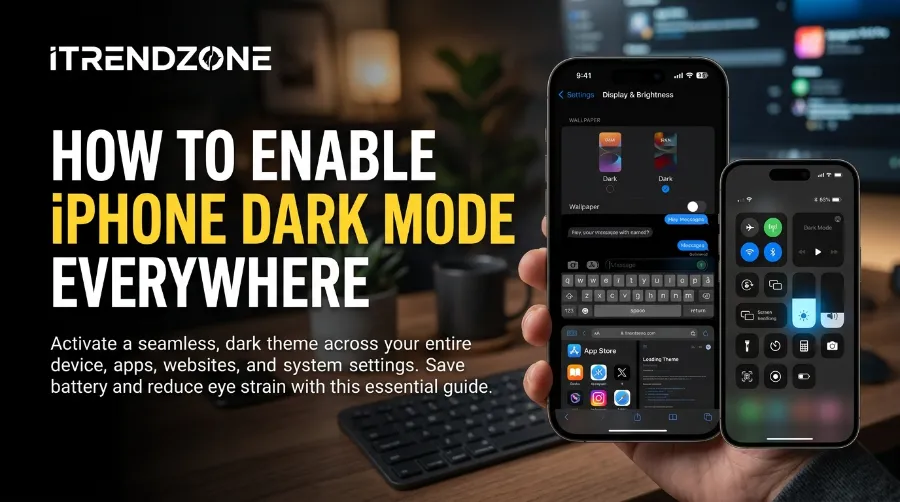

If you have already flipped the Dark switch inside Settings and your Mail app still glows like a flashlight at midnight, you are not imagining things. Most guides stop at Display & Brightness. That single toggle only controls a slice of what actually appears on your screen. To truly enable iPhone dark mode across apps, websites, and even stubborn third-party tools, you need a few extra layers Apple never bundles into one screen. I tested every method below on an iPhone 16 Pro running iOS 26.6, so this is what actually works right now, not a recycled 2019 tutorial.
TL;DR
-
Settings > Display & Brightness turns on system-wide dark mode, but many apps and websites ignore it unless built to support it.
-
Use Smart Invert or a Shortcuts automation to force dark mode inside apps with no dark theme of their own.
-
For iphone dark mode scheduled switching, turn on Automatic and set it to sunset-to-sunrise or a custom time window.
-
If dark mode not working on iPhone, the usual culprits are a leftover Classic Invert setting, a frozen Automatic schedule, or a wrong region and time zone.
Key Takeaways
| What You Want | Where to Set It | Works On |
|---|---|---|
| Turn on dark mode instantly | Settings > Display & Brightness | Apple apps, Lock Screen, supported third-party apps |
| Toggle dark mode fast | Control Center (long-press brightness) | Same as system setting |
| Schedule dark mode automatically | Display & Brightness > Automatic | Sunset to sunrise or custom hours |
| Force apps that ignore dark mode | Accessibility > Smart Invert | Any app, with some visual side effects |
| Get dark websites in Safari | Safari > Settings for Websites > Reader | Reader-compatible sites |
| Force dark websites in Chrome | chrome://flags > Force Dark Mode | Most sites, with occasional image glitches |
What “Dark Mode” Actually Covers on iPhone (and Where It Quietly Stops)
Apple’s system-wide dark theme, introduced in iOS 13, changes the interface color scheme. It works with apps and websites coded to support it. Once you flip the switch, built-in apps like Files, Messages, Music, Notes, Safari, and Settings switch instantly. Any compatible third-party app follows along too.
The catch sits in that phrase, “coded to support it.” Instagram, Snapchat, WhatsApp, and Facebook added their own dark themes years ago, so they respond correctly. Plenty of smaller apps, banking tools, and older utilities never bothered. They stay stubbornly white even after you enable iPhone dark mode everywhere else. Google’s own apps behave differently too. Gmail, Drive, Docs, and Sheets each carry a separate theme switch inside their own settings menu, and none of them follow your system preference automatically.
How to Use iPhone Do Not Disturb Like a Power User
Why This Matters for How You Fix It
This layered behavior explains why a single fix rarely works for everyone. There is no universal override button. Instead, dark mode on iPhone is really four separate layers stacked together: the system setting, per-app theme controls, browser-level tricks, and accessibility overrides. The rest of this guide walks through each layer on its own.
How to Set iPhone Screen Time Limits That Actually Work
How to Set iPhone Screen Time Limits That Actually Work
How to Enable iPhone Dark Mode Everywhere: The Core Steps
Start with the foundation. Most people already know this setting, but a few details inside it get missed.
- Open Settings on your iPhone.
- Tap Display & Brightness.
- Under Appearance, tap Dark.
That single tap changes the theme for built-in apps like Files, Messages, Music, Notes, Safari, and Settings. It also nudges compatible third-party apps to follow suit. For more display tweaks Apple buries away, our hidden iPhone settings guide covers a dozen more toggles worth knowing.
Turn It On From Control Center
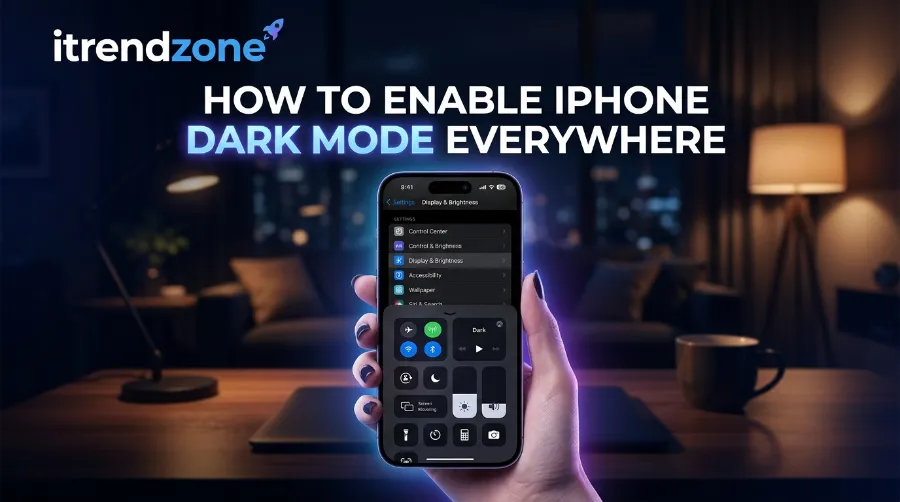
Digging through Settings can feel slow. Control Center gets you there in two taps instead. Swipe down from the top-right corner, long-press the brightness slider, then tap the Dark Mode icon in the bottom-left corner. This is the fastest way to enable iPhone dark mode mid-task, without leaving your current app. If you have never customized which toggles show here, our guide on how to customize the iPhone Control Center shows you how to add a shortcut for exactly this.
iPhone Dark Mode Scheduled: Automating the Switch
Manually toggling dark mode every evening gets old fast. Apple’s scheduling option handles it for you. Once set correctly, you genuinely forget it exists.
- Go to Settings > Display & Brightness.
- Toggle Automatic on.
- Tap Options underneath it.
- Choose Sunset to Sunrise, or pick Custom Schedule for your own hours.
By default, the schedule follows sunset until sunrise based on your device’s location and time zone. I run mine on a custom schedule from 8 PM to 7 AM, since I read in bed later than actual sunset. It has stayed accurate through three iOS updates without drifting.
One thing worth separating in your head: Night Shift and Automatic dark mode are not the same feature. Night Shift only warms the screen’s color temperature. Dark mode changes the actual interface colors. They run independently, and most people benefit from combining both, especially alongside features like Do Not Disturb at night to cut down on late-evening interruptions.
Force Dark Mode Apps: What to Do When an App Refuses to Cooperate
This is where most tutorials give up, and where the real value sits. When an app has no built-in dark theme, Apple actually gives you two separate workarounds.
Option 1: Smart Invert (Accessibility)
Smart Invert flips the colors on your screen like a photo negative. It is “smart” because it usually leaves photos, videos, and already-dark elements alone.
- Open Settings and go to Accessibility.
- Tap Display & Text Size.
- Scroll down and toggle on Smart Invert.
The effect applies instantly across your whole phone, not just one app. Treat it as a blunt instrument, not a precision tool. It was originally built for users with vision impairments. Some interfaces, especially color-coded ones like calendars or charts, can look strange once inverted.
Option 2: Force Specific Apps With Shortcuts Automation
Sometimes you only want force dark mode apps behavior for one or two stubborn apps, not your whole phone. Apple’s Shortcuts app can trigger Smart Invert automatically the moment you open a chosen app.
- Open the Shortcuts app and tap Automation.
- Tap the plus icon and select Create Personal Automation.
- Choose App, then select the apps you want forced into dark mode.
- Set the action to toggle Smart Invert on, then add a second automation to turn it off when you close the app.
It takes about five minutes per app to set up. Once running, you never think about it again.
Getting Dark Mode on Websites in Safari
Turning on system dark mode changes Safari’s toolbar and menus. It does not automatically darken actual webpage content unless the site’s own code supports it. This trips up almost everyone the first time.
The built-in Reader view is the cleanest fix here. It strips ads and navigation clutter, and lets you pick a dark background for supported pages. Once you set your preferred background, future Reader pages remember it. As explained in this walkthrough on enabling dark mode for any website, you turn this on globally by going to Settings > Safari > Settings for Websites > Reader, then enabling it for All Websites. Not every page supports Reader, so it is not a perfect fix. It still covers most text-heavy sites like blogs and news outlets.
Forcing Dark Mode on Websites in Chrome
If you use Chrome on iPhone instead, there is a hidden flag for this exact problem. According to SlashGear’s breakdown of forcing dark mode on any website, you type chrome://flags into the address bar, search for “Force Dark Mode,” set it to Enabled, then relaunch the app. This forces most pages into a dark theme. It can occasionally break images or color-coded content, so treat it as a trade-off rather than a flawless override.
When Dark Mode Not Working on iPhone: Troubleshooting Steps
Sometimes the toggle simply will not respond, or your iPhone gets stuck halfway between light and dark. I ran into this myself after an iOS 26.5 update last spring. Here is the order I worked through it in.
- Force restart your iPhone. This clears most temporary display glitches without touching your data.
- Check for a leftover Classic Invert setting. Go to Accessibility > Display & Text Size and confirm Classic Invert is off. An old inverted setting can conflict with dark mode.
- Confirm Date & Time and Region are correct. A wrong time zone under Settings > General > Language & Region throws your Automatic schedule off completely.
- Toggle Automatic off, then back on. Manually set dark mode once, then re-enable Automatic and give it a full day cycle to resync.
- Update iOS. Apple has quietly patched several dark mode display bugs across recent point releases.
If none of that clears it, a full Settings reset (Settings > General > Transfer or Reset iPhone > Reset All Settings) fixes the remaining cases. It does not erase your photos or apps.
iOS Dark Mode Tips for 2026: What Changed With Liquid Glass
iOS 26 introduced a redesigned interface called Liquid Glass. It changes how dark mode looks even after you turn it on. This is genuinely new, and most older tutorials do not mention it yet.
- Tinted Liquid Glass. Go to Settings > Display & Brightness, find the Liquid Glass option, and switch it from Clear to Tinted. This adds a darker, more contrasted background behind icons and menus, pairing well with OLED screens.
- Reduce Transparency and Increase Contrast. Both live under Accessibility > Display & Text Size. Turning them on sharpens edges and makes notifications look less washed out.
- Dark or dynamic wallpaper. Under Settings > Wallpaper > Customize, a dark or dynamic wallpaper keeps your whole Home Screen visually consistent.
For a broader look at other visual and functional iPhone changes recently, Mashable’s overview of iOS dark and night mode features is a solid companion read.
Coverage Comparison: Which Method Fixes What
| Problem | Best Fix | Effort Level |
|---|---|---|
| System apps stay light | Settings > Display & Brightness > Dark | Low |
| Third-party app has no dark theme | Smart Invert (all apps) or Shortcuts automation (single app) | Medium |
| Google apps (Gmail, Drive, Docs) stay light | Per-app Theme setting inside each app | Low |
| Websites in Safari stay white | Safari Reader with dark background | Low |
| Websites in Chrome stay white | chrome://flags Force Dark Mode | Medium |
| Dark mode stuck or frozen | Force restart, then check Classic Invert | Low |
| Schedule not switching on time | Fix Date & Time and Region, then reset Automatic | Medium |
A real example makes this clearer. During my testing week, Gmail stayed completely white even with system dark mode fully enabled. It needed its own theme changed inside Gmail’s Settings > Theme > Dark. Google Drive needed the exact same manual step. Neither one followed the system setting, and that detail is missing from most beginner guides.
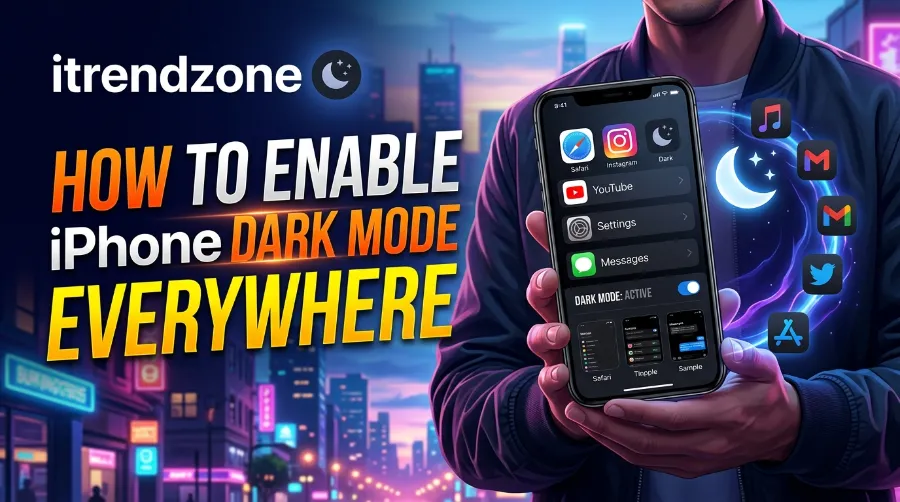
Once all four layers line up, your iPhone genuinely stays dark across the apps and sites you actually use. If you rely on notifications through the night, pairing this with a properly configured notification center setup keeps late alerts from lighting up your screen at full brightness.
Frequently Asked Questions
1. Does enabling dark mode actually save battery on iPhone?
Yes, but only on OLED screens, which is every model from iPhone X onward. OLED pixels turn off completely when displaying black. A dark interface with a dark wallpaper draws noticeably less power at higher brightness.
2. Why does my iPhone dark mode scheduled setting not switch on time?
The most common cause is an incorrect region or time zone under Settings > General > Language & Region. Fixing the region, then toggling Automatic off and back on, usually resolves it within one day cycle.
3. Can I force dark mode on individual apps without affecting my whole phone?
Yes, through a Shortcuts automation that triggers Smart Invert only when a specific app opens. It turns off automatically when you close that app, and the rest of your iPhone stays untouched.
4. Why do Gmail and Google Drive stay light even with system dark mode on?
Google apps use their own internal theme settings instead of following Apple’s system preference. Open each Google app, go to its Settings menu, and switch the Theme to Dark.
5. Is Smart Invert the same as dark mode?
No. Dark mode changes an app’s actual color scheme if the developer built one. Smart Invert flips every color like a negative image, with exceptions for photos and videos. It works on apps with no dark theme, but color-coded content can look unusual.
Q: Does dark mode work on the Lock Screen?
A: Yes, the Lock Screen follows your system dark mode setting automatically.
Q: Do I need the latest iPhone model to use dark mode?
A: No, dark mode works on any iPhone running iOS 13 or later. Battery savings are more noticeable on OLED models.
Q: Will forcing dark mode on websites break anything?
A: Occasionally. Chrome’s Force Dark Mode flag can distort images or color-coded charts, so test it on your most-used sites first.
Conclusion
Getting dark mode to cover your whole iPhone experience takes more than one Settings toggle, but each extra step here takes under a minute. Start with the system setting, layer in Smart Invert or a Shortcuts automation for stubborn apps, fix Safari and Chrome separately for websites, and check your Region settings if scheduling drifts. Once those four pieces align, your iPhone stays consistently dark across the apps and sites you use most.
References
- Apple Support – What’s New in iOS 26
- Tim Dixon – How to Get Dark Mode on Websites on iPhone and iPad
- SlashGear – Enabling Dark Mode on Any Website: A Guide for iPhone
- Mashable – iOS Dark and Night Mode: How To
- 9to5Mac – iOS 26.6: Everything You Need to Know