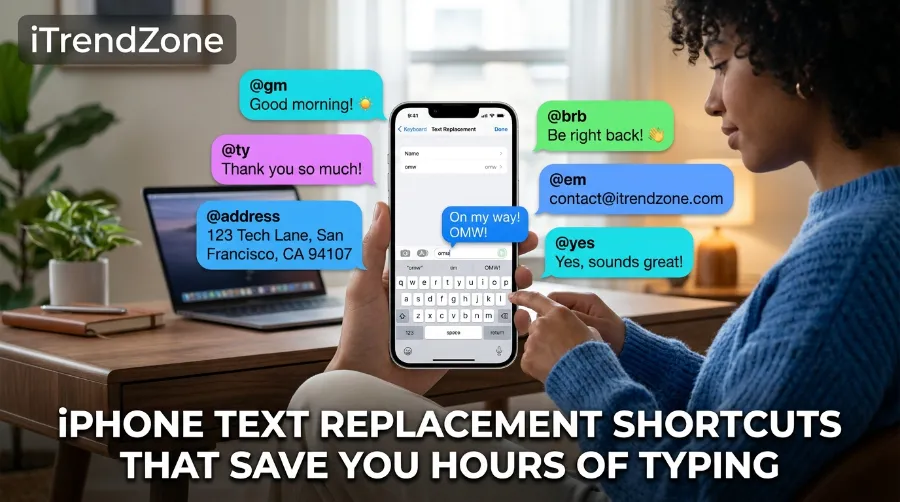

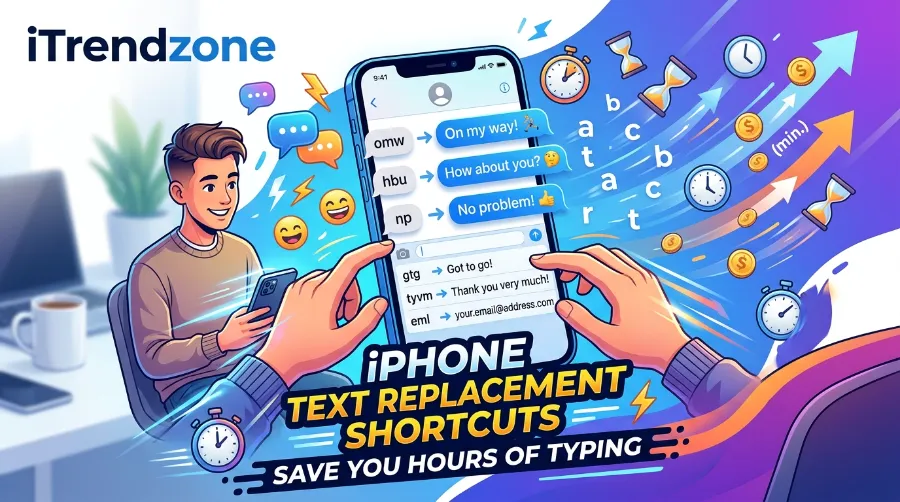
Typing the same email address, sign-off, or address on your iPhone forty times a week adds up fast. If you have ever typed out “Sorry, I’m running about 10 minutes behind, see you soon!” for the fifth time this week, you already know the problem. iPhone text replacement shortcuts fix this in under two minutes, and once it’s set up, you barely think about it again.
This guide walks through exactly how to set up text replacement iOS shortcuts, which phrases are worth saving, how this compares to Shortcuts.app and third-party keyboards, and the small mistakes that quietly stop the feature from working. Everything below reflects the current iOS 26 interface, cross-checked against Apple’s own support documentation so nothing here is guesswork.
Key Takeaways
| Point | Why it matters |
|---|---|
| Text Replacement lives in Settings > General > Keyboard | Not the same as Shortcuts.app, a common source of confusion |
| Works in Messages, Mail, Notes, Safari, and most third-party apps | Except apps using their own keyboards |
| Syncs via iCloud across iPhone, iPad, and Mac | Set once, works everywhere logged into the same Apple ID |
| Only works with Apple’s default keyboard | Third-party keyboards (Gboard, SwiftKey) don’t support it |
| Apple ships one default shortcut (“omw” to “On my way!”) | A built-in example you can test immediately |
TL;DR
- Go to Settings > General > Keyboard > Text Replacement, tap the +, and pair a short trigger (like “@@”) with a full phrase (your email address).
- It syncs automatically across your Apple devices through iCloud, and it works in almost every app except ones using a non-Apple keyboard.
- Ten well-chosen shortcuts (email, address, common replies) can realistically save a fast typist 20 to 40 minutes a week. This guide shows exactly which ones are worth setting up.
What Is iPhone Text Replacement, Exactly?
Text Replacement is a built-in autofill text iphone feature that swaps a short code you type for a longer phrase you’ve saved in advance. Apple’s own support documentation describes it as a way to insert a word or phrase by typing only a short shortcut, and it’s stored in what Apple calls your personal dictionary, synced across devices through iCloud. The text replacement is added to your personal dictionary, and when you type the text shortcut, the paired word or input is substituted for the typed shortcut.
It’s easy to confuse this with the separate Shortcuts app, which runs multi-step automations (turning on Do Not Disturb, sending a location, running a script). Text Replacement is much simpler: type a few characters, get a full phrase, no automation logic involved. If you’re also curious about deeper automation on your phone, our guide on customizing iPhone Control Center covers a related but different kind of shortcut, one-tap toggles rather than typed text.
How to Set Up iPhone Emergency SOS the Right Way
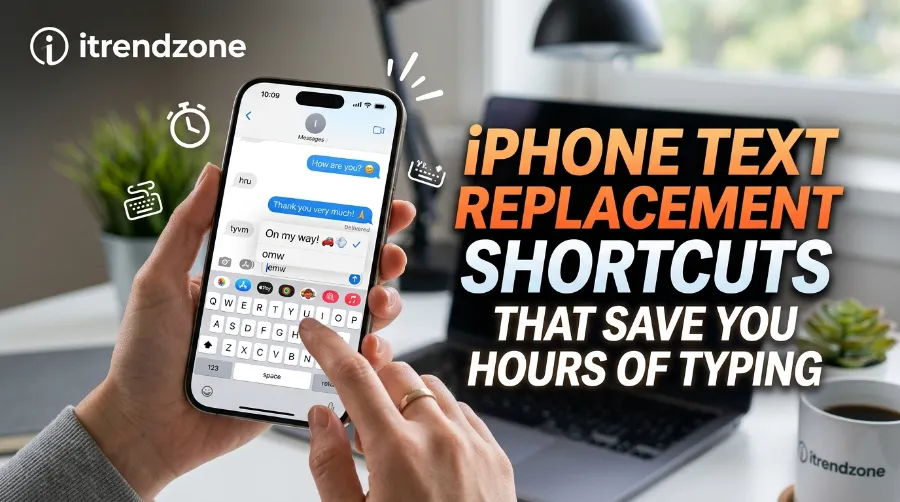
Apple actually ships the feature pre-loaded with one working example, something MacRumors highlights as the quickest way to confirm it’s working: in any app that accepts text input, type “Omw” followed by a space, and it will change to “On my way!” automatically.
How to Set Up Keyboard Shortcuts iPhone Setup (Step by Step)
This is the current path in iOS 26, and it hasn’t changed meaningfully since iOS 12. Apple has kept this menu stable for years, which is rare for a Settings feature.
- Open Settings, then tap General.
- Scroll down and tap Keyboard.
- Tap Text Replacement.
- Tap the + in the top-right corner.
- In the Phrase field, type the full text you want to appear (your email, your address, a common reply).
- In the Shortcut field, type the short trigger you’ll actually type on your keyboard.
- Tap Save.
That’s it. The next time you type your shortcut anywhere on your phone and hit space, the full phrase pops in automatically. AbilityNet’s accessibility guide, which specifically documents the iOS 26 interface for users who find small-keyboard typing physically difficult, confirms this exact sequence still applies in the current build.
iPhone Safari Browser Settings You Should Change Today
There’s also a faster route if you’re already in a text field:
- Tap and hold the emoji or globe icon in the bottom corner of the keyboard.
- Select the shortcut to jump straight to Keyboard settings without backing out to the Settings app.
A Note on What Doesn’t Work
Text Replacement only fires with Apple’s built-in keyboard. If you’ve installed Gboard, SwiftKey, or another third-party keyboard as your primary input method, your custom shortcuts won’t trigger. This limitation is one Gadget Hacks flags clearly in its own walkthrough of the feature, and it trips up a surprising number of people who switch keyboards and then assume the feature is broken. If your shortcuts stop working right after installing a new keyboard app, that’s almost always the cause, so switch back to the Apple keyboard as your default, at least for apps where you rely on shortcuts.
Custom Text Shortcuts iPhone: 10 Worth Setting Up Today
Not every phrase deserves a shortcut. The ones that pay off are things you retype often, that are long enough to be annoying, and that don’t change from one message to the next.
| Shortcut | Expands to | Best for |
|---|---|---|
| @@ | your full email address | Signups, forms, quick replies |
| omw | On my way, see you soon! | Texting friends or family |
| addr | your home or office address | Delivery apps, forms |
| ph | your phone number | Business texts, forms |
| brb | Be right back, stepping away for a minute | Work chats |
| thx | Thanks so much, I really appreciate it! | Customer or client replies |
| mtg | Can we push this meeting by 15 minutes? | Calendar-adjacent texting |
| sig | your name plus title plus company | Email sign-offs |
| sry | Sorry about that, my mistake, fixing it now. | Quick corrections |
| loc | I’m running about 10 minutes late, on my way. | Ride-share or meetup coordination |
A few practical notes from actually building lists like this:
- Keep shortcuts short and unlikely to appear naturally in normal typing. “ad” is risky because it might trigger mid-sentence, while “addr” is safer.
- Avoid using real words as shortcuts unless you want autocorrect to override them constantly.
- If a shortcut isn’t unique enough, iOS will refuse to let you save it and won’t show a Save button, which is a quiet built-in safeguard against accidental overlaps.
Text Replacement iOS vs. Shortcuts.app vs. Third-Party Text Expanders
People searching for typing shortcuts on iPhone often land on three different tools without realizing they solve different problems.
- Text Replacement (built-in): free, simple phrase-for-code swaps, syncs via iCloud, works almost everywhere on Apple’s keyboard.
- Shortcuts.app: automations, not text expansion. The Sweet Setup’s early look at Apple’s Shortcuts ecosystem explains this well: think “run three actions when I tap this,” not “type this, get that.”
- Third-party expanders like TextExpander: cross-platform, works on Windows, Android, and browser extensions too, built for teams who need shared snippet libraries. The same shortcut can expand inside Gmail, Slack, Salesforce, Zendesk, Notion, Google Docs, or a CRM, and because snippets sync across devices, shortcuts remain available whether you’re working on a laptop, desktop, or mobile device.
For most individual iPhone users, the built-in feature covers 90% of use cases at zero cost. Teams that need shared, cross-platform snippet libraries across Windows and Android as well are the main group who’ll actually get value out of paying for a third-party tool.
Real-World Time Savings
It’s easy to dismiss this as a minor convenience, so it’s worth putting rough numbers on it. If you type your email address manually roughly 15 times a week at an average of 22 characters, and a two-character shortcut replaces it instantly, you’re saving a small amount each time. Multiply that across ten shortcuts covering your most repeated phrases, and the minutes saved daily compound into real time over a month. ThinkReliability’s productivity-focused walkthrough of the same feature frames it the same way: as a small daily habit change that compounds, not a one-time trick, and it notes that Android’s equivalent (Personal Dictionary) can vary depending on the version of Android and the carrier, while Apple’s version stays consistent across every iPhone.
Troubleshooting: Why Your Text Replacement Isn’t Working
Run through this checklist in order. It covers the vast majority of cases where the feature seems “broken” but isn’t.
- Check your keyboard. If a third-party keyboard is active, switch back to Apple’s default keyboard.
- Confirm you tapped Save. iOS silently blocks saves for shortcuts that are too generic or already in use elsewhere.
- Type the space or punctuation. The replacement only triggers after you type a space, period, or comma, not while you’re still mid-word.
- Check iCloud sync. If a shortcut works on your iPhone but not your iPad, go to Settings > [your name] > iCloud and confirm iCloud Drive is turned on for that device.
- Reset if all else fails. Go to Settings > General > Transfer or Reset iPhone > Reset > Reset Keyboard Dictionary. This clears all shortcuts and rebuilds the dictionary from scratch, so use it only as a last resort since it deletes everything.
If sync issues persist specifically between devices, it’s also worth checking your broader notification and sync settings. Our guide to setting up the iPhone Notification Center covers related iCloud-dependent settings that sometimes get toggled off together.
Frequently Asked Questions
1. Does text replacement work in third-party apps like WhatsApp or Instagram?
Yes, as long as you’re using Apple’s built-in keyboard rather than a third-party one. The feature works at the system keyboard level, not the app level, so it fires in nearly any text field.
2. Will my shortcuts sync to my iPad and Mac automatically?
Yes, provided iCloud Drive is turned on for all devices signed into the same Apple ID. If one device is missing your shortcuts, that’s almost always an iCloud sync setting, not a bug.
3. Can I use text replacement to fix words I frequently mistype instead of adding new phrases?
Yes. Leave the Shortcut field blank and just enter the correctly spelled word in the Phrase field. This tells autocorrect to stop “fixing” a word you’re actually spelling correctly.
4. How many text replacement shortcuts can I create?
Apple doesn’t publish a hard limit for most users, though each individual phrase is capped at 2,000 characters. In practice, dozens of shortcuts run without any noticeable slowdown.
5. Does text replacement work with emojis or hashtag groups?
Yes. You can set a shortcut to expand into a group of hashtags, a string of emoji, or a mix of both, which is popular among people who post the same hashtag set repeatedly on social platforms.
Quick-fire round:
Q: Is text replacement the same as predictive text?
A: No. Predictive text suggests words as you type, while text replacement swaps a specific trigger for a pre-written phrase you configured.
Q: Does it work in landscape mode or with an external keyboard?
A: Yes, text replacement fires regardless of orientation or whether you’re using the on-screen keyboard or a connected hardware keyboard.
Q: Can I export my shortcut list to share with a teammate?
A: Not directly through Apple’s built-in feature since there’s no native export option. For shared team snippet libraries, a dedicated tool like TextExpander is the better fit.
Conclusion
Text Replacement is one of those iPhone features that’s been sitting in Settings for years, doing almost nothing for most people simply because nobody showed them where it lives. Once it’s set up, and it genuinely takes about two minutes for your first five shortcuts, it keeps paying off every single day without any extra effort. Start with the phrases you retype most (your email, your address, your go-to text replies), test them the way Apple’s own “omw” example does, and expand your list from there. For more built-in features hiding in plain sight, our complete guide to hidden iPhone settings is a natural next stop.
References
- Apple Support, Save keystrokes with text replacements on iPhone
- MacRumors, Text Shortcuts You Should Be Using on iPhone and Mac
- How-To Geek, How to Make Custom Text Shortcuts on iPhone
- Gadget Hacks, Text Replacements: The Secret Weapon to Typing More with Less
- AbilityNet, How to Use Text Replacement in iOS 26
- ThinkReliability, How to Use Text Replacement Shortcuts to Reduce Errors and Boost Productivity
- The Sweet Setup, First Look: Shortcuts for iOS