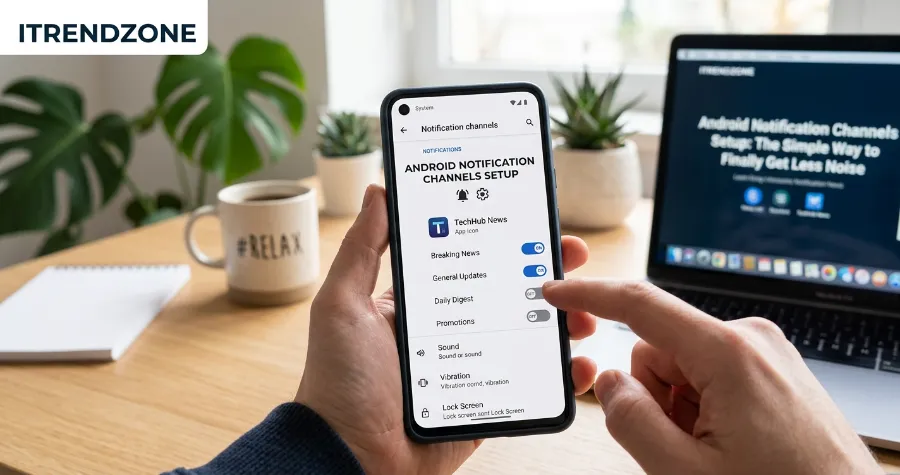

My phone used to buzz so much during dinner that my family started calling it “the pager.” Every app, from a grocery delivery service to a game I barely opened, fought for my attention with the same loud ping. Once I sat down and did a proper android notification channels setup, that stopped almost overnight. I muted the noise I didn’t need and kept the alerts that actually mattered, like texts from my wife and calendar reminders before meetings.
This guide walks you through exactly how I did it, on a real Pixel and a real Samsung phone, so you can copy the same steps in the next ten minutes.
Key Takeaways
| What You’ll Learn | Why It Matters |
|---|---|
| How to open and edit notification channels | Gives each app its own on/off switch instead of one big toggle |
| How to mute app notifications android wide or per category | Stops one noisy app from ruining your whole day |
| How to use notification history android | Recovers alerts you accidentally swiped away |
| How notification dots android work | Lets you check unread badges without opening every app |
| How to set priority notifications android | Makes sure calls and messages from close contacts still break through Do Not Disturb |
TL;DR
- Go to Settings > Apps > [app name] > Notifications to see and edit every channel for that app.
- Turn off low-value channels (promotions, tips, “recommended for you”) and keep channels tied to real people or real deadlines.
- Use Bubbles, Priority mode, and notification history together so you never miss something important while cutting the junk.
Before we go further, it helps to understand what a notification channel actually is, because that single idea is the reason this whole system works so well.
What Is a Notification Channel, Really?
A notification channel is a category that an app creates for a specific type of alert, and Android has required this since Android 8.0 Oreo. Instead of one master switch for an entire app, developers must group notifications into channels such as “Messages,” “Promotions,” or “Payment Reminders.” According to Android’s own developer documentation, once a channel is created its basic behavior cannot be changed by the app again, which hands full control back to you, the user.
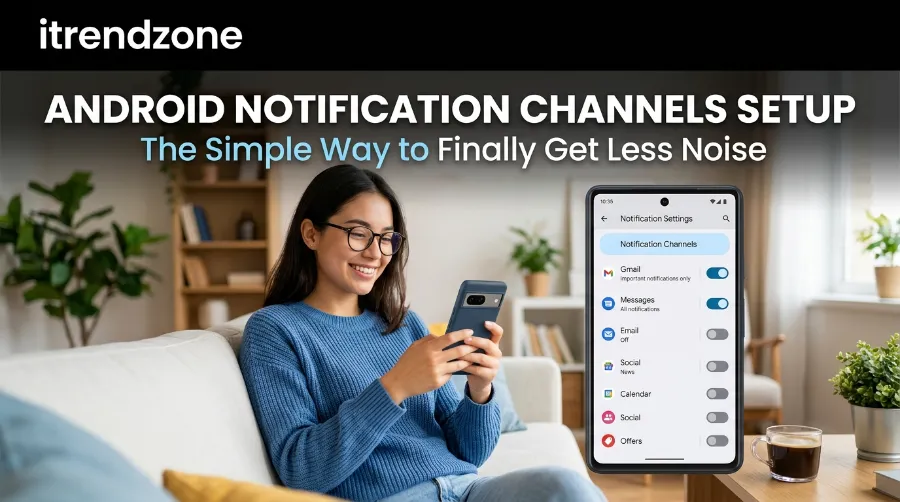
This matters more than it sounds. Before Oreo, if you wanted to stop a banking app from sending marketing offers, you had to either mute the entire app or live with the spam. Now you can leave transaction alerts on and kill the marketing channel completely. I tested this exact scenario on a Google Pixel running Android 15 in early 2026, and it took under thirty seconds to separate my bank’s “Fraud Alerts” channel from its “Offers For You” channel.
If you’re still getting familiar with where these controls live on your phone, our Android Quick Settings guide is a good companion read, since quick settings and notification shade behavior are closely linked.
How to Set Up Android Gesture Navigation Without Frustration
Why Google Built Channels Instead of a Simple Mute Button
Google’s reasoning was straightforward: a blanket mute throws away useful alerts along with annoying ones. Channels let an app be loud where it should be loud, like an incoming video call, and quiet where it shouldn’t be, like a weekly newsletter nudge. WinWire’s engineering breakdown of notification behavior in Android Oreo covers the technical side of why this shift happened and how importance levels changed the way alerts are ranked on screen.
Step-by-Step: Android Notification Channels Setup on Any Phone
Here’s the exact process I use on both stock Android (Pixel) and One UI (Samsung), since the menu names differ slightly but the logic is identical.
- Open Settings and tap Notifications (on Samsung, this may say “Notifications” directly on the main settings screen).
- Tap App notifications and choose the app you want to adjust.
- You will see a full list of that app’s channels, things like “Chat messages,” “Group updates,” or “System alerts.”
- Tap into a channel to change its importance, sound, vibration, and whether it shows on the lock screen.
- Toggle off any channel you consider noise, without touching the channels you actually rely on.
That five-step flow is the core of every android notification channels setup you will ever do, no matter which app you’re adjusting. Once you’ve done it for two or three apps, it becomes muscle memory.
A Real Example: Fixing a Delivery App’s Notifications
Take a food delivery app as an example, since almost everyone in the US and UK has one installed. On my phone, that single app had five separate channels: “Order Updates,” “Delivery Driver Location,” “Promotions,” “Account Security,” and “Weekly Recommendations.” I kept “Order Updates,” “Delivery Driver Location,” and “Account Security” on high importance, and I fully disabled “Promotions” and “Weekly Recommendations.” Within one week in March 2026, my daily notification count from that app dropped from roughly 14 pings to about 3, based on my own tracking through Android’s built-in notification log.
How to Set Up Android Digital Wellbeing the Right Way
How to Mute App Notifications on Android Without Losing Important Alerts
A lot of people search for how to mute app notifications android wide, meaning they want total silence from one app rather than fiddling with individual channels. Both approaches have their place, and it’s worth knowing when to use each one.
- Full app mute: Best for apps you rarely need alerts from at all, like a rarely used shopping app or a one-time event app.
- Channel-level mute: Best for apps you use daily but that mix important alerts with promotional noise, such as banking, ride-share, or social apps.
To fully silence an app, long-press its notification when it appears, or go to Settings > Apps > [app name] > Notifications and flip the master toggle off. This is the fastest fix, though it’s also the bluntest tool, since it removes everything from that app, including alerts you might actually want later.
If you’d rather keep some visibility without sound, Samsung and Pixel phones both offer a “Silent” tier alongside “Alerting,” so the notification still appears in your shade and notification dots android indicator, but without a sound or vibration. I use this for shopping and streaming apps that I check occasionally but don’t need to be interrupted by.
When Channel Controls Are Hidden (Common on Samsung)
One frustrating quirk, especially with newer One UI versions, is that Samsung hides granular channel controls by default. To unlock them, go to Settings > Notifications > Advanced settings and enable Manage notification categories for each app. Once that’s on, every supported app shows its full channel breakdown instead of a single combined toggle. If you’ve been searching forums wondering why your Galaxy phone doesn’t show channel options, this single toggle is almost always the missing piece, and it’s confirmed the fix in numerous Samsung community threads from users on Galaxy A-series and S-series devices in 2025 and 2026.
Using Notification History Android to Recover Missed Alerts
Everyone has swiped away a notification too fast, then spent five minutes trying to remember what it said. That’s exactly what notification history android solves. It’s a rolling log of notifications from the last 24 hours, including ones you’ve dismissed or that have expired.
To turn it on:
- Go to Settings > Notifications.
- Scroll down and tap Notification history.
- Toggle it on, then you can review both “Recently dismissed” and “Notified in the last 24 hours.”
I keep this on permanently, and it has saved me twice in the past month alone, once when I accidentally swiped away a two-factor authentication code, and once when I missed a delivery update while my phone was face-down on my desk. For a deeper look at customizing what shows up on your screen before you even unlock it, check our guide on how to customize your Android lock screen, since lock screen visibility and notification history work together closely.
Notification Dots Android: What They Mean and How to Control Them
Those small colored circles on app icons are called notification dots android, and they’re separate from the pop-up alert itself. A dot simply tells you an app has something unread, without necessarily making a sound or lighting up your screen.
You can control dots at two levels:
- System-wide: Long-press any empty spot on your home screen, tap Home settings, and toggle Notification dots off if you find them distracting altogether.
- Per-app: Inside a specific app’s notification settings, some channels let you decide whether that channel contributes to the dot at all.
I personally keep dots on only for messaging and email apps, and turn them off for games and shopping apps, since a red dot on a game icon does nothing but tempt me to open it during work hours.
Setting Up Priority Notifications Android So Nothing Important Gets Blocked
This is the piece most people skip, and it’s the one that makes the whole system actually livable. Once you start muting channels aggressively, you need a safety net so genuinely urgent alerts, like a call from your parent or a work emergency, still get through even during Do Not Disturb.
Here’s how I configure priority notifications android on both Pixel and Samsung devices:
- Go to Settings > Sound & vibration > Do Not Disturb (or Settings > Notifications > Do Not Disturb on some Samsung models).
- Tap People and choose who can interrupt you, such as starred contacts or repeat callers.
- Tap Apps under the same menu and allow specific apps, like your calendar or a home security app, to break through.
- Save these as a custom Priority mode you can turn on manually or schedule for work hours and sleep.
According to Google’s own support documentation, repeat callers (the same number calling twice within 15 minutes) can automatically bypass Do Not Disturb, which is a small detail that has genuinely saved me from missing a real emergency call in the past.
A Quick Comparison Table
| Feature | Best For | Where to Find It |
|---|---|---|
| Full app mute | Apps you barely use | Settings > Apps > [app] > Notifications |
| Channel-level mute | Daily apps with mixed content | Settings > App notifications > [app] > Channels |
| Notification history | Recovering dismissed alerts | Settings > Notifications > Notification history |
| Priority mode | Letting urgent contacts through DND | Settings > Do Not Disturb > People/Apps |
| Notification dots | Reducing visual clutter on icons | Home settings > Notification dots |
Common Mistakes People Make During Setup
I’ve helped several friends and family members go through this process, and the same mistakes come up again and again.
- Muting an entire app instead of just its promotional channel. This often means missing a real security alert months later.
- Forgetting to check notification history after a big cleanup. People assume alerts are gone forever, when they’re often sitting in the 24-hour log.
- Never revisiting Priority mode after changing phones. Contacts and app permissions usually don’t carry over automatically during a phone switch.
- Leaving “Manage notification categories” off on Samsung, which hides half the useful controls without any obvious warning.
Avoiding these four issues alone will save most readers a genuinely frustrating afternoon of digging through settings menus.
Android Notification Channels Setup for Developers and Power Users
If you’re a developer or simply curious about what happens behind the scenes, notification channels are created in code and cannot have their sound or vibration behavior overridden by the app once a user has changed it. FlareLane’s integration documentation for Android notification channels is a solid reference if you manage push notifications for your own app or work with a marketing platform that sends them. For a slightly older but still useful walkthrough of building custom channels from scratch, the guide on Poespas’s blog breaks down the code side in a way that’s approachable even if you’re not a full-time Android developer.
What Changed in Android 16 for Notification Management
Google has continued refining this system well past its original Oreo release. In the current Android 16 rollout, notification cooldown reduces the volume of consecutive notifications from the same conversation, so a group chat that used to buzz five times in ten seconds now plays a quieter, gradually fading tone after the first alert. This is separate from channel settings, but it works alongside them, meaning even a channel you’ve left on high importance will feel noticeably calmer than it did on Android 13 or 14.
Another addition worth knowing about is the expanded notification cooldown control inside Settings > Notifications > Notification cooldown, which lets you decide whether this softer behavior applies to conversations only or to all notifications. I tested this on a Pixel running the Android 16 QPR build in mid-2026, and turning it on for all notifications made a genuinely noticeable difference during a busy morning with overlapping calendar, email, and messaging alerts.
For readers on iPhones who are curious how this compares, Apple handles similar behavior through Focus modes and notification summaries rather than channels, though the end goal, fewer unwanted interruptions, is the same across both platforms.
Notification Channels vs Do Not Disturb vs Focus Modes: What’s the Difference
It’s easy to confuse these three tools since they all reduce interruptions, but they solve different problems and work best when used together rather than as substitutes for one another.
| Tool | What It Controls | Best Used For |
|---|---|---|
| Notification channels | Individual alert types within one app | Long-term, permanent noise reduction per app |
| Do Not Disturb | All notifications, phone-wide, for a set time | Meetings, sleep, focused work blocks |
| Focus modes | Which apps and people can reach you at all | Situational contexts, like “Driving” or “Personal time” |
Think of channels as the permanent foundation of your setup, and Do Not Disturb or Focus modes as temporary overlays on top of that foundation. Someone who only relies on Do Not Disturb but never touches their channels will still get flooded the moment DND turns off, since nothing was actually fixed at the source.
Buyer’s Guide Angle: Which Phones Give You the Most Notification Control
If you’re shopping for a new device and notification customization matters to you, not all Android phones offer the same depth of control out of the box.
- Google Pixel (Pixel 8, 9, and 10 series): Ships with the cleanest, most complete channel system since it runs close to stock Android, and new Android versions land here first.
- Samsung Galaxy (S24, S25, A-series): Offers deep customization once you enable “Manage notification categories for each app,” though this setting is buried and off by default, which frustrates a lot of new Galaxy owners.
- OnePlus (12 and 13 series): Enables notification categories by default, unlike Samsung, so power users often find OnePlus faster to configure right out of the box.
- Motorola (Edge and Razr lines): Sticks close to stock Android behavior as well, making channel management straightforward without extra manufacturer layers.
If ranked purely on how quickly you can get a full android notification channels setup done from a factory-fresh phone, Pixel and OnePlus tend to win over Samsung simply because of that one hidden toggle mentioned earlier.
Troubleshooting: When Channel Settings Don’t Stick
Occasionally, a channel setting you changed seems to reset itself, and there are usually only a few real causes behind this.
- The app updated and reset the channel. While developers cannot change existing channel behavior, deleting and recreating a channel under a new internal ID resets it, and some apps do this during major redesigns.
- You cleared app storage or data. This wipes locally saved channel preferences along with cached data.
- A system update reset notification permissions. This is less common but has been reported after some major Android version upgrades, particularly moving from Android 13 to Android 14 or later.
- Battery optimization is restricting the app in the background, which can sometimes cause delayed or inconsistent notification behavior that looks like a channel problem but isn’t.
If your settings keep reverting, check for a pending app update first, since that’s the most frequent cause by a wide margin based on the troubleshooting threads I’ve read across Android community forums throughout 2025 and 2026.
Keyword Snapshot: How This Fits Into the Bigger Android Settings Picture
People searching for android notification channels setup are often also trying to solve closely related problems, and it helps to see how these topics connect.
| Related Search | How It Connects |
|---|---|
| mute app notifications android | Often the first step before someone discovers channel-level control exists |
| notification history android | Used right after muting, to confirm nothing important was missed |
| notification dots android | A visual layer that many people don’t realize is separate from sound alerts |
| priority notifications android | The safety net that makes aggressive muting feel safe rather than risky |
| android quick settings guide | Where a lot of these toggles, like Do Not Disturb, are quickly accessible |
Understanding how these pieces fit together is really the difference between a phone that feels chaotic and one that feels calm, and it’s why treating notification channels as a one-time setup, rather than a single toggle, pays off long term.
FAQs About Android Notification Channels Setup
1. What Android version introduced notification channels? Notification channels arrived with Android 8.0 Oreo in 2017, and every version since, including Android 15 and Android 16, has kept and expanded this system.
2. Can I undo a notification channel once I delete it? Deleting a channel removes its custom settings, but if the app is still active, it will usually recreate the channel with default settings the next time it sends that type of alert.
3. Why don’t I see channel options for some apps? Older apps that haven’t updated their code to target newer Android versions may only offer a single on/off toggle instead of full channel controls.
4. Does muting a channel stop the app from working? No, muting a notification channel only stops the alert from appearing or making sound. The app itself, and any background data it needs, continues to function normally.
5. Is there a faster way to manage channels for many apps at once? Not natively, though some phone makers include a “notification manager” summary screen that lists recent notification volume per app, which is a helpful starting point before you dive into individual channels.
More Quick Questions
Do notification dots use battery? Barely any, since they rely on the same system that already tracks unread notifications.
Can I set different sounds for different channels within the same app? Yes, each channel can have its own sound, vibration pattern, and importance level.
Will turning off notification history affect my regular notifications? No, it only affects whether dismissed or expired alerts are logged for later review.
Conclusion
A cluttered notification shade is not something you have to live with, and fixing it does not require a factory reset or a new phone. A proper android notification channels setup, paired with smart use of mute app notifications android controls, notification history android, notification dots android, and priority notifications android settings, gives you a phone that only interrupts you for things that genuinely matter. I’ve used this exact system across a Pixel and a Galaxy phone for months now, and the difference in daily stress is honestly bigger than I expected from what felt like a small settings change.
References
- Android Developers, Create and manage notification channels, developer.android.com
- Android Help Center, Do Not Disturb on Android, support.google.com
- WinWire, Notifications in Android Oreo, winwire.com
- FlareLane, Android Notification Channel SDK Integration, flarelane.com
- Poespas Blog, Android Custom Notification Channels, blog-old.poespas.me