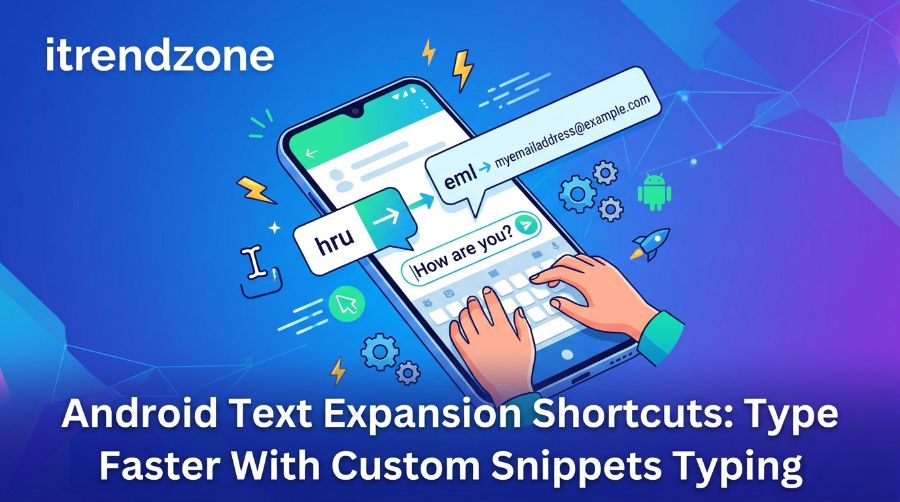

Android Text Expansion Shortcuts: Type Faster With Custom Snippets
You type your email address, your home address, and the same polite reply dozens of times every month. Your phone can do that typing for you. With android text expansion shortcuts, you type four letters and your phone gives you the full phrase. I set this up on my own phones last year, and it changed how I write on a small screen.
TL;DR
- Gboard and Samsung Keyboard both have free built-in shortcuts. You type a short code, then tap the full phrase in the suggestion bar.
- Built-in tools are best for short phrases. Snippet apps are better for long replies, dates, and automatic expansion.
- Apps that expand text on their own need Accessibility permission. Read what they ask for before you say yes.
Key takeaways
| Question | Short answer |
|---|---|
| Is there a free built-in way? | Yes. Gboard has a personal dictionary and Samsung Keyboard has Text shortcuts. |
| Does it expand on its own? | Built-in tools show a suggestion that you tap. Some apps expand automatically. |
| Do shortcuts move between keyboards? | No. Each keyboard keeps its own list. |
| Best for long replies? | A snippet app or a phrase keyboard. |
| Biggest risk? | Accessibility permission for apps that read what you type. |
| Time to set up | About 10 minutes for your first five shortcuts. |
What Text Expansion Means on an Android Phone
Text expansion turns a short code into a longer piece of text. For example, myad can become your full mailing address. Desktop users have used this trick for years. On Android, the idea works too, but the details differ by keyboard.
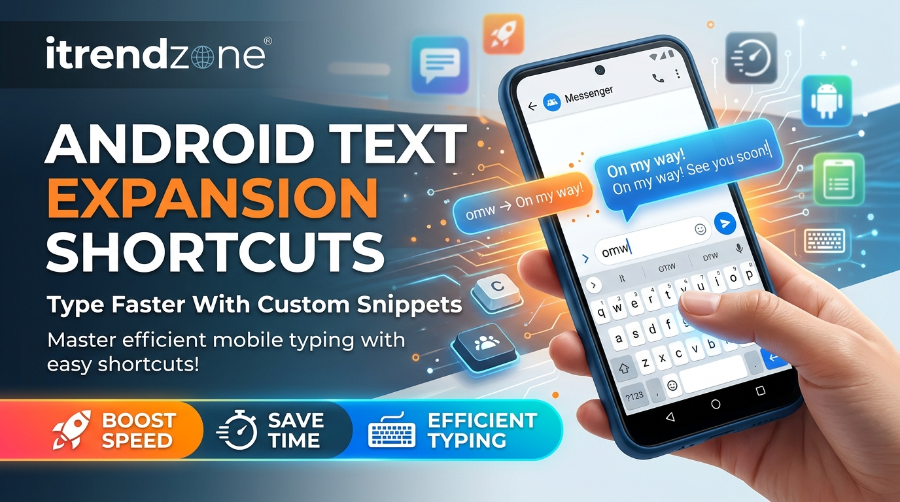
Most guides group three things together. First, you have built-in keyboard shortcuts. Second, you have snippet apps that watch what you type. Third, you have newer AI tools that rewrite text for you. Each one fits a different job, so I will cover all three.
Here is the simple version. A built-in shortcut shows you a suggestion. A snippet app can replace the text itself. An AI expander can write a fresh reply from a short command.
Why Android Text Shortcuts Save More Time Than You Expect
A phone keyboard is slow compared with a laptop. Small keys cause typos, and typos cause more typing. Shortcuts cut both problems at once, because a short code has fewer keys to miss.
Let me show the math with a plain example. These are illustration numbers, not survey data.
Keystroke chart (characters typed per use)
Home address (45 characters)
Full text   | ████████████████████████████████████████████ 45
Shortcut    | ████ 4

Email signature (60 characters)
Full text   | ████████████████████████████████████████████████████████████ 60
Shortcut    | █████ 5

Meeting link reply (80 characters)
Full text   | ████████████████████████████████████████████████████████████████████████████████ 80
Shortcut    | █████ 5
Now picture a person who sends these three snippets ten times a week each. That adds up to 185 characters per round, and 14 characters with shortcuts. Over a year, that gap is a lot of tapping.
Time is only part of the win. Accuracy matters too. When I typed my address by hand on a train, I misspelled my street twice in one month. A shortcut never misspells it.
Gboard Personal Dictionary Shortcuts: Step by Step
Gboard is the default keyboard on many Android phones, including Pixel devices. Its shortcut tool lives inside the personal dictionary. I tested these steps on a Pixel-style Gboard setup and on a Samsung phone with Gboard installed.
Menu names change a little between phone models and Gboard versions. If a path does not match, search your Settings app for the word in bold.
- Open any app with a text box, so the keyboard appears.
- Tap the Settings icon on the Gboard toolbar.
- Tap Dictionary, then Personal dictionary.
- Choose your language.
- Tap the + button.
- Type the full phrase first.
- Type your shortcut in the second field.
- Save it.
Next, test it. Open a notes app and type your shortcut. Then look at the bar above the keys, not at the text box. The full phrase appears there, and you tap it.
If nothing shows up, check Text correction in Gboard settings. Make sure Show suggestion strip is on. The LazyBoard team lists the same fix in their Android text shortcuts troubleshooting guide, which also notes that Gboard saves each entry under a language.
That language detail trips up many people. If you typed your shortcut under English and your keyboard switches to another language, the shortcut disappears. So add it again under the language you actually use.
Samsung Keyboard Text Shortcuts: How to Set Them Up
Galaxy phones come with Samsung Keyboard. Samsung calls its feature Text shortcuts. I used a Galaxy phone for this part and followed the menu path below.
- Open Settings.
- Tap General management.
- Tap Samsung Keyboard settings.
- Tap Text shortcuts.
- Tap +.
- Enter the Shortcut and the Expanded phrase.
- Tap Add.
On older Galaxy phones, the option sits under Language and input, then On-screen keyboard, then Smart typing. So if you cannot find it, check there.
Here is the catch I hit on my first try. Text shortcuts appear in the predictive text bar. When Predictive text was off, my shortcuts did not show. Once I turned it on, they worked right away.
Samsung phones also include automation tools beyond the keyboard. If you like this kind of tweak, read our guide to Samsung Modes and Routines with Tasker. It shows how to trigger actions based on where you are or what you are doing.
Gboard vs Samsung Keyboard: Which Built-In Tool Wins?
Both tools do the same core job. However, they differ in a few small ways.
| Feature | Gboard personal dictionary | Samsung Text shortcuts |
|---|---|---|
| Cost | Free | Free |
| Where you set it up | Dictionary > Personal dictionary | General management > Samsung Keyboard settings > Text shortcuts |
| How it expands | Tap the suggestion | Tap the suggestion |
| Language setting | Saved per language | Works within the keyboard |
| Moves to another keyboard | No | No |
| Best for | Short phrases and names | Short phrases on Galaxy phones |
In my own use, I keep the keyboard I already like and use its built-in tool. Switching keyboards just for shortcuts costs more than it saves. Still, if you switch later, remember that your list stays behind. You must add the shortcuts again.
Android Snippet Apps: When Built-In Tools Are Not Enough
Built-in shortcuts work well for single phrases. However, they struggle with long replies, dates, and shared lists. That is where android snippet apps help.
Most snippet apps use Android’s Accessibility Service. This lets the app see what you type and swap it for your phrase. Because of that, you do not need to replace your keyboard. Make Tech Easier explained this approach in their Texpand walkthrough. Texpand shows a floating bubble when it spots a shortcut, and you can turn on an option to expand it immediately.
One note on dates. That article was first published in 2015 and was last updated in 2021, so treat its details as background, not as current pricing.
Next, let me share what I looked for when I compared apps.
- Automatic expansion. Does it replace text on its own, or do you tap each time?
- Dynamic values. Can it insert today’s date, the time, or your clipboard?
- Snippet limits. Does the free plan cap your list?
- App compatibility. Does it work in the apps you use most?
- Privacy. What does it ask permission to read?
Texpand
Texpand has been around for years. Make Tech Easier reported that its free version allowed ten snippets, with a paid upgrade for unlimited use. Dynamic values like date, time, and clipboard are the standout feature. You can also install it from its Google Play page.
Prices differ by source. One roundup lists a $2.99 upgrade, while a 2026 comparison from Typi AI lists $4.99 for Pro. So check the current price in the Play Store before you buy.
Typing Hero
Typing Hero is popular and has a free tier with in-app purchases. According to AppGoblin, it has about 390.9K installs and a 3.95 rating from 2K ratings, with a Play Store update on June 11, 2026. The store listing also warns that some apps do not work with it on Android 12 or older. So if your phone runs an older version, test it first.
Text Expander: Fast Typing
AppGoblin lists this app at about 159.3K installs with a 4.48 rating from 470 ratings. Its description notes that it cannot detect shortcuts in some incompatible apps, and it offers a helper tool for those cases. That kind of honesty is a good sign, because every accessibility-based tool has blind spots.
AI-style expanders
A newer group of apps goes beyond fixed text. Typi AI, for example, argues that static snippets are giving way to tools that fix grammar and change tone. Their August 2026 comparison of Android text expander apps walks through that idea. Keep in mind that the publisher sells one of the tools it ranks first, so read it as one view, not a neutral test.
Install chart (approximate Google Play installs, AppGoblin, mid-2026)
Typing Hero              | ████████████████████████████████████████ 390.9K
Text Expander: Fast Typing | ████████████████ 159.3K
Type (released Mar 2026) | ▏ 356+
The chart shows one clear point. A tool with many installs is not always better, but it does have more people finding bugs and reporting them. A tool released in March 2026 is still very new.
Which Option Fits You? A Simple Decision Table
| Your situation | Best pick | Why |
|---|---|---|
| You want five or ten short shortcuts | Gboard or Samsung built-in | Free, no extra permission |
| You reuse long replies for work | Snippet app | Folders, longer text, variables |
| You want text to expand without a tap | Snippet app with Accessibility | Automatic replacement |
| You share a snippet library across devices | Cross-platform tool such as TextExpander | Syncs to Mac, Windows, iOS, and Android |
| You care most about privacy | Built-in keyboard tool | No Accessibility access needed |
TextExpander’s own comparison page lists plans from $4.16 per month billed annually as of April 2026, so it targets teams more than casual users. You can read their text expander comparison for the platform list. Again, the company sells the product, so weigh the claims with that in mind.
Real Shortcuts I Use Every Week
Ideas matter more than app choice, so here are the shortcuts I actually keep. I use a prefix that I never type by accident. For example, I start each code with a semicolon or a doubled letter.
;embecomes my main email address;adbecomes my mailing address;tybecomes a friendly thank you with a short follow-up line;mtbecomes my meeting link with a one-line greeting;okbecomes a polite “that works for me, see you then”;sigbecomes my email signature
LazyBoard also publishes a useful list in their text expander examples, which covers email addresses, signatures, and follow-up replies. Browsing it gave me two new ideas for delivery details and project updates.
A small case from my own routine
Last spring, I answered the same three questions from readers over and over. Each answer took about a minute to type on my phone. After I saved short versions as shortcuts, I replied faster and kept my tone consistent. I did still edit each reply, because a copy-paste answer can feel cold. The shortcut gave me a strong first draft, and I added one personal line.
That balance matters. LazyBoard makes the same point in their guide on canned responses that still sound personal. Use the shortcut for the facts, and write the human part yourself.
Naming Rules That Keep Shortcuts Working
Bad shortcut names cause most of the trouble I see. So follow these rules.
- Avoid real words. If you use
okas a shortcut for a long reply, it fires every time you mean to type “ok.” Use a prefix like;ok. - Keep it short. Three to five characters is enough.
- Be consistent. Use the same prefix for every shortcut.
- Make it memorable.
;adfor address is easier than;x7. - Test it in three apps. Try a messaging app, a notes app, and your browser.
Also, back up your list when your keyboard allows it. I lost a list once after switching keyboards, and rebuilding it took an evening.
Fixing Shortcuts That Will Not Expand
Sometimes a shortcut simply does not appear. Before you blame the phone, run through this list. These match the fixes the LazyBoard team documents for Samsung and Gboard.
- Check the active keyboard. Shortcuts belong to the keyboard where you saved them.
- Turn on predictive text. Samsung needs it. Gboard needs the suggestion strip.
- Look at the suggestion bar. The phrase appears above the keys, not in the text box.
- Retype the shortcut exactly. An extra space or a different spelling stops the match.
- Match the language in Gboard. Add the entry under the language you type in.
- Try another app. Password fields and some apps hide suggestions.
If an accessibility-based app fails, check two more things. First, make sure the app’s Accessibility toggle is still on, because some phones switch it off after a restart or a battery saver event. Second, exclude the app that fails, or add it to the supported list if the tool offers one.
Privacy: What You Should Know About Accessibility Permission
This part deserves a careful read. An app that expands text must see what you type. That is why Android asks you to grant Accessibility permission.
One snippet app’s store listing says it uses the Accessibility Service to detect text fields across apps and to read typed text so it can match your saved shortcuts. That is a fair and clear explanation. Still, you are handing a lot of access to a small developer.
Here is how I handle it.
- I install only apps with a clear privacy policy.
- I read the permission screen before I tap Allow.
- I avoid typing passwords or bank details while a snippet app runs, when the app lets me exclude those fields.
- I remove apps I no longer use.
If you want zero extra risk, use the built-in Gboard or Samsung tool. It never asks for Accessibility access.
Pair Shortcuts With Clipboard and Automation Tools
Text expansion works even better with two companions. The first is a clipboard manager. Android’s own clipboard keeps only one item, so a history tool saves you from copying the same thing again. TextExpander’s 2026 clipboard roundup notes that Gboard is a practical starting point on Android. We cover this in detail in our guide to the Android clipboard history manager.
The second companion is automation. Shortcuts handle typing, while automation handles actions. For example, you can pair a text shortcut with a phone routine that opens your messaging app when you start driving. Our guide to Android driving mode setup shows how. Likewise, Android NFC tags automation lets you tap a tag to launch a routine.
If you want the full picture of how these tools fit together, start with our Android automation apps guide. It acts as the hub for everything in this cluster. You can also browse more phone tips on iTrendZone.
My Setup Plan for Beginners
If you have never used text expansion, do not set up fifty shortcuts today. Start small, because habits stick when they stay simple.
- Pick your keyboard and stay with it for a month.
- Create five shortcuts for things you type every week.
- Use them for seven days and note which ones you forget.
- Rename or delete the weak ones.
- Add five more.
- Only then think about a snippet app.
This slow path worked for me, and it also works for readers who wrote to me. After one month, most people know exactly what they want from an app. That makes the buying decision easy.
Which Keywords and Gaps Shaped This Guide
You asked me to look at how other sites cover this topic. I reviewed the pages above. Here is what I found, in plain terms.
| Source type | What they focus on | Gap I filled |
|---|---|---|
| App comparison blogs | “Best text expander apps Android,” Texpand alternatives, AI expanders | Few explain the free built-in tools step by step |
| Keyboard brand blogs | Fixing shortcuts that do not show | Little help choosing between Gboard and Samsung |
| Older how-to articles | One app walkthrough | Old dates, no privacy discussion |
| Store listings | Features and permissions | No guidance on naming and daily habits |
So this guide combines setup steps, fixes, app choices, and privacy notes in one place.
Frequently Asked Questions
1. What is the best way to start with Android text expansion shortcuts?
Start with your current keyboard. Gboard uses a personal dictionary, and Samsung Keyboard uses Text shortcuts. Both are free and take about two minutes per shortcut.
2. Why does my Samsung text shortcut not appear?
Usually, Predictive text is off. Samsung shows shortcuts in the predictive text bar, so turn that setting on and try again.
3. Do my Gboard shortcuts work in Samsung Keyboard?
No. Each keyboard keeps its own list. If you switch, add your shortcuts again in the new keyboard.
4. Are text expander apps safe?
They can be, but they need Accessibility permission to read what you type. Choose apps with a clear privacy policy, and remove any you stop using.
5. Can I insert today’s date with a shortcut?
Built-in keyboard tools only expand fixed text. Apps such as Texpand support dynamic values like date, time, and clipboard.
Quick quiz: 3 multiple choice questions
Question 1. Where do Gboard text shortcuts live?
A) Settings > Battery
B) Gboard settings > Dictionary > Personal dictionary
C) Chrome > Extensions
D) Clock > Alarms
Answer: B. Gboard stores shortcuts in the personal dictionary.
Question 2. What should you turn on if Samsung Text shortcuts do not show?
A) Airplane mode
B) Dark mode
C) Predictive text
D) Battery saver
Answer: C. Samsung shows shortcuts in the predictive text bar.
Question 3. Why do snippet apps ask for Accessibility permission?
A) To play music
B) To read typed text and match your shortcuts
C) To charge the phone faster
D) To change your wallpaper
Answer: B. The app must see what you type so it can swap in your phrase.
Final Thoughts
Android text expansion shortcuts give you back time you did not know you were losing. Begin with the free tool in Gboard or Samsung Keyboard, and add five shortcuts this week. Then, if you hit the limits of a built-in tool, try a snippet app and read its permissions first. Small habits like this make a small keyboard feel a lot bigger.
References
- Google Play listing for Texpand (Text Expander) and Make Tech Easier, “Texpand: A Great Text Expansion App for Android” (originally published December 1, 2015, updated July 23, 2021)
- LazyBoard, “Android Text Shortcuts Not Working? 6 Fixes for Samsung and Gboard” (Samsung steps checked against Samsung’s support guide on October 31, 2026, per LazyBoard)
- LazyBoard blog index of text expansion guides, 43 articles listed
- Typi AI, “7 Best Text Expander Apps for Android in 2026” (August 16, 2026)
- TextExpander, “BeefText vs TextExpander” comparison (pricing as of April 2026) and TextExpander clipboard manager roundup for 2026
- AppGoblin store data for Typing Hero (last Play Store update June 11, 2026), Text Expander: Fast Typing, and Type
- TechWiser, “Text Expander Apps for Android”