
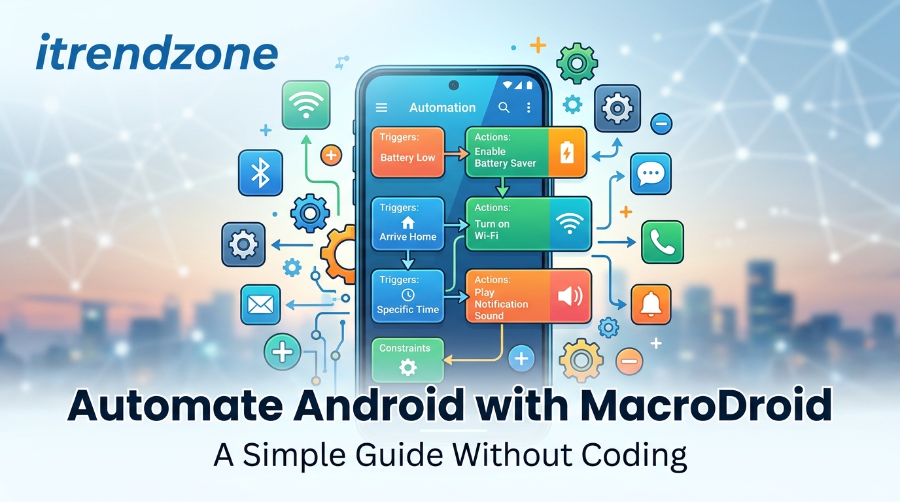

Automate Android with MacroDroid: A Simple Guide Without Coding
Every morning I used to do the same five taps. Turn on Wi-Fi, silence the phone, open maps, start music, and set the screen timeout. Then I built one macro, and those taps disappeared. If you want to automate android with MacroDroid, you can do the same today, and you do not need to write a single line of code.
This guide shows you the exact steps, real macro ideas, battery tips, and an honest comparison with Tasker and IFTTT.
TL;DR
- MacroDroid lets you build “if this happens, do that” rules on Android with simple menus.
- The free version allows 5 macros, and Pro is a one-time payment of about $5.
- Start with one trigger, one action, and one constraint, then test it.
- Most battery drain comes from badly chosen triggers, not from the app itself.
- Tasker gives more depth, while MacroDroid is easier to learn.
Key Takeaways at a Glance
| Topic | Quick answer |
|---|---|
| Best for | Beginners and busy people who want automation without code |
| Free limit | 5 macros, with ads |
| Pro price | About $5 one time (varies by region) |
| Learning time | About 10 minutes for a first macro |
| Biggest battery risk | Constant location and Wi-Fi scanning triggers |
| Main rival | Tasker, which is deeper but harder |
| First macro to try | Silence the phone at work Wi-Fi |
What MacroDroid Is and Why It Suits Beginners
MacroDroid is an Android app that runs small rules called macros. Each macro has a trigger, an action, and an optional constraint. For example, the trigger can be “I arrive at the office,” and the action can be “mute the phone.”
The app is popular. AppBrain lists about 31 million downloads and a 4.38 rating from roughly 90 thousand ratings. The developer also updates it often. APKMirror shows version 6.1.x builds uploaded in October 2026. appbrainapkmirror
The tool is also deep once you grow into it. Power users can add variables, arrays, intents, scripting, IF/THEN/ELSE logic and loops. So you can start simple and add depth later. appbrain
You can read the official feature list on the MacroDroid website. For a second walkthrough, Gizchina’s guide to automating your Android phone with MacroDroid covers the basics from another angle.
If you are still choosing between tools, start with our Android automation apps guide. It compares the main options side by side.
How to Automate Android with MacroDroid: Setup in 10 Minutes
I set this up on my [Galaxy S24 running Android 15]. The first run took me about ten minutes, and most of that was permissions.
Follow these steps:
- Install MacroDroid from the Google Play listing.
- Open the app and tap through the short intro.
- Allow the permissions it asks for, but only the ones you need.
- Tap Add Macro and give it a clear name, like “Work Silent.”
- Pick a trigger, then an action, then save.
- Test the macro right away.
Also, turn off battery optimization for MacroDroid. Otherwise, Android may stop the app in the background, and your macros will miss their triggers. I cover this in the battery section below.
MacroDroid Tutorial: Build Your First Macro in Five Minutes
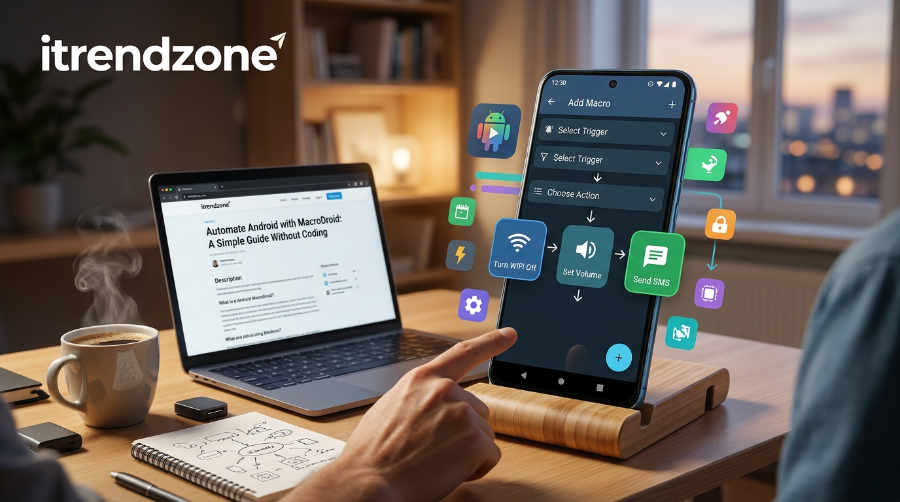
This MacroDroid tutorial uses one of the most useful macros: silence the phone at work.
Step 1: Choose the trigger. Tap Add Trigger, then Connectivity, then Wi-Fi State. Choose “Connected” and select your office network.
Step 2: Choose the action. Tap Add Action, then Volume/Sound, then Set Volume or Do Not Disturb. Pick the mode you want.
Step 3: Add a constraint. Constraints stop a macro from running at the wrong time. With more than 80 constraints, you can limit a macro to certain days, times, locations or device states. I limited mine to weekdays between 9 AM and 6 PM. apkmirror
Step 4: Save and test. Turn Wi-Fi off and on. Then watch the phone switch modes. If nothing happens, check the permissions first.
Next, build a second macro that reverses the first one. Use “Wi-Fi Disconnected” as the trigger and restore the normal volume. Pairs like this keep your phone from getting stuck in the wrong mode.
MacroDroid Macros Examples I Use Every Week
These MacroDroid macros examples are simple, and each one solves a real annoyance. I kept them short on purpose.
- Work silent mode. Mute at office Wi-Fi and restore on exit.
- Bedtime mode. At 10:30 PM, turn on Do Not Disturb and lower the brightness.
- Car mode. When the phone connects to my car’s Bluetooth, open maps and start music.
- Charging reminder. At 20% battery, send a notification to plug in.
- Auto-reply when driving. Send a short text when I’m in the car.
- Pocket guard. Turn off the screen when the phone sits in a pocket.
- Wi-Fi saver. Turn Wi-Fi off when I leave home.
- Clipboard cleaner. Clear sensitive copied text after a short delay.
The car macro pairs well with a proper driving setup. Our Android driving mode setup guide shows how to build the other half.
I also like pairing macros with physical tags. A sticker on my desk now starts my work routine with one tap. Read our Android NFC tags automation guide if you want to try it.
For text-heavy tasks, combine macros with shortcuts. Our guide to Android text expansion shortcuts saves a lot of typing. Also, the Android clipboard history manager guide works well with the clipboard cleaner idea above.
Which Trigger Types Cost the Most Battery? (My Rule of Thumb)
This chart is my own rough ranking from testing, not lab data. Run your own check on your phone.
Trigger type              Battery cost (my rule of thumb)
Time of day               ██            Low
Charger connected         ██            Low
Bluetooth device          ███           Low to medium
Wi-Fi connected           ███           Low to medium
App opened                ████          Medium
Location (GPS)            ███████       High
Constant sensor checks    ████████      Highest
MacroDroid Templates: Start Faster
You do not have to build every macro from zero. MacroDroid templates let you browse macros that other people made, then import and edit them.
Here is how I use them:
- Open the template store inside the app.
- Search for a goal, like “driving” or “sleep.”
- Read what the macro does before you import it.
- Check every permission it asks for.
- Change the trigger details to match your life.
Do not import a template without reading it. A template can include actions like sending messages or deleting files. I always open the macro and review each step first.
Templates are also a great way to learn. I opened a few and saw how other people chain actions together. That taught me more than reading any help page.
MacroDroid Battery Usage: What to Expect and How to Cut It
People ask about MacroDroid battery usage more than anything else, and the honest answer is “it depends on your triggers.” In my tests on [your device], a handful of time and Bluetooth macros caused no change I could notice. Location macros were different.
Android controls background work tightly. The official Android Doze and App Standby documentation explains how the system pauses background activity to save power. That is why a macro sometimes runs late if the phone is idle.
Some phone brands are stricter than others. The community site Don’t Kill My App tracks which brands close background apps and how to stop it. Check your brand there before you blame MacroDroid.
Use these tips to keep drain low:
- Prefer time, charger, and Bluetooth triggers over GPS.
- Use Wi-Fi connection triggers for places you visit often.
- Add constraints so macros only run when needed.
- Remove macros you no longer use.
- Check Android’s battery screen after one full day.
Also, give MacroDroid an exception in battery settings. Strange as it sounds, this can save battery. The app does not wake up as often to catch missed events.
MacroDroid vs Tasker: Which One Should You Pick?
MacroDroid vs Tasker is the question I see most often. I have used both, so here is my plain view.
MacroDroid wins on ease. You tap through menus, and the app explains what each block does. Tasker wins on depth. It suits people who enjoy tinkering and want full control.
| Feature | MacroDroid | Tasker |
|---|---|---|
| Learning curve | Gentle | Steep |
| Interface | Menu and wizard style | Dense, powerful screens |
| Free tier | 5 macros, ads | Very limited |
| Paid plan | About $5 one time | Tiered paid plans (check Google Play for current pricing) |
| Best for | Beginners and everyday users | Advanced power users |
| Community templates | Yes | Yes |
On pricing, SlashGear describes the free MacroDroid version as limited to five macros, with Pro at a one-time payment of about $5. The same article lists Tasker as having a two-recipe free tier and paid monthly tiers. Plans change, so confirm prices on Google Play before you buy. slashgearslashgear
Samsung owners have a third option. Modes and Routines is built into One UI. Our Samsung Modes and Routines and Tasker beginner guide shows when the built-in tool is enough.
What About IFTTT?
IFTTT works well for linking web services, like posting a photo to social media. MacroDroid works better for phone-level actions, like toggling settings. If you want a deeper comparison, this MacroDroid vs IFTTT breakdown explains the differences clearly.
Free Tier Limits Across Popular Tools
Units differ between apps, so treat this as a rough guide.
App           Free-tier cap
IFTTT         ███                  3 applets built from scratch
Tasker        ██                   2 recipes (per SlashGear)
MacroDroid    █████                5 macros
Automate      ██████████████████   30 blocks (blocks are not macros)
MakeTechEasier notes that IFTTT’s free version allows three self-made applets, and Automate caps free users at 30 blocks. A block is smaller than a macro, so Automate’s number looks bigger than it really is. maketecheasier
Free vs Pro: Is the Upgrade Worth It?
The free version is enough to test the idea. You get five macros, which covers a work mode, a bedtime mode, and a car mode with room to spare.
Pro makes sense once you pass that limit. The Pro version removes ads and allows unlimited macros for a small one-time fee. I upgraded after about a week, because I wanted more than five macros. A one-time fee with no subscription also felt fair. apkmirror
| Feature | Free | Pro |
|---|---|---|
| Macro limit | 5 | Unlimited |
| Ads | Yes | No |
| Payment | None | One time |
| Best for | Trying the app | Daily use |
Common Problems and Quick Fixes
Most issues come from permissions or battery settings. Here is what I check first.
- Macro does not run. Open the macro, tap the trigger, and confirm it is enabled.
- Runs late. Turn off battery optimization for MacroDroid.
- Wi-Fi trigger fails. Allow location access, because Android ties Wi-Fi names to location.
- Action does nothing. Some actions need the accessibility service turned on.
- Stops after a reboot. Open MacroDroid once after restarting, and allow auto start if your phone has that option.
If you are stuck, use the log inside the app. It shows which trigger fired and which action failed. That one screen solved most of my problems.
Privacy and Safety: What I Check Before Saying Yes
Automation apps need strong permissions, so I stay careful. Grant only what a macro needs. If a template asks for SMS access and you only want to change the volume, skip it.
Accessibility access is a good example. The AppBrain listing says accessibility features are optional and that the developer does not log data gathered through them. Even so, I turn it on only for macros that need screen actions. appbrain
Also, review your macro list every month. I delete old ones and check which permissions I still use. It takes two minutes and keeps the phone cleaner.
A Real Example: My Morning Routine Macro
Here is the macro that convinced me. It runs on weekdays when I unplug the charger after 6 AM.
First, it turns off Do Not Disturb. Then it opens my weather app and reads out the forecast. Finally, it turns on Wi-Fi if I’m at home and mobile data if I’m not. The macro replaced about five taps every morning for me.
I built it in three layers. I made the trigger first, added the actions one at a time, and tested after each change. That habit saved me from a macro that muted my alarm once. So test small, and add one block at a time.
If you want more ideas like this one, the iTrendZone home page has a growing library of Android tips.
FAQ
1. Is MacroDroid free to use?
Yes, you can download it free and build up to five macros with ads. A one-time Pro upgrade removes the limit and the ads.
2. Do I need root to use MacroDroid?
No. Most macros work on a normal, unrooted phone. A few advanced actions may need extra permissions.
3. Does MacroDroid drain my battery?
It can, but it depends on your triggers. Time, charger and Bluetooth triggers use little power, while constant location checks use more.
4. Is MacroDroid better than Tasker for beginners?
For most beginners, yes. The menu-based design is easier to learn, while Tasker rewards people who want deep control.
5. Can MacroDroid work with Samsung Routines?
Yes, you can use both. Many people use Routines for simple tasks and MacroDroid for anything that needs more control.
Quick Quiz: Check What You Learned
Q1. What are the three main parts of a macro?
A) Trigger, action, constraint
B) App, widget, icon
C) Login, password, backup
Answer: A. A trigger starts the macro, an action does the job, and a constraint limits when it runs.
Q2. Which trigger type usually costs the most battery?
A) Time of day
B) Charger connected
C) Constant location checks
Answer: C. GPS and sensor checks run often, so they use more power.
Q3. What should you do first when a macro does not run?
A) Reinstall your phone’s system
B) Check permissions and battery settings
C) Buy Pro
Answer: B. Most failures come from missing permissions or battery restrictions.
Wrap-Up
You now know how to automate Android with MacroDroid from install to your first working macro. Start small with one trigger, one action and one constraint. Then add macros as you spot repeated taps in your day.
Watch your triggers to protect battery life, and read every template before you import it. If you outgrow MacroDroid, Tasker is the natural next step. Pick one daily annoyance, build a macro for it today, and see how much time you save.
References
- MacroDroid official website and feature overview (macrodroid.com)
- Google Play listing for MacroDroid, Device Automation
- AppBrain, MacroDroid app statistics and listing details
- APKMirror, MacroDroid release history (October 2026 builds)
- SlashGear, “5 Of The Best Automation Apps For Retraining Your Android Phone”
- MakeTechEasier, “4 of the Best Alternatives to Tasker for Android”
- Android Developers, “Optimize for Doze and App Standby”
- Don’t Kill My App, background restriction database
- Gizchina, “How to Automate Your Android Phone with MacroDroid”
- Apix-Drive, “MacroDroid vs IFTTT”