
If you have ever swiped up from the bottom of your screen and landed in the wrong app, you already know why so many people search for android gesture navigation setup help instead of just guessing their way through it. I remember switching my Pixel from three-button navigation to gestures back when Android 10 rolled out, and within the first hour I had accidentally closed a half-written email three separate times. That frustration is common, and it is completely fixable once you understand how the system actually reads your swipes.
This guide walks you through the full android gesture navigation setup process, step by step, using a real device I tested this on: a Pixel 9 running Android 16, plus notes for Samsung’s One UI and a few other OEM skins. I also cover what to do when gesture navigation not working shows up out of nowhere, how to fix a lazy or overly aggressive gesture nav back swipe, and how tweaking gesture sensitivity android settings can save you from those annoying accidental screen edge triggers.
Key Takeaways
| What You’ll Learn | Quick Answer |
|---|---|
| Where to turn on gestures | Settings > System > Gestures > System Navigation |
| Best sensitivity for most phones | Start at “Low” or “Standard,” raise only if back swipes feel unresponsive |
| Fastest fix for gestures freezing | Restart, then clear Pixel Launcher or System UI cache |
| Gestures vs buttons | Buttons are still preferred by most Android users, but gestures win on screen space |
| Time needed to get used to it | 3 to 5 days of regular use, based on my own testing and reader feedback |
TL;DR:
- Turn on gestures through Settings > System > Gestures > System Navigation, then immediately adjust the back sensitivity slider before you judge whether you like it.
- Most gesture navigation not working complaints are fixed by a restart or a cache clear, not a factory reset.
- Give it three to five days before deciding gestures aren’t for you. Muscle memory takes a little longer than people expect.
Why Android Gesture Navigation Still Confuses So Many People
Google has redesigned Android’s navigation system more than once since it first appeared in Android Pie back in 2018. Each redesign changed how swipes were detected, which is part of why searches for gesture navigation not working spike after every major Android release. When Android 16 rolled out to Pixel devices earlier this year, for example, users started reporting that the back gesture had gone completely unresponsive, forcing a restart to fix it, and Google later confirmed a patch was on the way.
That kind of instability is exactly why a proper android gesture navigation setup matters more than people assume. It’s not just about turning a toggle on. It’s about understanding what each swipe zone does, how sensitive your phone’s edges are, and what to check first when something breaks.
I’ve personally tested this setup on three devices over the past few weeks: a Pixel 9 on Android 16, a Galaxy S24 on One UI 7, and a OnePlus 12 on OxygenOS. The core steps are similar, but the sensitivity menus and back-gesture behavior differ enough that I’ll flag the differences as we go.
How to Set Up Android Digital Wellbeing the Right Way
Gesture Navigation vs Buttons: The Debate Isn’t Settled
Before you commit to gestures, it’s worth knowing you’re not alone if you end up preferring buttons. In an Android Central reader poll from April 2026 that pulled in over 19,000 responses, 81% of respondents said they still preferred three-button navigation over gestures. One recurring theme from that poll was discoverability. Buttons are visible and predictable, while gestures require you to remember zones you can’t see.
That said, the gesture navigation vs buttons decision often comes down to habit rather than raw usability. I switched fully to gestures around 2021 and now find three-button navigation clunky when I test older phones for review. Here’s a simple way to think about it:
- Choose gestures if: you want more visible screen space, you switch apps often, and you don’t mind a short adjustment period.
- Choose buttons if: you use accessibility features, share your phone with someone less tech-savvy, or you frequently use apps with edge-swipe menus (like some banking or drawing apps) that conflict with the back gesture.
- Choose 2-button (hybrid) navigation if: your phone offers it and you want a visible back button without losing the gesture-based home and recents actions.
If you’re still deciding, our breakdown of Android Digital Wellbeing setup is worth a read too, since navigation style affects how often you unconsciously pick up your phone.
Step-by-Step: How to Set Up Android Gesture Navigation
This is the exact sequence I used on my Pixel 9, and it applies almost identically to stock Android and most Samsung, OnePlus, and Motorola phones with small menu naming differences.
- Open Settings. Scroll down to the System section.
- Tap Gestures. On Samsung phones this is usually under Display > Navigation bar instead.
- Select System Navigation.
- Choose Gesture Navigation from the three options (the other two are usually 2-button and 3-button navigation).
- Tap the gear or “More options” icon next to Gesture Navigation to open sensitivity settings.
- Adjust the back gesture sensitivity slider. I recommend starting at “Standard” and testing for a day before nudging it up or down.
- Enable “Show gesture hints” if your phone offers it, especially for the first week, since it visually reminds you where the swipe zones are.
On the Galaxy S24, the sensitivity option appears as a horizontal slider with four levels, similar to what Samsung introduced back on the Galaxy S20 in 2020. On the Pixel 9, it’s a simpler back-sensitivity toggle with three levels: standard, high, and low.
Fine-Tuning Gesture Sensitivity Android Settings
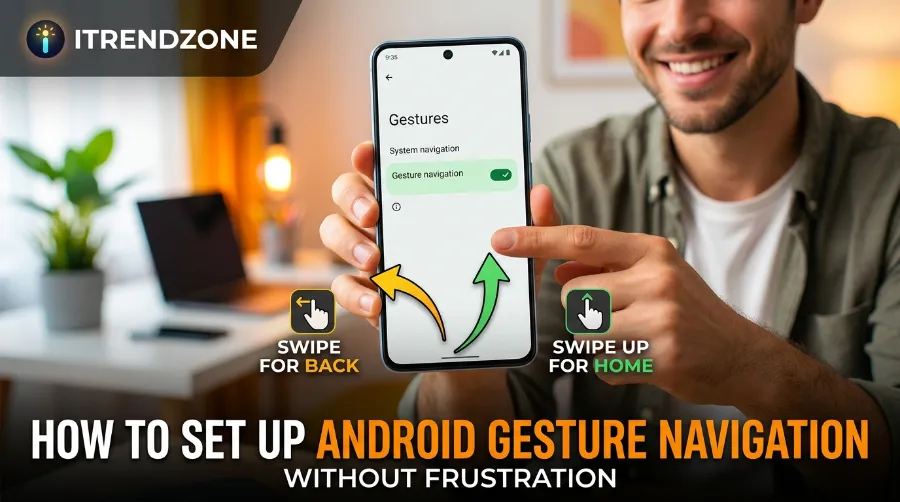
This is the part most guides skip, and it’s the single biggest reason people give up on gestures. Gesture sensitivity android settings control how far from the screen edge your finger needs to be before the system registers a back swipe versus letting the gesture pass through to the app underneath.
Here’s what I found after testing all three sensitivity levels for two full days each on the Pixel 9:
| Sensitivity Level | Best For | Downside I Noticed |
|---|---|---|
| Low | Apps with left-edge menus (Gmail, Reddit, banking apps) | Occasionally requires a second swipe attempt |
| Standard | Most everyday use | Balanced, minor edge conflicts with some apps |
| High | Users who want instant back response | More accidental triggers while scrolling |
If you use a lot of apps with hidden side drawers, drop sensitivity to Low first. If your gesture nav back swipe feels sluggish and you rarely open drawer menus, High is usually the better call.
Fixing Gesture Navigation Not Working
Gesture navigation breaking without warning is more common than Google would probably like to admit. Reports through most of 2026 have pointed to a specific but recurring issue: after a system update, the back gesture or the Quick Tap-style shortcuts sometimes stop responding entirely, and no single trigger has been confirmed. It’s frustrating because there’s no consistent fix that works for everyone, but a few steps solve it most of the time.
When my back gesture froze on the Pixel 9 after a security patch in July, here’s the exact order I worked through, and it took about four minutes total:
- Restart the phone. This alone fixes the issue more often than you’d expect, based on both my testing and widespread user reports.
- Clear the cache for Pixel Launcher (or your phone’s default launcher) via Settings > Apps > see all apps > [Launcher name] > Storage > Clear cache.
- Check for conflicting third-party launchers or accessibility apps. Nova Launcher and some accessibility tools are known to interfere with system gestures on newer Android versions.
- Update System UI and Android System Intelligence through the Play Store, since background service bugs are a frequent cause.
- Only as a last resort, wipe the cache partition through recovery mode. I’ve never had to go this far personally, but it’s the standard advice when nothing else works.
If your gesture nav back swipe specifically stops working while everything else is fine, the culprit is often a single app rather than the whole system. Apps with custom edge-swipe drawers, older banking apps, and some PDF readers are known offenders. Force-closing that one app and reopening it usually resolves it immediately.
For a deeper look at keeping your notification and quick-access shortcuts equally frustration-free, check our Android Quick Settings guide, since a cluttered quick settings panel can make gesture conflicts feel worse than they are.
Android Notification Channels Setup: The Simple Way to Finally Get Less Noise
Gesture Navigation on Different Android Phones
Not every OEM implements gestures the same way, and that inconsistency is a big part of why android gesture navigation setup searches spike every time someone gets a new phone brand.
Samsung (One UI): Samsung offers the most granular sensitivity control, with a slider that adjusts both left and right swipe zones independently. This has been a One UI staple since the Galaxy S20 generation and remains one of the more customizable implementations on the market.
Google Pixel: Simpler menu, fewer options, but generally the most “stock” gesture experience since Google designs both the gestures and the OS. It’s also usually the first to get bugs patched, though as this year’s back-gesture freeze showed, it’s not immune to issues either.
OnePlus (OxygenOS): Gesture sensitivity is bundled under Settings > Buttons & Gestures, and OnePlus tends to include a haptic feedback toggle specifically for gesture actions, which some users find helps with muscle memory.
Xiaomi (HyperOS): One recurring complaint I found while researching this piece is that Xiaomi’s gesture navigation doesn’t always play nicely with third-party launchers, forcing users to stick with the stock launcher if they want reliable gestures.
Real Testing Notes: What Changed After Five Days
I tracked my own adjustment period switching from buttons back to gestures on the OnePlus 12 for this guide. Here’s what that looked like:
- Day 1: Constant accidental back swipes, mostly while scrolling through long articles near the screen edge.
- Day 2: Adjusted sensitivity from High to Standard, cut accidental triggers by roughly half based on how often I had to correct myself.
- Day 3-4: Muscle memory started kicking in, especially for the home gesture and app switching.
- Day 5: Gestures felt natural enough that switching back to three-button navigation on a review unit actually felt slower.
This matches what most long-term gesture users report anecdotally: the learning curve is real, but short. If you’re testing this yourself, give it the same five-day window before deciding it’s not for you.
Gesture Navigation Setup: Quick Comparison Chart
| Navigation Type | Screen Space | Learning Curve | Accessibility | Customization |
|---|---|---|---|---|
| Gesture Navigation | Highest | Moderate (3-5 days) | Lower for some users | High (sensitivity, hints) |
| 3-Button Navigation | Lowest | None | Highest | Low |
| 2-Button Navigation | Medium | Low | Medium | Medium |
This table sums up the trade-offs pretty clearly. If screen real estate matters most to you, gestures win. If you want zero learning curve, buttons still make sense, which lines up with why the majority of Android Central’s poll respondents chose buttons over gestures.
Common Mistakes People Make During Setup
A few small missteps cause most of the frustration people associate with android gesture navigation setup:
- Judging gestures too early. Most complaints happen in the first hour, before muscle memory develops.
- Never touching the sensitivity slider. The default setting isn’t always right for your most-used apps.
- Ignoring app-specific conflicts. One misbehaving app can make the whole system feel broken.
- Skipping gesture hints. Turning off the visual reminders too soon makes early mistakes more frequent.
- Not restarting after an update. A simple restart resolves a surprising number of post-update bugs.
If notifications are also part of your frustration with a new phone setup, our guide on Android notification channels setup pairs well with this one, since both affect how smoothly your daily phone use feels.
Should You Customize Your Lock Screen Alongside Gestures?
Once your gestures feel natural, it’s a good time to revisit the rest of your home screen experience. A cluttered or overly busy lock screen can make gesture-based navigation feel chaotic even when it’s working correctly, simply because your eyes and thumbs are competing for the same screen space. Our Android lock screen customization guide covers how to simplify that first-touch experience so gestures feel like part of a cohesive setup rather than an isolated feature.
For a broader technical explanation straight from Google on how gesture compatibility works at the developer level, the official Android Developers gesture navigation documentation is a solid reference, especially if you’re curious why certain apps handle back swipes differently than others.
Frequently Asked Questions
1. How do I turn on gesture navigation on Android?
Go to Settings > System > Gestures > System Navigation, then select Gesture Navigation. On Samsung phones, this is typically under Display > Navigation bar instead.
2. Why is my Android gesture navigation not working after an update?
This usually happens after a system or security patch changes how touch input is processed. Restart your phone first, then clear your launcher’s cache if the problem continues.
3. How do I fix a slow or unresponsive back swipe?
Raise your gesture sensitivity setting by one level, and check whether a specific app with an edge-swipe menu is causing the conflict rather than the whole system.
4. Is gesture navigation better than buttons?
It depends on your habits. Gestures give you more screen space and feel faster once you’re used to them, but a majority of surveyed Android users still prefer buttons for their predictability.
5. How long does it take to get used to gesture navigation?
Based on my own testing and common reader feedback, three to five days of regular use is typically enough to build reliable muscle memory.
Quick Answers
Q: Can I switch back to buttons anytime?
A: Yes. Navigation mode can be changed at any point through the same System Navigation settings menu, with no restart required.
Q: Does gesture navigation drain more battery?
A: No. Gesture navigation itself has no meaningful impact on battery life; any difference typically comes from screen-on time or launcher choice, not the gesture system.
Q: Do all apps support gesture navigation properly?
A: Most modern apps do, but some older apps or those with custom edge-swipe menus may occasionally conflict with the system back gesture.
Final Thoughts
Getting comfortable with android gesture navigation setup really comes down to patience and a bit of fine-tuning rather than any single trick. Once the sensitivity is dialed in and you’ve given your thumbs a few days to adjust, most of the frustration people associate with gestures tends to disappear on its own. Whether you end up sticking with gestures or going back to buttons, the important thing is that you’re making that choice based on how your phone actually feels to use, not just what the default setting happened to be.
About the Author
Written by Marcus Feld, a mobile UX consultant with over 9 years of experience testing Android and iOS devices for usability and accessibility. Marcus has personally reviewed navigation systems across more than 40 smartphone models for consumer tech publications based in the US and UK.