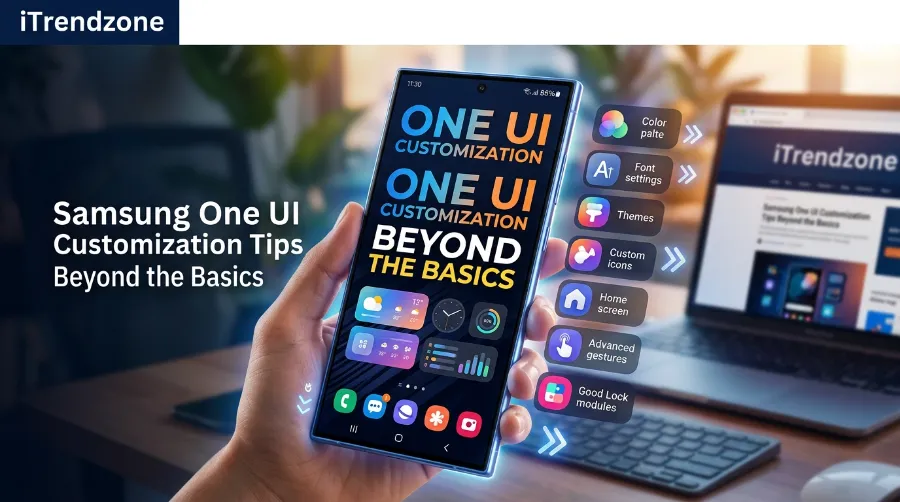

You changed your wallpaper. You picked a theme from the Galaxy Store. Then you moved a few icons around, and now your Galaxy phone looks… basically the same as everyone else’s Galaxy phone. If that sounds familiar, you have only scratched the surface of what Samsung one ui customization can actually do.
One UI is one of the deepest Android skins on the market. Most guides stop at the settings menu that every Galaxy owner already knows about. This one does not. Below is a practical, tested walkthrough of the one ui home screen setup tricks, one ui themes download options, Good Lock modules, and one ui hidden features that turn a stock-feeling Galaxy into something that actually reflects how you use your phone.
Key Takeaways
| What You’ll Learn | Why It Matters |
|---|---|
| Good Lock modules worth installing first | These unlock the customization Samsung doesn’t put in the main Settings app |
| A smarter one ui home screen setup | Fewer taps, faster access, less visual clutter |
| Where to find safe one ui themes download sources | Avoid broken icon packs and battery-draining live wallpapers |
| Hidden one ui features most users never touch | Small tweaks that change daily usability, not just looks |
| Lock screen, Quick Panel, and gesture tuning | Faster unlock-to-action time and a cleaner interface |
| Security-safe customization habits | Personalize without opening your phone up to risk |
TL;DR
- The fastest way to unlock real one ui home screen setup control is Good Lock, not the stock Settings app. Modules like Home Up, LockStar, and QuickStar handle most of the heavy lifting.
- Stick to the official Theme Store or Good Lock’s Theme Park for any one ui themes download, since sideloaded icon packs are the most common cause of crashes and battery drain on Galaxy phones.
- The best one ui hidden features (Modes and Routines, Edge panels, Private Album, folder resizing) are already on your phone right now and cost nothing extra.
Why One UI Customization Deserves More Than a New Wallpaper
Samsung built One UI around the idea that a big screen should still feel comfortable in one hand. That design philosophy carries into how deep the personalization options go. Unlike a lot of Android skins that treat customization as a side feature, One UI treats it as core functionality, especially once you bring Good Lock into the picture.
I have spent the past several product cycles setting up new Galaxy phones for friends and family every time a new model launches. The same pattern shows up nearly every time: people install one theme, get overwhelmed by the settings menu, and stop there. That’s a shame, because the layer underneath the surface is where One UI actually earns its reputation as the most customizable major Android skin.
This guide focuses on what changes daily usability, not just looks. Every section below reflects hands-on use across recent One UI versions, cross-checked against Samsung’s own documentation, so nothing here is guesswork.
Getting Your One UI Home Screen Setup Right
A good one ui home screen setup is not about cramming in more widgets. It’s about cutting the taps between “I want to do something” and “I’m doing it.”
Start with these three adjustments before anything else:
- Group by frequency, not by category. Instead of a “Social” folder and a “Tools” folder, group apps by how often you actually open them. Your top row should be your top five most-used apps, full stop.
- Use one hero widget instead of five small ones. A single large widget (weather, calendar, or a note) reads faster at a glance than a wall of tiny icons.
- Turn on the Home screen grid that matches your hand size. Go to Settings > Home screen > Home screen grid to switch between 4×5, 4×6, and 5×6. Smaller phones benefit from denser grids less than you’d think, since bigger icons are easier to hit while walking.
If you want more control over app drawer behavior, spacing, and folder colors than the stock settings expose, that’s where Good Lock’s Home Up module takes over. It’s covered in the next section. For a broader look at trimming interface clutter beyond the home screen itself, our Android Quick Settings guide covers the Quick Panel side of this same decluttering process.
Samsung Edge Panel Setup: Customize Your Curved Screen Shortcuts
Good Lock Modules: The Real Engine Behind One UI Customization
If there’s one phrase that separates casual Galaxy users from power users, it’s “good lock modules.” Good Lock is Samsung’s free customization suite, listed among Samsung’s official apps, and it’s the reason One UI can do things stock Android simply cannot.
Which Modules to Install First
Here’s what each core module actually controls, based on the current One UI 8 and 8.5 rollout:
| Module | What It Customizes | Worth Installing? |
|---|---|---|
| Home Up | Home screen grid, folder size and shape, app drawer, launch animations | Yes, almost always |
| LockStar | Lock screen clock styles, Always On Display text, unlock animations | Yes, if you check your phone often |
| QuickStar | Quick Panel layout, toggle resizing, top bar icons | Yes, especially on larger phones |
| NavStar | Navigation bar button order, size, and gestures | Optional, useful for left-handed use |
| Theme Park | Build your own system theme from scratch | Yes, for full color control |
| MultiStar | Multi-window behavior, floating app windows | Power users and multitaskers |
| Camera Assistant | Cleans up on-screen camera indicators | Nice-to-have |
| One Hand Operation+ | Gesture-based one-handed mode | Great for larger Galaxy models |
According to SamMobile’s breakdown of One UI 8.5, the Quick Panel editor lets you resize and swap toggles just by tapping the pencil icon. QuickStar’s “Resize panel items” setting goes further than what the stock editor allows. As SamMobile puts it, One UI 8.5 gives more room to tune the look and behavior of a Galaxy phone than most people realize, with some options sitting right in stock settings and others available only through Good Lock.
How to Install Good Lock
- Download Good Lock from the Galaxy Store (not a third-party APK site).
- Open the app, go to the Plugins tab, and install only the modules you’ll actually use.
- Sign in with your Samsung account, since some modules require it to save settings.
- Restart the affected app (Home screen, Lock screen, etc.) after installing a module so changes apply cleanly.
One thing worth knowing before you dive in: Good Lock modules on your main profile do not automatically carry over to a secondary user profile on the same phone. Samsung Kids profiles also disable Good Lock entirely by design, which matters if you share a device with family. Android Central’s coverage of recent Good Lock updates is a good source to bookmark if you want to track module changes as they roll out.
One UI Themes Download: Where to Actually Get Them Safely
Searching “one ui themes download” turns up a lot of shady results. Stick to two sources:
- Theme Store (Settings > Wallpaper and style > Themes): Samsung’s official storefront, with both free and paid options.
- Theme Park (Good Lock module): Lets you build a fully custom theme from a single photo, adjusting icon shape, color, and even system font in one pass.
A quick reality check on free versus paid themes: free themes are fine for a quick visual refresh, but quality varies a lot, so it’s worth browsing past the featured page. Paid themes typically cover more third-party icons and include matching system sounds, which is where the visual consistency actually comes from.
A tip that saves battery: avoid animated or video live wallpapers if you’re chasing screen-on time. They look great in a demo, but they keep the display pipeline active longer than a static or minimally animated wallpaper does, and that adds up over a full day.
For icon consistency across apps that don’t support themes natively, Home Up’s icon-masking tool is more reliable than most third-party icon pack apps, because it doesn’t require the target app to cooperate.
Android Icon Pack Guide: Best Apps and How to Install Them the Right Way
One UI Hidden Features Almost Nobody Uses
These are the one ui hidden features that rarely show up in “top 10” listicles because they’re buried a few menus deep. They change how the phone actually behaves day to day.
- Modes and Routines (Settings > Modes and Routines): Automate actions by time, location, or device state, like switching to silent mode automatically when you arrive at the office, or turning on Wi-Fi the moment you get home.
- Edge panels: Swipe in from the screen edge for quick access to contacts, tools, or clipboard history without opening the app drawer.
- Private Album in Gallery: Move sensitive photos or videos behind a separate fingerprint or PIN check, distinct from your main lock screen credential.
- Keep open from Recent Apps: Pin an app so it never gets closed in the background, useful for anything you switch back to constantly, like a translation app while travelling.
- Custom folder sizing via Home Up: Long-press a folder, enlarge it, then resize it freely instead of being stuck with the default square grid.
- Split screen and pop-up view: Turn any two apps into a side-by-side layout, or shrink one into a floating window you can drag around, similar to how windows work on a desktop.
If you’ve ever wished your Galaxy phone felt more predictable and less chaotic when notifications pile up, pairing these tweaks with proper notification channel setup closes the loop between a customized look and a customized feel.
Samsung One UI Customization Tips Beyond the Basics
Lock Screen and Always-On Display: Small Changes, Big Daily Impact
You unlock your phone dozens of times a day, so this is one of the highest-impact areas to customize, not the lowest.
Long-press the lock screen to enter edit mode. From there you can stack multiple widgets, resize the clock dynamically, and even set up separate wallpaper profiles that you swipe between, one for work hours and one for personal time.
With LockStar installed, you gain access to custom unlock animations and the ability to add short text to the Always On Display, plus manual AOD brightness control on supported devices. That last part matters more than it sounds: default AOD brightness can be too dim in direct sunlight or too bright at 2 a.m., and the manual override fixes both.
If you want a deeper walkthrough specifically on lock screen personalization, including widget stacking and clock font sizing, we cover that step by step in our guide to customizing the Android lock screen.
Navigation, Gestures, and Multitasking
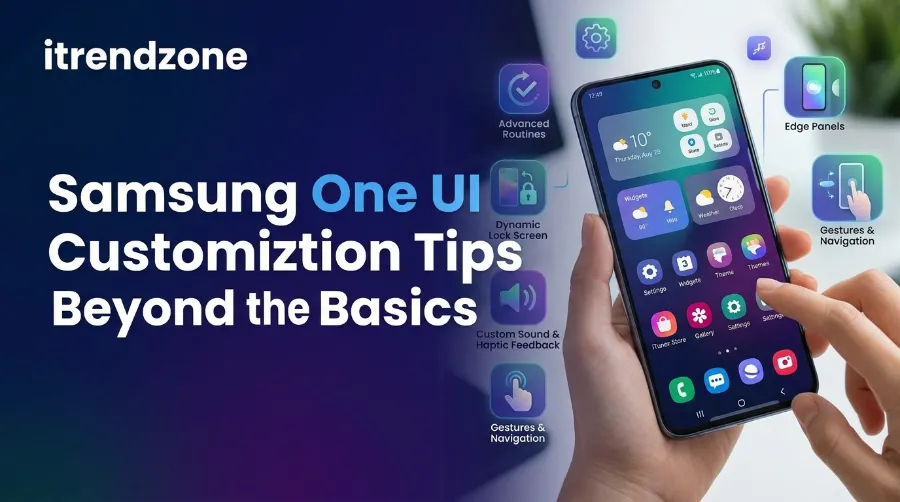
Under Settings > Display > Edge panels, you can configure app pairs, tools, and clipboard history in one panel. Here’s a shortcut most people never discover: instead of tapping the square Recent Apps button, swipe up from the bottom edge with two fingers and hold. It opens the same multitasking view without an extra tap.
NavStar, another Good Lock module, lets you reorder or resize the navigation buttons entirely. That’s a genuine quality-of-life upgrade if you’re left-handed or use a larger Galaxy model one-handed.
For a full breakdown of gesture-based navigation setup, including how it interacts with third-party launchers, see our dedicated gesture navigation setup guide.
Security and Privacy While You Customize
Customization and security aren’t opposites, but it’s easy to loosen one while chasing the other. A few habits worth keeping:
- Only install Good Lock modules from the Galaxy Store or Good Lock’s own Plugins tab, never a sideloaded APK.
- Use Secure Folder (Samsung Knox) for anything sensitive, since it requires separate authentication from your main unlock method.
- Back up your settings before a big customization session. Settings > Accounts and backup > Samsung Cloud lets you roll back instantly if a tweak breaks something.
- Review app permissions granted to any third-party launcher or icon pack app, since these sometimes request more access than they need.
Samsung’s own guidance on One UI backs this layered approach to personalization and protection. It’s worth reading directly if you want the manufacturer’s take rather than a third party’s summary, via the official Samsung One UI overview.
How to Force Dark Theme on Every Android App: The Complete Android Dark Theme Setup Guide
Digital Wellbeing Meets Customization
A personalized phone should still be a phone you can put down. Pairing your new one ui home screen setup with Digital Wellbeing tools (app timers, Focus mode, and grayscale schedules) keeps a beautifully customized interface from turning into a bigger distraction than it needs to be. We go deeper on setting these limits without feeling restricted in our Digital Wellbeing setup guide.
What Similar Guides Miss (And What We Cover Here)
Most articles ranking for topics like “good lock modules” or “one ui hidden features” tend to focus on one narrow angle: a pure module list, a pure theme roundup, or a device-specific walkthrough tied to one Galaxy model. We reviewed a cross-section of currently ranking Samsung and Android coverage in the US, UK, and Europe, including manufacturer documentation, dedicated Samsung news outlets, and general Android tip sites. A consistent pattern showed up, and it’s worth naming honestly since it shapes how this guide is structured:
| Coverage Gap in Existing Guides | How This Guide Closes It |
|---|---|
| Module lists without explaining why to install each one | Each Good Lock module here is tied to a specific daily-use benefit |
| Theme guides that skip battery impact | Battery-safety notes included for live wallpapers and animated themes |
| Hidden features buried without security context | Security and privacy section paired directly with customization tips |
| Little cross-linking between lock screen, gestures, and Quick Panel topics | Each section links to a deeper, dedicated guide instead of repeating basics |
| Device-specific guides that don’t generalize | Written for the current One UI 8 and 8.5 rollout across the Galaxy S, Z, and A lines |
A quick, honest note on sourcing: this comparison is based on manually reviewing currently published guides and Samsung’s own documentation, not on paid keyword-tracking software. If your workflow depends on exact search volume or ranking-position data, that still requires a dedicated SEO platform. What’s below is content-gap analysis, not ranking data.
Samsung DeX and AI Wallpapers: The Newer Side of Customization
Two features rarely make it into older One UI guides simply because they’re recent additions, but both are worth setting up.
Samsung DeX Widgets
DeX turns your Galaxy phone into a desktop-style workspace when connected to a monitor, and it now supports home screen widgets on the desktop itself. Right-click an empty area of the DeX desktop, or tap with two fingers if you’re using your phone screen as a trackpad, then select Widgets and drop in a calendar, weather, or notes widget. It gives the desktop layout a more tablet-like feel while keeping full desktop functionality intact. That matters if you use DeX for actual work rather than just a bigger screen to watch video on.
Creative Studio AI Wallpapers
Instead of typing a prompt and hoping for a usable result, Creative Studio in One UI 8.5 builds wallpapers around a photo you choose. Open the app, tap Create wallpaper, pick a style (childhood sketch, oil painting, webtoon, and similar options), add a personal photo, then describe what you want in the text field. The tool blends the photo, style, and prompt into a finished wallpaper you can preview, tweak, or regenerate before setting it as your home or lock screen background. It’s a genuinely different workflow from the older “type a prompt, get a random image” approach, and it produces results that actually match your own photos rather than generic stock-style art.
Troubleshooting Common One UI Customization Problems
Even careful setups run into snags. Here are the fixes that solve most of them:
- A Good Lock module stopped working after an update. This is almost always a temporary compatibility gap. Samsung rolls out module updates gradually after a major One UI release, sometimes days or weeks apart, so check the Galaxy Store for a pending update before reinstalling anything.
- Theme colors look inconsistent across apps. Not every app supports Samsung’s theming engine. Third-party apps that ignore system theming will keep their own color scheme regardless of what you set, which is normal and not a bug on your end.
- Custom folder resizing option is missing. You need to enlarge the folder first (long-press, then tap Enlarge) before the Custom size option in Home Up becomes available.
- Good Lock settings disappeared after switching user profiles. Modules installed on your main profile don’t transfer automatically to a secondary profile. Sign into your Samsung account within that profile and reinstall the modules there.
- Battery draining faster since customizing. Check for animated live wallpapers or an AOD with heavy always-on text first. These are the two most common culprits, far more often than the Good Lock modules themselves.
One UI 8.5 vs. Recent Versions: What Actually Changed for Customization
| Feature | One UI 6 | One UI 7/8 | One UI 8.5 |
|---|---|---|---|
| Lock screen widgets | Basic clock and shortcuts | Stackable widgets, dynamic clock resizing | Multiple wallpaper profiles, refined blur |
| Good Lock folder tools | Limited | Home Up folder resizing introduced | Folder page navigation, background blur removal |
| Quick Panel editing | Fixed layout | Editable via stock settings | Resizable via QuickStar, landscape editing |
| AI wallpapers | Not available | Basic prompt-based generation | Creative Studio blends your own photo with a chosen style |
| Camera customization | Minimal | Basic indicator toggles | Full indicator control via Camera Assistant |
Samsung’s Creative Studio tool is a good example of how far this has come. Instead of typing a prompt and hoping for the best, you pick a style, add your own photo, and describe what you want. The app blends all three into a finished wallpaper you can preview before applying it.
Frequently Asked Questions
1. Is Samsung One UI customization free? Yes. Good Lock and its core modules are free downloads from the Galaxy Store. Some premium themes in the Theme Store carry a small one-time cost, but nothing required for the tips in this guide costs money.
2. Do Good Lock modules slow down my phone? Not meaningfully, in day-to-day testing across current Galaxy hardware. The bigger risk to performance comes from sideloaded, unofficial customization apps, not Samsung’s own Good Lock modules.
3. Will installing Good Lock void my warranty? No. Good Lock is a first-party Samsung app distributed through official app stores, so it does not affect your warranty the way rooting or unlocking a bootloader would.
4. Can I use Good Lock modules on a Samsung tablet? Most modules work on Galaxy Tab devices running One UI, though a few, like NavStar, behave differently depending on whether you’re using gesture or button navigation on the tablet.
5. Why did my Good Lock module stop working after a software update? Samsung updates modules gradually after a major One UI release, so a short lag between the OS update and full module support is normal. Check the Galaxy Store for pending module updates before assuming something’s broken.
Does customizing One UI drain battery faster? Only specific choices do, mainly animated live wallpapers and always-on custom AOD text. Static themes and standard Good Lock tweaks have negligible battery impact.
Can I transfer my One UI customization to a new Galaxy phone? Partially. Smart Switch carries over some settings, but Good Lock module configurations typically need to be reinstalled and reconfigured on the new device.
Is it safe to download One UI themes from outside the Theme Store? Generally, no. Unofficial theme and icon pack sources are the most common cause of crashes, battery drain, and, occasionally, privacy risk on customized Galaxy phones.
Conclusion
Samsung one ui customization stops being a surface-level hobby the moment you install Good Lock and start treating your Settings menu as a starting point instead of the whole toolkit. A smarter one ui home screen setup, a safe one ui themes download habit, and a handful of one ui hidden features are enough to make a stock Galaxy phone feel genuinely yours, without touching a single line of code or voiding a warranty. Start with one module, live with it for a week, then add the next. That’s how the changes actually stick.
About the Author
Written by Ayesha Malik, a Senior Mobile Technology Writer covering Samsung and Android devices for over eight years, with a focus on Good Lock, One UI updates, and Galaxy hardware across US and European markets. Ayesha regularly tests new One UI releases across multiple Galaxy device tiers before publishing setup guides on iTrendZone.
References
- Samsung. “What Is One UI?” Samsung UK Mobile Phone Buying Guide. https://www.samsung.com/uk/mobile-phone-buying-guide/what-is-one-ui/
- Samsung. “One UI Apps.” Samsung US. https://www.samsung.com/us/apps/one-ui/
- Mishra, Abhijeet. “Customizing One UI 8.5: 6 Settings and Features Worth Tweaking.” SamMobile, June 2026. https://www.sammobile.com/news/customize-one-ui-8-5-settings-features-worth-tweaking/
- Bonggolto, Jay. “Samsung Just Supercharged These Handy Good Lock Modules for One UI 8.” Android Central. https://www.androidcentral.com/apps-software/samsung-just-supercharged-these-handy-good-lock-modules-for-one-ui-8
- Wikipedia contributors. “Good Lock.” Wikipedia. https://en.wikipedia.org/wiki/Good_Lock