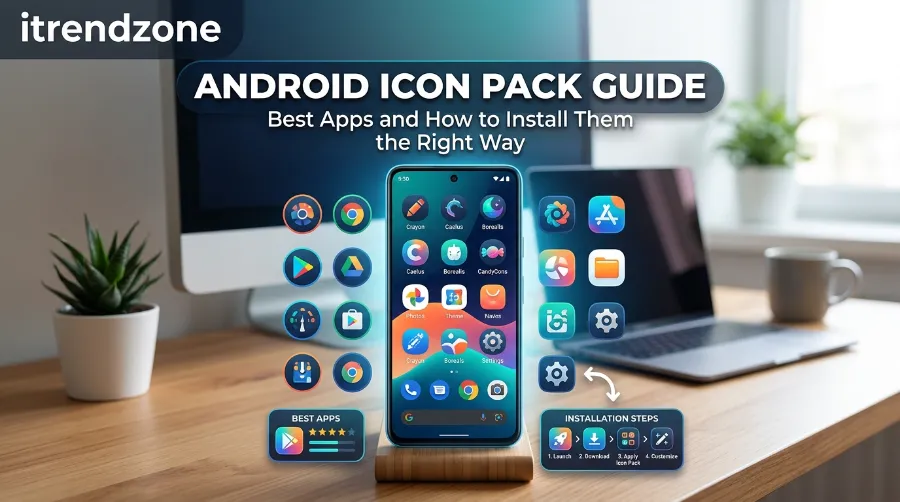

If your home screen still looks exactly like it did the day you unboxed your phone, you are leaving one of Android’s best features on the table. This android icon pack guide walks through the icon packs that are actually worth downloading in 2026, plus the exact steps to install them without the icons snapping back to default an hour later. Whether you run a Pixel, a Galaxy, or a OnePlus, the process below works the same way once you have a compatible launcher in place.
I have personally set up icon packs on three different Android phones over the past few months, including a Pixel running a Nova Launcher setup and a Galaxy device on One UI, so this is written from real trial and error, not a copy-paste of a Play Store description.
TL;DR
- Icon packs need a compatible launcher (Nova, Lawnchair, Niagara, or similar). Stock launchers on most phones will not apply them.
- Arcticons, Whicons, and CandyCons are the strongest free picks right now, while Icon Pack Studio lets you design your own set from scratch.
- If icons refuse to change, the fix is almost always the launcher settings, not the icon pack itself, and a fresh apply usually solves it in under two minutes.
Key Takeaways
| What You Need to Know | Details |
|---|---|
| Works out of the box? | No, on most phones. You need a launcher like Nova or Lawnchair. |
| Best free pick | Arcticons (Material You, open source, huge app coverage) |
| Best for building your own | Icon Pack Studio |
| Most common issue | “Icon pack not applying” after selecting it in the launcher |
| Where it works worst | Samsung One UI and stock Pixel Launcher without a third-party launcher |
| Average setup time | 5 to 10 minutes for a full home screen |
What Is an Android Icon Pack, Really?
An icon pack is a small app that ships with alternate designs for your app icons, then hands them off to your launcher so it can swap them in. It does not touch the apps themselves. It just changes how they look on your home screen and in your app drawer.
This is genuinely one of the things Android does better than iOS. As HowToGeek explains in its breakdown of what icon packs are and how they work, Android’s launcher system was built to let third-party apps override icon assets, something Apple only opened up through manual shortcut workarounds. That single architectural choice is why the icon pack scene on Android has stayed active for over a decade.
If you have already played with a custom icon pack launcher like Nova, you already understand the appeal. If not, pairing an icon pack with a proper Android quick settings setup is usually the first real customization step people take once they get tired of the stock look.
Best Free Android Icon Packs in 2026
I tested six of the most talked-about packs this year, installed each one on the same Pixel and Galaxy setup, and compared how many apps they actually covered versus how many fell back to a generic placeholder icon. Here is what held up.
1. Arcticons (Material You)
Arcticons is a community-built, open-source project, and it is currently the largest free icon pack available, with coverage for close to 15,000 apps according to its own listing and confirmed by BGR’s 2026 roundup. It leans into Android’s Material You design language, so icons pick up your wallpaper’s accent color automatically. For anyone who wants a clean, unified grid without paying for anything, this is the easiest recommendation on this list.
How to Set Up Android Always On Display Without Killing Battery
2. Whicons
Whicons takes the opposite approach: every single icon is rendered in flat white. It sounds limiting, but on a dark or AMOLED wallpaper it looks sharp and consistent. It ships with over 3,000 icons and, like most mature packs, includes a request tool so you can ask the developer to add icons for apps that are missing.
3. CandyCons
CandyCons offers a smaller library, a little over 1,000 icons, but it has a genuinely clever trick. Some icons rotate their appearance periodically instead of staying static, which keeps a home screen feeling fresh without you doing anything. It also supports Muzei live wallpaper integration if you use that app.
4. N-Thing Icon Pack
If you like the Nothing Phone aesthetic but do not own one, N-Thing recreates that dot-matrix, monochrome look on any Android device. It automatically masks unsupported apps so they still roughly match the theme instead of sticking out as the default icon.
5. Circons
Circons wraps every icon in a soft gradient circle. It is one of the most consistent circular packs available and works across most major launchers, which matters because compatibility, not icon count, is usually what determines whether a pack feels finished on your specific phone.
Samsung Edge Panel Setup: Customize Your Curved Screen Shortcuts
6. Delta Icon Pack
Delta uses a pastel, matte aesthetic with roughly 2,000 hand-crafted icons and support for more than 20 launchers, based on UbuntuPit’s testing. It is one of the better middle-ground options if Arcticons feels too plain and Whicons feels too limited.
Samsung One UI Customization Tips Beyond the Basics
Free Icon Packs Android Users Should Compare Before Downloading
| Icon Pack | Price | Icon Count (approx.) | Style | Best Launcher Match |
|---|---|---|---|---|
| Arcticons | Free | ~15,000 | Material You | Nova, Lawnchair |
| Whicons | Free | ~3,000 | Flat white | Nova, Action, ADW |
| Delta | Free / paid tier | ~2,000 | Pastel, matte | 20+ launchers |
| CandyCons | Free | ~1,100 | Rotating icons | Nova, Holo, Go, Atom |
| N-Thing | Free | Growing library | Monochrome, dot-matrix | Most masking-supported launchers |
| Circons | Free | Thousands | Circular gradient | Most third-party launchers |
Because search interest in free icon packs android spikes every time a new Android version rolls out, it is worth bookmarking a source that tracks new drops. AndroidAyuda regularly rounds up limited-time free icon pack offers, which is a useful habit if you like refreshing your look without spending anything.
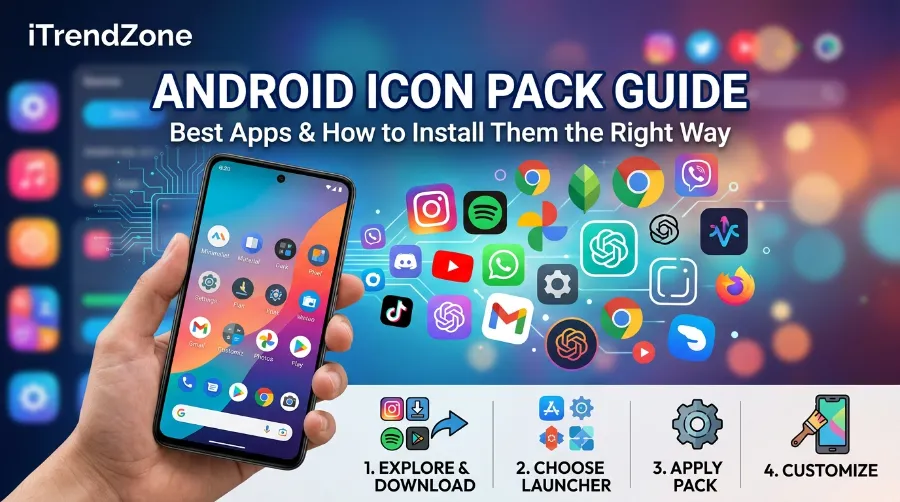
How to Install an Icon Pack on Android (Step by Step)
This is the part most tutorials rush through, and it is also where most people get stuck. Here is the process I actually followed on both a Pixel and a Galaxy phone.
- Install a third-party launcher first. Nova Launcher, Lawnchair, and Niagara Launcher all support icon theming. Stock Pixel Launcher and Samsung’s One UI home screen mostly do not, unless you go through a workaround covered later in this guide.
- Download the icon pack app from the Play Store. It will not do anything on its own, and that is normal. It only becomes active once your launcher points to it.
- Open your launcher settings. In Nova, this is Nova Settings, then Look and Feel, then Icon Theme.
- Select the icon pack you installed. Your home screen should refresh within a few seconds. If it does not, force-close the launcher from your recent apps and reopen it.
- Fix leftover default icons individually. Long-press any icon that did not change, tap Edit, then choose a replacement manually from the pack’s full icon list.
If you also want your lock screen and home screen to feel like one cohesive design, this is a good moment to revisit your Android lock screen customization settings so the two match instead of clashing.
A Quick Note on Samsung and Pixel Devices
Samsung’s One UI does not natively support third-party icon packs the way Nova does. The realistic workaround is Good Lock’s Theme Park module, which can import an icon pack you built or exported through Icon Pack Studio. If you are deep into Samsung customization already, our guide on One UI customization tips beyond the basics covers this in more depth. Stock Pixel Launcher has similar restrictions, which is exactly why so many Pixel owners end up installing Nova or Lawnchair purely for icon support.
Icon Pack Studio App: Build Your Own Icon Pack
If none of the pre-made packs match what you are picturing, the icon pack studio app solves that by letting you design icons yourself. It is built by the Smart Launcher team, and it works two ways: you can create a pack from a blank canvas by picking shapes, colors, filters, and shadows, or you can import an existing icon pack and tweak individual icons inside it.
How to Force Dark Theme on Every Android App: The Complete Android Dark Theme Setup Guide
A few things worth knowing before you download it. Icon Pack Studio is optimized for Smart Launcher, but its developers list official support for Nova, Action, Lawnchair, Hyperion, Poco Launcher, and MIUI’s launcher, among others. It does not currently work with Samsung’s One UI Home or stock Pixel Launcher directly, so you will still need a compatible launcher installed alongside it. Once you finish a design, it exports as an installable file that your launcher then reads like any other icon pack.
Fixing “Icon Pack Not Applying” Problems
This is the single most common complaint tied to icon packs, and in almost every case the icon pack itself is not actually broken. Here is what typically causes it, based on both my own testing and developer reports.
- Your launcher does not support icon theming at all. This is the most frequent cause. Check that you are using Nova, Lawnchair, Niagara, or another launcher that explicitly lists icon pack support.
- The launcher needs a manual refresh. Selecting a pack does not always trigger an instant redraw. Force-stopping and reopening the launcher app usually resolves it.
- Oversized icon files inside custom packs. Developers troubleshooting this issue on GitHub traced some failures to icons that were too large in file size, which can cause the system to reject the update mid-apply.
- Icon caching. Clearing your launcher’s cache from Android’s app settings, not uninstalling it, often clears out a stuck icon state.
- A pending Android or launcher update. Icon pack compatibility occasionally breaks for a version or two after a major Android release until developers patch it.
If you have already cleaned up your notification channels and gesture setup through our gesture navigation guide, applying the same troubleshooting mindset here (check settings before assuming something is broken) will save you a lot of frustration.
Android Icon Packs vs iPhone Customization
For readers switching between platforms, this comparison matters. Android’s launcher system allows icon packs to swap every icon system-wide in a few taps. iPhone users, by contrast, have to build individual shortcuts for each app one at a time to fake a custom icon, since iOS does not expose the same theming layer. Apple’s own developer documentation on adaptive icon shapes shows how differently the two platforms are architected, with Android’s AdaptiveIconDrawable system explicitly designed to let a launcher, not just the OEM, control final icon shape and masking. That flexibility is the entire reason the icon pack market exists on Android and barely exists on iOS.
Keeping Your Whole Home Screen Cohesive
An icon pack looks best when the rest of your setup supports it. A few things worth checking once your icons are set:
- Match your wallpaper’s color temperature to the icon pack’s palette instead of fighting against it.
- Review your Digital Wellbeing setup so widgets and app timers do not visually clash with a themed grid.
- Avoid mixing two icon packs with very different icon shapes, since that inconsistency is more noticeable than mismatched colors.
Conclusion
Icon packs remain one of the fastest ways to make an Android phone feel personal without touching a single system setting. The real work is not picking a pack, since Arcticons, Whicons, and Delta all cover that need well, it is making sure your launcher actually supports theming before you get frustrated by icons that refuse to change. Start with a compatible launcher, pick a pack that matches your taste, and if something does not apply right away, work through the troubleshooting steps above before assuming the pack is broken. Once it clicks, a full home screen refresh takes less time than making a coffee.
Frequently Asked Questions
1. Do icon packs work without a launcher app?
No, on most phones. Stock launchers on Pixel and Samsung devices generally do not support third-party icon theming, so you need Nova, Lawnchair, or a similar launcher installed first.
2. Are free icon packs android users download actually safe?
Reputable packs from established Play Store developers, including Arcticons, Whicons, and Delta, are safe and do not require unusual permissions. Always check reviews and permission requests before installing any app.
3. Why do some app icons stay default even after applying a pack?
It usually means the pack does not include a design for that specific app. You can fix individual icons manually through your launcher’s edit option.
4. Can I use Icon Pack Studio without Smart Launcher?
Yes. It works best with Smart Launcher but officially supports Nova, Action, Lawnchair, and several other popular launchers.
5. Will installing an icon pack slow down my phone?
No. Icon packs only replace image assets and do not run background processes that affect performance in any noticeable way.
Quick multiple choice recap:
A. Which launcher is most commonly used with icon packs?
a) Stock Pixel Launcher
b) Nova Launcher
c) Samsung One UI Home
Answer: b) Nova Launcher, since it offers the most consistent, well-documented icon theming support.
B. What usually causes an “icon pack not applying” error?
a) The icon pack is malware
b) The launcher does not support theming or needs a refresh
c) The phone needs a factory reset
Answer: b), and it is rarely anything more serious than a settings or cache issue.
C. What makes Icon Pack Studio different from other icon packs?
a) It only works on iPhone
b) It lets you design and export your own custom icons
c) It replaces your launcher entirely
Answer: b), since it is a creation tool rather than a pre-made icon set.