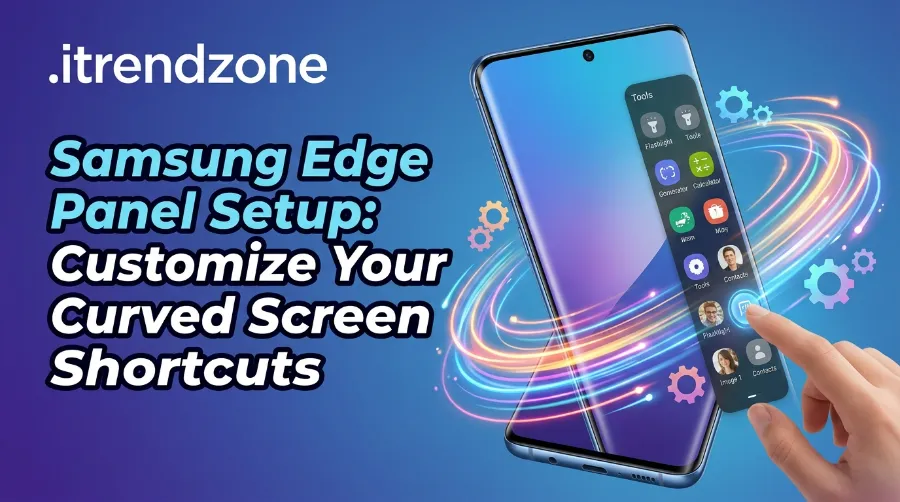

I still remember the first time a Galaxy owner asked me why a thin grey tab kept popping up on the side of their screen. That tab is the Edge panel, and once you understand android edge panel setup, it turns into one of the fastest shortcuts on your phone. Samsung has kept this feature alive for years because, frankly, nothing else on Android gives you app access this quickly from literally any screen.
TL;DR
- Android edge panel setup lives under Settings, then Display, then Edge panels, and it takes under two minutes to turn on.
- If the edge panel is not showing, the fix is usually the handle settings, a One UI update, or a quick cache clear.
- You can fully personalize your edge panel apps list, the handle position, and edge lighting samsung notifications separately.
| Key Takeaway | Details |
|---|---|
| Where to enable it | Settings > Display > Edge panels |
| Fastest fix for missing panel | Toggle off and on, then check Handle settings |
| Best apps to add | 4 to 6 frequently used apps, not your entire app drawer |
| Related but separate feature | Edge lighting (notification glow, not shortcuts) |
| Devices supported | Most Galaxy S, Note, Z Fold and Z Flip models on One UI |
What Is the Samsung Edge Panel, Really?
The Edge panel started life on Samsung’s original curved Edge phones, back when the curved glass itself was the whole selling point. Samsung eventually dropped the dramatically curved displays, but it kept the software feature because people genuinely used it. Today the Edge panel is a slide out drawer that hovers over whatever app you are in, whether that is Instagram, a game, or your camera.
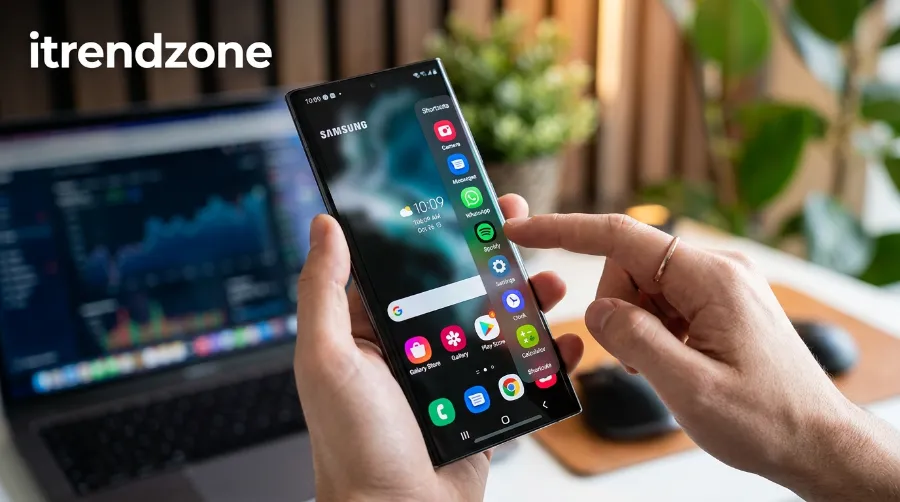
Think of it as a shortcut layer that sits above your entire phone. You do not need to back out to the home screen or pull down quick settings. You just drag the small handle inward and your apps, contacts, or tools appear instantly.
This matters for one big reason: speed. If you message the same three people daily, or you constantly switch between a calculator and a notes app, the edge panel apps list saves you several taps every single time.
How to Do Android Edge Panel Setup Step by Step
Here is the exact path I walk friends and family through whenever they get a new Galaxy phone.
- Open Settings and tap Display.
- Scroll down until you see Edge panels, then tap it.
- Flip the toggle at the top to turn the feature on.
- A slim handle will appear near the top right edge of your screen. Swipe it toward the center of the display to open the panel.
- Tap the small gear icon that briefly appears to choose which panels show up, such as Apps edge, People edge, or Tools.
That is genuinely the whole android edge panel setup process. Samsung enables the toggle by default on most new devices, so many users have this sitting unused without realizing it is already active. If you have never touched it, go check right now, there is a decent chance it is already there waiting for you.
I have walked through this same setup on a mid range Galaxy A series phone and on a flagship S series model, and the menu path stays identical. That consistency is one of the underrated strengths of One UI. Samsung has also folded newer capabilities into the Apps panel over time. Recent One UI updates moved the Smart select tool directly into the Apps panel edit menu, so screen capture and GIF creation now live one tap away instead of in a separate panel, according to Samsung’s own support documentation.
If you want a broader look at how Samsung’s interface layers work together, our guide on One UI customization beyond the basics covers several settings that pair nicely with the Edge panel.
Fixing Edge Panel Not Showing on Your Galaxy Phone
This is the single most common complaint I hear, and it almost always comes down to one of five causes. When the edge panel not showing issue hits, work through this list in order rather than jumping straight to a factory reset.
- Recheck the toggle. Go back to Settings, then Display, then Edge panels, and turn it off, then on again. This resolves the issue more often than people expect.
- Adjust the handle settings. Tap Handle inside the Edge panels menu and increase the size or transparency slightly. A handle set too small or too transparent can become nearly impossible to grab.
- Clear the cache. Head into Apps, enable Show system apps from the filter menu, find Edge panels, and clear its cache and storage.
- Update One UI. Software updates often patch small rendering bugs. Go to Settings, then Software update, then Download and install.
- Check for a work profile restriction. If your phone is enrolled in a managed work profile, IT policy can disable certain UI features, including the Edge panel.
One Samsung Community thread I reviewed had a user whose handle position had simply drifted to an unreachable spot near the very bottom of the screen. A quick reposition through the Handle settings solved it in under a minute. It sounds almost too simple, but that is genuinely the fix most of the time.
If notification related settings are also confusing you, our walkthrough on Android notification channels setup pairs well with this troubleshooting section since both live near each other in the Settings app.
Customizing the Edge Panel Handle Position
The edge panel handle position is more flexible than most people realize. Inside Settings, then Display, then Edge panels, then Handle, you can adjust:
- Position on the screen, from near the top to near the bottom, on either the left or right edge.
- Size and transparency, so the handle stays visible without blocking content you care about.
- Vibration feedback, giving you a small buzz when you touch it, which helps in low light.
On some newer One UI versions, including One UI 8.5 on the Galaxy S26 lineup, Samsung simplified this menu so the handle locks in place automatically after you leave the settings screen, rather than offering a separate lock toggle. A few users on Samsung’s own community forum flagged this change after updating, so do not panic if the toggle you remember is missing. It just moved behind the scenes.
If you use gesture navigation, positioning the handle away from your swipe zones prevents accidental conflicts. Our guide to Android gesture navigation setup explains how to keep these two features from stepping on each other.
How to Force Dark Theme on Every Android App: The Complete Android Dark Theme Setup Guide
Building the Perfect Edge Panel Apps List
A cluttered edge panel apps list defeats the entire purpose of the feature. I recommend keeping it to four to six apps or contacts you genuinely reach for multiple times a day. Here is how I set mine up:
- Open the Edge panel and tap the gear icon.
- Choose Apps edge and tap Edit.
- Drag your most used apps from the left column into the active list on the right.
- Remove anything you added out of habit but rarely open.
- Reorder the list so your single most used app sits closest to the handle.
For me, that usually means a messaging app, my notes app, the calculator, and a translation app when I am traveling. Your list should reflect your own daily routine, not mine. This is also a great spot to add tools you use for quick capture, since the Apps panel now houses Smart select shortcuts directly.
If you enjoy building custom home screen setups too, check out our Android icon pack guide for matching visuals across your whole phone.
Edge Lighting Samsung: A Different Feature Entirely
People frequently confuse edge lighting samsung with the Edge panel, but they solve different problems. Edge lighting is a colored glow that pulses around the border of your screen when a notification arrives while the display is off or you are using another app. It does not open a drawer of shortcuts. It is purely a visual notification cue, and you can assign different colors to different contacts or apps so you know who is calling before you even look at the screen.
You will typically find edge lighting controls inside your notification or display settings, separate from the Edge panels menu itself. If your primary concern is which alerts light up your screen and which ones stay silent, our guide on Android digital wellbeing setup is a natural next stop, since both features touch how aggressively your phone tries to grab your attention.
Edge Panel vs Other Android Shortcuts: A Quick Comparison
| Feature | What It Does | Best For |
|---|---|---|
| Edge panel | Slide out drawer with apps, contacts, tools | Quick access to a small favorites list |
| Edge lighting | Colored glow for incoming notifications | Visual alerts without checking the screen |
| Quick settings | Drop down toggles for Wi-Fi, Bluetooth, etc. | System level controls |
| Gesture navigation | Swipe based screen navigation | Replacing on screen buttons entirely |
If quick toggles are more your style than app shortcuts, our Android Quick Settings guide breaks that panel down in the same level of detail.
Real World Example: Why This Actually Saves Time
Picture a typical morning routine. You are checking email, replying to a group chat, and glancing at a calculator to split a bill, all inside a five minute window. Without the Edge panel, that means backing out to the home screen and hunting through app icons three separate times. With android edge panel setup done correctly, all three apps sit one swipe away, no matter which app is currently open.
I have used this setup consistently across several Galaxy generations, from the S23 through the newer S25 line, and the time saved compounds. It sounds minor per swipe, but across a full day of phone use it genuinely adds up to noticeably fewer taps.
When You Might Want to Turn Edge Panels Off
Not everyone loves this feature, and that is fine. Gamers sometimes find the handle triggers accidental swipes during fast paced full screen games. If that happens to you, either shrink the handle size, move it further from your typical thumb position, or disable panels entirely inside individual game settings using Samsung’s Game Booster tool. You can always flip the master toggle back on later without losing your saved apps list.
For a broader look at keeping your lock screen and home screen distraction free alongside these tweaks, see our guide on customizing your Android lock screen, and if always visible information matters more to you than shortcuts, our Android Always On Display guide covers that alternative approach.
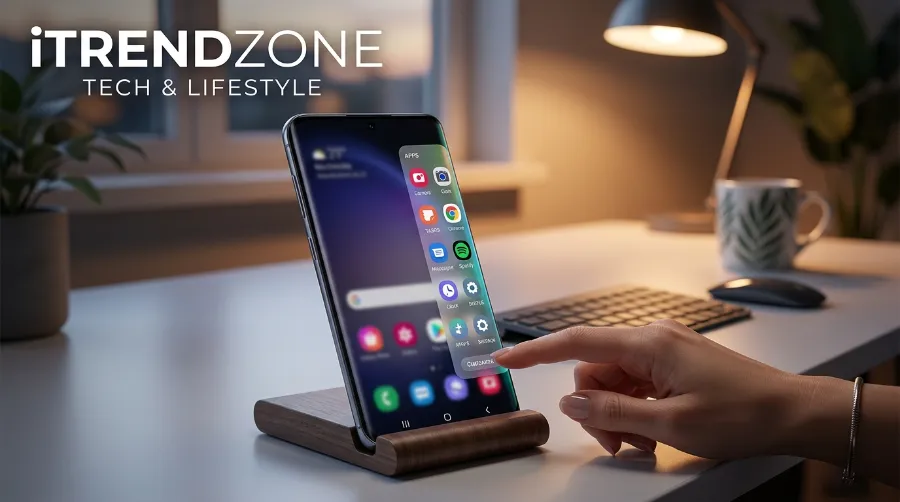
For deeper technical walkthroughs with screenshots for older One UI versions, SamMobile’s complete Edge panel and multi window guide is a solid companion resource, and MakeUseOf’s breakdown of Edge panels on Galaxy devices covers a few third party panel apps worth trying from the Galaxy Store. CyberGuy also put together a practical explainer on Android Edge panels that is worth a look if you want a second perspective on the setup steps.
FAQs
1. How do I turn on the Edge panel on my Samsung phone?
Go to Settings, then Display, then Edge panels, and switch the toggle on. A handle will appear on the screen edge you can swipe to open it.
2. Why is my edge panel not showing even though it is enabled?
The most common causes are a mispositioned handle, a cache issue with the Edge panels app, or a pending One UI update. Work through those three fixes before trying anything more drastic.
3. Can I change which apps appear in my edge panel apps list?
Yes. Open the panel, tap the gear icon, choose Apps edge, then Edit, and drag your preferred apps into the active list.
4. Is edge lighting samsung the same as the Edge panel?
No. Edge lighting is a notification glow effect around your screen border, while the Edge panel is an interactive drawer of shortcuts. They are configured in different settings menus.
5. Does every Galaxy phone support the Edge panel?
Most Galaxy S, Note, Z Fold and Z Flip models running One UI support it, though the exact panel options available can vary slightly by region and model.
More quick answers:
Can I move the edge panel handle to the left side of my screen?
Yes, the Handle settings inside Edge panels let you choose either the left or right edge depending on which hand you use most.
Will using the Edge panel drain my battery faster?
No noticeable difference has been reported, since the panel only activates on a swipe gesture rather than running continuously in the background.
Can I download extra Edge panels from the Galaxy Store?
Yes, tapping Galaxy Store inside the Edge panel settings menu opens a library of additional panels, though a few require a small purchase.
Conclusion
Getting your android edge panel setup right is one of those small changes that quietly improves how you use your phone every single day. Once your edge panel apps list matches your actual habits, the handle sits exactly where your thumb naturally rests, and you understand how edge lighting samsung differs from the panel itself, the whole feature finally clicks into place. Spend the two minutes it takes to set this up properly, and you will likely wonder why you did not do it sooner.
References
- Samsung Official Support, Discover the redesigned Edge Panel on your Samsung Galaxy, https://www.samsung.com/ca/support/mobile-devices/about-the-updated-edge-panel-and-accessing-the-smart-select-feature/
- Samsung Official Support, Add or remove Edge panels on your Galaxy phone or tablet, https://www.samsung.com/us/support/answer/ANS10002367/
- SamMobile, The Complete Samsung Edge Panel and Multi Window Guide, https://www.sammobile.com/news/complete-samsung-edge-panel-multi-window-guide/
- MakeUseOf, Edge Panels on Samsung Galaxy, https://www.makeuseof.com/edge-panels-samsung-galaxy/
- CyberGuy, How to Use Android Edge Panels, https://cyberguy.com/android/how-to-use-android-edge-panels/