
Samsung Galaxy Battery Tips: Make Your Galaxy Last All Day and Beyond
I’ve owned Galaxy phones for years — from the S21 to the Galaxy S26 Ultra I carry today — and one thing I’ve learned is this: the battery is almost never the problem. The settings are. A Galaxy ships with a big battery and a fast chip, but also a dozen features quietly running in the background, eating power while you do nothing. Most battery problems are fixable in ten minutes, without buying anything. Here are the fixes that work.
TL;DR: Check Battery settings, find the draining apps, and put the worst ones to sleep. Turn on Battery Protection (Adaptive is the sweet spot) and Adaptive Brightness. Drop the refresh rate to 60Hz when you don’t need smoothness, use Power Saving mode on long days, and charge with the 45W charger the right way — not overnight, every night. Most Galaxy battery trouble comes from a few background apps and a bright screen, not a dying battery.
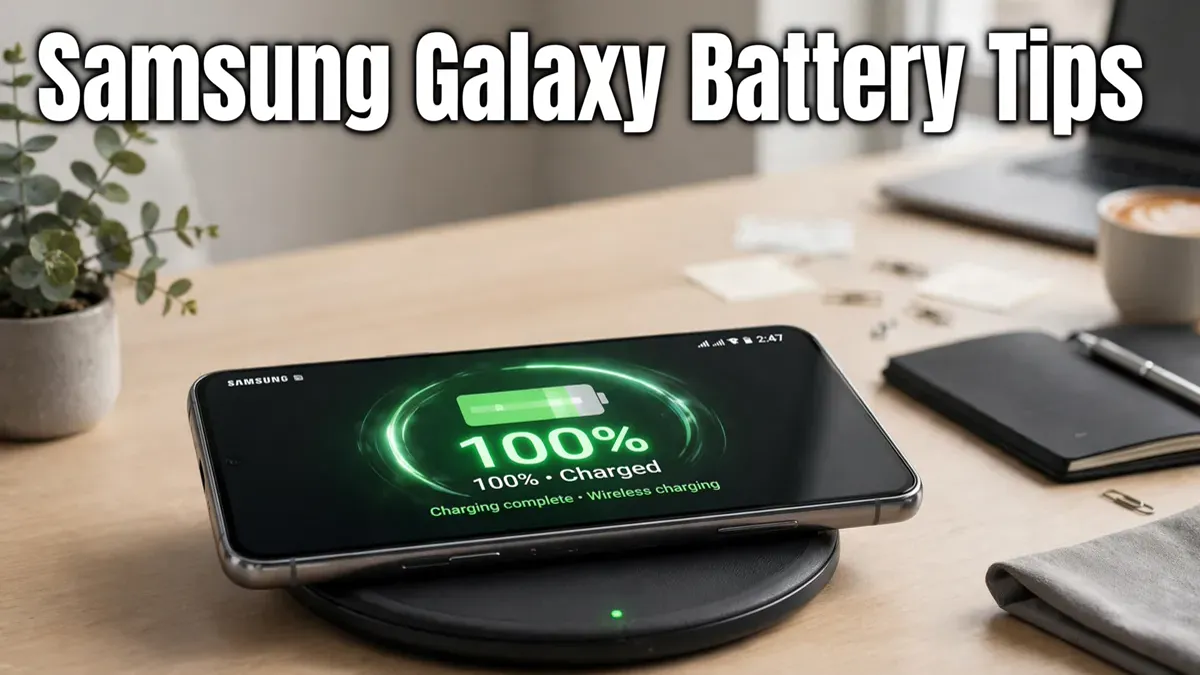
Before changing anything, find out what’s draining your battery. On any recent Galaxy, open Settings > Battery and tap Battery usage. You’ll see apps ranked by power used since your last full charge, split between screen-on time and background time. An app using 20% while you actively used it is normal. An app using 15% in the background, when you never opened it, is a problem.
In my experience, the usual suspects are always the same: social media apps refreshing feeds, shopping apps tracking your location, and games syncing when closed. If an app spent hours running in the background overnight, that’s your drain. Tap Put app to sleep or add it to Deep sleeping apps under Battery > Background usage limits. I did this with a couple of shopping apps and a news app on my S26 Ultra and gained an extra hour of screen time the same day.
There’s also a less obvious culprit: apps you installed once and forgot. A weather widget updating every 15 minutes, a fitness app tracking steps with GPS, a VPN running all day — small alone, but they add up. Once a month I scroll the battery usage list and sleep anything I no longer use — two minutes, the best habit for Galaxy battery life. The Samsung Galaxy hidden features guide covers battery menus most people never open.
Battery Protection: The Setting Most People Never Turn On
Here’s something Samsung doesn’t advertise loudly enough: your Galaxy has a built-in feature that slows battery wear, and it works. It’s called Battery Protection, under Settings > Battery > Battery Protection. There are three modes, and the right one depends on how you use your phone.
Adaptive is the one I recommend. It stops charging at 80% overnight, then tops up to 100% just before you wake up — a full battery in the morning without the phone sitting at 100% for six hours, which wears a lithium battery out fastest. Maximum caps charging at 80% all the time — great at your desk, less so on travel days. Basic stops at 100% and resumes at 95%.
I’ve run Adaptive on my S26 Ultra for months — the phone is always full in the morning. The Samsung Galaxy tips complete guide has more detail, but the short version is simple: turn on Battery Protection and forget about it. It costs nothing.
Your Screen Is Eating Half Your Battery
On every Galaxy I’ve tested, the display is the biggest battery drain, usually around 35 to 45% of total usage. A few small tweaks make a real difference.
Start with Adaptive Brightness under Settings > Display. It learns how bright you like the screen in different lighting — most people leave brightness far too high indoors, and it drops the moment you walk inside. Over a day that saves more power than almost any other setting. It feels dim for the first few days, then it learns your taste.
Next, the refresh rate. The S26 series runs a 120Hz adaptive display that looks beautiful, but 120Hz all day costs battery. Under Settings > Display > Motion smoothness, Adaptive (120Hz) is the default — it drops to 1Hz when the screen is still. On a heavy day, switching to Standard (60Hz) buys real extra time. I do this on travel days, and after ten minutes your eyes adjust.
Two more small wins: shorten screen timeout to 30 seconds, and turn off Always On Display or set it to “tap to show”. It’s a screen that never fully sleeps — on my S26 Ultra it cost roughly 3 to 4% overnight, versus about 1% with it off. The Samsung Galaxy customization tips guide has lock screen options that look great without the battery cost.
Power Saving Mode: Use It Before You Need It
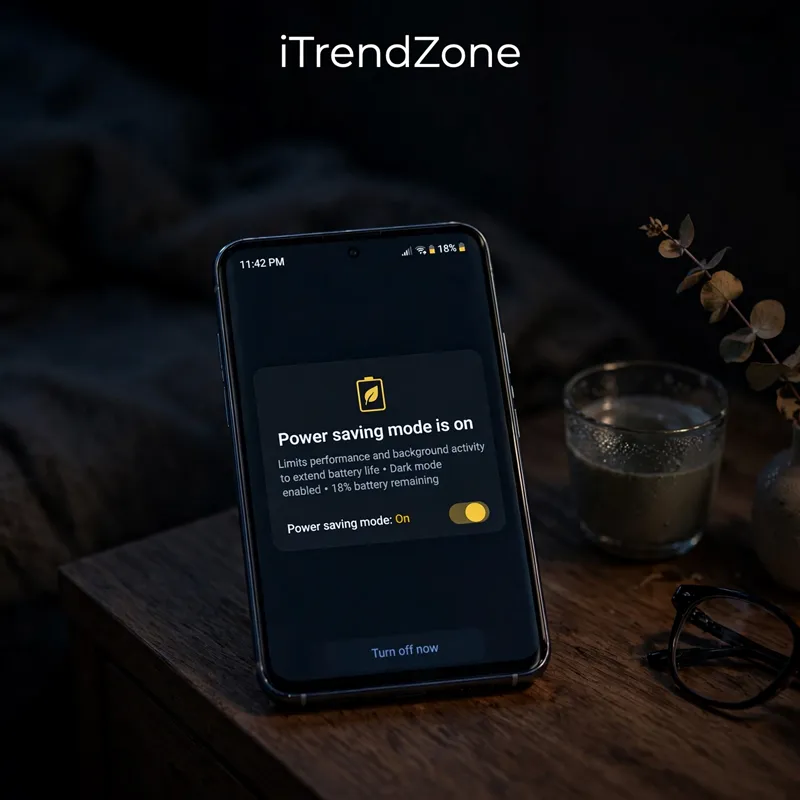
Power Saving mode is the feature everyone remembers too late — at 8% battery, in a taxi, with no charger. It works far better as a planned tool. Under Settings > Battery > Power saving it can limit CPU speed to 70%, turn off Always On Display, cut background network use, and dim the screen by 10%. Together, those changes can stretch a dying battery by hours.
My rule: if I’ll be away from a charger for more than six hours, I switch it on at 60% instead of waiting for the warning. Long flights, day trips, festivals — that’s when it earns its keep. You can also set it to switch on automatically; mine is set to 20%, so even if I forget, the phone looks after itself.
One warning: Power Saving mode slows things down — apps open slower, notifications arrive late, background sync pauses. Don’t leave it on permanently; use it for long days. If your phone feels slow even with it off, the Samsung Galaxy storage and performance tips guide covers the settings that speed a Galaxy up.
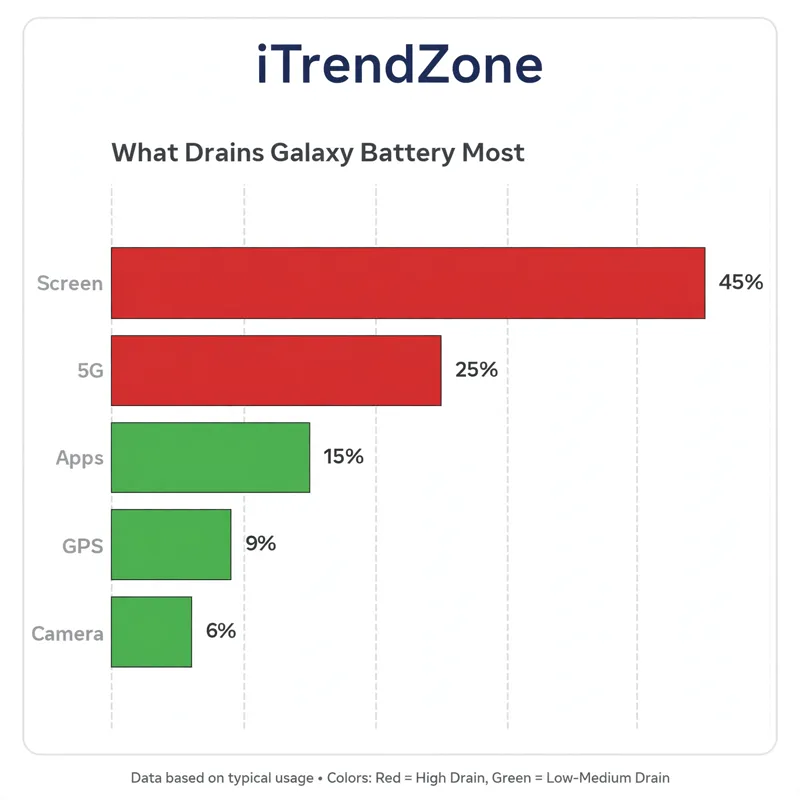
The chart above shows a typical breakdown of what drains a Galaxy battery over a normal day, from S26 series Battery usage reports. The display is the biggest share at roughly 40%, followed by background apps at 25%. Mobile data and 5G take around 15%, location services about 10%, and everything else — Bluetooth, Wi-Fi, system processes — the remaining 10%. Two fixes, screen brightness and background apps, cover almost two-thirds of the problem.
Charging the Right Way: 45W, Wireless, and What to Avoid
Galaxy flagships charge fast — the S26 Ultra supports 45W wired charging — but fast charging is a tool, not a toy. Used well, it’s brilliant. Used badly, it quietly shortens your battery’s life.
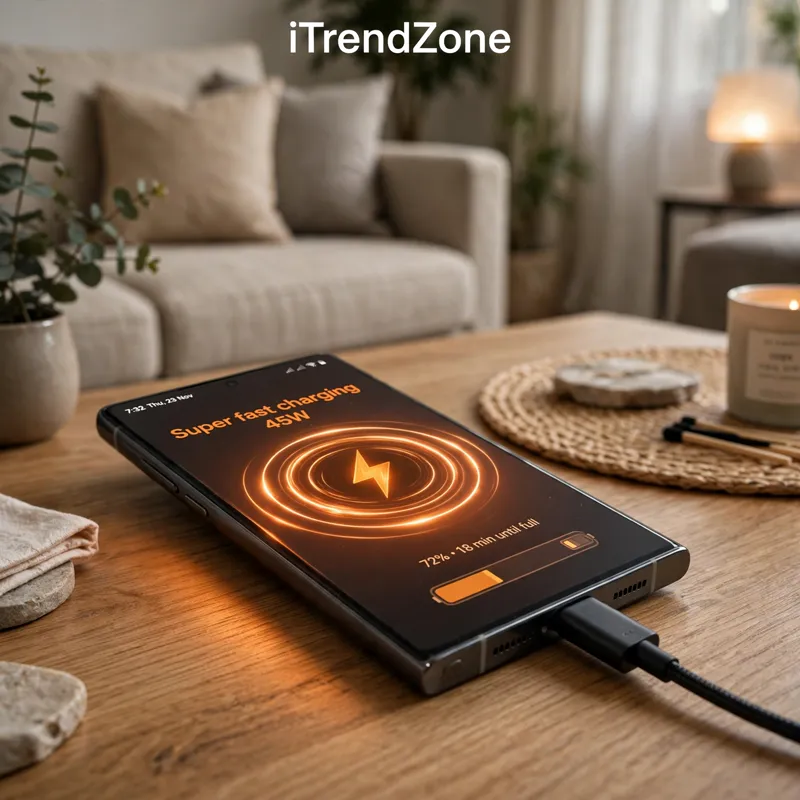
First, use a proper charger. The S26 series doesn’t include one in the box, and a cheap market-stall charger probably delivers 10W and may not be USB-PD certified. A genuine Samsung 45W adapter, or any reputable USB-PD PPS charger, takes the S26 Ultra from empty to about 65% in half an hour. That’s the point of 45W — a quick top-up over coffee, not a full charge from zero every night.
Second, don’t charge to 100% every night. Lithium batteries age fastest held at full charge and high heat for hours — exactly what overnight charging does. With Battery Protection on Adaptive, the phone holds at 80% and finishes just before your alarm. Without Adaptive, unplug at 100%.
Third, keep the phone cool while charging. A Galaxy at 45W generates real heat, and heat is the enemy of battery health. Don’t charge under a pillow, in direct sun on a car dashboard, or in a thick case that traps warmth. If the phone feels hot, take the case off. If it throttles its charging speed, that’s the phone protecting the battery — let it cool down.
Wireless charging is convenient — drop the phone on a pad and it trickles up all day — but it’s slower and hotter than a cable. I use a pad at work and a cable when I need speed. Wireless PowerShare, which charges earbuds or a friend’s phone from your Galaxy’s back, is handy in a pinch, but it drains your own battery fast. Turn it off when you’re done.
And a quick note on cables: a frayed or cheap cable can charge slowly or intermittently, which looks like a battery problem when it isn’t. Try a different cable before blaming the battery. The Samsung Galaxy not working fix guide covers charging problems step by step, including the port-cleaning trick that fixes more phones than you’d expect.
Overnight Battery Drain: Why Your Galaxy Loses Power While You Sleep
Losing 1 to 2% overnight is normal. Losing 10% or more is not, and it’s one of the most common complaints I hear from Galaxy owners. The fix is almost always one of four things.
First, check what’s running overnight — open Battery usage in the morning and look at the background column. If an app burned power while you slept, put it to sleep. Second, turn off Wi-Fi and Bluetooth scanning under Settings > Location > Improve accuracy. Third, check your signal: a Galaxy in a weak-signal area boosts its radio power to stay connected, which drains the battery fast. Poor reception in your bedroom? Switch on Wi-Fi calling or flight mode overnight.
A stuck update can also keep the phone awake all night — One UI 9.0, based on Android 17, has been rolling out since 16 September 2026, so check Settings > Software update and make sure nothing is stuck halfway.
Still draining? Charge to 100%, leave the phone untouched overnight, and check the loss in the morning. Over 8% means a misbehaving app or a worn-out battery — time for the health check below.
How to Check Your Galaxy Battery Health
Unlike iPhones, Galaxy phones don’t show a simple battery health % in Settings. There are three reliable ways to check it, and I use all three when a phone starts acting up.
The simplest is the Samsung Members app: Support > Phone diagnostics > Battery status tells you whether the battery is normal or needs attention. It’s pass-or-fail, not a percentage, but it’s Samsung’s official answer and takes thirty seconds.
The second way is checking real capacity. Battery apps from the Play Store estimate how much charge your battery holds versus when it was new. Holding 85% after two years is normal; below 80%, you’ll notice the phone dying earlier — that’s when a replacement makes sense.
The third way is watching behaviour. If your Galaxy shuts off at 15%, drops 10% in an hour of light use, or gets hot during basic tasks, the battery is telling you something. A swollen battery is a safety issue — if the back feels raised or the screen is lifting, stop using it and get it checked. Samsung service centres test batteries for free in most markets, and with 7 years of updates, the S26 series is worth looking after.
| Model | Battery capacity | Wired charging | Wireless charging |
|---|---|---|---|
| Galaxy S26 Ultra | 5,000 mAh | 45W | 15W |
| Galaxy S26+ | 4,900 mAh | 45W | 15W |
| Galaxy S26 | 4,300 mAh | 25W | 15W |
| Galaxy S25 Ultra | 5,000 mAh | 45W | 15W |
| Galaxy S24 Ultra | 5,000 mAh | 45W | 15W |
The table above shows the battery specs of the Galaxy S26 series alongside the two previous Ultra flagships, as listed by Samsung and GSMArena. The Ultra models have held at 5,000 mAh for three generations, while the regular S26 moved up to 4,300 mAh.
When to Replace Your Galaxy Battery
Batteries wear out — it’s chemistry, not a fault. After two to three years of daily charging, most Galaxy batteries hold noticeably less charge than when new. Here’s how to know when it’s time for a replacement.
Replace the battery when the phone dies before dinner on a normal day even after everything in this guide; when the Samsung Members check says it needs attention; when the phone shuts off suddenly above 20%; or when the battery is visibly swollen. Don’t wait on a swollen battery — it’s the one battery problem that can become dangerous.
A genuine Samsung battery replacement at an authorised service centre costs far less than a new phone. Third-party batteries are cheaper, but they’re a gamble on capacity and safety, and they can void your warranty. With 7 years of updates, a battery swap at year three is often the smartest money you can spend — it buys another two or three years of use.
Before you book a replacement, back up your data with Smart Switch — ten minutes now saves a bad day later. The Samsung Galaxy security and privacy tips guide covers backups and Secure Folder.
Quick Wins: The Five-Minute Battery Tune-Up
If you only have five minutes, do these five things. First, sleep your worst background apps. Second, turn on Adaptive Brightness and Dark Mode. Third, switch on Battery Protection in Adaptive mode. Fourth, set screen timeout to 30 seconds. Fifth, turn off Always On Display or set it to tap-to-show. On most Galaxies I test, those five changes add an hour or more of screen time per day.
My honest take after years of using Galaxy phones: you don’t need to baby your battery. No tiny charging bursts, no fear of fast charging, no obsessing over every percent. Turn on the sensible settings, sleep the bad apps, charge with a decent charger, and just use the phone. The S26 series is built to last — 7 years of updates, a big battery, good power management in One UI 9.0. These tips remove the waste, not restrict the phone.
The camera is one of the heaviest battery users — long 8K recording and night mode drain power fast. The Samsung Galaxy camera tips guide keeps quality high without the battery hit, the Samsung Galaxy S Pen tips guide covers the S Pen’s battery quirks, and the One UI 9 tips guide covers the new power controls in One UI 9.0 and the 9.5 beta.
Test Your Knowledge: Samsung Galaxy Battery Quiz
Quick check — how much stuck? Answer all five, then check your answers at the end.
1. Where do you find which apps are draining your Galaxy battery?
A) Settings > Display > Brightness
B) Settings > Battery > Battery usage
C) Settings > Apps > Default apps
D) Settings > Connections > Data usage
2. What does Battery Protection in Adaptive mode do?
A) It charges your phone to 100% as fast as possible
B) It turns off your phone while it charges
C) It disables all background apps permanently
D) It stops charging at 80% overnight and tops up before you wake
3. Which part of a Galaxy phone typically uses the most battery?
A) Bluetooth
B) The vibration motor
C) The display
D) The fingerprint sensor
4. How fast is wired charging on the Galaxy S26 Ultra?
A) 15W
B) 45W
C) 25W
D) 65W
5. What is a normal amount of battery to lose overnight?
A) 1 to 2%
B) 15 to 20%
C) 30 to 40%
D) 50%
Answers: 1 – B, 2 – D, 3 – C, 4 – B, 5 – A