
One UI 9 Tips: 15 Settings and Tricks Worth Trying on Your Galaxy
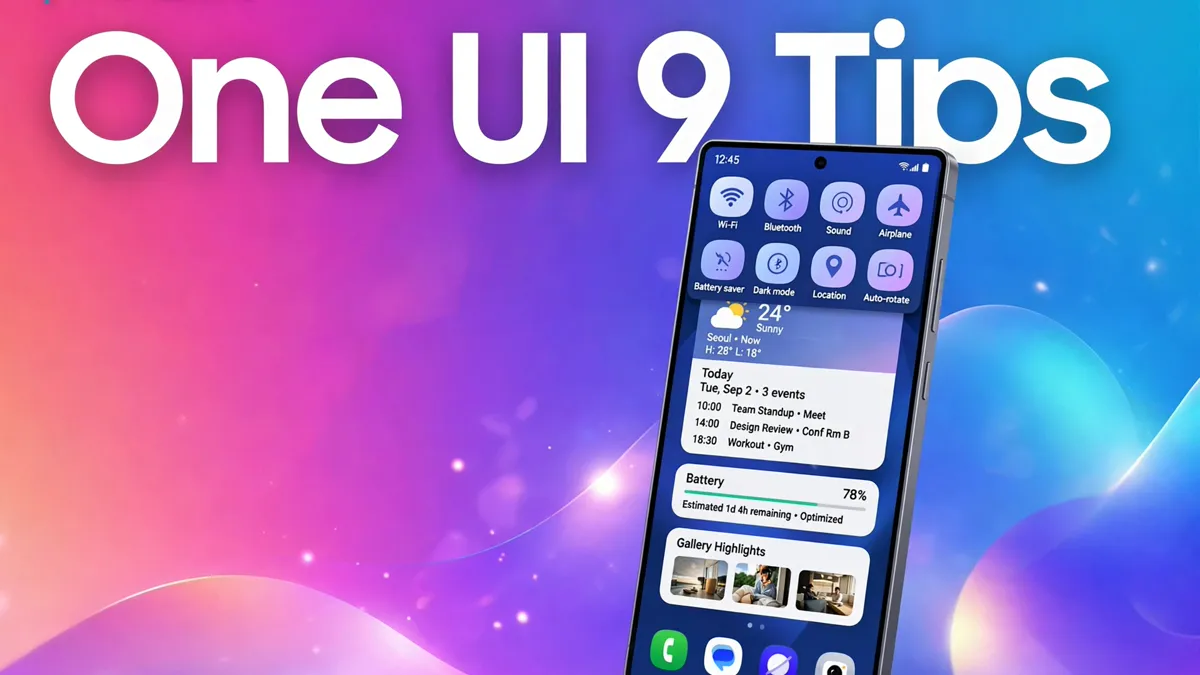
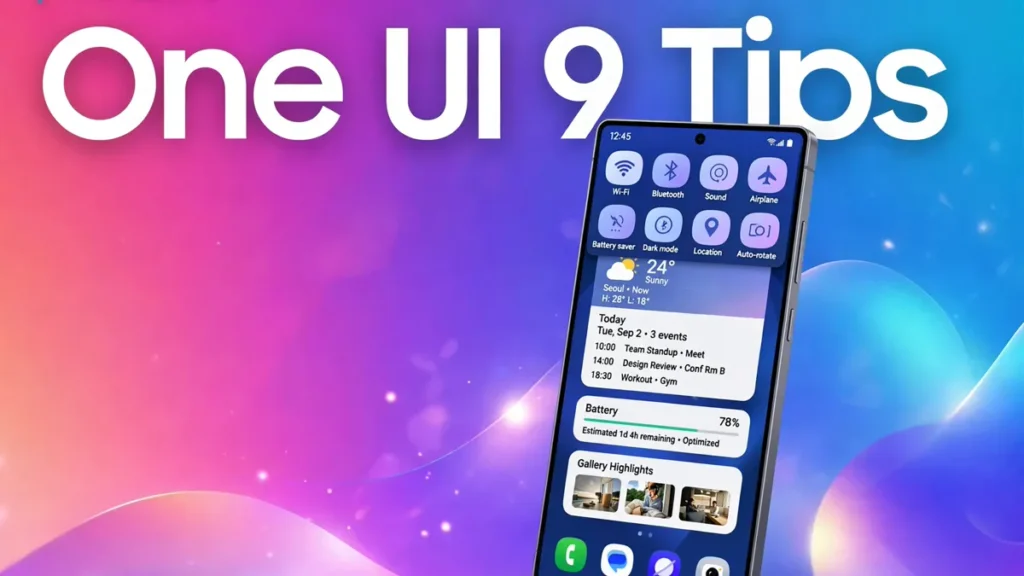
I’ve used Galaxy phones as my daily driver for years, and One UI 9 is the update I have been waiting for. Samsung started rolling it out on 16 September 2026 with the Galaxy S26 series, and it is built on Android 17. I have had it on my S26 for a few weeks now, and the phone feels quicker, the lock screen finally feels like mine, and a handful of settings make a real difference.
One UI 9.5 is already in beta as well. It landed on 18 November 2026 for S26 owners in six countries, and it adds a native App Lock, better Pro camera controls and a Privacy Display that hides sensitive apps from prying eyes. The stable version should arrive with the Galaxy S27 in early 2027.
What Is New in One UI 9?
One UI 9 is not a fresh coat of paint on the same old software. Underneath it sits Android 17, and Samsung has used that base to clean up animations and rethink a few screens you touch every day. The Quick Panel looks tidier, the lock screen gives you more room to make it yours, and the camera app has been rearranged so the controls you use most are easier to reach.
The bigger story is privacy and control. One UI 9.5, now in beta, finally brings a built-in App Lock, so you can lock any single app with your fingerprint or PIN instead of hiding whole folders. Privacy Display takes it further: when you open a locked app, a private album or a note in Samsung Notes, the screen shades itself so people nearby cannot read over your shoulder. More in our Samsung Galaxy security and privacy tips.
There are smaller touches everywhere. Samsung Health gains a gratitude journal and a medication tracker in One UI 9.5. DeX can split your screen on its own. And the camera’s Enhanced Pro and Pro Video modes give you finer control over shutter speed. Our Samsung Galaxy camera tips cover the new Pro controls, and if you are new to Galaxy phones, start with our Samsung Galaxy tips complete guide.
The Best One UI 9 Settings to Change First
Every time a big update lands, I spend twenty minutes changing the settings that matter, and then I stop fiddling and just use the phone.
1. Set Your Lock Screen Clock and Shortcuts
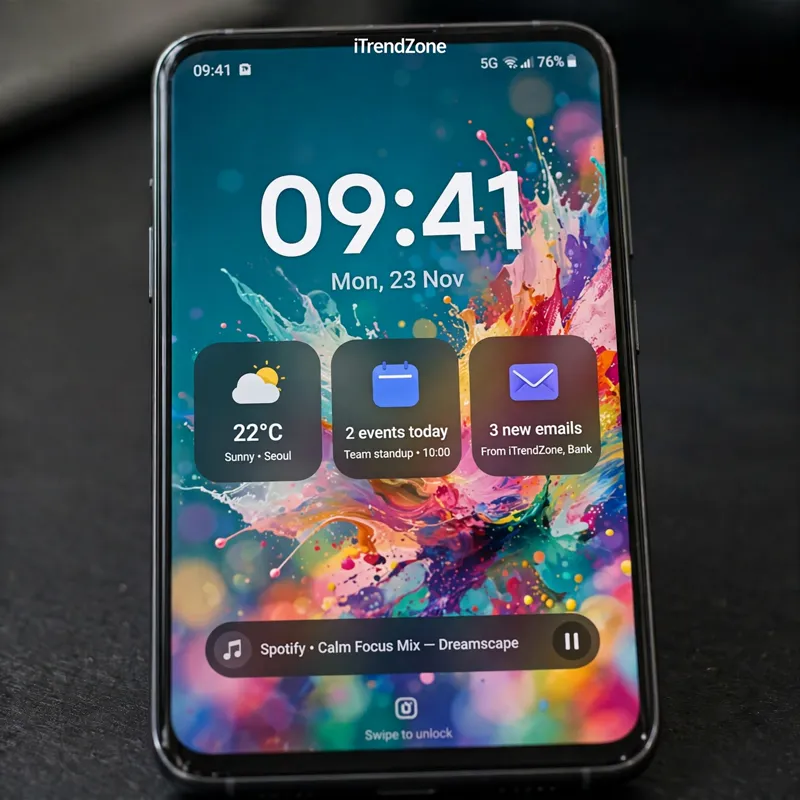
The lock screen is the first thing you see, so make it yours. Long-press it, tap Customise, and you can change the clock style, size and colour, and swap the two bottom shortcuts. I keep the torch on the left and the camera on the right. The clock styles in One UI 9 are bolder than before, and a couple use the wallpaper colours automatically.
2. Rearrange the Quick Panel to Match Your Hand
Swipe down twice from the top of the screen and you get the full Quick Panel. Tap the pencil icon and drag the tiles into the order you actually use. I put Wi-Fi, mobile data, torch and Do Not Disturb on the first row, and move Smart View to the back. Turn on the brightness slider at the bottom if it is hidden. Our Samsung Galaxy customization tips have more ideas for the panel and home screen.
3. Turn On Smoother Animations
One UI 9 already feels faster than One UI 8.5, but you can push it further. Open Developer options and set the three animation scales to 0.5x for a snappier feel. I have run mine at 0.5x for years. Apps open a fraction quicker and the phone feels more responsive. To enable it, tap the build number in Settings > About phone > Software information seven times.
4. Switch On Notification History
This one has saved me more times than I can count. A notification flashes past, you swipe it away by mistake, and then you cannot remember what it said. Go to Settings > Notifications > Advanced settings and turn on Notification history. From then on, every notification is kept for 24 hours in the same menu. It is also the fastest way to work out which app has started spamming you with alerts.
5. Set Up Secure Folder Before You Need It
Secure Folder is Samsung’s locked vault for apps, photos and files, protected by Knox, and it is far more useful than most people realise. Set it up now, not later when you are in a hurry. Go to Settings > Security and privacy > More security settings > Secure Folder and sign in with your Samsung account. Move your banking apps and private photos into it. Everything inside is encrypted and hidden.
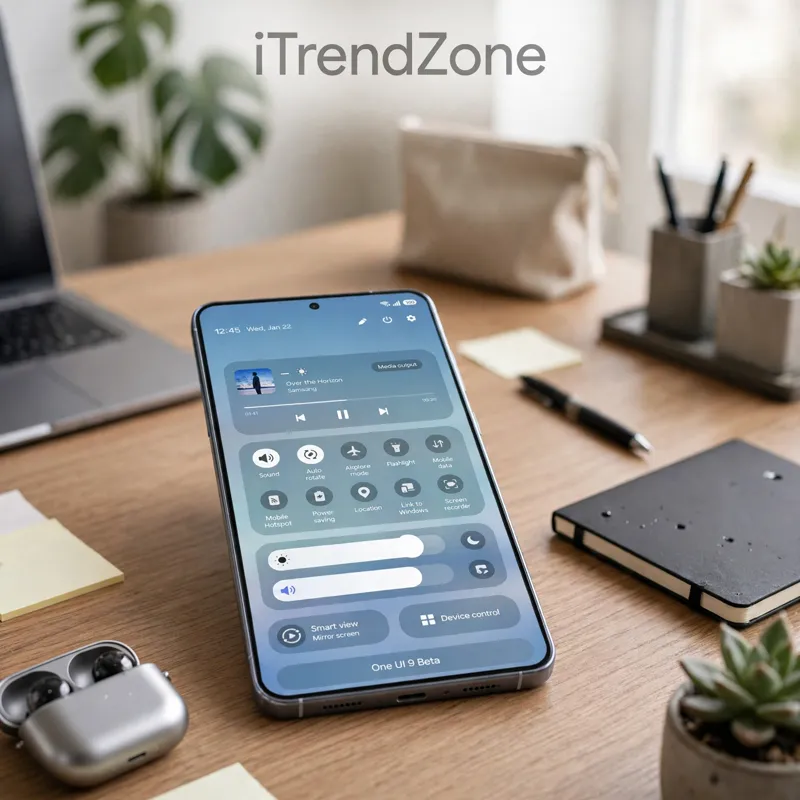
Quick Panel and Lock Screen Tips
The Quick Panel and the lock screen are the two places you touch most on any Galaxy phone, and One UI 9 gives both of them a proper upgrade.
6. Use the New Media Controls in the Quick Panel
When music or a podcast is playing, the Quick Panel shows a media card with the track, the artwork and the controls. Tap the small output icon and you can switch the sound between your phone speaker, Galaxy Buds, a Bluetooth speaker or your TV, without opening the app. I use this constantly when I walk in the door and want the podcast to jump from my Buds to the living room speaker.
7. Add Lock Screen Widgets You Will Actually Use
Long-press the lock screen, tap Customise, and look for the widgets row. You can add a music player, your next alarm, a voice recorder shortcut or a routine trigger. My rule is simple: if I use it three times a week, it earns a place. A music widget and an alarm are the two I keep, because they save me unlocking the phone just to skip a track. Our Samsung Galaxy hidden features guide collects the ones most people never find.
8. Change How Notifications Look on the Lock Screen
By default, One UI 9 shows notification icons on the lock screen, and you tap one to expand it. If you prefer to see the full text, go to Settings > Lock screen and AOD > Notifications and switch the style to Cards. If you would rather keep your messages private, choose Icons only and turn on Hide content, so the sender’s name shows but the message text does not. I use Cards at home and Hide content when I am travelling.
9. Let Modes and Routines Do the Work
Modes and Routines is the most underused feature on Galaxy phones, and One UI 9 makes it easier to set up. Open Settings > Modes and Routines and start with two: a Sleep routine that turns on Do Not Disturb and dims the screen at bedtime, and a Work routine that switches on your work Focus and opens your calendar at the office. Once you have felt a routine run itself, you will want more.
Multitasking and DeX Tips
Galaxy phones have always been strong at multitasking, and One UI 9 tightens it up. If you only ever use one app at a time, you are leaving half the phone unused.
10. Master Split Screen and Pop-Up View
Open your first app, then swipe up and hold to open the Recents screen. Tap the app icon at the top, choose Open in split screen view, then pick your second app. I use this for Maps and music on the road, or for a document and a browser when I am researching. For a floating window, choose Open in pop-up view instead. The trick most people miss is saving app pairs: with two apps in split screen, tap the divider line and save the pair for the Edge Panel.
11. Try DeX, Especially the New Auto-Split
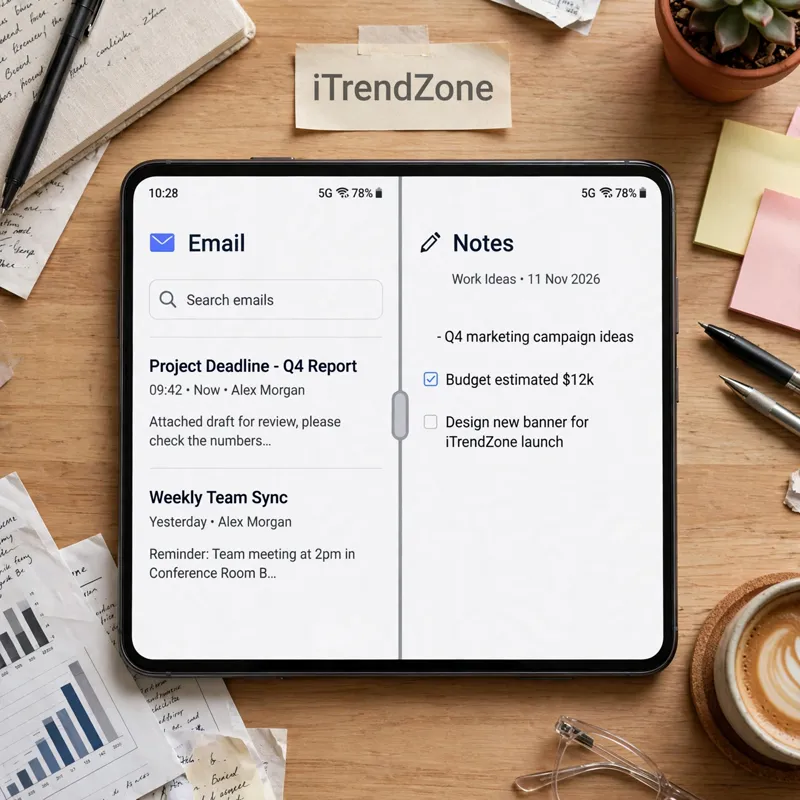
Samsung DeX turns your phone into a desktop when you connect it to a monitor or a TV, and One UI 9.5 adds auto-split, which arranges your windows for you when you open a second app. You do not need a dock: a USB-C cable works, and newer TVs connect wirelessly. I use DeX to write long emails or sort photos.
12. Use the S Pen’s Hover and Note Tricks
If you have a Galaxy S26 Ultra, the S Pen is more than a stylus — but one thing to know first: it has no Bluetooth, so the old remote-shutter tricks are gone. What still works is genuinely useful. In the Gallery, hover over a photo to preview it without opening it, and in Samsung Notes you can write, sketch and convert handwriting to text. Screen off memo lets you jot a note without even unlocking the phone. Our Samsung Galaxy S Pen tips cover every trick in detail.
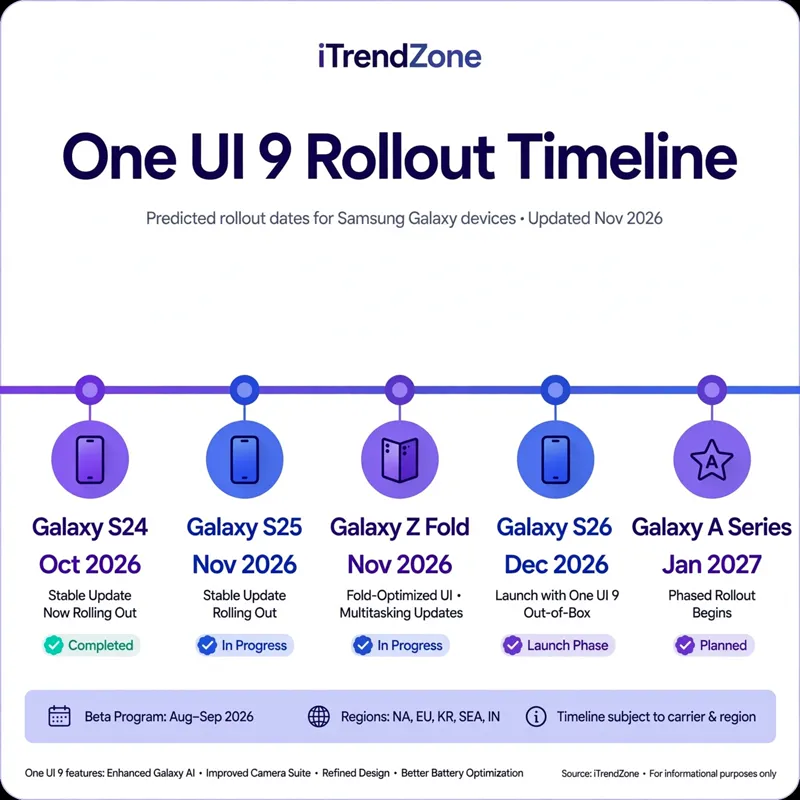
The chart above maps the One UI 9 timeline so far. The stable One UI 9.0 rollout began on 16 September 2026 with the Galaxy S26 series, then spread to the S25 and S24 series. Two months later, on 18 November 2026, the One UI 9.5 beta opened for S26 owners in six countries: Germany, India, Korea, Poland, the UK and the US. Next comes the stable One UI 9.5 release, expected in early 2027 with the Galaxy S27 series.
Privacy Tips: App Lock and Privacy Display
One UI 9.5 is the privacy update. Two features stand out, and both are worth turning on the day they arrive on your phone.
13. Lock Single Apps With App Lock
App Lock is the feature Galaxy owners have asked Samsung for for years, and it finally arrives with One UI 9.5. You can lock any app with your fingerprint or PIN, so your banking app, gallery or messages stay shut even when the phone itself is unlocked. To set it up, open Settings > Security and privacy, look for App Lock, and choose the apps to protect. SamMobile has the full One UI 9.5 changelog and feature list.
14. Turn On Privacy Display
Privacy Display works with App Lock. When you open a locked app, a private album or a note in Samsung Notes, the screen shades the content so it is readable to you but hard to read from an angle. On the S26 Ultra it kicks in automatically for locked apps, the Secure Folder and private gallery albums. I switch it on whenever I am on a train or in a cafe. Android Authority has a good rundown of the One UI 9.5 beta rollout and its privacy features.
15. Protect Your Battery After the Update
Big updates can make a phone feel hungry for a day or two while it settles, so do not panic if the first day looks worse than usual. Give it 48 hours. After that, open Settings > Battery, check which apps use the most power, and put the ones you rarely open into Deep sleeping apps. Turn on Adaptive battery, and keep Protect battery on so charging stops at 85% overnight. If it still drains fast after a week, our Samsung Galaxy battery tips walk through every cause, and our Samsung Galaxy storage and performance tips will help if the phone feels slow.
How to Get One UI 9 (and the One UI 9.5 Beta)
Open Settings > Software update > Download and install, and your phone will check for it. If it says your software is up to date, your phone simply has not reached its wave yet, so check again in a few days. Before installing, back up your photos, plug the phone in, and connect to Wi-Fi: these updates are several gigabytes. Samsung’s own One UI 9 rollout announcement confirms the release started with the S26 series on 16 September 2026.
If you want the One UI 9.5 beta, open the Samsung Members app, look for the Beta Program banner, and register for your model. Once you are in, check Settings > Software update > Download and install and the beta should appear. It is a large download, around 3.5GB, with the November 2026 security patch. Beta software can be unstable, and going back to stable usually needs a factory reset, so back up first. If the update will not download or install, our Samsung Galaxy not working fix guide covers the most common problems.
Which Galaxy Phones Get One UI 9?
Samsung promises seven years of major updates and security patches for the S26 series. The rollout started with the newest phones and is working backwards, as Samsung does every year. GSMArena’s Galaxy S26 review covers the software and the seven-year update promise.
| Version | Based On | Arrived | What It Brings |
|---|---|---|---|
| One UI 8.5 | Android 16 | Early 2026, with Galaxy S26 | Refreshed camera app, smoother animations, 7 years of updates |
| One UI 9.0 | Android 17 | 16 Sep 2026 | New Quick Panel, lock screen options, better multitasking |
| One UI 9.5 beta | Android 17 | 18 Nov 2026 | App Lock, Enhanced Pro camera, Privacy Display, DeX auto-split |
| One UI 9.5 stable | Android 17 | Early 2027, with Galaxy S27 | All beta features, plus Health journal and medication tracker |
My One UI 9 Setup After a Month
After a full month on One UI 9, my setup has settled into something simple. Lock screen with a bold clock and torch and camera shortcuts. Quick Panel with the four tiles I use most on the front row. Notification history on, animations at 0.5x, Secure Folder holding my banking apps, and App Lock on my gallery and messages. Try the five changes in the first section tonight, live with them for a week, and then come back for the rest.
Test Yourself: One UI 9 Quiz
Five quick questions to check what you picked up. Answers are at the end.
1. When did the One UI 9.0 rollout begin?
A) 16 September 2026
B) 18 November 2026
C) Early 2027
D) January 2026
2. What is One UI 9 based on?
A) Android 15
B) Android 16
C) Android 17
D) Android 14
3. Which One UI 9.5 feature locks individual apps with your fingerprint or PIN?
A) Secure Folder
B) App Lock
C) Privacy Display
D) Knox Vault
4. How do you join the One UI 9.5 beta program?
A) Through the Galaxy Store
B) Through the Samsung Members app
C) Through Settings > About phone
D) Through Smart Switch
5. Which phone series got One UI 9 first?
A) Galaxy S24
B) Galaxy S25
C) Galaxy S26
D) Galaxy A55
Quiz Answers: 1-A, 2-C, 3-B, 4-B, 5-C