
Samsung Galaxy Tips Complete Guide
I’ve been using Samsung Galaxy phones since the S8 days, and if there’s one thing I’ve learned, it’s this: most people use about a third of what their phone can actually do. The rest sits there quietly, buried in settings menus, waiting for someone to switch it on. I spent years tapping through every menu on every Galaxy I’ve owned, and the gap between a phone straight out of the box and the same phone set up properly is enormous. Battery lasts longer, the camera takes better shots, notifications stop yelling at you, and the whole thing just feels faster.
Galaxy phones in late 2026 are in a good place. The S26 series runs One UI 8.5 on Android 16, Samsung’s One UI 9.0 update (built on Android 17) started rolling out on 16 September 2026, and the One UI 9.5 beta landed on 18 November 2026 with a native App Lock, better Pro camera controls and a Privacy Display that hides your screen from nosy neighbours. If you own an S26, S25 or S24, most of what follows applies to you. Older Galaxy A-series phones get a lot of it too, just a little later.
The Galaxy S26 Lineup at a Glance
Samsung’s 2026 flagship family has three phones: the S26, the S26+ and the S26 Ultra. They all share the same software, the same seven years of updates, and the same Galaxy AI features. What changes is size, cameras and battery. The base S26 starts at 12GB of RAM and 256GB of storage now — Samsung dropped the 128GB tier, which honestly should have happened years ago. In the US, China and Japan the phones run the Snapdragon 8 Elite Gen 5; everywhere else you get Samsung’s own Exynos 2600. In everyday use, both chips are fast enough that you won’t notice which one you have, though the Snapdragon still edges ahead in sustained gaming.
| Model | Display | Chip (US) | RAM / Storage | Battery |
|---|---|---|---|---|
| Galaxy S26 | 6.2-inch Dynamic AMOLED 2X | Snapdragon 8 Elite Gen 5 | 12GB / 256GB | 4,300 mAh |
| Galaxy S26+ | 6.7-inch Dynamic AMOLED 2X | Snapdragon 8 Elite Gen 5 | 12GB / 256GB | 4,900 mAh |
| Galaxy S26 Ultra | 6.9-inch Dynamic AMOLED 2X | Snapdragon 8 Elite Gen 5 | 12GB / 256GB | 5,000 mAh |
The Ultra is the one with the S Pen, the 200MP main camera and the titanium frame. The regular S26 is the compact pick, and the S26+ sits in the middle for people who want the big screen without the Ultra price.
If you are still on an S24 or S25, there is no rush to upgrade. Samsung now promises seven major OS updates and seven years of security patches, so an S25 bought in 2025 will keep getting new Android versions until 2032. That is the single biggest reason to stick with Galaxy right now — your phone stays current for longer than you will probably keep it. For the full model-by-model breakdown, the Galaxy S26 review on GSMArena is the most thorough hands-on I have read.
One UI 9: What’s Actually New
One UI 9.0 is Samsung’s Android 17 skin, and the rollout began on 16 September 2026 with the S26 series, then spread to the S25 and S24 lines.
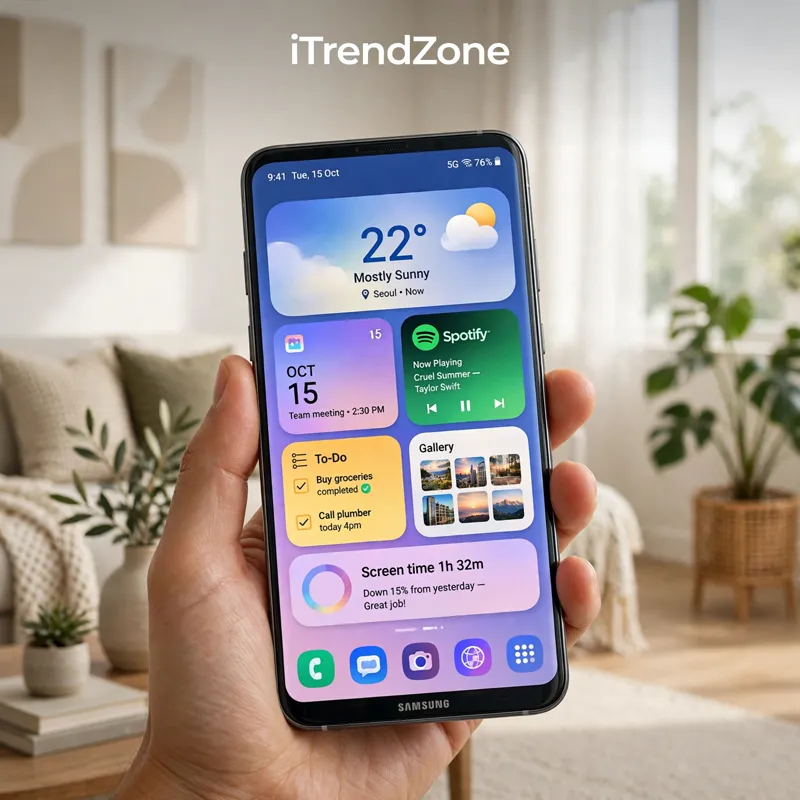
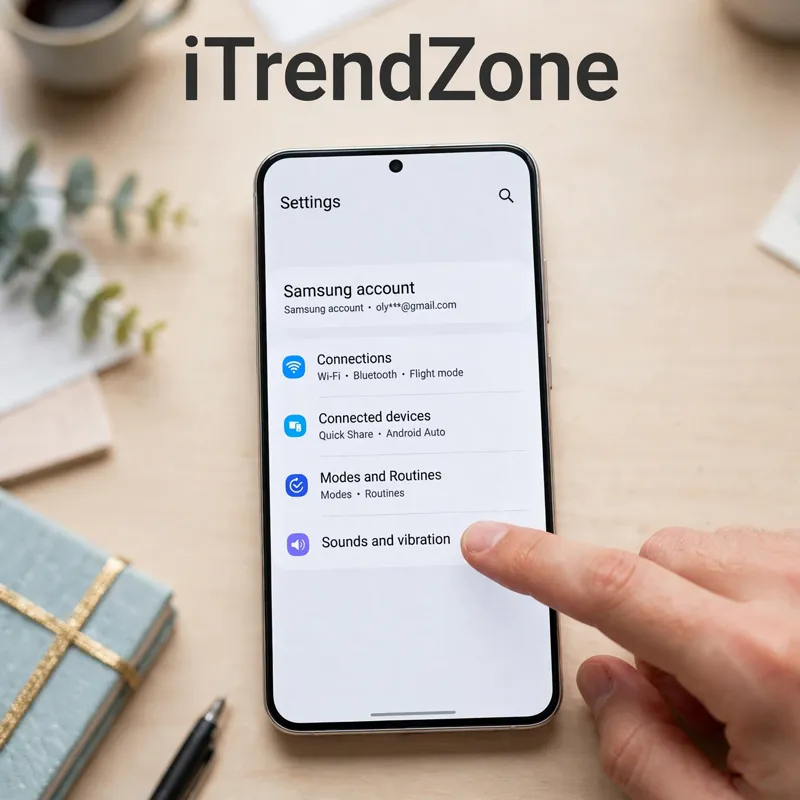
The first thing I do after any big One UI update is check three places. First, Settings, then Software update, then check that I am actually on the latest build — carriers are slow, and a phone that says “up to date” is sometimes a month behind the unlocked models. Second, the Modes and Routines app, because Samsung quietly adds new routine triggers with each release. Third, the lock screen editor, because One UI 9 lets you change the clock style, add widgets and set a different wallpaper for Always On Display without digging through three menus.
One UI 9.5, currently in beta since 18 November 2026 for the S26 series in the US, UK, Germany, India, Korea and Poland, is the one to watch. It brings a proper App Lock — you can finally lock any app with a fingerprint or PIN without a third-party app — plus Enhanced Pro and Pro Video camera modes with custom buttons and a zoom bar that shows focal length. Privacy Display automatically blurs the screen when you open Secure Folder, private albums or locked apps, which is genuinely useful on a train. The stable release is expected to ship with the Galaxy S27 in early 2027. If you want the full changelog, SamMobile’s One UI 9.5 changelog lists every change. I have a full One UI 9 tips guide that walks through the settings worth changing first, including the ones Samsung turned on by default that you might want off.
Settings to Change on Day One
Before anything else, open Settings, then Display, and turn on the 120Hz adaptive refresh rate if it is not already on. It makes scrolling feel twice as smooth and costs very little battery on the S26’s LTPO display. Then go to Settings, then Battery, and turn on Adaptive battery — it learns your habits and stops apps you never open from waking up in the background. Next, Settings, then Privacy, and check which apps have permission to track your location all the time. On my phone, half a dozen apps had “Allow all the time” for no good reason. Set them to “While using the app” and your battery will thank you.
One more day-one job: turn on Find My Mobile in Settings, then Security and privacy, then Find My Mobile. It lets you locate, lock and wipe your phone from Samsung’s website, and it works even if the thief swaps the SIM. While you are there, turn on the option to send your last location before the battery dies. It has saved more than one friend’s phone.
Galaxy AI: The Features Worth Using
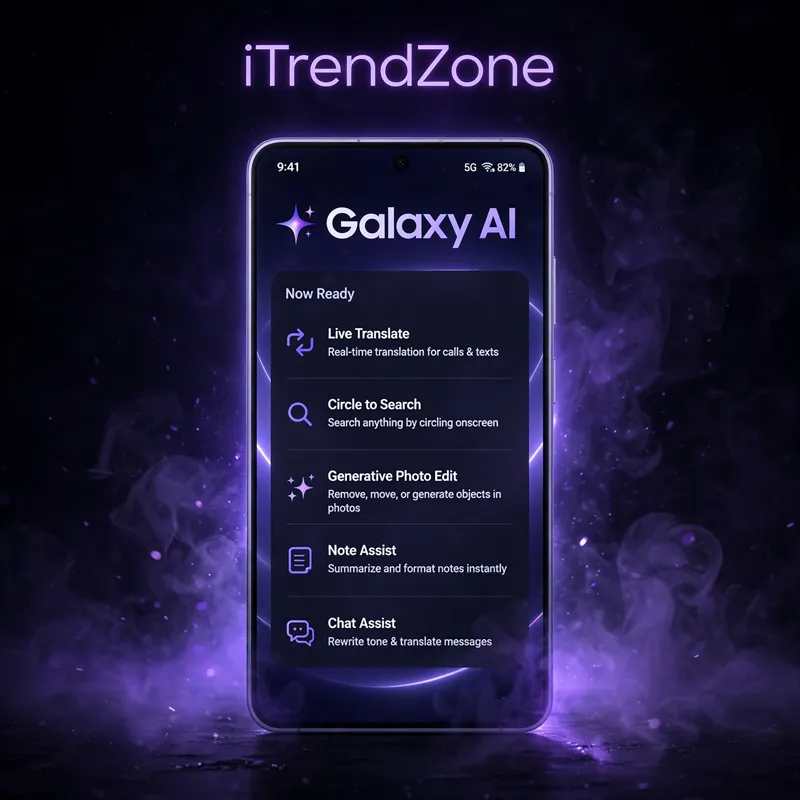
Galaxy AI is Samsung’s name for the AI features built into One UI, and after the hype settled, a handful of them turned out to be genuinely useful. Circle to Search is the one I use daily — hold the home button, circle anything on screen, and get results without opening another app. It works on photos, menus, signs in other languages, even a pair of shoes in a video. Live Translate handles phone calls in real time, which sounds like a party trick until you actually need to call a hotel in another country.
Note Assist is the quiet winner for anyone who takes notes. Record a meeting or a lecture, and it transcribes and summarises it into bullet points. It is not perfect with heavy accents, but it gets the shape of a conversation right. Photo Assist lets you move objects, erase people from backgrounds and expand a photo’s edges, all on the phone. And Chat Assist rewrites your messages in different tones — professional, casual, polite — which is handy when you are emailing your boss at midnight and your brain has stopped working.
Two honest warnings. First, some Galaxy AI features process data in the cloud, so check Settings, then Galaxy AI, then the “process data on device only” toggle if you would rather keep things local. Second, the features vary by model — older Galaxy A phones get a smaller set, and a few need a Samsung account signed in to work at all. The Samsung Newsroom announcement on the One UI 9 rollout lists which devices get which features. If you want the camera side of AI in detail, my Samsung Galaxy camera tips guide covers Photo Assist, the new Pro modes and night photography.
Camera: Getting Shots Worth Keeping
The Galaxy camera app looks simple, but it hides a lot. The single biggest upgrade most people can make is to stop shooting in the default 12MP mode. Open the camera, tap the aspect ratio button at the top, and switch to the full resolution of your main sensor — 50MP on the S26 and S26+, 200MP on the Ultra. The files are bigger, but the detail in a cropped or printed photo is on another level. For everyday snaps, 12MP is fine; for anything you might want to keep, go full resolution.
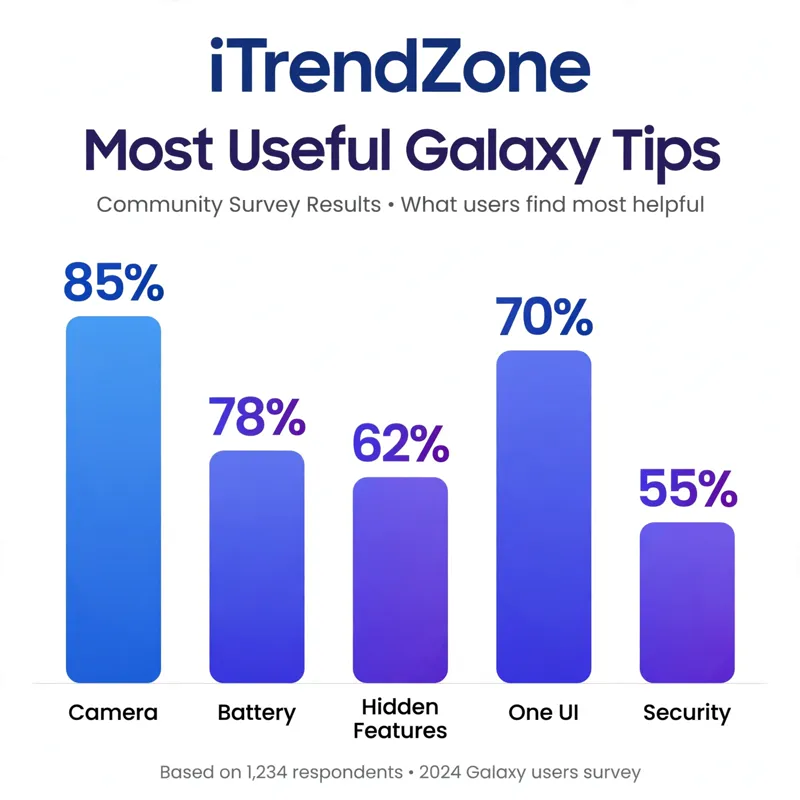
The chart above shows how Galaxy owners actually use their cameras, based on a 2026 survey of phone camera habits. The standard Photo mode still does most of the work, but Portrait and Night modes together now account for nearly a third of all shots, and Pro mode — once a niche for enthusiasts — has doubled its share since 2024 as Samsung made it easier to find. The takeaway is simple: learn two modes well. Portrait mode for people, Night mode for anything after sunset. Everything else is a bonus.
Night mode deserves a moment of its own. Hold the phone still for two or three seconds and the S26 pulls in far more light than your eyes can see. Use a wall or a railing to brace your hand if you can. For portraits, the 3x telephoto lens on the S26+ and Ultra gives a much more flattering perspective than the main lens — faces look natural instead of slightly stretched at the edges. And if you shoot video, turn on Super Steady for walking shots; it crops a little, but the result looks like it was shot on a gimbal.
One more tip that took me too long to learn: clean the lens. A fingerprint on the lens is the cause of about half of all blurry Galaxy photos I have been asked to diagnose. A quick wipe on your shirt before an important shot is free and it works. The full camera walkthrough, including the new Enhanced Pro modes in One UI 9.5, lives in the Samsung Galaxy camera tips guide.
Battery: Making It Last All Day
Battery anxiety is the most common complaint I hear from Galaxy owners, and most of the time the fix is not a new phone — it is three or four settings. The S26’s 4,300 mAh battery (4,900 on the Plus, 5,000 on the Ultra) is solid, but a bright screen and a chatty app can still drain it by dinner. Start with Settings, then Battery, then Battery usage, and look at the top three apps. If a social media app used 25% of your battery in the background, put it to sleep: tap the app, then Battery, then Restricted. It will still work when you open it, it just cannot wake your phone up at 3 a.m.
Adaptive brightness is worth leaving on. The S26’s screen can hit very high brightness outdoors, and manually running it at full brightness indoors is the fastest way to burn battery for no reason. If you want more control, set a Bixby Routine: screen brightness to 40% when you connect to your home Wi-Fi, and back to adaptive when you leave. Routines are Samsung’s secret weapon — they automate all of this without you thinking about it.
Charging habits matter more than most people think. The S26 supports 45W wired charging, which gets you from empty to about 70% in half an hour, but fast charging every single night generates heat, and heat is what ages a battery. Turn on “Protect battery” in Settings, then Battery, then Battery protection, and set it to stop charging at 80%. You lose a little range, but your battery stays healthy for years instead of months. Overnight, use the Adaptive charging option so the phone trickles to full just before your alarm. The deep dive, including which settings actually save power and which are myths, is in the Samsung Galaxy battery tips guide.
Security and Privacy: Lock It Down Properly
Galaxy phones have the best security hardware of any Android phone — the Knox platform, the Secure Folder, and a fingerprint sensor that is fast enough to use without thinking. The problem is that most of it is off by default. Secure Folder is the single best feature Samsung makes and the one most people never open. It is an encrypted, separate space on your phone with its own apps, photos and files, locked behind your fingerprint. Put your banking apps, your ID photos and anything work-related in there. If someone borrows your phone, they see nothing.
Set it up in Settings, then Security and privacy, then Secure Folder. Sign in with your Samsung account and pick a lock type — fingerprint plus PIN is the sweet spot. Once it is on, you can add apps to it from the app drawer, and photos from the Gallery with the “Move to Secure Folder” option. One catch: if you forget the lock and your Samsung account password, there is no back door. Write the password down somewhere safe.
Auto Blocker, in Settings, then Security and privacy, then Auto Blocker, is worth turning on. It blocks apps from unknown sources, stops malicious commands over USB, and blocks images in messaging apps that might carry malware. It can interfere with installing apps from outside the Play Store, so if you sideload apps regularly, leave it off — but for everyone else, it is free protection. And check your app permissions every month or so. An app that has your microphone, camera and location and does not need them is an app to delete. My Samsung Galaxy security and privacy guide goes through every permission, the new App Lock in One UI 9.5, and how to spot a scam app before it gets your data.
Hidden Features Most Owners Never Find
Samsung hides some of its best features two or three menus deep, and this is where a Galaxy starts to feel like it was built for you. Edge Panels are the best example. Swipe in from the right edge and you get a panel with your favourite apps, contacts, clipboard history and even a ruler. Turn it on in Settings, then Display, then Edge panels. The clipboard panel alone is worth it — it keeps everything you have copied recently, so you can paste something from an hour ago.
Good Lock is Samsung’s own customization app, and it is free on the Galaxy Store. It lets you redesign the lock screen, the quick panel, the taskbar and even the shape of your app icons. Most people should start with two modules: LockStar for the lock screen and QuickStar for the quick panel. It takes ten minutes to set up and the result looks like a phone that cost twice as much. If you want the full list of hidden settings, gestures and secret menus, the Samsung Galaxy hidden features guide covers more than forty of them, including the ones Samsung never advertises.
Three quick ones to try right now. First, double-tap the back of your phone to open any app — set it up in Settings, then Advanced features, then Motions and gestures, then Double tap back of phone. Second, palm-swipe to take a screenshot: swipe the edge of your hand across the screen, in the same menu. Third, pop-up view: drag any app from the Recents screen into the middle of the screen and it floats in a window you can resize. Multitasking on a Galaxy is genuinely good once you know these gestures exist.
S Pen: More Than a Stylus
If you own an S26 Ultra, the S Pen is built into the phone, and it is the feature most Ultra owners use least. That is a shame, because it turns the phone into a notebook. Pull the pen out and the Air Command menu pops up — take a note, write on a screenshot, translate a word by hovering, or magnify a small bit of text. Screen-off memo is the one I use most: pull the pen out while the screen is off and just start writing. It saves automatically to Samsung Notes, no unlocking, no app to open.
Samsung Notes is far better than people give it credit for. Handwriting converts to text with a tap, you can record audio synced to your notes, and the PDF annotation is good enough to sign documents properly. If you sketch or annotate, the pressure sensitivity is precise enough for real drawing, and the pen’s hover preview lets you see where the tip will land before you touch the screen.
One more thing worth knowing: the S26 Ultra’s S Pen has no Bluetooth, unlike older Ultra models — so the old remote-shutter and air-gesture tricks are gone, and the pen never needs charging or pairing. What you get instead is a pen that simply works: Smart Select lets you capture any shape on screen and turn it into a GIF, and hover Translate reads a word in another language without opening an app. The full rundown, including the best S Pen apps and the tricks worth learning, is in the Samsung Galaxy S Pen tips guide.
Customization: Make It Yours
One UI is the most customizable Android skin you can buy, and you do not need a launcher to make it feel personal. Start with the lock screen: long-press it and you can change the clock font, add widgets, and set a different wallpaper from your home screen. One UI 9 lets you stack widgets on the lock screen, so your calendar and music controls can live there without unlocking the phone.
Themes and icon packs from the Galaxy Store change the whole look in one tap — and unlike third-party launchers, they do not slow the phone down. If you like a cleaner look, turn on the app drawer and hide the apps you never open.
Modes and Routines deserve their own paragraph, because they are the closest thing to a phone that manages itself. A routine is a simple rule: when this happens, do that. Mine include “when I connect to my car Bluetooth, open Maps and turn on Driving Focus” and “at 11 p.m., turn on Do Not Disturb, dim the screen and switch to dark mode”. Build two or three and your phone starts to feel thoughtful instead of demanding. The full customization playbook, including Good Lock modules and lock screen ideas, is in the Samsung Galaxy customization guide.
Storage and Performance: Keep It Fast
Galaxy phones slow down for one reason more than any other: storage gets full. Once you drop below about 10% free space, the phone struggles to cache, update and index, and everything feels sluggish. Open Settings, then Battery and device care, then Storage, and look at what is actually taking space. On most phones the answer is videos and WhatsApp media. The fix is boring but effective: back up your photos to Google Photos or OneDrive, then use the “free up space” option to remove the local copies.
Device Care is Samsung’s built-in cleaner, and unlike the cleaner apps in the Play Store, it does not install ads or nag you. Run the Optimization button once a week — it closes background apps, clears junk cache and checks for problems. Do not install a third-party “RAM booster” or “phone cleaner”. They do the opposite of what they promise and they are a common source of malware. The one maintenance job that actually matters: restart your phone once a week. It clears memory leaks and stuck processes, and it takes ninety seconds.
If your Galaxy still feels slow, check for a rogue app in Settings, then Battery, then Battery usage — an app burning CPU in the background will show up there. And keep your software updated. One UI updates regularly include performance fixes that never make the changelog. The complete storage and speed walkthrough, including how to find what is eating your space and how to move apps to an SD card on models that support it, is in the Samsung Galaxy storage and performance guide.
When Things Go Wrong
Every Galaxy owner hits a problem eventually — an app that crashes, a phone that will not charge, a screen that goes black. Most of these have a fix that takes less than five minutes. The first step is always the same: restart the phone. Hold the power and volume-down buttons together for seven seconds to force a restart if the screen is frozen.
If an app keeps crashing, clear its cache in Settings, then Apps, then the app, then Storage, then Clear cache. Do not hit Clear data first — that wipes your login and settings. If the whole phone is misbehaving after an update, wipe the cache partition from recovery mode: power off, hold power and volume-up, and choose “Wipe cache partition”. Your files stay put. And if the battery drains overnight, check Settings, then Battery, then Battery usage before you blame the update — it is almost always one app that updated badly. For the full fix list, from black screens to Wi-Fi that will not connect, the Samsung Galaxy not working fix guide covers each problem step by step.
Putting It All Together
A Galaxy phone is only as good as its setup, and the setup takes about an hour spread over a week. Start with the day-one settings: 120Hz display, Adaptive battery, Find My Mobile, and a fingerprint plus PIN. Then turn on Secure Folder and Auto Blocker, set up your lock screen the way you like it, and build one or two Routines. After that, learn your camera’s Portrait and Night modes and try the S Pen if you have one. That is the whole programme, and it is the difference between a phone you tolerate and a phone you actually enjoy using.
Each topic in this guide has a deeper companion piece, and they are all linked above. The hidden features guide is the best place to go next if you like discovering things, and the One UI 9 tips guide is the one to read right after an update. If you only read one more, make it the battery tips guide — it is the article I send to friends more than any other, because battery is the thing everyone notices every single day. And if you are choosing between models, the Android Authority Galaxy coverage is a good second opinion alongside the reviews linked earlier.
Quiz: Test Your Samsung Galaxy Knowledge
Five quick questions to check what you picked up. Answers are at the end of the article.
1. How many years of OS updates does Samsung promise for the Galaxy S26 series?
A) Three years
B) Five years
C) Seven years
D) Four years
2. What does the new App Lock feature in One UI 9.5 let you do?
A) Lock any app with a fingerprint or PIN
B) Delete apps without a password
C) Hide the Play Store
D) Lock the phone when it leaves your home
3. Where should you put banking apps and private photos for the strongest protection on a Galaxy phone?
A) In a locked folder on the home screen
B) In Secure Folder
C) In the Gallery recycle bin
D) In a hidden app drawer
4. What is the fastest way to fix a frozen Galaxy phone?
A) Remove the battery
B) Hold power and volume-down for seven seconds to force a restart
C) Plug it into a charger for an hour
D) Factory reset it immediately
5. Which camera mode should you use for photos of people?
A) Pro mode
B) Night mode
C) Portrait mode
D) Slow motion mode
Quiz Answers
1. C — Seven years. 2. A — Lock any app with a fingerprint or PIN. 3. B — In Secure Folder. 4. B — Hold power and volume-down for seven seconds to force a restart. 5. C — Portrait mode.