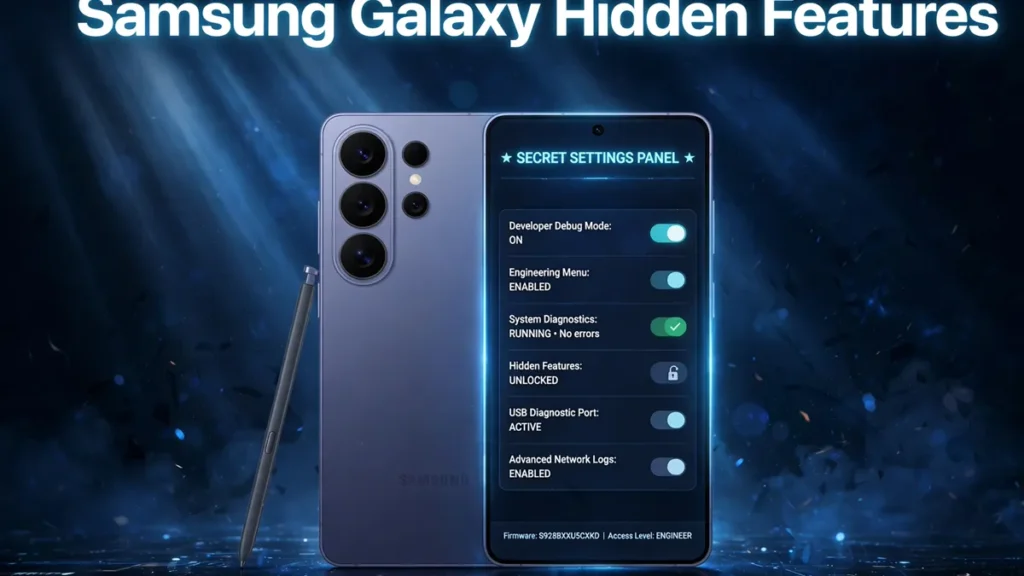

Samsung Galaxy Hidden Features You Probably Never Knew Existed
I’ve carried a Galaxy phone since the S8 days, and I still find something new in the settings every few months. Samsung ships so much tucked away that most people use maybe half of what their phone can do. The good stuff isn’t on the home screen — it’s buried two menus deep or inside an app Samsung never advertised. If you’re new to Galaxy phones, our Samsung Galaxy tips complete guide covers the basics first — this one is for the stuff hiding underneath.
TL;DR: Your Galaxy hides Edge Panels, Modes and Routines, Secure Folder, Samsung DeX, Good Lock, Labs experiments, quick panel shortcuts, secret camera modes and battery tools most owners never open.
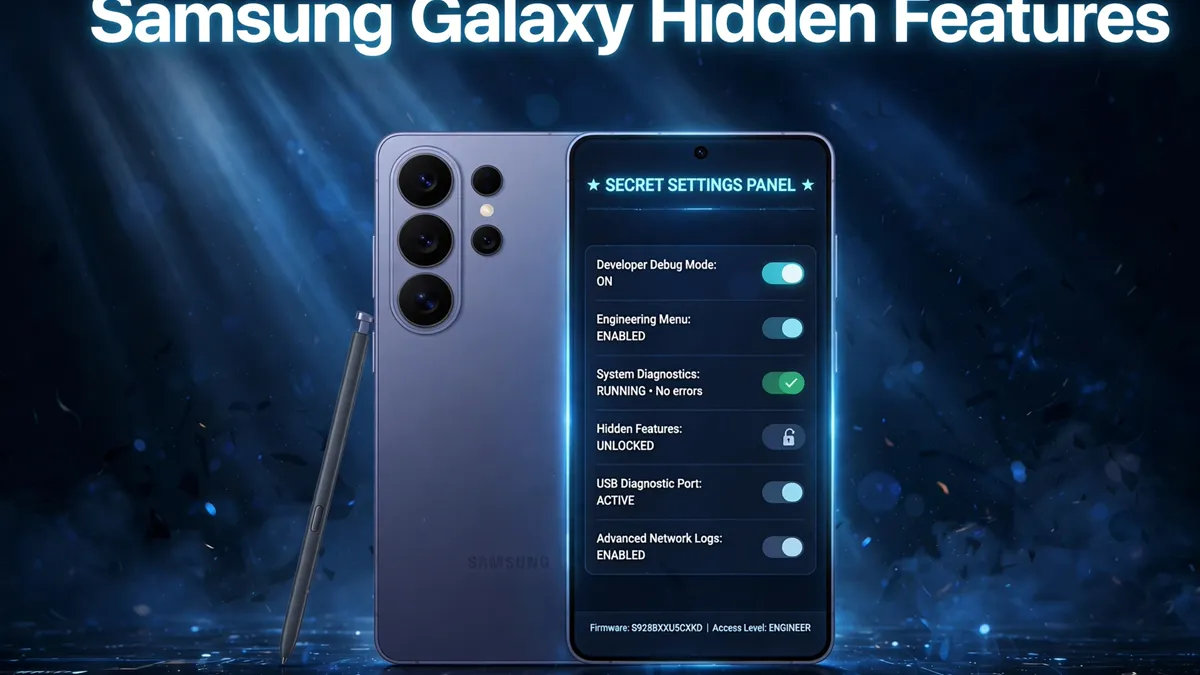
The Galaxy S26 on One UI 9.
The Edge Panel Is the Shortcut Drawer You Forgot About
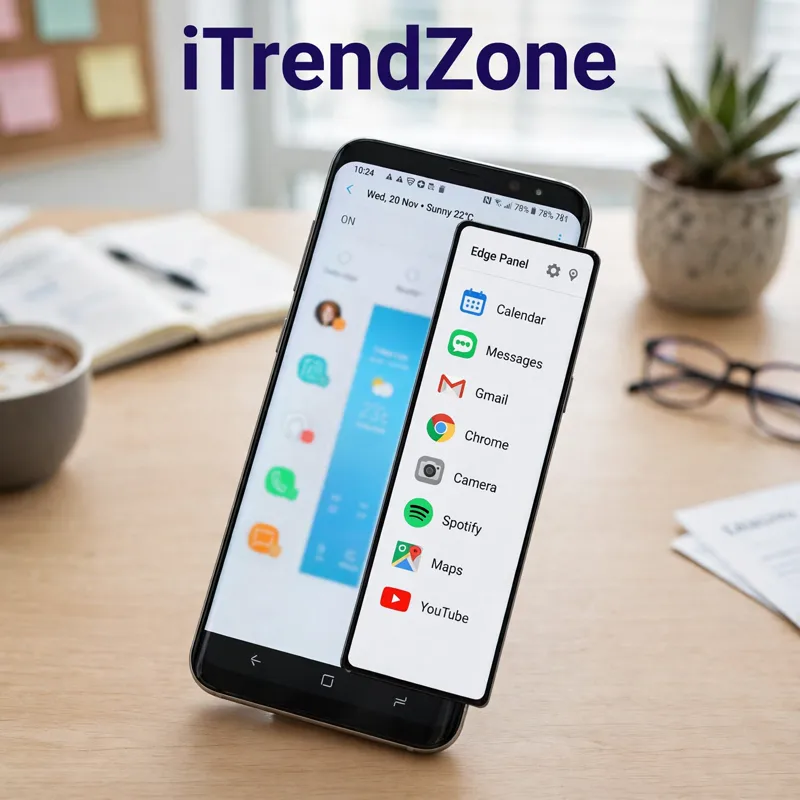
See that thin handle on the right edge of your screen? Swipe it in and a panel slides out — your favourite apps, most-called contacts, a ruler, a compass, a clipboard, and a smart select tool that pulls text out of any image. It’s the Edge Panel, and once you set it up, it’s the fastest way to do anything on your phone.
Go to Settings, then Display, then Edge panels, and turn it on. I keep three — Apps, Smart select, and Tools. Smart select is the one people sleep on: drag a box around anything on screen and it grabs the text or image, even from apps that block screenshots.
Modes and Routines: Your Phone Running Itself
Modes and Routines is the most powerful hidden feature on a Galaxy phone, and it’s sitting in Settings waiting for you. Your phone watches for a condition — a time, a place, a Wi-Fi network, a charger being plugged in — and then does something automatically. No tapping, no remembering.
Sleep mode dims the screen and silences notifications at bedtime. Driving mode reads messages out loud and replies for you. The fun starts with your own Routines — mine turns off mobile data and sets brightness to 40 percent when I connect to home Wi-Fi after 6 pm, and another opens Spotify at the gym.
Building a Routine takes a minute. Open Settings, go to Modes and Routines, tap Routines, and hit the plus button. Pick your trigger — the “if” — then your actions — the “then”. Samsung gives you dozens of triggers and hundreds of actions, and Good Lock’s Routines+ module adds more.
Set up Modes and Routines once and they run themselves.
Secure Folder: A Second Phone Inside Your Phone
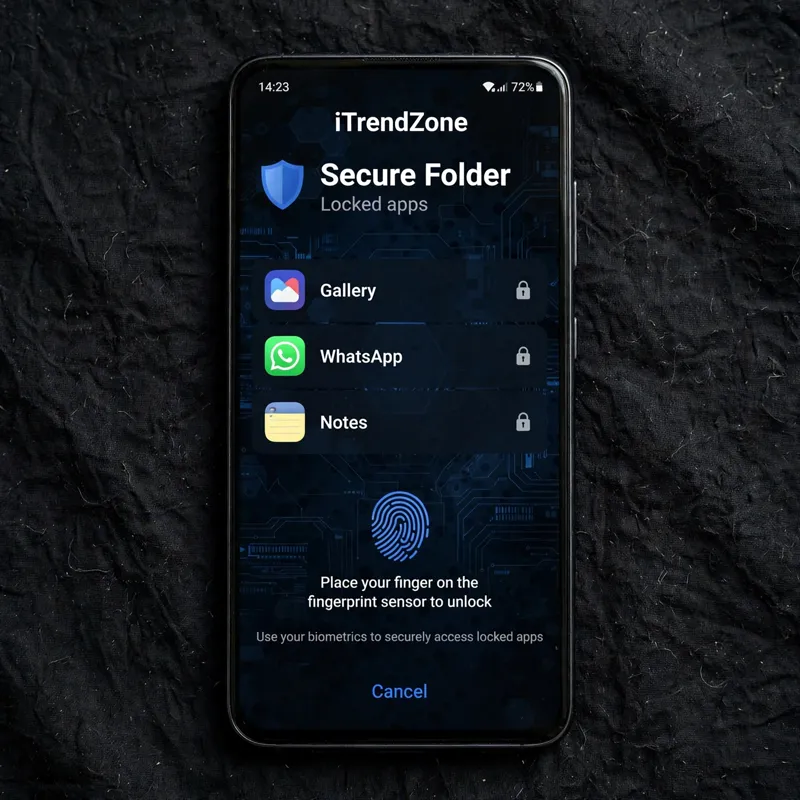
Secure Folder is a locked, encrypted space on your phone that works like a second phone living inside the first. It runs on Samsung Knox and keeps its own separate copies of apps, photos, files and accounts.
Go to Settings, then Security and privacy, then Secure Folder, and sign in with your Samsung account. Move photos into it straight from the Gallery, add a second copy of WhatsApp or your banking app, and keep work documents separate from personal stuff. You can hide its icon from the app drawer entirely and set it to lock whenever the screen turns off. Our Samsung Galaxy security and privacy tips cover the rest of the locks worth turning on.
Samsung DeX Turns Your Phone Into a Computer
DeX is the feature I show people when they ask what makes a Galaxy different. Plug your phone into a monitor or a TV — with a USB-C cable or wirelessly — and it turns into a full desktop computer, with windows you can drag around, a taskbar and a desktop browser.
I’ve written whole articles on a hotel TV with DeX and a folding keyboard, and it genuinely works. Pull down the quick panel, tap the DeX tile, and pick your TV or monitor. It works over Wi-Fi to any Miracast TV, or wired through a USB-C hub. One change worth knowing: Samsung dropped the DeX app for Windows PCs, so on a laptop use Link to Windows instead. Samsung keeps updating DeX, and on One UI 9.5 it splits the screen automatically when you open a second app.
Good Lock: The App Samsung Doesn’t Advertise Enough
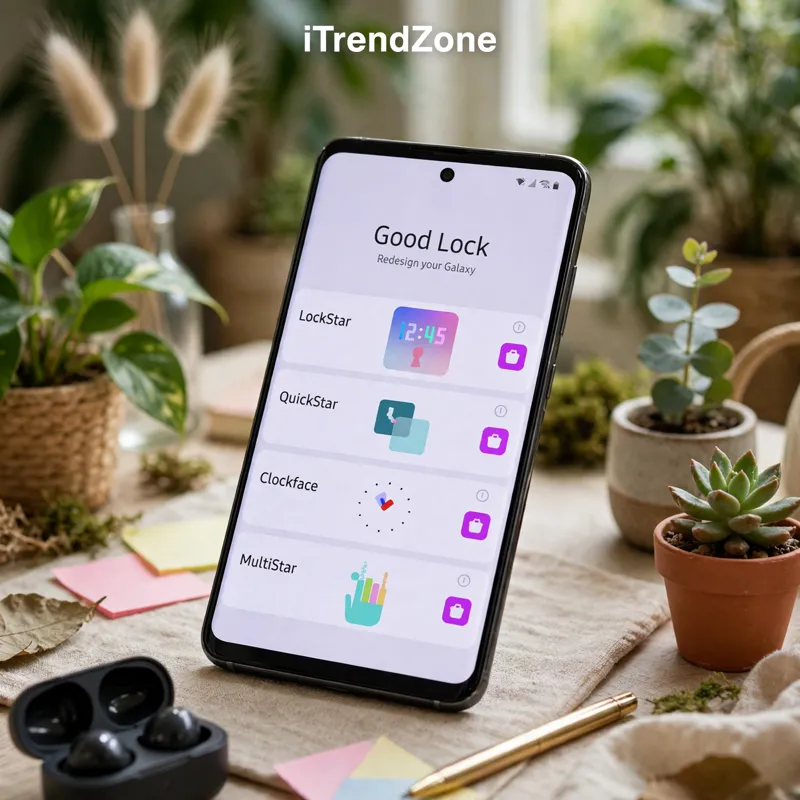
Good Lock is Samsung’s own customisation workshop, and it’s the best-kept secret in the Galaxy world. It’s a free app from the Galaxy Store, and inside it are modules — small apps, each one unlocking a part of the phone Samsung locked away by default. Want a different lock screen clock? LockStar does that. Want to change what the navigation bar does? NavStar.
The modules I use every day: One Hand Operation+, which sets up swipe gestures from the screen edges — swipe in and hold to go back, swipe diagonally for the previous app. SoundAssistant, which gives every app its own volume level, so YouTube can be loud while notifications stay quiet. Home Up changes the home screen grid and hides app names. Theme Park builds a complete matching theme from any photo in ten seconds.
Good Lock is in the Galaxy Store, and in some regions on the Play Store too. Install the main app, then only the modules you want. Our Samsung Galaxy customization tips go deeper into themes, icons and home screen layouts.
Labs: Samsung’s Experimental Playground
There’s a menu on your phone called Labs, and it holds experimental features Samsung is still testing. Find it under Settings, then Advanced features, then Labs. The list changes with every software update, so check it after each big One UI release.
Over the years Labs has held useful toggles: forcing every app into split-screen mode, even apps that normally refuse it, and swipe gestures for pop-up windows. The exact list depends on your One UI version. The toggles are safe to try — turning one on never breaks anything, and you can switch it straight back off. Peek in after every update; this is where Samsung tests things that later become headline features.
Quick Panel Tricks and the One UI 9 Layout
The quick panel — the shade you pull down from the top of the screen — has more hiding in it than most people realise. Since One UI 7, Samsung split it in two: swipe down from the left for notifications, swipe down from the top-right corner for the full quick panel instantly.
Long-press any tile and it jumps straight to that setting’s full page. Long-press Wi-Fi and you’re in the network list; long-press the torch and you can change its brightness. Tap the pencil icon to edit the panel: add tiles Samsung doesn’t show by default — Modes, Secure Folder, DeX, Link to Windows, Smart View, Device control, even a screen recorder button.
The media output button is the hidden gem here. Tap it while music is playing and you can throw the sound to any speaker, TV or pair of earbuds in the house without opening an app. If you use SmartThings devices, the Device control tile turns your quick panel into a remote for your lights, plugs and TV.
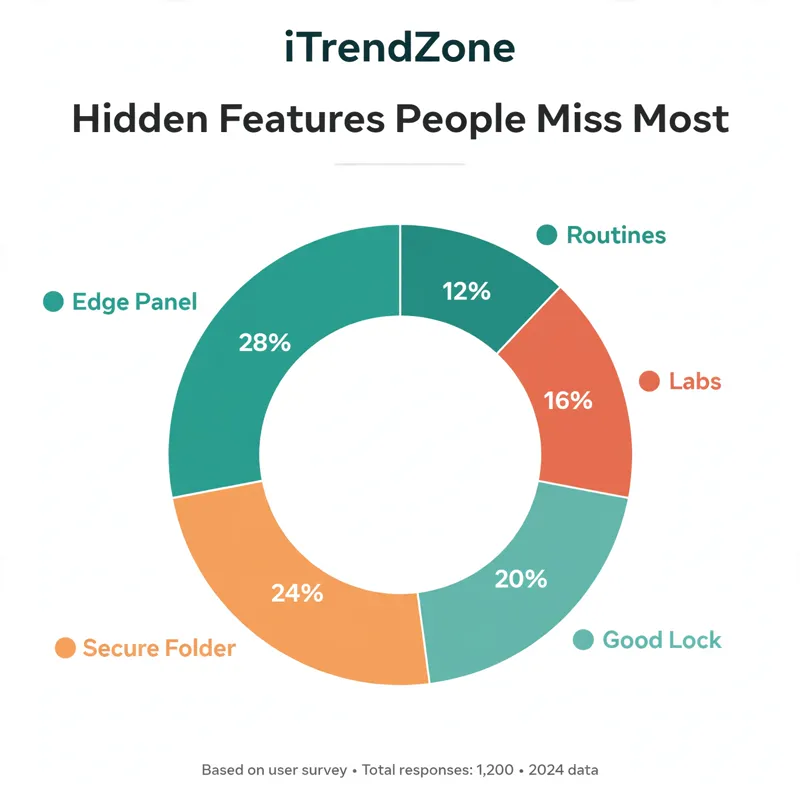
Chart: One UI has moved fast in 2026 — three big releases in one year.
The chart above shows how quickly Samsung has shipped software this year. The Galaxy S26 launched in early 2026 on One UI 8.5, then One UI 9.0 based on Android 17 started rolling out on 16 September 2026, and the One UI 9.5 beta followed on 18 November 2026 with App Lock, Enhanced Pro camera modes and Privacy Display. Samsung’s own announcement confirms the One UI 9 rollout started in September, and SamMobile has the full One UI 9.5 beta changelog.
| Hidden feature | Where to find it | What it does | Best for |
|---|---|---|---|
| Edge Panels | Settings > Display > Edge panels | Slide-out drawer with apps, tools and clipboard | Fast switching |
| Modes and Routines | Settings > Modes and Routines | Automates settings based on time, place or trigger | Hands-free days |
| Secure Folder | Settings > Security and privacy | Encrypted, hidden space for apps and files | Privacy |
| Samsung DeX | Quick panel > DeX tile | Turns the phone into a desktop on a monitor or TV | Working anywhere |
| Good Lock | Galaxy Store app | Modules that unlock deep customisation | Personalisation |
| Maintenance Mode | Settings > Device care > Maintenance mode | Locks personal data while the phone is repaired | Repairs |
Camera Modes Hiding in Plain Sight
Open the camera app and swipe through the modes at the bottom. Most people stop at Photo, Video and Portrait, but there’s a “More” tab at the end with the interesting stuff. Single Take is my favourite party trick: press the shutter once and the phone records for up to ten seconds, then hands you back a whole set — the best still photo, a short video clip and a loop. Director’s View records from the front and rear cameras at the same time, perfect for reaction videos.
The real hidden camera features are in the settings gear. Turn on Shot suggestions and the phone draws a guide on screen to help you frame the photo. Turn on tracking auto-focus and the camera locks onto a moving subject and follows it. There’s a floating shutter button you can drag anywhere on the screen, and voice control, so you can say “Smile”, “Cheese”, “Capture” or “Shoot” to take a photo without touching the phone.
Double-press the power button anywhere, even with the screen off, and the camera opens instantly. Our Samsung Galaxy camera tips cover the full camera setup, including the new Enhanced Pro mode in the One UI 9.5 beta. If the camera app misbehaves after an update, our Samsung Galaxy not working fix walks through the fixes in order.
Single Take, Director’s View and Pro mode hide under the camera’s More tab.
Battery Settings Most People Never Open
The battery menu is where most people stop at the percentage, but the hidden options underneath it decide how long your battery stays healthy over two or three years. The big one is Protect Battery, under Settings, then Battery, then Battery protection. It stops charging at 80 percent.
Next, look at background usage limits under Battery. Your phone quietly sorts apps into sleeping and deep sleeping lists, and you can add apps yourself. An app in deep sleep never runs in the background at all — no surprise drain overnight. Check the usage list monthly — one app usually eats far more than it should.
Turn on Adaptive battery and the phone learns which apps you actually use, throttling the ones you don’t. In Device care, run the optimisation check weekly — it clears cached junk and closes runaway apps in one tap. If your phone still feels slow, the problem is often storage rather than the battery — our Samsung Galaxy storage and performance tips show how to free up space. For the full battery playbook, there’s our Samsung Galaxy battery tips guide.
One UI 9 and 9.5: The New Hidden Stuff
If your phone has updated to One UI 9, based on Android 17, a fresh batch of hidden features came with it. The rollout started on 16 September 2026 with the Galaxy S26 series and has been reaching the S25 and S24 series since. Long-press the lock screen to change the clock style and add widgets.
Then there’s the One UI 9.5 beta, which started on 18 November 2026 for the S26 series in the US, UK, Germany, India, Korea and Poland. It’s beta software, so I wouldn’t put it on your only phone. App Lock finally lets you lock any app with your fingerprint or PIN. Privacy Display blurs the screen when you’re looking at a locked app or private album, so nobody can read over your shoulder. GSMArena’s Galaxy S26 review has the full rundown of the hardware, and our One UI 9 tips guide covers the update in depth.
One warning: beta software can be unstable, and rolling back means a factory reset that wipes everything made since the update. Back up with Smart Switch before you touch a beta, every single time. The stable One UI 9 release is safe for everyone, and its hidden settings are worth an evening of exploring.
Small Hidden Touches Worth Turning On
Some of the best hidden features are tiny — one toggle each, easy to miss, quietly useful forever. Palm swipe to capture takes a screenshot when you swipe the edge of your hand across the screen. Double tap to turn on the screen wakes the phone without the power button. Mute with gestures silences a call by flipping the phone face down.
Two more I use constantly. One-handed mode shrinks the whole screen down to one corner — swipe down on the home button bar to trigger it. It’s the only way to reach the top of a 6.9-inch screen with one thumb.
Ultra owners get a few S Pen tricks of their own. Pull the pen out and the Air Command menu appears — Screen off memo lets you write on the black screen without unlocking, and Screen write lets you scribble on a screenshot. Our Samsung Galaxy S Pen tips cover the pen properly — note that Air Actions only exist on older Bluetooth models like the S24 Ultra, not the S26 Ultra. And try Secret mode in Samsung Internet — private browsing with its own password and bookmarks.
One UI 9 hides more settings than ever.
Quiz: How Well Do You Know Your Galaxy?
1. What does Secure Folder use to keep your files private?
- A) A simple app lock with a PIN
- B) Samsung Knox encryption, with its own separate apps and accounts
- C) A hidden folder in the Gallery
- D) Your Google account password
2. Which Good Lock module lets you set custom swipe gestures from the screen edges?
- A) LockStar
- B) Theme Park
- C) SoundAssistant
- D) One Hand Operation+
3. What happens when you turn on Protect Battery?
- A) Charging stops at 80 percent to slow down battery wear
- B) The phone charges twice as fast
- C) All background apps are closed immediately
- D) The screen brightness is locked at 50 percent
4. How do you open the camera instantly, even with the screen off?
- A) Shake the phone twice
- B) Say “Hey Bixby, open camera”
- C) Double-press the power button
- D) Swipe up from the bottom-right corner
5. What is Samsung DeX?
- A) A battery-saving mode for the Galaxy S26
- B) A desktop mode that turns your phone into a computer on a monitor or TV
- C) A photo editing tool in the Gallery
- D) Samsung’s cloud backup service
Start Digging
The best thing about these features is that none of them cost anything. They’re already on your phone — Samsung just didn’t put them on a billboard. Pick three tonight. My money says Modes and Routines, the Edge Panel and Protect Battery will be the three you keep. Your Galaxy could do all of this since the day you unboxed it. It was waiting for you.
Quiz answers: 1-B, 2-D, 3-A, 4-C, 5-B.