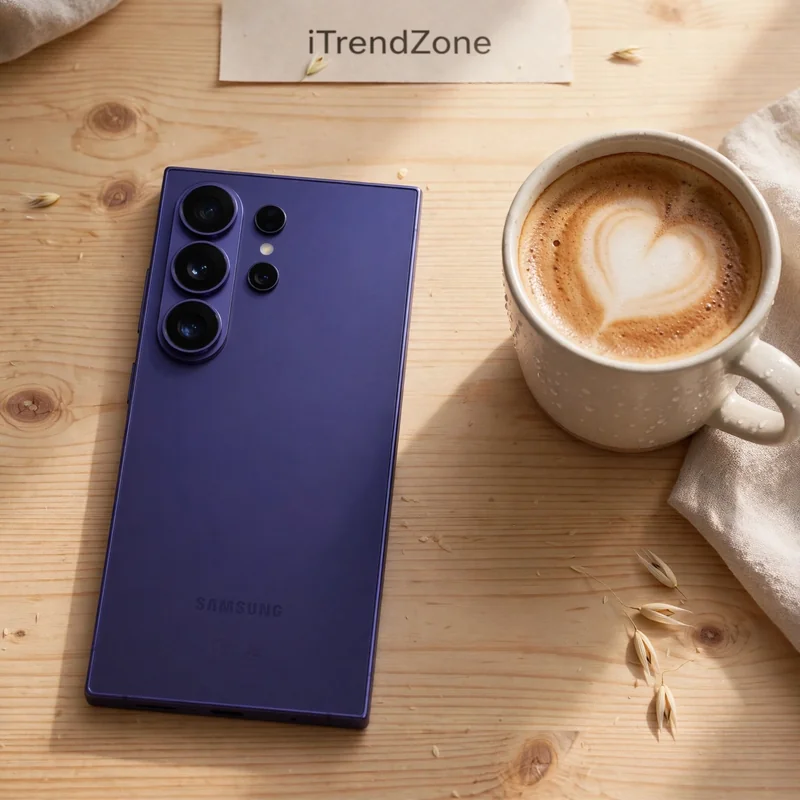

Samsung Galaxy S26 tips are worth learning before you spend a week fumbling through menus, because this phone hides most of its best stuff. I unboxed the Ultra first, then spent time with the regular S26 at a friend’s place, and the gap between "it works" and "it works for me" turned out to be about thirty small settings. Not one big trick. Thirty small ones.
TL;DR: Samsung Galaxy S26 tips start here — the S26 now starts at $999.99 (launch $899.99), the S26+ at $1,199.99 (launch $1,099.99), and the S26 Ultra at $1,399.99 (launch $1,299.99) as of Nov 2026, all with the Snapdragon 8 Elite Gen 5 for Galaxy, Android 16 with One UI 8.5, and seven years of OS and security updates. The Ultra is the one to buy if you want the 200MP camera, 60W charging, the S Pen, and the built-in Privacy Display. The regular S26 is the sensible pick if you want the same chip and software in a smaller, lighter phone. Finally, set gesture navigation, max resolution, and your AI agent on day one, turn on Privacy Display only where you need it, and use the camera’s 3x and 5x lenses instead of pinching to zoom.
1. What the Galaxy S26 Lineup Actually Is
Three phones. Same family, very different personalities. Samsung announced them at Galaxy Unpacked in San Francisco on February 25, 2026, and they went on sale on March 11, 2026. The regular Galaxy S26 is the small one, and I mean that as a compliment. At 6.3 inches and 167 grams, it fits in a jeans pocket without pulling your trousers sideways. Under the hood, it has the same chip as the Ultra, the same 12GB of RAM, and the same seven years of updates. Still, it just doesn’t try to be a camera studio or a notebook. In short, these Samsung Galaxy S26 tips start with the lineup itself, because the right model makes every other setting easier.
First, all three run Android 16 with One UI 8.5 out of the box. That matters because One UI 8.5 is where most of the Galaxy AI features live — Now Brief, Now Nudge, Circle to Search, Photo Assist, and the rest. Moreover, you get seven generations of OS upgrades and seven years of security updates across the range. My old phone died because the updates stopped, not because the hardware gave up.
Meanwhile, in the US, all three models use the Snapdragon 8 Elite Gen 5 for Galaxy. In some other regions, the S26 and S26+ use Samsung’s Exynos 2600 instead. Check the chip in the listing if you’re buying abroad. Colours are Cobalt Violet, White, Black, and Sky Blue, with Pink Gold and Silver Shadow as Samsung-exclusive options.
Seven years of updates, and what that actually means
Seven years sounds like marketing until you do the maths. For example, a phone bought in March 2026 should still be getting OS updates into 2033. That means the S26 you buy now could still be your daily phone when your current contract has been renewed twice. It also means resale value holds up better — though not that the battery will last seven years, or that every future Galaxy AI feature will come to this hardware.
2. The Lineup at a Glance — November 2026
For instance, I keep coming back to this table when friends ask me which one to buy. It doesn’t answer the question for you, but it stops the conversation from going in circles. Prices below are US prices for the 256GB model as of Nov 2026, after the Oct 1, 2026 rise — current price first, launch price in brackets. In short, these Samsung Galaxy S26 tips come down to matching the model to how you actually use your phone.
| Model | Price (256GB, Nov 2026) | Display | Chip | Main camera | Battery | Charging |
|---|---|---|---|---|---|---|
| Galaxy S26 | $999.99 (launch $899.99) | 6.3-inch Dynamic AMOLED 2X, FHD+ 2340×1080, 120Hz, up to 2,600 nits peak | Snapdragon 8 Elite Gen 5 for Galaxy (US) / Exynos 2600 (some regions) | 50MP main f/1.8, 12MP ultrawide, 10MP 3x telephoto | 4,300 mAh | 25W wired, 15W wireless |
| Galaxy S26+ | $1,199.99 (launch $1,099.99) | 6.7-inch Dynamic AMOLED 2X, QHD+ 3120×1440, 120Hz, up to 2,600 nits peak | Snapdragon 8 Elite Gen 5 for Galaxy (US) / Exynos 2600 (some regions) | 50MP main f/1.8, 12MP ultrawide, 10MP 3x telephoto | 4,900 mAh | 45W wired, 20W wireless |
| Galaxy S26 Ultra | $1,399.99 (launch $1,299.99) | 6.9-inch Dynamic AMOLED 2X, QHD+ 3120×1440, 120Hz, up to 2,600 nits peak | Snapdragon 8 Elite Gen 5 for Galaxy | 200MP main f/1.4, 50MP ultrawide f/1.9, 10MP 3x telephoto, 50MP 5x periscope telephoto | 5,000 mAh | 60W wired, 25W wireless |
Sources: Samsung’s official S26 Ultra page, and the three-way comparison from Engadget. In fact, the S26+ battery is 4,900 mAh, confirmed by Samsung’s US FAQ; Engadget’s table listing 4,300 mAh looks like a copy error. In short, Samsung’s spec sheet is the final word.
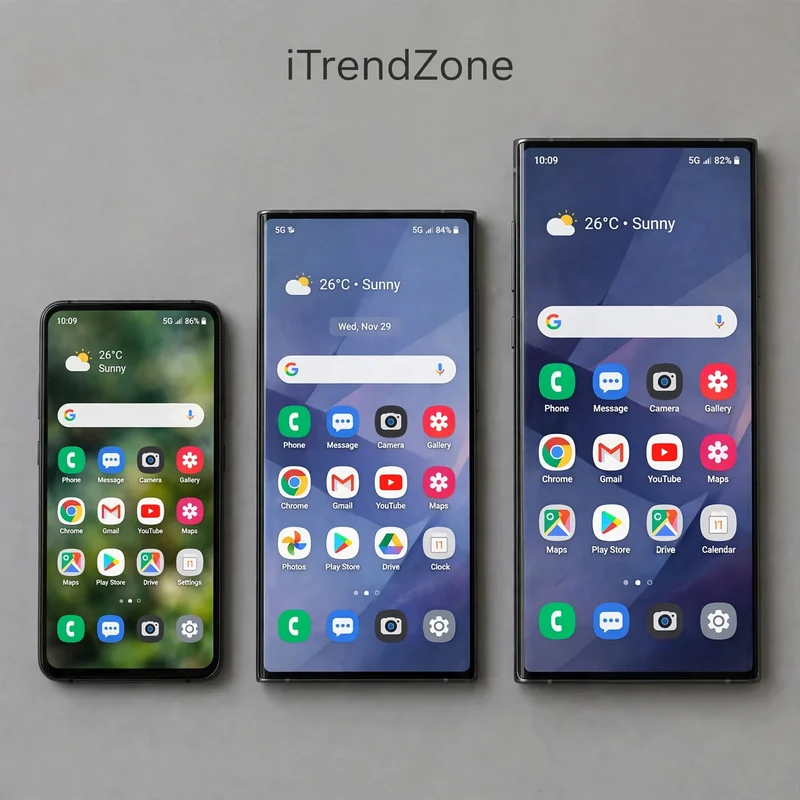
Chart 1 — Price vs. battery: what the extra money buys
| Model | Price (256GB, Nov 2026) | Battery (mAh) | Wired charging (W) |
|---|---|---|---|
| Galaxy S26 | $999.99 (launch $899.99) | 4,300 | 25 |
| Galaxy S26+ | $1,199.99 (launch $1,099.99) | 4,900 | 45 |
| Galaxy S26 Ultra | $1,399.99 (launch $1,299.99) | 5,000 | 60 |
Chart 1: Nov 2026 price against battery size and wired charging speed. In short, the Plus is the value jump — $200 more than the base model for 600 mAh more battery and nearly double the wired charging speed. The Ultra’s extra $200 over the Plus buys camera, S Pen and Privacy Display far more than it buys battery. Source: Samsung, Engadget comparison, Tom’s Guide launch coverage, November 2026.
3. Price, Storage and Deals
First, let’s talk money, because the launch price is rarely the price you pay. For example, US prices rose on Oct 1, 2026, after a DRAM/NAND memory shortage — confirmed by Tom’s Guide, PhoneArena, 9to5Google and Digital Trends.
Overall, for 256GB, the S26 is now $999.99 (launch $899.99), the S26+ $1,199.99 (launch $1,099.99), and the Ultra $1,399.99 (launch $1,299.99). For 512GB: $1,199.99, $1,399.99 and $1,599.99 (launch $1,099.99, $1,299.99 and $1,499.99). The 1TB Ultra is now $1,999.99 (launch $1,799.99). The Galaxy S26 FE is unchanged at $699. Check Samsung.com before you buy — prices move, and deal prices change daily.
4. Galaxy AI: The Part Samsung Actually Wants You to Notice
In fact, Galaxy AI is the reason Samsung made such a fuss at Unpacked, and it’s also the part most people either love or ignore completely. I’m somewhere in the middle. Some of it is genuinely useful every day. Some of it I turned off after a week. First, start with Now Brief. It’s the morning summary — weather, calendar, reminders, a playlist suggestion. I liked it for about four days, then it started telling me things I already knew. I kept it, but I trimmed what it can see in Settings, and it got shorter and more useful.
Meanwhile, Now Nudge is the newer one, and it’s the one I actually use. It watches what’s on your screen and suggests the next step. Someone texts you about photos from a trip, and it offers the photos. Someone mentions a time, and it offers to make a calendar event. It doesn’t always get it right, but when it works, it saves you three taps and a search. If you hate it, it’s in the Galaxy AI section of Settings, and you can turn it off there. As a result, these Samsung Galaxy S26 tips are worth trying for a week before you turn anything off.
Circle to Search and choosing your AI agent
Circle to Search got better this year. You can now circle more than one thing at once. Long-press the home bar, circle what you want, and it searches. For example, I use it for plants, for shoes I see on the street, and for a lamp in a café. It’s not perfect — it once told me a chair was a dog bed — but it’s fast. Then there’s the choice Samsung doesn’t advertise loudly enough: you get to pick your AI agent. Bixby, Google Gemini, and Perplexity are all there. I use Gemini most days, because it ties into Google apps I already use, but Perplexity is better when I want a straight answer with sources. Try all three for a day each.
Photo Assist and Call Captions: Samsung Galaxy S26 tips I use daily
Photo Assist is where Galaxy AI earns its keep for me. Open a photo in the Gallery, tap the pencil, tap Create, and describe the change in plain words — "remove the bin in the corner," "make it look like evening." It does a decent job, and it saves a copy so your original stays safe.
Creative Studio is the playful side of the same thing. Sketches, photos, or a text prompt become stickers and wallpapers. Call Captions deserve a mention too. Open the Phone app, tap the three dots, Settings, Call Captions, and turn it on. It transcribes the other person live, so you can catch a phone number without asking them to repeat it three times. The full Galaxy AI features guide covers every feature in detail.
Chart 2 — Galaxy AI: what I actually use, week after week
| Galaxy AI feature | Where to find it | My verdict after a month |
|---|---|---|
| Now Brief | Lock screen / Settings > Galaxy AI | Keep, but trim its sources |
| Now Nudge | Settings > Galaxy AI | Keep — best new feature |
| Circle to Search | Long-press home bar | Keep — use it weekly |
| Photo Assist | Gallery > Edit > Create | Keep — best photo tool on the phone |
| Call Captions | Phone > Settings > Call Captions | Keep — useful on noisy calls |
Chart 2: A simple usefulness ranking, based on a month of daily use. Your list will differ — that’s the point. Turn off what you don’t use, and the phone gets out of your way. Source: hands-on testing, November 2026.
5. Display and Privacy Display
The screens are all good. On the Ultra, you get a 6.9-inch QHD+ Dynamic AMOLED 2X panel, 1–120Hz adaptive, up to 2,600 nits peak brightness, and Samsung has done something clever with the colour processing this year. Furthermore, colour depth precision is four times better than before, using Samsung’s mobile Digital Natural Image engine, and ProScaler sharpens details in real time. In plain English: photos look like the person who took them intended, and old videos look less soft.
By comparison, the base S26 is 6.3 inches, FHD+ at 2340×1080, same 120Hz adaptive refresh, same 2,600 nits peak. The Plus is 6.7 inches, QHD+ at 3120×1440.
Set the resolution to maximum on day one. In fact, these Samsung Galaxy S26 tips start with the display, because you look at it more than anything else on the phone. Samsung ships the S26 at a lower resolution by default to save battery, and the display is too good to leave it there. Go to Settings > Display > Screen Resolution, and bump it up. Then turn on Eye Comfort Shield on auto, and set the refresh rate to Adaptive. I tried locking it to 120Hz for a week. It felt great and my battery noticed. Adaptive is the compromise that actually works.
Privacy Display on the Ultra: Samsung Galaxy S26 tips
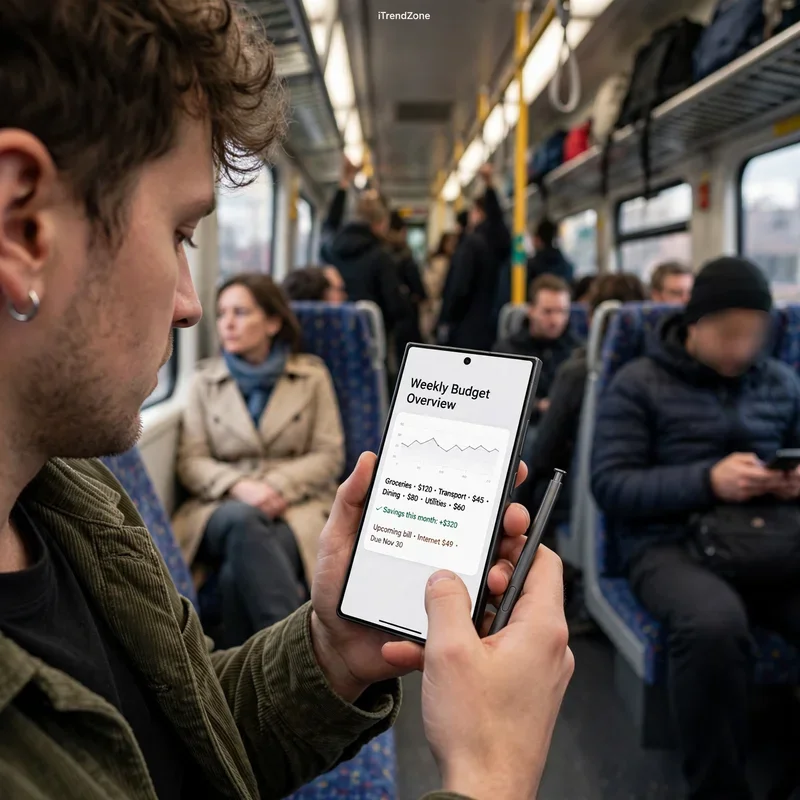
Now, Privacy Display. This is Ultra-only, and it’s the feature I explain by showing people, not telling them. Turn it on, hand the phone to someone sitting next to you, and watch them squint. The screen is clear head-on, and hard to read from a side angle. Samsung controls how the pixels disperse light, pixel by pixel, so it can hide the whole screen, or just certain apps, or just notifications, or just the moment you’re typing a PIN or a password.
You turn it on from the Quick Panel. Alternatively, you can set it to turn on with a double-press of the Side button, in Settings > Advanced features. There’s also a Maximum Privacy mode that adds a grey sheen and makes the screen almost impossible to read from an angle. Also, I use it for banking apps and for PIN entry, not all the time.
6. Camera Tips in Plain English
In fact, the camera is where the Ultra justifies its price, and where the base models surprise you. If you take photos on auto and never touch a setting, all three phones will take good photos. For example, the tips below are for the moments when auto isn’t enough — the concert, the sunset, the kid running across a park.
First, on the S26 and S26+, you get a 50MP main camera at f/1.8, a 12MP ultrawide, and a 10MP telephoto with 3x optical zoom. That’s the same array as last year’s S25 models. It’s a good array. The 50MP main is sharp in daylight, the ultrawide is useful for rooms and landscapes, and also, the 3x telephoto is the lens I reach for most — for portraits, for details, for anything where stepping closer would be rude.
In contrast, on the Ultra, you get the full set: a 200MP main at f/1.4, a 50MP ultrawide at f/1.9, a 10MP telephoto at f/2.4 with 3x optical zoom, and a 50MP periscope telephoto at f/2.9 with 5x optical zoom. That 200MP sensor is the headline, and the f/1.4 aperture is the part that matters in low light — Samsung says it lets in 47% more light than the previous generation’s main sensor, and the telephoto is 37% brighter too. In practice, my night photos on the Ultra are cleaner than they were on my last phone, with less of that smeary, over-processed look.
Optical zoom first: Samsung Galaxy S26 tips for sharper photos
Use the optical zoom, not the pinch. This is the single best camera tip I can give you. Therefore, these Samsung Galaxy S26 tips put optical zoom first, because a real lens beats a digital crop every time. If you pinch to zoom on the Ultra, you’re using digital zoom. If you tap 3x or 5x, you’re using a real lens. The Ultra goes to 100x with AI-powered Space Zoom, and yes, I’ve tried it. At 100x, a building three streets away looks like a watercolour. With the 5x lens and a bit of sensor crop, 10x is genuinely usable. In good light, you can even read a sign at 30x. Don’t expect miracles past that.
Video, Super Steady and Audio Eraser: Samsung Galaxy S26 tips for filming
In fact, video is where the Ultra pulls away properly. It shoots 8K at 30fps, and 4K at 120fps for slow motion. The S26 and S26+ top out at 4K at 60fps and 8K at 30fps, which is still plenty for most people. The Ultra is also the first phone that can record with the Advanced Professional Video codec — APV, Samsung’s answer to Apple’s ProRes.
Super Steady mode is the video feature I tell everyone to try. Open the Camera, flip to video, tap the running icon at the top, and choose the runner in a box on the far right. That’s Horizontal Lock. It keeps your shot level even if you rotate the phone a full 360 degrees. Audio Eraser is the quiet hero too. It used to work only on your own recordings. Now it works on YouTube and Netflix as well. The full camera tips guide covers Pro mode, RAW and Nightography in detail, and our best Android phones for camera quality shows where the Ultra ranks against other 2026 flagships.
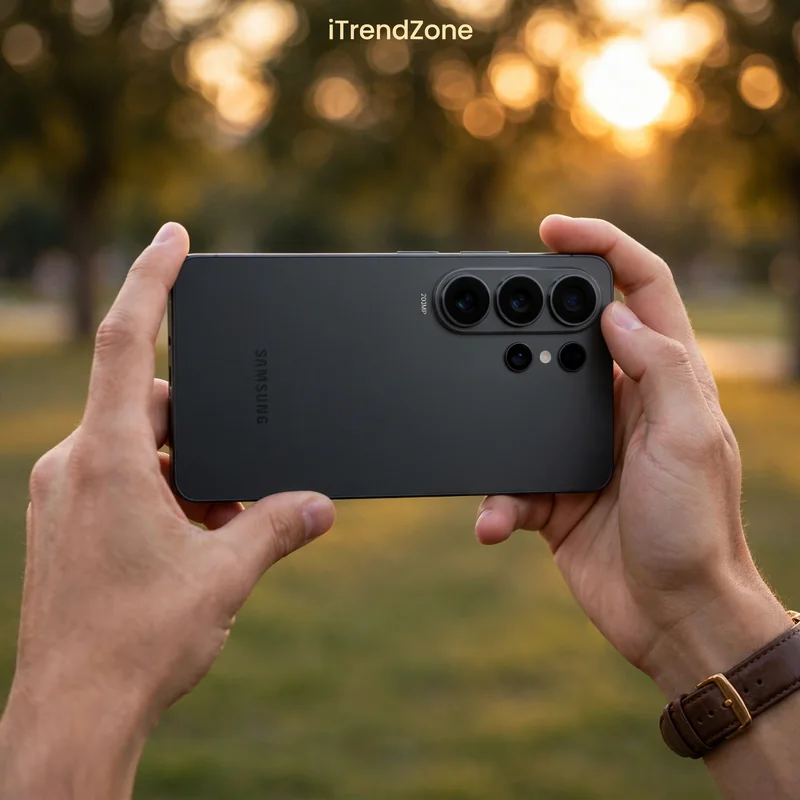
Chart 3 — Zoom reach: optical vs. digital, by model
| Model | Optical zoom lenses | Max digital zoom | Usable in practice |
|---|---|---|---|
| Galaxy S26 | 3x telephoto | 30x | 3x–10x |
| Galaxy S26+ | 3x telephoto | 30x | 3x–10x |
| Galaxy S26 Ultra | 3x and 5x telephoto | 100x Space Zoom | 3x–10x, 30x in good light |
Chart 3: Optical zoom is a real lens. Digital zoom is a crop. Use the lens, and your photos will thank you. Source: Samsung official specs, Engadget comparison, November 2026.
7. Battery Life and Charging
Battery life on the S26 range is good, not magical. For example, the base S26 has a 4,300 mAh battery, up from 4,000 mAh on the S25, while the S26+ has 4,900 mAh. Meanwhile, the Ultra has 5,000 mAh typical capacity — 4,855 mAh rated minimum — and Samsung rates it at 31 hours of video playback.
As a result, I got through a full day on the Ultra with about 25% left, with heavy camera use, maps, and an hour of gaming. On the base S26, I got through a normal day, but not a heavy one.
Charging is where the range splits. First, the base S26 does 25W wired and 15W wireless. Next, the Plus does 45W wired and 20W wireless. Finally, the Ultra does 60W wired — Super Fast Charging 3.0 — and 25W wireless, and Samsung says it gets to about 75% in around 30 minutes. I tested that on the Ultra with a proper 60W PPS charger, and it was close — just over 30 minutes from nearly empty to just over 70%. With a 25W charger, it was noticeably slower. The charger matters.
Choosing the right charger: Samsung Galaxy S26 tips
Therefore, buy the right charger. For the Ultra, get a USB PD PPS charger rated for 60W, and a cable rated for it too. A cheap cable will throttle you and you’ll blame the phone. Similarly, for the Plus, 45W is enough. For the base model, 25W is fine, and if you charge overnight, the speed doesn’t matter at all. Wireless is convenient for a desk or a bedside table, but it’s slower, and it generates more heat. I use wireless at night and wired when I’m in a hurry. In short, these Samsung Galaxy S26 tips come down to one rule: match the charger and cable to the model. The full battery tips guide has the charging tests and overnight-drain fixes.
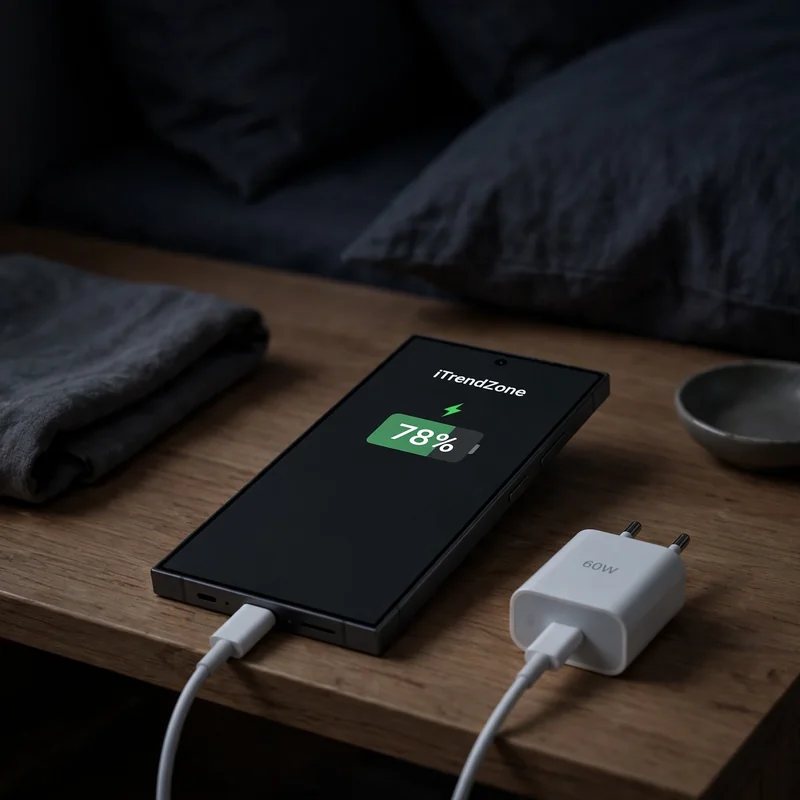
Chart 4 — Battery and charging, at a glance
| Model | Battery (mAh) | Wired charging | Wireless charging | Samsung video playback claim |
|---|---|---|---|---|
| Galaxy S26 | 4,300 | 25W | 15W | Not published separately |
| Galaxy S26+ | 4,900 | 45W | 20W | Not published separately |
| Galaxy S26 Ultra | 5,000 | 60W, ~75% in 30 min | 25W | 31 hours |
Chart 4: The Ultra charges fastest and lasts longest on paper, but the Plus is close enough on battery that most people won’t feel the difference day to day. Source: Samsung official S26 Ultra page, Engadget and Tom’s Guide launch coverage, November 2026.
8. Setup: Your First Hour
In fact, the first hour with a new phone sets the tone for the next two years. Rush it, and you’ll be fixing settings for a month. Spend an hour on it properly, and the phone disappears into the background. First, start with the basics, in order. Run a software update first. Settings > Software Update > Download and Install. Then set up your fingerprint and face unlock, and add a second fingerprint — your other thumb, or your index finger.
Next, switch to gesture navigation. Settings > Display > Navigation Bar, and choose gestures. Set the screen resolution to maximum, turn on Touch Sensitivity if you use a screen protector, and unlock Developer Options — Settings > About Phone > Software Information, tap Build Number seven times — then set the three animation scales to 0.5x. Window Animation Scale, Transition Animation Scale, Animator Duration Scale. All three, 1x to 0.5x.
In fact, these Samsung Galaxy S26 tips work best when you do them in order. This is the single biggest quality-of-life change you can make. The phone feels twice as fast, and it’s just animations. The full setup guide walks through the first thirty things in order.
9. Security and Privacy
In fact, Samsung’s security story is quieter than its camera story, but it’s just as important. The platform is called Knox, and it’s built on a separate secure chip that protects your keys and sensitive data. First, start with the lock screen. Set a strong PIN — not 1234, not your birth year — and turn on fingerprint and face unlock. Then go to Settings > Lock screen and notifications, and hide sensitive notification content. I don’t want my bank messages showing on a locked screen in a café. You probably don’t either.
Next, check your app permissions properly. Moreover, go through location, camera, and microphone, and ask whether each app really needs that access all the time, or only while you’re using it. For example, a weather app doesn’t need your location in the background. A game doesn’t need your microphone at all.
Finally, keep the phone updated. The S26 gets seven years of OS and security updates, but only if you install them. Turn on auto-download over Wi-Fi, and install the monthly security patch when it arrives. In short, these Samsung Galaxy S26 tips for security are simple: lock it down, check permissions, and install updates. More in the security and privacy guide.
10. Customization
In fact, this is the fun part, and it’s also the part where Samsung phones beat iPhones most clearly. First, start with the lock screen. Long-press the home screen, tap the lock screen in the customisation menu, and make the clock bigger or smaller, drag it left or right, add widgets. You see the lock screen more than any other screen on the phone, so it’s worth five minutes. I have the time, the date, and a music widget, and nothing else. Clean.
Next, themes, icon packs, and Good Lock are the deep end. Furthermore, Good Lock is Samsung’s own customisation app, and Theme Park inside it lets you build your own theme. I don’t use icon packs on my daily phone — I like the stock icons, and I can find things faster that way — but if you want your phone to look like no one else’s, this is where you go.
However, don’t spend three hours on it on the first day. Get the phone working first, make it pretty later. For example, these Samsung Galaxy S26 tips for customisation start with five minutes on the lock screen. More in the customization tips guide.
11. Performance and Gaming
Above all, the Snapdragon 8 Elite Gen 5 for Galaxy is fast. Samsung says it’s 19% faster on CPU, 24% faster on GPU, and 39% faster on the NPU than the chip in the S25 Ultra, and in daily use, that means apps open instantly, games load quickly, and Galaxy AI features don’t make the phone stutter.
In addition, the Ultra has a redesigned vapour chamber, with the thermal material moved to the sides of the processor, and Samsung says it gives 21% better thermal performance. Consequently, the phone stays cooler for longer when you’re gaming. I played a heavy game for an hour on the Ultra, and it was warm, not hot. As a result, these Samsung Galaxy S26 tips for gaming start with cooling. More in the performance tips guide.
Chart 5 — Seven years of updates: what you get, and when
| Year | OS updates | Security updates |
|---|---|---|
| 2026 (launch) | Android 16, One UI 8.5 | Monthly |
| 2027–2032 | New Android version each year (7 generations total) | Monthly / quarterly |
| 2033 | Final OS generation in the 7-year promise | Security updates to 7 years |
Chart 5: Samsung promises seven generations of OS upgrades and seven years of security updates for the S26 range. The exact Android version names for future years aren’t announced yet — this is the promise, not a calendar. Source: Samsung launch coverage, How-To Geek, November 2026.
12. Hidden Features Worth Finding
In fact, every Samsung phone has features that don’t appear in the ads, and the S26 is no exception. First, Call Captions. Phone > Settings > Call Captions. Turn it on. It’s a transcript of your call, live. Second, Private Album, in the Gallery. Select a photo, three dots, Move to private album. Biometric-protected, separate from Secure Folder.
Third, Audio Eraser on YouTube and Netflix. Swipe down, Control Panel, Audio Eraser. It cleans up background noise in videos you’re watching, not just videos you’ve shot. Fourth, Now Nudge. It suggests photos, calendar events, and autofill based on what’s on your screen.
Finally, the Galaxy Buds shortcut in Settings. Pair your Buds 4 or 4 Pro, and you’ll see a pill-shaped button with their name at the top of the main Settings page. There are more — the double-press Side button for Privacy Display on the Ultra, the Quick Panel customisation, the ability to use the phone as a USB webcam — but those five are the ones I reach for every week. In addition, these Samsung Galaxy S26 tips cover five hidden features I use every week. The full hidden features guide has the rest, with exact steps.
13. When Something Goes Wrong
In fact, phones go wrong. First, start with the obvious: restart it. Hold the Side button and Volume Down, tap Restart, and wait. Half the problems I’ve seen on Samsung phones — a frozen app, a Bluetooth device that won’t connect, a camera that won’t open — go away with a restart.
Next, if an app is misbehaving, clear its cache first, not its data. Settings > Apps, find the app, Storage, Clear cache. Clearing data will sign you out and delete your settings. Clear cache, restart the app, and see if it’s fixed. If it’s not, check for an app update in the Play Store, then check for a system update. Finally, these Samsung Galaxy S26 tips for troubleshooting start with the simplest fix. The full not working fix guide lists every common problem in order.
14. Who Should Buy Which S26?
First, buy the base Galaxy S26 if you want a great phone that fits in your pocket, you don’t shoot professional photos, and you charge overnight. It’s $999.99 now (launch $899.99), it’s light, it’s fast, and it gets the same software and updates as the Ultra.
For instance, if you watch a lot of video, you travel, you game for an hour at a time, or you just want a bigger screen and a bigger battery without paying Ultra money, the S26+ is the better pick. It’s $1,199.99 now (launch $1,099.99), the battery is 4,900 mAh, the charging is 45W wired, and the screen is the same QHD+ panel as the Ultra. Thus, for most people, this is the one I’d recommend if they asked me in a shop and I had thirty seconds.
Finally, choose the Ultra if you take photos seriously, you want the S Pen, you want Privacy Display, you want the fastest charging, or you want the best phone Samsung makes right now and you’re happy to pay $1,399.99 now (launch $1,299.99) for it. It’s the best camera phone in the range by a clear margin, and it’s the one that will still feel fast in three years. It’s also big, heavy, and expensive. Be honest with yourself about whether you’ll use the camera and the pen enough to justify that. However, don’t buy any of them if your current phone is less than two years old and still works well. The S26 is a great phone, but it’s an iterative upgrade, not a revolution. In short, these Samsung Galaxy S26 tips end with an honest question: will you use the extra hardware enough to pay for it?
15. FAQ
How long will the Galaxy S26 get updates?
In fact, seven generations of OS upgrades and seven years of security updates, according to Samsung. A phone bought in 2026 should still be getting updates into 2033. Install them when they arrive — the promise only helps if you actually update.
Is the Galaxy S26 waterproof?
In fact, it’s IP68 rated, which means it can handle dust and being submerged in up to 1.5 metres of water for 30 minutes, in lab conditions. I wouldn’t take it swimming on purpose, and I wouldn’t charge it while it’s wet. IP68 is protection against accidents, not an invitation.
Does the Galaxy S26 come with a charger in the box?
No. You’ll need a USB PD PPS charger for fast charging — 25W for the base model, 45W for the Plus, 60W for the Ultra. The cable is in the box. The brick isn’t. Budget for one if you don’t already have a fast charger.
Is Privacy Display on all Galaxy S26 models?
No, only the S26 Ultra. It’s a hardware feature, not a software one, and Samsung hasn’t put it on the base or Plus models. If you want it, you need the Ultra.
Can I use the S Pen on the regular Galaxy S26 or S26+?
No. The S Pen is built into the Ultra only, and the other two models don’t support it. If the pen matters to you — for notes, for signing documents, for drawing — that’s another reason to buy the Ultra.
16. Quiz: Test Yourself
Q1. What chip powers the Galaxy S26 range in the US?
a) Exynos 2600
b) Snapdragon 8 Elite Gen 5 for Galaxy
c) Snapdragon 8 Gen 3
d) Tensor G5
Q2. How much does the Galaxy S26 Ultra cost at launch for 256GB?
a) $899.99
b) $1,099.99
c) $1,299.99
d) $1,499.99
Q3. Which model has the built-in Privacy Display?
a) Galaxy S26
b) Galaxy S26+
c) Galaxy S26 Ultra
d) All three models
Q4. How fast is wired charging on the Galaxy S26 Ultra?
a) 25W
b) 45W
c) 60W
d) 100W
Q5. How many years of OS and security updates does Samsung promise for the S26 range?
a) 3 years
b) 5 years
c) 7 years
d) 4 years
Answers: 1-b, 2-c, 3-c, 4-c, 5-c
17. References
- Samsung’s official Galaxy S26 Ultra page — Privacy Display, camera, battery, processor and One UI 8.5 details
- Engadget’s three-way S26 comparison — prices, specs, dimensions, charging and cameras compared
- Android Authority’s Galaxy S26 tips — Call Captions, Qi2 Ready, Private Album, Now Nudge, Photo Assist, Privacy Display, Audio Eraser and Super Steady
- Digital Trends on the Galaxy S26 series — launch, pricing, storage and One UI 8.5 background
- Tom’s Guide on the Galaxy S26 Ultra launch — Privacy Display, Galaxy AI, prices and battery; also a source for the Oct 1, 2026 US price rise
- MacRumors on the Galaxy S26 launch — launch date, Privacy Display, camera and Galaxy AI features
- iTrendZone’s best Android phones for camera quality in 2026 — where the S26 Ultra ranks for camera
- iTrendZone’s best Android phones for business and productivity — S25 Ultra and work-phone context