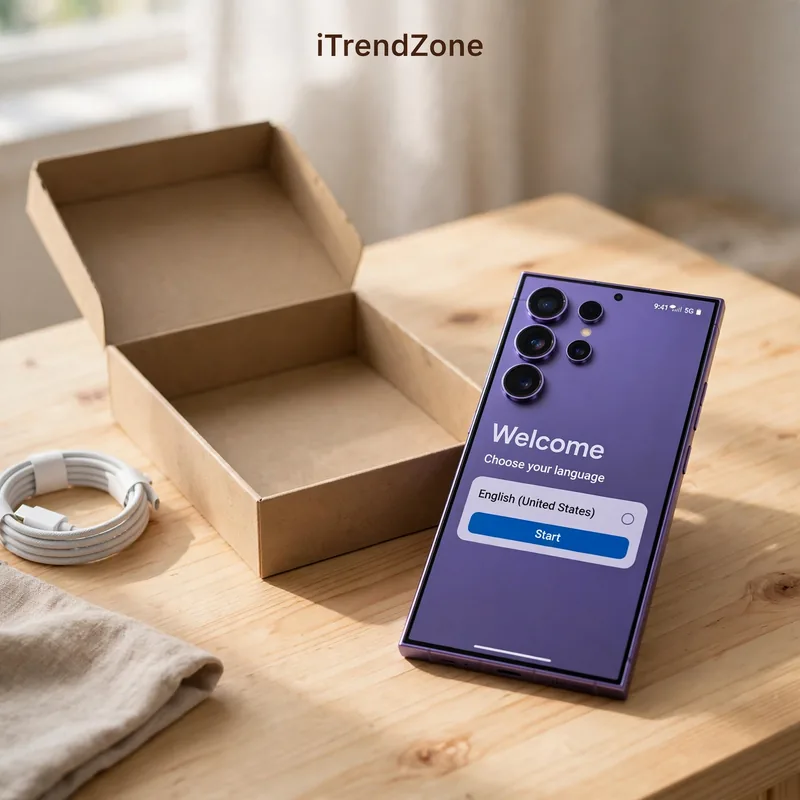

Samsung Galaxy S26 setup guide searches all sound the same — unbox, sign in, done — and then you spend the next month finding settings you wish you’d changed on day one. I unboxed the Ultra first, then helped a friend set up the regular S26, and the difference came down to about an hour of setup, in the right order.
TL;DR: Samsung Galaxy S26 setup guide in short — back up your old phone, run the wizard on good Wi-Fi, sign in to Google and Samsung, and use Smart Switch for photos, contacts and messages. Then update the software, set a strong PIN with two fingerprints, switch to gestures, set maximum resolution, and set the three animation scales to 0.5x in Developer Options. Next, pick your AI agent — Gemini, Bixby or Perplexity — and on the Ultra, set up Privacy Display. Finally, test calls, data, eSIM, payments and authenticators before wiping the old phone.
This guide covers the S26 at $999.99, the S26+ at $1,199.99 and the Ultra at $1,399.99 (256GB, US, Nov 2026; launch $899.99 / $1,099.99 / $1,299.99), all with the Snapdragon 8 Elite Gen 5 for Galaxy in the US — the S26 and S26+ use the Exynos 2600 in some regions — Android 16 with One UI 8.5, and seven years of updates. Announced February 25, 2026; on sale March 11, 2026. Overall, steps work on all three; Ultra-only ones are flagged. Undecided? The complete S26 tips guide compares the lineup first.
1. Before You Switch It On
First, charge both phones, put them on the same Wi-Fi, and make a fresh backup of the old one — Google backup, Samsung Cloud, and the in-app backup for WhatsApp and Signal, which don’t always transfer cleanly. For example, I once lost a year of WhatsApp media assuming Smart Switch would handle it. It mostly did. This Samsung Galaxy S26 setup guide starts with the backup for a reason: without it, a failed transfer costs you photos, not just time.
Gather passwords first: Google and Samsung accounts, carrier login, email, password manager, banking and authenticator apps. In addition, the box holds the phone, a USB-C cable and guides — no charger, no case. The Ultra needs a 60W USB PD PPS charger, the Plus 45W, the S26 25W. Finally, don’t erase or trade in the old phone until calls, messages, photos, contacts, authenticator codes, banking apps and eSIM all work on the S26.
2. The Setup Wizard, in Order
First, power on, pick language and region, and join your home Wi-Fi. Next, sign in to the Google and Samsung accounts you intend to keep using — the wrong Google account sends your paid apps and Photos backup to the wrong place.
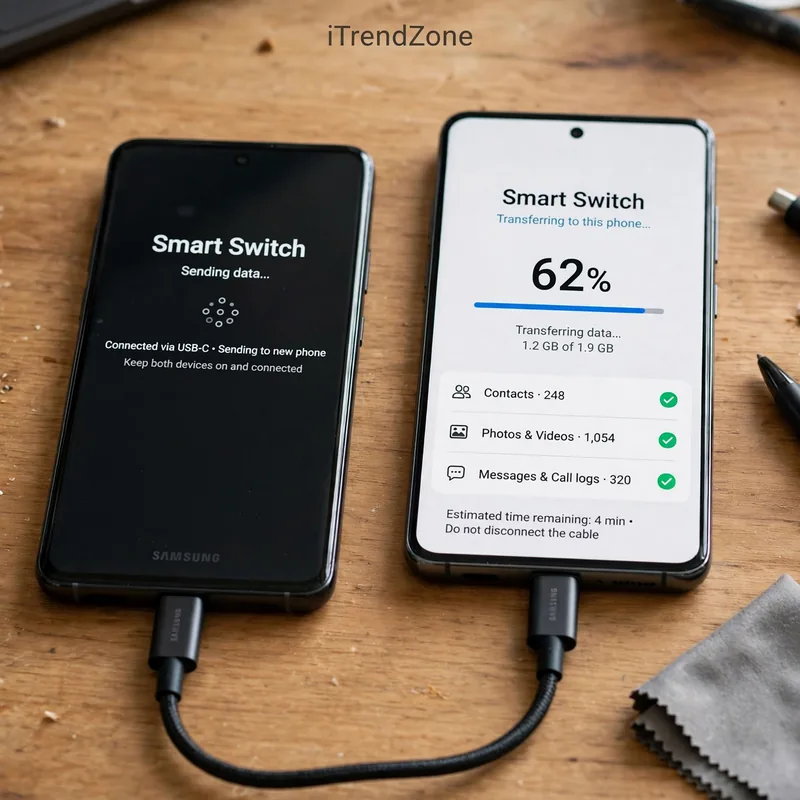
Then, choose Smart Switch when the wizard offers a transfer — from Galaxy, Android or iPhone. It moves photos, videos, contacts, messages, call history, alarms and most settings, but not reliably app logins, authenticator enrolments, DRM media or eSIM service. Expect to redo those by hand.
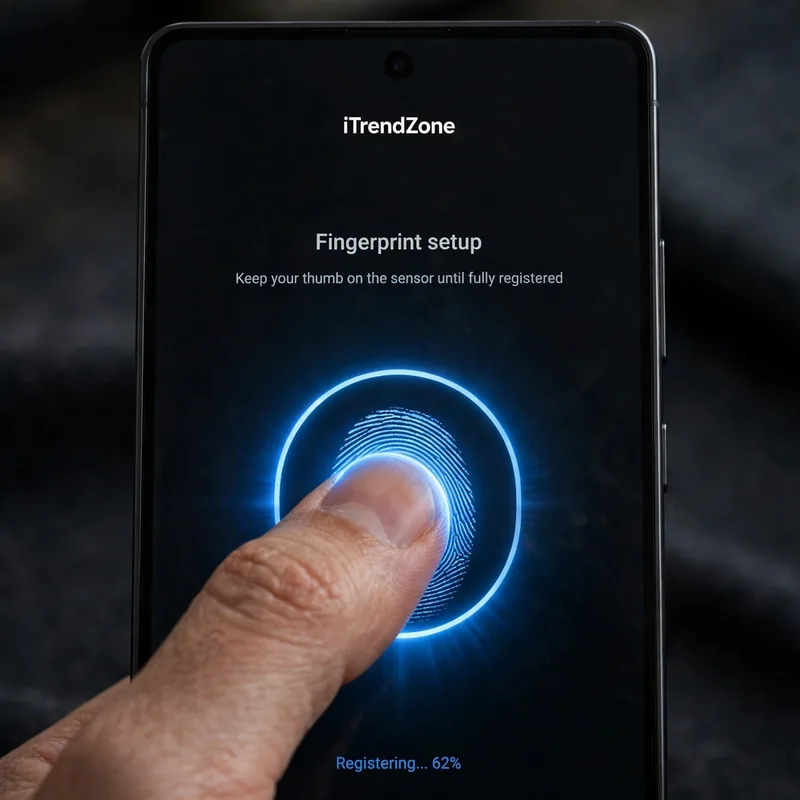
First, create a long PIN before registering biometrics — four digits is a habit, not security. After that, register two fingerprints, add face unlock as a convenience, and restore essentials first. In fact, Smart Switch over USB-C is fastest; Wi-Fi stalls on big libraries, and cloud restore is the fallback. Follow this Samsung Galaxy S26 setup guide in order and the transfer takes minutes, not an afternoon.
3. Update First, Customise Second
First, open Settings, Software update, Download and install. The S26 launched on Android 16 with One UI 8.5, but Samsung has shipped updates since March. For instance, an update can fix a bug you’d blame on hardware and patch a security hole — do it before arranging a home screen around a feature an update then moves. A Samsung Galaxy S26 setup guide that skips the update is not worth following, so do it first.
Meanwhile, update apps in both stores while it downloads — Samsung’s own apps update through the Galaxy Store. Also, restart after a major update, stay on Wi-Fi, keep it plugged in, and check model, storage and build in Settings, About phone.
4. The First 30 Things: Your Checklist
The whole first hour, in order. Do the first fifteen before leaving the house — those protect you and your data.
- Back up the old phone and confirm the backup completed.
- Sign in to Google and Samsung accounts in the setup wizard.
- Transfer with Smart Switch over USB-C if you can.
- Install the software update (Software update).
- Update apps in Play and the Galaxy Store.
- Set a long PIN — not 1234, not your birth year.
- Register two fingerprints, from different fingers, at several angles.
- Set up face recognition as a convenience unlock.
- Switch to gesture navigation (Display, Navigation bar).
- Set screen resolution to maximum in Settings, Display, Screen resolution.
- Turn on Touch Sensitivity if you use a screen protector.
- Turn on Adaptive refresh rate and Eye Comfort Shield.
- Enable Developer Options (About phone, Software information, tap Build number seven times), then set the three animation scales to 0.5x.
- Turn on Find My Mobile and Find Hub; check location is on.
- Turn on Auto Blocker in Settings, Security and privacy.
Samsung Galaxy S26 setup guide: the rest of the first hour
- Hide sensitive lock-screen notification content.
- Review app permissions (Security and privacy, Permission manager) — location, camera, microphone first.
- Set up Samsung Cloud and Google backup.
- Choose your AI agent (Galaxy AI) — Gemini, Bixby or Perplexity.
- Set up Now Brief and Now Nudge; trim what they can see.
- Turn on Call Captions (Phone, Settings).
- Set up Privacy Display on the Ultra — see section 7.
- Set up eSIM or physical SIM; test a call, text and mobile data.
- Add cards to Samsung Wallet and test a payment.
- Move authenticator apps over; test one login first.
- Camera: 24MP mode via Camera Assistant; pick video resolution.
- Pair Buds, watch and car Bluetooth; test each.
- Set battery protection (Device care, Battery) — see the battery tips guide.
- Customise the lock screen: long-press home screen, resize the clock, add widgets.
- Restart, then test calls, data, Wi-Fi, Bluetooth, NFC, payments and top apps.
Overall, most of it is a tap and a toggle. The list took me just under an hour on the Ultra.
5. Lock Screen, Fingerprints and Face Unlock
First, a long PIN or password is the foundation — six digits at minimum. Then fingerprints: the ultrasonic sensor works best when you register the same finger twice at different angles, holding the phone as you normally hold it. However, face unlock is a convenience, not the primary lock — after a restart, the phone wants the PIN first.
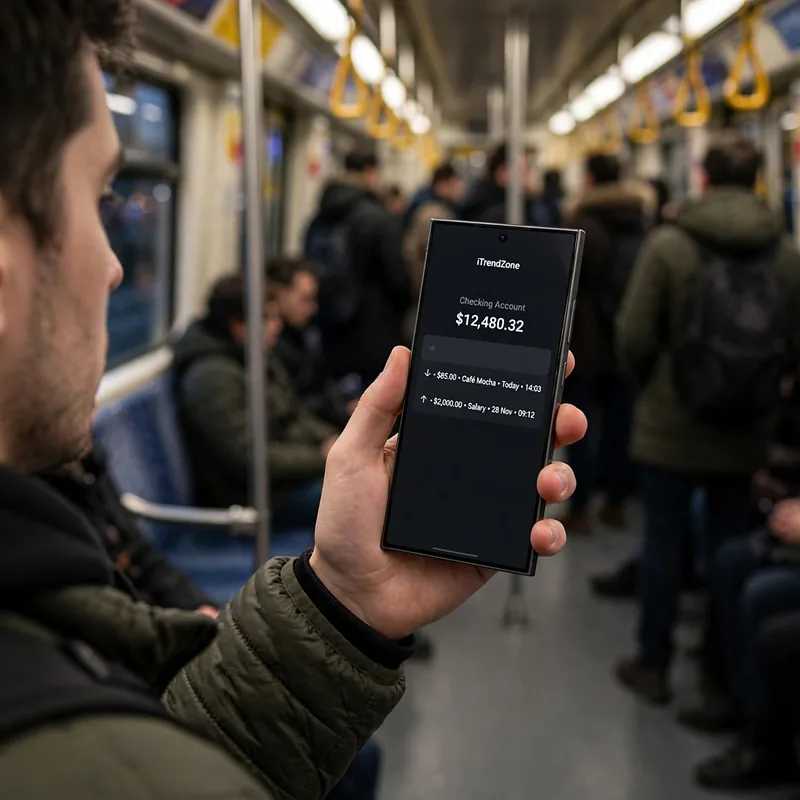
Hide sensitive notification content in Settings, Lock screen and notifications — I don’t want my bank balance on a locked screen in a café. Next, turn on Auto Blocker in Settings, Security and privacy, and review permissions (location, camera, microphone) in Permission manager. For example, a weather app doesn’t need background location; a game doesn’t need your microphone. The security and privacy guide covers Secure Folder and Private Album.
6. Display, Gestures and the 0.5x Animation Trick
First, gestures: Settings, Display, Navigation bar. In fact, it takes a day to learn; give it two before judging.
Samsung Galaxy S26 setup guide: resolution and refresh rate
Second, resolution. Samsung ships the S26 below maximum to save battery. For example, on the S26+ and Ultra, set QHD+ (3120×1440) in Settings, Display, Screen resolution; the base S26 tops out at FHD+ (2340×1080). Also, set Adaptive refresh rate and Eye Comfort Shield on auto. In fact, I tried locking 120Hz for a week — wonderful, and my battery noticed.
Third, Touch Sensitivity if you use a screen protector. Fourth, the animation trick: tap Build number seven times in Settings, About phone, Software information, then set the three animation scales to 0.5x in Developer options. As a result, the phone feels twice as fast. Moreover, the performance tips guide has the rest, including Game Booster. Caveat, noted by Samsung and in the Digital Trends overview of the S26 series: the Ultra’s screen can look slightly dimmer than the S25 Ultra at max brightness and at an angle, a byproduct of Privacy Display. In fact, I noticed it only side by side. In this Samsung Galaxy S26 setup guide, the animation trick is the single change readers notice most.
7. Galaxy AI: Pick Your Agent on Day One
The choice Samsung doesn’t advertise: your AI agent. Bixby, Gemini and Perplexity are all there. For example, I use Gemini most days for its Google apps tie-in; Perplexity gives straighter answers with sources, and Bixby controls device settings by voice best. Finally, try each for a day — Settings, Galaxy AI — changing later costs nothing.
First, set up Now Brief, the morning summary, and trim what it can see — shorter and more useful once I cut its sources. Now Nudge watches your screen and suggests the next step, like offering trip photos when someone texts about them. However, it misses sometimes — when it works, it saves three taps; turn it off in Galaxy AI if you hate it. Finally, turn on Call Captions (Phone, Settings, Call Captions) and try Circle to Search with a long-press of the home bar. The full Galaxy AI features guide covers Photo Assist and Creative Studio.
8. Privacy Display on the Ultra
Privacy Display is Ultra-only — the screen is clear head-on, hard to read from the side, because Samsung controls how pixels disperse light. For example, hide the whole screen, certain apps, notifications, or just PIN and password entry. In fact, that last one is the setting I’d pick first.
Next, swipe down for the Quick Panel, touch and hold Privacy display, turn it on, tap Done — or set double-press of the Side button in Settings, Advanced features. In addition, Maximum Privacy adds a grey sheen; I use it for banking and PIN entry, not all day. Android Authority’s hands-on S26 tips recommend the same selective approach, and after a month I agree.
9. Smart Switch, eSIM and the Things That Don’t Transfer
Smart Switch moves photos, videos, contacts, messages, call history, alarms and layout well. It doesn’t reliably move app logins, authenticator enrolments, DRM media or eSIM. For example, sign in to banking apps by hand, re-enrol authenticators while the old phone works, and treat the eSIM as a separate job: follow your carrier’s QR-code activation on Wi-Fi, then test a call, a text and mobile data with Wi-Fi off. Similarly, from an iPhone, deregister iMessage before wiping the old phone, or messages from iPhone friends can vanish for days. This Samsung Galaxy S26 setup guide treats eSIM as a separate job for exactly that reason.
Samsung Galaxy S26 setup guide: messaging apps and photos
Also, back up WhatsApp in the app first and restore it during setup, not a week later; Signal the same. Then check the photos, not just the count — open the Gallery and play a few videos.
10. Battery and Charging: Set It Once, Forget It
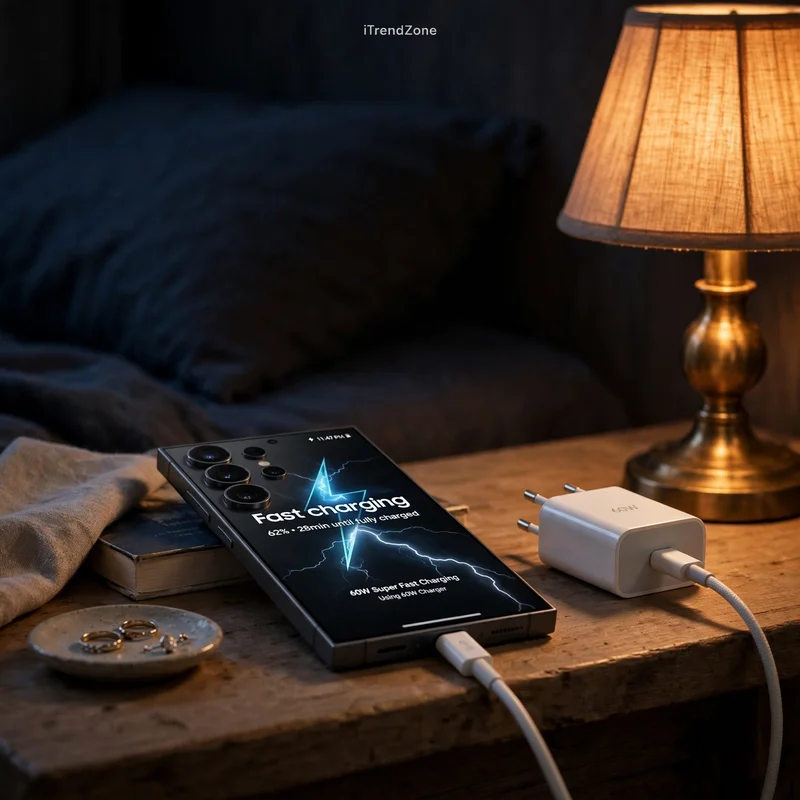
The honest numbers: the base S26 has a 4,300 mAh battery, the S26+ 4,900 mAh confirmed by Samsung’s US FAQ, and the Ultra 5,000 mAh typical (4,855 rated). In addition, charging is 25W/15W on the S26, 45W/20W on the Plus, 60W/25W on the Ultra (up to 75% in ~30 minutes). In fact, Samsung claims 31 hours of video on the Ultra; GSMArena’s Ultra review measured 16 hours 23 minutes of active use.
First, turn on battery protection in Settings, Device care, Battery — it caps charging at 80–85% to slow degradation. Therefore, charge overnight with the cap on. Also, restrict the worst battery-draining apps in the same menu, and use wireless at night, wired when in a hurry. The battery tips guide has charging tests and overnight-drain fixes.
10.1 What the S26 costs now: November 2026 prices
Launch prices aren’t today’s prices. US prices rose on Oct 1, 2026 — confirmed by Tom’s Guide, PhoneArena, 9to5Google and Digital Trends — after a DRAM/NAND memory shortage: the S26 to $999.99, the S26+ to $1,199.99, the Ultra to $1,399.99 for 256GB. The Black Friday prices below are Amazon prices tracked in mid-to-late November 2026, dated here — check Samsung.com before you buy, because deal prices change daily and are not current list prices.
| Model (256GB) | Launch price, Mar 2026 | Current list price, Nov 2026 | Amazon Black Friday price, Nov 2026 (dated) |
|---|---|---|---|
| Galaxy S26 | $899.99 | $999.99 | $750 |
| Galaxy S26+ | $1,099.99 | $1,199.99 | $850 |
| Galaxy S26 Ultra | $1,299.99 | $1,399.99 | $950 |
Table 1: Launch prices vs November 2026 pricing. Launch prices via Engadget and Tom’s Guide. The Oct 1, 2026 rise is confirmed by Tom’s Guide, PhoneArena, 9to5Google and Digital Trends. Amazon Black Friday prices from 9to5Toys (Nov 16) and 9to5Google (Nov 27); check Samsung.com — deal prices change daily.
10.2 Chart — Where your first hour actually goes
| Setup phase | Minutes | What happens in that time |
|---|---|---|
| Before you switch on | 10 | Backup, passwords, box check, charger |
| Setup wizard and transfer | 15 | Wi-Fi, accounts, Smart Switch |
| Software and app updates | 15 | System update, Play and Galaxy Store updates, restart |
| Security and display | 10 | PIN, fingerprints, gestures, resolution, animations |
| AI, Privacy Display and accounts | 10 | AI agent, Now Brief, eSIM, Wallet, authenticator |
| Total | 60 | Phone ready to leave the house with |
Chart 1: Time budget for the first hour. Source: hands-on setup timing, Nov 2026 — an estimate, not a lab measurement.
11. Camera Quick Setup
First, install Camera Assistant from the Galaxy Store and enable 24MP mode — the Ultra shoots 12MP by default. Next, pick 4K at 30fps as your default video resolution (4K 120fps on the Ultra for slow motion). Then test a photo and a video with sound; “broken camera” complaints often turn out to be a screen protector over the lens.
Instead, use optical zoom, not the pinch: tap 3x or 5x for a real lens; pinching is a digital crop. For example, the Ultra reaches 100x Space Zoom — usable at 10x, readable signs at 30x in good light, watercolour at 100x. Finally, the camera tips guide covers Pro mode, RAW and Nightography, and our best Android phones for camera quality ranks the Ultra against 2026 flagships.
12. Before the Return Window Closes
First, do this in the first few days, while you can still return the phone: a call on speaker and Bluetooth, a text, a page on mobile data with Wi-Fi off, a contactless payment, and pairing your watch, car and earbuds. Also, take daylight and low-light photos, record video with sound, and charge from near empty — if the Ultra crawls on a 60W charger, suspect the cable.
For instance, if something goes wrong, restart first: hold Side + Volume Down, tap Restart. In fact, half of Samsung issues — frozen apps, Bluetooth, camera — clear with a restart. For a misbehaving app, clear cache instead (Settings, Apps, Storage, Clear cache), not data, which signs you out. Still broken? Update the app, then the system. The not working fix guide lists every common problem, the hidden features guide is the reward afterwards, and the customization tips guide covers the pretty part. That is the whole point of this Samsung Galaxy S26 setup guide: find the problems while the return window is still open.
13. FAQ
How long does it take to set up a Galaxy S26?
In short, about an hour, including the update and Smart Switch transfer. With a huge photo library or slow connection, budget ninety minutes.
Should I use Smart Switch or start fresh?
Smart Switch over USB-C for personal data, then manually reinstall your ten most important apps. A fresh start is cleaner; however, you’ll spend days re-entering settings.
Do I need a Samsung account to set up the S26?
In fact, basic setup works with a Google account alone, but a Samsung account unlocks Cloud backup, Find My Mobile, the Galaxy Store, Galaxy AI and Wallet. Set one up — it’s free.
Does the Galaxy S26 come with a charger in the box?
No — just the phone, a USB-C cable and guides. Therefore, for full speed you need a USB PD PPS charger: 25W (S26), 45W (S26+) or 60W (Ultra), with a cable rated for it.
Is Privacy Display on all Galaxy S26 models?
In fact, no, only the S26 Ultra — it’s hardware, not a software toggle. Set it up in Settings, Display, Privacy display, or from the Quick Panel.
14. Quiz: Test Yourself
Q1. What should you do before customising a new Galaxy S26?
a) Install a theme and icon pack
b) Install the software update
c) Delete all pre-installed apps
d) Turn off Wi-Fi to save battery
Q2. Where do you set the three animation scales to 0.5x?
a) Settings, Display, Screen resolution
b) Settings, Battery, Battery protection
c) Settings, Developer options
d) Settings, Galaxy AI
Q3. Which Smart Switch transfer method is fastest and most complete?
a) Cloud backup restore
b) Wi-Fi transfer
c) USB-C cable transfer
d) Bluetooth transfer
Q4. Which Galaxy S26 model has Privacy Display?
a) Galaxy S26
b) Galaxy S26+
c) Galaxy S26 Ultra
d) All three models
Q5. What should you do before wiping or trading in your old phone?
a) Wipe it immediately to save time
b) Verify calls, messages, photos, authenticator apps, banking apps and eSIM all work on the S26
c) Remove the SIM and throw it away
d) Turn off backup so nothing syncs
Answers: 1-b, 2-c, 3-c, 4-c, 5-b
15. References
- Samsung’s official Galaxy S26 Ultra page — Privacy Display, camera, battery and One UI 8.5
- Engadget’s three-way S26 comparison — prices, specs, charging and cameras
- Tom’s Guide on the Galaxy S26 Ultra launch — Privacy Display, Galaxy AI, prices and battery
- Android Authority’s Galaxy S26 tips — Call Captions, Private Album, Now Nudge, Photo Assist, Privacy Display and Audio Eraser
- Digital Trends on the Galaxy S26 series — launch, pricing, One UI 8.5 and the Ultra screen-dimming note
- GSMArena’s Galaxy S26 Ultra review — specs and lab battery test, active use 16h 23m
- iTrendZone’s best Android phones for camera quality in 2026 — where the S26 Ultra ranks for camera