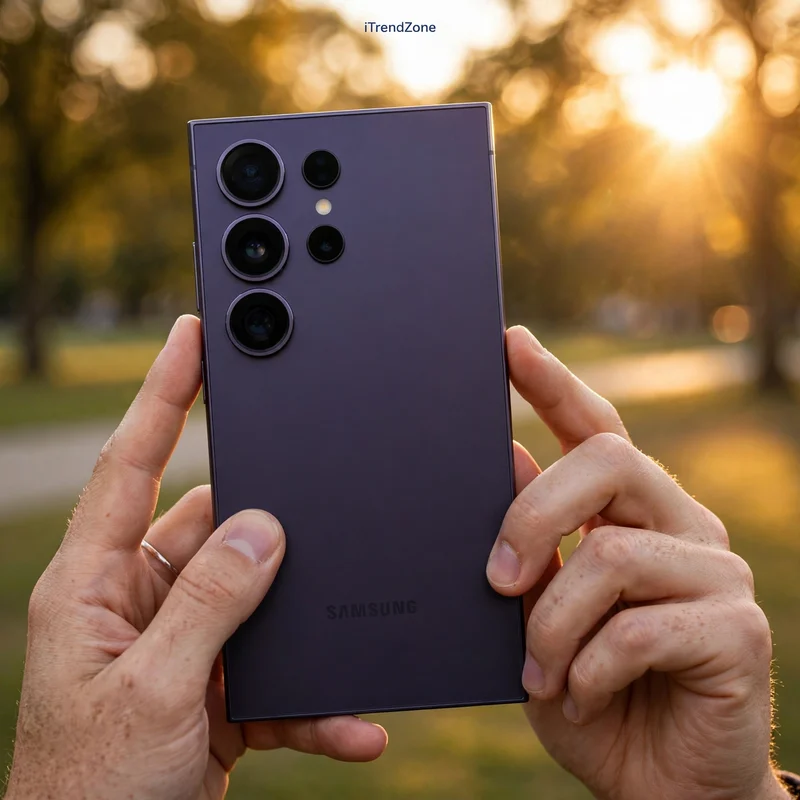

Samsung Galaxy S26 camera tips matter more than the megapixel number on the box. All three phones take good photos on auto, then hide the settings that turn a good photo into one you’d print. I spent my first week with the Ultra shooting the same scenes on auto and on the settings I’d keep. Overall, auto won for speed; the changed settings won for everything else.
TL;DR: Samsung Galaxy S26 camera tips in short: first, tap the 3x or 5x lens instead of pinching to zoom, shoot 24MP in daylight and 12MP indoors, leave Nightography on Auto, use 3x for portraits, and turn on Super Steady with Horizontal Lock before you press record. On the Ultra, the 200MP f/1.4 main camera and 50MP 5x telephoto are the real upgrade. Finally, save RAW only when you plan to edit.
The Ultra gives you more reach. The full Samsung Galaxy S26 tips complete guide covers which model fits which person.
1. The Three Cameras, Side by Side
First, the S26 and S26+ share an identical triple-camera array. In addition, the Ultra adds a fourth lens and a much brighter main sensor. These Samsung Galaxy S26 camera tips apply to all three models unless a section says Ultra-only.
| Model | Main | Ultrawide | Telephoto | Max zoom |
|---|---|---|---|---|
| Galaxy S26 | 50MP, f/1.8, OIS | 12MP, f/2.2 | 10MP, 3x, f/2.4 | 30x digital |
| Galaxy S26+ | 50MP, f/1.8, OIS | 12MP, f/2.2 | 10MP, 3x, f/2.4 | 30x digital |
| Galaxy S26 Ultra | 200MP, f/1.4, OIS | 50MP, f/1.9, AF | 10MP, 3x + 50MP, 5x, f/2.9 | 100x Space Zoom |
Sources: Samsung’s official S26 and S26 Ultra pages, and the three-way comparison from Engadget, November 2026. For example, Samsung says the Ultra’s f/1.4 aperture lets in 47% more light than the previous generation’s main sensor. Finally, the selfie camera is the same across the range: 12MP, f/2.2, autofocus, 4K60.
What the lab scores say — November 2026
| Phone | DXOMARK camera score | Photo | Video | Telephoto |
|---|---|---|---|---|
| Galaxy S26 Ultra | 157 | 160 | 153 | 141 |
| Galaxy S26 | 146 | 143 | 151 | 116 |
| Pixel 11 Pro XL (context) | 168 | 171 | 162 | 151 |
Caption: DXOMARK scores, November 2026; DXOMARK’s own pages were not opened directly.
Chart 1 — Zoom reach: what each lens actually gives you
| Model | Optical lenses | Optical-quality crops | Max digital | Usable in practice |
|---|---|---|---|---|
| Galaxy S26 | 3x | 2x | 30x | 3x–10x |
| Galaxy S26+ | 3x | 2x | 30x | 3x–10x |
| Galaxy S26 Ultra | 3x and 5x | 2x and 10x | 100x Space Zoom | 3x–10x, 30x in good light |
Caption: Chart 1: Optical zoom is a real lens; optical-quality zoom is a crop Samsung rates as near-optical. Source: Samsung and Engadget, November 2026.
2. First-Day Camera Setup: Seven Changes I Keep
Open the Camera app, tap the four-dot Quick controls icon, then the gear for Settings. In fact, two of the best settings live in Camera Assistant, Samsung’s free Good Lock Labs app.
First, turn on the composition guide: Settings > General > Composition guide, grid lines and level both on. The level catches a tilted horizon before you shoot. Next, set the volume buttons to take pictures: Settings > General > Shooting methods > Press Volume buttons to > Take pictures or record video.
Then, set the double-press Side button to open the camera: Settings > Advanced features > Side button > Double press > Camera > Open Camera. Also, in Camera Assistant, turn on 24MP and Keep 24MP resolution. Finally, turn off the watermark, turn on Shot suggestions and Tracking autofocus, and decide about Motion photos. These seven Samsung Galaxy S26 camera tips are the ones I never undo.
3. Use the Optical Lens, Not the Pinch
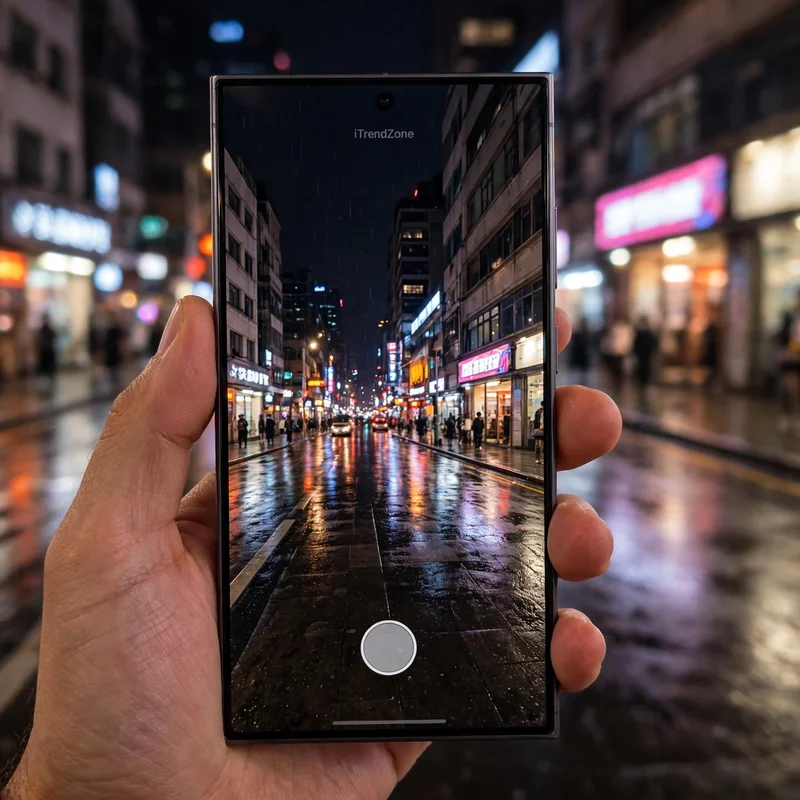
This is the single best Samsung Galaxy S26 camera tip I can give you. When you pinch to zoom, the phone guesses. When you tap 3x or 5x, it switches to a real lens.
For example, on the S26 and S26+, tap 3x for anything distant — a person across a park, a detail on a building. In fact, in daylight the 10MP telephoto is clean. However, on the Ultra, choose: 3x for people, 5x for anything genuinely far away.
Similarly, the 2x button is an optical-quality crop from the main sensor; on the Ultra, 10x is the same idea from the 5x lens.

4. Resolution: 12MP, 24MP, 50MP or 200MP?
The S26 range defaults to 12MP, and for most people that’s right. In fact, pixel binning merges neighbouring pixels, keeping noise down and files small. 12MP is more than enough for a phone screen, a social post or a 6×4 print. That is why these Samsung Galaxy S26 camera tips start at 12MP and only go higher with a reason.
Next, shoot 24MP in daylight via Camera Assistant — more detail than 12MP, and you keep the 3x and 5x lenses, which full 200MP mode drops on the Ultra. I use 24MP daily, 12MP indoors, where extra detail turns into extra noise. However, shoot 50MP, or 200MP on the Ultra, only with a reason: a landscape you might crop hard, a photo you might print large.
Bigger files, no telephoto switching in 200MP mode, and often more noise in low light are the trade-offs. Finally, stick with the 3:4 ratio, and use JPEG as the safe default.
5. Nightography: Let Auto Do the Work
First, Nightography is Samsung’s low-light processing, and since One UI 8.5 it isn’t a separate mode. In fact, in Photo mode it’s a moon-icon toggle: Off, Auto or Max. Leave it on Auto. For example, in my testing it was right far more often than I was.
At night the phone merges several frames. For video, it’s automatic.
Samsung Galaxy S26 camera tips: holding still at night
Help it by holding still — brace the phone, lean on a wall — and by tapping to focus on the brightest thing, then dragging exposure down a touch. However, don’t use the flash for a scene. Finally, for people at night, stay in Photo mode with Night on Auto; for a still scene, use Night on Max with the phone on a wall.
6. Portraits, Selfies and the Lenses That Flatter People
First, use 3x for portraits. I know 1x feels natural, but 3x compresses facial features in a way that flatters almost everyone, and it puts a natural distance between you and the subject so they relax. Next, stand about two metres away, tap the face to focus, and shoot in Portrait mode for background blur. That distance is one of the simplest Samsung Galaxy S26 camera tips to remember: two metres, 3x, tap the face.
For selfies, use the wide angle for groups and the normal angle for one person — wide stretches faces at the edges. Turn on Show palm in Shooting methods to trigger the shutter with your palm.
In fact, Samsung still smooths skin and warms colours a little. However, if faces look too smooth, turn Scene optimizer off and try the Natural look in Camera Looks (Section 9).
7. Pro Mode: Manual Controls, Without the Mystique
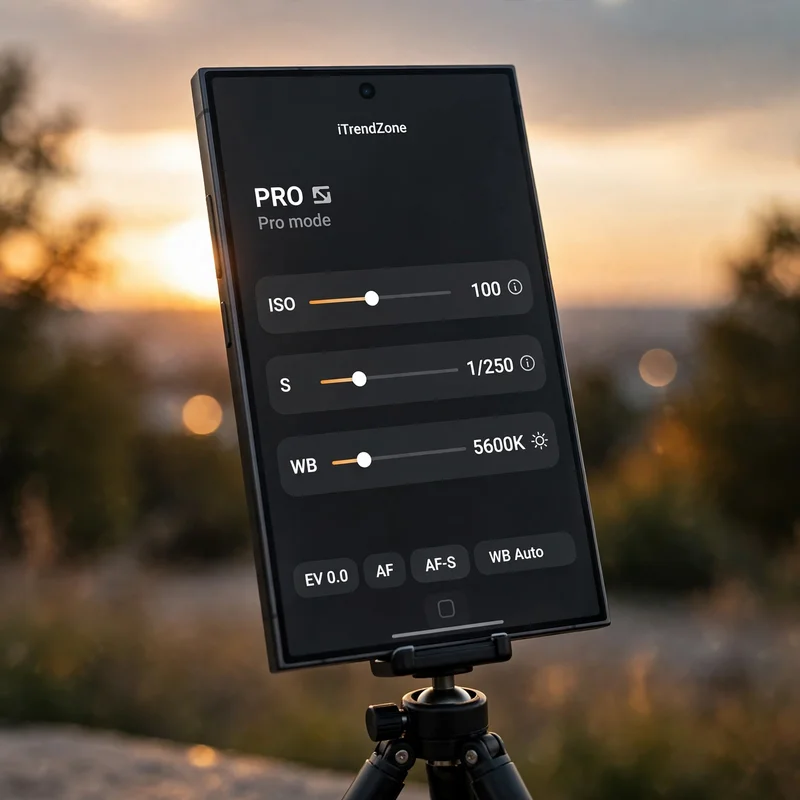
First, Pro mode lives under More in the mode bar. It gives you ISO, shutter speed, exposure compensation, focus and white balance, all manual. For example, shutter speed is how long the sensor gathers light: fast (1/1000s) freezes a runner; slow blurs moving water, but needs a tripod. Similarly, ISO is sensitivity: low is clean, high is noisy. Set shutter speed first, white balance second, and raise ISO last.
Samsung Galaxy S26 camera tips: three recipes to start
Three recipes to start. First, daylight sport: 1/1000s, ISO on Auto, white balance on Auto. Next, sunset on a tripod: lowest ISO, 2 to 10 seconds, white balance around 3200K to 4000K under streetlights. Finally, light trails at night: phone on a wall, ISO 50 or 100, shutter 4 to 8 seconds. Pro mode’s shutter runs to 30 seconds if you need it.
The zebra monitor highlights overexposed areas. One limit: Pro mode doesn’t do HDR. Zoom also behaves differently here: each lens has its own range and the phone won’t auto-switch.
8. RAW and Expert RAW: When to Bother
First, RAW is an unprocessed file. A JPEG is the phone’s finished opinion; a RAW file is the raw material, with far more highlight and shadow detail to recover in editing. That costs file size, editing time and HDR merging. So the question is: am I going to edit this?
Next, in Pro mode, set the picture format to RAW and JPEG: Camera Settings > Photos > Photo format > Pro mode picture format. As a result, you get a DNG to edit and a JPEG to share straight away. Use that when you know you’ll edit — tricky light, a shot you care about, bright sky over dark foreground.
In addition, Expert RAW is the separate app, free from the Galaxy Store. It stacks multiple frames into a single 16-bit DNG, so you get HDR benefits with RAW flexibility. Use it for high-contrast scenes you plan to edit. It also has Astrophoto for stars, Virtual Aperture, an ND filter mode, and on the Ultra, Virtual Reflector.
Use Pro mode for moving subjects, Expert RAW for still, high-contrast scenes. Finally, check storage before a trip: RAW files are big.
9. Camera Looks, Filters and Making Colours Yours
First, Camera Looks is a photo profile you can tune yourself, with modes including Original, Shadows, Natural and Vanilla, reported by Android Authority in its S26 Ultra comparison. Original is Samsung’s standard look. Natural pulls back saturation and skin smoothing.
However, Samsung’s own S26 pages don’t list Camera Looks by that name — the confirmation comes from Android Authority, not Samsung’s spec sheet. Look for it in the Camera app’s filter or look controls.
For example, try Classic Film, Pop Film and Blanc — three film-style filters from One UI 8.5 — at about half strength, and turn Scene optimizer off when a filter is on. That half-strength habit is one of my favourite Samsung Galaxy S26 camera tips for colour.
In fact, “Magic Capture” is a Pixel name, not a Samsung one. Some comparison tables mix the two phones’ feature lists, and pre-launch reports talked about a leaked Samsung camera feature by a similar name. Samsung’s official S26 pages don’t list a feature by that name; the tool Samsung actually ships for that job is Photo Assist, covered next.
10. Photo Assist: Fix the Shot You Almost Got
First, Photo Assist is where Galaxy AI earns its keep for me. Next, open a photo in the Gallery, tap the pencil, tap Create, and describe the change in plain words — “remove the bin in the corner,” “make it look like evening.” The phone generates a new version and saves a copy, so your original stays safe. That matters: you can experiment without fear.
For example, it works best for small, specific jobs — removing a stranger from the edge of a frame, changing the sky on a dull day. You can add, remove or resize objects and change backgrounds with a typed prompt. Finally, be specific, and zoom in at 100% before you share an AI-edited photo.
Photo Assist keeps an edit history in One UI 8.5. The full Samsung Galaxy S26 Galaxy AI features guide covers it in detail; it needs a Samsung account and internet. Crop before AI edits, not after.
11. Video: Super Steady, 4K120, 8K and APV
First, video is where the Ultra pulls away. The S26 and S26+ shoot 8K at 30fps and 4K at 60fps. In fact, the Ultra shoots 8K at 30fps and 4K at 120fps — the slow-motion setting worth caring about, because 4K120 gives smooth slow motion without dropping to 1080p.
My default is 4K at 30fps, HEVC, HDR and high bitrate on; 4K60 for fast movement, 4K120 only for slow motion. I shoot 8K almost never.
Samsung Galaxy S26 camera tips: Super Steady and Horizontal Lock
Next, Super Steady is the video feature I tell everyone to try first. Open the Camera, flip to Video, tap the running-person icon, and choose the runner-in-a-box on the far right. That’s Horizontal Lock: it keeps shots level even if you rotate a full 360 degrees. For example, I tested it walking down a bumpy path, and the horizon stayed put.
Finally, turn on Auto FPS for low light and Zoom-in Mic in Camera Settings > Videos > Audio options. The Samsung Galaxy S26 performance tips guide covers what to do when the phone heats up during a long recording.
Pro Video and APV — Ultra only, and only if you edit
First, Pro Video is manual video. APV is Ultra-only: Samsung’s Advanced Professional Video codec supports up to 8K at 30fps while using about 10% less storage than comparable formats, according to Samsung’s Newsroom. Enable it at Camera > Settings > Video Format > APV. If you don’t edit video on a computer, ignore APV.
12. Audio Eraser: The Quiet Hero, Now on YouTube Too
First, Audio Eraser used to work only on your own recordings. Now it works on videos you’re watching as well. Next, open a video on YouTube or Netflix, swipe down to open the Control Panel, tap Audio Eraser, and flip the toggle on. You can adjust cleanup strength and test Voice Focus, which boosts voices while lowering background noise.
For your own videos, Audio Eraser lives in the Gallery. Open a clip, tap Edit, and it separates sound into six types — voice, music, noise, crowd, nature and wind. Finally, it needs video at least 720p.
13. Storage, Battery and the Cost of Shooting All Day
The S26’s best camera features are also its hungriest: 8K video, 200MP photos and AI editing drain the battery and fill storage fast.
Battery: S26 is 4,300 mAh; S26+ is 4,900 mAh, confirmed by Samsung’s US FAQ; Ultra is 5,000 mAh typical, 4,855 mAh rated. In addition, charging is 25W wired on the S26, 45W on the Plus, 60W on the Ultra.
In practice, I got through a full day on the Ultra with about 25% left after heavy camera use. Therefore, carry a power bank on a photo day, shoot 4K instead of 8K, and back up before a trip. Finally, the Samsung Galaxy S26 battery tips guide has the charging tests. Those are the Samsung Galaxy S26 camera tips that save a photo day: charge overnight, shoot 4K, and back up before you travel.
14. When the Camera Misbehaves
When the camera won’t open, restart the phone — hold Side and Volume Down, tap Restart. For a misbehaving app, clear its cache, not its data: Settings > Apps > Camera > Storage > Clear cache.
Photos looking blurry at 5x or 10x? Check the lens’s minimum focus distance — about 80cm for the 5x — and hold the phone still. For smeary night photos, drop Night back to Auto and brace the phone.
When Pro mode or Expert RAW won’t open, check for a system update, then check storage. After a One UI update, a crashing camera app usually needs a settings reset — reset camera settings, then redo the seven changes in Section 2. Finally, the full Samsung Galaxy S26 not working fix guide lists every common camera problem in order.
15. FAQ
Which Galaxy S26 has the best camera?
The S26 Ultra: 200MP f/1.4 main camera, 50MP ultrawide with autofocus, and both 3x and 5x telephotos. In fact, DXOMARK scores it 157 against 146 for the S26.
Should I shoot in 200MP or 12MP on the Ultra?
Shoot 12MP, or 24MP in daylight, for almost everything. However, use 200MP only to crop hard or print large — it makes bigger files, drops the telephoto lenses, and is often noisier in low light.
Does Nightography work on video as well as photos?
Yes. Nightography for video is automatic. Similarly, for photos, Night is a moon-icon toggle inside Photo mode in One UI 8.5, with Off, Auto and Max. Leave it on Auto.
Is APV video available on the S26 and S26+?
No. APV, Samsung’s Advanced Professional Video codec, is Ultra-only, as is Log video. The S26 and S26+ still shoot 8K30 and 4K60.
Why do my zoom photos look soft past 10x?
Because past 10x you’re beyond the optical lenses and into digital zoom with AI upscaling. For example, on the Ultra, 10x is an optical-quality crop from the 5x lens and is genuinely usable. Past 30x, expect a painted look.
16. Quiz: Test Yourself
Q1. Which lens should you tap for a portrait on any Galaxy S26 model?
a) 0.6x ultrawide
b) 1x main
c) 3x telephoto
d) 100x Space Zoom
Q2. What does Night mode look like in One UI 8.5?
a) A separate mode under More
b) A moon-icon toggle inside Photo mode, with Off, Auto and Max
c) A setting in the Gallery app
d) It doesn’t exist on the S26 range
Q3. When should you shoot 200MP on the Galaxy S26 Ultra?
a) For every photo, by default
b) Only when you plan to crop hard or print large
c) Only at night
d) Only for selfies
Q4. What is Horizontal Lock?
a) A lock-screen security feature
b) A Super Steady option that keeps video level even if you rotate the phone 360 degrees
c) A tripod mount for the S26 Ultra
d) A Photo Assist editing mode
Q5. Which video codec is Ultra-only on the S26 range?
a) HEVC
b) HDR10+
c) APV (Advanced Professional Video)
d) 4K60
Answers: 1-c, 2-b, 3-b, 4-b, 5-c
17. References
- Samsung’s official Galaxy S26 Ultra page — camera, Nightography, Super Steady, Photo Assist
- Samsung’s official Galaxy S26 and S26+ page — 50MP camera system, Nightography
- Samsung’s support page for Galaxy S26 camera features — camera features, Space Zoom, Nightography, Super Steady
- Samsung Newsroom on the APV codec — APV up to 8K30, APV HDR / Log
- Engadget’s three-way S26 comparison — specs and cameras compared
- Tom’s Guide on the Galaxy S26 Ultra launch — cameras, Nightography Video, S26+ battery
- Android Authority’s Galaxy S26 tips — Photo Assist, Audio Eraser, Super Steady
- Android Authority’s Pixel 11 Pro XL vs Galaxy S26 Ultra comparison — Camera Looks modes
- iTrendZone’s best Android phones for camera quality in 2026 — S26 Ultra camera ranking
- iTrendZone’s Samsung Galaxy S26 tips complete guide — pillar guide