Samsung Galaxy S26 performance tips are not about one magic switch. For example, in my first week with the Ultra, apps opened fast, then stuttered, and games ran well for twenty minutes before getting warm and choppy. Still, nothing was broken — the phone was running Samsung’s defaults, tuned for everyone, which means tuned for no one.
TL;DR: First, Samsung Galaxy S26 performance tips start with the free wins: set all three animation scales to 0.5x, keep the Standard profile, use Adaptive refresh rate, leave RAM Plus at its default on a 12GB phone, and let Device Care put unused apps to sleep. In fact, for gaming, use Game Booster, not Light mode — Samsung says Light mode does not affect game performance. Finally, keep at least 10% of storage free, restart weekly, and take a thick case off for long gaming sessions.
Overall, the S26 range — the $999.99 S26, the $1,199.99 S26+, and the $1,399.99 Ultra, all 256GB US prices as of Nov 2026 (launch $899.99 / $1,099.99 / $1,299.99) — runs the Snapdragon 8 Elite Gen 5 for Galaxy in the US, with the Exynos 2600 in some regions on the smaller two models. In fact, it ships with Android 16 and One UI 8.5. The full complete Galaxy S26 guide covers the whole phone.
1. What “Fast” Means on the Galaxy S26
First, speed is three things: how quickly an app opens, how smooth scrolling feels, and how long the phone stays fast when it gets hot. For example, the Ultra was brilliant for fifteen minutes in my first heavy gaming session, then the frame rate dipped as it warmed up.
The chip, and Samsung’s numbers — read them as claims
Samsung says the Snapdragon 8 Elite Gen 5 for Galaxy is 19% faster on CPU, 24% faster on GPU, and 39% faster on NPU than the chip in the S25 Ultra, with 21% better thermal performance from the Ultra’s redesigned vapour chamber. In fact, I re-checked those figures against Samsung’s own S26 Ultra page on November 29, 2026. Still, they are manufacturer claims, not independent benchmarks. Overall, when something felt slow, the bottleneck was usually storage, a background app, or heat.
How the three models differ for performance
In fact, all three get 12GB of RAM — the Ultra’s 1TB model gets 16GB — and UFS 4.0-class storage, according to GSMArena’s S25 Ultra vs S26 Ultra comparison. Also, the Ultra has the largest vapour chamber Samsung has ever put in an S Ultra, so it holds peak speed for longer. In short, these Samsung Galaxy S26 performance tips start with the hardware, because no setting can outrun a slow chip.
2. The First Ten Minutes: Animation Scales and the Free Wins
Do this first. It takes two minutes and changes how the whole phone feels. For example, I did it on the Ultra on day one, then forgot it on the regular S26 at a friend’s place. As a result, a week later that phone felt like wading through treacle.
Set all three animation scales to 0.5x
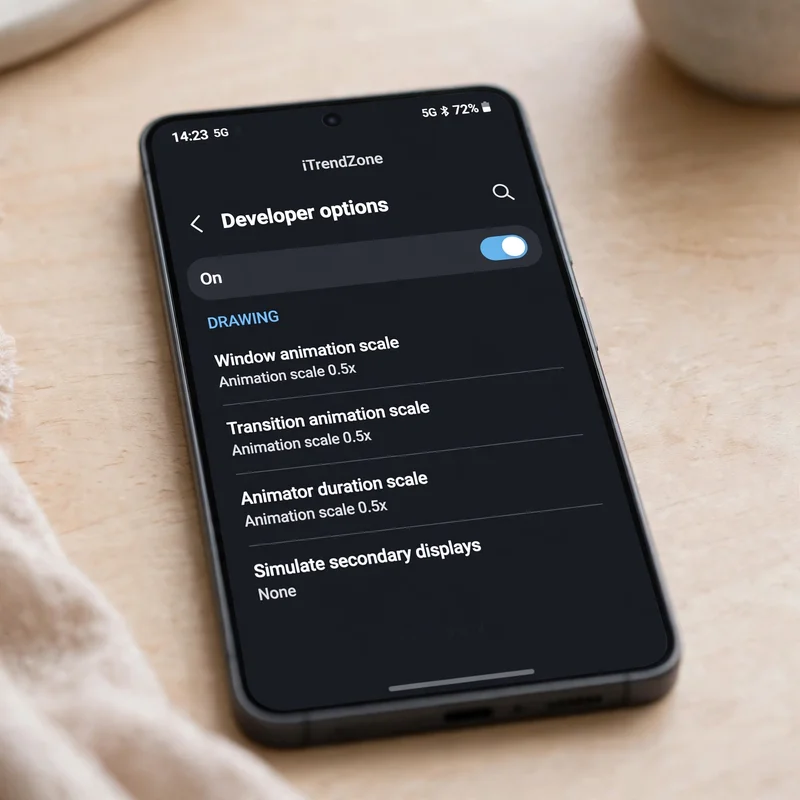
First, open Settings, About Phone, Software Information, and tap Build Number seven times. Next, open Developer Options, scroll to Drawing, and change Window Animation Scale, Transition Animation Scale, and Animator Duration Scale from 1x to 0.5x — all three. However, do not turn them off entirely; I tried that and the phone felt abrupt. At 0.5x, animations finish in half the time and the phone feels twice as responsive. In short, these Samsung Galaxy S26 performance tips work because they remove waiting, not because they add speed. Our setup guide covers the other first-hour settings.
Turn on gesture navigation, trim widgets, and update everything
Next, switch to gestures in Settings, Display, Navigation Bar. Also, the customization tips guide covers more home-screen tweaks. Then, check Settings, Software Update, and update apps in both stores. Finally, judge performance only after the phone is updated and has had a night to settle.
3. Performance Profiles: Standard, Light, and When to Use Each
In Settings, Device Care, Performance Profile, Standard balances speed, battery, and cooling. In contrast, Light prioritises battery life over speed. Overall, that is the whole trade, stated in Samsung’s Device Care support guide.
Standard is the right default for almost everyone
First, leave the phone on Standard. For example, I ran the Ultra on Standard for a month — messaging, maps, camera, an hour of gaming most evenings — and never felt I needed more.
Light mode is for long days, not for gaming
Next, switch to Light when you are away from a charger for a long time. Still, Samsung does not publish a percentage for the saving, so I will not invent one. In fact, ordinary apps worked fine; heavy games were where I felt the ceiling. Above all, Samsung says Light mode does not affect game performance. Finally, if a game feels slow, use Game Booster, in Section 9.
4. Display Settings: The Smoothness You See Every Minute
First, all three S26 models have a 120Hz adaptive display, 1 to 120Hz, with up to 2,600 nits peak brightness. In fact, the S26 is 6.3 inches at FHD+ (2340×1080), the S26+ is 6.7 inches at QHD+ (3120×1440), and the Ultra is 6.9 inches at QHD+.
Adaptive refresh rate, and why I do not lock 120Hz
First, set the refresh rate to Adaptive and leave it there. For example, I tried locking the Ultra to 120Hz for a week and it felt wonderful. Still, my battery noticed before I did. In short, Adaptive drops the rate when nothing is moving and raises it when you scroll or play. In fact, the display is where Samsung Galaxy S26 performance tips pay off most visibly, because you look at the screen every minute you use the phone.
Resolution: max it on the Plus and Ultra
Next, Samsung ships the S26+ and Ultra at a lower resolution than their panels can do, to save battery. On those two, go to Settings, Display, Screen Resolution, and set it to maximum. Finally, maximum resolution plus locked 120Hz plus maximum brightness will make any phone warm and thirsty.
5. RAM Plus and Memory: What Helps, What Hurts, What Is a Myth
First, this is where most online advice goes wrong. In fact, the S26, S26+, and base Ultra all ship with 12GB of physical RAM. Also, RAM Plus is Samsung’s virtual memory: it takes a slice of storage and uses it as extra RAM for inactive apps. Samsung says it can add up to 8GB, chosen in Settings, Device Care, Memory, RAM Plus, followed by a restart.
My recommendation: leave RAM Plus at its default on 12GB phones
First, virtual RAM lives on storage, and storage is far slower than real RAM. In fact, on a 12GB phone, a large RAM Plus allocation does not make the phone faster.
Samsung Galaxy S26 performance tips: RAM Plus, tested
For example, I tested it — a week at the default, then a week set low — and the low setting felt marginally quicker. In short, treat RAM Plus as an experiment. Finally, maximum made sense on 4GB phones, not here.
Use Memory Clean, but do not obsess over free RAM
First, in Device Care, Memory, Clean Now stops background apps and frees memory. For example, I use it about once a week. However, do not tap it every hour — Android keeps apps in memory so reopening them is instant. Finally, restart weekly: I set Auto Restart for 3 a.m. on Sundays in Device Care, Auto Optimization.

6. Storage: The Hidden Speed Killer
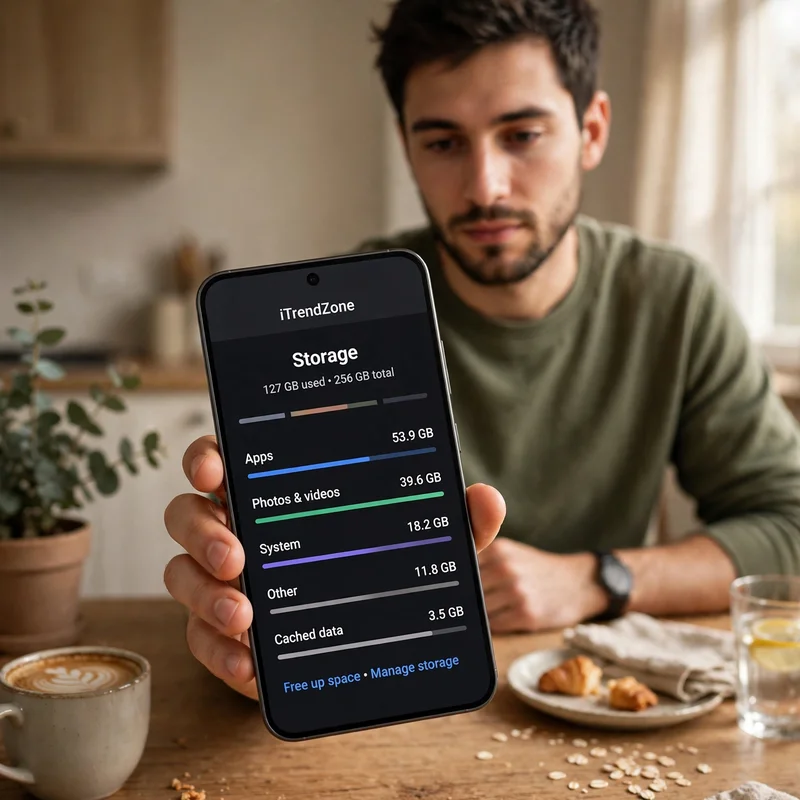
First, if your S26 ever feels slow for no obvious reason, check storage first, in Settings, Device Care, Storage. In fact, flash storage slows down as it fills up. Overall, I keep at least 10% free — about 25GB on a 256GB phone — a practical rule, not a Samsung-published threshold. In short, these Samsung Galaxy S26 performance tips treat storage as a speed setting, not just a capacity number.
What to delete first, in order
First, videos are usually the largest — a few minutes of 4K can be gigabytes, and the Ultra shoots 4K at 120fps and 8K at 30fps. Then, move videos you want to keep to cloud storage or a computer, and delete the rest. Next, check Downloads and the Trash folders in Gallery and My Files. Then sort apps by size and uninstall finished games; one game can be 2GB or more. Finally, the camera tips guide covers when 200MP is worth it.
One more storage habit that pays off
Also, clear app caches in Settings, Apps, Storage, Clear Cache — cache, not data, which signs you out and deletes your settings.
7. Background Apps, Sleeping Apps, and Adaptive Battery
First, a flagship chip can be brought to its knees by a dozen apps doing small jobs in the background.
Put apps to sleep that you do not use
First, in Settings, Battery, Background Usage Limits, add apps you open once a month — the airline app, the shopping app, a finished game — to Deep Sleeping Apps, and they will not run in the background until you open them. For example, I did this for about fifteen apps. However, do not put messaging, email, alarm, or banking apps to sleep.
Let Adaptive Battery learn, and give it a week
First, Adaptive Battery watches how you use apps and limits the ones you rarely open. In fact, it is on by default and needs about a week to learn.
Samsung Galaxy S26 performance tips: finding the app that drains you
For example, if one app is always at the top of your battery usage and you barely use it, that app is the problem, not the phone. Next, update it, restrict its background activity, or uninstall it. Also trim notifications — I keep messages, calls, calendar, and banking.
8. Heat, Throttling, and the Vapour Chamber
First, heat is the performance limiter nobody talks about until their phone gets hot. In fact, processors slow themselves down when they get hot — throttling, a safety feature, not a defect. Also, the Ultra’s redesigned vapour chamber spreads heat so the chip can run at full speed for longer. Overall, Samsung claims 21% better thermal performance than the S25 Ultra, flagged in Section 1 as a manufacturer claim. In short, these Samsung Galaxy S26 performance tips for heat are simple: give the vapour chamber room to work.
Practical ways to keep the phone cool
First, take a thick case off for long gaming sessions — thick rubber is insulation, and it traps the heat the vapour chamber is trying to shed. Next, do not charge and game at the same time; together they push the phone into throttling much faster. Finally, if it does get hot, close the heavy app and let it cool. Still, if overheating is persistent, the not working fix guide covers it as a fault.

9. Gaming: Game Booster Settings That Matter
First, gaming is where the S26’s performance is most visible and most fragile. In fact, with the right settings the Ultra is a genuinely good gaming phone. Above all, Game Booster is the control room.
Set up Game Booster before your next session
First, open a game, swipe in from the side or tap the Game Booster icon. Next, turn on the performance mode inside Game Booster — this is where a performance setting actually applies to games, unlike Light mode.
Samsung Galaxy S26 performance tips: Game Booster in one session
First, block notifications and calls during play. Finally, if the frame rate is bouncing, lower the game’s graphics settings before you blame the phone.
In-game settings beat system settings
First, the game’s own settings matter more than the phone’s. Next, set the frame rate to the highest stable option — 120fps if the game supports it and your phone holds it, 60fps if it does not — and set graphics quality one notch below maximum. For example, on the Ultra, I play at High graphics and 120fps, and it holds steady. However, at Ultra graphics, it throttled after ten minutes.
10. Camera, Galaxy AI, and the Performance They Cost
First, the camera and Galaxy AI ask the most of the S26’s chip. In fact, the 200MP camera on the Ultra, the 50MP main on the S26 and S26+, and the AI processing on every photo — ProScaler sharpening, Nightography noise reduction, Photo Assist edits — all use the NPU Samsung says is 39% faster than last year’s. Still, that speed is finite. As a result, shooting a burst of 200MP photos, then immediately editing one, will make the phone feel busy. Finally, that is the trade-off behind these Samsung Galaxy S26 performance tips: the fastest features cost the most speed.
Give the camera a moment, and shoot at the right resolution
First, shoot at the default resolution for everyday photos, and save 200MP for shots where you will actually crop or print. In fact, a 200MP photo is a large file, it takes longer to save, and it fills storage faster. Similarly, the same applies to video: 8K at 30fps, and 4K at 120fps on the Ultra, are also the fastest way to fill storage and warm the phone. For example, I shoot everyday video at 4K 30fps, and switch to 4K 120fps only for slow motion. Next, the camera tips guide covers Pro mode, RAW, and Nightography, and our best Android phones for camera quality shows where the Ultra ranks. Finally, if you do not use a Galaxy AI feature, turn it off in Settings, Galaxy AI.
11. The Monthly Routine, and the Numbers Behind This Guide
First, performance is not a one-time fix. In fact, it is a habit: a weekly restart, a monthly storage check, and a quick look at battery usage when something feels off. Overall, total time: about ten minutes a month.
Recent data — the S26 range in November 2026
| Model | Price (256GB, US, Nov 2026) | RAM | Display | Chip (US) | Battery | Wired charging |
|---|---|---|---|---|---|---|
| Galaxy S26 | $999.99 (launch $899.99) | 12GB | 6.3-inch FHD+ 2340×1080, 120Hz, up to 2,600 nits | Snapdragon 8 Elite Gen 5 for Galaxy | 4,300 mAh | 25W |
| Galaxy S26+ | $1,199.99 (launch $1,099.99) | 12GB | 6.7-inch QHD+ 3120×1440, 120Hz, up to 2,600 nits | Snapdragon 8 Elite Gen 5 for Galaxy | 4,900 mAh | 45W |
| Galaxy S26 Ultra | $1,399.99 (launch $1,299.99) | 12GB (16GB with 1TB) | 6.9-inch QHD+ 3120×1440, 120Hz, up to 2,600 nits | Snapdragon 8 Elite Gen 5 for Galaxy | 5,000 mAh typical (4,855 mAh rated) | 60W |
Caption: Table: Performance-relevant specifications for the Galaxy S26 range, November 2026. Sources: Samsung official S26 Ultra page; Engadget three-way comparison, February 25, 2026; GSMArena comparison. S26+ battery is 4,900 mAh, confirmed by Samsung’s US FAQ; Engadget’s 4,300 mAh listing looks like a copy error.
Chart — Samsung’s claimed S26 Ultra gains over the S25 Ultra
| Area | Samsung’s claimed improvement vs S25 Ultra | What it means in practice |
|---|---|---|
| CPU | 19% faster | Faster app launches and calculations |
| GPU | 24% faster | Higher graphics performance, steadier frame rates |
| NPU (AI) | 39% faster | Faster on-device Galaxy AI and camera processing |
| Thermal performance | 21% better | Heat spread more effectively, peak speed held longer |
Caption: Chart: Samsung’s claimed improvements for the Galaxy S26 Ultra over the S25 Ultra — manufacturer claims from Samsung’s official page, re-checked November 29, 2026, not independent benchmarks. Source: Samsung official Galaxy S26 Ultra page.
When speed problems are actually a fault
First, most slowdowns are settings, storage, or heat. Still, a few are faults. For example, if the phone is slow after a factory reset, if it overheats while idle, or if the battery drains in a few hours with the screen off, stop tweaking settings. Next, clear the offending app’s cache first, then check for updates, then restart. Finally, if it is still wrong, the not working fix guide walks through the common faults in order, and the security and privacy guide covers the permission and update checks. Also, if you are still on an older phone, our best Android phones for business and productivity puts the S25 Ultra in context. In short, the hidden features guide has more speed-adjacent tricks.
12. FAQ
Will setting animation scales to 0.5x damage my Galaxy S26?
No. It only shortens animations; it does not overclock the processor or change voltages. You can set it back to 1x at any time.
Should I set RAM Plus to maximum on the Galaxy S26?
Probably not. The S26 range has 12GB of physical RAM, and Samsung says RAM Plus can add up to 8GB of virtual memory from storage, which is much slower than real RAM. Try the default, then a lower setting.
Does Light performance mode make games faster?
No. Samsung says Light mode does not affect game performance. Use Game Booster’s own performance settings for games, and use Light mode only to prioritise battery life on a long day.
Why does my Galaxy S26 get hot when gaming, and is it normal?
Some warmth is normal — gaming uses the CPU, GPU, and display at once. A thick case, charging while playing, or direct sunlight will push the phone into throttling. Take the case off, unplug, and let it cool.
How often should I restart my Galaxy S26?
Once a week is enough. I use Auto Restart at 3 a.m. on Sundays in Device Care, Auto Optimization. It clears memory and stops the slow build-up that makes a phone feel tired.
13. Quiz: Test Yourself
Q1. What should you set all three animation scales to in Developer Options?
a) 0x (off)
b) 0.5x
c) 1.5x
d) 2x
Q2. According to Samsung, how much faster is the S26 Ultra’s NPU than the S25 Ultra’s?
a) 19%
b) 21%
c) 24%
d) 39%
Q3. Which setting should you use for gaming performance, rather than Light mode?
a) Power saving mode
b) Game Booster
c) RAM Plus maximum
d) Maximum screen brightness
Q4. How much virtual memory can RAM Plus add, according to Samsung’s support page?
a) Up to 2GB
b) Up to 4GB
c) Up to 8GB
d) Up to 16GB
Q5. How much free storage should you aim to keep on your Galaxy S26?
a) At least 1% free
b) At least 5% free
c) At least 10% free
d) At least 50% free
Answers: 1-b, 2-d, 3-b, 4-c, 5-c
14. References
- Samsung’s official Galaxy S26 Ultra page — 19% CPU, 24% GPU, 39% NPU, 21% thermal, vapour chamber
- Samsung’s Device Care support guide — Standard vs Light profile, RAM Plus up to 8GB, sleeping apps, Auto Restart
- Engadget’s three-way S26 comparison — prices, displays, chip, RAM, battery, charging compared
- GSMArena’s S25 Ultra vs S26 Ultra comparison — chipset, UFS storage, RAM and storage
- Android Authority’s Galaxy S26 tips — Call Captions, Private Album, Now Nudge, Photo Assist, Privacy Display
- iTrendZone’s best Android phones for camera quality in 2026 — where the S26 Ultra ranks
- iTrendZone’s best Android phones for business and productivity — S25 Ultra and work-phone context