
Samsung Galaxy S26 customization tips are the difference between a phone that looks like everyone else’s and one that fits how you live. For example, I spent my first weekend with the S26 Ultra doing the sensible stuff first — updates, fingerprint, the basics from the complete guide to the Galaxy S26 — then gave myself one honest hour to make it mine. In fact, that hour turned into three, because Samsung hides good tools one menu deeper than you’d expect.
TL;DR: First, Samsung Galaxy S26 customization tips start with the lock screen and home screen, then go deeper with Good Lock. Next, long-press the home screen to change wallpaper, clock, widgets and grid. Then, install Good Lock from the Galaxy Store, and add Theme Park, LockStar, QuickStar and Home Up. Finally, keep it to one theme, one icon style and a handful of widgets — a phone you can read at a glance beats one that looks impressive in a screenshot.
Overall, my rule is simple: if a change doesn’t save a tap or make something easier to read, it goes. In fact, all three run Android 16 with One UI 8.5, with seven years of OS and security updates. Also, prices start at $999.99 (S26), $1,199.99 (S26+) and $1,399.99 (Ultra) for 256GB as of Nov 2026 (launch $899.99 / $1,099.99 / $1,299.99), and every model gets the same customization tools — Privacy Display is Ultra-only hardware.
1. Start Here: What You Can Change Without Installing Anything
First, before you download Good Lock, learn what One UI 8.5 already gives you. Next, long-press any empty spot on the home screen and you’ll see Wallpaper and style, Themes, Widgets, and Settings. In short, that one gesture is the front door to almost everything in this guide.
First, Wallpaper and style is where the colour palette lives. Next, pick a wallpaper and Samsung suggests colours pulled from it for menus, buttons and Samsung apps. For example, I picked a deep blue photo from last autumn, and the palette was calmer than anything I’d have chosen by hand. Finally, if you hate it, pick your own — or turn on Dark mode here.
Also, home screen settings live in that same menu: grid, app labels, and whether new apps land on the home screen or stay in the drawer. For example, I use 5×6 on the Ultra and 4×5 on the S26, where five across felt cramped. Overall, these Samsung Galaxy S26 customization tips start with the built-in settings, because the best changes are the ones already on the phone.
2. The Lineup and the Tools, at a Glance — November 2026
First, customization is the same across the range, but the canvas isn’t — a widget spacious on the Ultra can feel crowded on the S26.
| Model | Display | What it means for customization | Price (256GB, Nov 2026) |
|---|---|---|---|
| Galaxy S26 | 6.3-inch, FHD+ 2340×1080, 120Hz, 2,600 nits | Smaller canvas; 4×5 grid works best | $999.99 (launch $899.99) |
| Galaxy S26+ | 6.7-inch, QHD+ 3120×1440, 120Hz, 2,600 nits | Room for 5-column grid and stacks | $1,199.99 (launch $1,099.99) |
| Galaxy S26 Ultra | 6.9-inch, QHD+ 3120×1440, 120Hz, 2,600 nits | Biggest canvas; S Pen, Privacy Display | $1,399.99 (launch $1,299.99) |
Sources: Samsung, Engadget, Tom’s Guide, Nov 2026. S26+ battery is 4,900 mAh, confirmed by Samsung’s US FAQ; Engadget’s 4,300 mAh listing looks like a copy error.
Chart 1 — Which Good Lock modules do what, and who needs them
| Good Lock module | What it changes | Start here if you…: |
|---|---|---|
| Theme Park | Theme colours, icons, Quick Panel, keyboard | Want one matching look |
| LockStar | Lock screen, clock, shortcuts, unlock animations | Stare at your lock screen all day |
| QuickStar | Quick Panel layout, tile size, custom images | Hate the default panel |
| Home Up | Grid, folder size and colour, gestures | Want a tidier home screen |
| Wonderland | Lock screen and AOD wallpapers, motion effects | Want a moving lock screen |
| Edge Panels | Edge Panels, app pairs, clipboard, tools | Multitask with one thumb |
Caption: Chart 1: The six Good Lock areas I return to, mapped to the problem each solves. Source: Samsung Community, Android Authority, Digital Trends, Nov 2026.
3. Lock Screen: The Screen You See Most
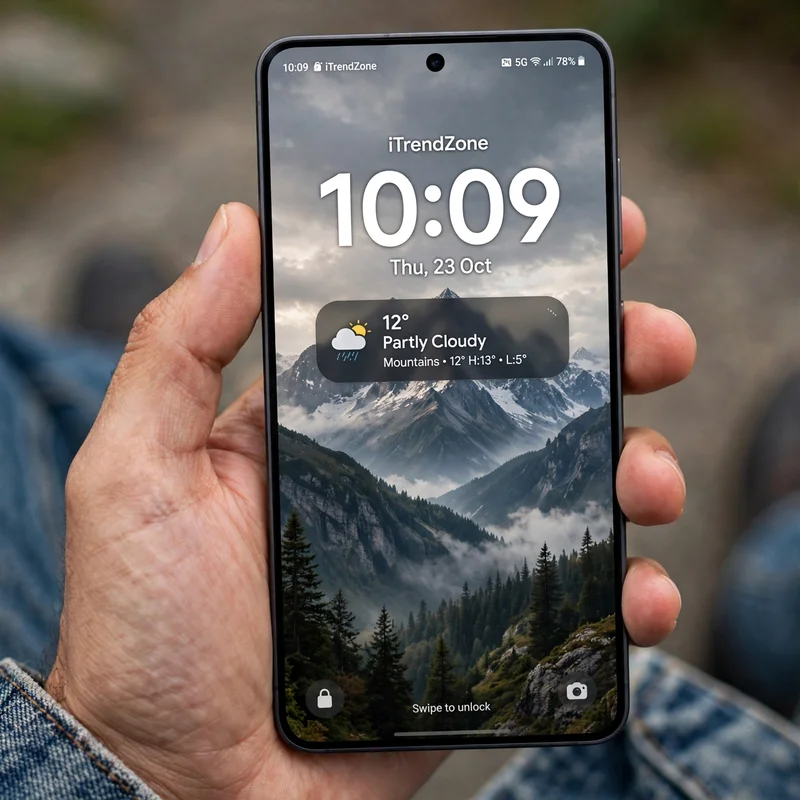
First, you see the lock screen more than any other screen, so it’s worth five unhurried minutes. Next, long-press the lock screen — or go to Settings > Lock screen and AOD — and tap to edit. Then, change the clock style, size, position, font and colour. For example, I went big and centred on the Ultra, because I check the time with one eye open in the morning; on the S26 I kept it smaller and left-aligned, so it wouldn’t crowd the notifications.
Next, add widgets, but be ruthless. In fact, One UI 8.5 allows up to four lock screen widgets; I keep two, weather and calendar, and control music from the Now Bar. Still, four push notifications down and turn a glance into a scroll.
Also, swap the shortcuts. In fact, the phone and camera icons in the bottom corners are defaults, not laws. For example, I replaced phone with the torch — I reach for it far more often, and the camera is a double-press of the Side button away. Finally, edit the lock screen, tap a shortcut, and pick the app you actually use. In short, these Samsung Galaxy S26 customization tips treat the lock screen as a tool, not a poster.
Next, notifications deserve a decision too. Settings > Lock screen and AOD > Notifications lets you choose icons only, or full cards, and whether sensitive content shows. For example, I use icons only, with sensitive content hidden. Finally, the full security and privacy tips guide covers notification privacy in more detail.
4. Home Screen: Grid, Folders, Widgets and the Search Bar
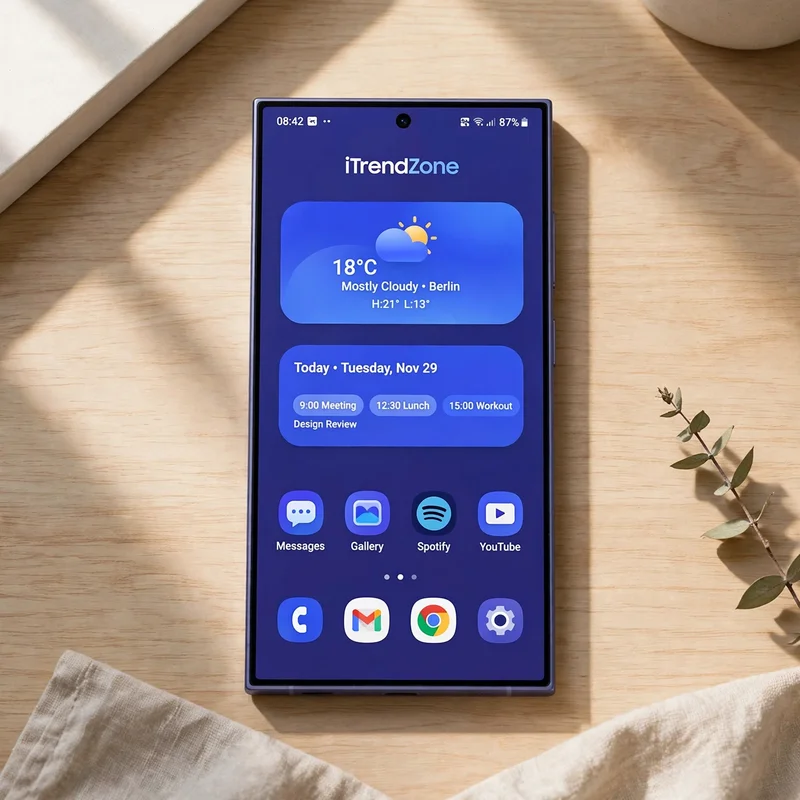
First, the home screen is where customization either pays off or becomes clutter, and the difference is usually one widget too many. For example, my Ultra setup is two screens: the first has a weather widget, a calendar widget, and the eight apps I open daily; the second holds folders for everything else. In fact, it took three tries — my first attempt had a widget for everything and a folder for nothing.
Next, start with the grid and folders. First, long-press the home screen, tap Settings, and set your grid — 5×6 on the Ultra, 4×5 on the S26. Then, make folders by dragging one app onto another; Home Up lets you resize folders, change their colour and adjust blur so they match your theme. For example, I made mine larger — easier to hit one-handed on a tall phone.
Also, widget stacks are the best space saver Samsung offers. Next, drag one widget onto another of the same size and they stack — swipe sideways to flip between them. For example, I stack weather, calendar and notes in one 4×2 space.
Samsung Galaxy S26 customization tips: widget stacks that stay useful
Finally, don’t stack more than three; past that, you forget what’s in the stack.
Next, the Google search bar is customizable too: long-press it to change its colour, transparency and shortcuts. For example, I made mine transparent with a dark outline. Still, if you don’t use it, remove it. Also, app icon labels are a small toggle with a big effect — turn them off and the screen looks cleaner, but only if you know your apps by icon alone. In fact, I kept tapping the wrong banking app, because two use nearly identical blue icons, so labels are back on for me.
5. Good Lock: Install It Once, Then Pick Your Modules
First, Good Lock is Samsung’s own customization app, and the single most important install in this guide. In fact, it’s free, made by Samsung, and it unlocks the tools One UI keeps tucked away. Next, get it from the Galaxy Store — search “Good Lock”, check the developer is Samsung. Also, on One UI 7 and later it’s also on Google Play, but the Galaxy Store is where updates land first. Then, open it and you’ll see modules to install separately, like apps inside an app. For example, I have six installed; I use four weekly.
First, start with Theme Park, LockStar and QuickStar, and add Home Up if the stock home screen settings feel limiting. Next, don’t install all of them on day one — install one, use it, then add the next. Still, modules can overlap: Theme Park and QuickStar both touch the Quick Panel, and when two fight over the same panel, the result usually looks half-finished. Finally, pick one owner per surface and stick with it.
Next, Good Lock and its modules update through the Galaxy Store, not always with system updates. For example, after a big One UI update, check for Good Lock updates before you panic about a theme that looks wrong — an update fixed my broken Theme Park icons in two minutes. Finally, save and name your themes before a reset, too.
6. Theme Park and Themes: Build Your Own Look, or Borrow One
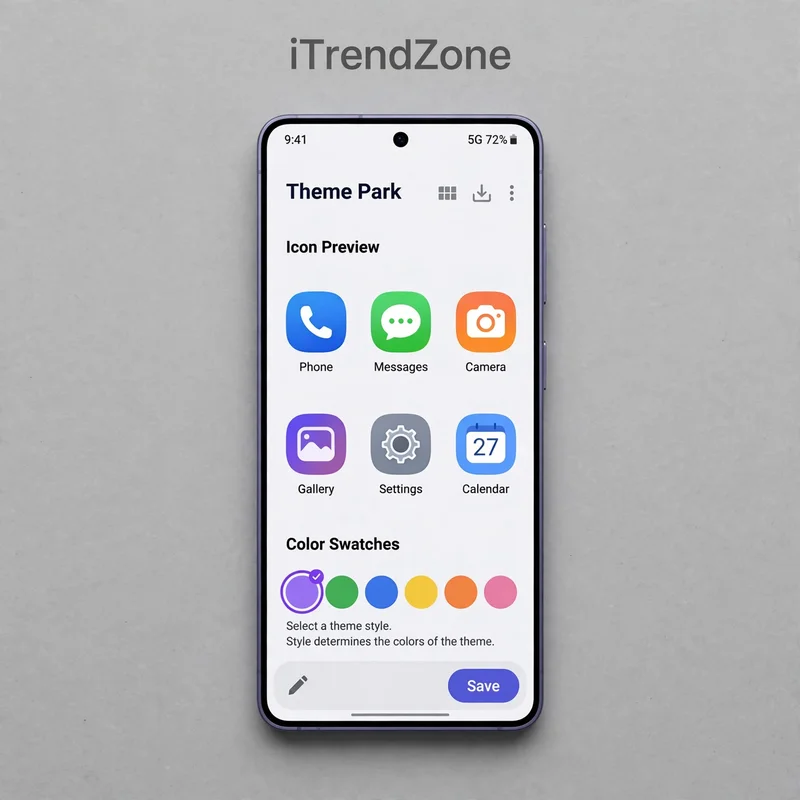
First, Theme Park is where the S26 stops looking like a Samsung phone and starts looking like your phone. Next, open Good Lock, open Theme Park, tap Create new, and pick a wallpaper. Then, Theme Park pulls colours from that photo and suggests a full theme — menus, Quick Panel, keyboard, volume panel, icons. Finally, pick its colours or set your own, preview dark mode with the sun icon, then save and apply. For example, my autumn-photo theme took four minutes, and it matched better than any theme I’d bought.
Next, the 2026 update made this easier: icon editing is split into Shape, Effects, and Icon behaviour, with a new Emboss effect, a Monochrome option, and theme bookmarks. In fact, Android Authority’s coverage of the Theme Park upgrade and Digital Trends’ report on the same update confirm those additions; badge-colour control is One UI 8.5-only.
Also, icon packs from the Play Store need Theme Park — the launcher can’t use them directly. Next, install the pack, open Theme Park, go to the Icon tab, tap Create new, and apply it. Finally, older themes saved in APK format no longer work on One UI 8, so rebuild those.
Still, if building a theme sounds like work, use Galaxy Themes instead: long-press the home screen, tap Themes, and one tap applies wallpaper, icons, keyboard and app colours together. Also, fonts matter too: Settings > Display > Font size and style lets you change font, size and boldness. Finally, Creative Studio, covered in the Galaxy AI features guide, can turn a photo into stickers and wallpapers. In fact, the fastest Samsung Galaxy S26 customization tips are the borrowed ones: a ready-made theme beats an afternoon of fiddling.
7. Quick Panel: Rebuild the Screen You Swipe Down a Hundred Times a Day
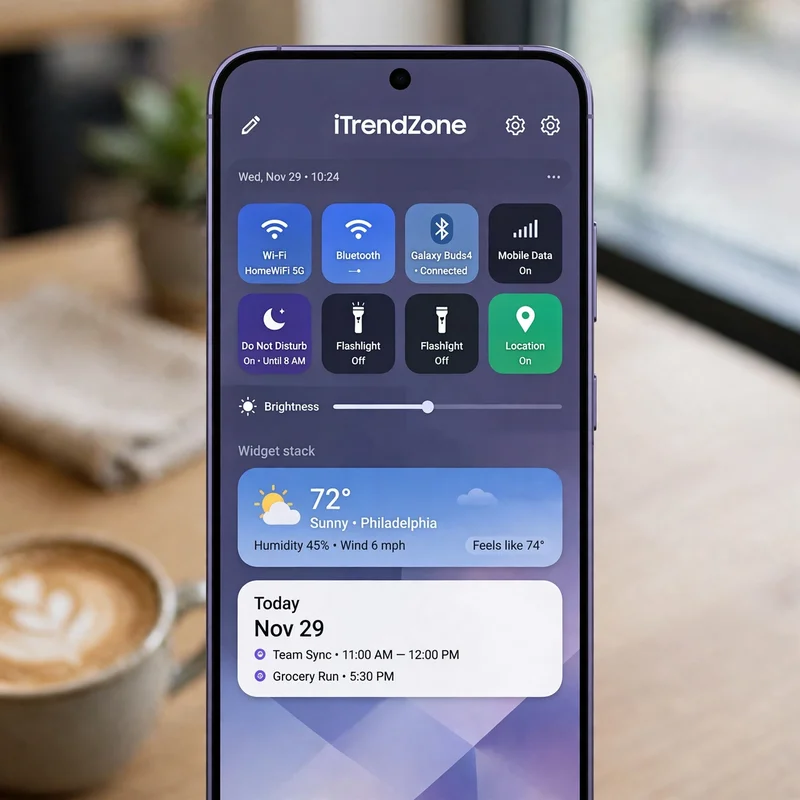
First, the Quick Panel is the most-used screen most people never customize. Next, swipe down twice, tap the pencil icon, and drag tiles into the order you use. For example, I put Wi-Fi, Bluetooth, torch, Do Not Disturb and rotation in the top row, and buried the rest. In fact, that reorder saved more daily friction than any theme.
Next, QuickStar, inside Good Lock, is where it gets fun. First, open QuickStar, enable it, and tap Edit panel style. Then, in One UI 8.5 you can resize tiles, reorient sliders, and add custom images behind the button box, media player, brightness and volume areas. For example, I used one soft frosted-blue image for the button box and left the rest plain.
Samsung Galaxy S26 customization tips: QuickStar extras
Finally, QuickStar also lets you hide status bar icons and turn on Show bar levels, so brightness and volume show a percentage.
8. Widgets, Edge Panels and the Now Bar
First, widgets are where the S26 earns its keep, and where most people overdo it. Next, add one by long-pressing the home screen and tapping Widgets, then resize it by dragging the handles. For example, I keep weather, calendar and a smart-home widget on my first screen, and music on the second. Finally, if a widget hasn’t told you anything useful in a week, remove it.
Next, Edge Panels are the S26’s one-thumb superpower. First, turn them on in Settings > Display > Edge Panels, then swipe in from the edge handle for favourite apps, contacts, clipboard and tools. For example, I keep eight apps there — the ones I open while doing something else, like the calculator inside a banking app. Also, app pairs open two apps side by side with one tap; mine is maps and music for driving. Finally, move the handle in settings if it collides with how you hold the phone. Overall, these Samsung Galaxy S26 customization tips for widgets and panels share one rule: one thumb should reach everything.
Next, the Now Bar sits on the lock screen and shows live activity — music, a timer, a sports score, navigation — without unlocking the phone. In fact, it’s in Settings > Lock screen and AOD > Now Bar; I leave it on for music, timers and navigation only. Still, turn on everything and it becomes a ticker you ignore.
9. Always On Display, Privacy Display and the Finishing Touches
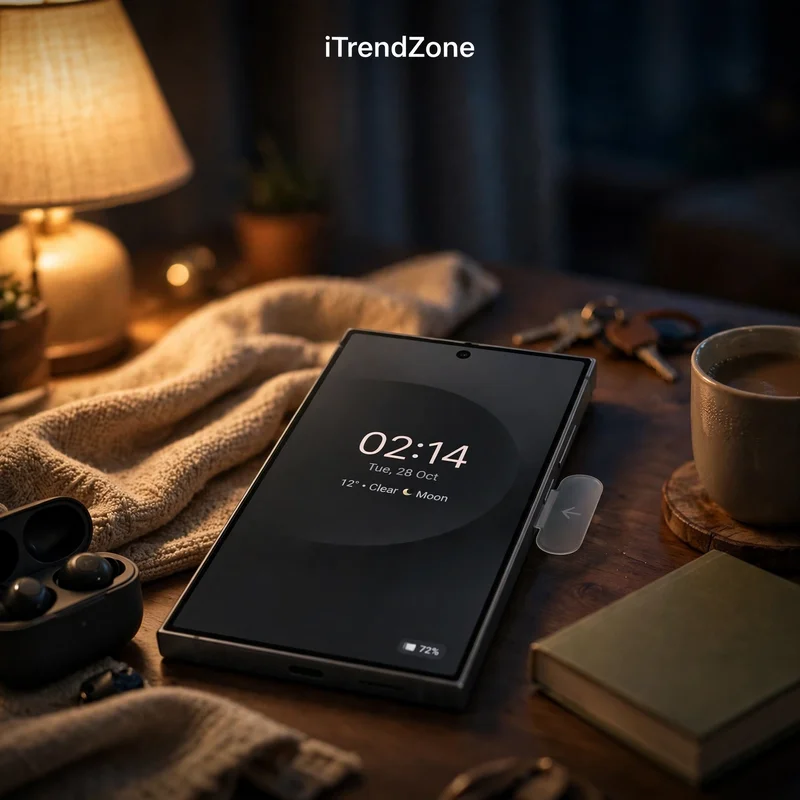
First, Always On Display in One UI 8.5 is unified with the lock screen. Next, Settings > Lock screen and AOD > Always on Display lets you choose the clock style, whether to show your wallpaper behind it, and when it appears — always, on tap, or on a schedule. For example, I use tap-to-show by day and a schedule at night, because an always-on screen on my bedside table is a night light I didn’t ask for. Also, LockStar lets you set separate lock screen and AOD clock styles, and Wonderland lets you set a different — or moving — wallpaper for the AOD.
Next, Privacy Display is Ultra-only. First, turn it on from the Quick Panel, or set a double-press of the Side button in Settings > Advanced features, and the screen goes dark from side angles while staying clear head-on. In fact, Samsung’s official Galaxy S26 Ultra page explains the options: whole screen, specific apps, notifications only, or just PIN and password entry, with a Maximum Privacy mode. For example, I use it for banking apps and PIN entry, not all the time — full-time mode dims the screen enough that I kept turning brightness up. Finally, the hidden features guide has more Ultra-only tricks. Overall, that is the balance behind these Samsung Galaxy S26 customization tips: privacy when you need it, and a clear screen the rest of the time.
Next, two finishing touches, then stop. First, the Side button: Settings > Advanced features > Side button lets you choose what a double-press does — camera, an app, or Privacy Display on the Ultra. Mine is the camera.
Samsung Galaxy S26 customization tips: animation speed
Next, animation speed: tap Build Number seven times in Settings > About phone > Software information, then set the three animation scales to 0.5x. Finally, the performance tips guide covers this, and the camera tips guide is worth a look before you set a camera shortcut you never use.
10. My 30-Minute Setup, and the Mistakes to Skip
First, if you only have half an hour: minutes 0–5, wallpaper, palette, Dark mode and grid; 5–12, lock screen clock, two widgets, shortcuts and notifications; 12–20, Good Lock and Theme Park — build one theme and apply it; 20–26, Quick Panel order in QuickStar and Edge Panels on; 26–30, AOD schedule, Now Bar, font size and Side button. Next, stop for a day. Finally, the setup guide walks through the full first hour. In short, these Samsung Galaxy S26 customization tips work in half an hour because the order matters more than the effort.
Also, mistakes to skip: don’t install every Good Lock module on day one; don’t use four lock screen widgets; don’t let Theme Park and QuickStar both style the Quick Panel. Finally, if the battery drains faster after a customization spree, check the AOD schedule and live wallpapers first — the battery tips guide has the overnight-drain fixes.
11. FAQ
Do I need Good Lock to customize the Galaxy S26?
No. Wallpaper, palette, lock screen clock, widgets, grid, Quick Panel order, Edge Panels and AOD all work without it. Good Lock adds Theme Park, LockStar, QuickStar and Home Up — the deeper tools.
Is Good Lock free, and where do I get it?
Yes, it’s free and made by Samsung. Install it from the Galaxy Store, checking the developer is Samsung. On One UI 7 and later it’s also on Google Play.
Will my Theme Park themes work after a One UI update?
Usually, after you update Good Lock and its modules in the Galaxy Store. Older APK-format themes no longer work on One UI 8 — rebuild those.
Does customization drain the battery?
A still wallpaper, tap-to-show AOD and a normal theme cost almost nothing. An always-on AOD, live wallpapers, and bright full-time Privacy Display on the Ultra use noticeably more.
Can I go back to the default look?
Yes. In Theme Park or Galaxy Themes, reapply the default theme; in home screen settings, restore the default grid and turn app labels back on. Nothing here is permanent.
12. Quiz: Test Yourself
Q1. Where do you install Good Lock from?
a) A third-party APK site
b) The Galaxy Store
c) The Samsung Members app only
d) Settings > About phone
Q2. Which Good Lock module builds custom themes and icon styles?
a) LockStar
b) QuickStar
c) Theme Park
d) Home Up
Q3. How many lock screen widgets does the pillar recommend keeping?
a) Four
b) One
c) Two — weather and calendar
d) None
Q4. Which feature is Ultra-only?
a) Edge Panels
b) Privacy Display
c) Widget stacks
d) Dark mode
Q5. What should you update first if a theme looks wrong after a One UI update?
a) The wallpaper
b) Good Lock and its modules in the Galaxy Store
c) The camera app
d) The SIM toolkit
Answers: 1-b, 2-c, 3-c, 4-b, 5-b
13. References
- Samsung’s official Galaxy S26 Ultra page — Privacy Display, One UI 8.5, display, battery, camera
- Engadget’s three-way S26 comparison — prices, displays, specs, charging
- Tom’s Guide on the Galaxy S26 Ultra launch — prices, S26+ 4,900 mAh, Exynos 2600 regions
- Android Authority on the Theme Park upgrade — bookmarks, icon sections, Emboss, Monochrome
- Digital Trends on the Theme Park upgrade — Theme Park 1.1.01.38, One UI 8.5 badge colours
- iTrendZone’s best Android phones for camera quality in 2026 — where the S26 Ultra ranks
- iTrendZone’s best Android phones for business and productivity — S25 Ultra work-phone context