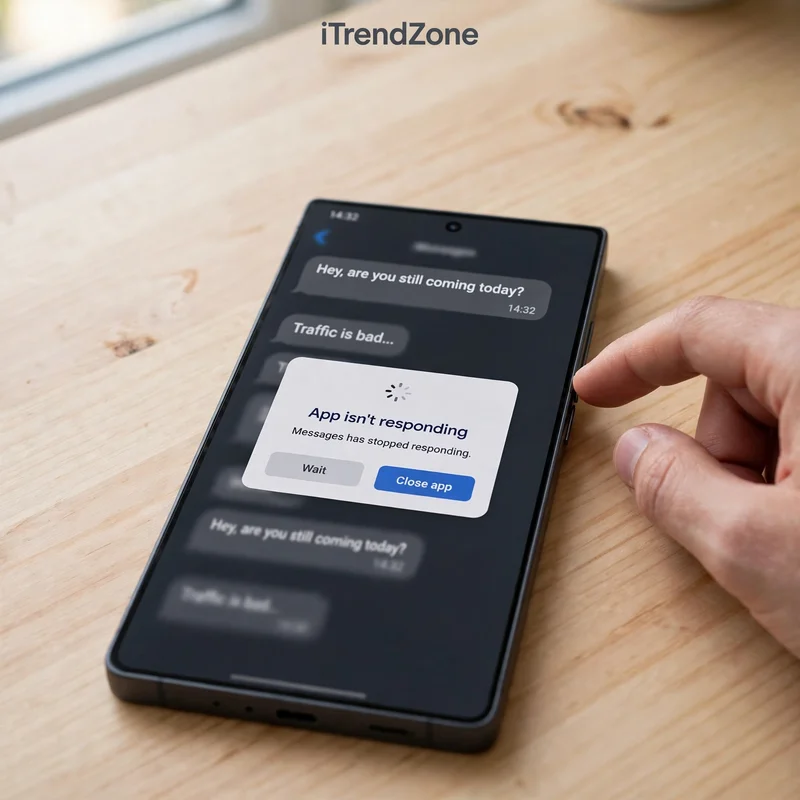

My Galaxy S26 Ultra froze mid-message. I held Side and Volume Down for ten seconds, it restarted, and the message sent itself. That is most S26 problems: alarming for thirty seconds, fixable in two minutes — if you work in the right order. This Samsung Galaxy S26 not working fix walks through the order that actually works.
TL;DR: Samsung Galaxy S26 not working fix starts with a force restart — hold Side + Volume Down for about 10 seconds until the Samsung logo appears — then clear the faulty app’s cache (not its data), update the app and system, and test in Safe Mode. Most frozen apps, Bluetooth, camera and Wi-Fi glitches clear at one of those steps. Battery drain usually means one hungry app, weak signal, or post-update settling. Factory reset is last, after a backup.
I have run these steps on the Ultra and a friend’s regular S26. This guide covers the S26 ($999.99), S26+ ($1,199.99) and S26 Ultra ($1,399.99, 256GB, US, Nov 2026; launch $899.99 / $1,099.99 / $1,299.99), all on Android 16 with One UI 8.5, Snapdragon 8 Elite Gen 5 for Galaxy in the US and Exynos 2600 in some regions.
1. Before You Touch a Setting: Diagnose First
1.1 Is it one app, the system, or the hardware?
One app crashing while the rest works is an app problem — do not reset network settings for it. Everything freezing at once is a system problem, for restart, updates and Safe Mode. One thing failing — camera, fingerprint, charging — is usually that subsystem or its cable. I once spent twenty minutes treating a camera fault as software. It was a smudged lens and a third-party camera app fighting the stock one. First, decide which of the three it is — that choice shapes every Samsung Galaxy S26 not working fix that follows.
1.2 Note when it started, and what changed
Did it start after an update, a new app, a drop, getting wet, or out of nowhere? Samsung’s support guidance lists the usual causes of freezing: low storage, background apps eating memory, a third-party app conflict, a glitch after an update, and hardware damage. In addition, check storage too: Settings > Device care > Storage. Under about 10% free, the phone stutters. The setup guide covers the day-one checks.
2. The Fix Order That Actually Works
Do not skip ahead. If one step fixes it, stop. This Samsung Galaxy S26 not working fix works because each step rules out a cause before you try a bigger one.
| Problem (Nov 2026) | First fix | If that fails |
|---|---|---|
| Frozen / unresponsive | Force restart: Side + Volume Down, ~10 sec | Safe Mode, check storage |
| One app crashes | Clear its cache (Apps > Storage > Clear cache) | Update app, reinstall it |
| Keeps restarting | Charge 30 min, force restart | Safe Mode, wipe cache partition |
| Battery draining fast | Restrict top app in Battery, Deep Sleep unused apps | Update, wait a few days, Samsung Members diagnostic |
| Overheating | Close heavy apps, shade, remove case, Light profile | Check battery usage, update, stop charging while gaming |
| Won’t charge | Another cable + USB PD PPS charger, clean port | Test wireless; if both fail, port/battery check |
| Camera won’t open | Force-close Camera, clear cache, restart | Update Camera, Safe Mode, reset camera settings |
| Fingerprint/face fails | Clean sensor and finger, re-register print | Remove protector, re-register face in good light |
| Wi-Fi / data dead | Airplane Mode off/on, restart, forget and rejoin | Reset network settings, check SIM/carrier |
| Bluetooth won’t connect | Forget on both ends, restart both, re-pair | Reset network settings, test second device |
Table 1: First fixes for the most-reported Galaxy S26 problems, November 2026. Sources: Samsung’s frozen-device support page, Samsung’s official Galaxy S26 Ultra page, Samsung Community reports, November 2026, and hands-on testing.
3. Restart First: Frozen Screen, Won’t Turn On, Boot Loop
3.1 Force restart a frozen S26
This deletes nothing. Hold Side + Volume Down for about 10 seconds until the Samsung logo appears, then let go. That is Samsung’s own force-restart method, and it works when the touchscreen is dead. If the screen is black but the phone vibrates, try the same hold. If nothing happens, check charging in Section 6; a flat battery masquerades as a dead phone. Next, if the screen stays black, move on to the charging checks in Section 6.
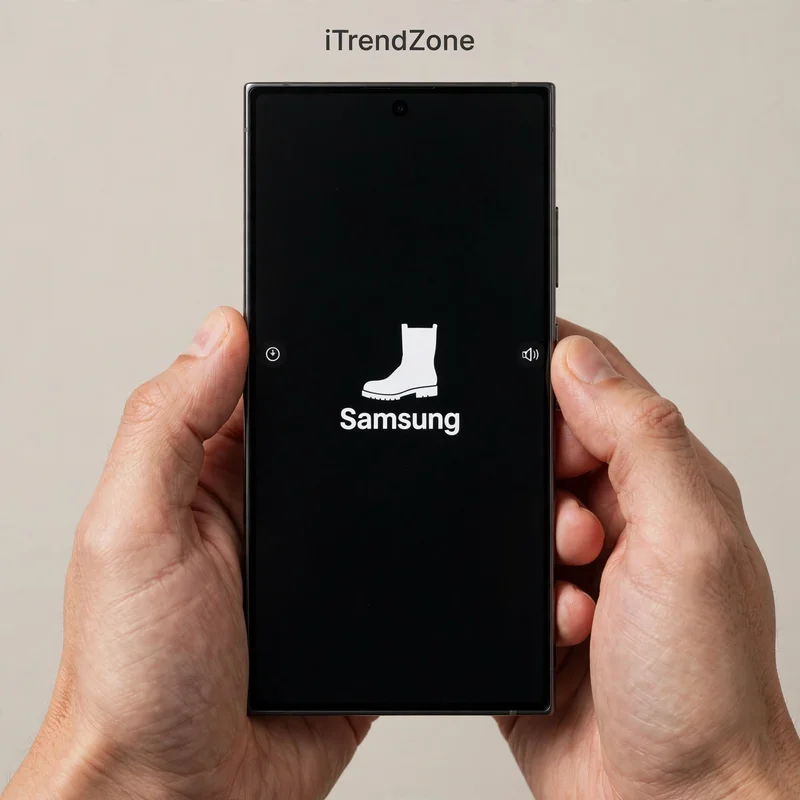
3.2 Phone won’t turn on, or keeps restarting
Charge it on a wall charger for 30 minutes — not a laptop USB port — then force restart again. If it loops to the Samsung logo, try Safe Mode (Section 4.2): a clean boot there points to a recent app. If it loops in Safe Mode too, wipe the cache partition, then consider a factory reset. Dropped or wet first? Stop and get it inspected. IP68 is accident protection, not an invitation to swim.
Samsung Galaxy S26 not working fix — when a restart is not enough
However, if a restart does not help, do not jump to a factory reset. Instead, work through the app steps in Section 4, because a Samsung Galaxy S26 not working fix usually ends there — a bad app, a stale cache, or a pending update.
4. App Problems: Clear Cache, Update, Then Safe Mode
4.1 Clear cache — not data — and update the app
Go to Settings > Apps, find the app, tap Storage, then Clear cache. This deletes temporary files only — it does not sign you out or delete photos. Clearing data is the opposite: it wipes the app to a fresh install and signs you out. Do not tap it by accident. Then restart the app. Still crashing? Update it in the Play Store or Galaxy Store, then check Settings > Software update. Several S26 owners in November 2026 reported a patch, not a reset, finally settled their phone. As part of this Samsung Galaxy S26 not working fix, update the app before you blame the phone.
4.2 Test in Safe Mode to catch a bad third-party app
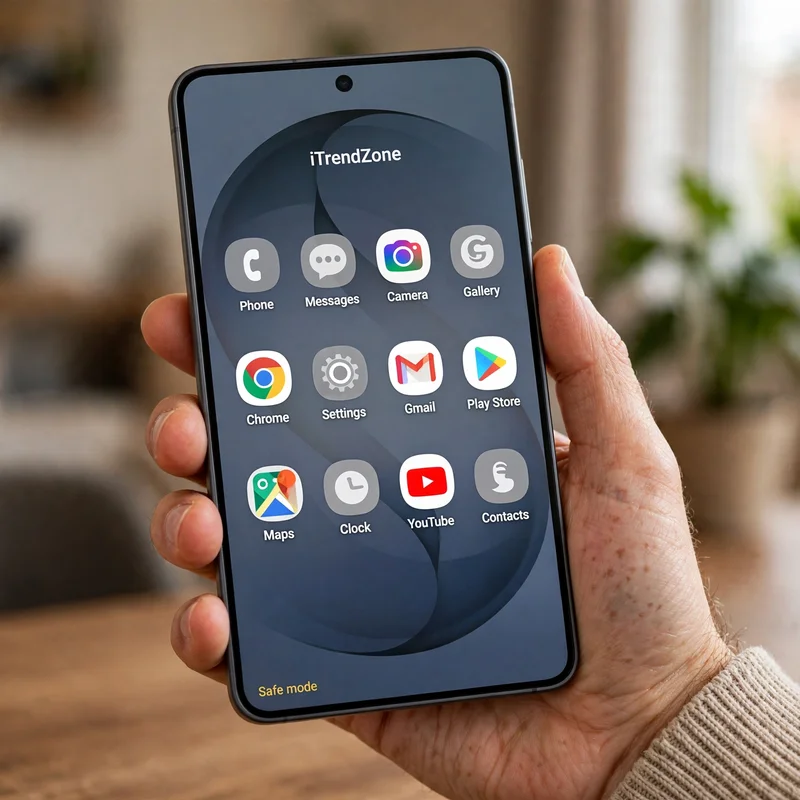
Safe Mode starts the phone with third-party apps disabled. If the problem vanishes there, a third-party app is causing it. Hold Side until the power menu appears, touch and hold Power off until you see “Reboot to Safe mode”, tap OK. If it works, restart normally, then uninstall recent apps one by one. If the fault happens in Safe Mode too, it is the system, a Samsung app, or hardware.
4.3 Wipe the cache partition when the whole system feels wrong
This clears temporary system files without touching photos, apps, or accounts. Turn the phone off, hold Side + Volume Up until the logo appears, select “Wipe cache partition” in Recovery Mode, then “Reboot system now”. I only do this when the phone is sluggish everywhere, or after a major One UI update.
5. Battery Drain and Overheating
5.1 Find the app that is eating the battery
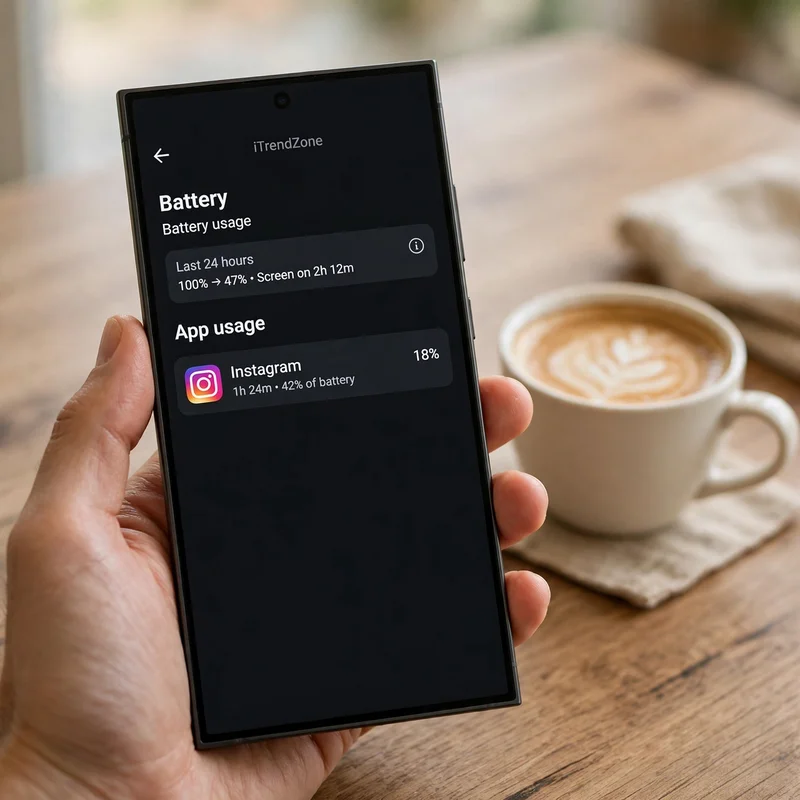
First, open Settings > Battery and look at usage since the last charge. Tap the top app, restrict background usage, and add rarely used apps to Deep sleeping apps. A runaway app drains a 5,000 mAh Ultra as happily as a 4,300 mAh base S26. Turn on Adaptive battery. If drain started after an update, give it three or four days. The battery tips guide has the overnight-drain checks. In November 2026, a Samsung Keyboard update via the Galaxy Store fixed one widely reported drain.
5.2 Overheating: what is normal, and what is not
Warm during gaming, 4K video, or fast charging is normal. Hot during light use is not. Close heavy apps, move out of sun, remove a thick case, and do not charge while gaming. Switch to the Light profile in Settings > Device care > Performance profile. Heat also rises with weak signal. Repeatedly very hot in light use, or shutting down, means a battery check. The performance tips guide explains the vapour-chamber cooling.
5.3 Chart: where the battery goes, and what fixes it
| Drain cause | Typical sign | Most effective fix |
|---|---|---|
| One runaway app | One app tops Battery usage | Restrict it / Deep Sleep it |
| Post-update settling | Drain 2–4 days after update | Wait, restart, keep updated |
| Weak 5G signal | Drain worse in one place | Switch to LTE; turn off Wi-Fi scanning |
| Always On Display + 120Hz | Steady overnight drain | AOD to Tap to show; 60Hz |
| Old firmware / app bug | Sudden drain, no new app | Update system and Galaxy Store apps |
| Failing battery (rare) | Loses 15%+ overnight idle | Professional battery check |
Chart 1: Battery-drain causes ranked by how often they explain the symptom — a diagnostic table, not a measurement; no controlled drain test was run. Sources: Samsung Community reports, November 2026; Samsung support guidance. S26: 4,300 mAh; S26+: 4,900 mAh confirmed by Samsung’s US FAQ (Engadget’s 4,300 mAh listing looks like a copy error); Ultra: 5,000 mAh typical.
Samsung Galaxy S26 not working fix for battery drain
Finally, if the drain continues after restricting the top app, run the Samsung Members battery diagnostic. In a Samsung Galaxy S26 not working fix for battery drain, that test separates a hungry app from a failing battery.
6. Charging Problems: Slow, Stuck, or Not Charging at All
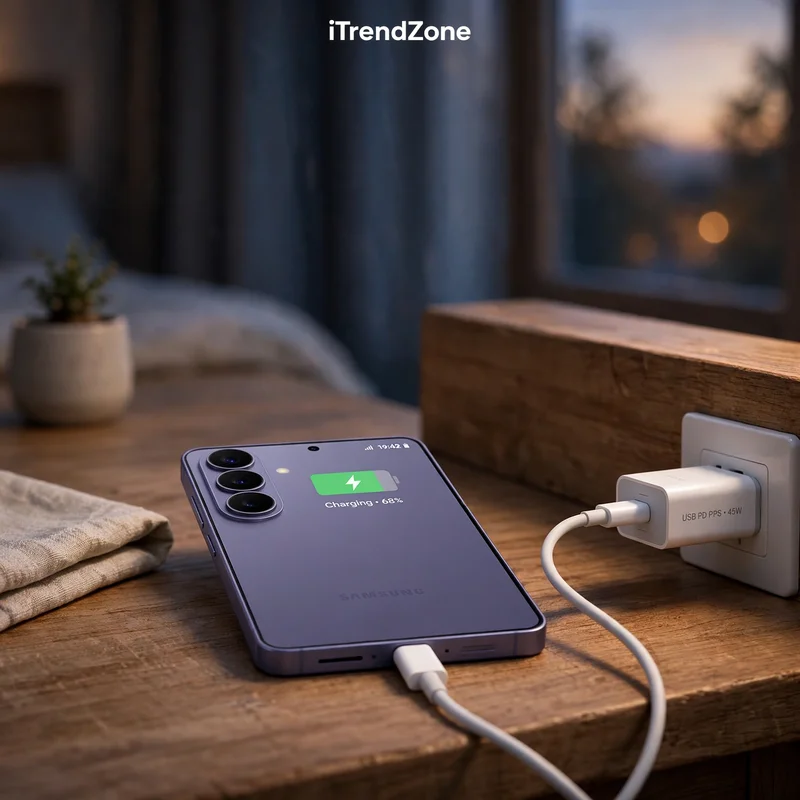
Start with the cable — it is guilty more often than the phone. In a Samsung Galaxy S26 not working fix for charging, the cable is the first suspect, not the battery. Try another USB-C cable and wall charger, ideally USB PD PPS rated for your model: 25W (S26), 45W (S26+), 60W (Ultra). A cheap cable throttles charging. Check the port for lint with a wooden toothpick, gently, phone off — never a metal pin. Test wireless charging: if wireless works and wired does not, the port or cable is at fault. If neither works, restart, update, and check battery health in Samsung Members diagnostics. The range is Qi2 Ready, so magnetic wireless charging needs a magnetic case. If the phone is wet, do not charge it.
7. Wi-Fi, Mobile Data and Bluetooth Won’t Connect
7.1 Wi-Fi and mobile data
Toggle Airplane Mode on for ten seconds, then off. Then restart, and forget and rejoin the Wi-Fi network (Settings > Connections > Wi-Fi > Forget). If other devices on the same network also fail, it is the router. For mobile data, check signal and Data, and whether the problem is everywhere or in one place — one place means coverage, everywhere means phone or SIM. Try the SIM in another phone, or ask your carrier about an outage. If both fail after a restart, reset network settings (Section 10.1); note Wi-Fi passwords down first.
7.2 Bluetooth won’t connect, or keeps dropping
Delete the pairing on both sides: Settings > Connections > Bluetooth, tap the gear, Unpair. Put the accessory back into pairing mode and pair fresh, after restarting both devices. I have fixed car Bluetooth dropouts this way after an update. If sound stutters, move closer and test a second device. If nothing pairs at all, reset network settings — the last Bluetooth step before suspecting hardware.
8. Camera Won’t Open, Black Screen, or Blurry Photos
Force-close Camera, clear its cache (Settings > Apps > Camera > Storage > Clear cache), and restart. That clears most “Camera failed” errors. Still stuck? Update Camera in the Galaxy Store, and test in Safe Mode — if it works there, a third-party app is interfering. Wipe the lens and remove the case; a smudge looks exactly like a camera fault. Blurry only at zoom? The S26/S26+ have a 3x telephoto, the Ultra adds a 5x periscope; past that is digital zoom. The camera tips guide explains which zoom levels stay sharp. Black in every camera app points to the sensor — book a repair.
9. Fingerprint and Face Unlock Fail
Clean and dry the sensor area and your finger. The ultrasonic sensor sits under the display, and a wet finger, greasy screen, or thick protector will make it fail intermittently. Remove the protector for a test, and turn on Touch Sensitivity in Settings > Display. Delete the failing print and re-register it twice at slightly different angles, and add a second finger. For face unlock, re-register in good, even light. If both fail after an update, check for a further update, then try Safe Mode. Keep your PIN safe: biometrics are convenience, the PIN is the key. The security and privacy guide covers the lock-screen settings to set first.
10. When Nothing Else Works: Reset Network, Reset Settings, Factory Reset
Samsung Galaxy S26 not working fix — the reset ladder
Next, work up the reset ladder in order: network settings first, then all settings, then factory reset last. A Samsung Galaxy S26 not working fix should never start at the top of the ladder, because each reset costs more time and data than the one before it.
10.1 Reset network settings, then reset all settings
Reset network settings first for connectivity faults: Settings > General management > Reset > Reset network settings. It wipes Wi-Fi passwords, Bluetooth pairings and mobile settings, and fixes stubborn faults that survived re-pairing. Reset all settings (same menu) returns system settings to defaults without deleting photos or apps. Both leave data intact, but note important settings down first.
10.2 Factory reset — last resort, after a backup
A factory reset erases everything — the last resort, only when the fault survives Safe Mode, an update, and a reset of all settings. Back up first: Settings > Accounts and backup > Back up data, to Samsung Cloud or Google, and check it completed. Then Settings > General management > Reset > Factory data reset, tap Reset, enter your PIN, and tap Delete all. If the phone will not boot, use Recovery Mode: power off, hold Side + Volume Up, choose “Wipe data/factory reset”, then “Reboot system now”. Set up fresh and test before restoring — restoring a backup containing the bad app restores the problem. If the fault remains on a clean phone, it is hardware.
11. When It Is Hardware, Not Software
A swollen battery, a screen flickering after a drop, a loose charging port, a phone very hot in light use, or a fault surviving a clean factory reset — those are repair jobs. Therefore, check warranty first, and the return window if the phone is new. Samsung’s support page says: if freezing continues after troubleshooting, visit a Samsung Service Center. Do not open the phone yourself, and do not keep using a swelling battery. The S26 range gets seven years of updates, so a repaired phone is not short-lived. The complete S26 guide compares the three models, and our best Android phones for business and productivity is a useful second opinion.
12. FAQ
Why is my Samsung Galaxy S26 not working after an update?
Most post-update faults are temporary: the phone rebuilds caches and reindexes files over two to four days. Restart, update apps, and wait. If one app is the problem, clear its cache. Still faulty after a week? Test in Safe Mode and check for a further update.
How do I force restart a frozen Galaxy S26?
Hold Side + Volume Down for about 10 seconds, until the Samsung logo appears, then release and wait. This deletes nothing, and it is Samsung’s own recommended method for a frozen Galaxy device.
Will a factory reset fix my Galaxy S26?
Often, if the cause is software. It will not fix hardware, a damaged port, or a failing battery, and it erases all data — back up first and test the phone clean before restoring apps.
Why is my Galaxy S26 battery draining so fast?
Check Settings > Battery first: one app is usually responsible, and restricting it or Deep Sleeping it fixes most cases. Weak signal, Always On Display, 120Hz, and post-update settling are the other causes. Losing 15%+ overnight idle, or a Weak/Bad Samsung Members result, means a battery check.
Why won’t my Galaxy S26 charge?
Try another USB-C cable and a USB PD PPS charger rated for your model, check the port for lint, and test wireless charging. If wireless works and wired does not, the cable or port is at fault. Magnetic wireless charging needs a magnetic case, as the range is Qi2 Ready.
13. Quiz: Test Yourself
Q1. What is the first step when your Galaxy S26 freezes?
a) Factory reset immediately
b) Force restart: hold Side + Volume Down for about 10 seconds
c) Clear the data of every app
d) Remove the SIM card
Q2. What does clearing an app’s cache do?
a) Deletes the app and all its data
b) Signs you out and deletes its settings
c) Deletes temporary files only, without signing you out
d) Factory resets the whole phone
Q3. If a problem disappears in Safe Mode, what does that most likely mean?
a) The battery is failing
b) A third-party app is causing it
c) The screen is damaged
d) The phone needs a new charger
Q4. What should you do before a factory reset?
a) Nothing — the reset keeps your data
b) Back up to Samsung Cloud or Google and check it completed
c) Delete all your photos manually
d) Turn off Wi-Fi permanently
Q5. Your S26 loses more than 15% battery overnight while idle. What next?
a) Keep factory resetting
b) Ignore it
c) Check Battery usage, restrict the top app, run the Samsung Members diagnostic
d) Charge it from a laptop USB port
Answers: 1-b, 2-c, 3-b, 4-b, 5-c
14. References
- Samsung’s frozen Galaxy device support page — force restart, Safe Mode, factory reset
- Samsung’s official Galaxy S26 Ultra page — 200MP f/1.4 camera, 5,000 mAh, 60W charging, Privacy Display
- Engadget’s three-way S26 comparison — prices, charging, cameras; its S26+ battery listing of 4,300 mAh looks like a copy error
- Tom’s Guide on the Galaxy S26 Ultra launch — prices, Exynos 2600, S26+ battery 4,900 mAh
- Digital Trends on the Galaxy S26 series — launch dates, prices, S26+ 4,900 mAh, IP68
- Android Authority’s Galaxy S26 tips — Call Captions, Qi2 Ready, Private Album, Now Nudge, Photo Assist
- iTrendZone’s complete Samsung Galaxy S26 tips guide — pillar guide
- iTrendZone’s best Android phones for camera quality in 2026 — where the S26 Ultra ranks for camera
- iTrendZone’s best Android phones for business and productivity — S25 Ultra and work-phone context
Other guides in this category:
- Samsung Galaxy S26 Setup Guide
- Samsung Galaxy S26 Camera Tips Guide
- Samsung Galaxy S26 Battery Tips
- Samsung Galaxy S26 Performance Tips
- Samsung Galaxy S26 Customization Tips
- Samsung Galaxy S26 Security Privacy Tips
- Samsung Galaxy S26 Galaxy AI Features
- Samsung Galaxy S26 Hidden Features Guide
S26+ battery CONFIRMED at 4,900 mAh by Samsung’s US FAQ; Engadget’s 4,300 mAh listing looks like a copy error. The “15% overnight loss” and “2–4 day settling” figures come from November 2026 community guides, not Samsung.