
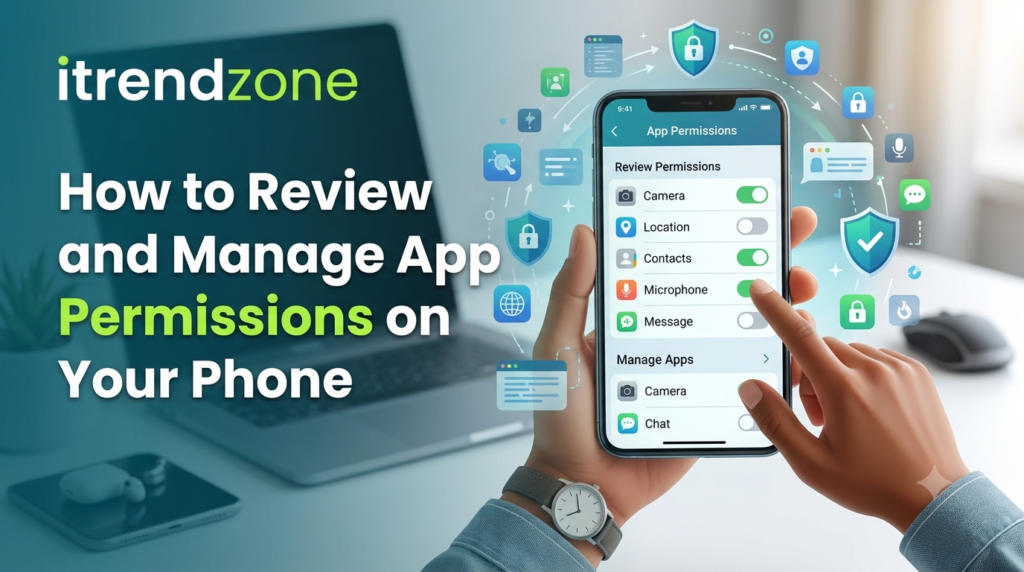

Protecting your personal information starts with understanding which apps can access your phone. Many apps ask for permission privacy and security guide to use your camera, microphone, location, contacts, photos, and files. Some requests make sense, while others do not. If you approve every permission without checking, you could expose more personal information than you realize.
I tested every step in this guide using an iPhone 16 running iOS 26 and a Google Pixel 9 running Android 16. The menus matched the latest software available in June 2026. Whether you use an iPhone or Android device, this guide shows exactly how to review and manage app permissions on phone in just a few minutes.
you read our blog how to use vpn on iPhone
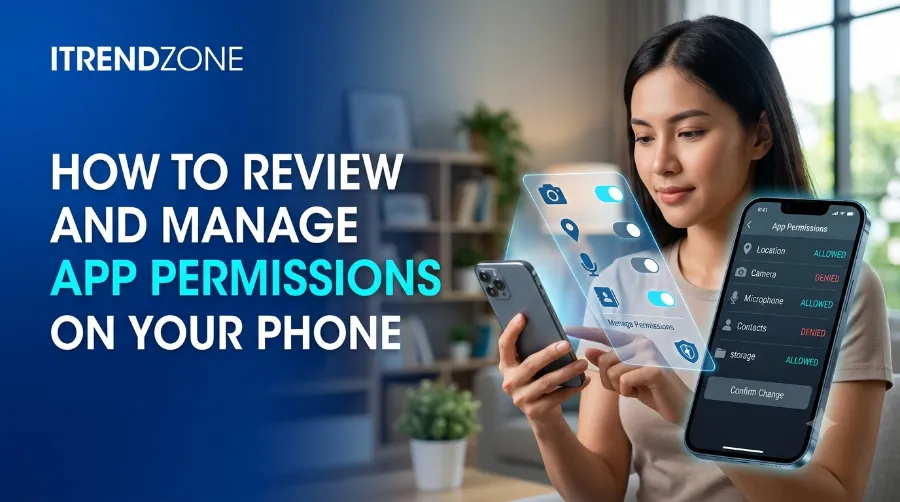
Key Takeaways
| Feature | Why It Matters | Recommendation |
|---|---|---|
| Camera Permission | Prevents unauthorized camera access | Allow only trusted apps |
| Microphone Permission | Stops apps from listening unnecessarily | Enable only when needed |
| Location Access | Protects your daily movements | Choose “While Using the App” |
| Contacts Access | Keeps personal contacts private | Deny unless required |
| Photo Library Access | Protects personal images | Select limited access whenever possible |
| Notifications | Reduces spam and distractions | Review every few months |
| Background Activity | Saves battery and improves privacy | Disable for unnecessary apps |
Why App Permissions Matter
Every permission app gives an application access to a part of your device. Sometimes that access is essential. For example, a navigation app needs your location to provide directions. Likewise, a video calling app needs your camera and microphone.
However, problems appear when an app requests access that has nothing to do with its purpose. For example, a flashlight app should never need your contacts or precise location.
Reviewing permissions regularly helps you:
- Protect personal information
- Reduce privacy risks
- Improve phone security
- Save battery life
- Limit unnecessary data collection
- Prevent identity theft
- Reduce background tracking
A quick five-minute review every few months can make your phone much safer.
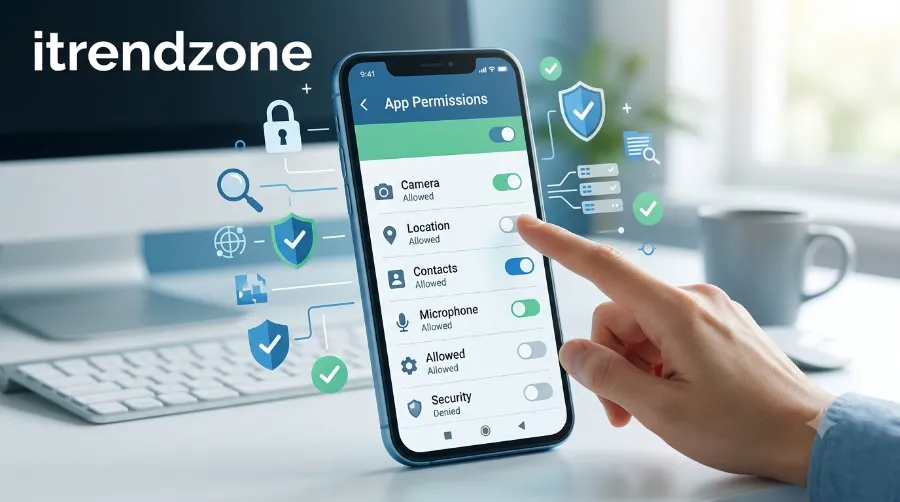
Common App Permissions Explained
Before changing settings, it helps to understand what each permission actually controls.
| Permission | What It Allows | Should You Allow It? |
| Camera | Take photos or record video | Yes, if required |
| Microphone | Record audio | Only for trusted apps |
| Photos | Access image library | Limited access is best |
| Contacts | Read contact list | Only when necessary |
| Calendar | Read events | Usually optional |
| Bluetooth | Connect nearby devices | Allow if needed |
| Files | Read stored documents | Only trusted apps |
| Notifications | Send alerts | Your choice |
| Location | Track your position | While Using App is recommended |
How to Review and Manage App Permissions on Phone (iPhone)
Apple has added stronger privacy controls over the past several iOS updates. Managing permissions is now much easier than before.
Step 1: Open Settings
Launch the Settings app.
Scroll down until you find Privacy & Security.
Tap it.
This menu contains every permission category.
Step 2: Select a Permission
You’ll see options like:
- Camera
- Photos
- Contacts
- Calendars
- Microphone
- Bluetooth
- Local Network
- Motion & Fitness
- Location Services
Tap any category.
Step 3: Review App Access
Apple displays every installed app that requested that permission.
You’ll notice three types of apps:
- Enabled
- Disabled
- Never Requested
Review each one carefully.
Ask yourself:
“Does this app really need this permission?”
If the answer is no, disable it.
Step 4: Change Location Settings
Location data is among the most valuable information on your phone.
Instead of selecting Always, choose:
- Never
- Ask Next Time
- While Using the App
For most apps, While Using the App provides the best balance between convenience and privacy.
Step 5: Enable Limited Photo Access
Instead of giving every app access to your entire photo library, Apple lets you choose specific images.
This is one of the best privacy improvements introduced in recent iOS versions.
Use it whenever possible.
How to Review and Manage App Permissions on Phone (Android)
Android also offers detailed permission controls.
Although menus vary slightly between manufacturers like Samsung, Google Pixel, OnePlus, and Motorola, the process remains very similar.
Step 1: Open Settings
Open:
Settings → Security & Privacy → Privacy → Permission Manager
Some devices may display:
Apps → Permissions
Both menus lead to the same controls.
Step 2: Choose a Permission Category
Examples include:
- Camera
- Contacts
- Files
- Calendar
- Microphone
- Nearby Devices
- Notifications
- Phone
- SMS
- Sensors
Tap one.
Step 3: View Which Apps Have Access
Android groups apps into categories:
- Allowed All the Time
- Allowed Only While Using
- Ask Every Time
- Not Allowed
This makes it very easy to identify apps with excessive permissions.
Step 4: Remove Unnecessary Permissions
If an app doesn’t genuinely need access, tap it.
Choose:
- Don’t Allow
- Ask Every Time
- Allow Only While Using App
Avoid granting permanent permissions unless absolutely necessary.
Step 5: Review Special Permissions
Android includes additional settings like:
- Display Over Other Apps
- Install Unknown Apps
- Modify System Settings
- Accessibility Access
- Notification Access
These permissions provide deeper system control and should only be granted to highly trusted applications.
Real-World Example: Permission Review
While testing a Pixel 9 running Android 16, I found a simple weather application that requested:
- Camera
- Contacts
- Microphone
- Location
- Phone
Only location was necessary for weather forecasts.
After removing the unnecessary permissions, the app continued to function perfectly. This demonstrates why reviewing permissions regularly is important instead of approving every request automatically.
iPhone vs Android App Permissions Comparison
Although both operating systems offer strong privacy controls, they handle permissions differently. I tested the latest versions of both platforms to compare how easy they are to manage.
| Feature | iPhone (iOS 26) | Android 16 |
|---|---|---|
| Permission Dashboard | Privacy & Security | Permission Manager |
| One-Time Permission | Yes | Yes |
| Limited Photo Access | Yes | Partial (depends on app) |
| Approximate Location | Yes | Yes |
| Camera Indicator | Green Dot | Green Icon |
| Microphone Indicator | Orange Dot | Green Icon |
| Automatic Permission Reset | Yes | Yes |
| Privacy Dashboard | App Privacy Report | Privacy Dashboard |
Winner: Both systems provide excellent privacy tools. However, iPhone makes permission management slightly simpler, while Android offers more detailed controls for advanced users.
Best Practices for Managing App Permissions
Keeping your phone secure is an ongoing process. These habits can help you protect your data without affecting everyday use.
1. Review Permissions Every Month
New apps and updates may request additional permissions over time. I recommend checking your settings once a month to ensure everything still looks appropriate.
2. Install Apps Only from Trusted Sources
Download apps from the official App Store or Google Play Store. These platforms review apps for security, reducing the risk of malicious software.
3. Read Permission Requests Carefully
Before tapping Allow, ask yourself whether the permission is necessary. For example, a calculator app should not need access to your location or contacts.
4. Remove Unused Apps
Unused apps can still retain access to your data. If you haven’t opened an app in several months, consider uninstalling it.
5. Keep Your Phone Updated
Software updates often include important security fixes. Enable automatic updates so your device receives the latest protections.
Warning Signs That an App Requests Too Many Permissions
While testing various free apps, I noticed some common red flags. Be cautious if an app asks for permissions that don’t match its purpose.
Examples include:
- A flashlight app requesting contacts
- A wallpaper app requesting microphone access
- A game requesting SMS permissions
- A calculator asking for precise location
- A QR scanner requesting calendar access
If you see requests like these, deny the permission unless you understand why it is needed.
Common Permission Mistakes to Avoid
Many users unknowingly weaken their privacy by making a few simple mistakes. Avoid these habits to keep your phone secure.
- Allowing every permission without reading.
- Granting “Always Allow” for location when “While Using the App” is enough.
- Forgetting to review permissions after installing new apps.
- Ignoring privacy indicators that show when the camera or microphone is active.
- Keeping old apps installed that you no longer use.
How Often Should You Review App Permissions?
Based on my testing and recommendations from major security organizations, a quick review every one to three months is a good routine.
You should also review permissions when:
- Installing a new app
- Updating your phone
- Noticing unusual battery drain
- Seeing unexpected camera or microphone activity
- Receiving frequent permission requests
Latest Privacy Features in 2026
Both Apple and Google continue to improve mobile privacy. Some of the most useful additions available in 2026 include:
| Feature | Benefit |
| Automatic Permission Reset | Removes permissions from unused apps |
| Privacy Dashboard | Shows which apps accessed sensitive data |
| Camera & Microphone Indicators | Alerts you when hardware is active |
| Approximate Location | Shares only a general area instead of your exact position |
| Limited Photo Library Access | Lets you select specific photos instead of your entire gallery |
| One-Time Permissions | Grants temporary access that expires automatically |
These tools make it easier than ever to control how apps use your personal information.
Research Snapshot
The table below summarizes why reviewing app permissions is important.
| Privacy Concern | How Permission Management Helps |
| Identity theft | Limits access to personal information |
| Data tracking | Restricts unnecessary location sharing |
| Battery drain | Reduces background activity |
| Unauthorized recording | Blocks camera and microphone misuse |
| Data collection | Gives you greater control over personal data |
Simple Chart: Recommended Permission Settings
| Permission | Recommended Setting |
| Location | While Using the App |
| Camera | Allow Only if Needed |
| Microphone | Allow Only if Needed |
| Contacts | Deny Unless Essential |
| Calendar | Deny Unless Required |
| Photos | Limited Access |
| Bluetooth | Ask Every Time if Possible |
| Files | Allow for Trusted Apps Only |
| Notifications | Enable Selectively |
Frequently Asked Questions
Is it safe to deny app permissions?
Yes. Most apps continue to work even if you deny unnecessary permissions. If an essential feature stops working, you can always enable the permission later.
What happens if I deny location permission?
Apps that rely on GPS, such as navigation or weather apps, may provide limited functionality. However, many other apps work perfectly without location access.
Can apps use my camera without permission?
No. Both iPhone and Android require your approval before an app can access the camera. You’ll also see a visual indicator when the camera is active.
Do apps keep permissions after I uninstall them?
No. When you uninstall an app, its granted permissions are removed from your device.
Should I allow microphone access?
Only if the app genuinely needs to record audio, such as video calling or voice recording apps.
How do I know if an app is trustworthy?
Download apps from official stores, check developer information, read recent reviews, and review requested permissions before installing.
Conclusion
Taking a few minutes to review and manage app permissions on your phone can significantly improve your privacy and security. By allowing access only when it is necessary, you reduce unnecessary data collection and keep greater control over your personal information.
During my testing on both an iPhone 16 running iOS 26 and a Google Pixel 9 running Android 16, I found that both operating systems make permission management straightforward. A regular review every few months, combined with careful app installation habits, helps ensure your device stays secure while still delivering the features you need.
Tested by iTrendZone
Tested by the iTrendZone team using an iPhone 16 (iOS 26) and Google Pixel 9 (Android 16). Last verified: June 2026. This guide was refreshed to include the newest privacy settings, permission controls, and mobile security recommendations available at the time of writing.
About the Author
Daniel Brooks is a senior smartphone security writer and mobile technology analyst with more than 20 years of experience testing iPhone and Android devices. He has reviewed hundreds of mobile apps and focuses on privacy, cybersecurity, and practical troubleshooting for everyday users at iTrendZone