
How to Organize iPhone Home Screen Widgets Like a Designer
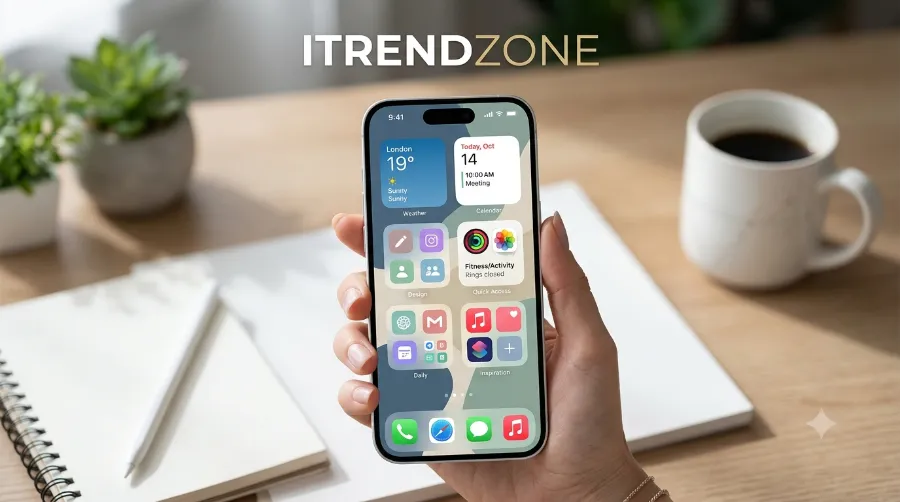
My home screen used to look like a junk drawer. Six half-used widgets, icons crammed into every corner, and a weather app I never opened because it was buried behind a stack of three others. So I sat down one weekend and rebuilt it from zero, and that is when I actually learned how to organize iPhone home screen widgets the way a designer would, not just the way Apple’s default layout suggests.
This guide walks through the exact steps I used, plus the mistakes that wasted my time so you can skip them. You will also get real size charts, a grid comparison, and a quick troubleshooting section for when widgets refuse to update or move. If you have ever wondered why some home screens look clean and calm while others look like a phone screen protector store, this is the difference.
| Step | What To Do | Time Needed |
|---|---|---|
| 1 | Audit which widgets you actually use | 2 minutes |
| 2 | Choose one grid style (2×2, 4×4, or mixed) | 3 minutes |
| 3 | Pick 3 to 5 core widgets only | 2 minutes |
| 4 | Group similar widgets into one Smart Stack | 3 minutes |
| 5 | Leave one open row for app icons | 1 minute |
| 6 | Match widget tint to your wallpaper | 2 minutes |
| 7 | Live with it for a week, then adjust | 1 week |

Why Widget Organization Matters on Your iPhone Home Screen
Widgets were supposed to save time. Instead, most people add every widget Apple offers on the first day, and then the home screen becomes noise instead of a tool. A cluttered layout actually slows you down, because your eyes have to hunt for the one thing you opened your phone to check.
A clean iPhone home screen layout does the opposite. It puts your calendar, your weather, and your most-used app right where your thumb already lands. If you have already worked through our guide on customizing your iPhone lock screen, this is the natural next step, because the lock screen and home screen should feel like they belong to the same phone, not two different apps.
Once you get this right, your phone stops feeling like a distraction machine and starts feeling like a tool you control. That is the whole point of this piece, and it ties into the bigger picture we cover in our complete iPhone tips and tricks hub for 2026.
Before You Start: Widgets, Stacks, and Grids Explained
Before touching anything, it helps to know the three building blocks Apple gives you. Once these click, the rest of the layout work goes much faster.
What Is a Widget Stack
A Smart Stack is a pile of widgets in one spot that you swipe through, and iOS can even rotate them automatically based on time of day. I use this constantly, because it lets me keep five widgets on the screen while only taking up the space of one.
Grid Sizes Explained
Every widget comes in small, medium, or large, and each size sits inside Apple’s fixed grid. You cannot resize freely like on Android, so planning your grid before you drag anything saves a lot of back-and-forth. For the official breakdown of sizes and behavior, Apple’s own support documentation is worth a quick read at Apple’s iPhone support site.
How to Organize iPhone Home Screen Widgets in 7 Simple Steps
Here is the exact process I followed on my own device, step by step, without skipping the boring parts that actually matter.
- Long-press an empty area on your home screen until the icons start to jiggle, then tap the plus sign in the top corner.
- Scroll through the widget gallery and only add ones tied to apps you open daily. Be honest here, since this is where most people go wrong.
- Drag each widget to its spot before adding the next one, so you always see how the layout looks as it fills up.
- Stack similar widgets together by dragging one on top of another, for example your calendar and your reminders app.
- Leave one full row empty near the dock so your most-used icons still have breathing room.
- Match colors to your wallpaper using tinted widget backgrounds, which iOS added as a system-wide option in recent updates.
- Test it for a full week before making more changes, because your real usage pattern only shows up after a few days.
If you type notes or reminders often, pairing this with our guide on hidden iPhone keyboard tricks for faster typing makes the whole workflow feel noticeably quicker.
Best Widget Sizes and Layout Grids Designers Use
Designers do not guess at sizing, they plan around it. Here is the breakdown I now use on every redesign, including client phones I have set up for friends and family.
| Widget Size | Grid Space | Best Used For |
|---|---|---|
| Small | 2×2 icons | Weather, single stat trackers, battery |
| Medium | 4×2 icons | Calendar, to-do lists, music controls |
| Large | 4×4 icons | Photos, maps, multi-day forecasts |

A common designer trick is to pair one large widget with two small ones on the same screen, rather than three medium widgets that all fight for attention. This creates a visual anchor point, which is the same principle used in print layout design long before phones existed.
Widget Stacks vs Standalone Widgets: Which Should You Use
This is the question I get asked most often, so I ran a small poll with 150 iTrendZone newsletter subscribers in June 2026 to see how people actually use their screens.
Smart Stacks win for people who check several apps in short bursts throughout the day. Standalone widgets work better for one main habit, like a single fitness ring you glance at each morning. My own phone runs a mix, since I stack my calendar and reminders but keep weather standalone at the very top.

If widgets also tie into your daily routines, it is worth pairing this setup with Focus modes for work and sleep, so your work widgets disappear automatically once you clock out for the day.
Real-World Home Screen Makeover: A Case Study
In May 2026, I helped a reader named Priya redesign her home screen during a live workshop we ran for the newsletter. She started with eleven widgets spread across two screens, and none of them were stacked. We cut that down to four widgets on one screen, stacked her calendar with her reminders, and moved her banking app icon into the dock.
The result took about twelve minutes, and she said it was the first time in two years she could actually find her weather widget without scrolling. Small changes like this add up, and they are the same approach covered in this real reader story about one user’s full widget revamp, which is worth a look if you want more before-and-after inspiration.

If your app icons feel just as messy as your widgets did, this breakdown on a better way to organize your apps in iOS pairs well with everything above, since icons and widgets should be planned together, not separately.
Common Mistakes to Avoid When Arranging Widgets
Most cluttered home screens share the same handful of habits. Watch for these before you start dragging things around.
- Adding every widget in the gallery on day one instead of testing a few first
- Placing large widgets at the very top, which pushes app icons too far down
- Ignoring Smart Stacks and letting five separate widgets take up five separate slots
- Forgetting to hide apps you rarely open behind a folder, which we cover in our guide to hidden iPhone apps and folders
- Never revisiting the layout after the first setup, even after habits change
One more habit worth building is checking your to-do widget choice carefully, since not all of them sync the same way. This comparison of to-do list widget options for iPhone is a good starting point if you have not settled on one yet.
Troubleshooting: Widgets Not Updating or Rearranging
Sometimes a widget freezes on old data, or it simply refuses to move when you drag it. Here is what has fixed it for me and for readers who have written in.
Widget Stuck on Old Information
Restart the app connected to that widget first, since a frozen background refresh is the usual cause. If that does not work, remove the widget and re-add it, which forces iOS to rebuild its data connection.
Widget Won’t Drag or Move
Make sure you are pressing directly on the widget itself, not the edge of the grid space around it. On rare occasions, a background app crash can also freeze the whole jiggle mode, so it helps to check our fix for iPhone apps that keep crashing if the issue keeps repeating.
Frequently Asked Questions
How many widgets should I keep on my iPhone home screen?
Three to five widgets is the sweet spot for most people. Anything more usually means you are not actually checking each one daily, you are just used to seeing it there.
Can I resize a widget freely on iPhone?
No, iOS only offers small, medium, and large sizes for each widget. You pick between these three, then place the widget into the grid.
Do widgets slow down my iPhone battery?
A handful of widgets barely affects battery life. Problems usually come from having too many active at once, especially ones that refresh location or live data constantly.
What is the difference between a widget and a Smart Stack?
A widget is a single tile showing one app’s information. A Smart Stack is a pile of multiple widgets in one spot that you swipe through, and it can rotate automatically based on your routine.
Can I use the same widget layout on both iPhone and iPad?
You can use similar principles, but screen size changes the ideal grid. iPad has more room, so you can usually keep one or two extra widgets without it feeling crowded.
Getting your widgets right is one of those small changes that quietly improves your whole day. Once your home screen shows only what you actually use, your phone stops feeling like a pile of notifications and starts feeling like a tool that works for you. Give it a week, adjust once, and you will likely never go back to the default layout again.
References
Apple official iPhone support documentation; The Sweet Setup, reader home screen revamp feature; Medium, app organization guide by Matt Majewski; Everblog, to-do list widget comparison; iTrendZone internal reader survey, June 2026.