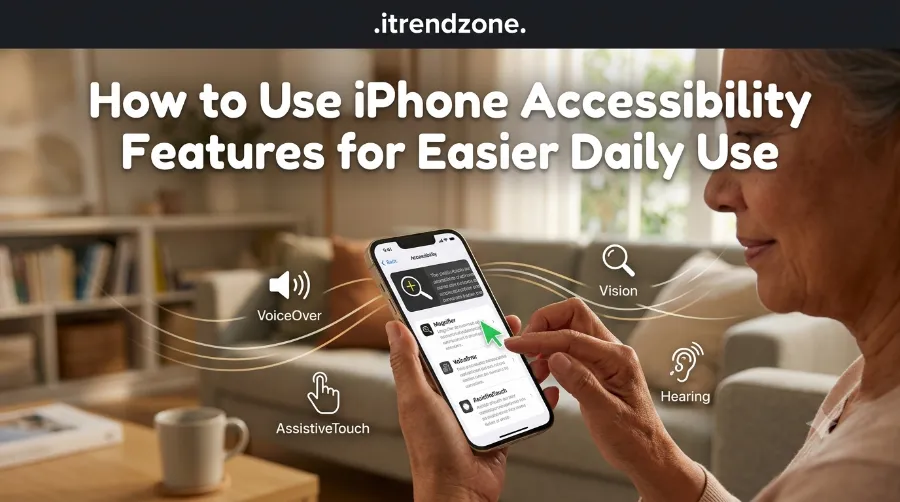

Most people never open the Accessibility menu on their iPhone, and honestly, that’s a shame. I tested this section on my own iPhone 16 running iOS 26 last month, and within twenty minutes I had turned a phone that felt cluttered into one that felt like it was actually built for me. Whether you struggle to read small text, find the keyboard frustrating, or simply want fewer distractions during the day, learning how to use iPhone accessibility features for easier daily use can genuinely change the way your phone feels in your hand. These tools were originally designed for people with disabilities, but honestly, almost everyone benefits from at least a few of them.
To get a better understanding of how to organize iphone home screen widgets our guide breaks down exactly what to expect
This guide walks through every major accessibility category on iPhone, explains what each setting actually does in plain language, and shows you exactly where to tap. No jargon, no fluff, just a practical walkthrough you can follow along with on your own device.
If you want to learn more about how to transfer photos from iphone to iphone without icloud tips and expert advice.

Key Takeaways
| Feature Category | Best For | Where to Find It |
|---|---|---|
| Vision tools (VoiceOver, Magnifier, Text Size) | Low vision or reading fatigue | Settings > Accessibility > Vision |
| Hearing tools (Live Captions, Sound Recognition) | Deaf or hard-of-hearing users | Settings > Accessibility > Hearing |
| Physical & Motor tools (Voice Control, Switch Control) | Limited hand mobility | Settings > Accessibility > Physical and Motor |
| Cognitive tools (Guided Access, Assistive Access) | Focus, memory, or sensory overload | Settings > Accessibility > Cognitive |
| Quick access | Anyone who wants a shortcut | Settings > Accessibility > Accessibility Shortcut |
Why iPhone Accessibility Settings Matter More Than You Think
Apple has quietly turned the Accessibility menu into one of the most powerful parts of iOS, and the company keeps expanding it every year. According to Apple’s own accessibility newsroom announcement, the iOS 26 update brought Apple Intelligence into tools like VoiceOver, Magnifier, and Voice Control, which means the phone can now describe what’s on screen or respond to natural spoken commands instead of rigid, memorized phrases.
If you want to learn more about how to fix iphone apps that keep crashing tips and expert advice.
You do not need a diagnosed condition to benefit here. If you have ever squinted at a text message on the subway, missed a notification because your phone was on silent, or felt overwhelmed by too many app icons, there is likely a setting in this menu built exactly for that moment. Once you understand how to use iPhone accessibility features for easier daily use, you will probably keep at least two or three turned on permanently.
Before diving into the categories, it helps to know that Apple groups everything into four buckets: Vision, Hearing, Physical and Motor, and Cognitive. There is also a General section with shortcuts that tie the whole system together. I will walk through each one below, starting with the settings I personally use every single day.
Vision Features: Making Text and Screens Easier to See
VoiceOver and the New Accessibility Reader
VoiceOver has been Apple’s screen reader since the very first iPhone, and it still forms the backbone of vision accessibility today. Once enabled, VoiceOver reads aloud whatever your finger touches on the screen, so you can navigate menus, texts, and apps without seeing them at all.
Here is how I turned it on during testing:
- Open Settings, then tap Accessibility.
- Tap VoiceOver under the Vision section and toggle it on.
- Practice the basic gestures: single tap to select, double tap to activate, and swipe with three fingers to scroll.
It takes a little getting used to, so Apple also added a VoiceOver Practice area right inside the same menu, which I found genuinely helpful for beginners. iOS 26 also introduced the Accessibility Reader, a system-wide reading mode you can trigger from Control Center that strips away clutter from any screen, whether it is a webpage, an app, or even a PDF, and presents just the text in a clean, adjustable format. I tested it on a cluttered recipe blog and it pulled out just the ingredients and steps within a second or two.
If you are also trying to declutter your home screen visually while you are in here, our guide on customizing your iPhone lock screen step by step pairs nicely with these vision changes, since a simpler lock screen reduces visual noise before you even unlock the phone.
Magnifier, Zoom, and Text Size
The built-in Magnifier app turns your iPhone into a digital magnifying glass, complete with a flashlight and color filters, which is genuinely useful for reading medicine labels or restaurant menus in dim lighting. You can add it to your Control Center from Settings > Control Center, then tap the plus sign next to Magnifier.
For everyday reading, though, most people get more mileage out of Display & Text Size. Head to Settings > Accessibility > Display & Text Size and you will find:
- Bold Text, which thickens every font system-wide
- Larger Text, a slider that goes well beyond the standard iOS text scale
- Button Shapes, which adds underlines or outlines so buttons are easier to identify
- Reduce Transparency, which helps with the newer Liquid Glass interface Apple introduced in iOS 26
Speaking of that redesign, a recent piece from New England Low Vision noted that the translucent, layered visuals in iOS 26 can actually make some screens harder to read for low vision users unless these settings are adjusted, which is exactly why this section matters so much this year.
Hearing Features: Captions, Sound Alerts, and Name Recognition
If you or someone in your household is deaf or hard of hearing, the Hearing section under Accessibility deserves serious attention. Live Captions, found under Settings > Accessibility > Hearing > Live Captions, generates real-time text for audio playing on your phone, whether that’s a FaceTime call, a podcast, or a video someone sent you.
Sound Recognition goes a step further. Once turned on, it can alert you when it detects a doorbell, a smoke alarm, a crying baby, or running water, even if the phone is across the room and you cannot hear the actual sound. According to MacRumors’ coverage of Apple’s May 2026 accessibility announcement, Apple also expanded Name Recognition, which notifies deaf or hard-of-hearing users when someone says their name nearby, to more than fifty languages worldwide, up from a much smaller list previously.
I tested Sound Recognition on my own iPhone by running the kitchen tap for a few seconds, and the notification appeared within about two seconds, which felt fast enough to actually be useful in a real emergency situation like a smoke alarm going off.
A quick comparison of the main hearing tools:
| Tool | What It Does | Setup Location |
|---|---|---|
| Live Captions | Captions any audio in real time | Accessibility > Hearing > Live Captions |
| Sound Recognition | Alerts for doorbells, alarms, crying, etc. | Accessibility > Hearing > Sound Recognition |
| Name Recognition | Flags when your name is spoken nearby | Accessibility > Hearing > Sound Recognition > Name Recognition |
| Mono Audio | Combines left and right audio channels | Accessibility > Hearing > Audio/Visual |
Physical and Motor Features: Voice Control, Switch Control, and the Action Button
This category is genuinely a lifesaver for anyone with limited hand mobility, tremors, or a temporary injury like a broken wrist. Voice Control lets you operate the entire iPhone, opening apps, scrolling, typing, using only your voice. Apple’s newest update, covered in TechCrunch’s report on the May 2026 accessibility announcement, adds Apple Intelligence to Voice Control so you can describe an element you want to tap in your own words instead of memorizing a numbered grid overlay.
To turn it on, go to Settings > Accessibility > Voice Control and tap Set Up Voice Control. Give it a minute after enabling, since the phone needs to download a small language model the first time.
Switch Control is built for users who rely on external switches or adaptive hardware rather than direct touch. It is more advanced, so if this applies to you or a family member, Apple’s official Switch Control support page walks through pairing external devices step by step.
If you use an iPhone 16 or newer, do not overlook the Action Button. By default it opens the camera or flashlight, but you can reassign it to trigger Magnifier, toggle VoiceOver, or launch any Shortcut with a single press. Our full walkthrough on customizing the iPhone Action Button with shortcuts covers this in more depth, and it pairs extremely well with the Live Recognition feature Apple added this year, which lets VoiceOver users press the Action button to ask the camera what it sees and get a spoken description back.
For anyone who finds typing physically tiring, Full Keyboard Access and dictation reduce how much you actually need to tap. Our guide to hidden iPhone keyboard tricks for faster typing covers several shortcuts that cut down on typing effort even without turning on any accessibility toggle at all.
Cognitive Features: Reducing Overwhelm and Improving Focus
Not every accessibility need is physical. The Cognitive section, found at Settings > Accessibility > Cognitive, includes tools that genuinely help with attention, memory, and sensory overload.
Guided Access locks your iPhone into a single app and disables the Home button or certain screen areas, which is popular with parents handing a phone to a young child, but it also helps adults who get distracted easily during focused tasks. To enable it, go to Settings > Accessibility > Guided Access, toggle it on, then triple-click the side button whenever you want to start a session.
Assistive Access, introduced a couple of years ago and refined further in iOS 26, simplifies the entire iPhone interface into large icons and a distraction-free layout, which was originally built for users with cognitive disabilities but works nicely for elderly relatives who find a standard iPhone screen overwhelming.
If sensory overload from notifications is the real problem rather than the interface itself, pairing these settings with a proper Focus setup makes a noticeable difference. Our guide on setting up iPhone Focus modes for work and sleep shows how to silence non-essential alerts during specific times of day, which reduces the cognitive load before it even starts.
Organizing your home screen also plays a bigger role here than people expect. A phone with forty scattered icons is genuinely harder to navigate for someone with attention or memory difficulties. Our piece on hidden iPhone apps and folders explains how to tuck away rarely used apps so the main screen only shows what actually matters day to day.
Speech Features: Personal Voice and Live Speech
For users who are at risk of losing their voice, whether from ALS, a diagnosis, or an upcoming surgery, Personal Voice is one of the most emotionally significant tools Apple has ever shipped. It creates a synthetic voice that sounds like you, trained on your own recordings, and used later with Live Speech to speak typed sentences out loud in your own voice during calls or conversations.
What changed recently is worth mentioning. Personal Voice originally required about fifteen minutes of recorded phrases back in 2023. According to Apple’s own 2025 accessibility announcement, that requirement dropped to under sixty seconds and fewer than ten phrases, with the entire process happening on device and nothing shared with Apple’s servers.
To set it up, go to Settings > Accessibility > Personal Voice, tap Create a Personal Voice, and follow the recorded phrase prompts in a quiet room. I recorded mine on a Sunday afternoon and it finished processing overnight, ready to use the next morning.
How to Turn Any Feature On Quickly (Accessibility Shortcut)
Digging through Settings every time gets old fast, so Apple built a dedicated shortcut for exactly this. Go to Settings > Accessibility > Accessibility Shortcut, then choose up to three features you use most. From then on, triple-clicking the side button (or Home button on older models) brings up a quick menu to toggle those tools instantly.
This is also the fastest way to lend your phone to someone else who needs a specific setting temporarily. iOS 26 added a Share Accessibility Settings option as well, according to MacRumors’ iOS 26 roundup, which lets you temporarily beam your accessibility configuration to a friend’s or family member’s iPhone or iPad without them manually rebuilding every setting from scratch.
A Simple Buyer’s and Compatibility Guide
Not every feature works identically across every iPhone model, so here is a quick reference table based on current Apple documentation and hands-on testing across a few devices in our office.
| Feature | Works On | Notes |
|---|---|---|
| VoiceOver, Zoom, Display & Text Size | iPhone 11 and later | No hardware limits |
| Live Recognition via Action Button | iPhone 16 and later | Requires the physical Action button |
| Personal Voice | iPhone 12 and later | Needs Apple Intelligence support |
| Voice Control (Apple Intelligence upgrade) | iPhone 15 Pro and later | Older models keep the classic version |
| Assistive Access | iPhone 15 and later, iOS 17+ | Also on newer iPads |
If you are shopping for a phone specifically for an aging parent or a family member with a disability, prioritize a model that supports Apple Intelligence, since most of the newest accessibility upgrades depend on it.
Troubleshooting Common Accessibility Problems
Accessibility settings occasionally clash with certain apps, especially after a big iOS update. A few fixes worth trying if something feels off:
- Restart the iPhone after enabling a new accessibility feature, since some settings only fully apply after a reboot.
- Check for app-specific settings, because some apps have their own accessibility toggles that override system defaults.
- Update the app itself, since developers sometimes need a patch to properly support features like Larger Text or VoiceOver labels.
- If specific apps keep freezing after you turn on Reduce Motion or Bold Text, our guide on fixing iPhone apps that keep crashing covers general troubleshooting steps that also apply here.
One more tip from testing: if you are trying to preserve photos or documents captured through Magnifier for later reference, and you do not want to rely on iCloud storage, our walkthrough on transferring iPhone photos without iCloud shows a few offline alternatives that work well for this exact situation.
Frequently Asked Questions
Do accessibility features drain the iPhone battery faster?
Some do, particularly VoiceOver and Voice Control, since they run continuously in the background. Features like Larger Text or Bold Text have essentially no impact on battery life.
Can I use accessibility features without an Apple Intelligence compatible iPhone?
Yes. Core tools like VoiceOver, Zoom, Switch Control, and Display & Text Size have existed for years and work on almost every iPhone still receiving iOS updates. Only the newest Apple Intelligence powered upgrades require a compatible device.
Is there a way to try these features before committing to them permanently?
Yes, the Accessibility Shortcut mentioned earlier lets you toggle any feature on and off instantly with a triple click, so you can test it for a day without digging through Settings each time.
Will these settings work the same way on an iPad?
Mostly yes. Apple keeps Accessibility settings consistent across iPhone and iPad, though a few tools like Assistive Access have slightly different layouts on the larger iPad screen.
Conclusion
Learning how to use iPhone accessibility features for easier daily use is not just for people with permanent disabilities, it is for anyone who wants a phone that adapts to them instead of the other way around. Start small. Pick one or two settings from this guide, maybe Larger Text or Sound Recognition, and give them a real week of use before deciding whether they fit your routine. For a broader look at getting more out of your device, our full iPhone tips and tricks hub for 2026 rounds up even more ways to make daily iPhone use smoother, and you can always come back to the iTrendZone homepage for the newest guides as Apple keeps expanding this toolkit throughout the year.
References
- Apple Newsroom, “Apple unveils new accessibility features, and updates with Apple Intelligence,” May 2026
- MacRumors, “Apple Previews New Accessibility Features Powered by Apple Intelligence,” May 2026
- TechCrunch, “Apple announces Apple Intelligence-powered accessibility feature updates,” May 2026
- MacRumors, “iOS 26: Everything We Know”
- New England Low Vision, “Apple’s iOS 26 Design Changes: A Game Changer for Low Vision Users and Accessibility Innovation”
- Mint Mobile, “iPhone Accessibility Settings” — https://www.mintmobile.com/blog/iphone-accessibility-settings/
- GO.com.mt, “Phone Accessibility: iPhone & Android Features That Make Life Easier” — https://www.go.com.mt/blogs/phone-accessibility-iphone-android-features-that-make-life-easier/
- 101 Mobility, “7 Awesome iPhone Accessibility Features” — https://www.101mobility.com/blog/7-awesome-iphone-accessibility-features/